How to fix
Keyboard Issue When it Types Numbers Instead of Letters
on Windows
Resolve keyboard issues where numbers replace letters in Windows 10 or 11 effortlessly. Get expert-tested solutions for a smooth typing experience!

What causes How to Fix Keyboard Issue When it Types Numbers Instead of Letters?
- Num Lock is activated
- External keyboard was previously used
- Confusion between laptop and external keyboard settings
- Constant Guard security tool may be causing issues
Repairs Windows system files, removes malware, and restores a clean OS state — without reinstalling.
Hello. I have a strange problem with my PC. I have a Dell laptop, which I have upgraded to Windows 10 long ago. No new updates have been installed recently. When NumLock is on, U, I, O, P, J, K, L, and M keys are typing numbers instead of letters. I have tried pressing the FN+num lock and FN+Shift+num lock and the problem still persists. Please help because this annoys me a lot!
Keyboard issues can make your PC unusable unless you have a spare keyboard or a technology shop near your house. Windows community knows well about Windows 10 cumulative update KB3194496,[ref en-3] which caused keyboard and mouse to stop working or malfunction in various ways, but that's not the only keyboard issue at the time.
These days, Windows 10 users are facing a strange problem related to the swapping of keys.[ref en-1] While the Num Lock key is on, certain keys that are supposed to type letters are typing numbers instead. Some specialists claim that this may happen if the PC owner has been using an external keyboard some time ago.
According to research, a big number of users have found the Keyboard Issue When it Types Numbers Instead of Letters very annoying and happening even randomly. For example, one Acer Aspire R has discovered this issue on his computer and claims that turning the tablet mode and off again helps for a while but then the keyboard starts typing numbers instead of letters again.[ref en-2]
As explained, the user might have turned off the num lock on the laptop but left it on the external keyboard. Therefore, when it was unplugged, this confrontation may result in the strange confusion of letters and numbers on the keyboard. In addition to that, there might be a Constant Guard, the Internet security tool, maybe the culprit of the problem. Thus, we will provide several fixes that may help you to fix Keyboard Issue When it Types Numbers Instead of Letters.
How to Fix Keyboard Issue When it Types Numbers Instead of Letters?
To start with, you should check if it’s the keyboard or the PC that’s the cause of the issue. For this purpose, you should try plug in another keyboard onto your PC. In case you are using a desktop PC, try your keyboard on another PC.
Method 1. Use the Windows on-screen keyboard to disable NumLock
- Hold the Win key and R button on your keyboard until a small run box shows up.
- Type osk and press the Enter key.
- You will be provided with an image of your keyboard.
- If you see NumLock in white, you have to Turn num lock off.
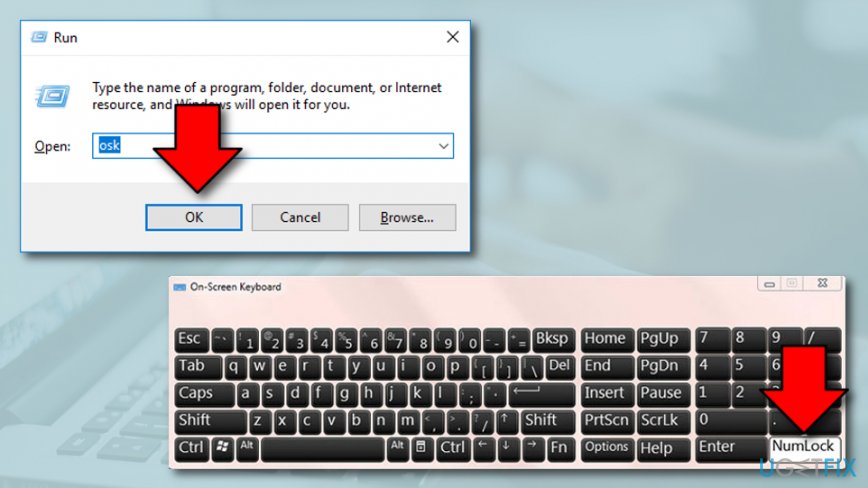
Launch windows on screen keyboard - If you do not see NumLock, continue with Options > Turn on numeric keypad > OK.
- When the NumLock appears, disable it.
Method 2. Use an external keyboard to turn off NumLock
If you have a laptop but you sometimes plug-in an additional keyboard for usage, the problem might be hiding here. Try turning off the NumLock option on the external keyboard and see if that helps:
- Before plugging in the additional keyboard, turn off NumLock on your keyboard.
- Then plug in an external keyboard.
- If the NumLock is on the external keyboard, turn it off.
- Check if NumLock is Off on both PC and external keyboard.
- Now unplug the keyboard and the problem should be solved.
Method 3. Update driver software
In case an external keyboard is not the culprit, you may try to update driver software:
- Right-click on the Win key and select Device Manager.
- Open Device Manager and find keyboard drivers.
- Click on the Keyboard option to expand the list.
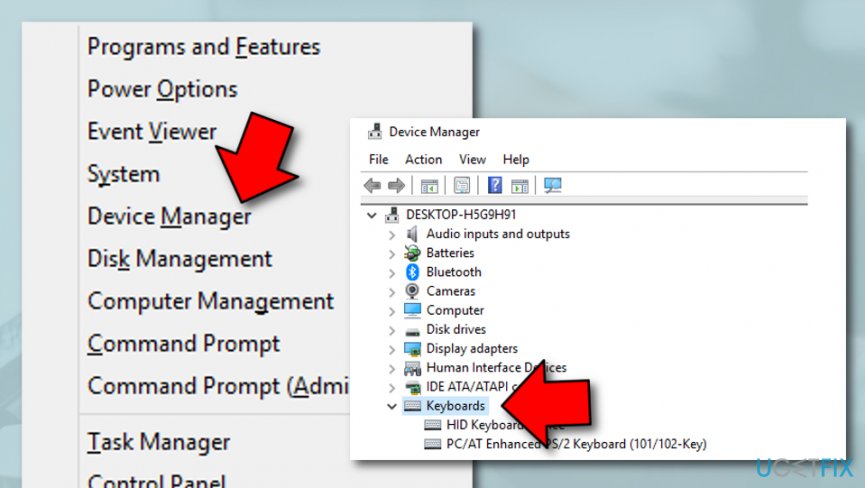
Update driver software - Click on the items one by one and select Update Driver Software.
Method 4. Try troubleshooting to identify the cause of the issue
Sometimes opting for the Troubleshoot function might help you to identify the problem. Try running the troubleshooter by completing the below-written procedure:
- Go to Windows search.
- Type "Settings".
- Click on Windows Settings and proceed with the Update & Security section.
- Afterward, find and select Troubleshoot.
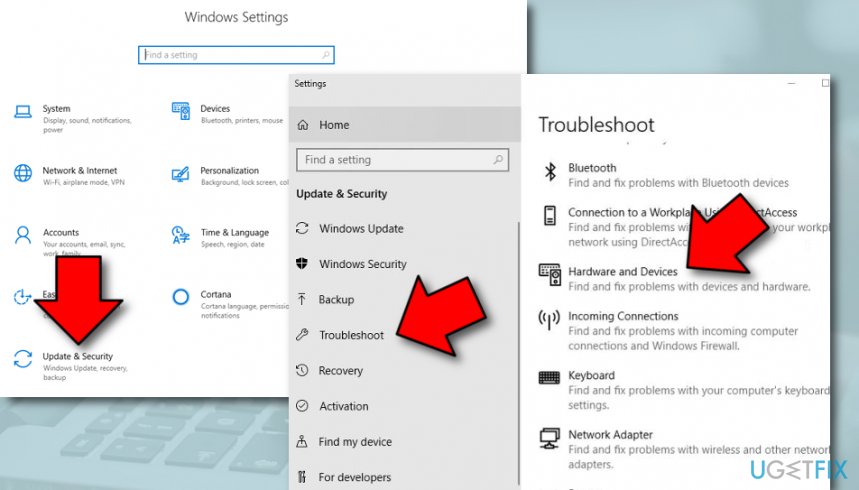
Run troubleshooter - Then, choose Hardware and Devices and opt for Run the troubleshooter (there also is a Keyboard troubleshoot you can run).
If none of the solutions helped you can try running an elevated Command Prompt. For this purpose, click Win key + R, type regedit, and press Enter. If that did not work, another recommendation would be to check the system for the Constant Guard tool. If you have it installed, then open the app and go to its options. Select configure my anti-Keylogging protection and Disable it.
Finally, when the keyboard stops typing the wrong symbols, run a scan with [d1] to perform a registry clean and a full system optimization. Nevertheless, if you cannot fix the issue with manual instructions, the same software might help you to identify the cause of Keyboard Issue When it Types Numbers Instead of Letters.
Bottom line
To resolve the keyboard issue, try toggling the Num Lock key, checking keyboard settings, and disabling any conflicting software like Constant Guard. If these solutions do not work, consider using an external keyboard or seeking professional help.
Frequently asked questions
This issue may occur if the Num Lock key is activated, causing the number pad to replace letter inputs. Check if Num Lock is on and toggle it off to restore normal typing functionality.
In Windows 11, ensure that the keyboard layout settings are correct and that the 'Ease of Access' features, like Sticky Keys, are not interfering with typing. You can adjust these settings in the Accessibility menu.
If the problem persists, try restarting your computer or updating your keyboard drivers through Device Manager to resolve any potential software conflicts.




Report an issue
What's wrong with this guide? We review every report and update or remove content.
Report received — thank you. We'll review and fix it.
You need a free account to submit a report.
Be the first to comment