How to fix
Keyboard keeps disconnecting
on Windows
Resolve keyboard disconnection issues on Windows 10 or 11 effortlessly. Follow our expert-tested guide for quick fixes and zero traces left.

What causes How to fix keyboard keeps disconnecting in Windows?
- Poor or damaged connection
- Low battery levels
- Outdated keyboard drivers
- Incompatible keyboard drivers
- Power management settings disabling the keyboard
Repairs Windows system files, removes malware, and restores a clean OS state — without reinstalling.
My keyboard keeps disconnecting and reconnecting. The intervals might vary - sometimes it's every 5 seconds, sometimes it's ok for 30 minutes. My keyboard has a USB port and comes from Logitech. Is my keyboard faulty?
While a working keyboard is crucial for functioning on Windows seamlessly, you might face a situation where your keyboard abruptly stops responding. This can ruin your productivity, slow you down, and lead to frustration. Knowing the various reasons that could make your keyboard repeatedly disconnect in Windows is key to troubleshooting and fixing it.
More commonly, the problem is attributed to hardware or software-related issues. The most typical reason is a poor or damaged connection, mainly for wired keyboards, if the USB port itself breaks down or gets damaged. Wireless keyboards may disconnect more often if the batteries are low or Bluetooth isn't working well.
Plus, outdated or incompatible keyboard drivers with new Windows versions can cause malfunctions. Additionally, Windows power management settings may enable the system to disable devices like keyboards if it deems them unnecessary.
To address frequent keyboard disconnections in Windows, first check physical connections or battery levels, depending on whether the keyboard is wired or wireless. Most hardware problems can be resolved by ensuring the USB port or Bluetooth connection is stable. On the software side, installing or updating keyboard drivers can help fix compatibility issues. Also, review the power management settings as Windows may be turning off your keyboard during idle periods.
Using the [d1] PC repair tool can automatically fix common Windows problems that could cause keyboard disconnection issues and ensure reliable performance.

Fix 1. Check the physical connection
A loose or faulty connection is a common reason for keyboards to disconnect, especially for wired devices. Ensuring that the USB cable or port is working properly can help resolve the issue.
- Unplug the keyboard from the USB port.
- Check for any visible damage to the cable or port.
- Reconnect the keyboard securely.
- Test in a different USB port if the problem persists.
Fix 2. Replace or recharge the batteries
For wireless keyboards, low battery levels can cause frequent disconnections. Ensuring the batteries are fully charged or replaced can restore stable functionality.
- Remove the existing batteries from the keyboard.
- Insert new batteries or fully recharge the device.
- Turn the keyboard back on and check for stability.
Fix 3. Update or reinstall keyboard drivers
Outdated or corrupted drivers can lead to compatibility issues and disconnections. Keeping the drivers up to date ensures the keyboard functions properly with Windows.
- Right-click on Start and choose Device Manager.
- Expand the Keyboards section.
- Right-click on your keyboard, then select Update driver.
- Choose Search automatically for drivers.
- Wait for Windows to install drivers for your device, and then reboot your PC.
- If updating doesn't work, choose Uninstall device and restart your computer.
- Use [rev id="DriverFix"] or use manual method to update drivers.

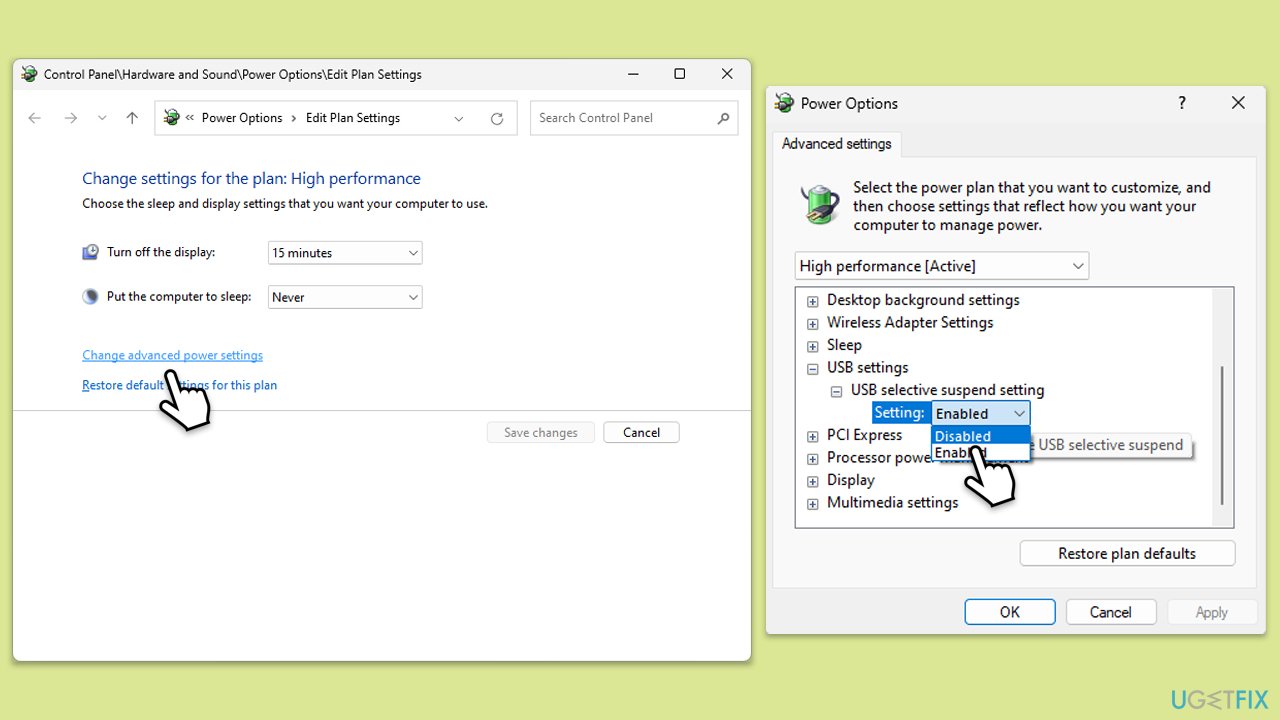
Fix 4. Disable USB selective suspend
Windows may disable certain devices to save power, which can cause keyboard disconnections. Disabling USB selective suspend can prevent this.
- Type power plan in the search bar and select Edit power plan.
- Click Change advanced power settings.
- Expand USB settings, then expand USB selective suspend setting.
- Set it to Disabled, and click Apply and OK.
Fix 5. Disable power management for USB hubs
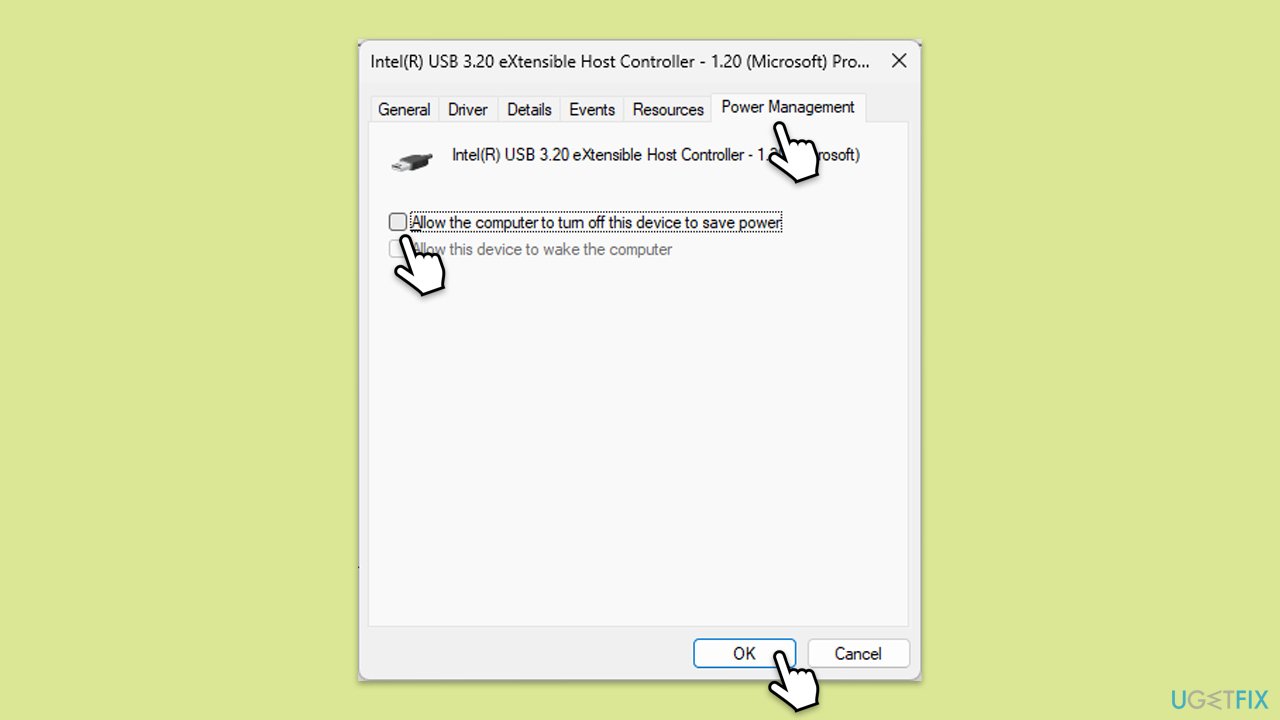
The operating system might turn off USB devices to conserve energy. Preventing this behavior for USB hubs can help with consistent keyboard performance.
- Open Device Manager.
- Scroll down and expand the Universal Serial Bus controllers section.
- Right-click each USB Root Hub and select Properties.
- Under the Power Management tab, uncheck Allow the computer to turn off this device to save power.
- Click OK.
Fix 6. Check Bluetooth connection (for wireless keyboards)
Unstable Bluetooth connections can cause wireless keyboards to disconnect. Verifying and improving the Bluetooth connection can resolve the issue.
- Open the Settings app and go to Devices.
- Select Bluetooth & other devices and ensure Bluetooth is turned on.
- Remove your keyboard from the list of connected devices, then reconnect it.
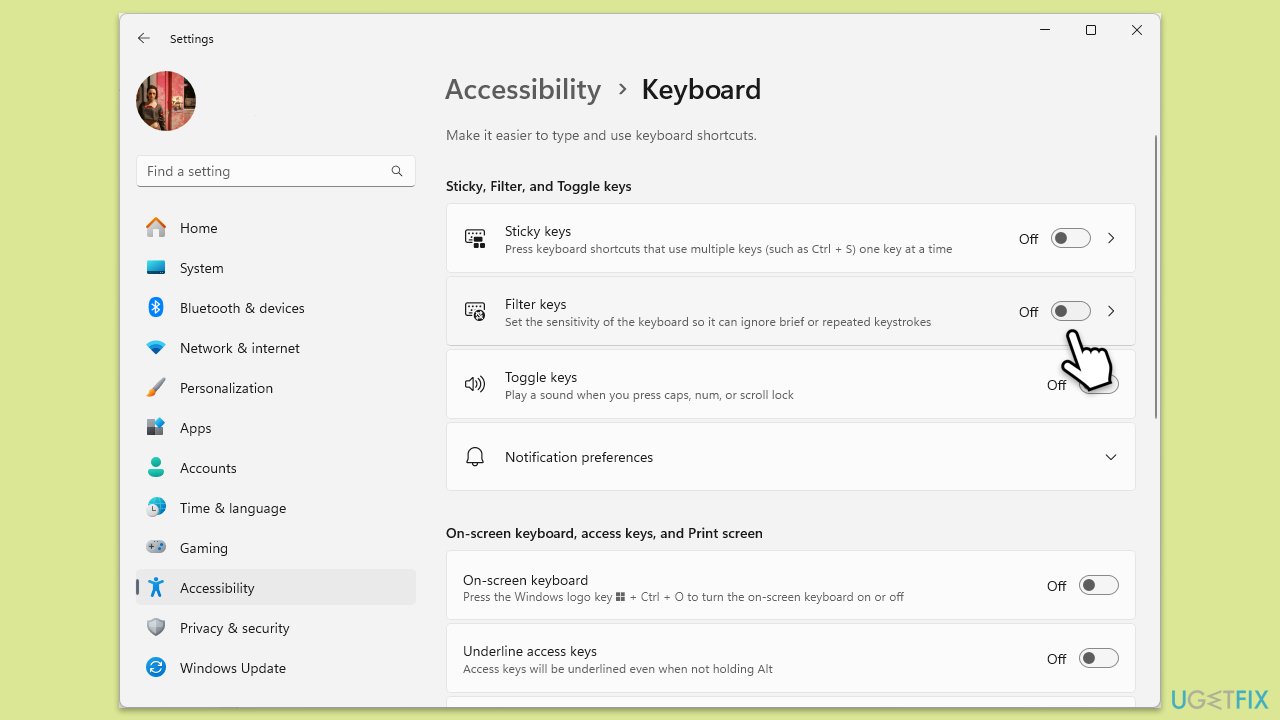
Fix 7. Disable Filter Keys
Filter Keys is a Windows feature that can interfere with keyboard input, potentially leading to disconnections or unresponsiveness. Disabling it may solve the issue.
- Open the Settings app and go to Ease of Access.
- Select Keyboard from the left-hand menu or simply check the right-side of the window.
- Scroll down to Filter Keys and turn the toggle switch off.
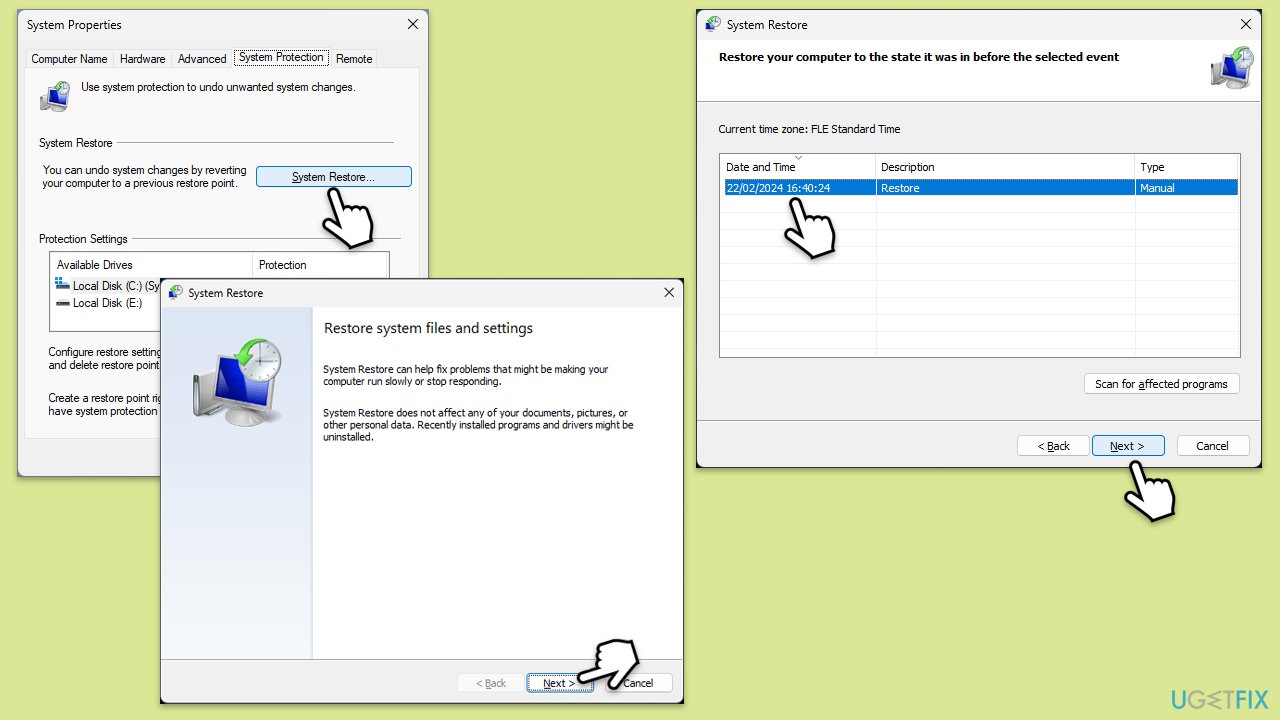
Fix 8. Perform a System Restore
Recent changes to your system can cause unexpected issues, including keyboard disconnections. Rolling back to a previous restore point can help resolve this.
- Type in Create a restore point in Windows search and hit Enter.
- Go to System Restore and click Next.
- Mark the Show more restore points option (if available).
- Pick the time when the problem did not exist and click Next.
- Finalize the process - your device will restart.
Bottom line
To fix the keyboard disconnection issue, check the physical connection and ensure the USB port or Bluetooth connection is stable. Additionally, replace or recharge the batteries if using a wireless keyboard, and update the keyboard drivers. If none of these solutions work, consider using a PC repair tool to address potential underlying Windows problems.
Frequently asked questions
First, check the battery levels of your wireless keyboard and replace them if necessary. If the issue persists, try reconnecting the keyboard through the Bluetooth settings in Windows 10.
Ensure that the keyboard is securely plugged into the USB port and try connecting it to a different port. If the problem continues, check for any driver updates or uninstall and reinstall the keyboard drivers in Device Manager.
Yes, software conflicts or outdated drivers can lead to disconnections; make sure all your drivers are up to date and consider disabling any third-party keyboard software.




Report an issue
What's wrong with this guide? We review every report and update or remove content.
Report received — thank you. We'll review and fix it.
You need a free account to submit a report.
Be the first to comment