How to fix
KMODE_EXCEPTION_NOT_HANDLED (cng.sys) BSOD
on Windows
Resolve the KMODE_EXCEPTION_NOT_HANDLED (cng.sys) BSOD on Windows 10 effortlessly with expert-tested solutions. Get back to smooth operation in minutes!


What causes How to Fix KMODE_EXCEPTION_NOT_HANDLED (cng.sys) BSOD on Windows 10?
- Conflict between Windows OS and Realtek driver
- Registry corruption
- Software incompatibilities
- Malware
- Temporary system failure
Repairs Windows system files, removes malware, and restores a clean OS state — without reinstalling.
Hello. I’m a new Windows 10 user and I’m already regretting that I’ve switched to this OS. I’ve upgraded from Windows 8 to 10 few days ago, but now I get a BSOD every time I start the system. The error says KMODE_EXCEPTION_NOT_HANDLED (cng.sys). Please help!
The Blue Screen of Death with the message KMODE_EXCEPTION_NOT_HANDLED (cng.sys) emerges on Windows 10 OS exceptionally. While it initially started to occur in 2015, some people still confront this lock screen.[ref en-1] According to some programmers, this BSOD is triggered by a conflict between Window OS and the Realtek driver. However, similarly to other blue screen errors, this one may also be caused by registry corruption, software compatibilities or malware.[ref en-2]
While analyzing people’s reports on Microsoft forum, we’ve found false claims that removal of cng.sys is the easiest solution. Do not use this recommendation because cng.sys is one of the critical Windows system files, meaning that it’s misplacement, removal or damage may cause further hardware and software incompatibilities. Consequently, the PC may crash without leaving you the ability to fix KMODE_EXCEPTION_NOT_HANDLED error without the help of professional technicians.
Nevertheless, in some of the cases, people managed to resolve the issue by simply forcing the system to shut down and then boot into Safe Mode. This may happen if the system has started malfunctioning due to temporary failure. If, however, the KMODE_EXCEPTION_NOT_HANDLED (cng.sys) error is triggered by driver failure, software incompatibility or damaged registries, you will need to fix the problem by performing the methods provided below.
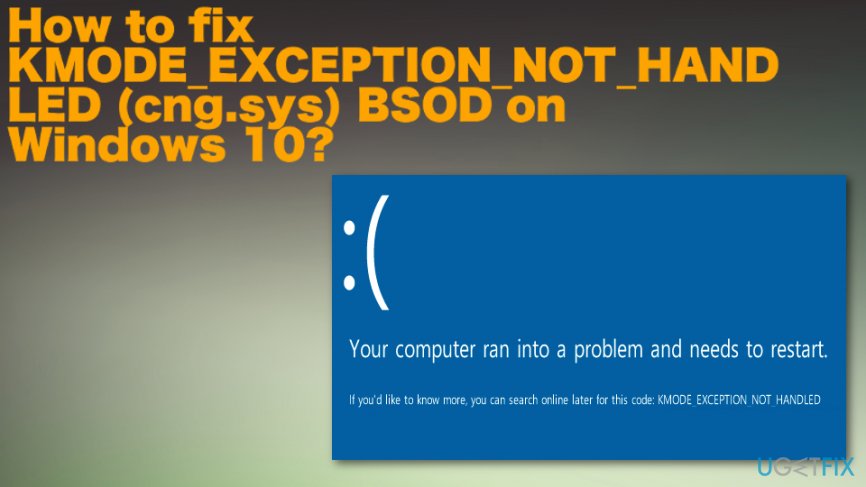
Typically, KMODE_EXCEPTION_NOT_HANDLED (cng.sys) BSOD occurs when starting the system after a shutdown or hibernate, but not restarting. The stop error freezes the screen and prevents the system from booting up normally while showing the following messages:
A problem has been detected and Windows has been shut down to prevent damage to your computer. The problem seems to be caused by the following file: Cng.sys.
:( Your PC ran into a problem and needs to restart. We’re just collecting some info, and then we’ll restart for you. If you would like to know more, you can search online later for this error: cng.sys.
STOP 0x0000000A: IRQL_NOT_LESS_EQUAL – cng.sys
Possible KMODE_EXCEPTION_NOT_HANDLED (cng.sys) BSOD fixes
Damaged, misplaced or corrupted Registry Entries is the number one problem, which triggers most of the errors that people encounter on Windows 10 OS. Also, it is possible that malware affected those registry entries and caused more issues in the background of your machine without showing other infection symptoms.[ref en-3] Therefore, the full scan of the system can help you to fix KMODE_EXCEPTION_NOT_HANDLED (cng.sys) BSOD error. install [d1] or another powerful PC optimization tool and run a full system scan with it.
Reinstall Realtek driver
- Right-click on Win key and select Device Manager.
- When the Device Manager window opens, expand Network controllers folder, right-click on Realtek driver and select Uninstall. If a confirmation window pops up, click OK to proceed. In some rare cases, users are required to enter Administrator password, so if you have received such permission, make sure that you type in the right password.
- After that, expand Sound, video, and game controllers and uninstall Realtek driver as well.
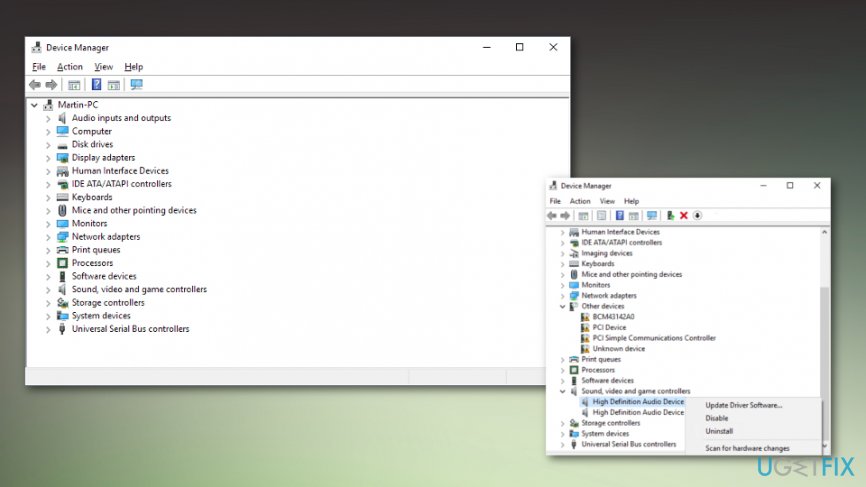
How to fix kmode exception not handled cng sys bsod on windows 10 drivers - Once the process is finished, restart your PC.
- Now you have to re-install the drivers that you have removed before. To do this, go to the Device Manager again.
- Click Action tab on the toolbar.
- Select Scan for Hardware Changes and let the system detect and install the missing driver automatically.
- If for some reason this process ends up with the failure, go to the manufacturer’s website and download the drivers manually.
Install all available Windows OS updates
- Click the Start button and type update in the search box
- When the Windows dialogue opens up, Check for them and Install Updates if there any new ones.
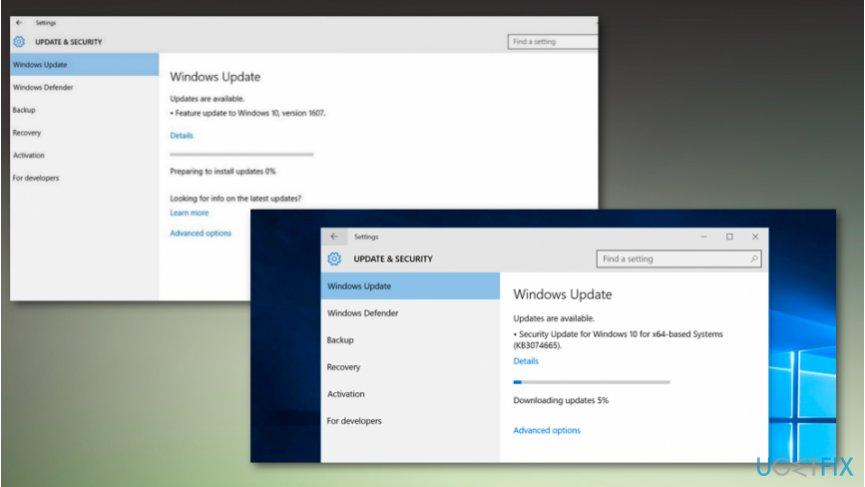
How to fix kmode exception not handled cng sys bsod on windows 10 windows update
Turn Off Fast Startup
Several people have approved that disabling Fast Startup has helped them to resolve the cng.sys bug. Therefore, if the previous methods did not help, then this one is worth trying:
- Right-click Win key and select Control Panel.
- Open Power Options and click Choose what the power buttons do on the left pane.
- Select Change settings that are currently unavailable under Define power buttons and turn on passwords.
- If UAC window opens, click Yes to proceed.
- Find Shutdown settings and uncheck Turn on fast startup box.
- Click Save changes and close the window you are currently in.
Rus System File and Hard Drive Curroption Checker command
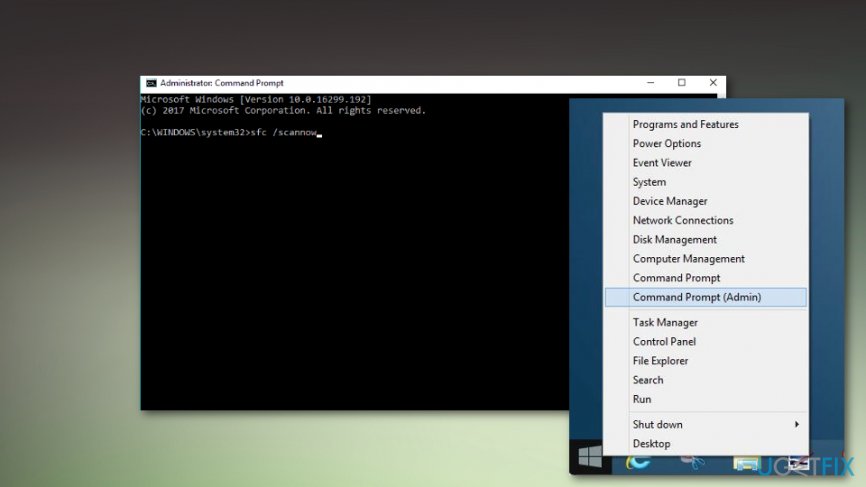
- Go to Command Prompt with administrative right and enter the following commands to run the needed processes and press Enter after each one:
sfc /scannow
chkdsk /f
Bottom line
To fix the KMODE_EXCEPTION_NOT_HANDLED (cng.sys) error, you can try forcing the system to shut down and booting into Safe Mode. If the issue persists, consider addressing driver failures, software incompatibilities, or damaged registries. If none of these methods work, seek help from professional technicians.
Frequently asked questions
This error is typically caused by faulty drivers, corrupted system files, or incompatible software. It can also occur due to hardware issues or memory problems.
You can resolve this issue by updating your device drivers, running the Windows Memory Diagnostic tool, or performing a System File Checker scan. Additionally, ensure that your Windows 10 is up to date with the latest patches.
To prevent this error in Windows 11, regularly update your drivers, perform system maintenance, and avoid installing unverified third-party software. Keeping your system updated can help reduce the risk of encountering such BSOD errors.




Report an issue
What's wrong with this guide? We review every report and update or remove content.
Report received — thank you. We'll review and fix it.
You need a free account to submit a report.
Be the first to comment