How to fix
Launcher.dll: LoadErrorNotPresent error in Minecraft
on Windows
Resolve the Launcher.dll: LoadErrorNotPresent error in Minecraft on Windows 10/11 quickly. Get back to gaming with expert-tested solutions!

What causes How to fix Launcher.dll: LoadErrorNotPresent error in Minecraft?
- Corruption in the Minecraft launcher
- Outdated version of Minecraft
- Issues with the launcher.dll file
- Problems with the Minecraft Runtime Environment
- Potential issues with the Windows operating system
Repairs Windows system files, removes malware, and restores a clean OS state — without reinstalling.
Hi. For at least a few days now, I can no longer play Minecraft due to the "Couldn't load launcher core from C:\Program Files (x86)\MinecraftLauncher\game\launcher.dll: LoadErrorNotPresent" error. It is also sometimes followed by "Unable to start the Minecraft Runtime Environment." Any advice on this would be appreciated.
Minecraft is a massively popular video game that appeals to players of all ages. Originally created in 2011, this sandbox game has amassed a player base of up to 126 million. Despite its enjoyable sandbox experience, Minecraft is not immune to issues, and the Launcher.dll: LoadErrorNotPresent error is one such problem.
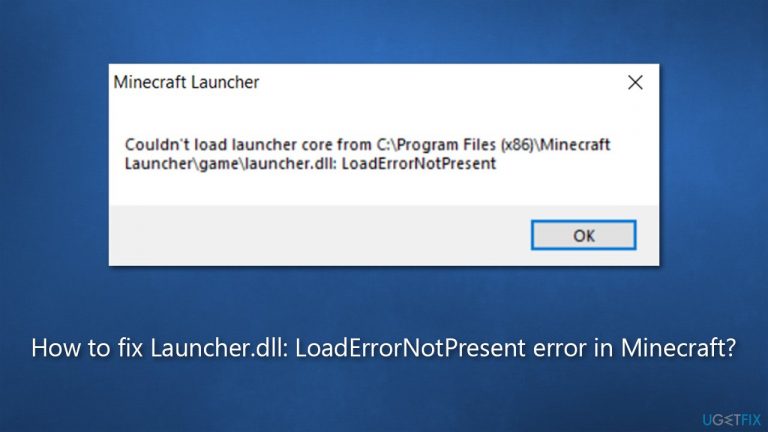
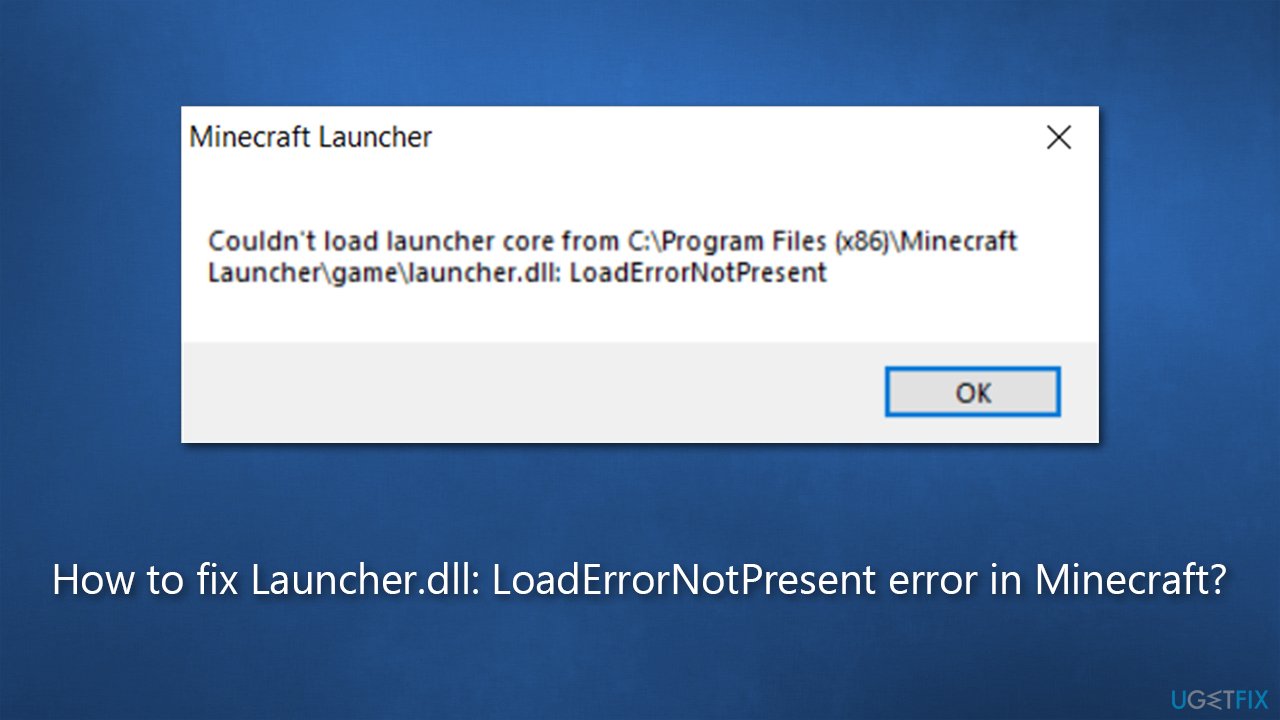
Players said that they were unable to launch the game because of the following error message:
Couldn't load launcher core from C:\Program Files (x86)\MinecraftLauncher\game\launcher.dll: LoadErrorNotPresent
In addition, users said that this error is often accompanied by the "Unable to start Minecraft Runtime Environment. This is most likely caused by a corruption. Please try to reinstall Minecraft" error as well. Both of these point to the issue with Minecraft, which prevents them from playing the game entirely.
Launcher.dll: LoadErrorNotPresent error is a result of issues with the Minecraft launcher - as stated in the message. Updating the game to the latest version or repairing the launcher can help resolve the situation. There are additional solutions that should also help you fix this error.
Before proceeding, we recommend running a scan with an automatic PC repair software [d1], which could remove potential issues with your Windows operating system.
Method 1. Update Minecraft
Microsoft pushes updates to Minecraft on a regular basis, so make sure you are running the latest version.
Java Edition
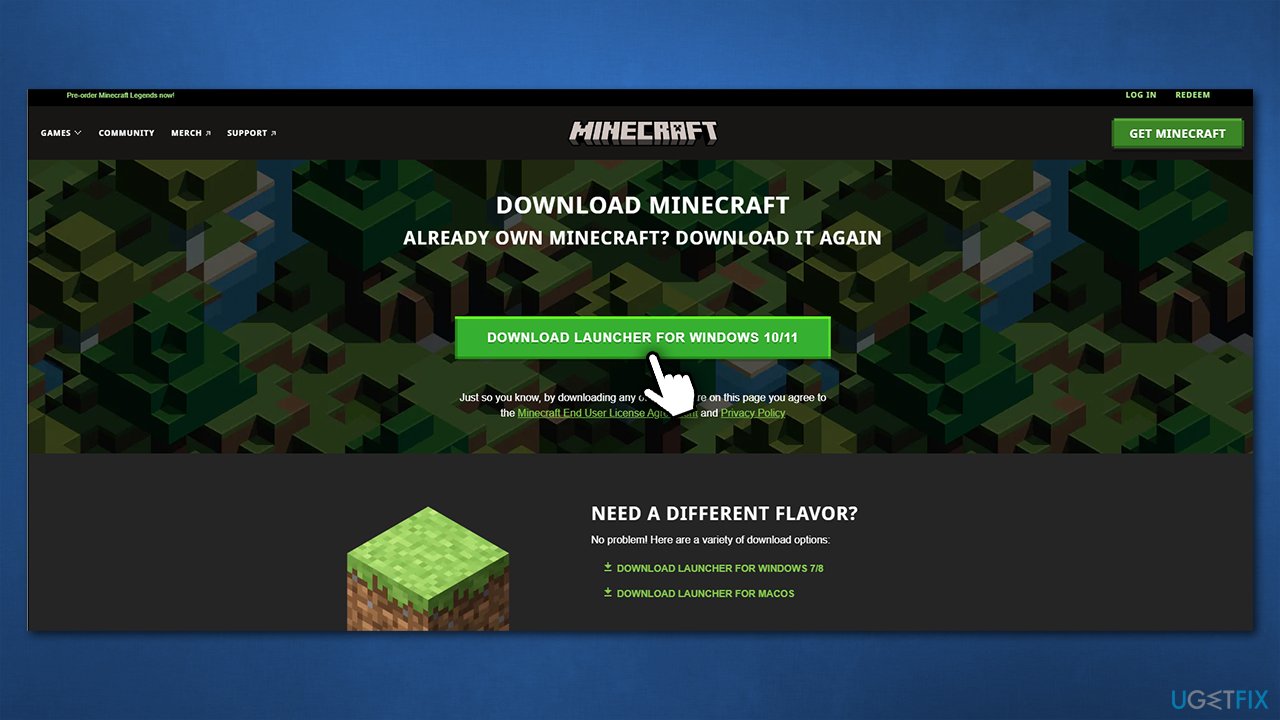
- Go to the official Minecraft website and download the installer.
- Launch the installer.
- If the latest update is not displayed by the launcher, click the arrow located to the right of the Play button and pick the latest version of the game.
- Install Minecraft by following the on-screen instructions.
Bedrock Edition
If you are running the Bedrock edition of Minecraft, the game should be updated automatically. If not, open Microsoft Store and update the Minecraft app in your Library.
Method 2. Run Windows Store apps troubleshooter
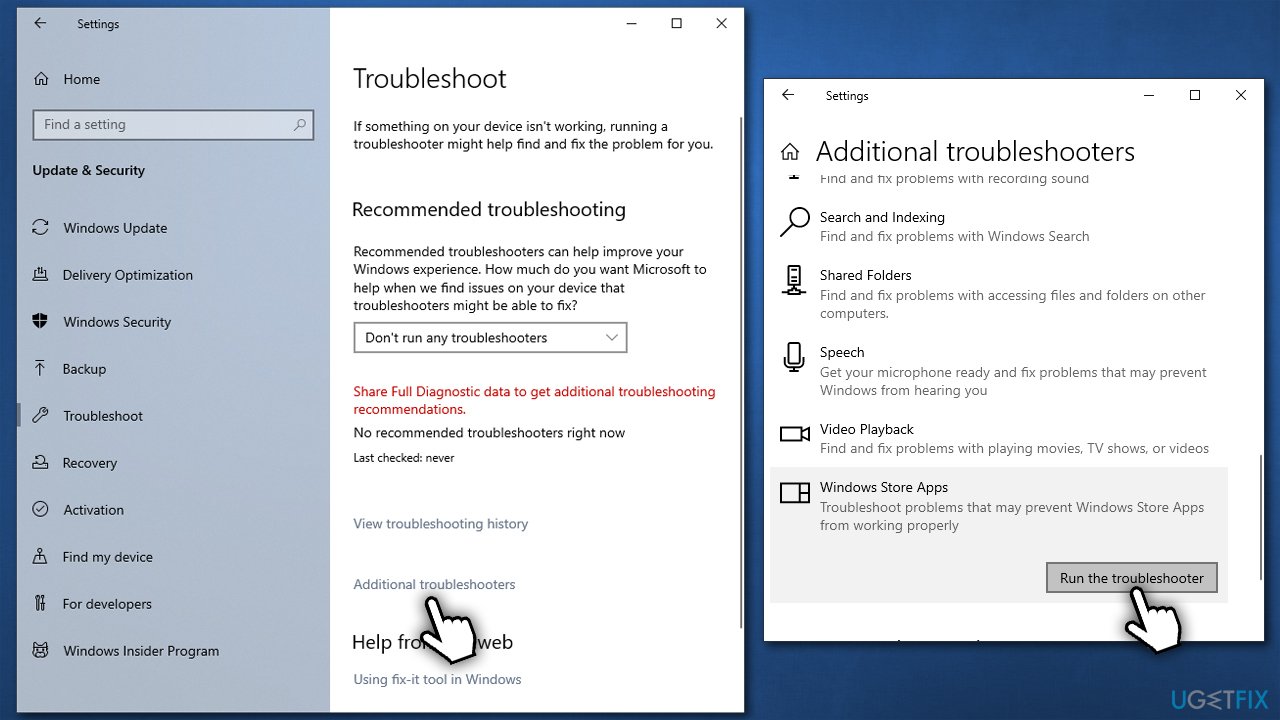
- Type troubleshoot in Windows search and press Enter.
- Click Additional troubleshooters/Other troubleshooters.
- Locate Windows Store Apps and click Run the troubleshooter/Run.
- Wait for the scan to finish and apply the fixes offered.
Method 3. Repair Minecraft installation
If you are using Windows 7 or 8, you should download the MSI launcher [direct download from Majong site] and select the Repair option.
In newer Windows versions, follow these steps:
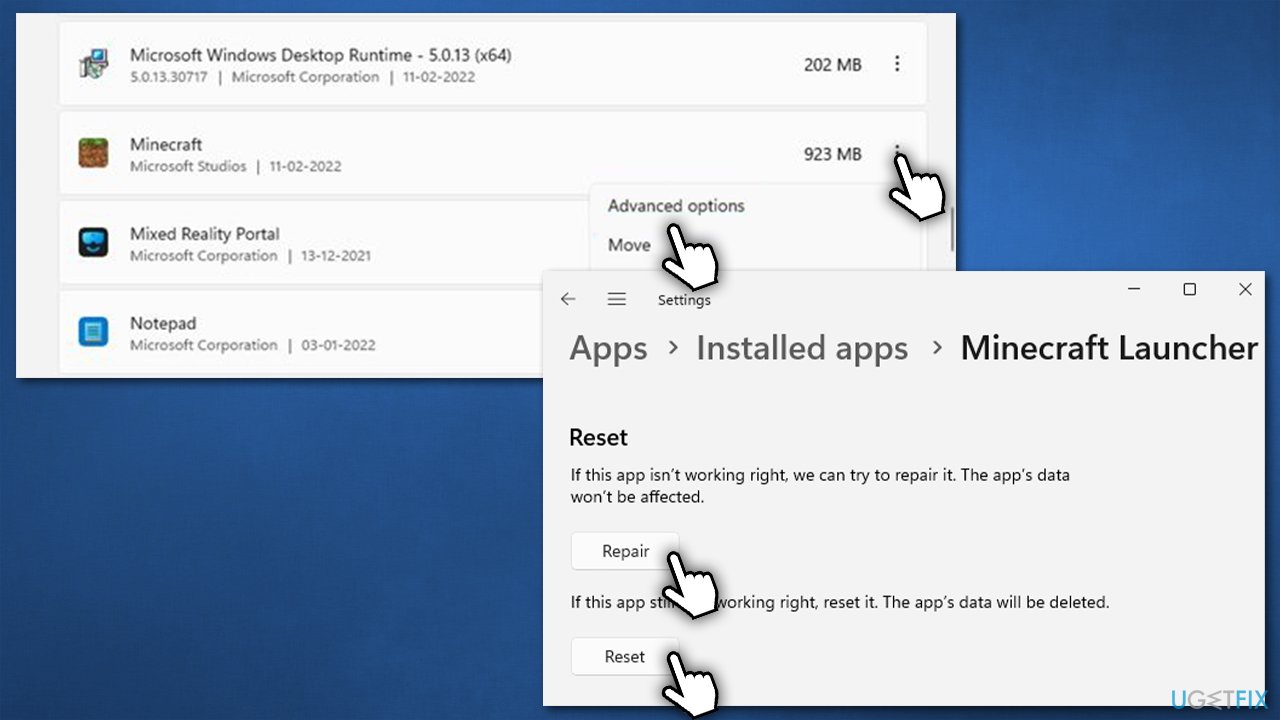
- Right-click on Start and pick Apps and Features.
- Scroll down to find the Minecraft installation.
- Click Advanced options (Win10) and More > App settings (Win11).
- Now, click Terminate, Repair, and Reset.
If this did not help, please perform the steps in the method below.
Method 4. Delete the ".version" file
This solution helped many users to fix the Launcher.dll: LoadErrorNotPresent error in Minecraft.
- Press Win + E to open File Explorer.
- Navigate to the following location:
C:\Users\USERNAME\AppData\Local\packages\microsoft.42XXX\localCache\Local\game - Here, select "launcher.dll" file, and press Delete on your keyboard.
- Wait a few moments, and press Ctrl + Z to restore the file.
- Finally, delete the ".version" file, and the launcher should work again.
Method 5. Check your internet connection
Some users said that they got the Launcher.dll: LoadErrorNotPresent error after their WiFi connection meddled up. For example, if you are using a laptop, you can connect to the internet by using a tethering feature on your phone and connect to the internet that way - if you have done so, please connect to the proper WiFi or the ethernet cable instead.
Likewise, if you are using VPN software, you remove the connection to the remote server and try with your regular, ISP-provided settings instead. Third-party anti-malware software can also sometimes cause connection disruptions, so you can temporarily disable it and see if that helps.
Finally, you can reset your internet connection components if you suspect it is not stable.
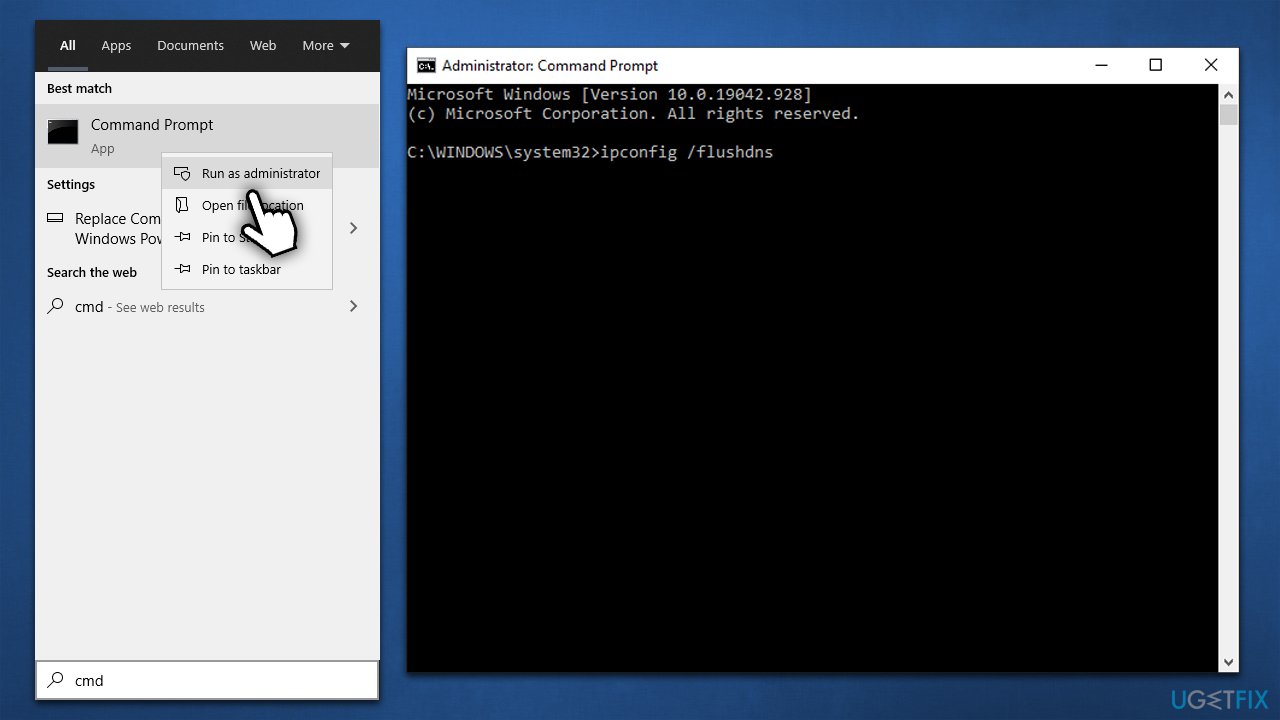
- Type cmd in Windows search and hit Enter.
- When User Account Control shows up, click Yes.
- Copy and paste each of the following commands, pressing Enter after each:
ipconfig /flushdns
ipconfig /registerdns
ipconfig /release
ipconfig /renew
netsh winsock reset - Close down Command Prompt and restart your PC.
Method 6. Reinstall Minecraft
- Right-click on Start and pick Apps and Features.
- Scroll down to find Minecraft.
- Select Uninstall and then click Uninstall again.
- Follow on-screen instructions to remove the game.
- Restart your PC.
- Visit the official website to re-download and re-install the game.
Bottom line
To fix the Launcher.dll: LoadErrorNotPresent error in Minecraft, you can update the game to the latest version or repair the launcher. If these solutions do not resolve the issue, consider running a scan with automatic PC repair software or reinstalling Minecraft.
Frequently asked questions
This error typically occurs due to missing or corrupted game files, often after an update or system changes in Windows 10.
You can repair the Launcher.dll file by verifying the integrity of game files through the Minecraft launcher or by reinstalling the game on Windows 11.
Yes, incorrect security settings or antivirus software blocking the game can lead to the Launcher.dll: LoadErrorNotPresent error in Minecraft on Windows 10.




Report an issue
What's wrong with this guide? We review every report and update or remove content.
Report received — thank you. We'll review and fix it.
You need a free account to submit a report.
Be the first to comment