How to fix
Legacy Boot grayed out
on Windows
Resolve the Legacy Boot option grayed out issue in Windows 10 and Windows 11 BIOS easily. Get expert-tested solutions for quick fixes today!


What causes How to fix Legacy Boot grayed out in Windows BIOS?
- Legacy Boot option is grayed out in BIOS settings
- Device can only boot from UEFI-compatible storage devices
- Legacy Boot is becoming less common in modern computers
- Secure Boot may be enabled
- CSM (Compatibility Support Module) is not enabled
Repairs Windows system files, removes malware, and restores a clean OS state — without reinstalling.
Hello. I tried to switch from UEFI to Legacy BIOS but the Legacy Boot option is grayed out in the BIOS settings on my Windows PC. Is there a way to change this?
Legacy Boot is a BIOS (Basic Input/Output System) feature that allows a computer to boot into an operating system from a non-UEFI (Unified Extensible Firmware Interface) storage device, such as a hard disk drive or a USB flash drive. Legacy Boot was commonly used on older computers with traditional BIOS firmware, but as UEFI firmware[ref en-1] became more common, Legacy Boot became less common.
If the Legacy Boot option in the BIOS is grayed out, the user is unable to enable it, and the device can only boot from UEFI-compatible storage devices. This can be a problem for users who need to boot from older devices or operating systems that are not UEFI-compatible.
One potential solution is to update the BIOS to a newer version, which may resolve the problem. Another option is to enable the BIOS CSM (Compatibility Support Module), which is designed to provide backward compatibility with older operating systems and hardware. Enabling CSM, on the other hand, may disable some UEFI features, such as Secure Boot.
It is important to note that Legacy Boot is becoming less common in modern computers and may be phased out entirely in the future. To avoid boot issues, users should ensure that their devices are compatible with the most recent operating systems and that their storage devices are UEFI-compatible.
In this guide, you will find 3 steps that should help you fix Legacy Boot option grayed out in Windows BIOS. If you experience any other operating system issues, you can try using a repair tool like [d1] that can fix most system errors, BSODs,[ref en-2] corrupted files, and registry[ref en-3] issues. Otherwise, follow the step-by-step instructions below.

Solution 1. Disable Secure Boot to Enable Boot
Secure Boot is a UEFI feature designed to safeguard your computer against malware by allowing only trusted system software to run on your device. Once enabled, it conducts a cryptographic check during the boot process to ensure the system image's integrity. However, enabling Secure Boot may disable Legacy Boot on your device.
- Click on the Start button and select the Power button.
- Press and hold the Shift key.
- Click on Restart and confirm the action if necessary.
- Release the Shift key as the PC shuts down and boots into the Recovery Menu.
- Go to Troubleshoot and click on Advanced options.
- Click on UEFI Firmware Settings.
- Click Restart to boot into the Startup Menu.
- In the Startup Menu, press F10 to access the BIOS Settings. You may see other options depending on your computer manufacturer.
- Use the right and left arrow keys to open the Boot Options tab in the BIOS Utility.
- Use the up and down arrow keys to highlight the Secure Boot option and press Enter to view more options.
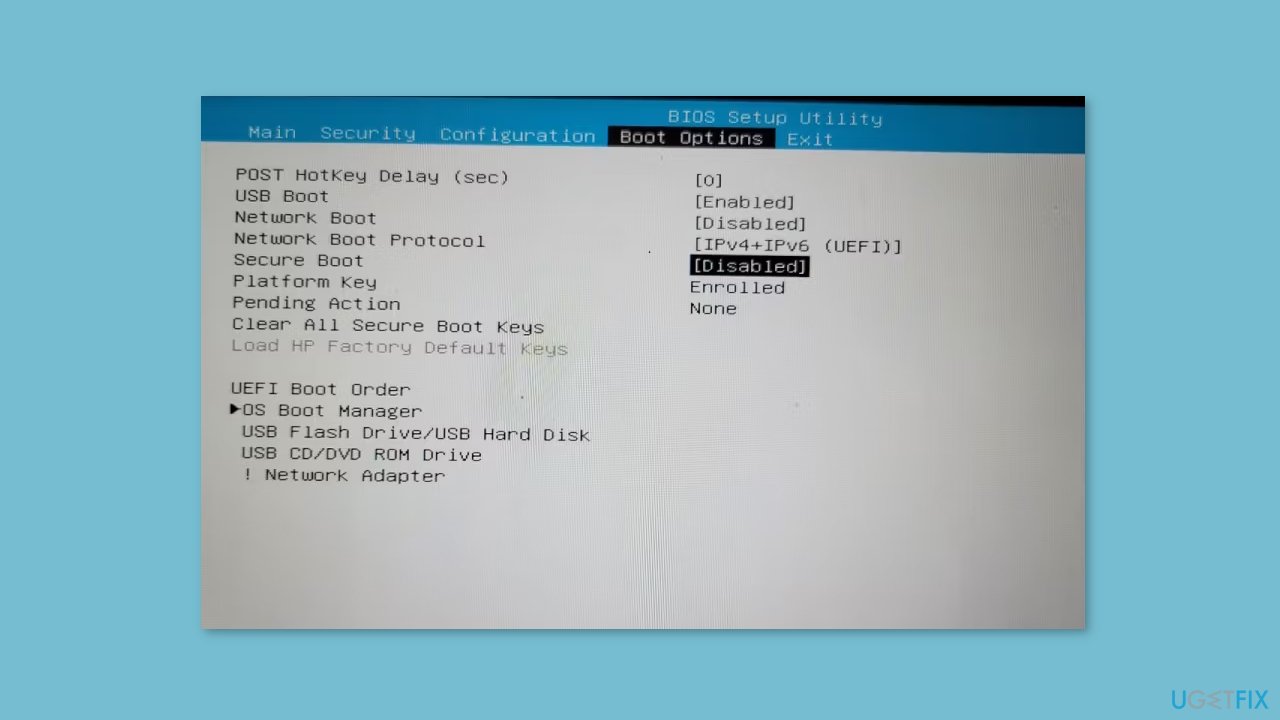
- Select Disabled and make sure the changes are shown in the Boot Options tab.
- Press F10 to save the changes and disable Secure Boot.
Solution 2. Disable Trusted Platform Technology
- Boot into the Windows Recovery Menu.
- Enter your BIOS utility.
- Open the Security tab using the right and left arrow keys.
- Highlight the TPM State option and press Enter. If no TPM option is available, look for the PTT option.
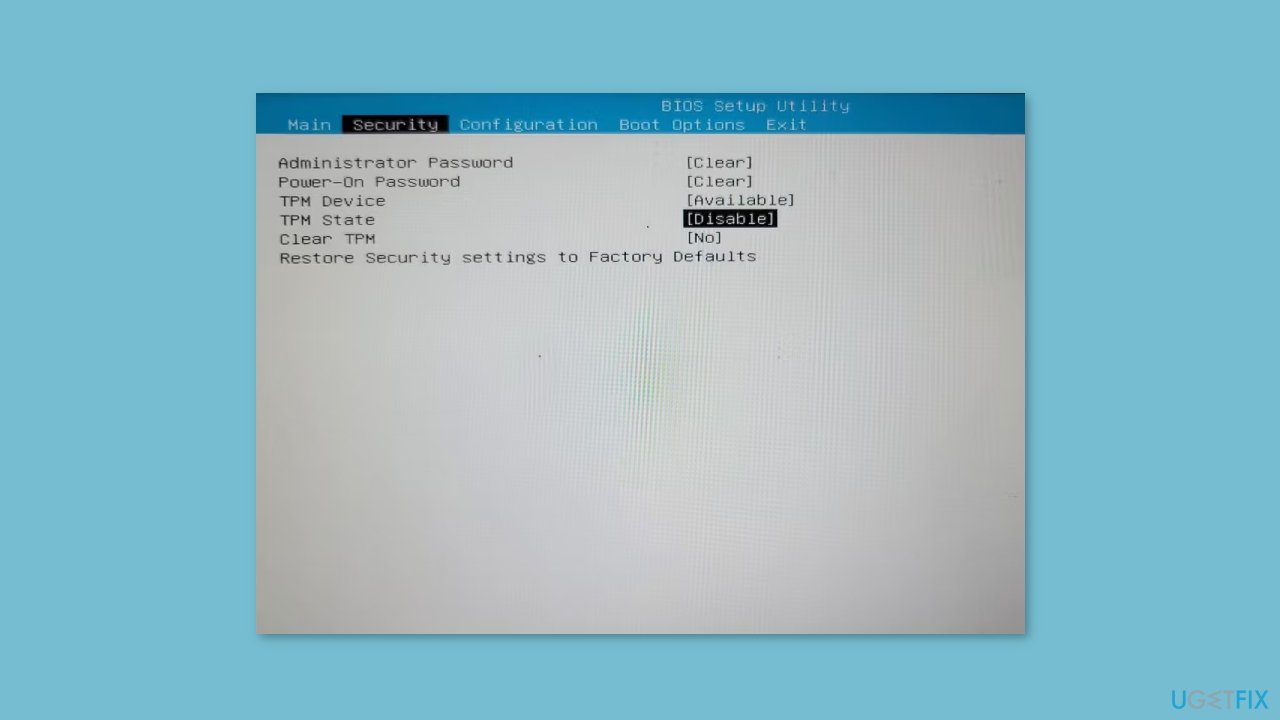
- Select Disabled to disable TPM on your device.
- Press F10 to save the change and exit.
Solution 3. Disable Modern Standby
Modern Standby (S0) is a newer sleep state introduced in 2020 that succeeds the legacy Sleep Standby (S3) mode. It replaces the standard sleep feature and places your laptop into a lower power state when idle. In this mode, your system is kept awake at a minimum power consumption to perform background tasks such as syncing email and notifications over the Internet.
It also provides an instant on/off feature that allows for a faster transition between the on and off state, similar to a smartphone. Modern Standby is turned on by default on compatible systems, but it may lead to problems with Legacy Boot.
- Press the Windows key + X to open the Run box.
- Click on Windows Terminal (Admin) to open the terminal with administrative privileges.
- In the Windows Terminal window, copy and paste the following reg command: reg add HKLM\System\CurrentControlSet\Control\Power /v PlatformAoAcOverride /t REG_DWORD /d 0
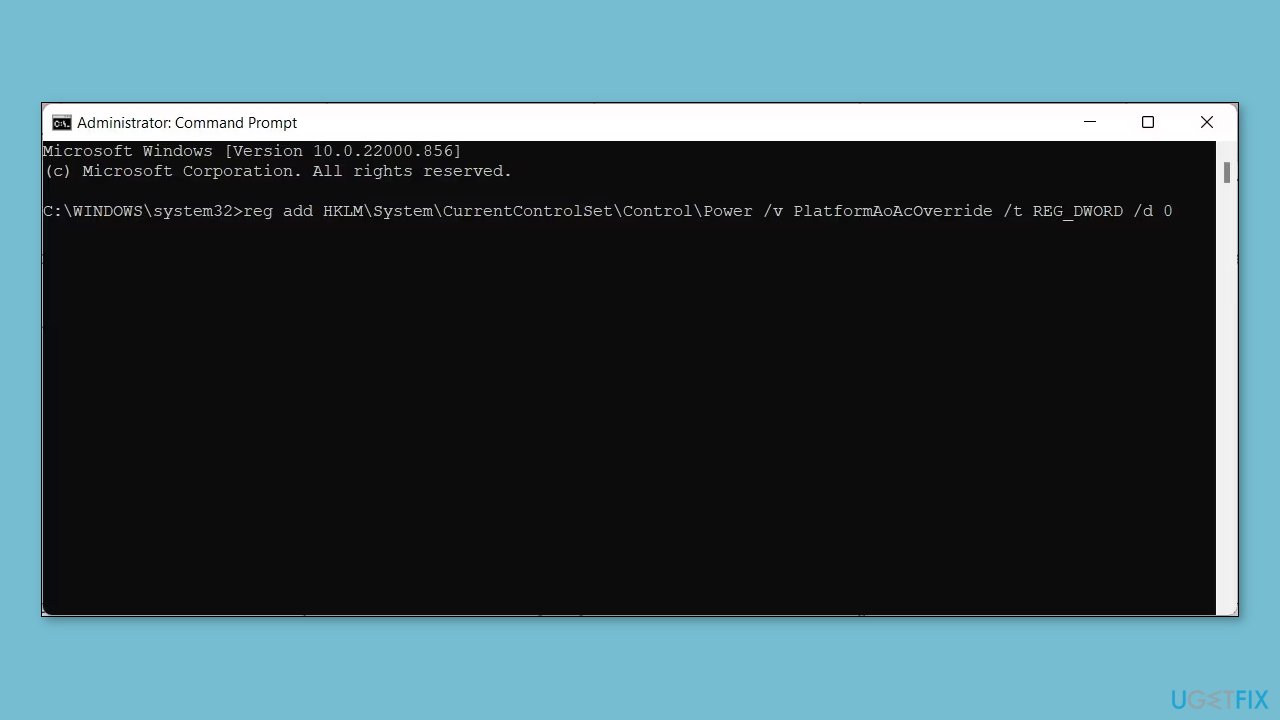
- When the operation completed successfully message appears, close the Command Prompt.
- Restart your PC to apply the changes.
If you need to enable Modern Standby again, use the following command in the elevated Windows Terminal window:
- Open the Windows Terminal (Admin).
- Copy and paste the following command: reg delete "HKLM\System\CurrentControlSet\Control\Power" /v PlatformAoAcOverride /f
- Press Enter.
- Restart your PC to apply the changes.
Bottom line
To fix the Legacy Boot option being grayed out, you can try disabling Secure Boot and enabling CSM in the BIOS settings. Additionally, updating the BIOS may resolve the issue. If none of these solutions work, consider using a repair tool for further assistance.
Frequently asked questions
The Legacy Boot option may be grayed out if your system is set to UEFI mode instead of Legacy mode. You can change this setting in the BIOS setup to enable Legacy Boot.
To enable Legacy Boot on Windows 11, you need to access the BIOS settings and switch the boot mode from UEFI to Legacy, which should allow you to modify the Legacy Boot settings.
If Legacy Boot remains disabled, ensure that Secure Boot is turned off in the BIOS, as it can prevent changes to the boot mode.




Report an issue
What's wrong with this guide? We review every report and update or remove content.
Report received — thank you. We'll review and fix it.
You need a free account to submit a report.
Be the first to comment