How to fix
Lenovo integrated camera not working
on Windows
Resolve Lenovo integrated camera issues on Windows 10 or 11 effortlessly. Expert-tested solutions ensure quick fixes and zero traces left.

What causes How to fix Lenovo integrated camera not working in Windows?
- Recent Windows update
- Camera driver issues
- Privacy settings misconfiguration
- Software bugs or malfunctions
Repairs Windows system files, removes malware, and restores a clean OS state — without reinstalling.
Hello. After installing the newest Windows update, the integrated camera in my Lenovo laptop has stopped working. What should I do?
Many Lenovo laptop users have encountered a frustrating problem where their integrated camera ceases to function properly in Windows. Numerous of these reports suggest that the problem started after the most recent Windows update was installed. Users who are impacted by this experience significant annoyance, especially those who depend on their laptops for activities like video conferencing, online meetings, content creation, or any other activity that uses the camera.
Users may experience a variety of side effects from the broken integrated camera. Firstly, it hampers their ability to engage in video calls and conferences, which have become an essential part of remote work, education, and social interactions. The inability to communicate with coworkers, friends, and family may result from this. Additionally, professionals who rely on their cameras for tasks like creating content or virtual presentations may have delays in their workflow, which could affect their productivity and efficiency.
Along with the immediate difficulties posed by a camera's limited functioning, there might also be more general security and privacy issues. If the camera is disabled due to a software bug or malfunction, it could still be regarded as "active" by some applications, leaving users open to possible privacy violations.
The troubleshooting procedures used to resolve this issue can differ based on the precise problem's root cause. Users may try updating their camera drivers,[ref en-1] changing their privacy preferences, or reinstalling the camera driver in an effort to fix the issue.
In this guide, you will find 4 steps that should help you fix Lenovo integrated camera not working in Windows. You can also run a system repair tool like [d1] that can fix most system errors, BSODs,[ref en-2] corrupted files, and registry[ref en-3] issues. Otherwise, follow the step-by-step instructions below.

Solution 1. Adjust Camera Privacy Settings
- Press the Windows key on your keyboard.
- Type camera.
- Click on Camera privacy settings.
- Toggle on Allow apps to access your camera.
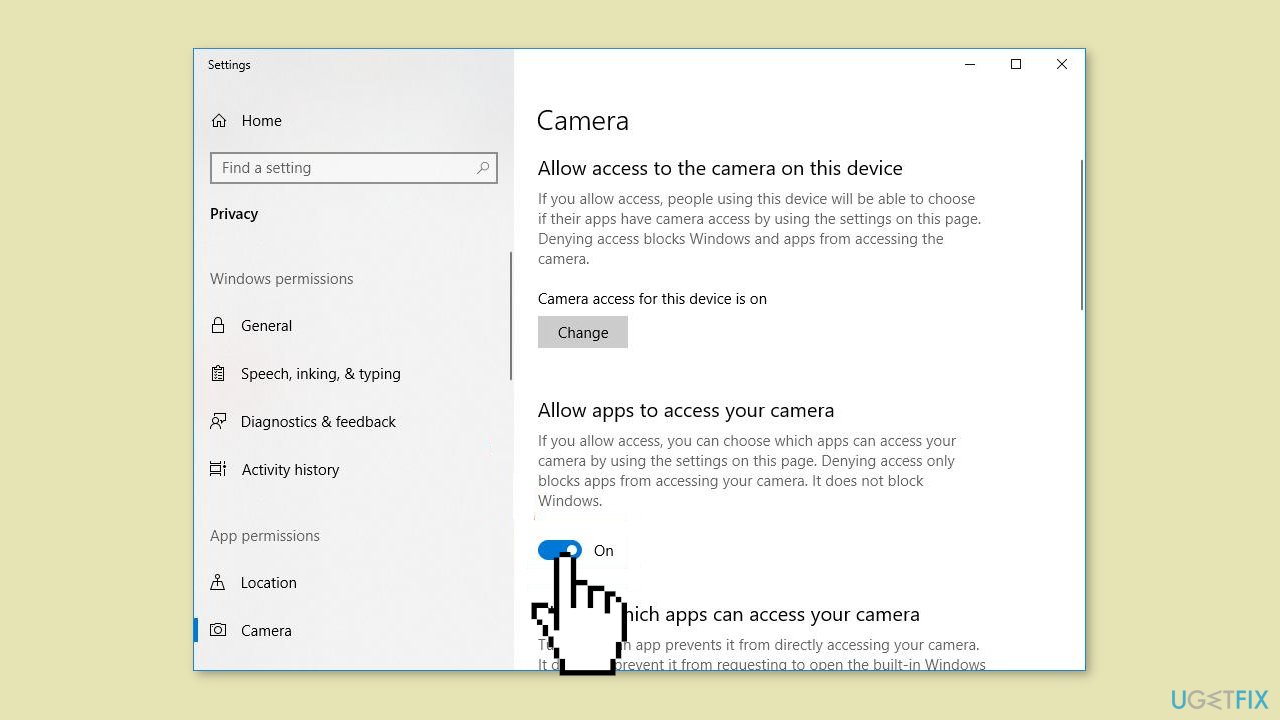
- Scroll down to Choose which apps can access your camera.
- Toggle on all the apps you want to access the camera.
- Close the window.
- Test the camera to see if it's working properly.
Solution 2. Update Camera Driver
- Press the Windows key + R on your keyboard.
- Type devmgmt.msc into the box and press Enter.
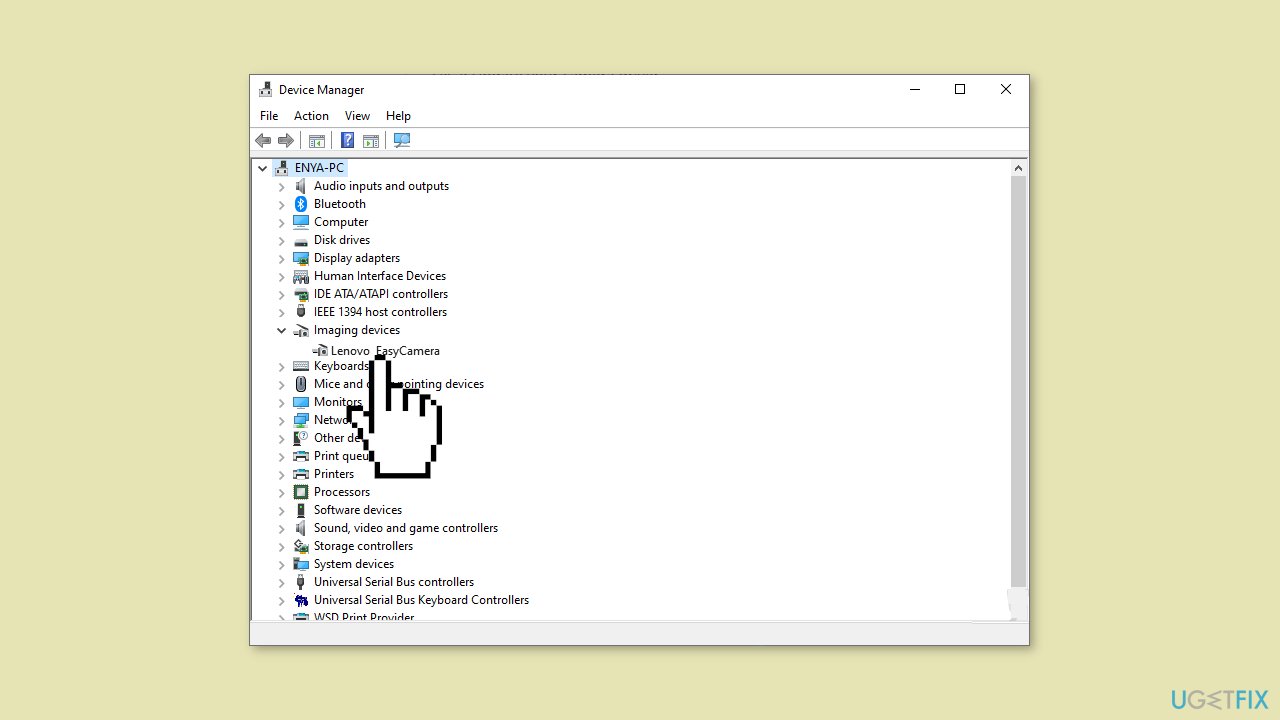
- Double-click on either Cameras or Imaging devices to reveal your camera device.
- Right-click on your camera device and click Update driver.
- Click Search automatically for drivers.
- Follow on-screen instructions.
Solution 3. Reinstall Camera Driver
You can also use a dedicated utility like [rev id="DriverFix"] that can find the best drivers for your machine and install them automatically.
- Press the Windows key + R on your keyboard.
- Type devmgmt.msc into the box and press Enter.
- Double-click on either Cameras or Imaging devices to reveal your camera device.
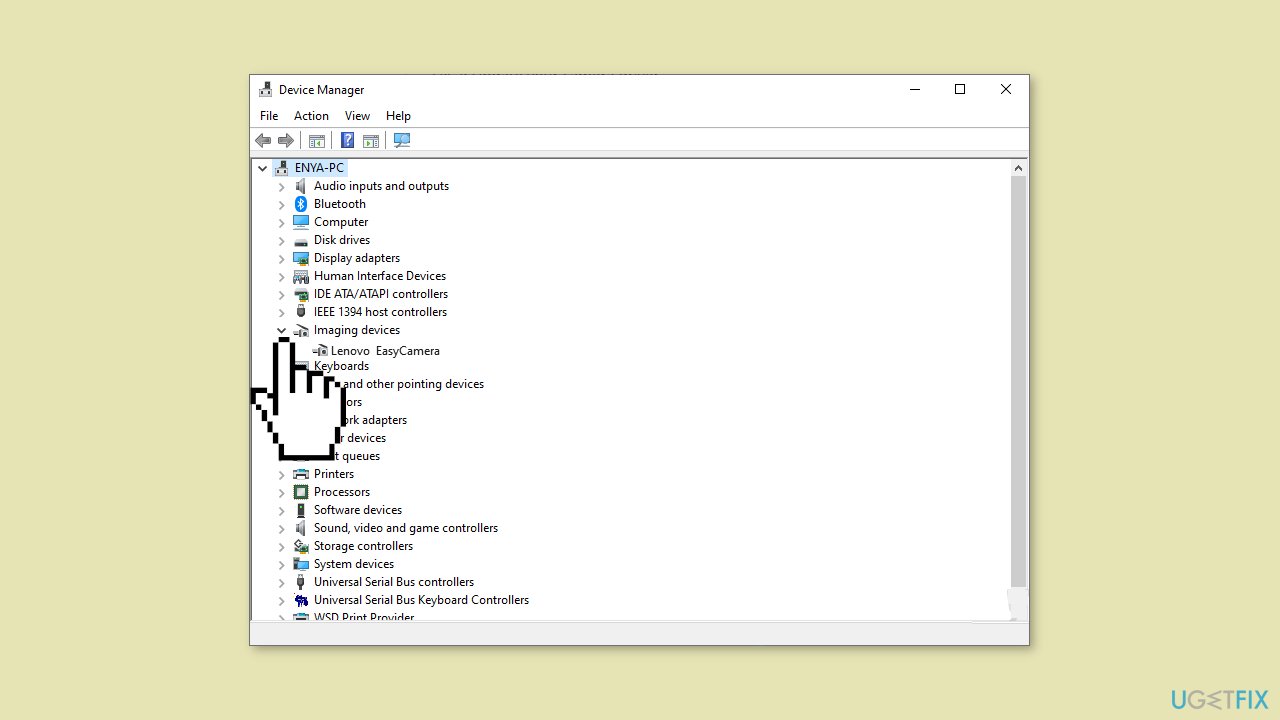
- Right-click on your camera device and click Uninstall device.
- Click Yes to confirm the uninstall.
- Restart your computer.
- Press the Windows key + R on your keyboard.
- Type devmgmt.msc into the box and press Enter.
- Click Action > Scan for hardware changes so that Windows can reinstall the driver for your PC.
- Check your camera to see if it's working properly.
Solution 4. Reset Windows
- Press the Windows key + I on your keyboard to open the Windows settings.
- Click on Recovery located on the right-hand side.
- Next, click on Reset PC.
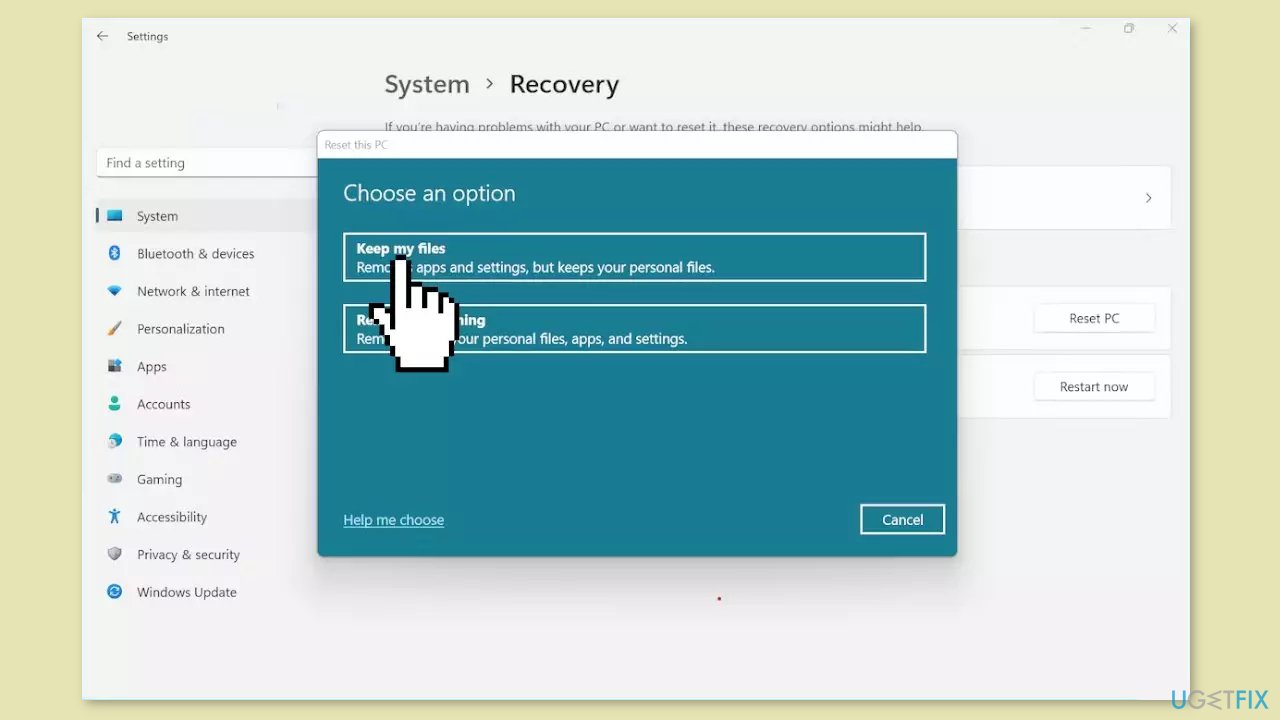
- Choose the option Keep my files.
- Click on Local reinstall and then select Next.
- In the subsequent window, click on Reset and confirm your decision.
- Allow the process to complete.
- Once the process finishes, check to see if the issue on your PC has been resolved.
Bottom line
To fix the Lenovo integrated camera not working in Windows, users can try adjusting camera privacy settings, updating or reinstalling camera drivers, or running a system repair tool. If these solutions do not resolve the issue, further investigation into the root cause may be necessary.
Frequently asked questions
First, check if the camera is enabled in Device Manager under 'Imaging Devices.' If it's disabled, right-click on it and select 'Enable device.'
You can update the camera drivers by going to Device Manager, right-clicking on the camera, and selecting 'Update driver.' Alternatively, visit the Lenovo support website to download the latest drivers for your specific model.
Ensure that camera access is turned on in the Privacy settings under 'Camera,' and check that the camera is not being used by another application.




Report an issue
What's wrong with this guide? We review every report and update or remove content.
Report received — thank you. We'll review and fix it.
You need a free account to submit a report.
Be the first to comment