How to fix
Libmysql.dll is missing or not found
on Windows
Resolve the Libmysql.dll missing error on Windows 10 or 11 quickly and efficiently. Expert-tested solutions ensure smooth operation, zero traces left.


What causes How to fix Libmysql.dll is missing or not found in Windows?
- Accidental deletion of the Libmysql.dll file
- File corruption
- Corrupted installations
- System malfunctions
- Moving the DLL to the trash
Repairs Windows system files, removes malware, and restores a clean OS state — without reinstalling.
Hello. I cannot start a specific program because I receive an error that Libmysql.dll is missing or not found in Windows. Any suggestions would be appreciated.
Windows is one of the most popular operating systems in the world developed by Microsoft. Operating systems rely on thousands of processes running in the background to keep it running smoothly. When one of those processes goes rogue, users can experience various issues like lagging, bugs, crashes, and system errors.
A big role in the system plays Dynamic-Link Libraries (DLLs).[ref en-1] These system files contain code and data that can be used by multiple programs at the same time. Because of various reasons like file corruption, accidental deletion these libraries go missing. As a result, some users have been experiencing the "Libmysql.dll is missing or not found" error in Windows when they try to launch specific programs.
If a program is required to have a certain DLL to run, it is impossible to launch it if the DLL is missing from the system. Surprisingly, the most common reason for missing DLL errors is that users move them to the trash by accident. It is worth going to the Trash app and checking if the file is there. If it is, you can easily restore it back to its original place. However, Libmysql.dll could be missing for serious reasons as well, such as corrupted installations and system malfunctions.
If you want to avoid going through all the possible troubleshooting options, we recommend using a maintenance tool like [d1]. It can fix various system errors, corrupted files, registry[ref en-2] issues, BSoDs[ref en-3] automatically so you do not have to. If you already tried that, and it did not work or you want to solve this manually, proceed to the guide below:

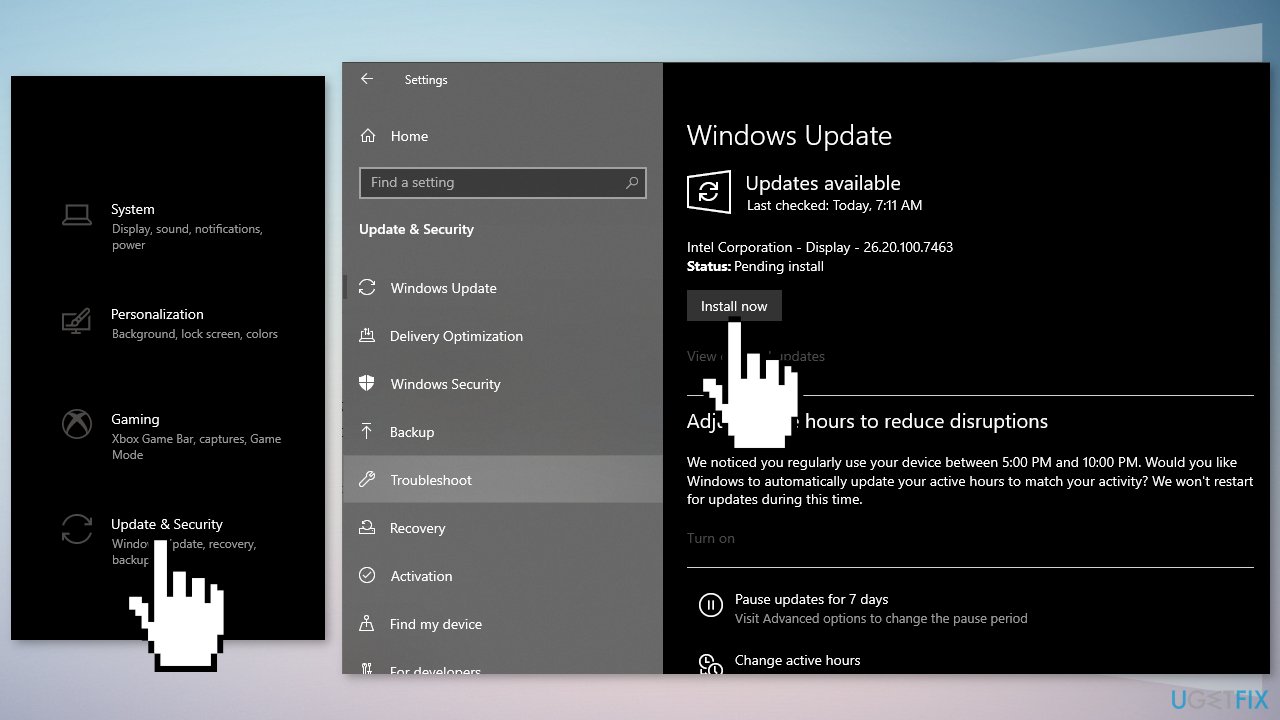
Solution 1. Install Available Updates
- Click Settings from your start menu and click Update & Security
- Choose Windows Upgrade from the left panel and click the Check for updates button, and then your computer will check for, download, and install any updates found
Solution 2. Fix Corrupted System Files
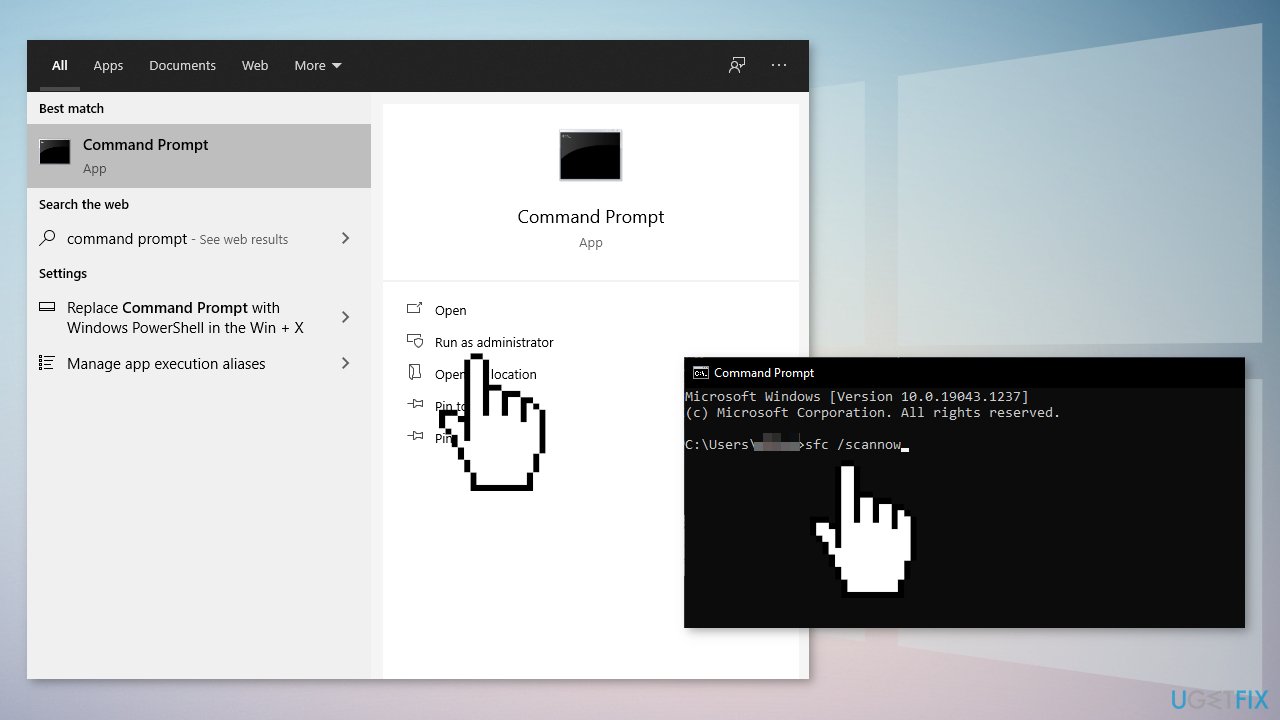
In order to address corrupted system files, you should use an elevated Command Prompt and run an SFC scan.
- Type cmd in Windows search bar, right-click on Command Prompt and select Run as administrator
- When User Account Control shows up, click Yes
- Type in the following command, and press Enter:
sfc /scannow
- Reboot your system
- If SFC returned an error, then use the following command lines, pressing Enter after each:
DISM /Online /Cleanup-Image /CheckHealth
DISM /Online /Cleanup-Image /ScanHealth
DISM /Online /Cleanup-Image /RestoreHealth
Solution 3. Perform a System Rollback
- Go to the search bar and type Create a restore point
- Click the System Restore button
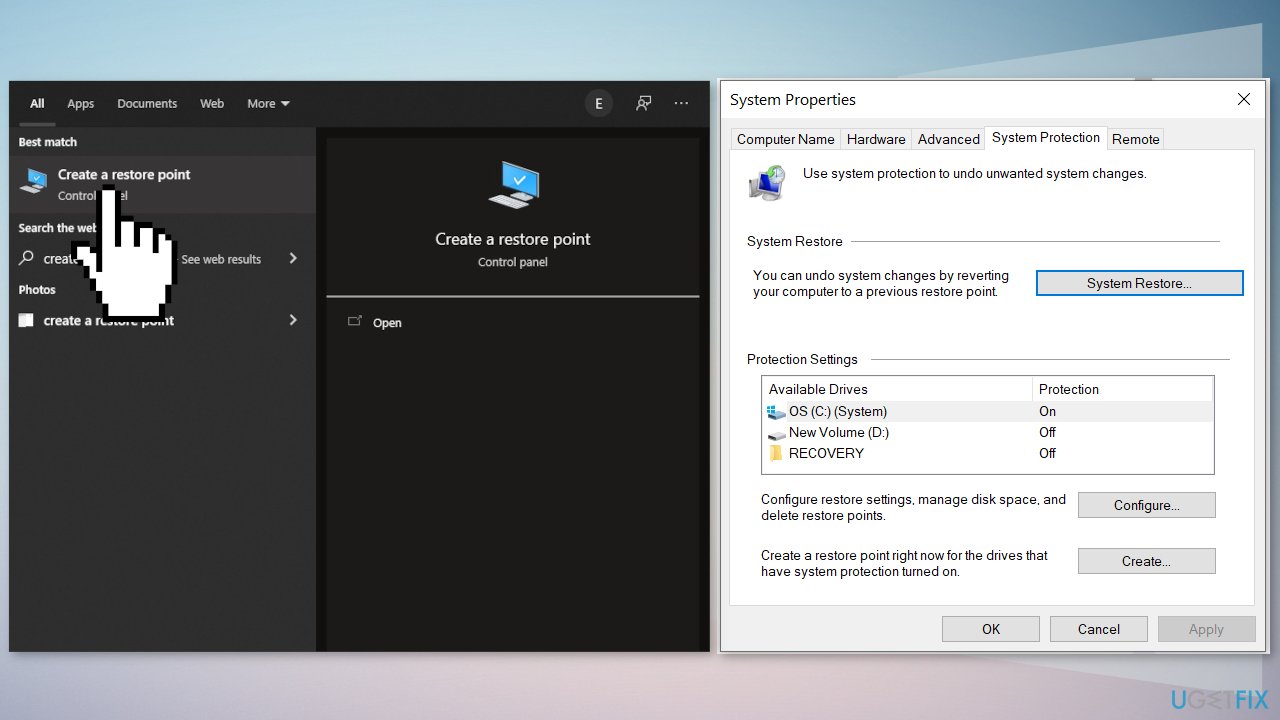
- Select Choose a different restore point and click Next
- Select a date for restore before the issue occurred, then click on Next
- Enter your password if asked and follow the on-screen steps to choose a restore location
- Reset your device
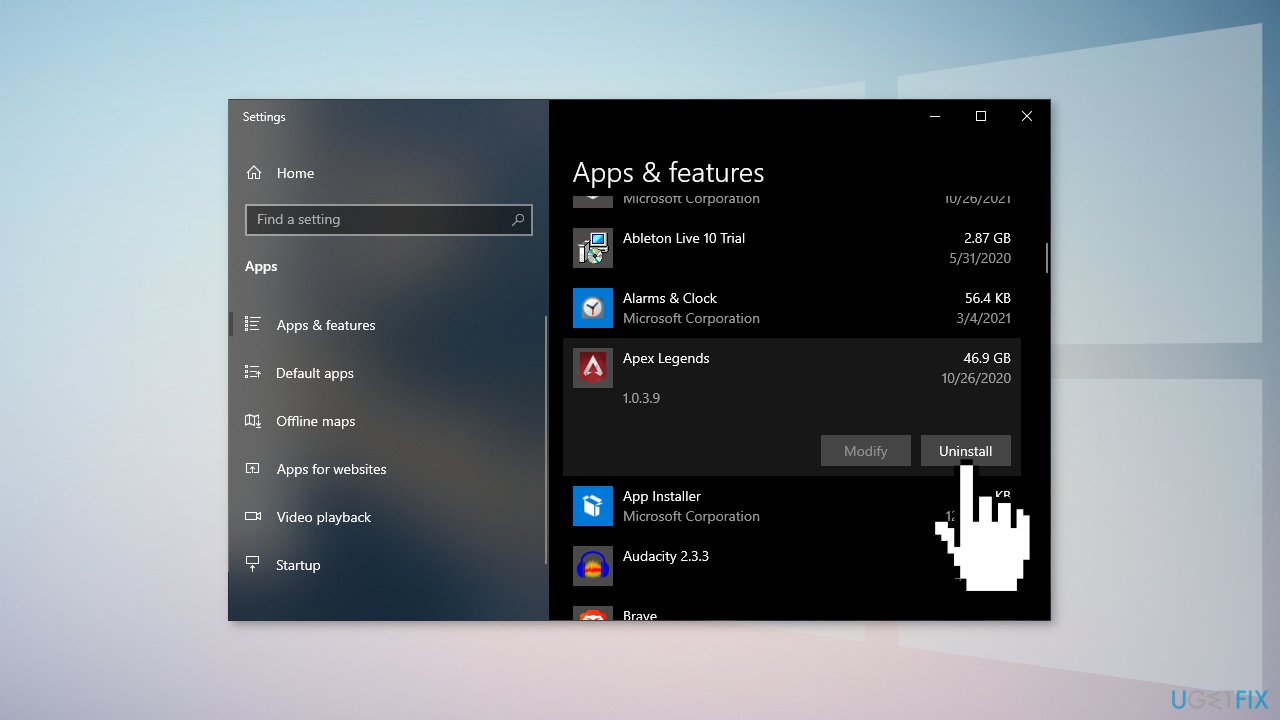
Solution 4. Reinstall the Problematic Program
If you experience an error when you try to launch a specific program, it is a good idea to try to reinstall it.
- Go to Apps & Features, find the program in the list using the search bar
- Click on it and choose Uninstall
- Now install the program the same way you did before
Solution 5. Update Graphics Card Driver
- Right-click on Start and find Device Manager
- Expand Display adapters section
- Right-click on your graphics card and select Properties
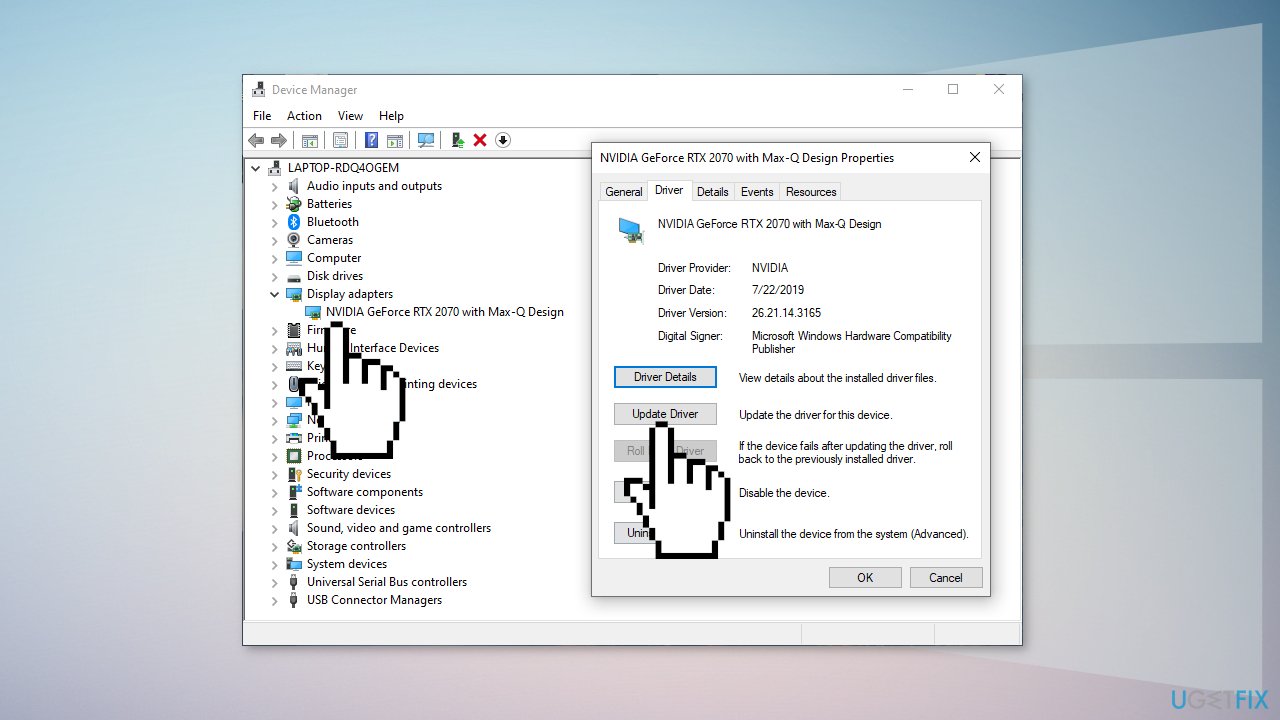
- Go to the Driver tab and click Update or employ an automatic updater such as [rev id="DriverFix"] which can be used to quickly update and backup all your drivers without hassle
- If the update did not get rid of the problem you can select Roll Back Driver and click Yes
- Restart your PC
Solution 6. Repair Install Windows
- Download the Windows 10 ISO file
- Now mount the ISO file
- Double-click on the file setup.exe to start the repair, install from the mounted drive
- When the installation provides the License Terms, read them and click Accept
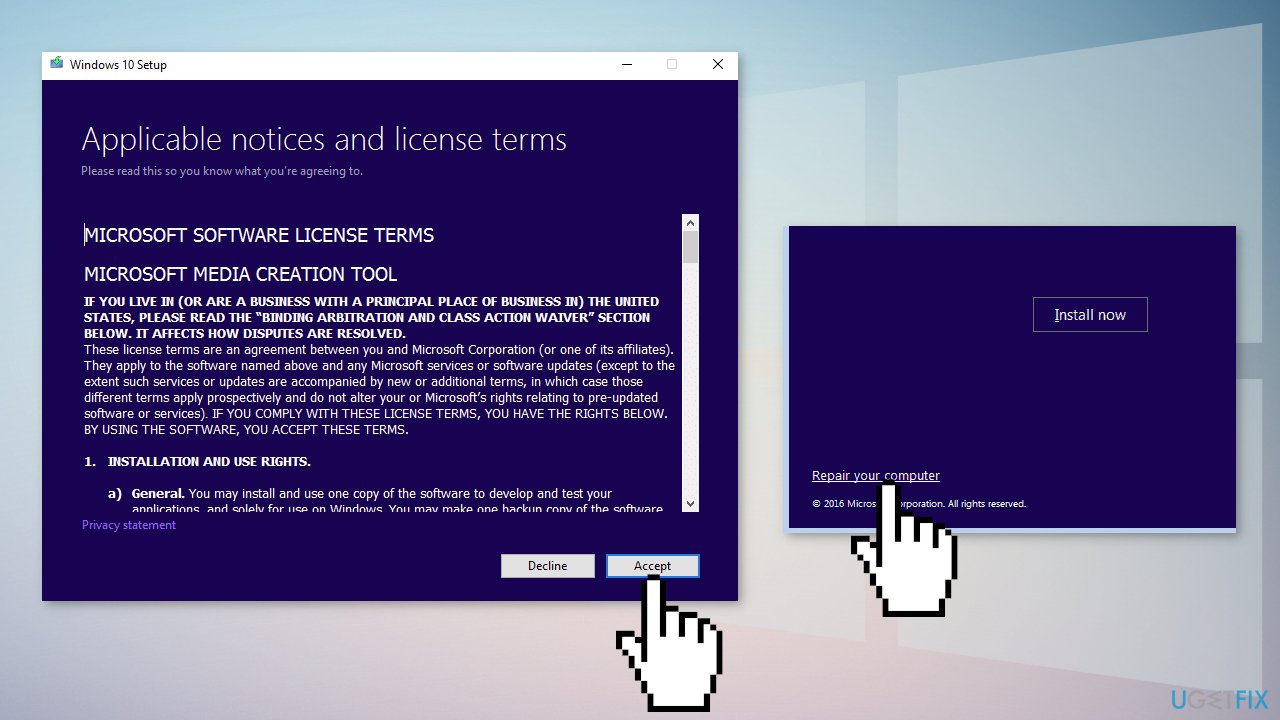
- Windows 10 will now check for updates and will install the ones available
- When all is set, click Install
- When the installation is complete, follow the on-screen instructions
Bottom line
To fix the 'Libmysql.dll is missing or not found' error, you can install available updates and fix corrupted system files. If these solutions do not resolve the issue, consider using a maintenance tool or exploring further troubleshooting options.
Frequently asked questions
You can resolve this issue by downloading the missing Libmysql.dll file from a reliable source and placing it in the application directory or the Windows System32 folder.
Yes, you can try repairing the application that is generating the error or reinstall it to restore the missing Libmysql.dll file automatically.
Ensure that your Windows 10 or Windows 11 operating system is regularly updated and perform routine scans for malware that could corrupt DLL files.




Report an issue
What's wrong with this guide? We review every report and update or remove content.
Report received — thank you. We'll review and fix it.
You need a free account to submit a report.
Be the first to comment