How to fix
Limited Access Wi-Fi
on Windows
Resolve Limited Access Wi-Fi issues on Windows 10 and 11 quickly and easily. Get expert-tested solutions to keep you connected in minutes.

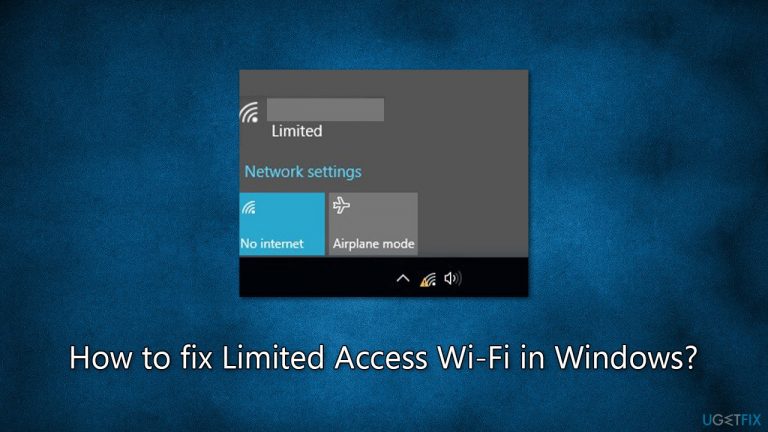
What causes How to fix Limited Access Wi-Fi in Windows?
- Outdated or incorrect network drivers
- Incorrect network settings
- Interference from other devices
- Weak signal
- IP address conflict
Repairs Windows system files, removes malware, and restores a clean OS state — without reinstalling.
Hi, I launched my laptop just as I usually do, and I've noticed that my internet is not working. So I checked my taskbar - it showed that Wi-Fi has limited access. I have no clue how or why this happened, but it's a huge problem I'd like to find a resolution to. Any tips would be appreciated.
Wi-Fi is a technology that has revolutionized the way we connect to the internet and other networks. It provides a convenient and efficient way for devices to communicate with each other without the need for cables or wires.
Wireless networking works by using radio waves to transmit data between devices. These radio waves are transmitted by a Wi-Fi router, which acts as a central hub for all the devices on the network. The router receives data from devices that are connected to it and then sends that data to other devices on the network or to the internet.
Sometimes Windows users may experience limited access to Wi-Fi, which means that their device is connected to a Wi-Fi network but cannot access the internet or other network resources. This issue can occur for several reasons, including outdated or incorrect network drivers, incorrect network settings, interference from other devices, or a weak signal.
One of the most common reasons for limited access Wi-Fi is an IP address conflict, which occurs when multiple devices on the same network are assigned the same IP address. This can cause connectivity issues and prevent devices from accessing the internet. Other common causes of limited access Wi-Fi include outdated or incorrect network drivers, incorrect network settings, and interference from other devices.
If you have limited access to Wi-Fi, you should try using the instructions to fix this problem. We recommend using automatic PC repair software [d1] to ensure there are no underlying issues on your Windows device, as the app can find and replace corrupted system files automatically.
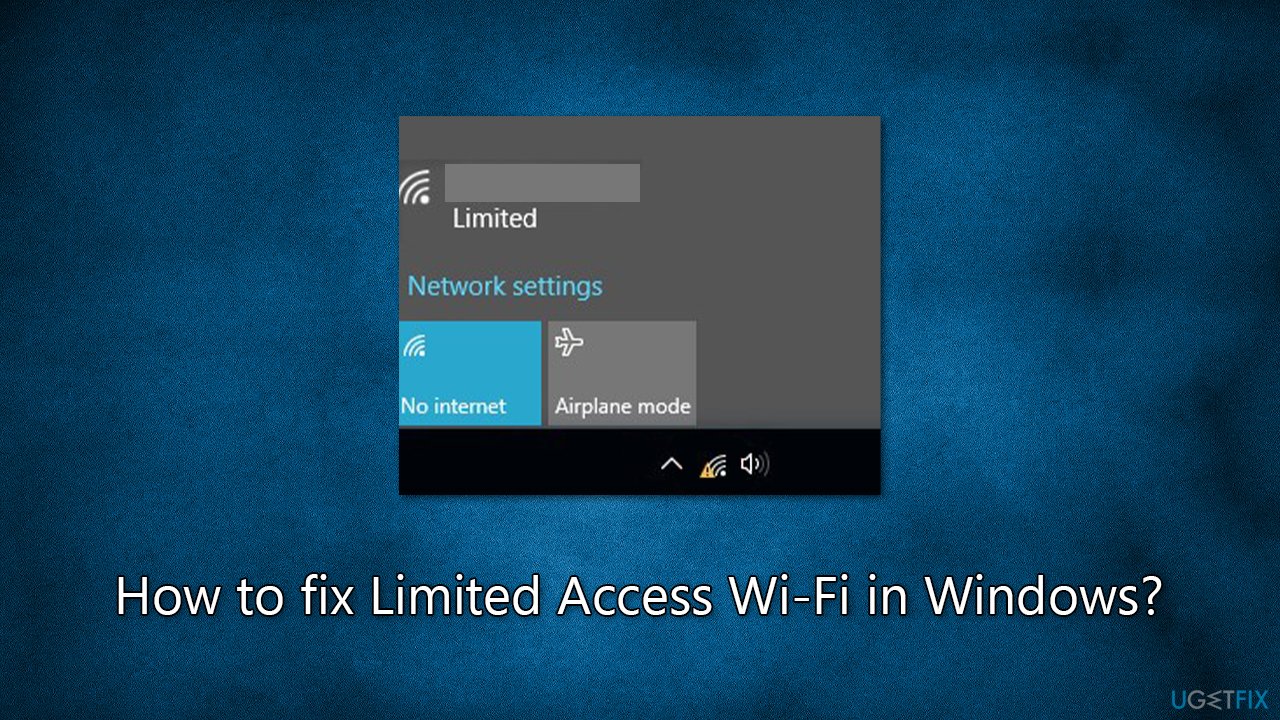
1. Use ethernet or move your device closer to the modem/router
If you are using a wireless device such as a laptop or a tablet, you might put it in a place unreachable to the WiFi network. Thus, try bringing your computer closer to the modem or router and see if that helps. Also, we recommend connecting the ethernet cable and checking if the internet is accessible in that case. If it is, it means that there's something wrong with your device drivers or it has some other issues. We explain below how to address them.
2. Run Network and Internet Connection troubleshooters
While both the network troubleshooter and internet connections troubleshooter can help diagnose and resolve network connectivity issues, the network troubleshooter is focused on issues related to the local network, while the internet connections troubleshooter is focused on issues related to internet connectivity. In this case, we recommend using both.
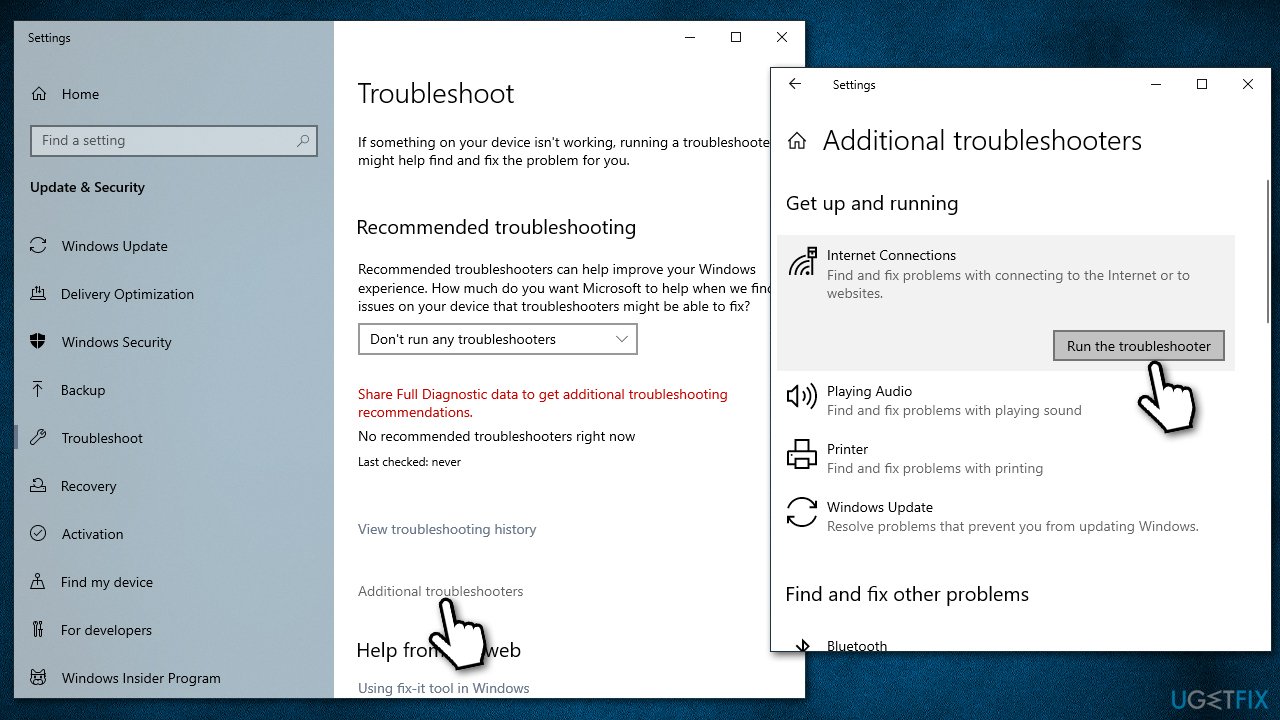
- Type Troubleshoot in Windows search and press Enter.
- Select Additional troubleshooters.
- Locate the Internet Connection and press Run the troubleshooter.
- Wait till the scan finishes and fixes are applied.
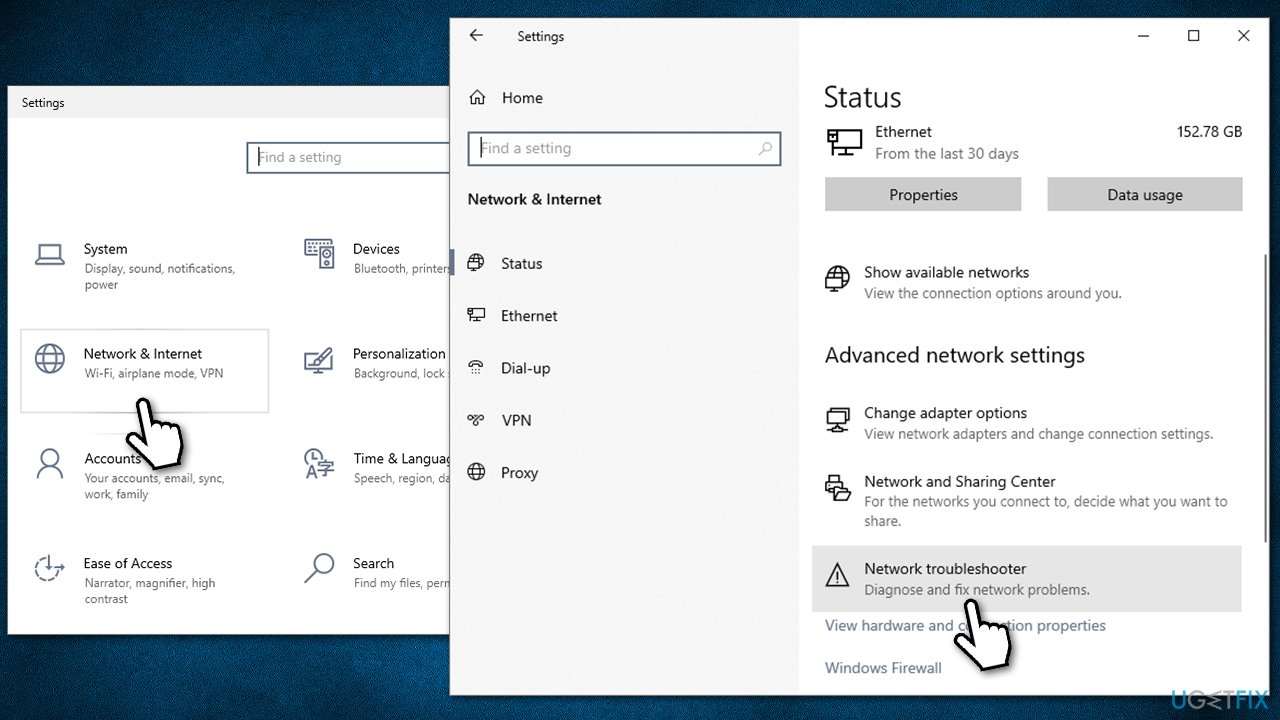
To run a Network troubleshooter, follow these steps:
- Right-click on Start and pick Settings.
- Go to Network & Internet section.
- On the right side, find the Advanced network settings section.
- Click Network troubleshooter and wait.
- The fixes should be automatically applied.
3. Update Windows
Use wired connection or your phone's hotspot for this step.
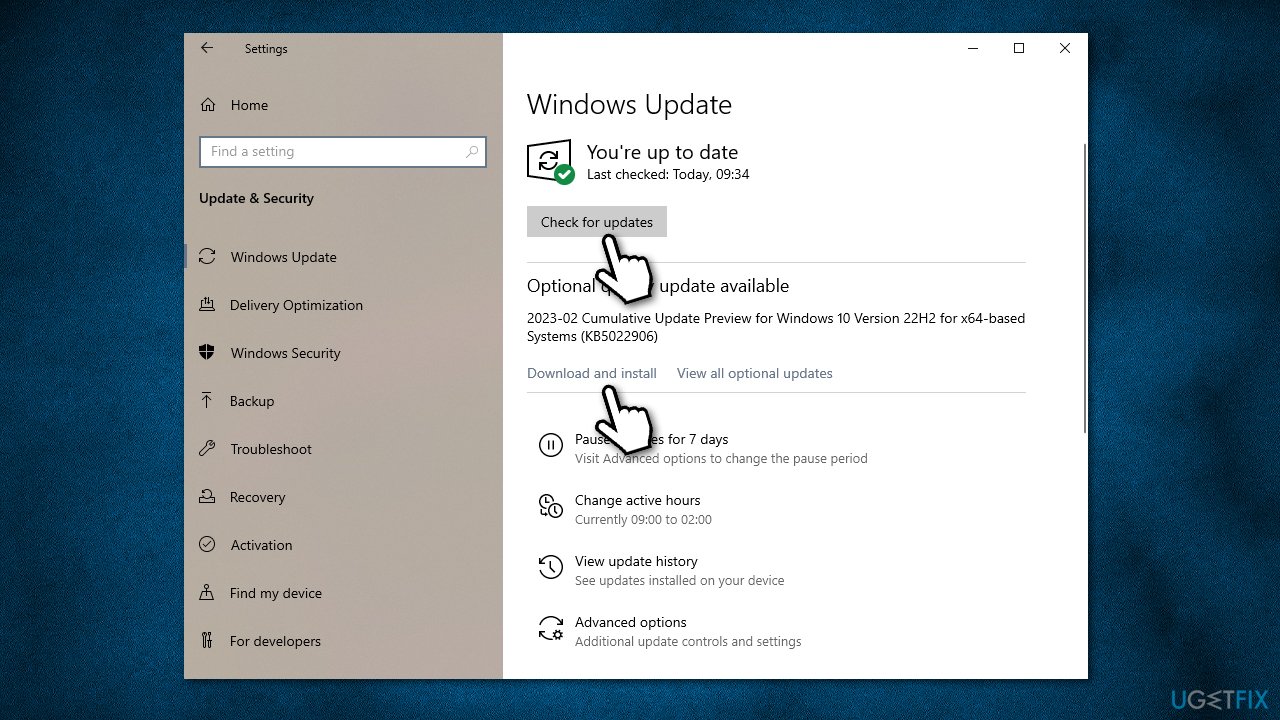
- Type Updates in Windows search and press Enter.
- Here, click Check for updates.
- Wait till Windows downloads and installs all the files.
- If optional updates are available, install them as well.
- Reboot your system.
4. Change power management options
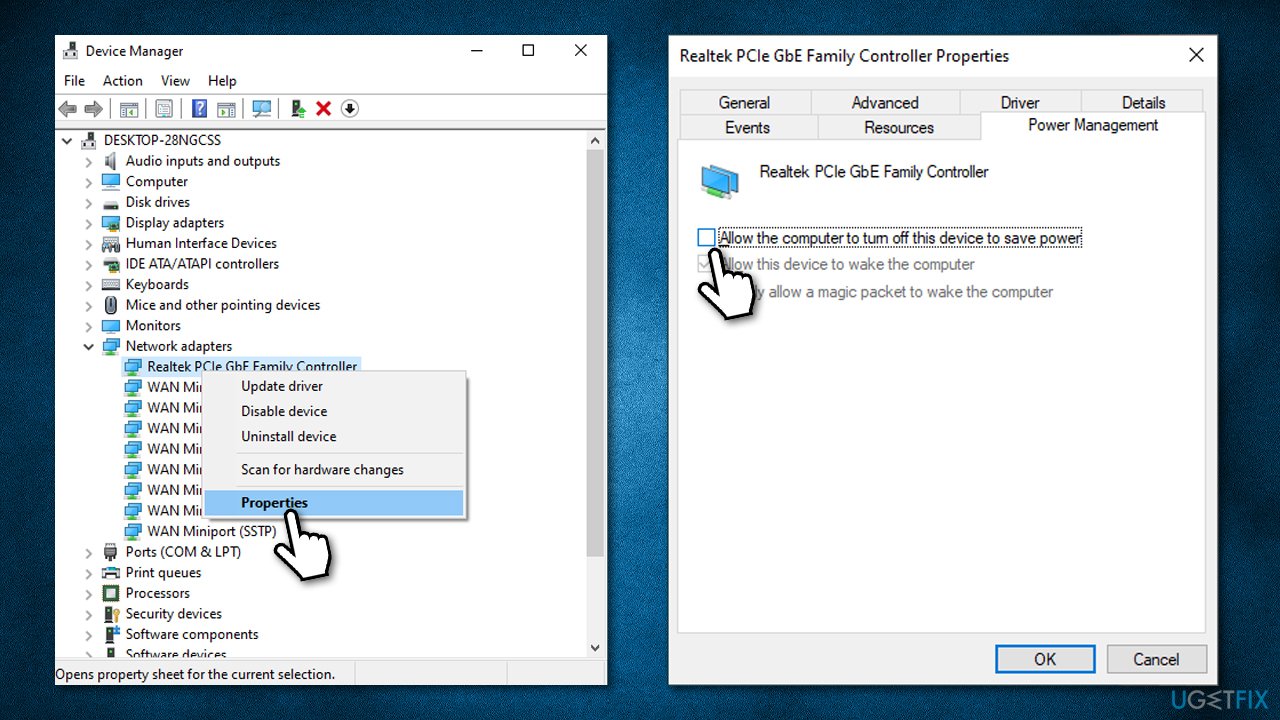
- Type devmgmt.msc in Windows search and press Enter.
- Expand the Network adapters section.
- Right-click on your device and select Properties.
- Go to the Power Management tab.
- Untick the Allow the computer to turn off this device to save power option and click OK.
5. Reset the internet connection
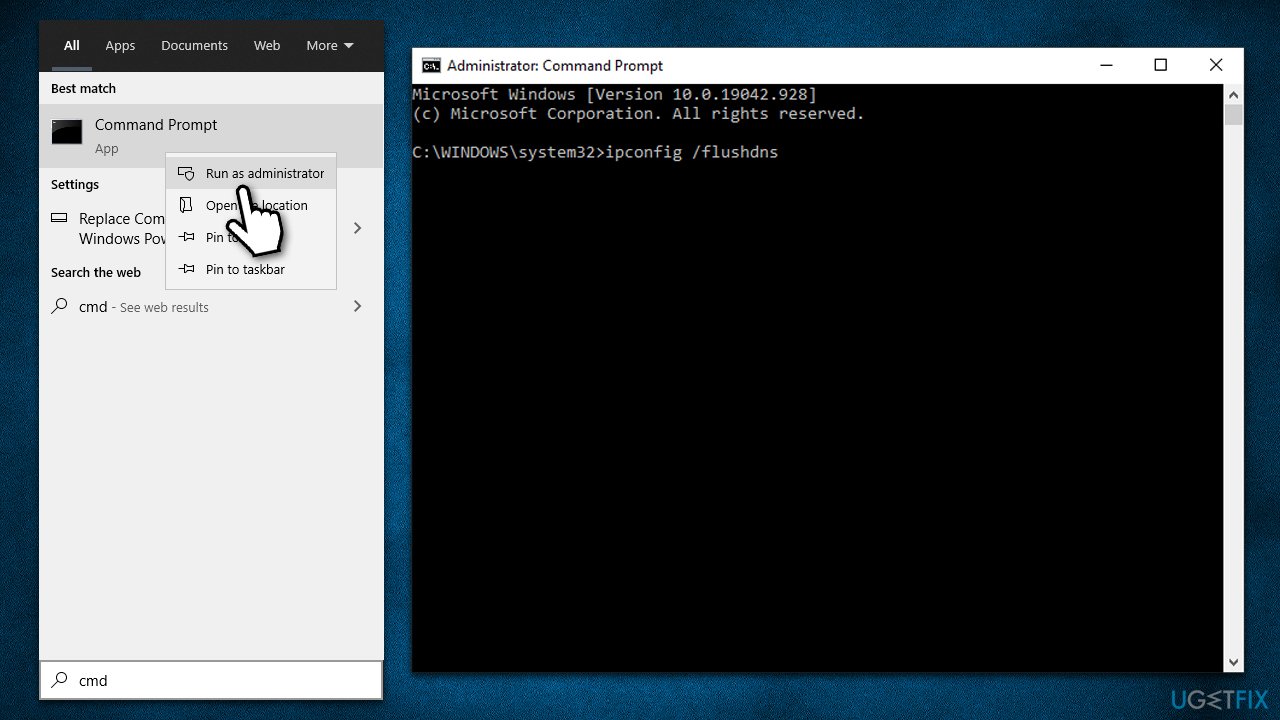
- Type cmd in Windows search.
- Right-click on the Command Prompt result and select Run as administrator.
- When the User Account Control window shows up, click Yes.
- In the new window, copy and paste the following commands one at a time, pressing Enter each time:
ipconfig /flushdns
ipconfig /registerdns
ipconfig /release
ipconfig /renew
netsh winsock reset - Restart your computer.
6. Change DNS settings
- Right-click on Start and select Settings.
- Go to Network and Internet section.
- Click on Change adapter options.
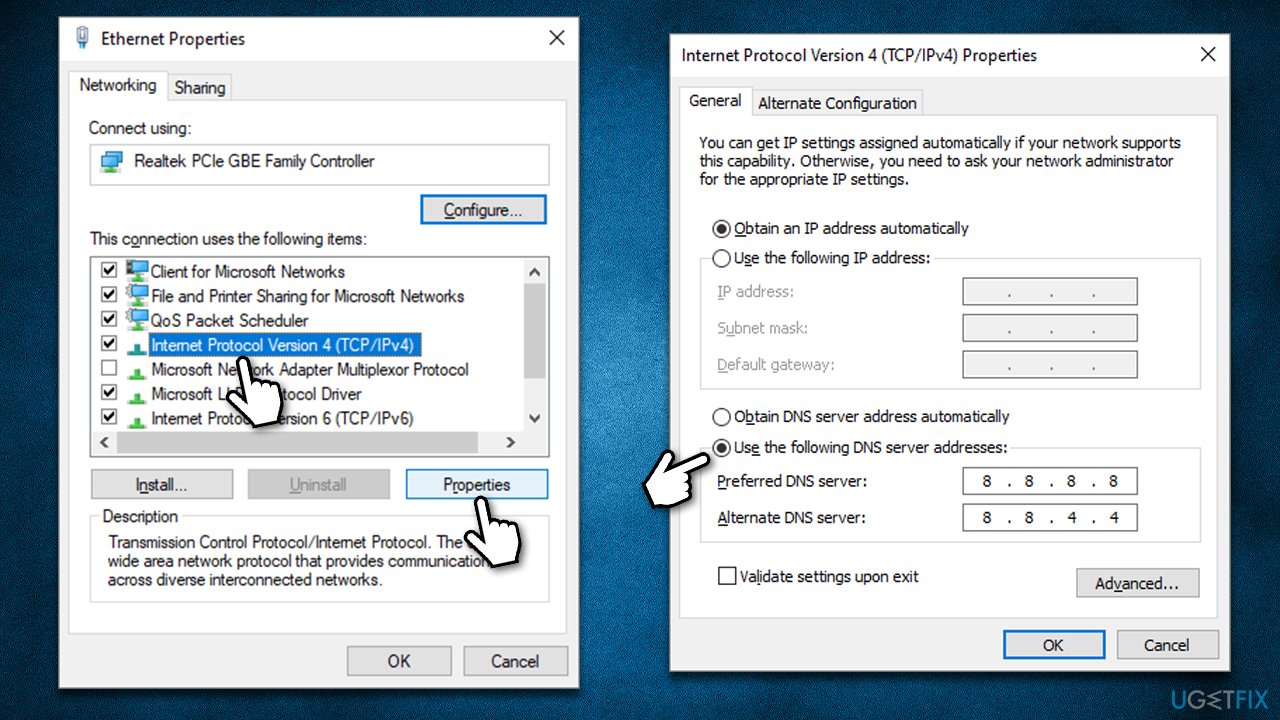
- Right-click on your internet connection and pick Properties.
- Click Internet Protocol Version 4 (TCP/IPv4) once and go to Properties
- Select Use the following DNS server addresses option and set your DNS to Google's:
Preferred DNS server: 8.8.8.8
Alternate DNS server: 8.8.4.4 - Click OK.
7. Reinstall network drivers
- Right-click on Start and pick Device Manager.
- Expand Network adapters.
- Right-click on the network adapter you are using and select Uninstall device.
- Mark the Delete the driver software for this device option.
- Click Uninstall once again and follow the on-screen instructions.
- Reboot your PC.
Once you boot back, you need to install the newest version of network drivers, and there are several ways you can do that. The easiest method would be to employ an automatic driver updater such as [rev id="DriverFix"]. Alternatively, you can try to initiate a Windows update (as explained previously) or download the driver manually from the official website of your device manufacturer.
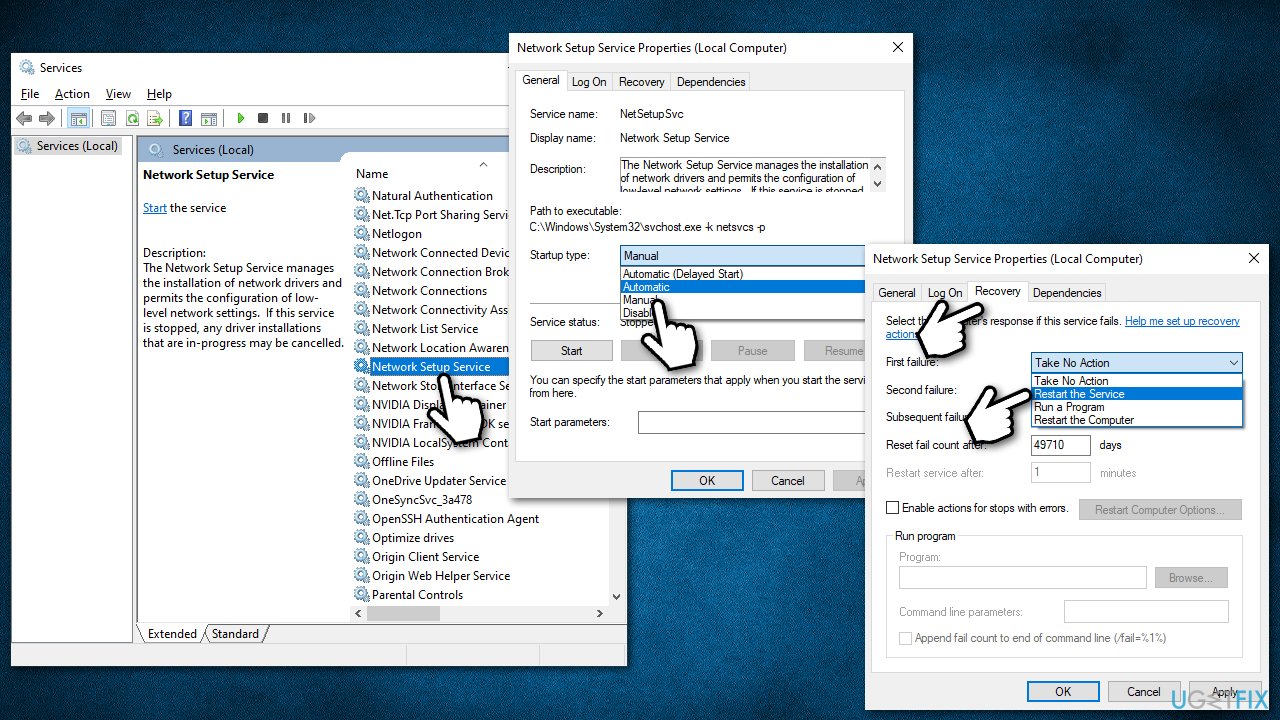
8. Enable Network Setup Service
- Type Services in Windows search and hit Enter.
- Scroll down to find Network Setup Service.
- Double-click on the service to open Properties.
- Under Startup type, select Automatic (drop-down menu).
- Press Start.
- Go to the Recovery tab.
- Under First failure, select Restart the Service from the drop-down menu.
- Click Apply and OK at the bottom.
- Restart your device.
Bottom line
To fix limited access Wi-Fi in Windows, you can try using an ethernet connection or moving your device closer to the modem/router. Additionally, consider using automatic PC repair software to address any underlying issues. If these solutions do not work, further troubleshooting may be necessary.
Frequently asked questions
You can try restarting your router, forgetting the Wi-Fi network, and reconnecting, or running the Network Troubleshooter in Windows 10 settings.
Go to Device Manager, locate your network adapter, right-click it, and select 'Update driver' to search automatically for updated driver software.
Yes, you can use the Command Prompt to run 'netsh winsock reset' and 'netsh int ip reset' commands to reset your network configuration in Windows.




Report an issue
What's wrong with this guide? We review every report and update or remove content.
Report received — thank you. We'll review and fix it.
You need a free account to submit a report.
Be the first to comment