How to fix
Usbxhci.sys BSOD error
on Windows
Resolve the usbxhci.sys BSOD error on Windows 10 and 11 quickly and effectively. Expert-tested methods ensure a smooth experience, zero traces left.

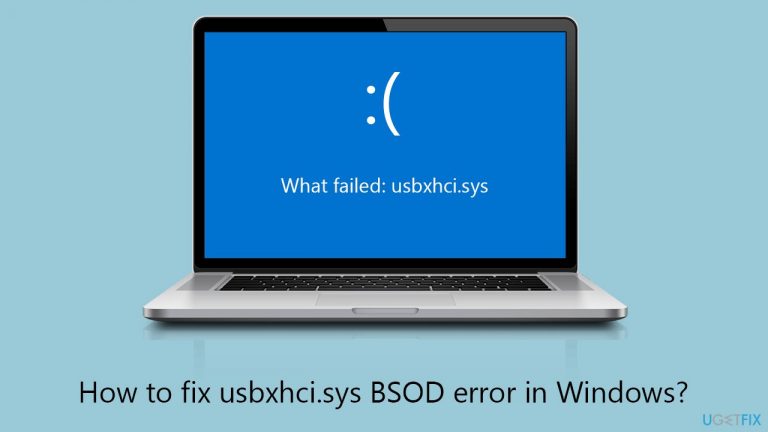
What causes How to fix usbxhci.sys BSOD error in Windows?
- Corruption of usbxhci.sys
- Operating system incompatibility
- Conflicts with hardware
- Conflicts with software
- Driver issues
Repairs Windows system files, removes malware, and restores a clean OS state — without reinstalling.
Whenever I try to play a game (which is not even that taxing), my computer crashes with llhkp.sys BSOD very shortly into the game. The error code is KMODE_EXCEPTION_NOT_HANDLED. How do I resolve this?
Blue Screen of Death (BSOD) errors in Windows are critical system crashes that force a computer to stop functioning and restart, displaying a blue screen with error information. Occasionally, the USB eXtensible Host Controller Interface (xHCI) driver's usbxhci.sys file may be the source of these issues.
A BSOD may occur when problems with usbxhci.sys, including corruption, operating system incompatibility, conflicts with hardware or software, or, most commonly, drivers, are encountered. Because they can happen quickly, interrupting work and perhaps resulting in data loss, these crashes are especially annoying.
Usbxhci.sys is a Windows system file that is associated with the USB (Universal Serial Bus) host controller driver, specifically for the eXtensible Host Controller Interface (xHCI). However, this does not always indicate that the issue is the USB driver itself, it may fault drivers of other hardware components, such as GPU, for example.
To fix usbxhci.sys BSOD, there are several things you can do, starting from running a system file corruption scan, updating or reinstalling drivers, using System Restore, and more. These and other solutions are described in the detailed instructions below, although we do recommend trying a powerful PC repair application [d1], which os capable of finding issues in Windows quickly and fix them automatically for you.
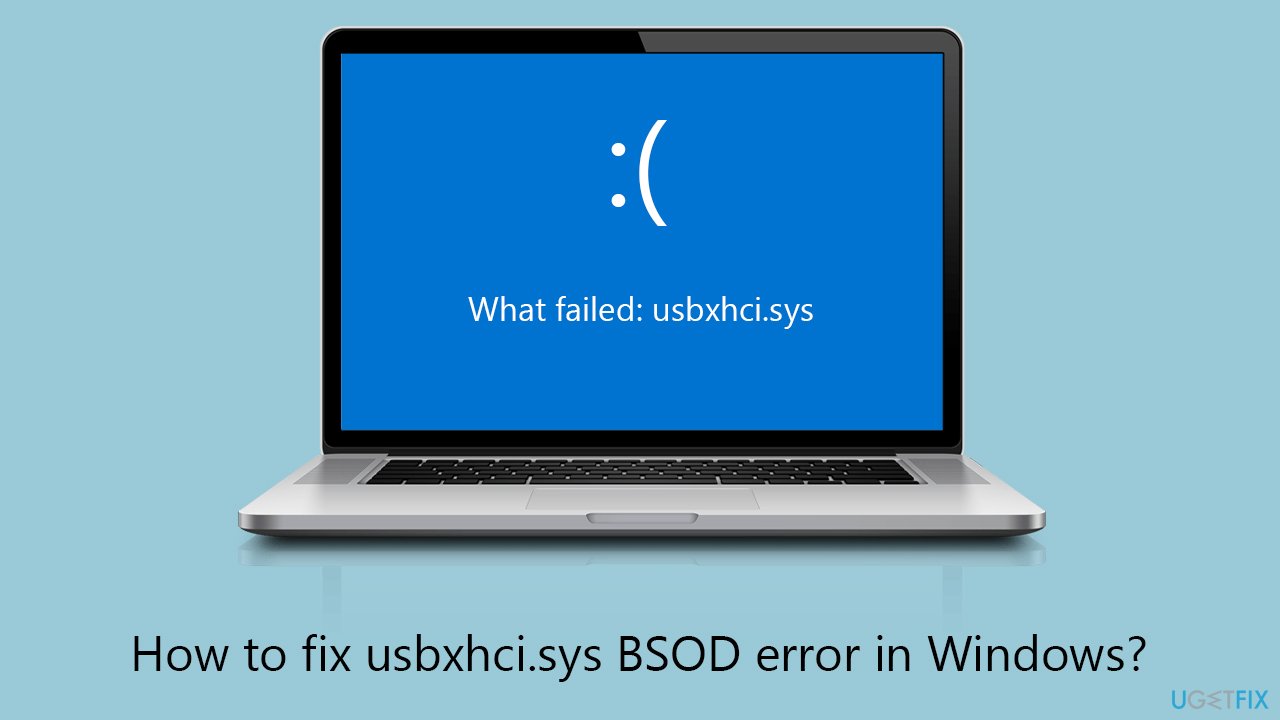
Fix 1. Run SFC and DISM
The System File Checker (SFC) and Deployment Image Servicing and Management (DISM) tools help in repairing corrupted system files and restoring the system's health, potentially resolving issues causing BSODs related to usbxhci.sys. SFC scans for and repairs corrupted or missing Windows system files, while DISM fixes Windows image problems.
- Type cmd in Windows search.
- Right-click on Command Prompt and pick Run as administrator.
- The User Account Control window will ask whether you want to allow changes - click Yes.
- In the Command Prompt window, paste the following command and hit Enter:
sfc /scannow - Once the scan is complete, use the following commands and press Enter after each:
Dism /Online /Cleanup-Image /CheckHealth
Dism /Online /Cleanup-Image /ScanHealth
Dism /Online /Cleanup-Image /RestoreHealth - (Note: if you get an error executing this last command, add /Source:C:\RepairSource\Windows /LimitAccess to it and try again).
- Restart your system.
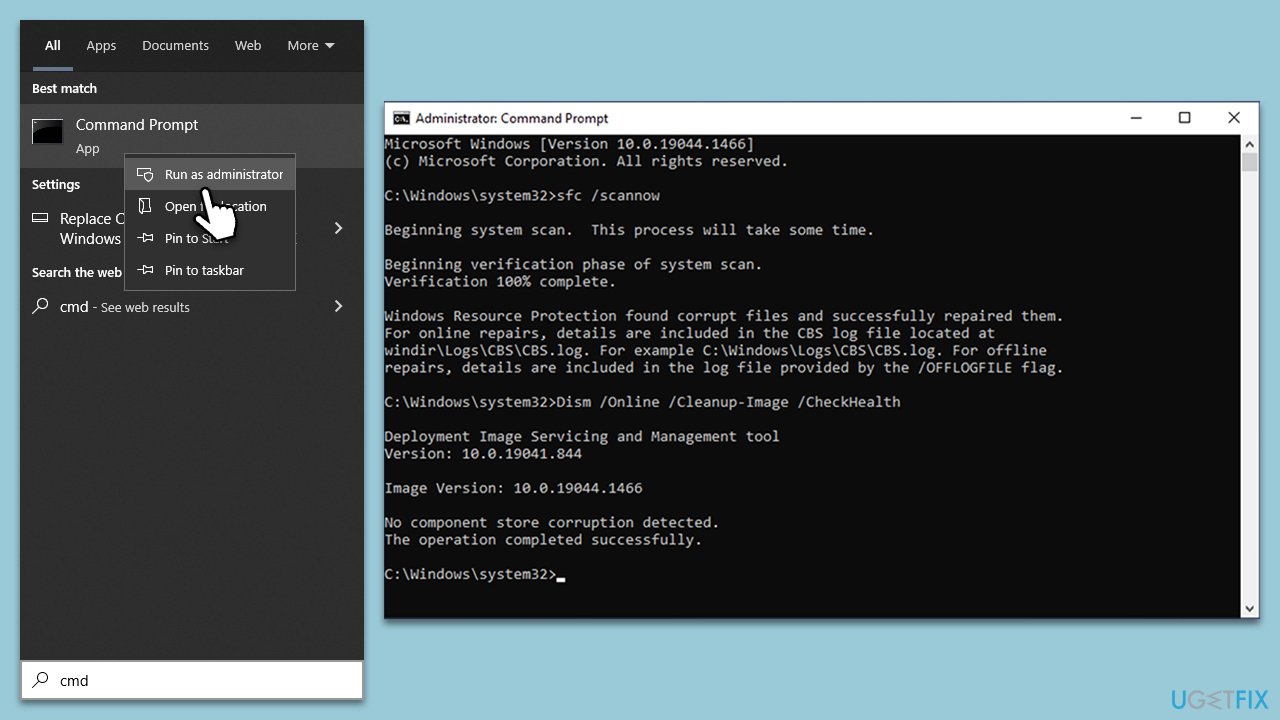
Fix 2. Install all Windows updates
Keeping your system up-to-date ensures that all system files, including drivers, are updated to their latest versions, which can fix known bugs and compatibility issues.
- Type Updates and press Enter.
- In the new window, click Check for updates.
- Wait till all the files are downloaded and installed.
- If optional updates are available, install them as well.
- Restart your device when done.
Fix 3. Update USB (and other) drivers
One of the primary triggers for Blue Screen of Death (BSOD) errors is outdated or faulty drivers. There are various strategies for updating them, but using an automatic updater like [DriverFix] is among the most straightforward approaches. This tool not only automates the process of finding and installing the right drivers for your hardware but also creates backups of your current drivers as a precautionary measure, ensuring a smooth update experience. Alternatively, follow these steps:
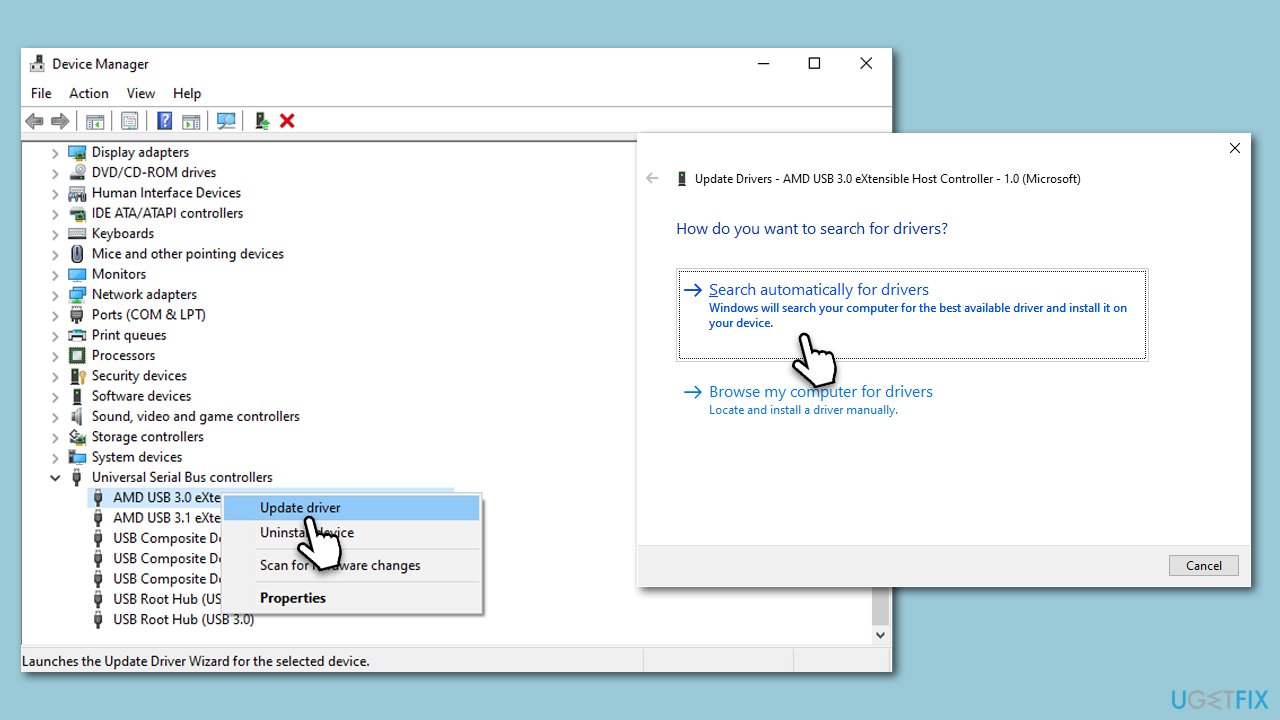
- Open Device Manager as explained above.
- Expand the Universal Serial Bus controllers section.
- Right-click on each of the drivers available there and select Update driver.
- Select Search automatically for drivers and wait.
- Reboot when done.
- Repeat this process for other drivers that could be at fault (e.g. graphics and chipset drivers).
Fix 4. Reinstall drivers
Reinstalling USB and other related drivers can help fix usbxhci.sys BSODs by removing any corrupted drivers and replacing them with fresh installations.
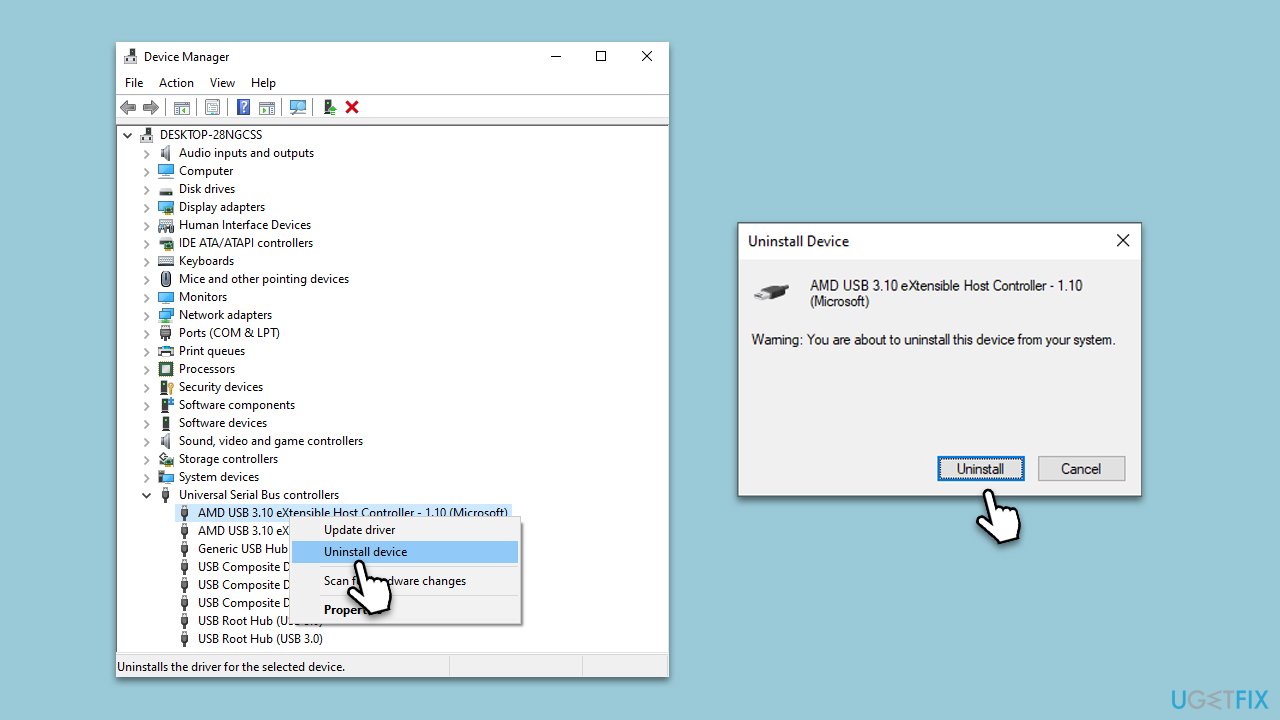
- Open Device Manager.
- Expand the Universal Serial Bus controllers section
- Right-click on the USB and select Uninstall device.
- Click Uninstall.
- Repeat for every USB on your computer.
- Reboot your system.
- Install the drivers using one of the methods provided above.
Fix 5. Try System Restore
System Restore can revert your system's settings back to a point in time when everything was working correctly, potentially fixing any issues causing the BSOD.
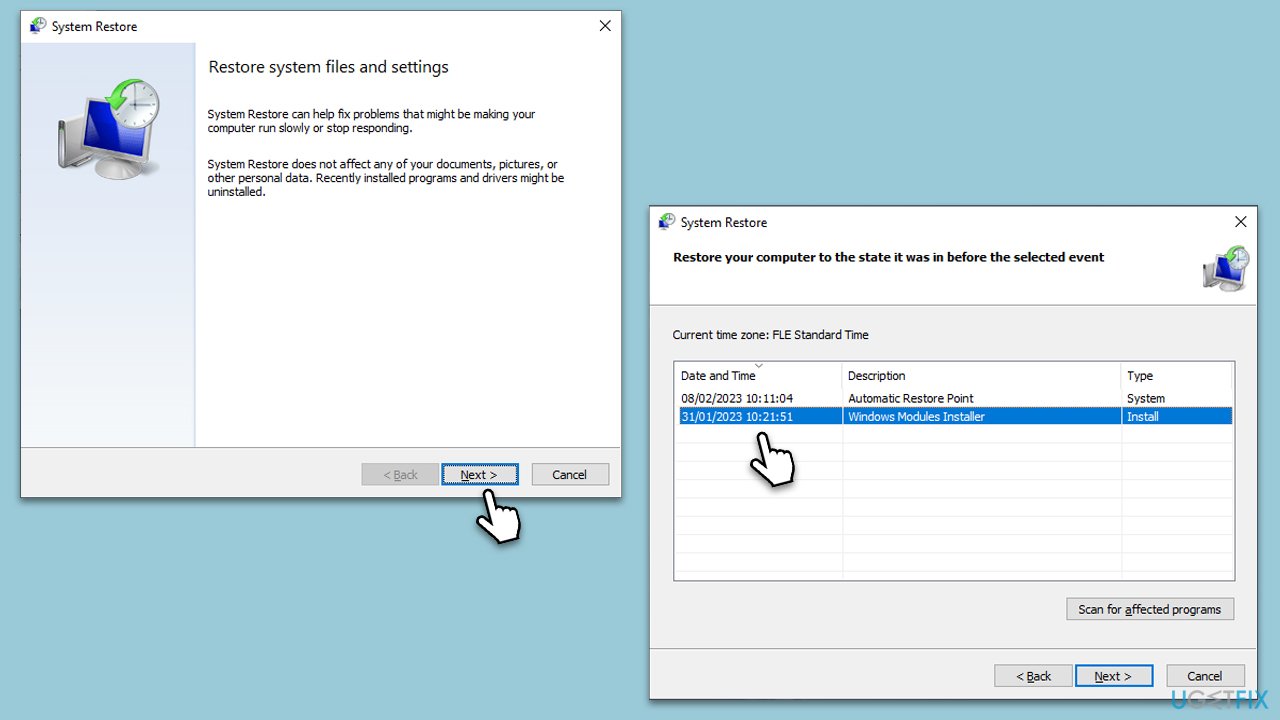
- Type in Create a Restore point in Windows search and hit Enter.
- Go to the System Protection tab and pick System Restore.
- Click Next.
- Click Show more restore points (if available).
- Pick the time before the problem occurred and click Next.
- Follow the prompts to finish the process.
Fix 6. Reset Windows
If other fixes fail, resetting Windows can refresh the system without removing your personal files, although it will remove installed apps and settings. This can resolve underlying issues causing usbxhci.sys related BSODs by starting fresh with the operating system.
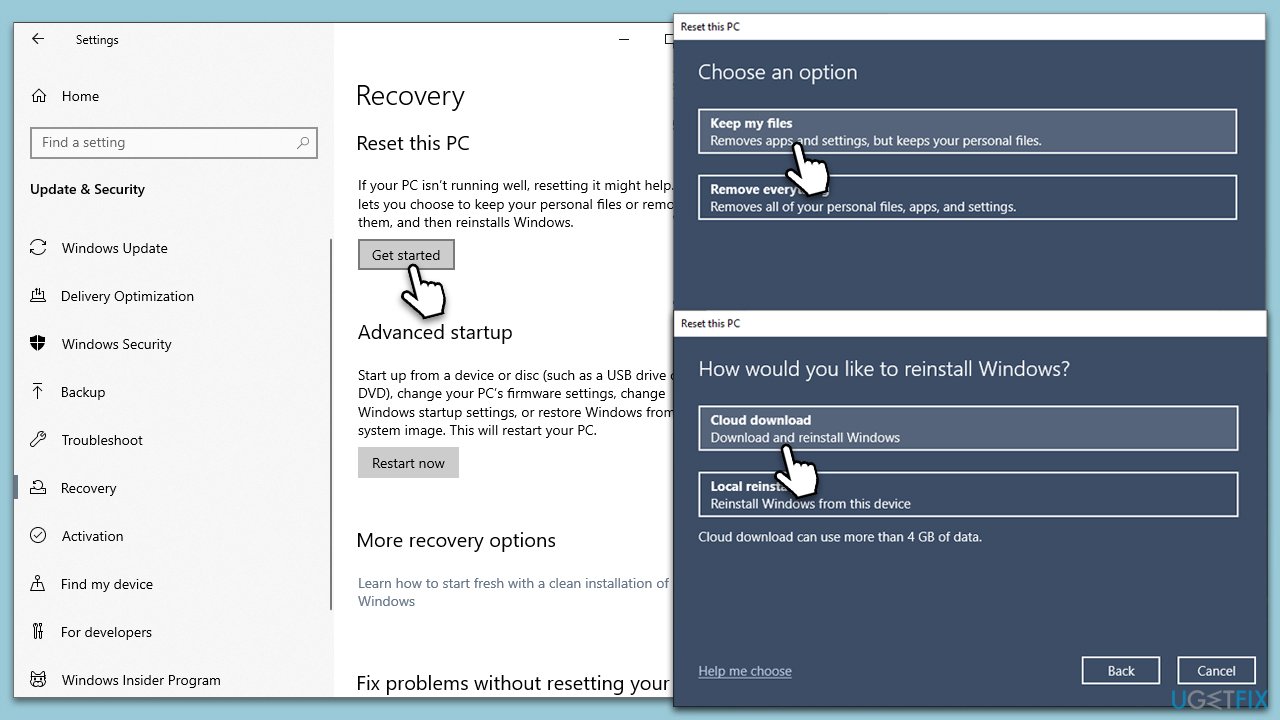
- Right-click on Start and pick Settings.
- Go to Update & Security and select Recovery.
- Under Reset this PC, pick Get started.
- Next, pick Keep my files (if you want to keep them) and then Cloud download.
- Follow the on-screen instructions to complete the reset process.
- After the process, reinstall the necessary applications
Bottom line
To fix the usbxhci.sys BSOD error in Windows, you can run a system file corruption scan using SFC and DISM, update or reinstall drivers, or use System Restore. If these solutions do not resolve the issue, consider using a powerful PC repair application to automatically find and fix problems.
Frequently asked questions
The usbxhci.sys BSOD error is often caused by outdated or incompatible USB drivers, hardware issues, or corrupted system files affecting USB functionality.
To update USB drivers, go to Device Manager, locate Universal Serial Bus controllers, right-click on each USB driver, and select 'Update driver' to ensure they are current in Windows 10 or Windows 11.
Yes, you can run the System File Checker tool by opening Command Prompt as an administrator and typing 'sfc /scannow' to repair corrupted system files related to the usbxhci.sys error.




Report an issue
What's wrong with this guide? We review every report and update or remove content.
Report received — thank you. We'll review and fix it.
You need a free account to submit a report.
Be the first to comment