How to fix
Local Security Authority Protection not working
on Windows
Resolve Local Security Authority Protection issues in Windows 10 or 11 effortlessly. Get expert-tested solutions for a seamless experience!

What causes How to fix Local Security Authority Protection not working in Windows?
- Corrupted system file
- Third-party antivirus software blocking LSA service
- Incorrect configuration settings
- Outdated Windows version
- Conflicting security software
Repairs Windows system files, removes malware, and restores a clean OS state — without reinstalling.
Hi, I got a recommendation from Windows to enable Local Security Authority Protection, so I did, using my administrator account. I restarted my PC, and I received a message that Local Security Authority Protection is off, even though the switch shows it's in the ON position - it keeps giving me warnings. What is going on?
Windows operating system is designed with security features to protect users from various online threats. Some of these features include User Account Control, Windows Defender Firewall, and BitLocker Drive Encryption. These features are intended to ensure the confidentiality, integrity, and availability of user data while keeping the system protected from malicious activities.
One of the essential security features in Windows is The Local Security Authority (LSA). It is responsible for enforcing local security policies and authentication on the system. It manages the Security Account Manager (SAM) database, which stores user account information and passwords. The LSA also handles events and alerts from security software and enforces local security policies.
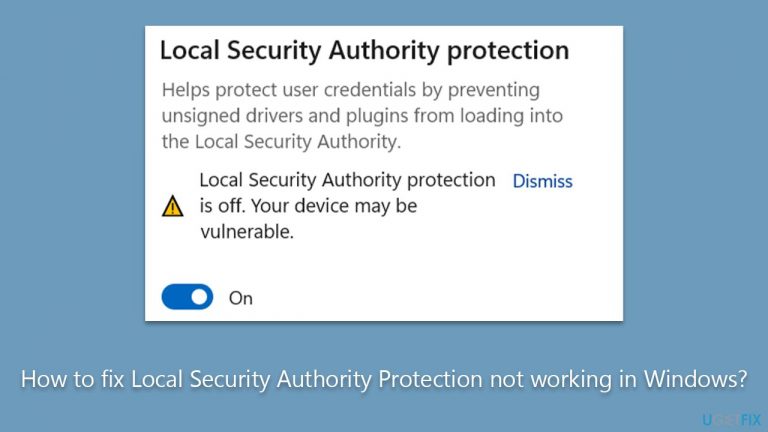
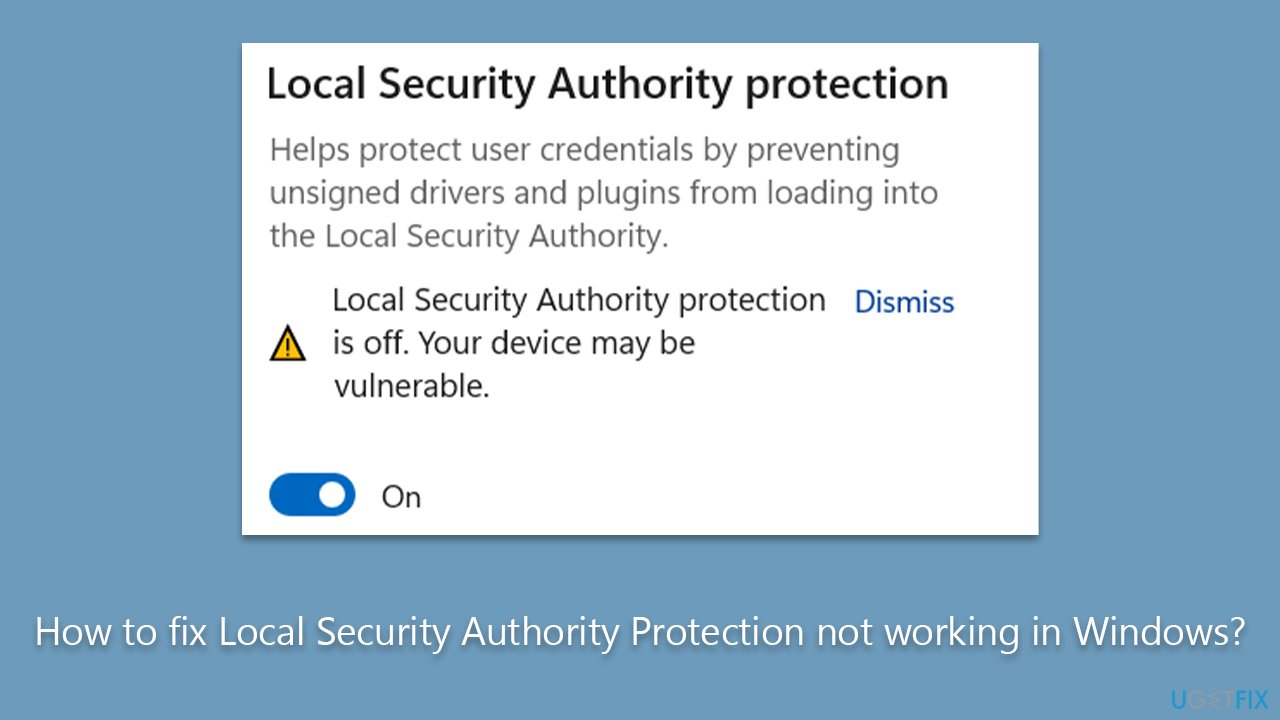
However, some users have reported experiencing issues with the LSA feature on their devices. Despite enabling it, they continue to receive warnings that the "Local Security Authority Protection is off." Even though the toggle for this feature shows as being "On," the message persists. It reads as follows:
Local Security Authority Protection is off. Your device may be vulnerable.
It does not come as a surprise that this message is a cause of concern to many users, especially when Windows itself is telling them that their device is vulnerable to infections and cyber attacks.
Local Security Authority Protection not working issue can occur due to various reasons, including a corrupted system file or third-party antivirus software blocking the LSA service. To resolve this, users can try various troubleshooting steps, such as running a system scan to detect and repair corrupted files.
There are a few other fixes that you could try, but keep in mind that each of the systems is different, running different hardware and software, so there's no universal solution. Go through the troubleshooting steps below and see which one works for you. We recommend using [d1] for a quicker solution - a PC repair tool that automatically replaces corrupted files with new ones.
Fix 1. Check for corrupted files
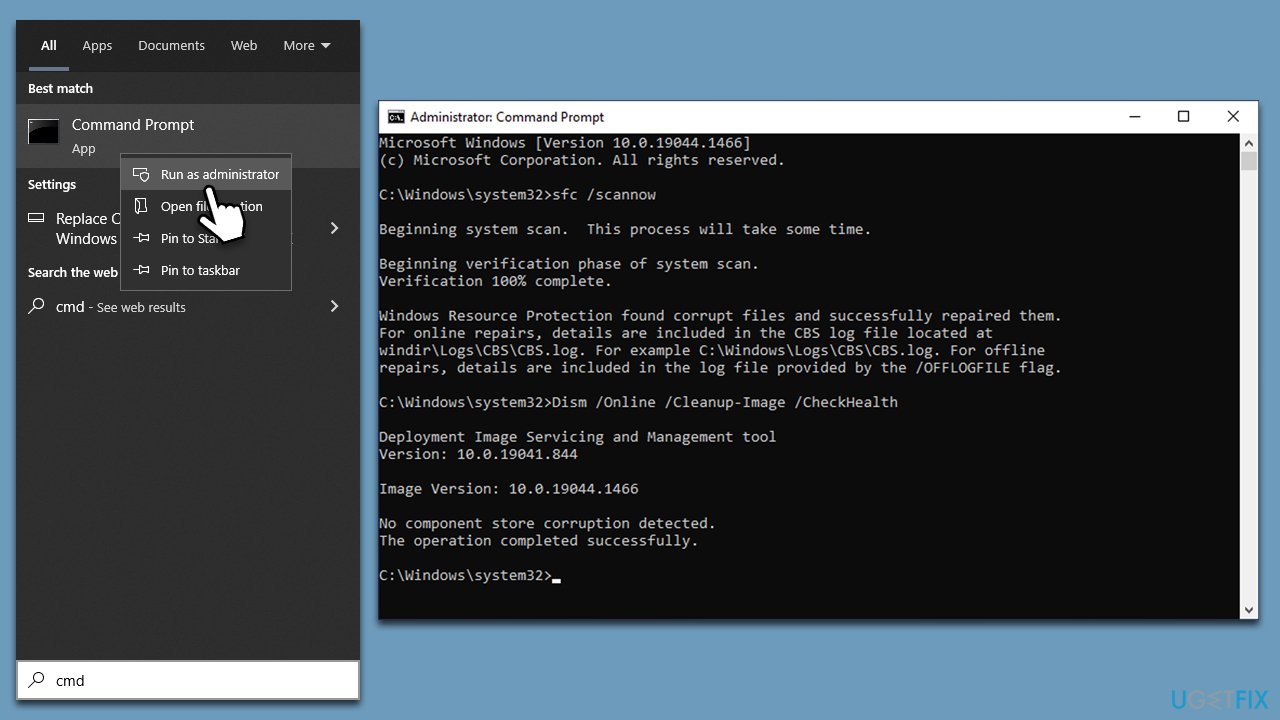
To ensure system file integrity, please run checks using Command Prompt commands:
- Type cmd in Windows search.
- Right-click on the Command Prompt result and pick Run as administrator.
- User Account Control will ask you whether you want to allow changes - click Yes.
- Paste the following command into the new window:
sfc /scannow - Press Enter and wait till the scan finishes.
- When done, run this set of commands, pressing Enter each time:
DISM /Online /Cleanup-Image /CheckHealth
DISM /Online /Cleanup-Image /ScanHealth
DISM /Online /Cleanup-Image /RestoreHealth - Restart your PC.
Fix 2. Enable Local Security Authority Protection using Registry
If you can't enable LSA properly via Windows settings, you can try doing it via the Registry Editor. Ensure you back up the registry before conducting any changes.
- Type regedit in Windows search and press Enter.
- When User Account Control shows up, click Yes.
- Click File > Export.
- Under Export Range, select All and save the backup in your desired destination.
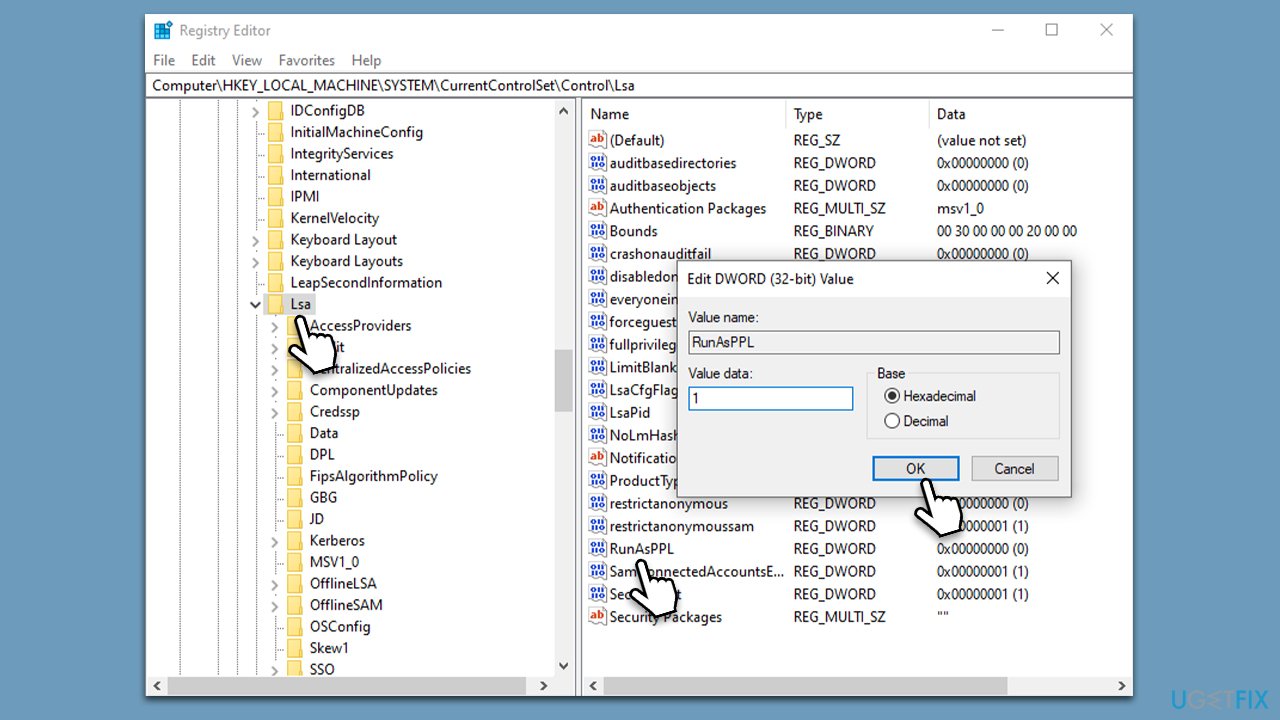
- Next, go to the following location:
Computer\HKEY_LOCAL_MACHINE\SYSTEM\CurrentControlSet\Control\Lsa - On the right side of the window, find the RunAsPPL entry and double-click it.
- Set the value to 1 and click OK.
- Finally, restart your system.
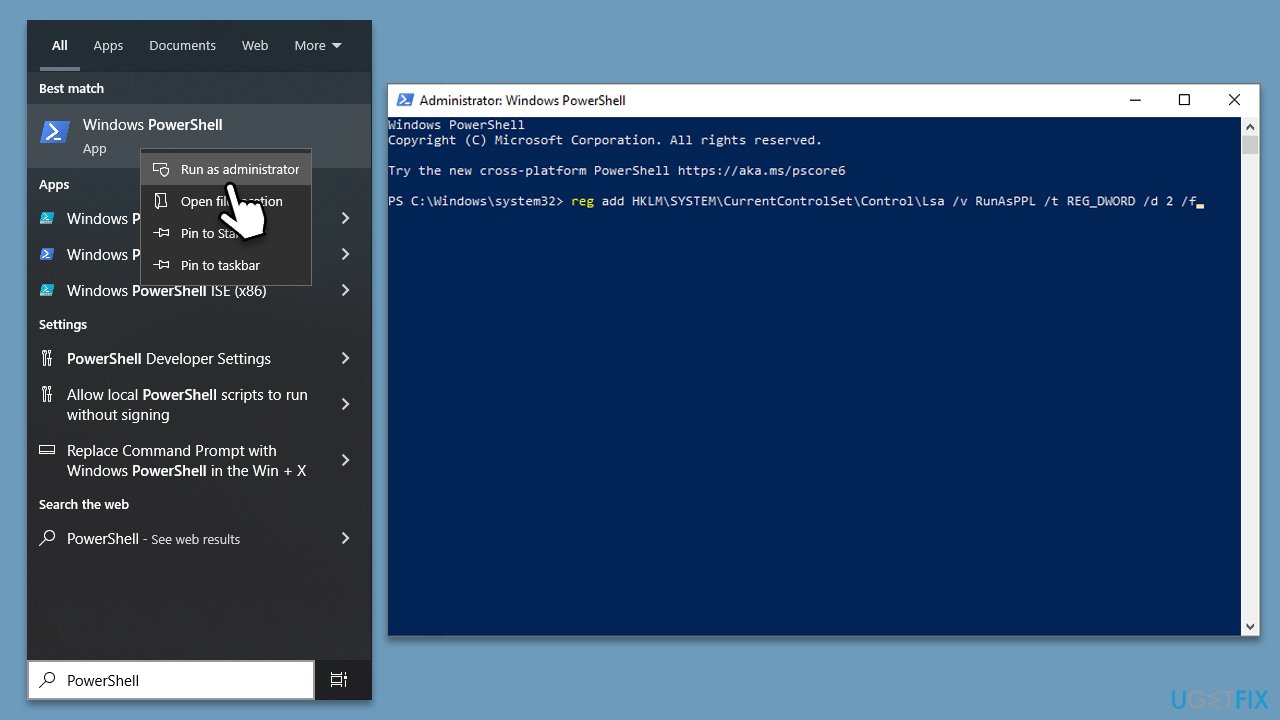
Fix 3. Use PowerShell
- Type PowerShell in Windows search.
- Right-click on the result and select Run as administrator.
- When UAC shows up, click Yes.
- Copy and paste the following commands, pressing Enter after each:
reg add HKLM\SYSTEM\CurrentControlSet\Control\Lsa /v RunAsPPL /t REG_DWORD /d 2 /f
reg add HKLM\SYSTEM\CurrentControlSet\Control\Lsa /v RunAsPPLBoot /t REG_DWORD /d 2 /f - Once both of these are executed, close down PowerShell and restart your system.
Fix 4. Use Group Policy
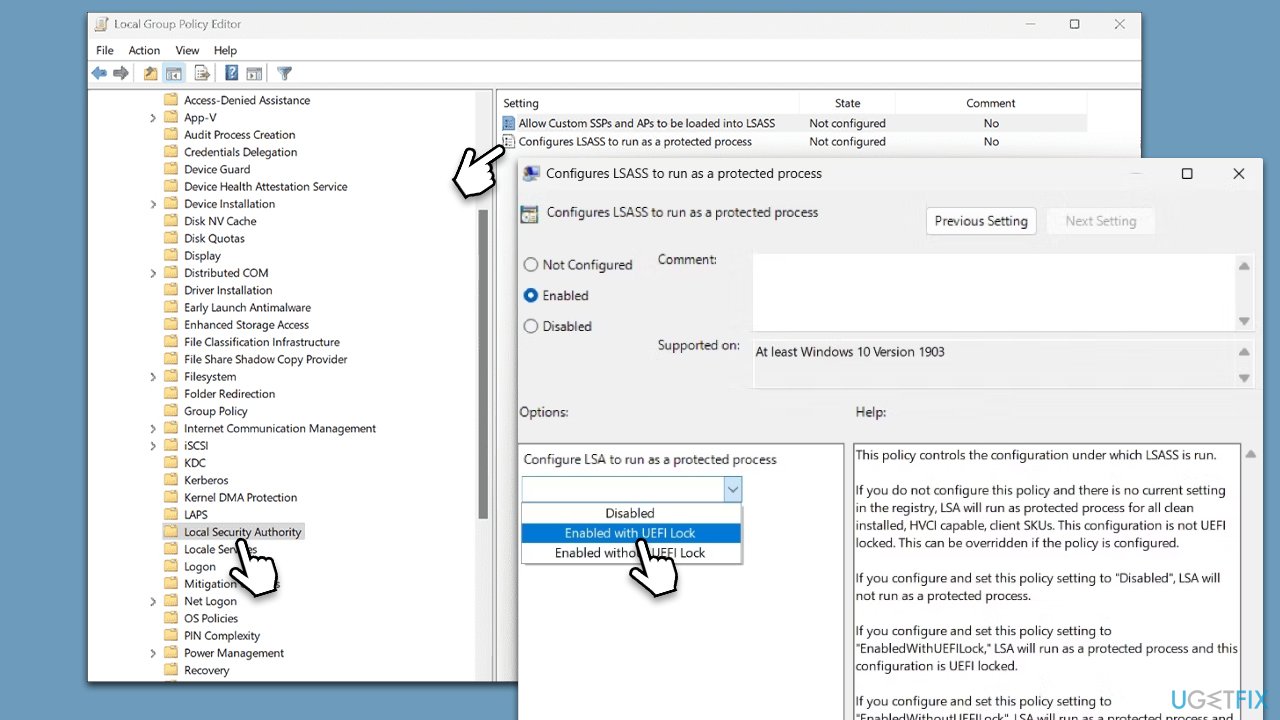
- Type Group policy in Windows search and hit Enter.
- Go to the following location:
Local Computer Policy > Computer Configuration > Administrative Templates > System > Local Security Authority - On the right side of the window, right-click the Configure LSASS to run as a protected process and pick Edit.
- Choose Enabled.
- Under Options, select Enabled with UEFI Lock, then click Apply and OK.
- Restart your computer.
Other solutions
Please ensure that your Windows system is up to date, as well as your security software. If you are using a third-party security app, you should also update it. Also, LSA might sometimes be blocked by a third-party anti-malware, so you should temporarily disable or uninstall the app to see if it solves Local Security Authority Protection not working issues.
Bottom line
To resolve the Local Security Authority Protection issue, users can run a system scan to detect and repair corrupted files, and check for any third-party antivirus software that may be interfering with the LSA service. If these steps do not resolve the problem, users should consider exploring additional troubleshooting methods specific to their hardware and software configurations.
Frequently asked questions
You can enable Local Security Authority Protection by opening the Group Policy Editor, navigating to Local Policies, and adjusting the settings under Security Options to enable this feature.
Try running the System File Checker tool by executing 'sfc /scannow' in the Command Prompt to repair any corrupted system files that may be affecting Local Security Authority Protection.
You may experience issues such as security alerts, authentication failures, and system instability, indicating that Local Security Authority Protection is not functioning as expected.




Report an issue
What's wrong with this guide? We review every report and update or remove content.
Report received — thank you. We'll review and fix it.
You need a free account to submit a report.
Be the first to comment