
How to fix Local Security Policy missing in Windows 10?

Prefer to fix it yourself? The manual steps follow.
- 6methods
- 2 to 30 minutes
- Easy
Applies to Windows 11 and Windows 10, Home, Pro, Enterprise and Education
6 methods in this guide
Hi, I was trying to edit Local Security Policy in the Group Policy Editor, but the entry is simply missing. What is causing it? I am using Windows 10.
Local Security Policy (secpol.msc) is missing on most PCs for one reason: the PC runs Windows 10 Home or Windows 11 Home, which does not include the console. Windows then says it cannot find secpol.msc. Check your edition first, then open the console on Pro or use net accounts on Home.
Open Settings > System > About and read Edition. Windows 10 Home and Windows 11 Home do not include Local Security Policy, so secpol.msc is not found there. On Home, set password rules with net accounts (Fix 4) or upgrade to Pro (Fix 5). On Pro, Enterprise or Education, press Win + R and run secpol.msc (Fix 2).
| Error | "Windows cannot find 'secpol.msc'. Make sure you typed the name correctly, and then try again." Or Local Security Policy is not listed in Start search or Windows Tools. |
|---|---|
| Where it appears | The Run box (Win + R), Command Prompt, Start search and Control Panel > System and Security > Windows Tools (Administrative Tools on Windows 10). |
| Main cause | The PC runs a Home edition. Microsoft ships the Local Security Policy console only in Pro, Enterprise and Education, together with the Group Policy Editor. |
| Fastest fix | Check the edition (Fix 1). On Pro, run secpol.msc (Fix 2). On Home, use net accounts for password rules (Fix 4) or upgrade to Pro (Fix 5). |
| Also written as | secpol.msc not found, secpol.msc missing, windows cannot find secpol.msc, local security policy editor missing, local security policy windows 10 home. |
| Affects | Windows 10 Home and Windows 11 Home, including Single Language. Windows 10 left support on 14 October 2025. |
| Vendor status | Not a bug. Microsoft answers on its own Q&A site that the Security Policy snap-in is not available on Home and that you need Pro for it. |
| Time to fix | 2 minutes to check the edition and open the console on Pro. About 5 minutes with net accounts. 15 to 30 minutes to upgrade to Pro. |
Facts checked on 15 October 2026. Steps written for Windows 11 (25H2 and 26H2) and Windows 10 22H2.
What Local Security Policy is and why Windows cannot find secpol.msc
Local Security Policy is a Microsoft Management Console snap-in, opened with secpol.msc. It holds the security rules of this one PC: Account Policies (password and lockout rules), Local Policies (audit policy, user rights assignment, security options), Windows Defender Firewall rules, software restriction and other security settings.
The same settings are a part of the Local Group Policy Editor. In gpedit.msc they sit under Computer Configuration > Windows Settings > Security Settings. That is why the reader above looked for them inside the Group Policy Editor. Both consoles come only with Pro, Enterprise and Education, so on Home both are absent.
Windows cannot find 'secpol.msc'. Make sure you typed the name correctly, and then try again.
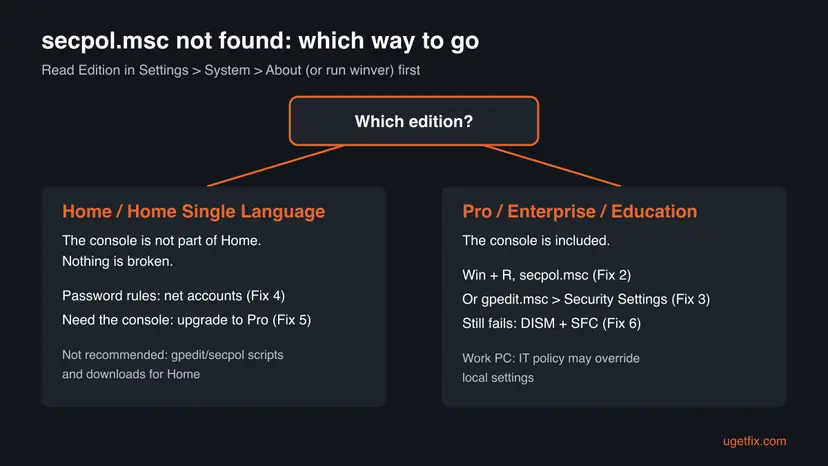
If you are sure the console was there before, the usual reason is a change of edition: a reinstall or a new PC that activated as Home from its firmware licence. We found no Microsoft source that says an update removes secpol.msc from Pro.
Why Local Security Policy is missing: causes ranked
| How often | Cause | Typical sign | Fix |
|---|---|---|---|
| Most often | Windows 10 Home or Windows 11 Home | Edition in About reads Home; Run says it cannot find secpol.msc; gpedit.msc is missing too | Fix 1, then Fix 4 or Fix 5 |
| Often | Pro edition, but you looked in the wrong place | Not in Settings; it lives in Windows Tools, the Run box and gpedit Security Settings | Fix 2 or Fix 3 |
| Less often | Windows was reinstalled and activated as Home | The PC used to be Pro, now About reads Home | Fix 5 |
| Rarely | Damaged system files on a Pro edition | Pro edition, but secpol.msc will not open or shows an error that does not mention the edition | Fix 6 |
The old version of this page told Home users to add Group Policy packages with DISM or to run a downloaded gpedit-enabler.bat. Microsoft does not support those packages on Home, so we no longer recommend either. The FAQ below explains why.
How to fix Local Security Policy missing in Windows 10 and Windows 11
Fix 1 tells you in two minutes whether the console can exist on your PC. Pro readers go to Fix 2 or Fix 3. Home readers go to Fix 4, which covers the most common reason to open the console, or Fix 5 to get the console itself. Fix 6 is only for Pro editions where it is really damaged.
| What you see or have | Start with |
|---|---|
| You do not know your edition | Fix 1 |
| Pro, Enterprise or Education, and you cannot find the console | Fix 2 |
| You were looking for the security settings inside the Group Policy Editor | Fix 3 |
| Home edition, you want to change password rules | Fix 4 |
| Home edition, you need user rights, audit or security options | Fix 5 |
Pro edition, but secpol.msc fails or opens empty | Fix 6 |
Fix 1. Check your Windows edition first
2 minutesLow riskEvery reader, first: anyone who sees "Windows cannot find 'secpol.msc'" or cannot find Local Security Policy anywhere.
Local Security Policy exists only in Pro, Enterprise and Education. Reading the edition tells you at once whether the console is hidden or simply not part of your Windows.
- Press Win + I and open System > About.
- Under Windows specifications, read Edition. You can also press Win + R, type
winverand press Enter. - If it reads Home or Home Single Language, the console is not included. Skip to Fix 4 or Fix 5.
- If it reads Pro, Enterprise or Education, go on to Fix 2.
It worked if: You know which group you are in. On Home, you now know nothing is broken.
If not: Home: use Fix 4 or Fix 5. Pro: use Fix 2.
Fix 2. Open Local Security Policy on Windows 10 and 11 Pro
1 minuteLow riskPro, Enterprise or Education, and you do not know where the console is. It is not in the Settings app.
On these editions the console file is in C:\Windows\System32 and opens from any command line or from Windows Tools. Settings has no link to it.
- Sign in with an administrator account.
- Press Win + R, type
secpol.mscand press Enter. Select Yes if Windows asks for permission. - Or type Local Security Policy in Start search and open it.
- Or open Control Panel > System and Security > Windows Tools on Windows 11, or Administrative Tools on Windows 10, and double-click Local Security Policy.
- From Command Prompt or PowerShell, the same command works:
secpol.msc - To make a shortcut, right-click the desktop, choose New > Shortcut, type
secpol.msc, select Next and give it a name.
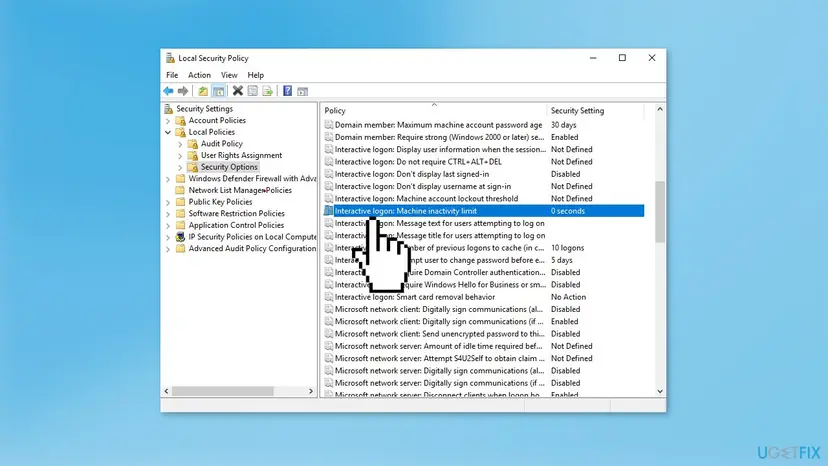
It worked if: The Local Security Policy window opens with Security Settings in the left pane.
If not: If Run says it cannot find secpol.msc on Pro, read Edition again, then use Fix 6.
Fix 3. Find Security Settings inside the Local Group Policy Editor
2 minutesLow riskPro edition; you opened gpedit.msc and could not find Local Security Policy there.
The Group Policy Editor has no entry named Local Security Policy. The same settings appear under a different name, Security Settings, below Windows Settings.
- Press Win + R, type
gpedit.mscand press Enter. - In the left pane, expand Computer Configuration, then Windows Settings.
- Expand Security Settings. You see Account Policies, Local Policies and the other folders of
secpol.msc. - Change a setting as your task says, then restart or run
gpupdate /forcein an administrator Terminal.
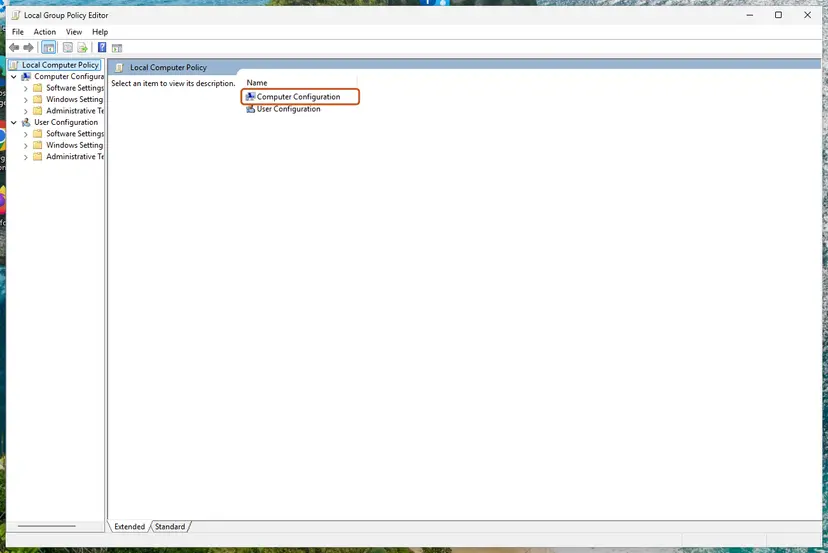
More about the editor itself, including how to undo a change: Open the Local Group Policy Editor.
It worked if: Security Settings shows the same folders and policies as the standalone Local Security Policy window.
If not: If gpedit.msc is also not found, your PC runs Home: use Fix 4 or Fix 5.
Fix 4. Set password rules on Windows Home with net accounts
5 minutesLow riskHome edition; you wanted Local Security Policy to change minimum password length, password age or password history.
Password rules are the most common reason to open secpol.msc. The net accounts command reads and sets the same local password policy, and it is part of every edition, Home included.
- Type
cmdin Start search, right-click Command Prompt and select Run as administrator. Select Yes. - See the current policy:
net accounts - The list shows Minimum password age, Maximum password age, Minimum password length, Length of password history maintained and the Lockout threshold, Lockout duration and Lockout observation window.
- Set a minimum length of 8 characters (range 0 to 14):
net accounts /minpwlen:8 - Let passwords never expire, or set an age in days (1 to 999):
net accounts /maxpwage:unlimited net accounts /maxpwage:90 - Remember the last 5 passwords so they cannot be reused (at most 24):
net accounts /uniquepw:5 - Run
net accountsagain to check the new values.
| Switch | What it sets | Range |
|---|---|---|
/minpwlen:length | Minimum number of characters in a password | 0 to 14 |
/maxpwage:days or unlimited | Days a password stays valid | 1 to 999; cannot be less than /minpwage |
/minpwage:days | Days before a user may change the password again | 0 to 999; 0 means no minimum |
/uniquepw:number | Number of old passwords that cannot be reused | Up to 24 |
/forcelogoff:minutes or no | Minutes before sign-out when logon hours end | Default: no |
These rules apply to local accounts. A Microsoft account signs in with its online password, which follows Microsoft's rules, not this policy.
It worked if: Each command ends with "The command completed successfully." and net accounts shows the new values.
If not: "System error 5" means Command Prompt is not elevated: open it again with Run as administrator. For user rights, audit or security options, use Fix 5.
Fix 5. Upgrade Windows Home to Pro to get Local Security Policy
15 to 30 minutesLow riskHome edition, and you need the console itself: user rights assignment, audit policy, security options or software restriction.
The console is part of Pro and higher. An edition upgrade keeps your files and apps and adds Local Security Policy, the Group Policy Editor and the other Pro tools.
- On Windows 11, open Settings > System > Activation. On Windows 10, open Settings > Update & Security > Activation.
- Expand Upgrade your edition of Windows if you see it.
- If you have a Pro product key, select Change product key and type it.
- Otherwise select Open Store or Go to Store and buy the upgrade.
- Let Windows restart, then run
secpol.mscas in Fix 2.
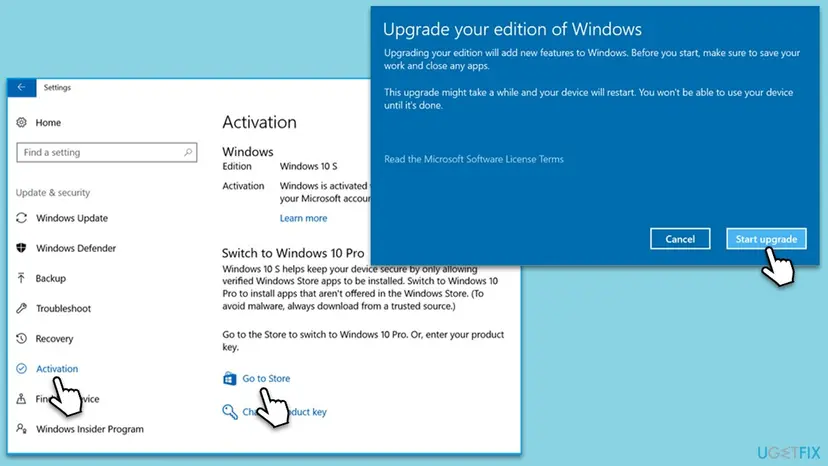
If this PC had Pro before a reinstall, Windows may have activated as Home from the firmware licence. Type your Pro key under Change product key, or contact the seller, before you buy a new one.
It worked if: Edition in About reads Pro, and secpol.msc opens Local Security Policy.
If not: If the edition reads Pro and the console still fails, use Fix 6.
Fix 6. Repair system files when secpol.msc fails on a Pro edition
20 minutesLow riskPro, Enterprise or Education, and secpol.msc is not found, will not open or opens empty.
On an edition that includes the console, a missing or failing secpol.msc points to damaged Windows files. DISM repairs the system image and SFC then replaces damaged files from it.
- Right-click Start and open Terminal (Admin).
- Repair the image first and wait for it to finish:
DISM /Online /Cleanup-Image /RestoreHealth - Then check the system files:
sfc /scannow - Restart the PC and run
secpol.mscagain.
Step by step, with what each result means: Run DISM and SFC to repair Windows system files.
It worked if: SFC reports that it found no integrity violations or repaired them, and Local Security Policy opens.
If not: If it still fails, collect the facts in the next section before you consider a repair install.
Local Security Policy still missing: what to check next
On Home there is nothing to repair: the console is not part of the edition. On Pro, collect these facts before you ask on Microsoft Q&A or your IT desk.
- The exact edition and version from
winver, such as Windows 11 Pro 25H2. - The exact text of the error when you run
secpol.msc, and whethergpedit.mscopens. - Whether
C:\Windows\System32\secpol.mscexists in File Explorer. - The last lines of
C:\Windows\Logs\CBS\CBS.logafter SFC, if SFC could not repair files. - Whether the PC is joined to a work domain or managed by your company.
On a work PC, IT often sets security policy centrally, and it replaces what you set locally at the next policy refresh. Ask IT instead of changing local settings that will not stick.
How to keep Local Security Policy available
- Keep your Pro product key, or note that the licence is digital and linked to your Microsoft account, before you reinstall Windows.
- After a reinstall, check Edition in Settings > System > About before you set up security rules.
- Before you change a policy, write down its old value, or export the settings with Action > Export Policy in Local Security Policy.
- Avoid scripts and downloads that promise secpol or gpedit on Home: they add packages Microsoft does not support there.
Windows 10 left support on 14 October 2025. The steps above work the same on Windows 10 22H2, but the PC no longer gets security updates.
Frequently asked questions
Why is Local Security Policy missing in Windows 10?
Because the PC almost certainly runs Windows 10 Home. Microsoft includes Local Security Policy only in Pro, Enterprise and Education, and a Microsoft answer on its Q&A site says so plainly: the Security Policy snap-in is not available on Home, and you need Pro for it. Check Settings > System > About > Edition. On Home, use net accounts for password rules or upgrade to Pro. On Pro, run secpol.msc from the Run box.
What is Local Security Policy in Windows?
It is a management console, secpol.msc, that holds the security rules of one PC. Its main folders are Account Policies (password and lockout rules) and Local Policies (audit policy, user rights assignment and security options). It also lists firewall, public key and software restriction settings. Administrators use it to set password length, decide who may sign in locally or shut down the PC, and turn on auditing.
How do I open Local Security Policy in Windows 10 or Windows 11?
Press Win + R, type secpol.msc and press Enter. You can also type Local Security Policy in Start search, or open Control Panel > System and Security > Windows Tools (Administrative Tools on Windows 10). In the Group Policy Editor, the same settings are under Computer Configuration > Windows Settings > Security Settings. All of this works only on Pro, Enterprise and Education, with an administrator account.
Can I open Local Security Policy from cmd or the command line?
Yes. Type secpol.msc in Command Prompt or PowerShell and press Enter; it starts the same console. On Home the command fails with "Windows cannot find 'secpol.msc'". For password rules there is a command line tool that works on every edition: net accounts shows the current policy, and switches such as /minpwlen:8 and /maxpwage:unlimited change it (Fix 4).
Is there Local Security Policy for Windows 10 Home or Windows 11 Home?
Not from Microsoft. The console is not part of Home, and no setting turns it on. Your supported choices are net accounts for password rules, Settings for account and sign-in options, or an upgrade to Pro. Guides that add Group Policy packages to Home with DISM, or a downloaded batch file, use packages Microsoft does not support on that edition. Users also report that policies set that way do not always take effect.
Should I run the DISM command or gpedit-enabler.bat from other guides?
We do not recommend it. The command loops through Group Policy package files in C:\Windows\servicing\Packages and adds them to Home with DISM; the batch file does the same thing in a download you cannot easily check. Microsoft does not support this on Home. Third-party write-ups say it also adds secpol.msc, which we could not confirm. If you try it anyway, create a restore point first: Undo recent changes with System Restore.
Windows cannot find secpol.msc on Windows 11: is it the same problem?
Yes. Windows 11 Home lacks the console exactly like Windows 10 Home, and the message is the same: "Windows cannot find 'secpol.msc'". The fixes are the same as well. Only two paths differ: Activation is under Settings > System > Activation on Windows 11, and the old Administrative Tools folder is called Windows Tools there.
Did a Windows update remove secpol.msc?
We found no Microsoft source that ties a missing secpol.msc to an update, and on Pro it stays after updates. When it seems to vanish, the PC usually runs Home after a reinstall, or it is a different PC from the one where you used it. Check the edition first. If it reads Pro and the console still fails, repair system files with DISM and SFC (Fix 6).
Will System Restore bring Local Security Policy back?
Not on Home. A restore point rolls back system files and settings to an earlier date, but it cannot add a console that your edition does not include. On Pro, System Restore can undo a recent change that damaged Windows files, but DISM and SFC (Fix 6) are the more direct repair and keep your other recent changes.
Sources
- Microsoft Q&A: Cannot find Local Security Policy on Windows 10 (the Security Policy snap-in is not available on Home) (learn.microsoft.com)
- Microsoft Learn: Net Commands for Operating Systems (NET ACCOUNTS switches and ranges) (learn.microsoft.com)
- Itechtics: How to enable Local Security Policy (secpol.msc) in Windows 11 (error text, Windows Tools path) (itechtics.com)
Did this fix work?
One click, no account. It tells the next reader which guides are worth their time.
Questions and experiences: fix Local Security Policy missing in Windows 10
Still broken, or found a fix we did not cover? Ask here: members and our editors answer. Reading is open; writing needs a free account.
…