How to fix
Log in error 0x80860010
on Windows
Resolve log in error 0x80860010 in Windows 10 and 11 quickly with our expert-tested solutions. Get back to work in minutes!


What causes How to fix log in error 0x80860010 in Windows?
- Login issues with Microsoft apps
- Underlying system issues
- Corrupted files
- Registry issues
- Cookies and cache problems
Repairs Windows system files, removes malware, and restores a clean OS state — without reinstalling.
Hello. I tried to sync OneNote but it asks me to log in and then shows a 0x80860010 error. Due to this, I cannot access any information in OneNote. How do I fix this?
Error code 0x80860010 is a login error that can occur in Windows when users try to log into a Microsoft app, such as OneDrive, OneNote, Office, etc. This error can prevent users from accessing their files or data stored in the affected app. For example, if a user is trying to log into OneDrive, they may not be able to access any of their files or documents stored in OneDrive.
Similarly, if a user is trying to log into OneNote, they may not be able to access any of their notes or information stored in OneNote. This issue can affect users in different ways, depending on the Microsoft App they are trying to log into. It is unknown why exactly this issue appears.
There are a couple of possible solutions to log in error 0x80860010 in Windows. For some users, the issue disappeared after running the Windows Store Apps Troubleshooter. People can also try to repair Office or Microsoft 365 applications via Windows Settings. If none of these methods work, users might have to reinstall Office completely.
Keep in mind that the log in error 0x80860010 in Windows can pop up because of underlying system issues. You can use a maintenance tool like [d1] that can fix most system errors, BSODs,[ref en-1] corrupted files, registry[ref en-2] issues, or clear cookies and cache.[ref en-3] Otherwise, follow the step-by-step instructions below.

Solution 1. Run the Windows Store Apps Troubleshooter
The Windows Store Apps Troubleshooter is a built-in tool in Windows that helps users troubleshoot and fix issues with apps from the Windows Store. It can help users fix problems such as apps that won't open, apps that crash, apps that don't update or install correctly.
- Press the Windows key + I to open Windows Settings
- Select the System section and scroll down until you see Troubleshoot and click on it
- Click on Other troubleshooters to see more troubleshooters available on your computer
- Scroll down at the bottom until you see Windows Store Apps
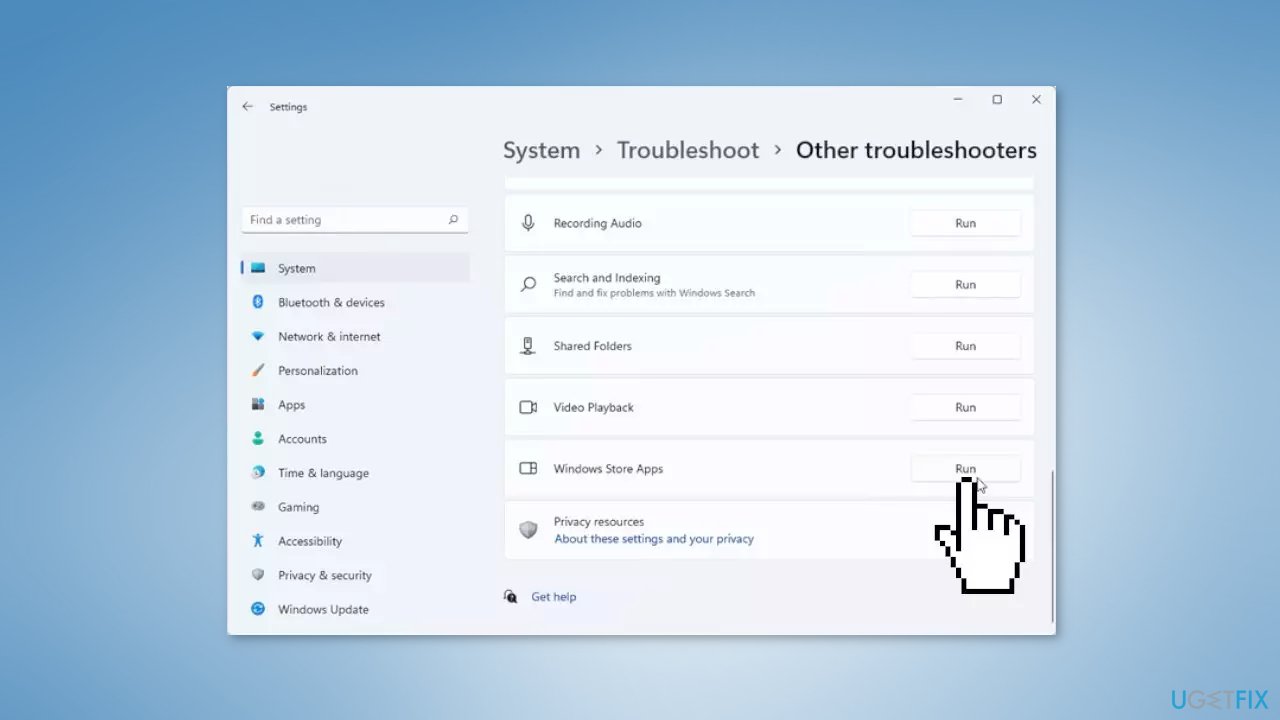
- Click on Run to start the troubleshooting process
- Wait until the process is complete
Solution 2. Repair Office Application
If a Microsoft 365 application like Word or Excel is malfunctioning, attempting a restart may resolve the issue. If this is not successful, try repairing the application.
- Right-click the Start button in the lower-left corner of Windows
- Select Apps and Features on the pop-up menu
- Select the Microsoft Office product you want to repair and select Modify
- Depending on the type of Office installation, you'll see the following options:
Click-to-run:
- In the window How would you like to repair your Office Programs, select Online Repair > Repair to fix everything
- Quick Repair option is also available, but it only detects and replaces corrupted files
MSI-based:
- In Change your installation, select Repair and then click Continue
- Follow the instructions on the screen to complete the repair
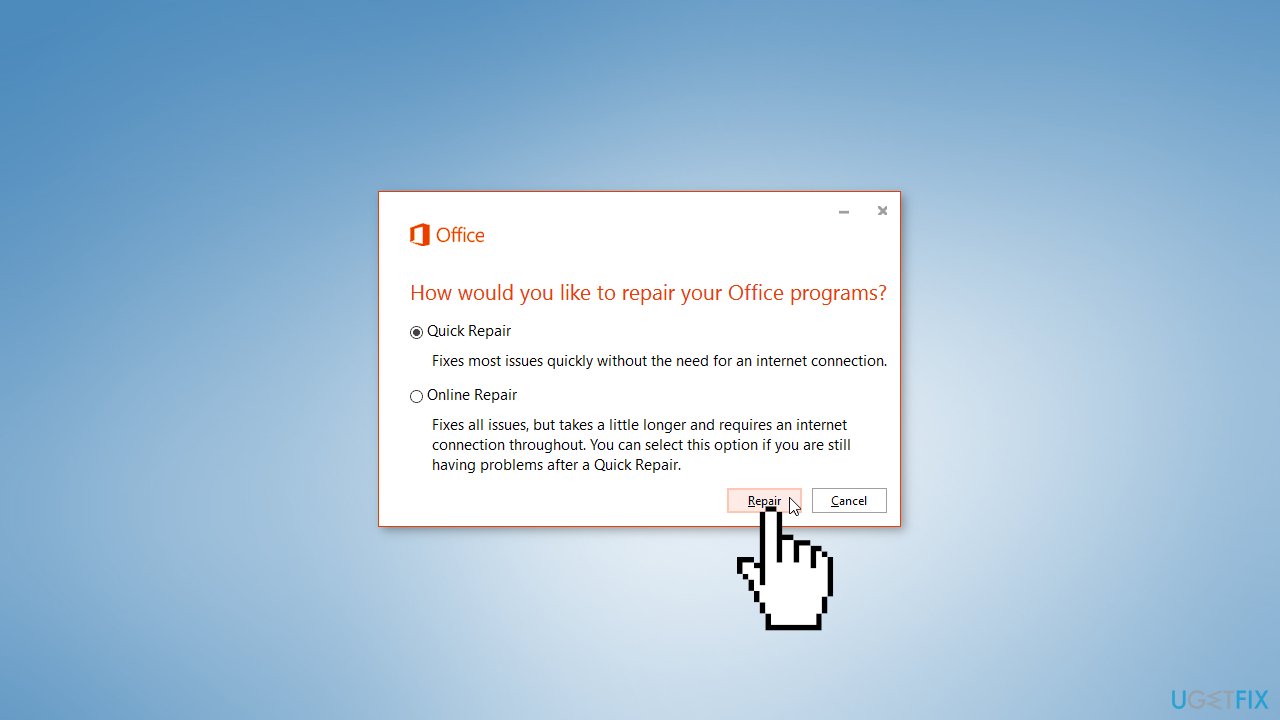
Note: This process will repair the entire Office suite, even if the issue is with only one application, such as Word or Excel.
Solution 3. Reinstall Microsoft 365
Install the Office uninstall support tool from the official Microsoft website. Download the uninstall support tool according to your browser:
Edge or Chrome:
- Right-click SetupProd_OffScrub.exe in the lower-left corner > Open
Edge (older) or Internet Explorer:
- Select Run to launch SetupProd_OffScrub.exe at the bottom of the browser window
Firefox:
- In the pop-up window, select Save File
- Then from the upper-right browser window, select the downloads arrow > SetupProd_OffScrub.exe
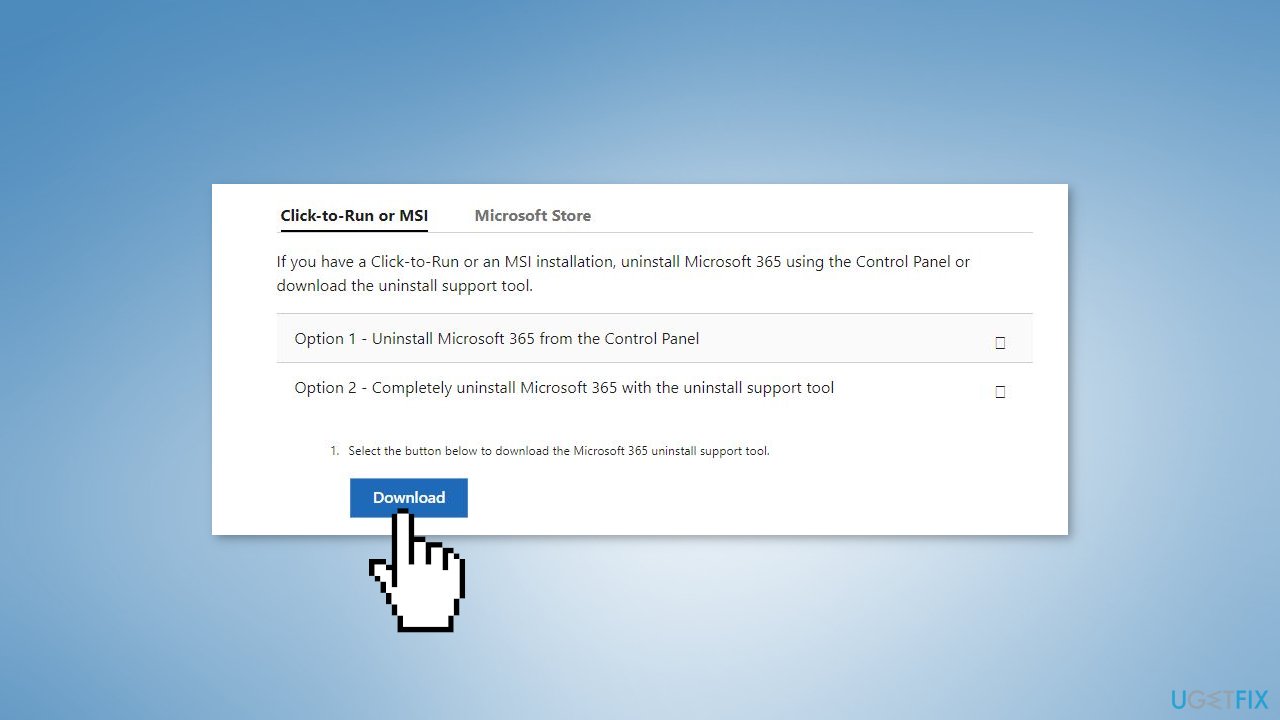
Note: The tool may take a few minutes to download and install. Once the installation is complete, the "Uninstall Office products" window will open.
- Select the version you want to uninstall, and then select Next
- Follow through the remaining screens and when prompted, restart your computer
- After you restart your computer, the uninstall tool automatically re-opens to complete the final step of the uninstall process
- Follow the remaining prompts
- Select the steps for the version of Office you want to install or reinstall
- Close the uninstall tool
Bottom line
To fix the log in error 0x80860010 in Windows, users can run the Windows Store Apps Troubleshooter, repair Office or Microsoft 365 applications, or completely reinstall Office. If these methods do not resolve the issue, consider using a maintenance tool to address system errors.
Frequently asked questions
The error code 0x80860010 typically indicates a problem with the Microsoft account login process, often related to network issues or corrupted account settings.
To troubleshoot the 0x80860010 error on Windows 11, try resetting your network settings and ensure that your device is updated with the latest Windows updates.
Yes, you can fix the 0x80860010 error on Windows 10 by creating a new user account to bypass the issue, which will not affect your existing data.




Report an issue
What's wrong with this guide? We review every report and update or remove content.
Report received — thank you. We'll review and fix it.
You need a free account to submit a report.
Be the first to comment