
How to fix log in error "Too many requests" in Windows?

Prefer to fix it yourself? The manual steps follow.
- 6methods
- 15 minutes to 24 hours, most of it waiting
- Easy
Applies to Microsoft account, Outlook.com and Hotmail sign-in, and any website that answers with HTTP 429 Too Many Requests, in any browser on Windows 11 and Windows 10
6 methods in this guide
When I try to log in through login.live.com in the browser (using Google Chrome), I always get an empty screen with the message "Too many requests". I have tried numerous times, for days now, and I still can't log in. Could you please help me?
Too many requests is the HTTP status 429: the sign-in server counted too many tries from your account, browser or IP address and paused them. Nothing on Windows is broken. Stop every attempt on every device, wait, then sign in once in a single tab.
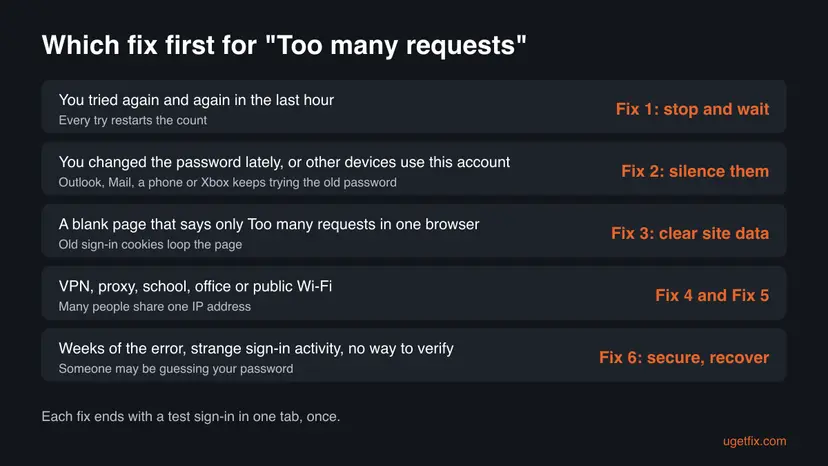
Too many requests means the site's rate limit stopped you: HTTP error 429. Close the sign-in page on every device and do not try again for at least an hour (Fix 1). If it returns, find the app or phone that keeps trying an old password (Fix 2), then clear the site's cookies (Fix 3) and leave VPN or shared networks (Fix 4, Fix 5).
| Error | Too many requests, often on an otherwise empty page. Also Too many requests, try again later. |
|---|---|
| Where it appears | In the browser, right after you enter an address or password on a sign-in page such as login.live.com, or when a site reloads too often. |
| Main cause | Too many requests from one account, cookie or IP address in a short time: repeated sign-ins, an app or device retrying an old password, or many people behind one IP. |
| Fastest fix | Stop all attempts on every device and wait before one new try (Fix 1). |
| Also written as | HTTP 429, error 429, 429 Too Many Requests, too many request, too many requets, to many requests error, request too frequent. |
| Affects | Any website or service with a rate limit, including Microsoft account, Outlook.com and Hotmail. It is the same in Edge, Chrome and Firefox. |
| Vendor status | Not a bug. MDN describes 429 as rate limiting on purpose. Microsoft's recovery page limits recovery requests per day and asks you to try again in 24 hours. |
| Time to fix | Minutes of work. The waiting can take from minutes to a day, and the site decides how long. |
Facts checked on 15 October 2026. Steps written for Microsoft account sign-in (login.live.com) in Microsoft Edge, Google Chrome and Firefox on Windows 11 (25H2 and 26H2) and Windows 10 22H2, read against Microsoft's and MDN's pages.
What "Too many requests" means when you log in
Too many requests is the text of the HTTP status code 429. MDN, the web reference of Mozilla, defines it as the answer a server gives when the client sent too many requests in a given amount of time. The usual name for this is rate limiting. The server may add a Retry-After header that says how long to wait.
The limit can count requests from your IP address, from your account, or from one browser cookie, which is what a message about too many requests for the same session points to. The browser only shows what the site sends. So Edge: Too many requests in Microsoft Edge is not an Edge fault: the website you opened in Edge said it.
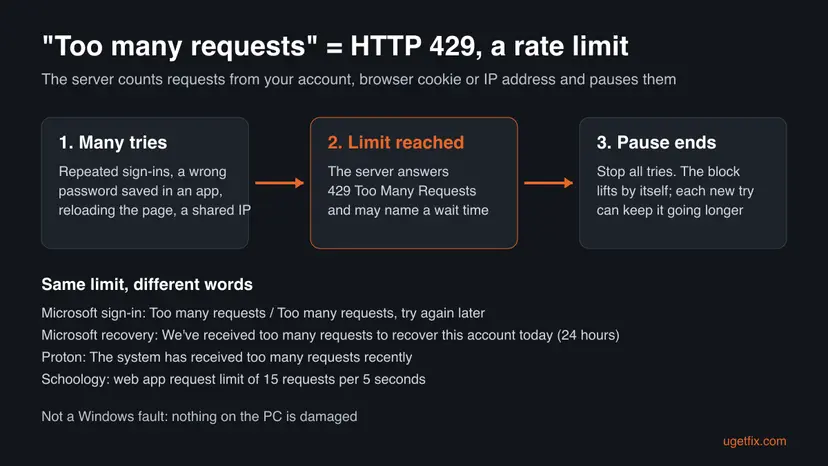
| What you may see | Where | What it tells you |
|---|---|---|
| Too many requests on a blank page | login.live.com, the Microsoft account sign-in | Microsoft paused sign-in tries for now. See Fix 1 and Fix 2. |
| Too many requests, try again later. | Microsoft account, Outlook.com and Hotmail sign-in | The same limit with the hint to wait. |
| We've received too many requests to recover this account today. | Microsoft account recovery (account.live.com) | Microsoft's daily limit for recovery requests. Microsoft says to try again in 24 hours. |
| Too many requests coming from your IP address | Many websites | The limit counts your IP address. See Fix 4 and Fix 5. |
| The system has received too many requests recently. Please try again in a few moments. | Proton sign-in, as readers quote it | A short pause. Wait a few minutes, then try once. |
The message comes from the website's server. System file checks, driver updates or a new Windows profile do not touch it. What ends it is fewer requests: time, fewer devices trying, or a different IP address.
What causes the Too many requests error, ranked
The order below is our reading of how rate limits work and of what Microsoft moderators and users report. It is not a statistic. Each cause points at the fix that tests it.
| How often | Cause | Typical sign | Fix |
|---|---|---|---|
| Most often | You tried to sign in or reload many times in a short time | The error came after several wrong passwords or reloads. | Fix 1 |
| Often | An app or device keeps trying an old or wrong password in the background | You changed the password lately; Outlook, Mail, a phone or a console uses the same account. | Fix 2 |
| Often | Old sign-in cookies make the page loop and send requests again | Only one browser shows it; a private window or another browser works. | Fix 3 |
| Less often | A VPN, proxy or shared network: many people behind one IP address | It fails at school, at work, on public Wi-Fi or with a VPN, and works on mobile data. | Fix 4, Fix 5 |
| Rarely | Someone else is guessing your password | Weeks of the error, failed sign-ins you did not make in your account's activity. | Fix 6 |
How to fix the log in error "Too many requests" in Windows
Start with Fix 1. It costs nothing and clears most cases, because the limit lifts by itself once the requests stop. Every later fix also ends with one calm test, never a series of tries. It worked when the sign-in page asks for your password or opens your account instead of the error.
| Your case | Start with | Then |
|---|---|---|
| You tried again and again in the last hour | Fix 1 | Fix 3 |
| You changed the password lately, or other apps and devices use this account | Fix 2 | Fix 1 |
| A blank page with only Too many requests, in one browser | Fix 3 | Fix 1 |
| You use a VPN or proxy, or a school, office or public network | Fix 4 | Fix 5 |
| Days or weeks of the error, failed sign-ins you did not make | Fix 6 | Fix 2 |
Fix 1. Stop every sign-in attempt and wait before one new try
15 minutes to 24 hoursNo riskEveryone, first. Most of all if you retried or reloaded the page many times.
A rate limit counts requests in a window of time. Each new try is one more request, so retrying keeps you over the limit. When the requests stop, the count falls and the server lets you in again.
- Close every tab that shows the sign-in page or the error. Do not press F5 or reload.
- Do the same on your phone, tablet and any other PC where you tried to sign in.
- Wait at least 1 hour. If you also used account recovery, wait 24 hours, as Microsoft's recovery page asks.
- Open one new tab and go to the sign-in page, for example
https://login.live.com. - Type the address and password slowly, once. If it fails, stop and do not try again right away.
The site decides. MDN's example shows a server asking for 3,600 seconds, one hour. Microsoft's recovery limit is one day. We could not confirm a fixed time for the Microsoft sign-in page itself.
It worked if: The sign-in page asks for your password or opens your account instead of Too many requests.
If not: If the error is back within minutes, something else keeps sending requests: go to Fix 2.
Fix 2. Stop apps and devices that keep trying an old password
10 minutesLow riskYou changed the password lately, or Outlook, Mail, Teams, a phone or a console uses the same account.
An app with a saved old password retries in the background every few minutes. Each failed try counts against the same account, so the limit never resets even when you wait. Users on Microsoft's forum report that removing old saved credentials ended the error.
- On the PC, close Outlook, Mail, Teams and OneDrive. Quit them also from the hidden icons next to the clock.
- Press Win, type
Credential Managerand open it. Select Windows Credentials. - Under Generic Credentials, expand entries that name your account,
MicrosoftAccount,live.comoroutlook, and select Remove. - On your phone and tablet, close the mail and Microsoft apps, or turn on airplane mode for the waiting time.
- Turn off or disconnect a console or second PC that signs in with this account.
- Wait 1 hour, as in Fix 1, then sign in once in the browser.
- When the browser works, open each app again and enter the new password once.
It worked if: The browser sign-in works, and the error does not return after the apps get the new password.
If not: If only one browser still shows the error, clear its site data with Fix 3.
Fix 3. Clear the sign-in site's cookies, or test in a private window
5 minutesLow riskThe page is blank with only Too many requests, or the error shows in one browser only.
MDN notes that a limit can be tied to a cookie. An old or broken sign-in cookie can also make the page redirect and resend requests by itself. Clearing it gives the site a fresh session.
- Open a private window: Ctrl + Shift + N in Edge and Chrome, Ctrl + Shift + P in Firefox.
- Go to the sign-in page and sign in once. If it works there, the cookies of the normal window are the problem.
- Close the private window and clear cookies and cached files in your normal browser.
Step by step for Edge, Chrome and Firefox: Clear the browser cache and cookies. Clearing all cookies signs you out of other sites, so keep your other passwords at hand.
- Open Delete browsing data. Press Ctrl + Shift + Delete. Or select Settings and more (the three dots) > Settings > Privacy, search, and services > Clear browsing data, then Choose what to clear.
- Choose how far back to delete. Pick a range in the Time range list.
- Choose what to delete. Check Cached images and files, and Cookies and other site data if you also want to clear cookies. Uncheck what you want to keep, such as passwords.
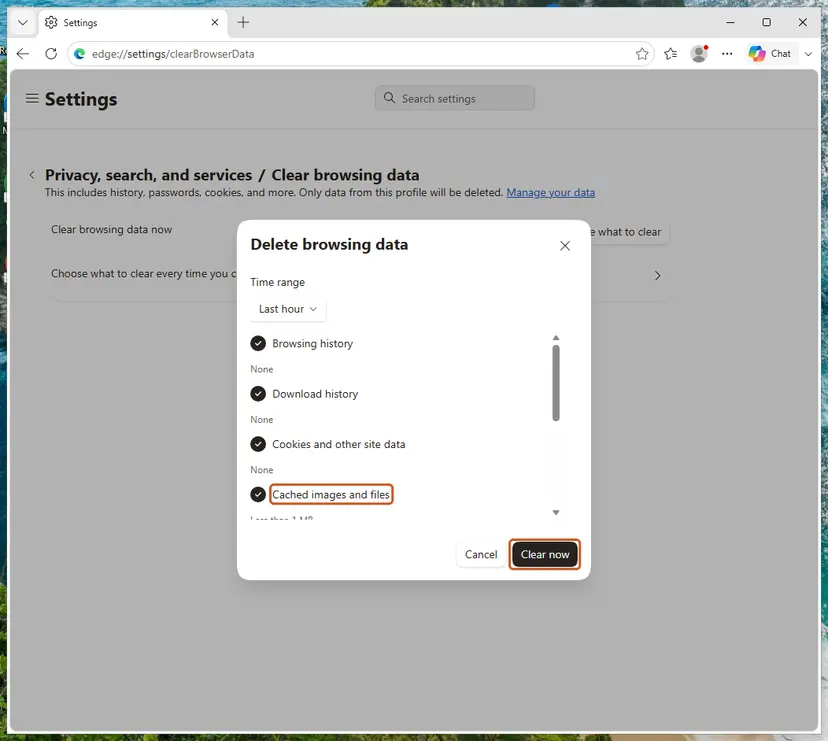
Edge: check Cached images and files, then Clear now. Screenshot: Windows 11 26H2. - Delete the data. Select Clear now.
These steps were written for Microsoft Edge for Windows (screenshot: Windows 11 26H2). The full page with the other versions and what each result means: Clear the browser cache and cookies
It worked if: The sign-in page loads fully with the address box, not a blank page with Too many requests.
If not: If every browser fails on this network, the limit is on your IP address: go to Fix 4.
Fix 4. Turn off the VPN and the proxy server
5 minutesLow riskYou use a VPN app, a proxy, or a browser extension that changes your location.
MDN says limits are usually counted per IP address. A VPN or proxy puts you behind one address with many strangers, so their requests count as yours and you hit the limit with your first try.
- Disconnect your VPN app and close it.
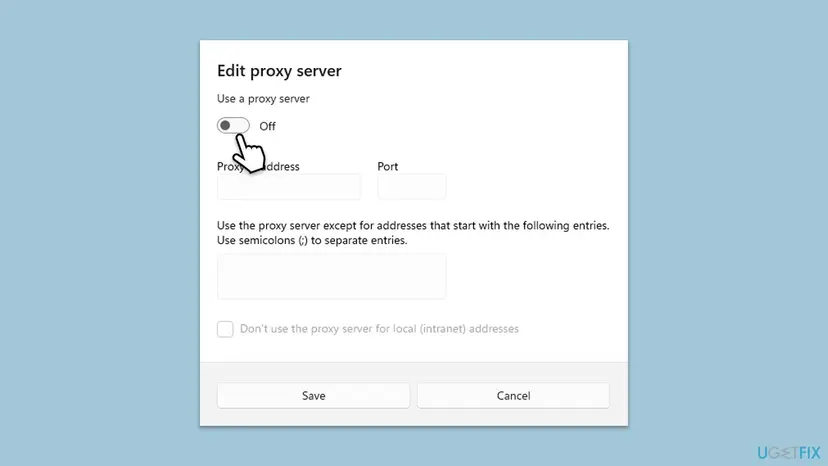
- Press Win + I and open Network & internet > Proxy.
- Next to Use a proxy server, select Set up or Edit and set the switch to Off. Select Save.
- Turn off browser extensions that act as a VPN or proxy.
- Wait 15 minutes, then sign in once.
It worked if: Without the VPN or proxy, the sign-in page accepts your address and password.
If not: If you never used a VPN, or it still fails, change the network with Fix 5.
Fix 5. Sign in from another network, or get a new IP address
10 minutesNo riskYou are on a school, office, dorm, hotel or public network, or every browser fails.
On a shared network many people use one public IP address, and a limit counted per IP blocks all of them. A different network gives you a different address and a fresh count.
- Turn on the mobile hotspot on your phone and connect the PC to it, or sign in on the phone with Wi-Fi turned off.
- At home, unplug the router for 30 seconds and plug it in again. Some providers give a new IP address after this.
- Restart the PC so every app starts with a clean connection.
- Sign in once on the new connection.
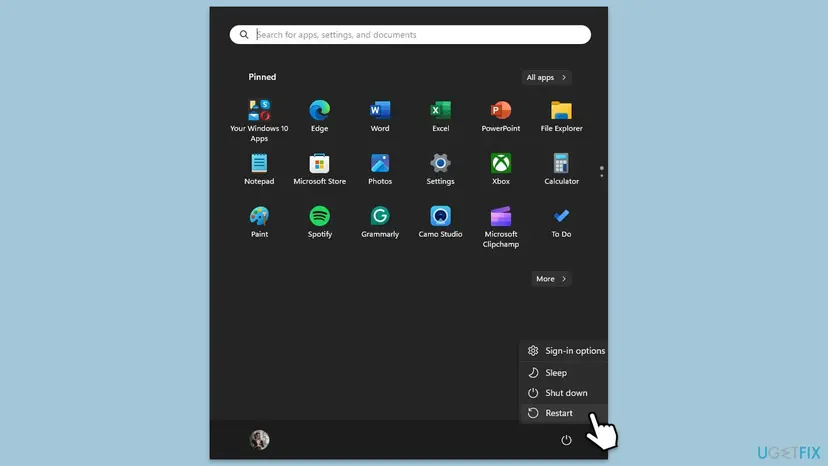
If pages do not load at all after the restart, check the connection first: How to check your internet connection in Windows.
It worked if: On the other network, the sign-in page lets you in.
If not: If the error follows you to every network and device, the limit is on your account: go to Fix 6.
Fix 6. Secure the account if someone else may be trying it
30 minutesLow riskThe error lasts for days on every network, or you see failed sign-ins you did not make.
When strangers guess your password, their tries count against your account, and the limit keeps you out too. Users on Microsoft's forum describe exactly this: weeks of the error and failed password attempts in the account activity.
- From a device that is still signed in, open your Microsoft account's security page and review the recent sign-in activity.
- If you see sign-ins you did not make, change the password to a new, long one that you use nowhere else.
- Turn on two-step verification, as Microsoft's moderator advises.
- Check that your security phone number and other email address are current.
- If no device is signed in, use Microsoft's account recovery form. Answer as fully as you can, then wait 24 hours before a second request.
Many recovery requests on one day bring We've received too many requests to recover this account today. Microsoft asks you to try again in 24 hours. Send one careful request instead of several quick ones.
It worked if: You get back in, the activity page shows only your own sign-ins, and the error stops.
If not: If recovery fails, contact Microsoft support with the details listed in the next section.
If Too many requests is still there: what to check and send
When the error stays on every device and every network after a full day without tries, the cause is no longer your PC. Only the service can see why your account or address is limited. Collect a few facts so support does not start from zero.
- The exact text on the page, and the address in the address bar.
- The date and time of your last try, and how long you waited before it.
- Which networks and devices you tried, and whether a VPN was on.
- Whether the password changed lately, and which apps use the account.
- For a website, not Microsoft: whether the page names a wait time or a limit, like Schoology's limit of 15 requests per 5 seconds.
| What you see | Likely reason | Who can fix it |
|---|---|---|
| Error only on one school or office network | The site limits the shared IP address of that network. | The network's IT team, or you by using mobile data. |
| Error for weeks on every network, with failed sign-ins you did not make | Password guessing against your account. | You, with Fix 6, and Microsoft support for recovery. |
| Error on one website for everyone | The website is overloaded or its limit is too strict. | The website's owner. Wait or contact them. |
How to keep the Too many requests error from coming back
The limit protects your account from password guessing, so you cannot turn it off. You can stay well under it.
- After a password change, update it in every app and device on the same day.
- Use a password manager so you do not try several passwords in a row.
- Do not reload a sign-in page that hangs. Wait a minute and open it once in a new tab.
- Sign in without the VPN to accounts that limit by IP, then turn the VPN back on.
- Turn on two-step verification, so a guessed password alone does not open the account.
Frequently asked questions
What does Too many requests mean?
It means the website's server received more requests from you than its limit allows in a short time and paused you. Technically it is the HTTP status code 429 Too Many Requests, which MDN calls rate limiting. The limit can count your IP address, your account or your browser cookie. It is not a virus and not a Windows fault. Stop trying, wait, and try once more, as in Fix 1.
Why does it say Too many requests when I only tried once?
Because the requests do not have to come from you. An app or phone with your old password may retry in the background, which Fix 2 stops. On a VPN, school or public network, other people share your IP address, and their requests count with yours, which Fix 4 and Fix 5 handle. A looping page with old cookies can also send many requests on its own, which Fix 3 clears.
How long does the Too many requests block last?
The website decides, and most do not say. A server may send a Retry-After time; MDN's example asks for one hour. Microsoft's account recovery page says to try again in 24 hours. For the normal Microsoft sign-in we could not confirm a fixed time. Readers usually get in again after an hour or a few hours of no tries at all. Every new try during the wait can extend it.
What does Edge: Too many requests mean?
It means a website opened in Microsoft Edge answered with Too many requests. Edge itself has no such error; it only shows what the site sent. That is why the same page fails in Chrome and Firefox too, unless the cause is Edge's own cookies. Try the site once in an InPrivate window. If that works, clear the site data in Edge with Fix 3. If not, use Fix 1 and Fix 4.
How do I fix Too many requests on Microsoft login or Hotmail?
Close the sign-in page everywhere and wait at least an hour, as in Fix 1. Then remove saved old passwords from Outlook, Mail and your phone with Fix 2, because they keep retrying the Hotmail or Outlook.com account. Sign in once on login.live.com in a private window. If it lasts for days with failed sign-ins you did not make, secure the account and use Microsoft's recovery form with Fix 6.
What does Too many requests coming from your IP address mean?
It means the site counts requests per IP address, and yours went over the limit. MDN notes that this is the usual way rate limits work. Behind a VPN, a proxy, or a school, office or hotel network, one address belongs to many people. Turn off the VPN and proxy with Fix 4, or switch to your phone's mobile data with Fix 5, then try once.
What does Too many requests for the same session mean?
It means the site tied the limit to your browser session, usually its cookie, instead of your IP address. Sending many requests with the same cookie, for example by reloading or by a page that loops, hits the limit. A fresh session usually helps. Close the tabs, clear the site's cookies or use a private window with Fix 3, then sign in once.
How do I fix Schoology's Too many requests message?
Readers quote Schoology's message as a web app request limit of 15 requests per 5 seconds, followed by a request to refresh the browser. It means the page sent requests too fast, often because several Schoology tabs refresh at once. Close the extra tabs, wait a few seconds and refresh one tab. If it repeats, clear Schoology's cookies with Fix 3. We could not confirm the limit in Schoology's own documentation.
Will clearing the cache or flushing DNS fix Too many requests?
Clearing the cookies of the sign-in site helps when an old cookie loops the page, which is Fix 3. Flushing DNS or resetting Windows networking does not change your public IP address or your account's count, so it does not lift the limit. The old version of this guide listed those steps; we removed them. Reset the network only if pages do not load at all.
Is this page about iniciar sesion or other services' sign-in problems?
This page is about the Too many requests message, HTTP 429, on any sign-in page, with Microsoft accounts as the main example. Iniciar sesion simply means sign in in Spanish; a user on Microsoft's forum quoted the same Spanish message as Demasiadas solicitudes. The same fixes apply to Proton, shops and school sites, because they all use the same kind of limit. Other sign-in errors with a code need their own guide.
Sources
- Microsoft account: You've reached the limit for account recovery requests (errcode 1219) (account.live.com)
- MDN Web Docs: 429 Too Many Requests (developer.mozilla.org)
- Microsoft Q&A: Can't sign in to my Microsoft account, Too many requests (moderator answer and user reports) (learn.microsoft.com)
Did this fix work?
One click, no account. It tells the next reader which guides are worth their time.
Questions and experiences: fix log in error "Too many requests" in Windows
Still broken, or found a fix we did not cover? Ask here: members and our editors answer. Reading is open; writing needs a free account.
…