How to fix
LogiLDA.dll missing or could not be found
on Windows
Resolve the LogiLDA.dll missing error on Windows 10 or 11 easily and effectively. Get expert-tested solutions and start enjoying a smoother experience t…

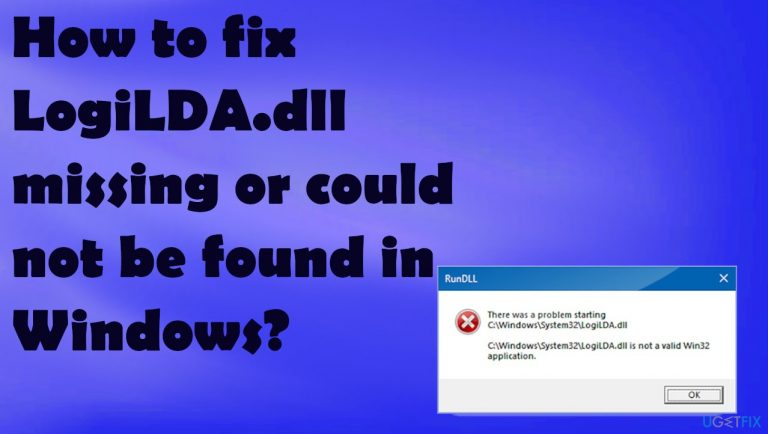
What causes How to fix LogiLDA.dll missing or could not be found in Windows?
- Program problems related to Logitech Download Assistant
- Improper Windows 10 installation or upgrade procedures
- Missing file due to improper installation
- Recent updates or patches causing wrong file locations
- System file damage or infection
- Program compatibility issues
Repairs Windows system files, removes malware, and restores a clean OS state — without reinstalling.
Hello. I have a problem with my device because the error about the module not being found appears. This LogiLDA.dll missing error is not fixed by reinstalling drivers for me. I might do something wrong. I need your tips and help, please.
The error regarding the DLL files[ref en-1] can be bothering you pretty commonly. LogiLDA.dll missing or could not be found in Windows is related to the Logitech file and is present on the machine when you have such devices. The mouse is one of the common pieces used by people from this company.
Windows 10 devices receive the error after the startup typically or once the machine is turned on, awaken from sleep mode, restarted. If the computer shows these errors, you need to check if there are many tasks running at once, these processes can indicate unwanted programs or malware.[ref en-2]
The error message can appear in various formats. You might see the pop-up with the indication that the LogiLDA.dll is missing or could not be found in Windows. It is common to see the full path to the file as users[ref en-3] report recently. The error is not crucial nor new, or critical, so solutions are there and not the most difficult.
Causes for the issues like this include program problems. Apps related to the Logitech Download Assistant can lead to problems with the pop-ups about these common DLLs. Windows 10 installation or upgrade procedures can be improper, so the issue appears for you. This is one of the common problems.
If the file was not installed properly and is missing, the automatic update for device drivers cannot happen. Recent updates or patches can cause these issues with the wrong locations and "LogiLDA.dll missing or could not be found" pop-ups. If the system file is damaged or affected by the infection, program compatibility issues, you can quickly search for the problems and fix them with a tool like [d1]. It locates affected pieces and repairs them when needed.
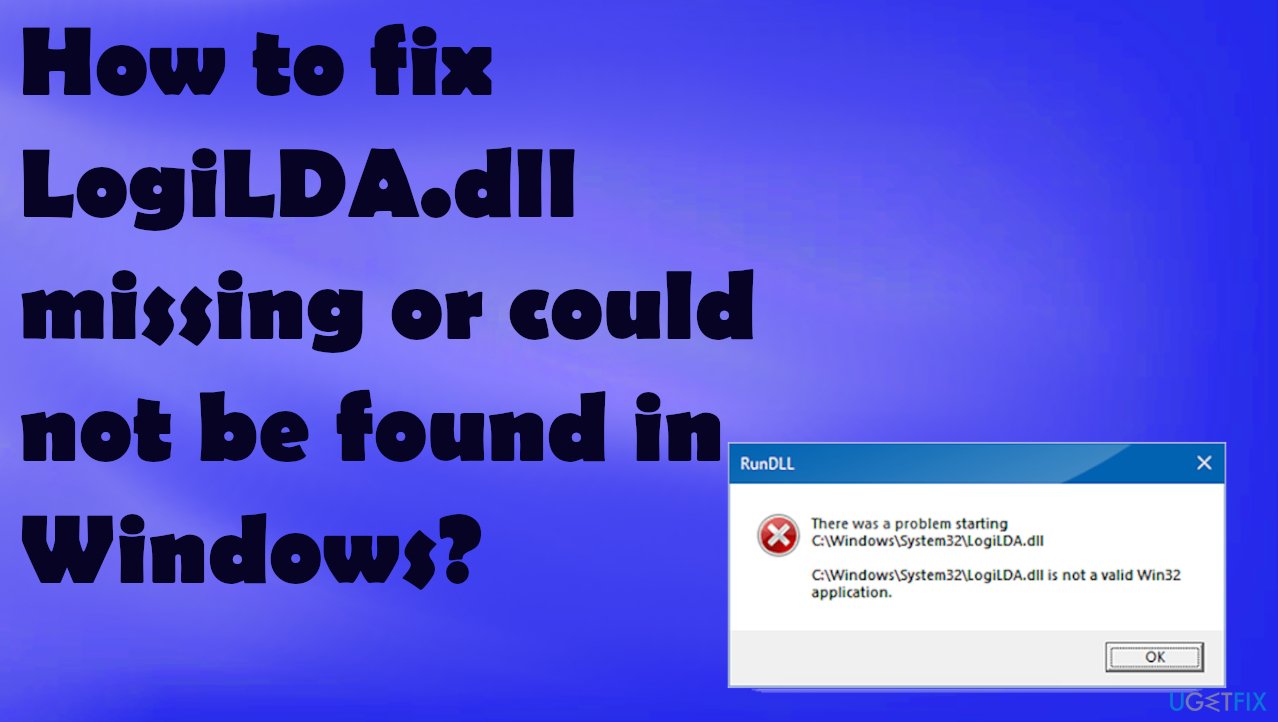
1. Install recent Windows update
- Click Settings from your start menu.
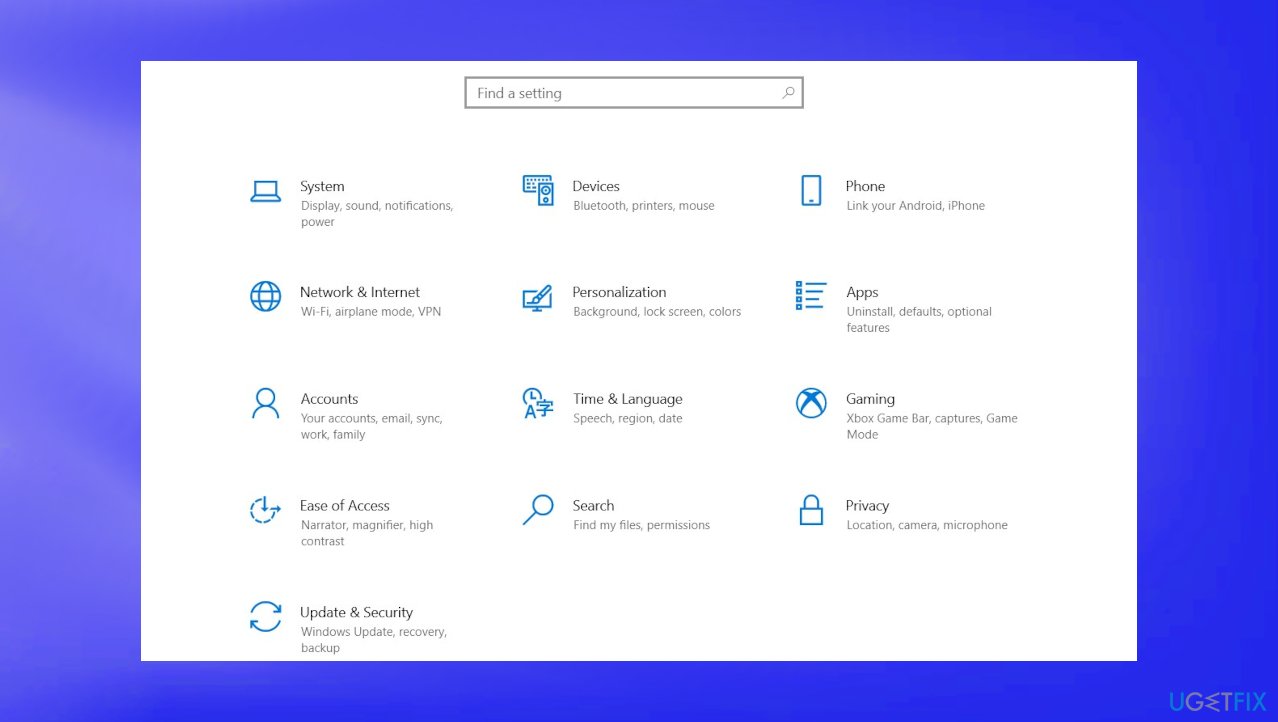
Logilda dll missing file settings - Once the option window opens, click Update & Security.
- Choose Windows Upgrade from the left panel.
- Then click the Check for updates button.
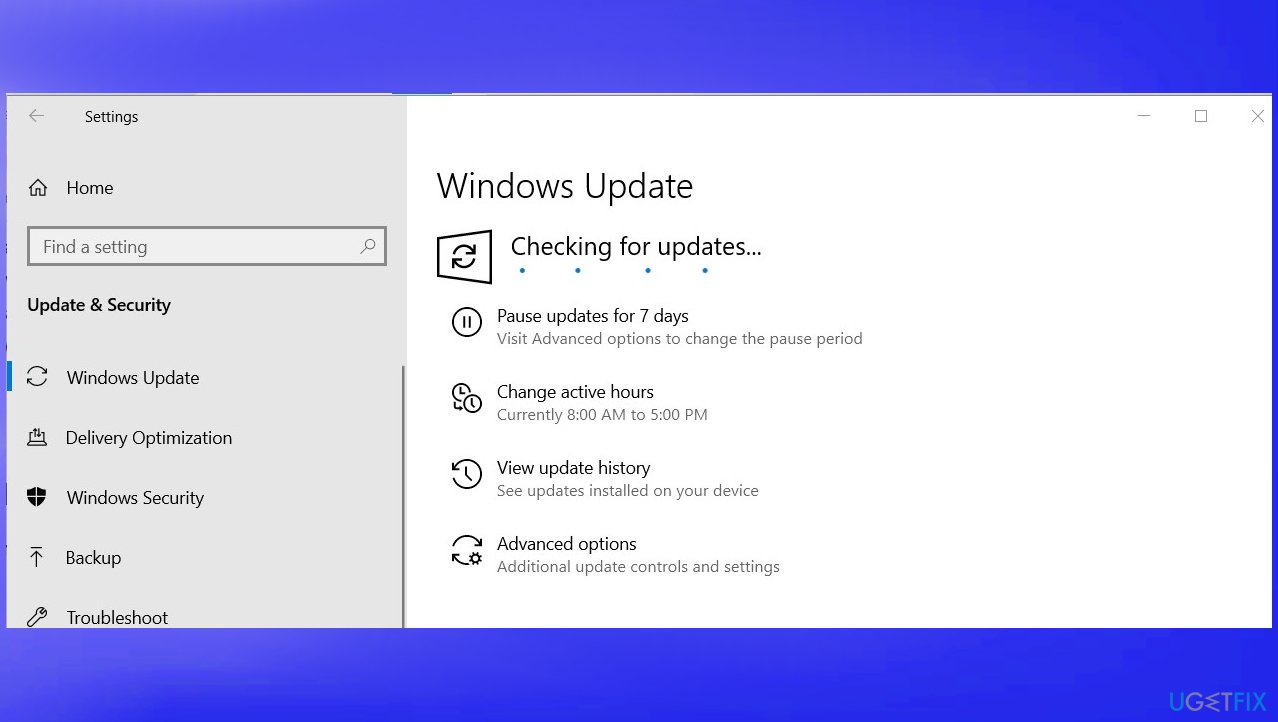
Logilda dll missing file windows update - Then your computer will check for, download, and install any updates found.
2. Reinstall/ update mouse drivers
- Open Device Manager via Start button or Run box.
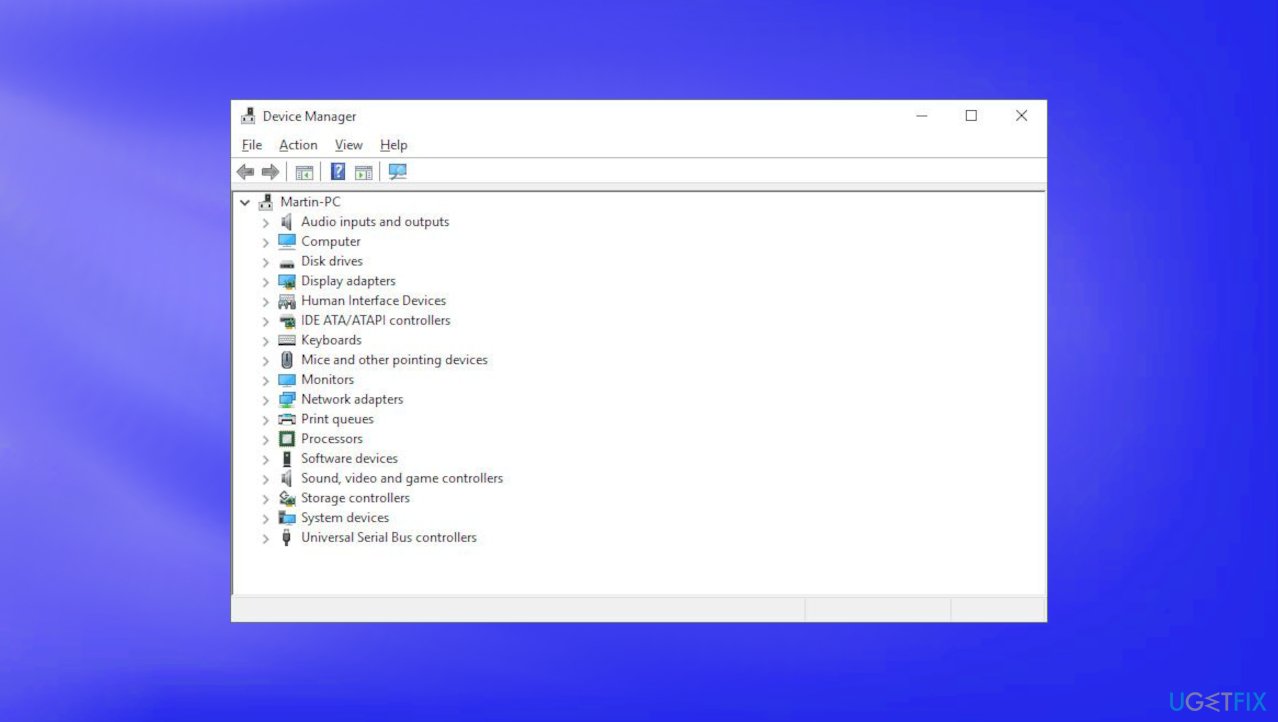
Logilda dll missing file device manager - Choose Mice and other pointing devices.
- Right-click your mouse name.
- Then select Uninstall Device or Update driver.
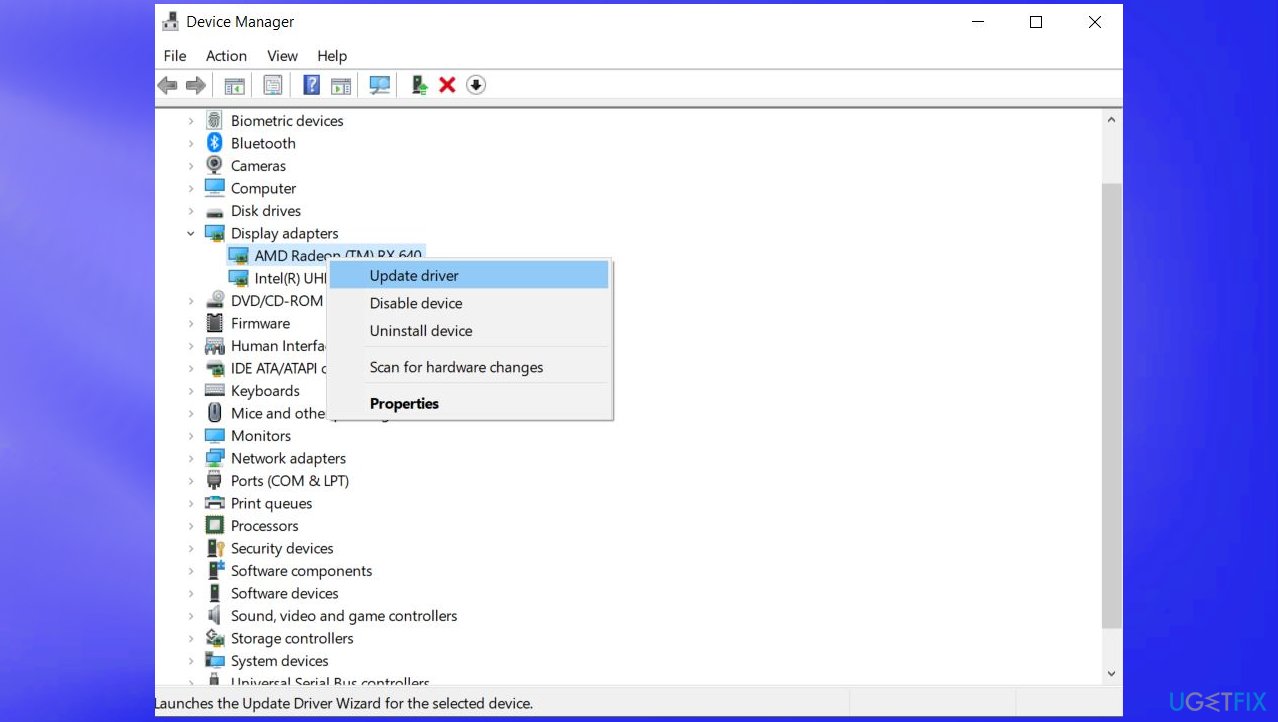
Logilda dll missing file driver update - After the process completes, disconnect the mouse, restart the device and reconnect the mouse.
3. Disable the LogiDA on startup
- Press Ctrl+Alt+Del.
- Choose Task Manager.
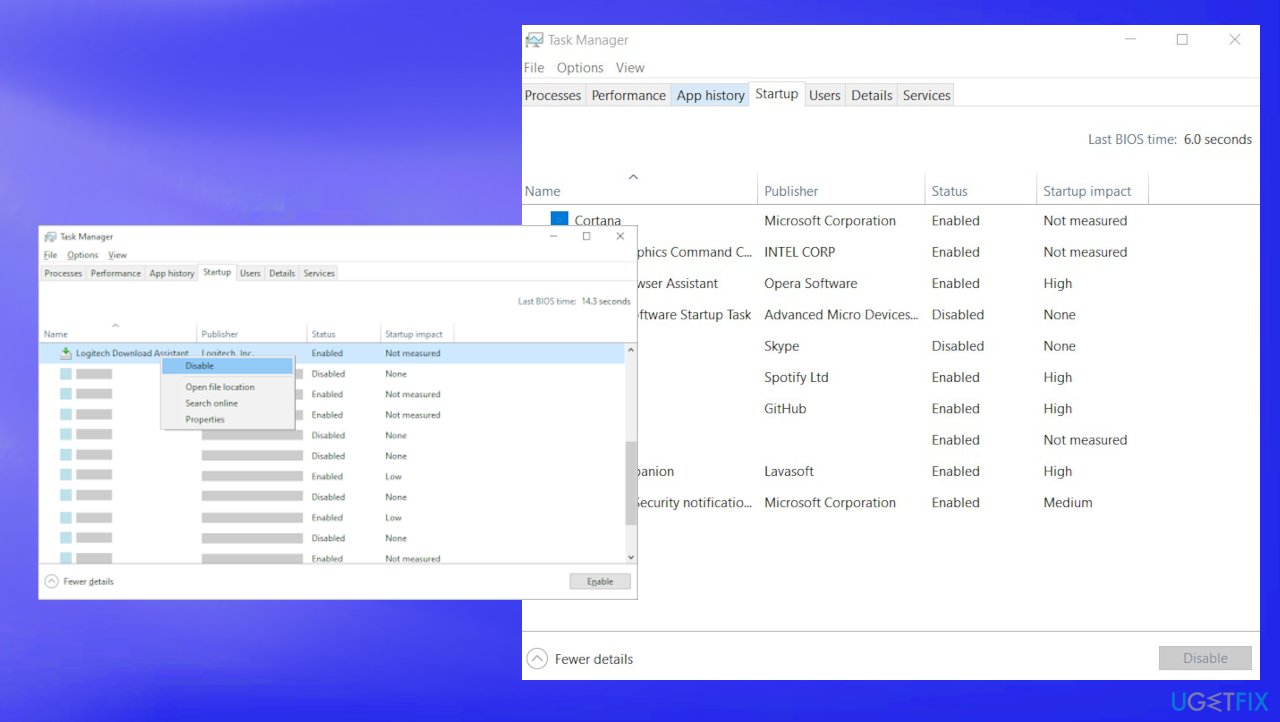
Logilda dll missing file task disable - Then select Startup.
- Right-click LogiDA from the list of programs, and then select Disable.
4. Clear Registry entries
- Windows key+R to open the Run box and input regedit, press enter.
- In the address bar, copy-paste the following path and press enter:
HKEY_LOCAL_MACHINE\\SOFTWARE\\Microsoft\\Windows\\CurrentVersion\\Run - Look in the entries in the right-pane for Logitech Download Assistant.
5. Uninstall Logitech SetPoint
- Press the Windows + R keys on your keyboard.
- Type in control without and press the Enter key on your keyboard.
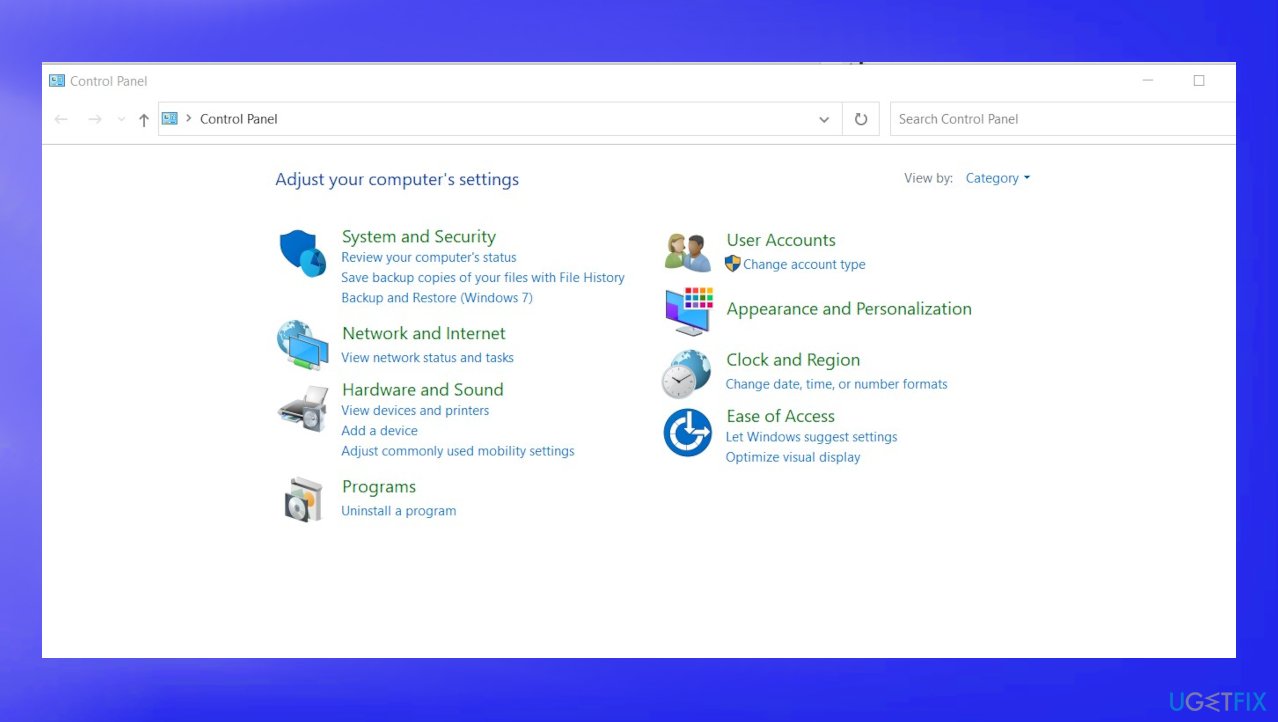
Logilda dll missing file control panel - Make sure your view mode is set to Category.
- Then click on Uninstall a program.
- Right-click Logitech SetPoint (version) and click on the Uninstall button to remove the software from your computer.
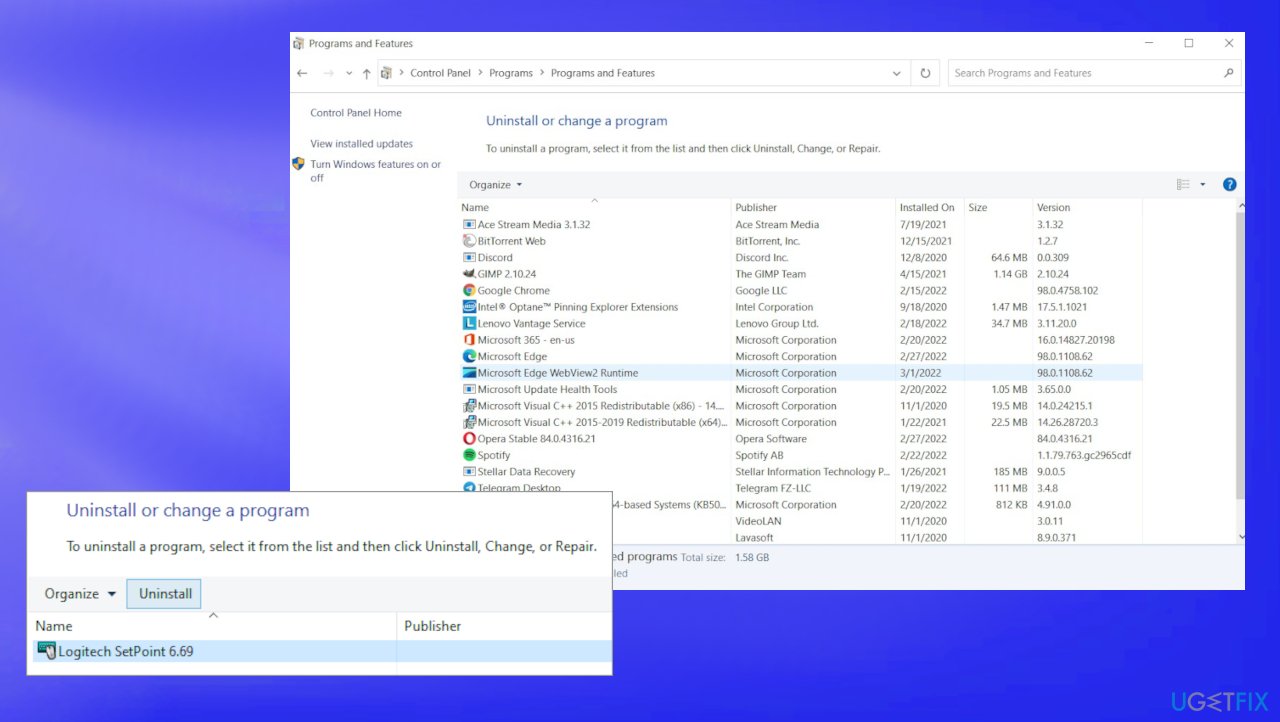
Logilda dll missing file uninstall - Restart your computer.
Bottom line
To fix the LogiLDA.dll missing error, you can install recent Windows updates and check for any unwanted programs or malware. If the issue persists, consider using a repair tool to locate and fix affected files. If none of these solutions work, further troubleshooting may be necessary.
Frequently asked questions
The LogiLDA.dll missing error typically occurs due to corrupted or outdated Logitech software, or if the file was accidentally deleted during a system cleanup.
You can restore the LogiLDA.dll file by reinstalling the Logitech software, which will replace any missing or corrupted files.
Yes, you can also use the System File Checker tool by running 'sfc /scannow' in the Command Prompt to repair system files that may be causing the LogiLDA.dll error.




Report an issue
What's wrong with this guide? We review every report and update or remove content.
Report received — thank you. We'll review and fix it.
You need a free account to submit a report.
Be the first to comment