How to fix
Lost Ark high ping spikes
on Windows
Resolve Lost Ark high ping spikes on Windows 10 and 11 easily. Enjoy smoother gameplay with our expert-tested solutions—fixed in minutes!


What causes How to fix Lost Ark high ping spikes in Windows?
- Faults with the game servers
- Network congestion
- Problems with the player's computer
- Issues with the internet connection
- Underlying system issues
Repairs Windows system files, removes malware, and restores a clean OS state — without reinstalling.
Hello. Recently I started noticing high ping spikes and lagging while playing Lost Ark on Windows. What could cause this? Any tips would be appreciated.
The South Korean business Smilegate created the online multiplayer action role-playing game Lost Ark. The game has an open environment, action-packed combat, and a selection of classes. Players can move through the game's story and side tasks while also exploring large landscapes, fighting creatures, and engaging in player-versus-player combat.
On the other hand, several gamers have complained about slowness and high ping spikes while playing Lost Ark. Numerous things, including faults with the game servers, network congestion, and problems with the player's own computer or internet connection, can contribute to these problems.
Players can try troubleshooting techniques including checking the game's server status, enhancing the efficiency of their computer, and making sure that their internet connection is steady to fix these problems. Additionally, gamers might wish to check their network settings to see if anything can be changed to lower latency and enhance ping. Some generic fixes include flushing DNS, killing background processes, etc.
In this guide, you will find 7 steps that should help you fix high ping spikes while playing Lost Ark in Windows. Keep in mind that you may be experiencing this because of underlying system issues. To check for this, you can use a maintenance tool like [d1] that can fix most system errors, BSODs,[ref en-1] corrupted files, and registry[ref en-2] issues or clear cookies and cache[ref en-3] automatically. Otherwise, follow the step-by-step instructions below.
Solution 1. Check Server Status
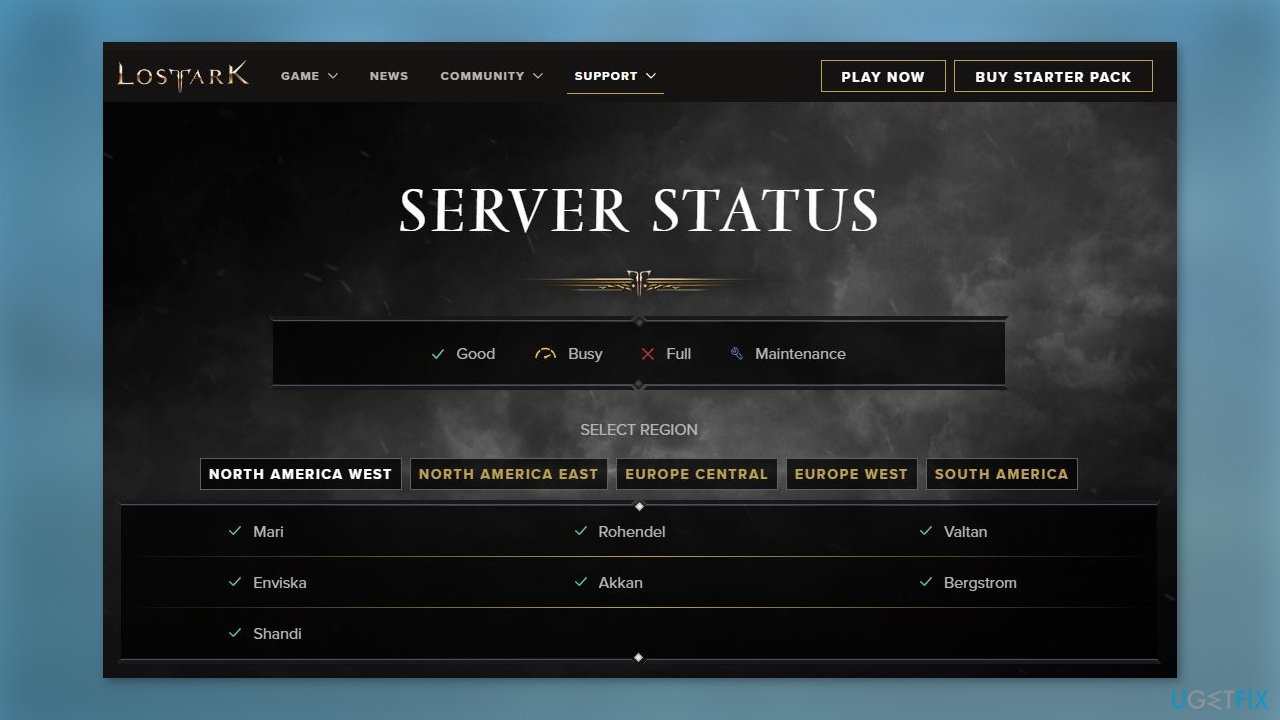
Before attempting to troubleshoot on your end, it's a good idea to check if the Lost Ark servers are currently operational. Sometimes, these servers may be offline for maintenance or other technical reasons. If the server status is good, proceed to the next step for troubleshooting. However, if the servers are down, it may be necessary to wait for the developers to resolve the issue.
Solution 2. Check Internet Connection
- Go to Start and click on Settings
- Select Update & Security
- Navigate to Troubleshoot
- Choose Additional troubleshooters
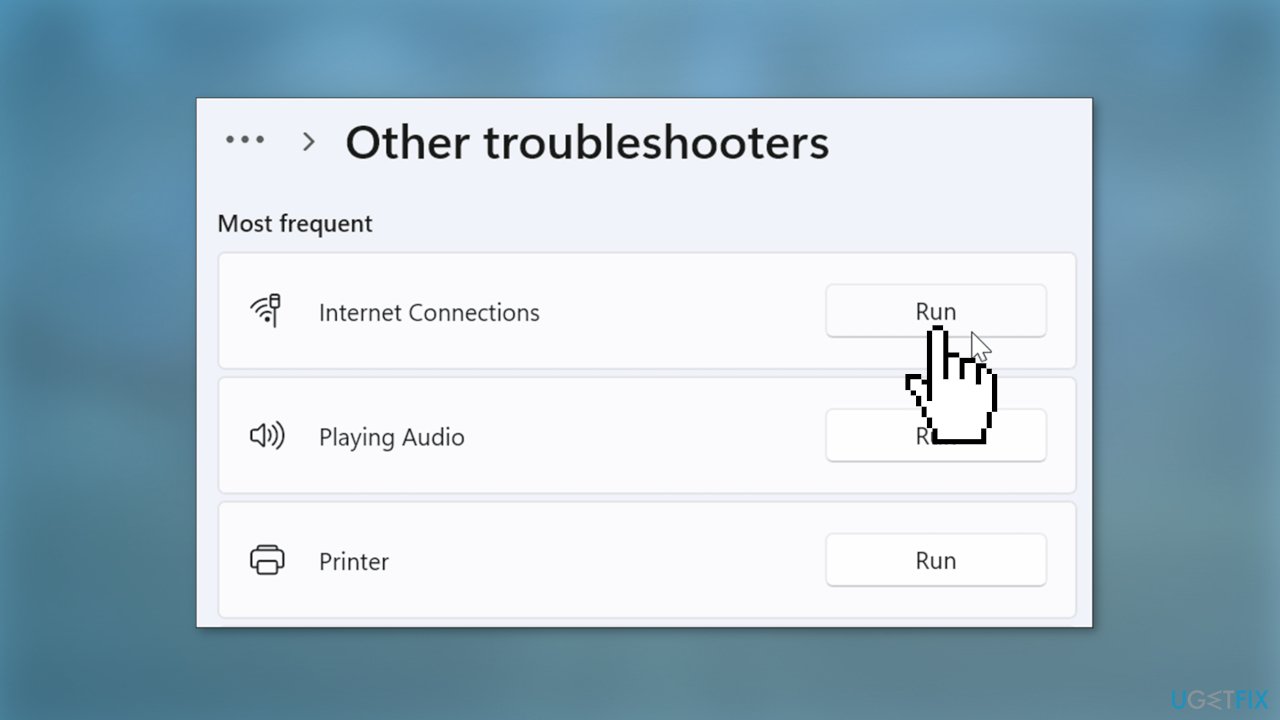
- Select Internet Connections
- Click on Run the troubleshooter
Solution 3. Disable Background Applications
Running too many applications in the background can negatively affect your game performance and lead to high ping in Lost Ark. To fix this issue, you can try disabling any unnecessary or unwanted programs.
- Press the Windows key + R to open the Run box
- Type in resmon and hit Enter to launch Resource Monitor
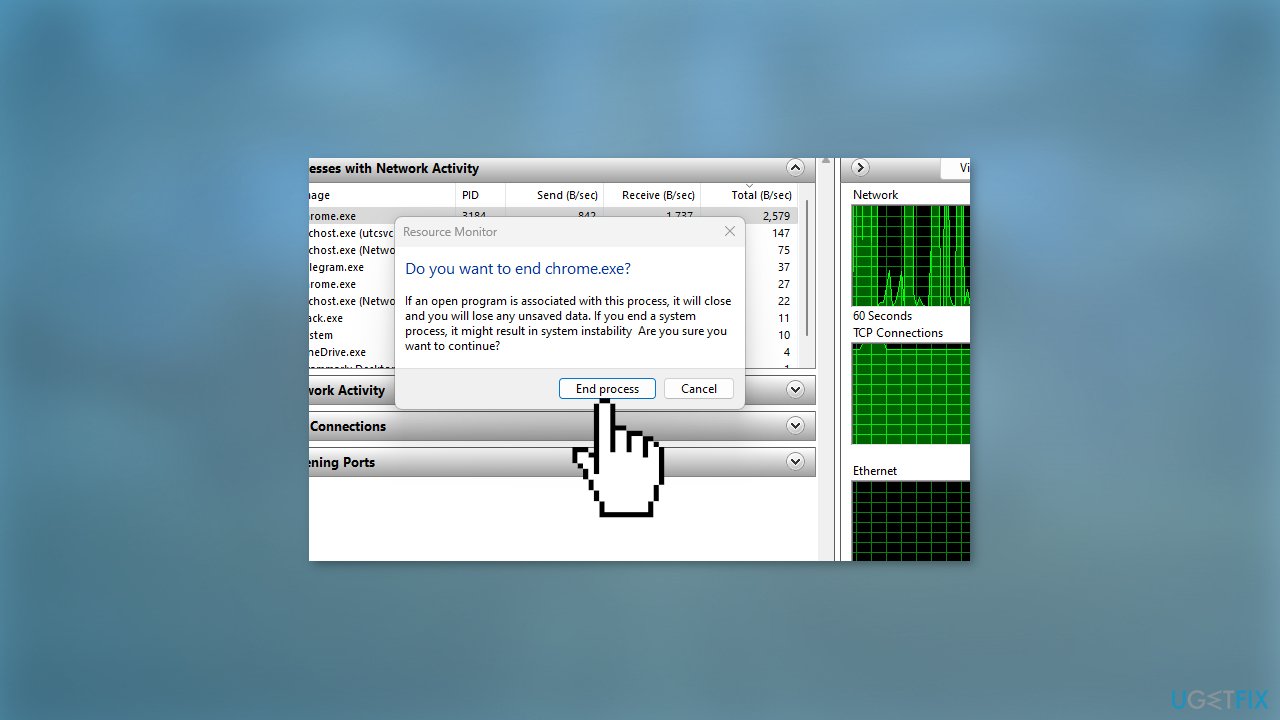
- In the Network tab, check for programs that are taking up a lot of network usage
- Right-click each program and choose End Process
Solution 4. Update Windows
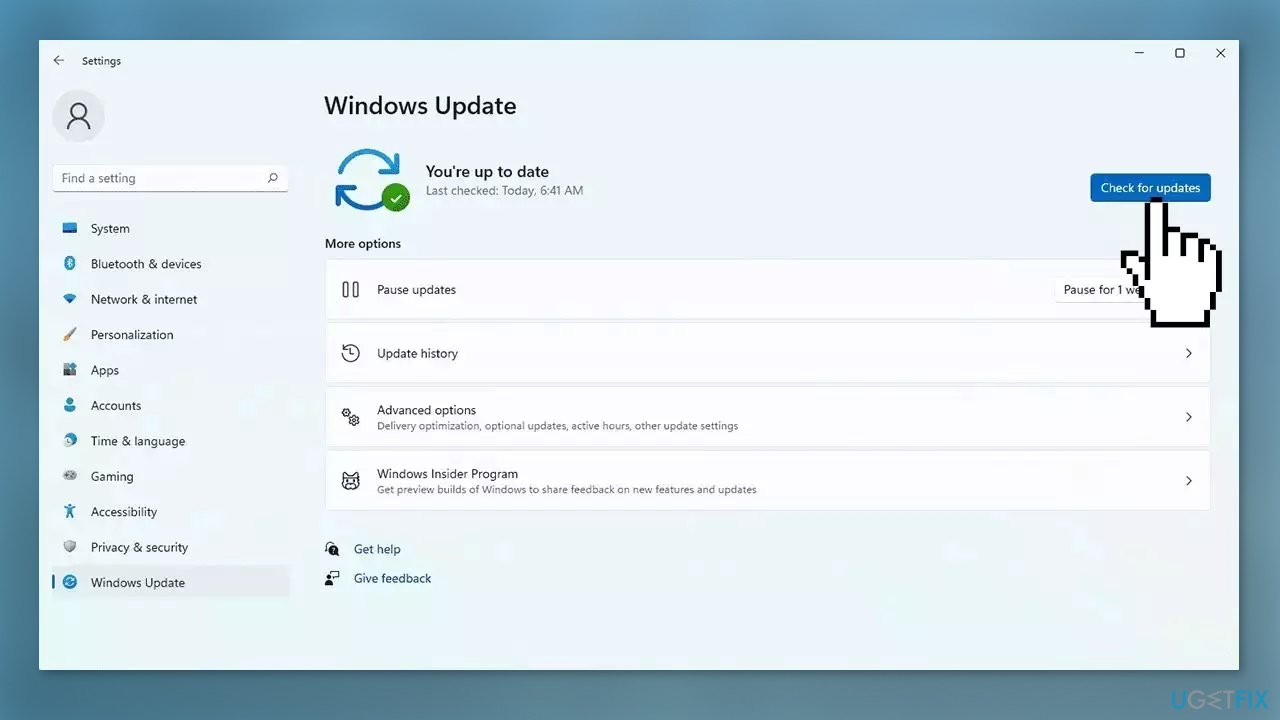
- Click Settings from your start menu and click Update & Security
- Choose Windows Upgrade from the left panel and click the Check for updates button, and then your computer will check for, download, and install any updates found
Solution 5. Update Network and Graphics Drivers
Outdated drivers could be the cause of this issue. In this case, you can fix it automatically by using [rev id="DriverFix"], which will scan your PC for missing and out-of-date device drivers. Or you can update them manually:
- Open Settings
- Click on Update & Security
- Click on Windows Update
- Click the Check for updates button
- Click the View optional updates option
- Click the Driver updates tab
- Select the driver you want to update
- Click the Download and install button
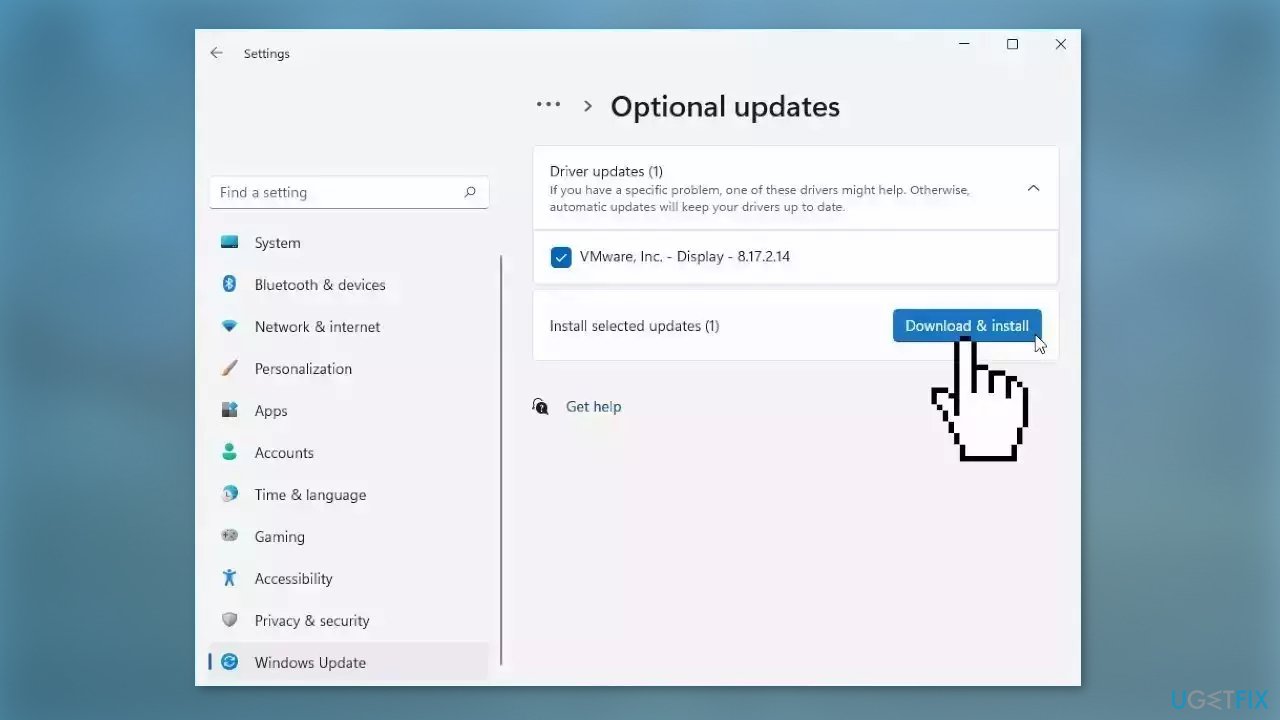
If the View optional updates link is not available after checking for updates, then Windows Update does not have any new drivers or any updates for other products at that particular time.
Solution 6. Allow Lost Ark through Windows Firewall
- Press the Windows key + I to open the Settings app
- Select the Privacy & Security tab and click on the Windows Security option
- Click on Virus & threat protection
- Scroll down and select Manage ransomware protection
- Click on Allow an app through the Controlled folder access
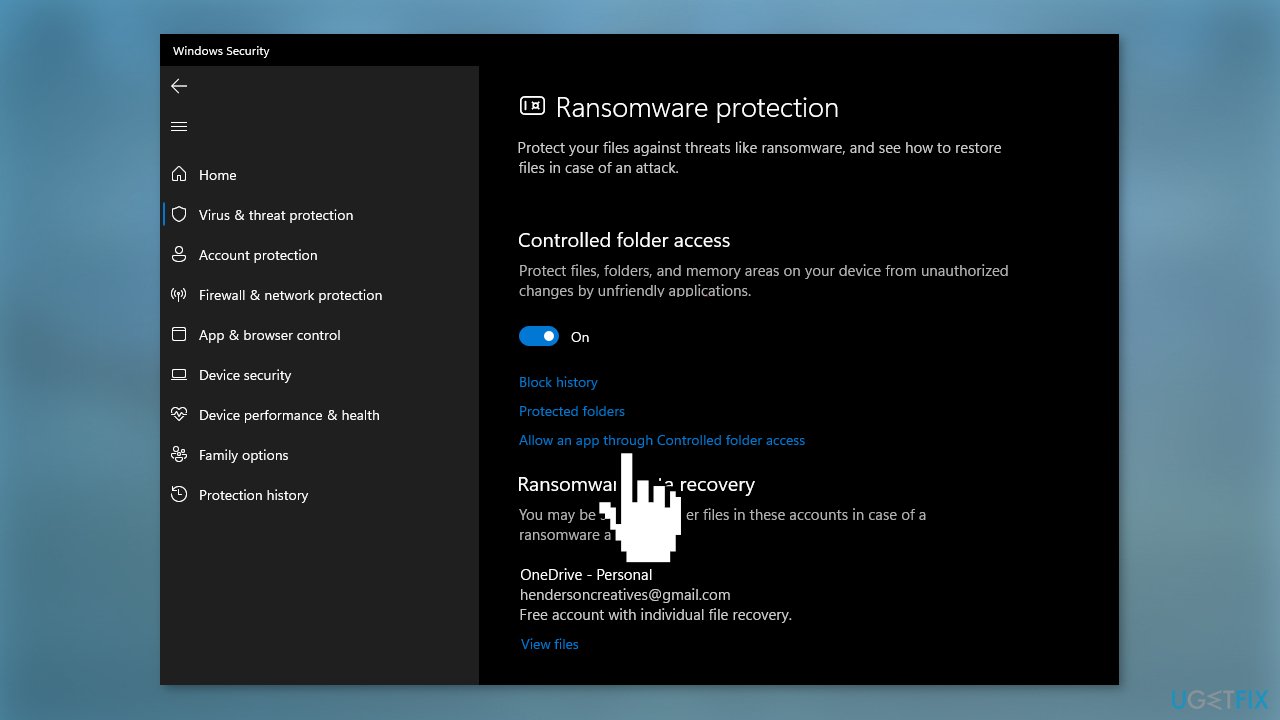
- Click on +Add an allowed app and select Browse all apps
- Navigate to the game installation directory and select the executable file
- Click on Open
- Close the Settings app and restart your device
Solution 7. Flush DNS
- In the search bar, type cmd to locate the Command Prompt
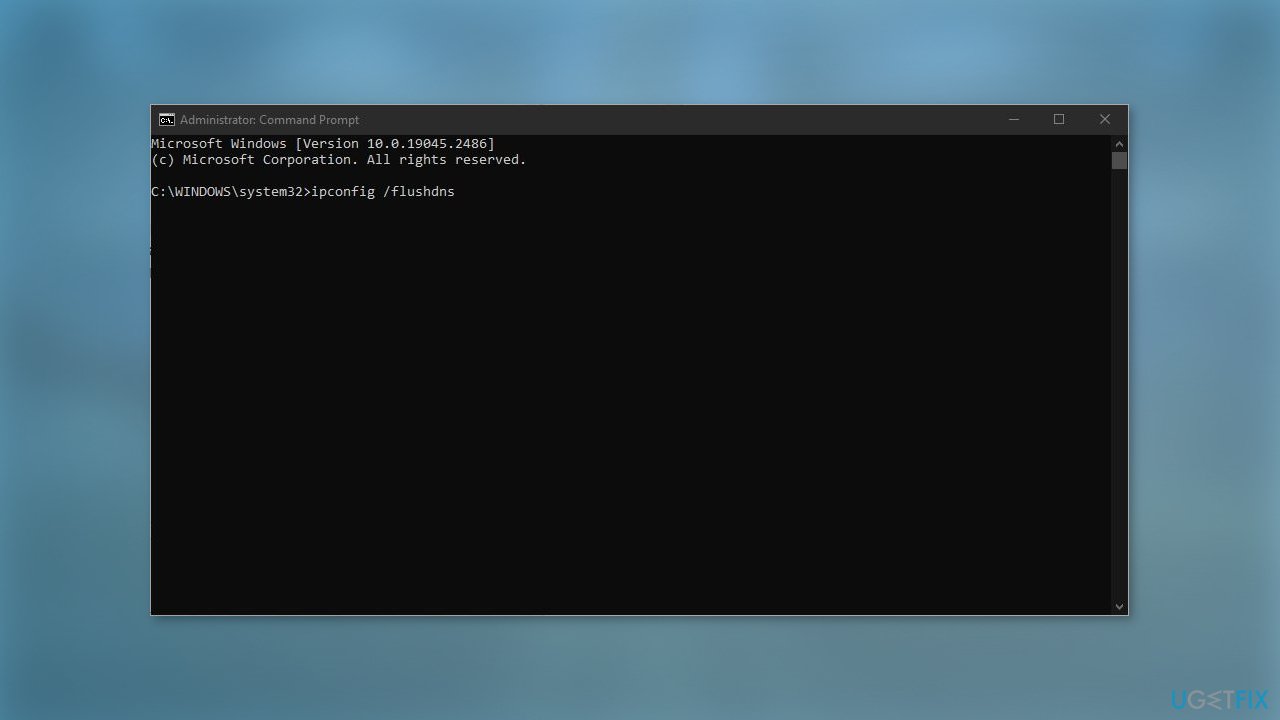
- Right-click on the Command Prompt and select Run as administrator
- Run the following commands one by one, remembering to hit Enter after each command:
ipconfig /flushdns
ipconfig /registerdns
ipconfig /release
ipconfig /renew
netsh winsock reset
- Reboot your computer
Bottom line
To fix high ping spikes while playing Lost Ark, players should check the server status, ensure their internet connection is stable, and enhance their computer's efficiency. Additional steps include flushing DNS and killing background processes. If these solutions do not resolve the issue, consider using a maintenance tool to fix system errors.
Frequently asked questions
You can try changing your DNS settings to use Google DNS or Cloudflare DNS, which may improve your connection stability. Additionally, disabling any bandwidth-heavy applications in the background can help reduce ping spikes.
Ensure your Windows 11 is updated and optimize your game settings by lowering graphics options, which can help reduce lag. Also, consider using the Windows Game Mode feature to prioritize Lost Ark’s performance.
Yes, you can log into your router settings and enable Quality of Service (QoS) to prioritize gaming traffic, which can help reduce ping spikes in Lost Ark on Windows 10 or Windows 11.




Report an issue
What's wrong with this guide? We review every report and update or remove content.
Report received — thank you. We'll review and fix it.
You need a free account to submit a report.
Be the first to comment