How to fix
Mac error code 8076
on Windows
Resolve Mac error code 8076 efficiently with our expert tips. Get solutions that ensure smooth Windows 10 or 11 operation. Fixed in minutes!

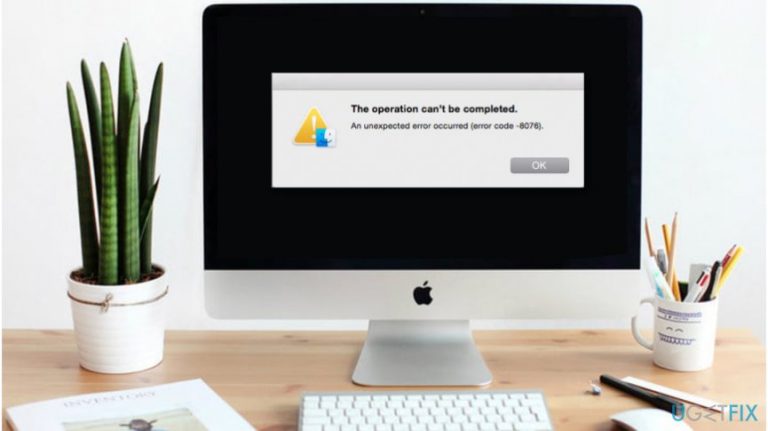
What causes How to fix Mac error code 8076?
- Accidental deletion of essential system files
- Interrupted Read/Write operations
- Improper installation of a program
- Malware attack
- Hardware problems
Repairs Windows system files, removes malware, and restores a clean OS state — without reinstalling.
Hi, while trying to rearrange my Photos I have wanted to rename the folder. The message popped up saying that an unexpected error occurred (error code -8076). Later, I tried to rename a single filed, and the same error appeared. Can you help me fix Mac error code 8076?
Error code 8076 on Mac is an issue with permissions which prevents you from renaming files, folders, documents and other content on your computer. It might appear once you try to organize Photos or clean your Mac from unnecessary files that are taking up your free space.
Usually, an unexpected error 8076 might appear once you try to move files to other directories without having authorized permission. Likewise, people are unable to arrange data and documents in a way they like on their Mac systems. Luckily, there is a guide how you can fix this issue with merely a few clicks.
Although, it is essential to determine the cause of error code 8076 on Mac which can be one of the following:
- You might have accidentally deleted essential system files from your computer;
- Read/Write operations might be interrupted midway leaving the system unresponsive;
- Improper installation of a program which interferes with other software;
- Malware[ref en-1] attack;
- Hardware problems.
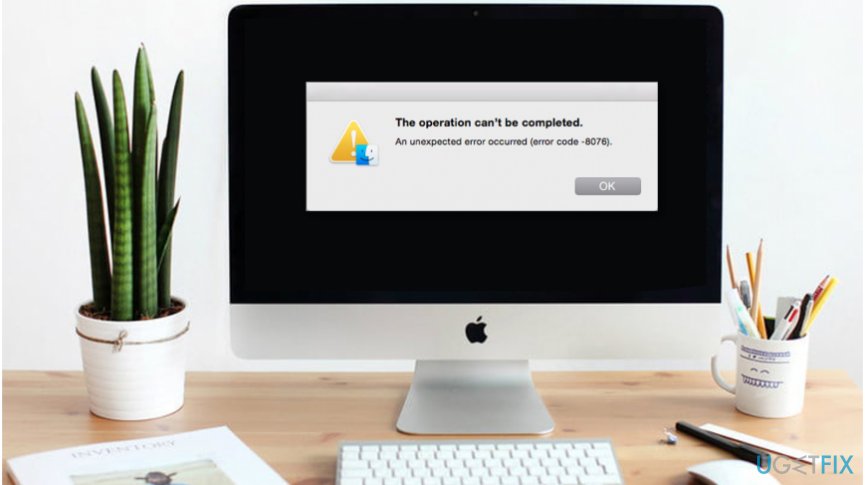
Note that there are ways how you can fix Mac error code 8076. However, if the issue is caused by the virus or hardware problems that require changing specific parts of the computer, there are no manual methods that would help you eliminate this error.
Otherwise, you can learn how to get rid of 8076 error code on Mac by following the instructions below. They are designed to help novice computer users rename files and folders without encountering issues. Please, follow the guidelines attentively to make sure that you won't damage your MacOS[ref en-2].
Ways to fix Mac error code 8076
If your computer is infected with malware and you receive 8076 rename error, you should immediately get a professional antivirus and scan your computer files. Note that there is no way to get rid of this problem unless you uninstall the malicious program first.
For unexpected error code 8076 removal we highly recommend installing [d1]. It is designed to not only protect your computer but also fix virus damage after the infection. Likewise, it is a great way to ensure your computer's well-being in the long term.
Troubleshoot your computer for errors:
- Open Disk Utility[ref en-3];
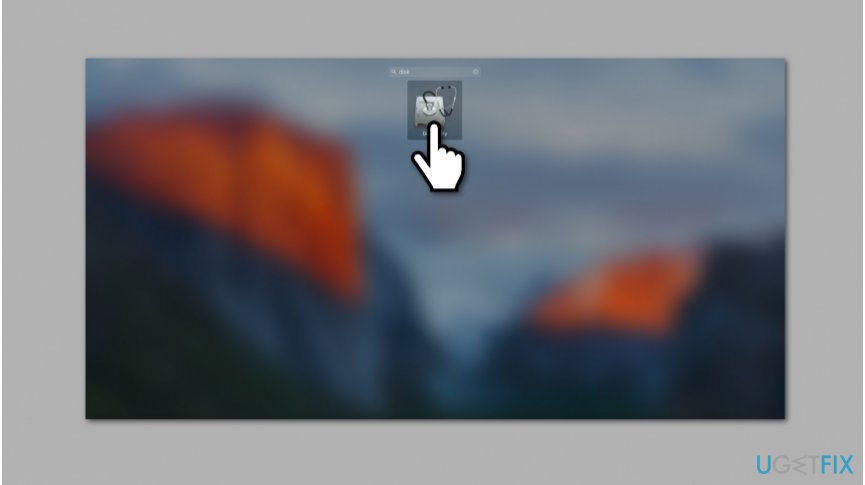
Mac error code - Search for First Aid button;
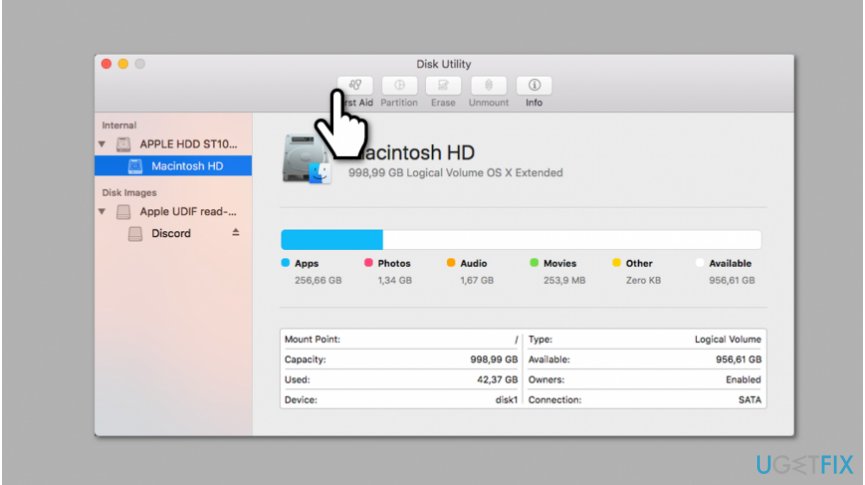
Error code 8076 mac - Click it and select Run;
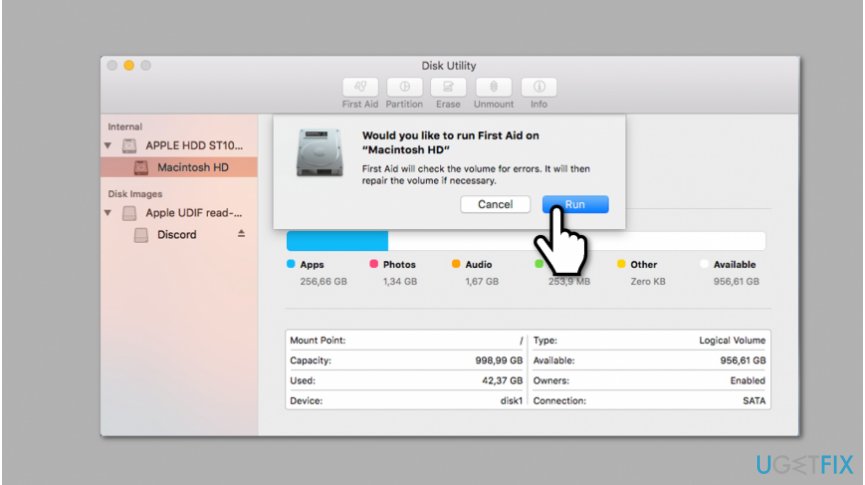
Ways to get rid of error 8076 on mac - Wait for the troubleshooting to end and check if it has found and eliminated the problem.
Bottom line
To fix Mac error code 8076, you can scan your computer for malware using a professional antivirus and ensure proper permissions are set for files and folders. If the issue persists due to hardware problems or a virus, manual methods may not resolve the error, and professional assistance may be required.
Frequently asked questions
No, Mac error code 8076 is specific to macOS systems; however, similar file permission issues can occur on Windows 10 and Windows 11.
Check your file permissions and ensure you have the necessary rights to access or modify the file, which can often resolve similar issues.
Yes, you can use the built-in 'File Explorer' to adjust permissions or run the 'Windows Troubleshooter' to diagnose and fix file-related issues.




Report an issue
What's wrong with this guide? We review every report and update or remove content.
Report received — thank you. We'll review and fix it.
You need a free account to submit a report.
Be the first to comment