How to fix
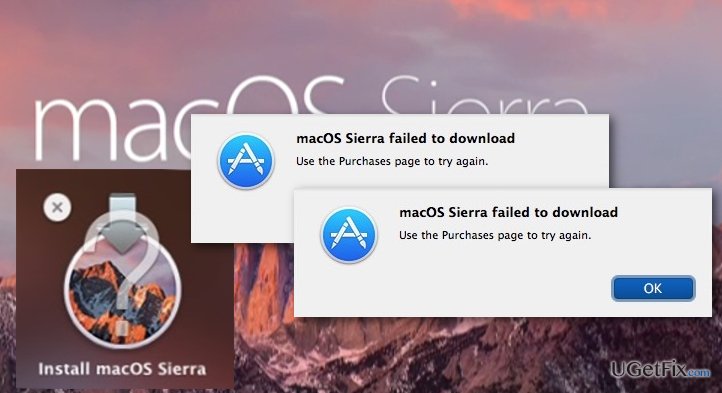
“macOS Sierra failed to download” error
on Windows
Resolve the "macOS Sierra failed to download" error effortlessly on your Windows 10 or 11. Get expert-tested solutions for seamless performance!

What causes How to fix “macOS Sierra failed to download” error?
- Corrupt installers
- Damaged installers
- Network issues
- Insufficient storage space
- App store glitches
Repairs Windows system files, removes malware, and restores a clean OS state — without reinstalling.
When trying to download macOS Sierra upgrade from the Apple store I constantly get an error saying that "macOS Sierra failed to download” or “An error has occurred.” This happens in the middle of the download, and I can never properly finish the installation. Is there a way to fix this issue?
MacOS Sierra is the newest version of Mac OS which has recently become available for the Mac users to download. As always, there are some downsides to the new software updates that some computer users experience. And it’s true to all operating systems. For instance, the Windows 10 and the following Windows 10 anniversary updates that were released earlier this year are still being actively discussed on tech support forums. When it comes to MacOS Sierra, we should note that the update was released on September the 20th and people are already reporting various problems. For some, the difficulties begin even before the installation. There have been reports that users cannot download the update in the first place. Usually, "macOS Sierra failed to download” or “An error has occurred” messages appear in the middle of the process and then the download stops. In other cases, the download might be successful, but the installation does not start. The app store shows that the software has already been downloaded and does not allow to re-install it once again. There are numerous reasons for the mentioned problems to occur. Mostly, it’s the corrupt or damaged installers, but there might also be related to other issues as well.
Below, we will provide some tips on how to eliminate "macOS Sierra failed to download" error and other issues that might arise in the process of downloading the update. We should note, though, that these errors are very rare, and it does not mean that you will necessarily have to deal with them. Nonetheless, in case they occur, do not hesitate to use our recommendations.
How to fix "macOS Sierra failed to download" error on Macs?
If macOS Sierra upgrade has stopped downloading or if it has downloaded but did not install on the device, the first thing you should do is take your time to uninstall all the existing Sierra installers. The corrupt or damaged installers will not allow the software to install properly and even if you somehow manage to bypass this issue, some other problems might be triggered while using the operating system itself.
To delete the downloaded macOS Sierra installers in Mac OS X El Capitan:
- Open the Launchpad
- Press-hold Install macOS Sierra.app
- In the list of selections choose Delete
Also, you can delete the app’s shortcut from your desktop by simply dragging it to Trash folder and right-clicking it to select Empty Trash.
After you have deleted the installer, reboot the computer and try downloading the application again. We should remind you that in order to save some time and to carry out a more thorough system clean up, you can also use automatic uninstallers, such as [rev id=”MacKeeper”].
Bottom line
To fix the "macOS Sierra failed to download" error, you can try re-downloading the installer, checking your network connection, ensuring you have enough storage space, and restarting your Mac. If these solutions do not resolve the issue, consider reaching out to Apple support for further assistance.
Frequently asked questions
No, this error is specifically related to macOS and cannot be resolved on a Windows 10 PC. However, you can troubleshoot similar download issues on Windows by checking your internet connection or disabling any firewalls.
For download errors on Windows 11, ensure your system is updated and check your internet settings. You may also want to reset your network settings to resolve any connectivity issues.
Yes, you can use third-party software to access macOS files from a Windows 10 system, even if you're encountering download errors on macOS.




Report an issue
What's wrong with this guide? We review every report and update or remove content.
Report received — thank you. We'll review and fix it.
You need a free account to submit a report.
Be the first to comment