How to fix
Magic Mouse Disconnect Problems
on Windows
Solve your Magic Mouse disconnect issues on Windows 10 and Windows 11 effortlessly. Expert-tested solutions ensure smooth connectivity in minutes.


What causes How to Fix Magic Mouse Disconnect Problems on Mac?
- Battery terminal contact issue
- Flaw in the design of battery contacts
- Bluetooth connectivity problems
- Interference from other devices
- Software issues with Mac OS
Repairs Windows system files, removes malware, and restores a clean OS state — without reinstalling.
My Magic Mouse disconnects for no reason at random times. It usually takes a lot of time to reconnect it, and I am not entirely sure what “fixes” it. It just seems that it disconnects and reconnects again by itself. How can I fix this issue? I am using Magic Mouse. I’ve tried turning it off and on, but it doesn’t help to solve the issue.
Both versions of Magic Mouse are very similar. In fact, you will be able to see the difference only after flipping them over. The first version has removable batteries while the new version has a built-in rechargeable lithium-ion battery. In most cases, the problem is with the battery compartment in the first mouse model but users complain about later generation Magic Mouse too.[ref en-1] There is a solution to the problem, as well as to usual Bluetooth connectivity problems that are usually connected to the second mouse model.
There can be various reasons why Magic Mouse creates problems and loses Bluetooth connection to the device. However, the most common reason behind this issue is battery terminal contact inside the Magic Mouse itself. The issue can be traced by checking the battery compartment. The issue may be a flaw in the design of the battery contacts and often it is the solution for users' problems.[ref en-2]
We have provided solutions that will help you to fix Magic Mouse connectivity problems when bumped, also unexpected disconnect issues and generally every other issue that prevents you from using your mouse with your Mac.
How to Fix Magic Mouse Disconnect Problems on Mac?
Sometimes, it can be hard to identify the problem manually. Therefore, you can use one of Mac OS[ref en-3] maintenance programs that help to identify issues with the operating system and devices connected to the computer. We recommend using [rev id=”Reimage”] software. This tool works as a security and optimization program at the same time, so it gives the advantage of improving performance.
Method 1. A quick fix for the first generation Magic Mouse Connectivity problem
This is a quick and easy method to fix Magic Mouse Connectivity issue which typically occurs when Magic Mouse is bumped to keyboard or another item. The mouse’s batteries can move because of the poor battery compartment design which seems to be not tight enough to keep the batteries in. Therefore, the batteries can jitter when the mouse gets bumped. To fix this, you will need some aluminum foil and, likely, some paper. Here is what you need to do:
- Flip your mouse over and remove the batteries.
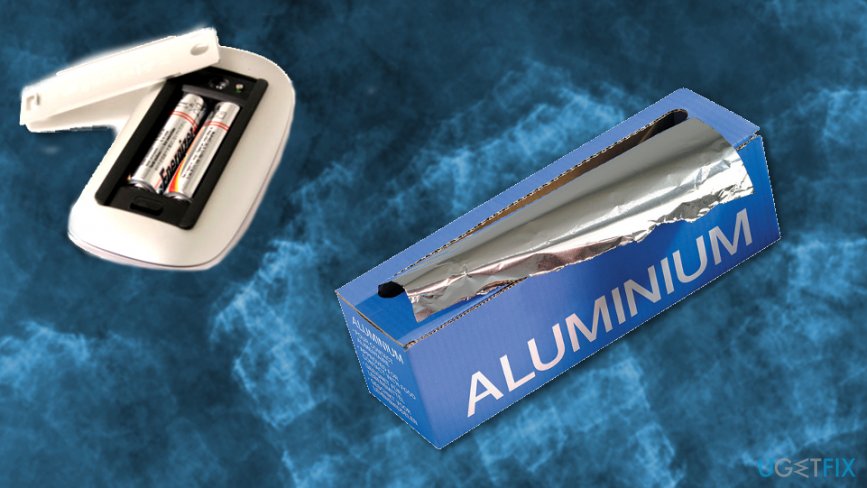
How to fix magic mouse disconnect problems on mac back of the mouse - Get the aluminum foil and cut a small piece of it (ideally, square-shaped) and about half an inch in size. You should have enough of foil to cover the negative terminal of the battery.
- Wrap the aluminum foil around the negative terminal and then re-insert the batteries.
- Cover the batteries and see if the mouse ever disconnects automatically again.
- In case it does, try another trick. Get a piece of paper and cut a small rectangle-shaped piece of it. There are two variants of how you can tuck the paper. You can either cover the batteries and tuck the sides of the paper around both batters, or you can fold the rectangle in the middle and insert it between the batteries.
- Check which option works best. After applying these fixes, you shouldn’t encounter any more Magic Mouse connectivity problems again.
Method 2. Make sure that Bluetooth is turned on
If your Magic Mouse suddenly stopped working, check whether it is still on and also check whether Bluetooth is enabled on your computer.
- Flip the mouse and make sure that you see green color next to mouse’s power switch.
- Now, use a wired mouse to use your Mac and click on the Bluetooth icon in the upper menu toolbar.
- Select Turn Bluetooth On in case it is Off.
Method 3. Pair your mouse with Mac
Sometimes the devices experience problems recognizing each other, so you can fix this using a wired mouse. Connect the optional mouse to the computer and perform these steps to pair your Mac with your Magic Mouse.
- Open System Preferences.
- Go to the Mouse section. Click Set Up Bluetooth Mouse… and wait until the computer detects your Magic Mouse.
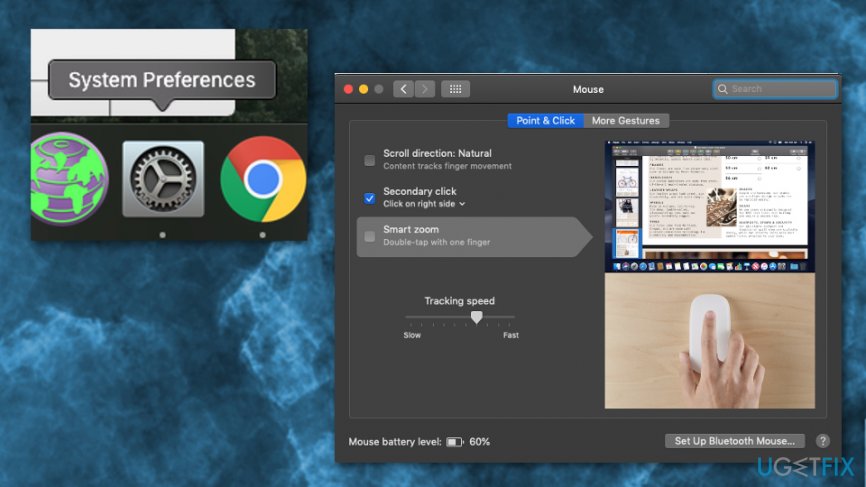
How to fix magic mouse disconnect problems on mac bluetooth preferences - Select the mouse and click Connect.
Bottom line
To fix Magic Mouse disconnect problems, you can check the battery compartment for contact issues, use maintenance programs to identify software problems, and ensure there is no interference from other devices. If these solutions do not work, consider seeking professional assistance or contacting Apple support.
Frequently asked questions
Yes, you can use a Magic Mouse with Windows 10 or Windows 11, but it may require specific drivers or software for full functionality.
The Magic Mouse may disconnect due to Bluetooth interference, low battery, or outdated drivers on Windows 10 or Windows 11.
Ensure that your Windows 10 or Windows 11 device is updated, check for Bluetooth driver updates, and minimize interference from other devices.




Report an issue
What's wrong with this guide? We review every report and update or remove content.
Report received — thank you. We'll review and fix it.
You need a free account to submit a report.
Be the first to comment