How to fix
Mail and Calendar app won’t open
on Windows
Resolve the Mail and Calendar app opening issues in Windows 10 and 11 effortlessly. Get expert-tested solutions to fix it in minutes!

What causes How to fix Mail and Calendar app won’t open in Windows?
- Corrupted system files
- Outdated app version
- Bug in the app
- Missing Windows updates
Repairs Windows system files, removes malware, and restores a clean OS state — without reinstalling.
Hello. The Mail and Calendar app does not open anymore on my Windows PC. What could be the issue?
The Mail and Calendar app comes pre-installed in Windows and allows users to manage their emails and calendars in a single location. It is a convenient tool that allows users to access their emails and schedule appointments quickly and easily. The app can be synced with various email services, including Gmail, Yahoo, and Outlook, making it a versatile tool for managing multiple email accounts.
However, sometimes the Mail and Calendar app may encounter issues that prevent it from opening on Windows. This can be inconvenient for users who rely on the app for daily communication and scheduling. The issue could be caused by various factors, including corrupted system files, outdated app version, or a bug in the app itself.
The inability to open the Mail and Calendar apps can have a significant impact on users, particularly those who rely on them for work. Without the app, users may miss important emails or appointments, leading to delays and missed deadlines.
There are several possible solutions for this issue, including resetting the app, updating it to the latest version, running the app troubleshooter, or uninstalling and reinstalling the app. The best solution, however, may depend on the underlying cause of the problem, and users may need to try several solutions before finding one that works for them.
In this guide, you will find 11 steps that should help you fix Mail and Calendar app won't open in Windows. However, you can also try using a maintenance tool like [d1] to avoid a lengthy troubleshooting process. It can fix most system errors, BSODs,[ref en-1] corrupted files, registry[ref en-2] issues, or clear cookies and cache.[ref en-3] Otherwise, follow the step-by-step instructions provided below.
Solution 1. Install Windows Updates
- Press the Windows key + R to open the Run box
- Type ms-settings:windowsupdate in the text box and press Enter
- Click the Check for updates button
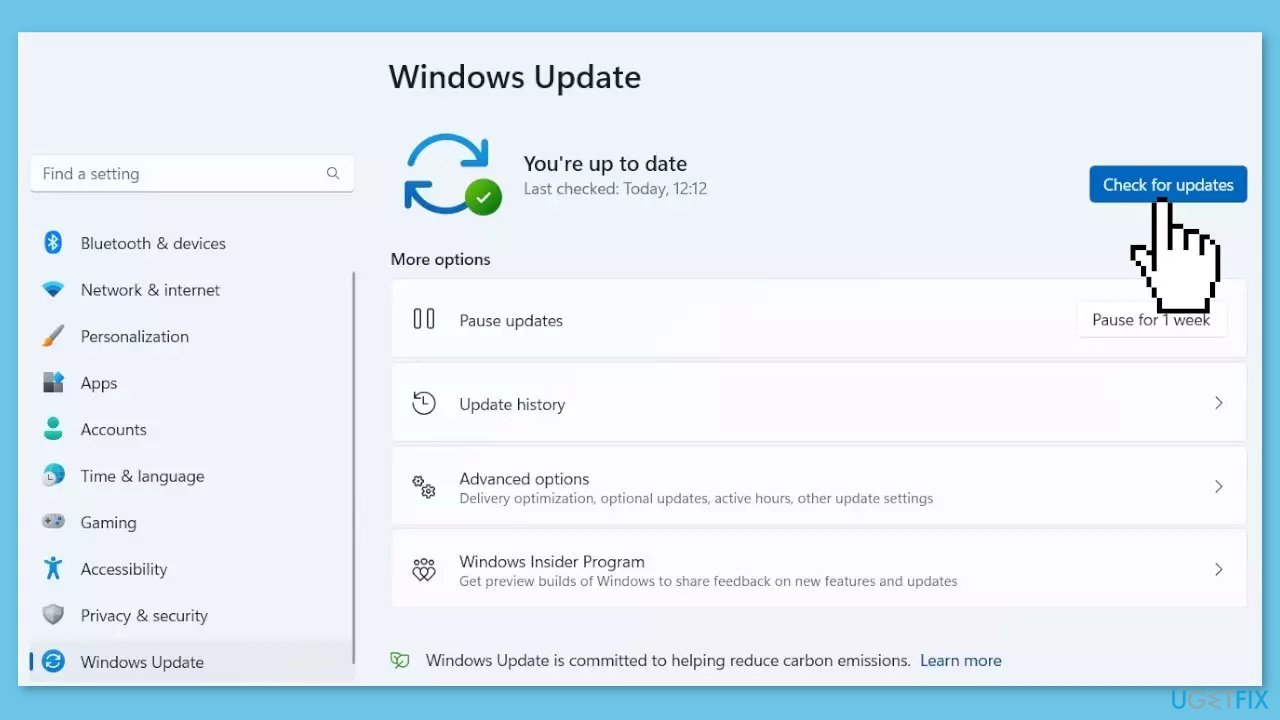
- If a new update is available, click the Download & Install all button.
- Restart your computer after the process is finished and check to see if the problem is fixed
Solution 2. Run the Windows Store Apps Troubleshooter
- Open the Settings app.
- Choose System from the available options.
- Under the System tab, click on Troubleshoot.
- Click on Other troubleshooters.
- Look for the Windows Store Apps troubleshooter and click on Run.
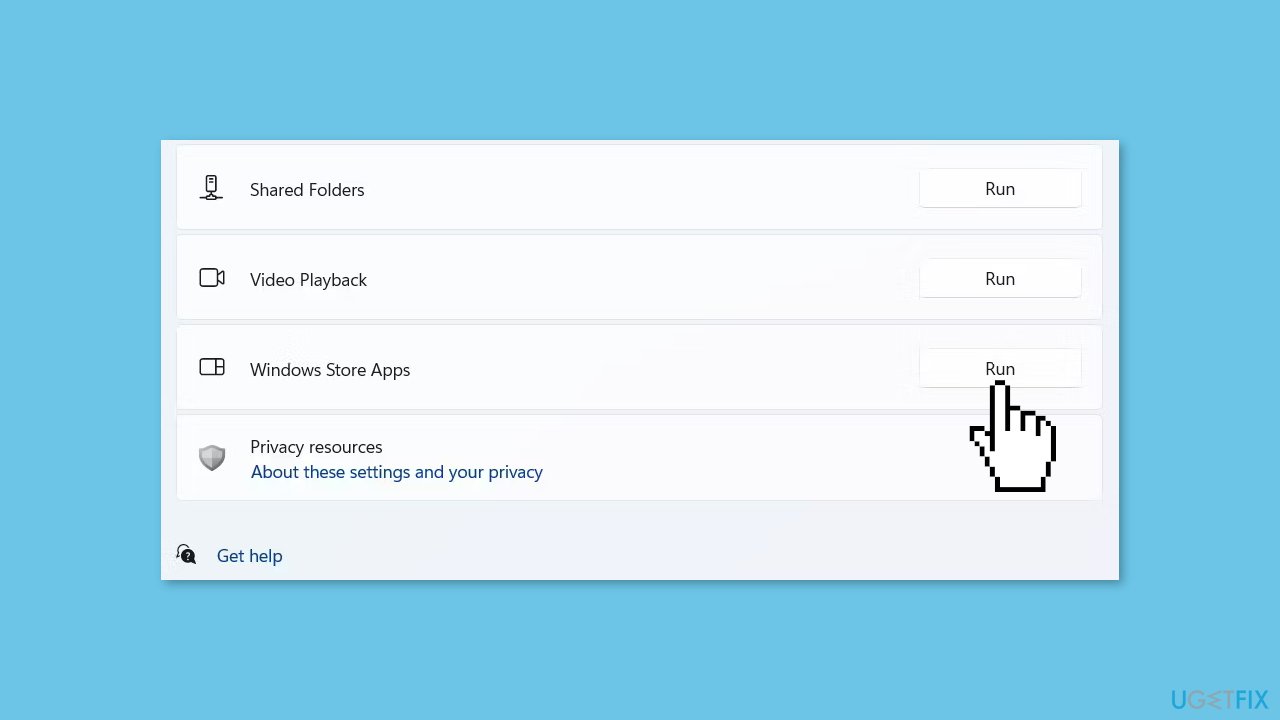
- The troubleshooting window will pop up and look for the problem. Wait for it to complete.
- Once the troubleshooting is complete, follow any on-screen instructions provided by the troubleshooter to resolve the issue.
Solution 3. Fix Corrupted System Files
- Open Command Prompt as administrator
- Use the following command and press Enter:
sfc /scannow
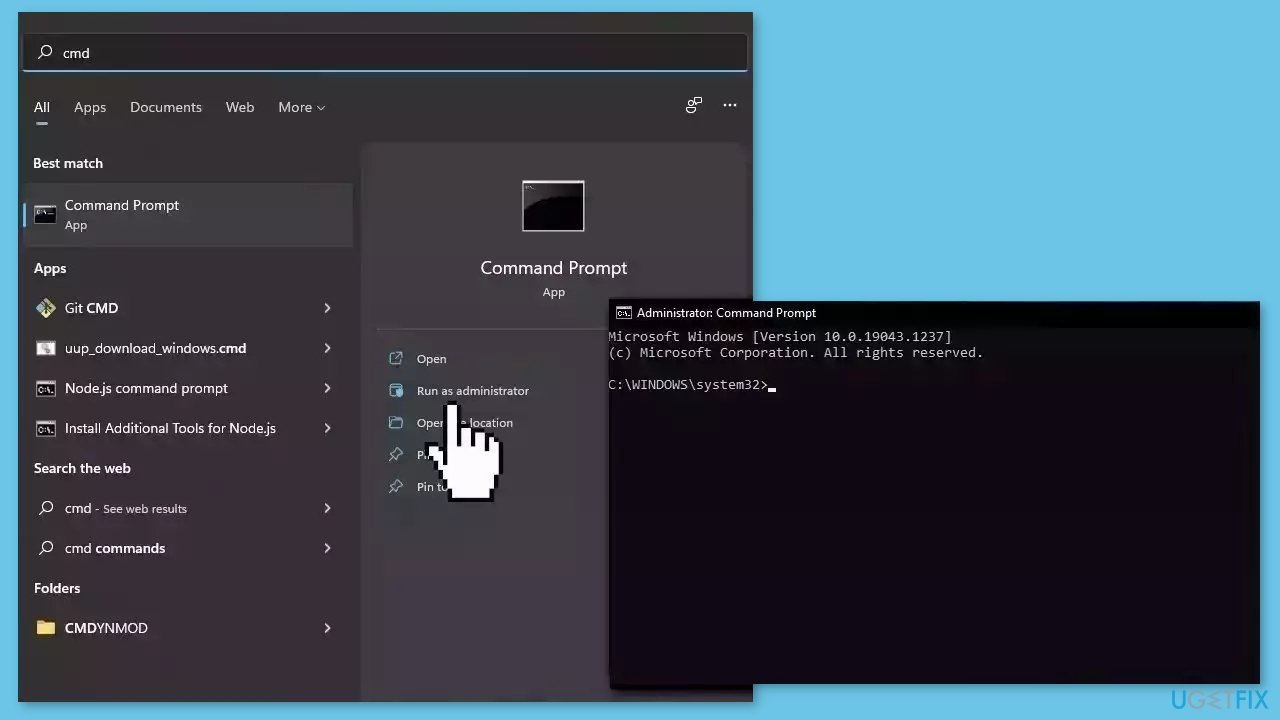
- Reboot your system
- If SFC returned an error, then use the following command lines, pressing Enter after each:
DISM /Online /Cleanup-Image /CheckHealth
DISM /Online /Cleanup-Image /ScanHealth
DISM /Online /Cleanup-Image /RestoreHealth
Solution 4. Update Mail and Calendar App
- Open the Start Menu.
- Type Microsoft Store in the search bar.
- Press Enter.
- Click on Library at the bottom left corner of the Microsoft Store window.
- Click on Get updates. This will prompt Microsoft Store to suggest updates for all the installed UWP (Universal Windows Platform) apps.
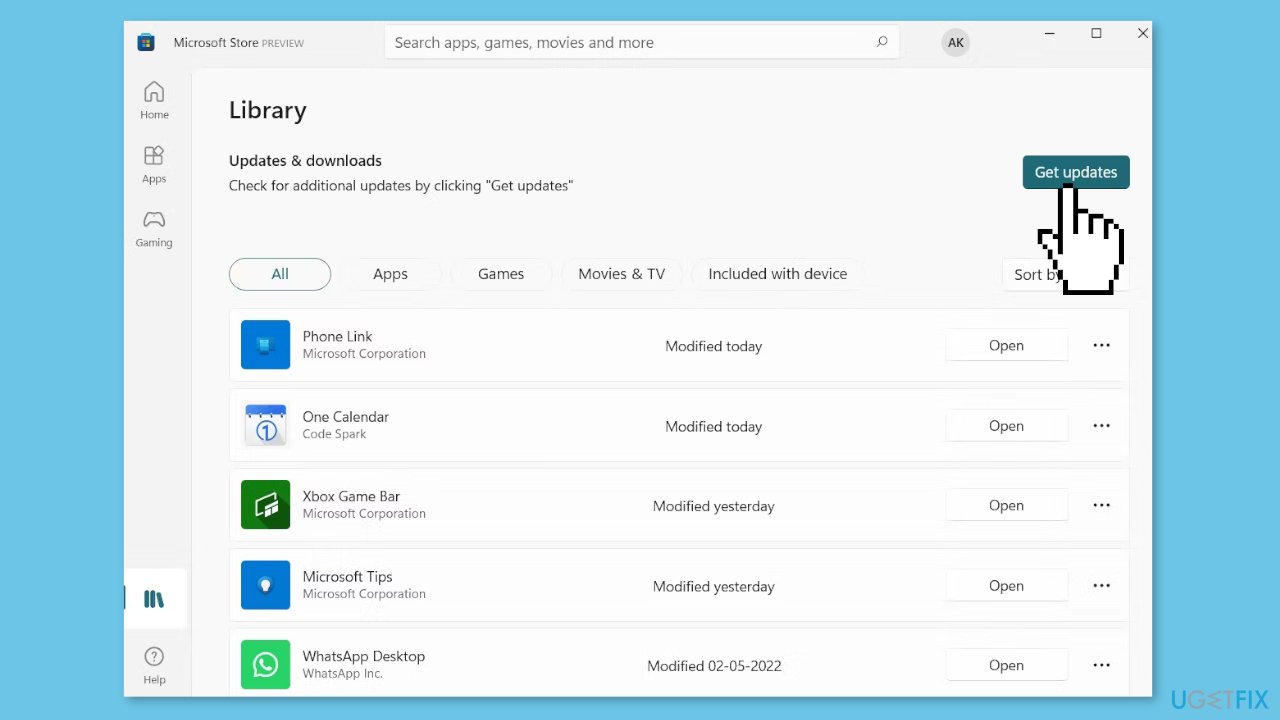
- Look for the update available for Mail and Calendar.
- Click on the Download button to start downloading the update.
- Wait for the download to complete.
- Install the downloaded update by following the on-screen instructions.
- Once the installation is complete, reboot your system.
- Check for the issue to see if the problem has been resolved.
Solution 5. Check Mail Sync Settings
- Open the Settings app.
- Choose Accounts from the left sidebar.
- Under the Account settings, choose Email & accounts.
- Click the drop-down icon next to your email account and choose Manage from the menu that pops up.
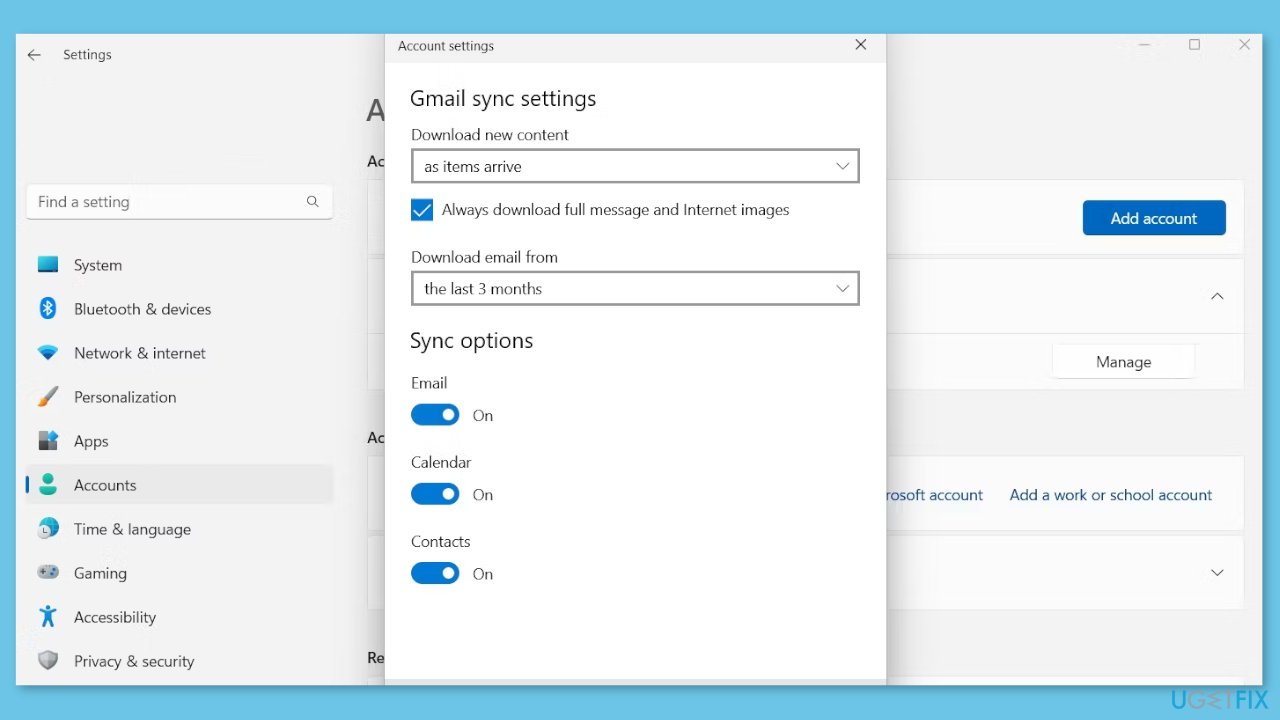
- Choose the Change mailbox sync settings option.
- Click the drop-down icon under Download new content and choose the As items arrive option.
- Enable the toggle switch under the Email, Calendar, and Contacts options.
- Click Done to save the changes.
Solution 6. Change Mail and Calendar Privacy Settings
- Open the Settings app.
- Choose Privacy & security from the left sidebar.
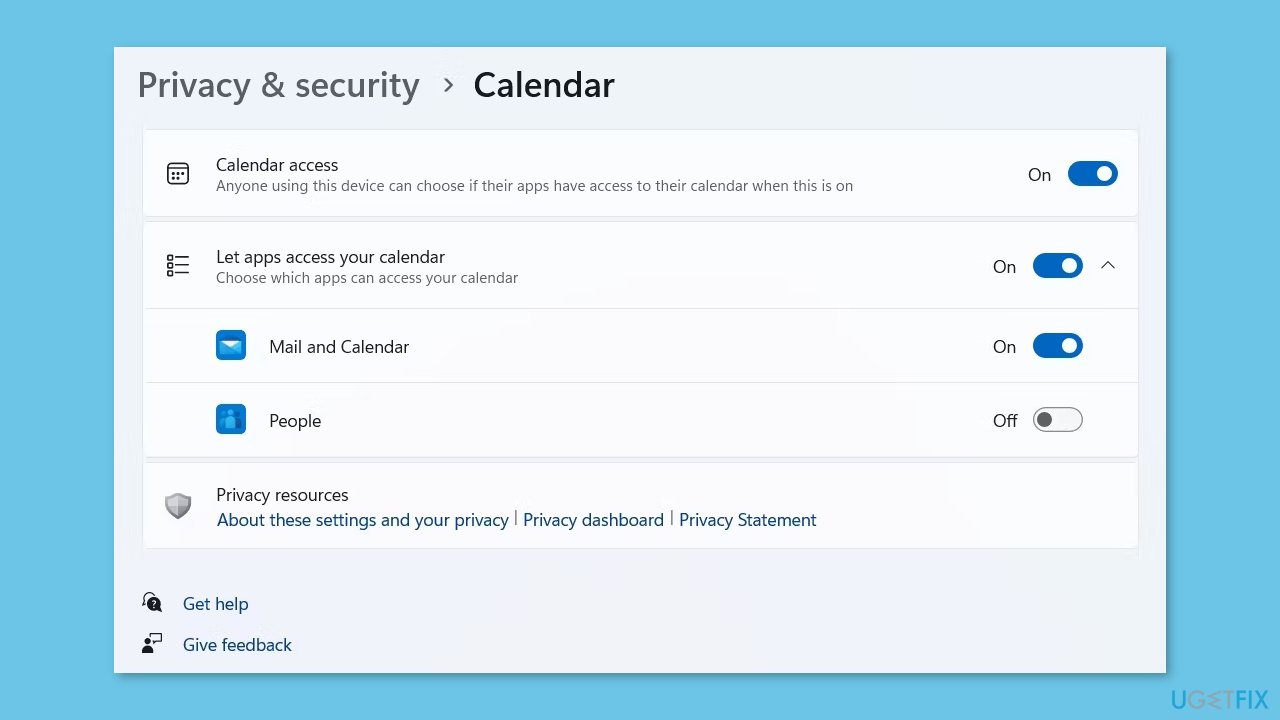
- Under the App permissions section, click on the Calendar option.
- Enable the toggle switch next to Mail and Calendar.
- Next, click on the Email option in the App permission section.
- Enable the toggle switch next to Mail and Calendar in the following window.
Solution 7. Repair the Mail and Calendar App
- Use the Windows key + I hotkeys to open the Settings app.
- Click on Apps from the left pane.
- Choose Apps & features.
- Locate Mail and Calendar from the list of apps and click on the three dots next to the name.
- Choose Advanced options.
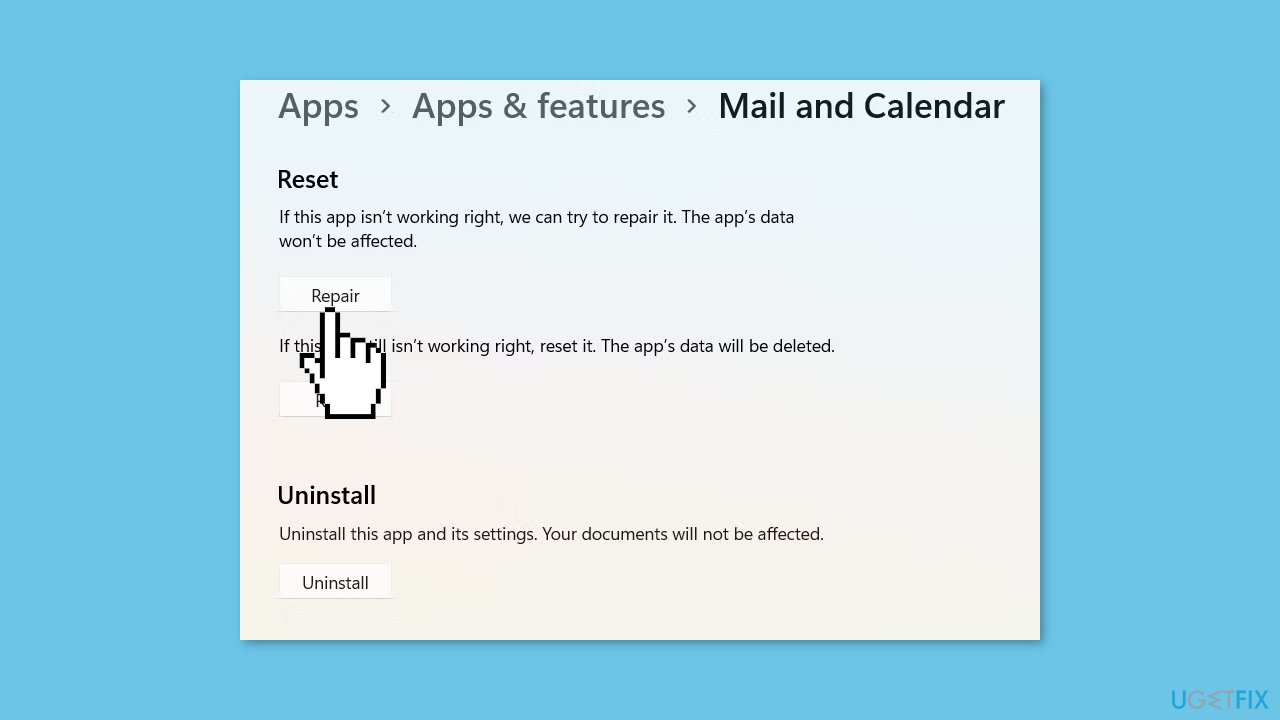
- Under the Reset section, click on Repair.
- Launch the Mail and Calendar app.
- Check if you are still facing the problem.
Solution 8. Clear Microsoft Store Cache
- Open the Command Prompt app.
- Right-click on it and select Run as administrator from the context menu.
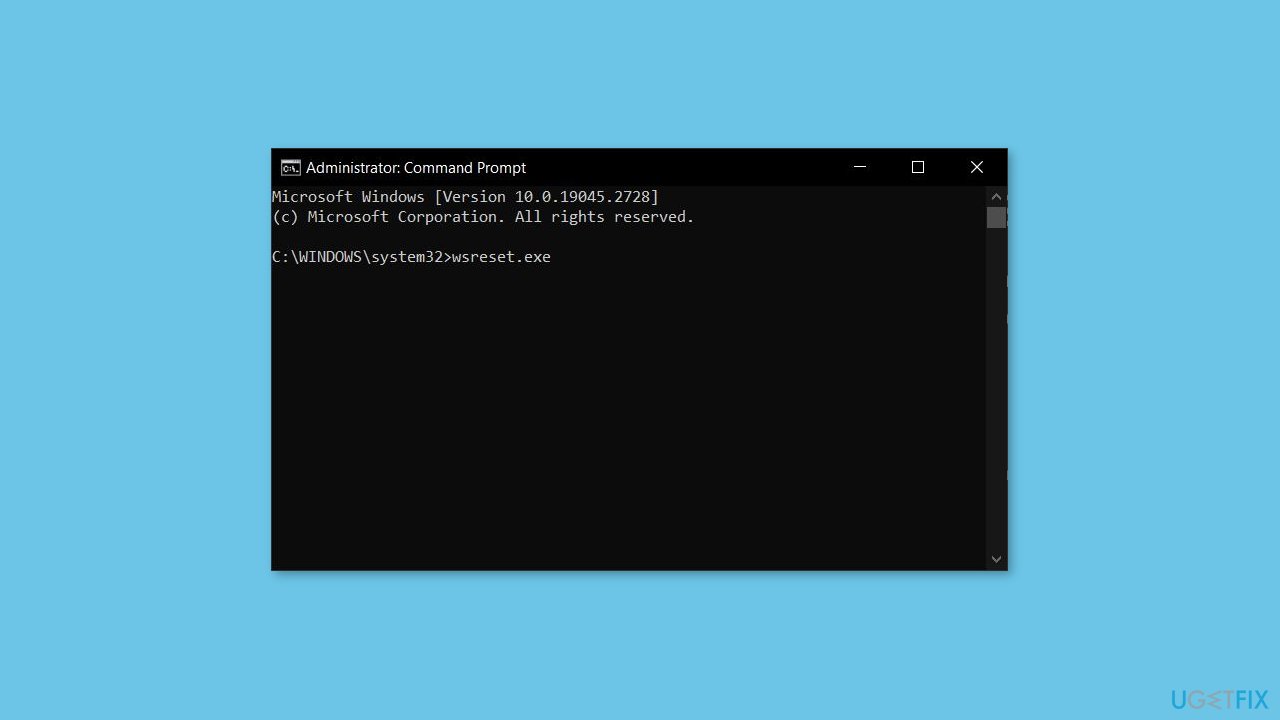
- Type wsreset.exe in the command prompt.
- Press Enter.
Solution 9. Allow Mail and Calendar App through Windows Firewall
- Open the Start menu.
- Type Windows Security in the search bar.
- Press Enter.
- Click on Firewall & network protection on the left pane.
- Choose Allow an app through the firewall.
- Click on Change settings.
- Locate Mail and Calendar from the list of apps.
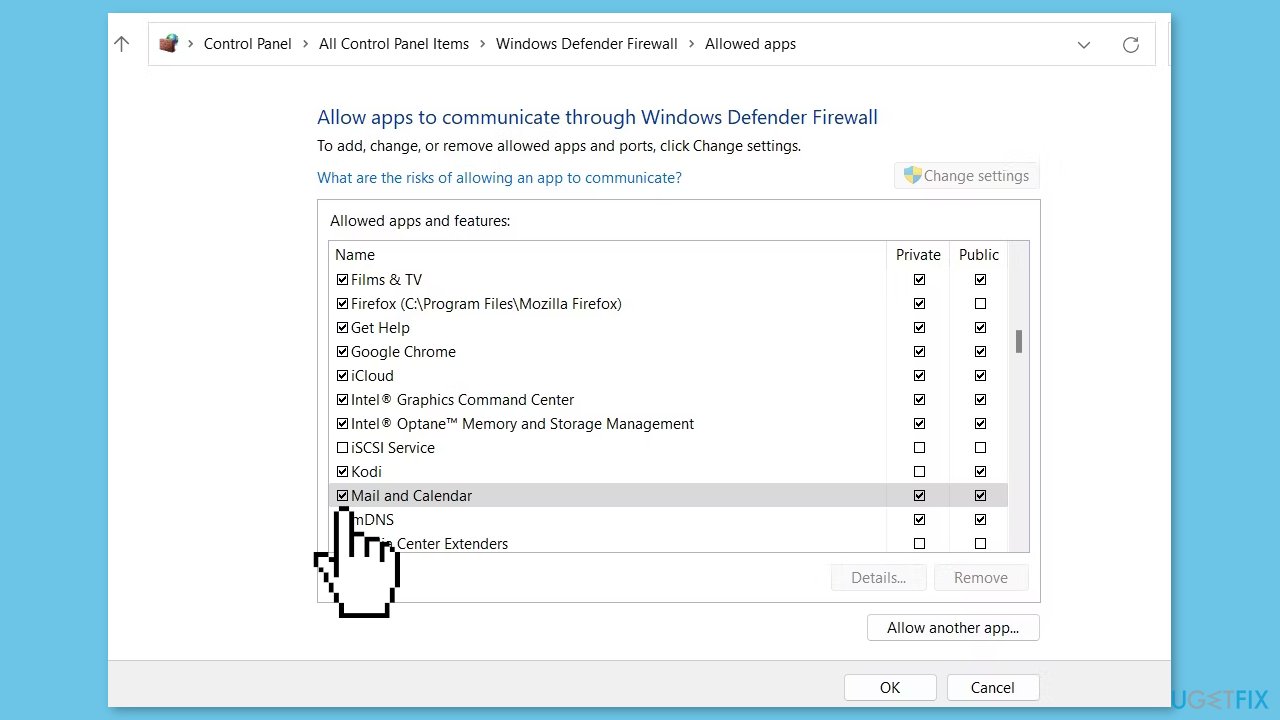
- Check both the Private and Public options for Mail and Calendar.
- Click OK to save the changes.
Solution 10. Re-Register the Mail And Calendar App
- Click on Start menu.
- Type Windows PowerShell in the search bar.
- Click on Windows PowerShell from the search results.
- Type the following command in the PowerShell window:
Get-AppxPackage -allusers Microsoft.windowscommunicationsapps | Foreach {Add-AppxPackage -DisableDevelopmentMode -Register “$($_.InstallLocation)\AppXManifest.xml”;}
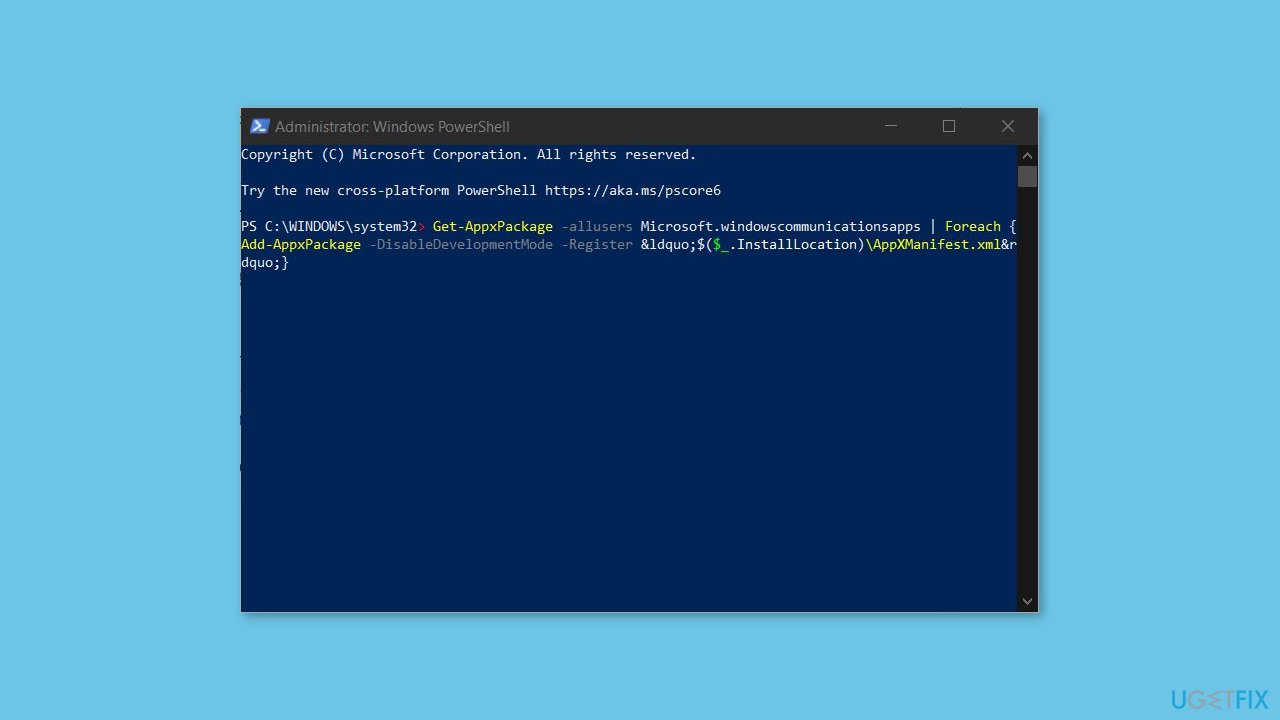
- Press Enter.
- Reboot the system.
- Check for the problem.
Solution 11. Reinstall Mail and Calendar
- Open the PowerShell app.
- Right-click on it and select Run as administrator from the context menu.
- Type the following command in the PowerShell window:
Get-AppxPackage Microsoft.windowscommunicationsapps | Remove-AppxPackage
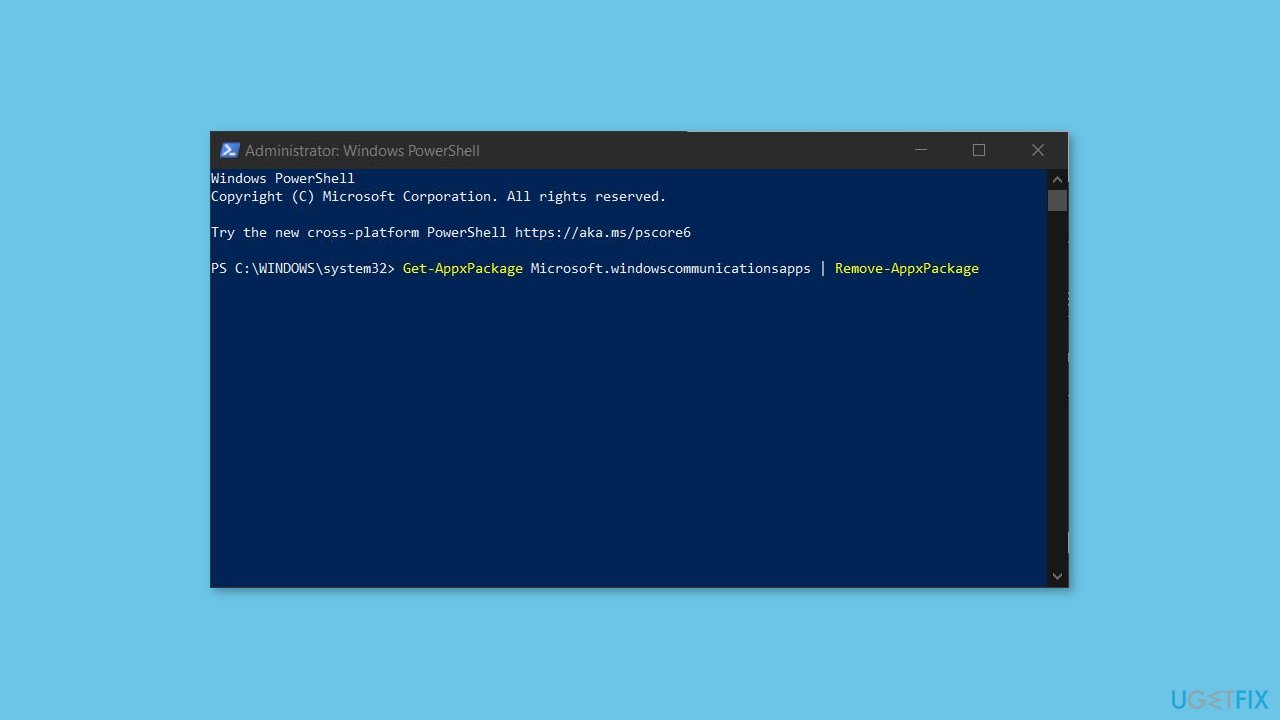
- Press Enter. This will uninstall the Mail and Calendar app.
- Open the Microsoft Store app.
- Search for Mail and Calendar app.
- Download and install the app.
Bottom line
To fix the Mail and Calendar app not opening, you can try installing Windows updates, resetting the app, updating it to the latest version, running the app troubleshooter, or uninstalling and reinstalling the app. If these solutions do not work, consider using a maintenance tool to address system errors.




Report an issue
What's wrong with this guide? We review every report and update or remove content.
Report received — thank you. We'll review and fix it.
You need a free account to submit a report.
Be the first to comment