How to fix
Mail and Calendar error 0x80190194
on Windows
Resolve the Mail and Calendar error 0x80190194 in Windows 10 and 11 effortlessly. Get expert-tested solutions to fix it in minutes!

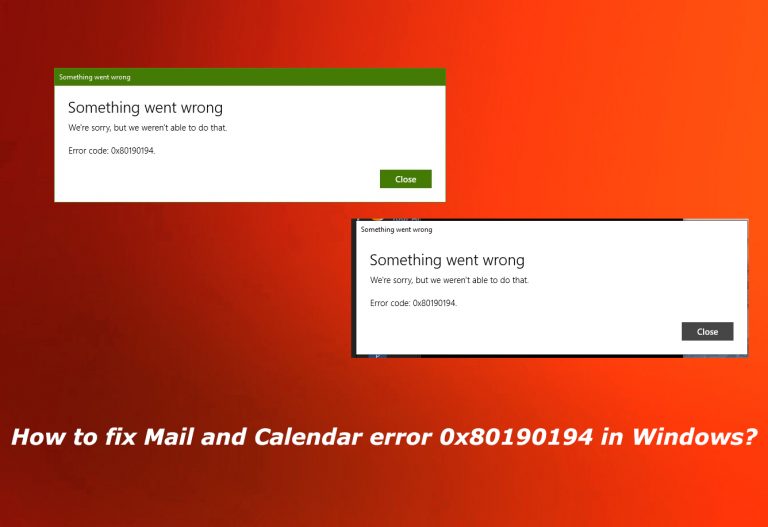
What causes How to fix Mail and Calendar error 0x80190194 in Windows?
- Corrupt Outlook Folder
- Corrupt Offline Address Book
- Corrupt Outlook Profile
- Problematic Outlook Cache Files
Repairs Windows system files, removes malware, and restores a clean OS state — without reinstalling.
Hello. I struggle with MS Outlook Address Book. I constantly encounter errors while creating new profiles. It also comes up when I try to log in myself. My friend has recently changed their account password and sees the same error code, so I guess it is a universal issue. Can you tell me how to fix Mail and Calendar error 0x80190194 in Windows?
Mail and Calendar error 0x80190194 in Windows is an issue that users encounter on various occasions. Some see the error code when using Yahoo Mail in particular, while others have the problem with their Outlook account or Outlook Beta platform[ref en-1]. The problem can appear when downloading the Offline Address Book and the issue often persists.
Some of these user complaints show that the problem is common and annoying. The problem with the particular Mail and Calendar error 0x80190194 in Windows is triggered by the corrupt files or cache. If you use MS Outlook regularly, you might have come across similar errors that are caused by the same problem.
This common Mail and Calendar error 0x80190194 in Windows issue can be frustrating, but knowing what causes it and how to fix it can make your email experience smoother.
Error 0x80190194 usually occurs when you're trying to send or receive emails or download the offline address book in Outlook. Here are some common reasons for it:
- Corrupt Outlook Folder: If your Outlook client's AppData folder gets corrupted, you might see this error.
- Corrupt Offline Address Book: Sometimes, the Offline Address Book (OAB) you’re trying to download is partially corrupted.
- Corrupt Outlook Profile: Your Outlook profile itself might be corrupted, leading to this error.
- Problematic Outlook Cache Files: Corrupt cache files can cause multiple issues, including this error[ref en-2].

Microsoft Outlook is a widely used email client, especially in business environments with Exchange Server or Office 365. Setting up an Exchange mailbox in Outlook uses Cached Exchange Mode by default, creating an Outlook data file (OST). This OST file helps you access your emails even when offline, ensuring a seamless experience.
Outlook also stores downloadable address lists, known as Online Address Books (OAB), on your local machine. Errors like 0x80190194 and others are related to issues with these data files or security certificates.
How to fix Mail and Calendar error 0x80190194 in Windows?
Here are some technical reasons why this error might occur: Outlook can't establish a secure connection with the server if the SSL certificate is invalid. An improperly configured OAB URL can also cause issues. If the URL for downloading the OAB is not set correctly, the process will fail, and you will be faced with the Mail and Calendar error 0x80190194 in Windows.
Inaccessible or Orphaned OST is a common issue here too. If the OST file is inaccessible or orphaned, Outlook will struggle to synchronize with the mailbox server, causing these errors. These facts mean that solving such issues can be the way to fix Mail and Calendar error 0x80190194 in Windows.
That might involve your interaction with the system and particular settings. As for the common files that get corrupted, you can run [d1]. This should be the first step here, so you can ensure that other processes you need later on are running smoothly. Now, lets see how we can help you fix Mail and Calendar error 0x80190194 in Windows.
Rename the Outlook folder
- Press Win + R keys to open Run dialogue.
- Type %appdata% and hit Enter.
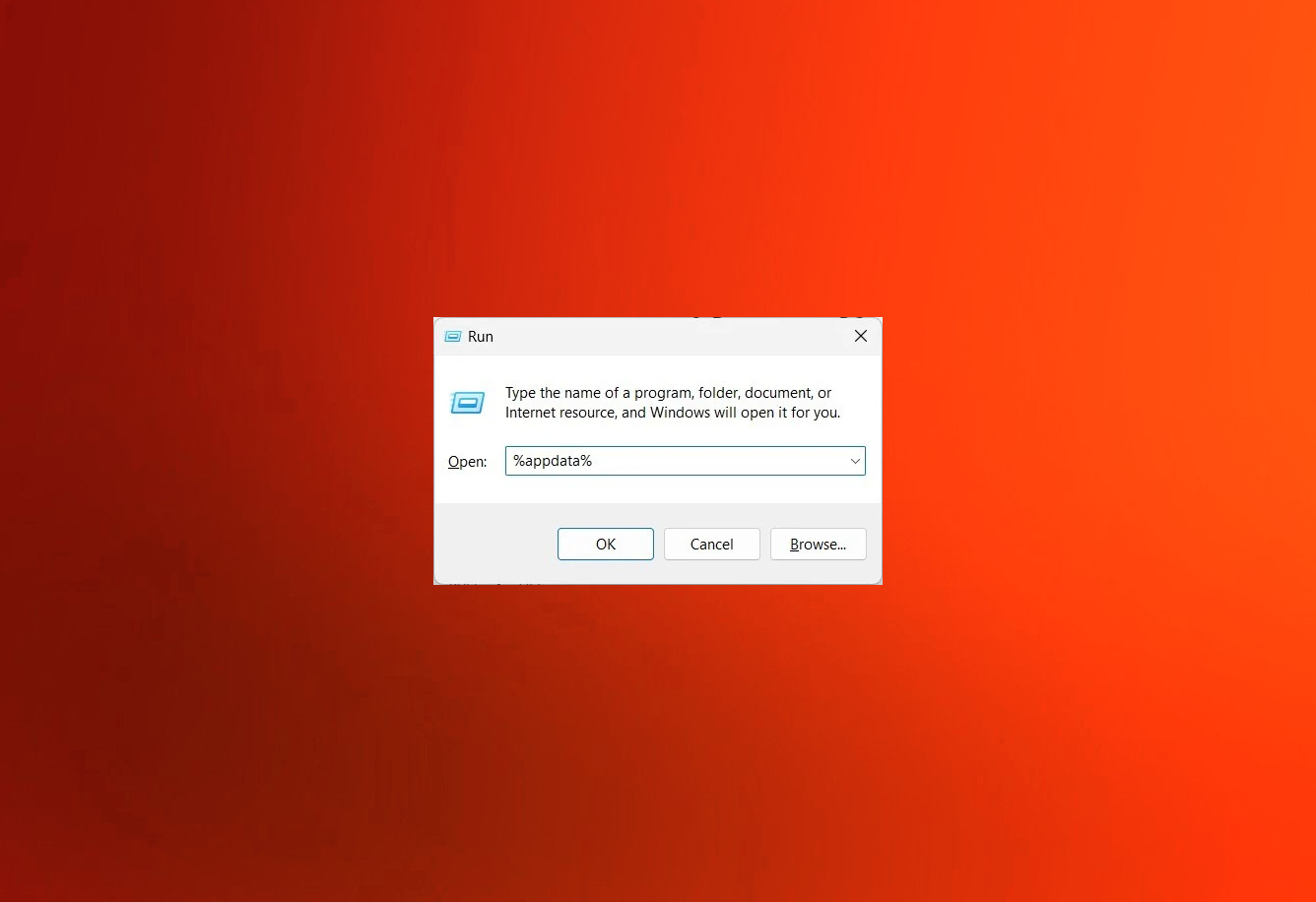
Outlook error appdata - Find the Roaming folder.
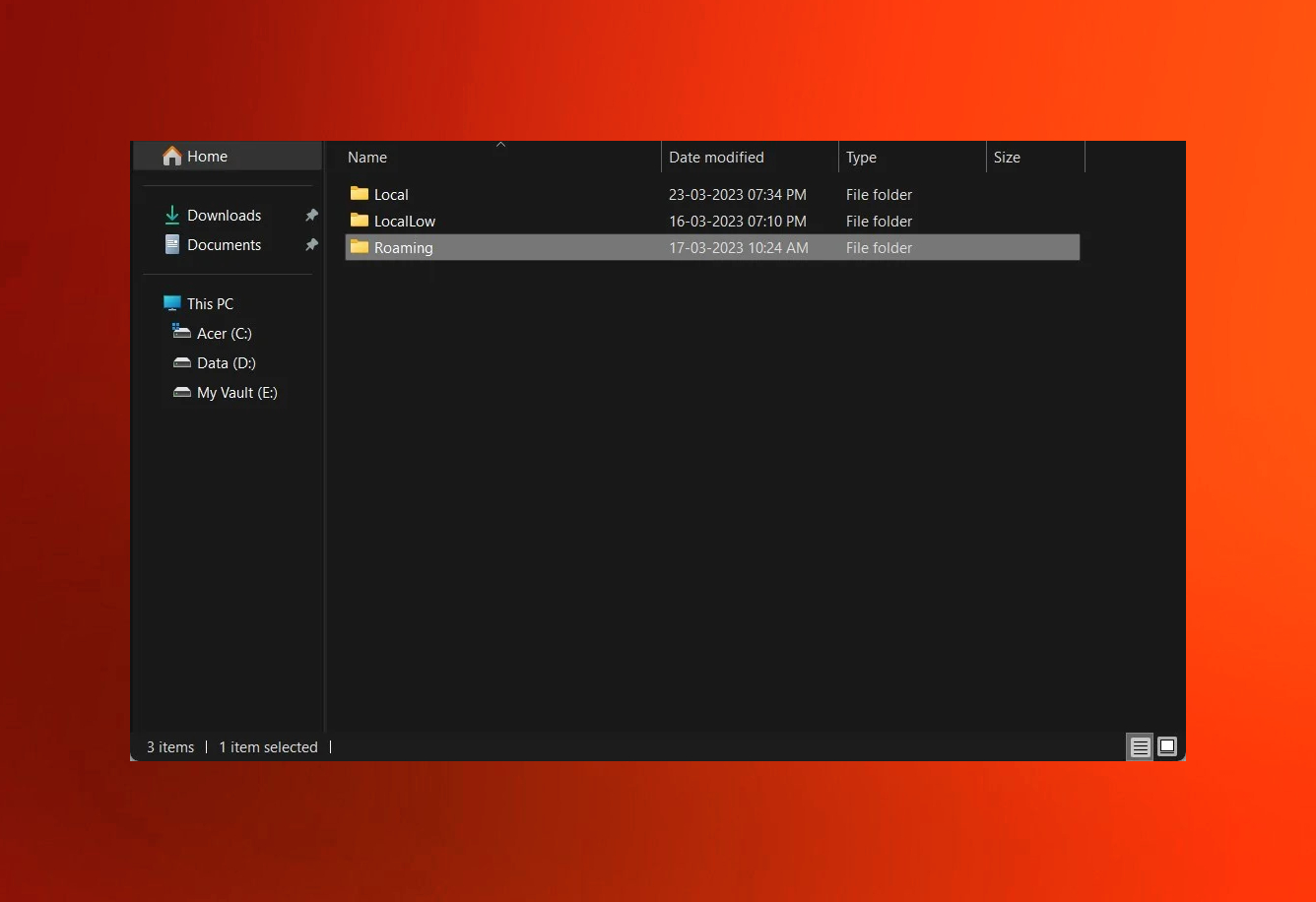
Outlook error roaming - Open the Microsoft folder.
- Look for Outlook entry.
- Rename it to Outlook.old. This will force the system to create Outlook folder from scratch.
- Restart the PC.
Create a New Outlook Profile
- Open the Mail.
- Click on Show Profiles
- Click Add.
- Name the New Profile.
- Set Up Your Email Account.
- Follow the prompts to set up your email account in the new profile.
- Enter the required information.
- Test the account.
Clear the OAB folder
- Close Outlook.
- Press Win + R keys to open Run dialogue.
- Type %localappdata% and press Enter.
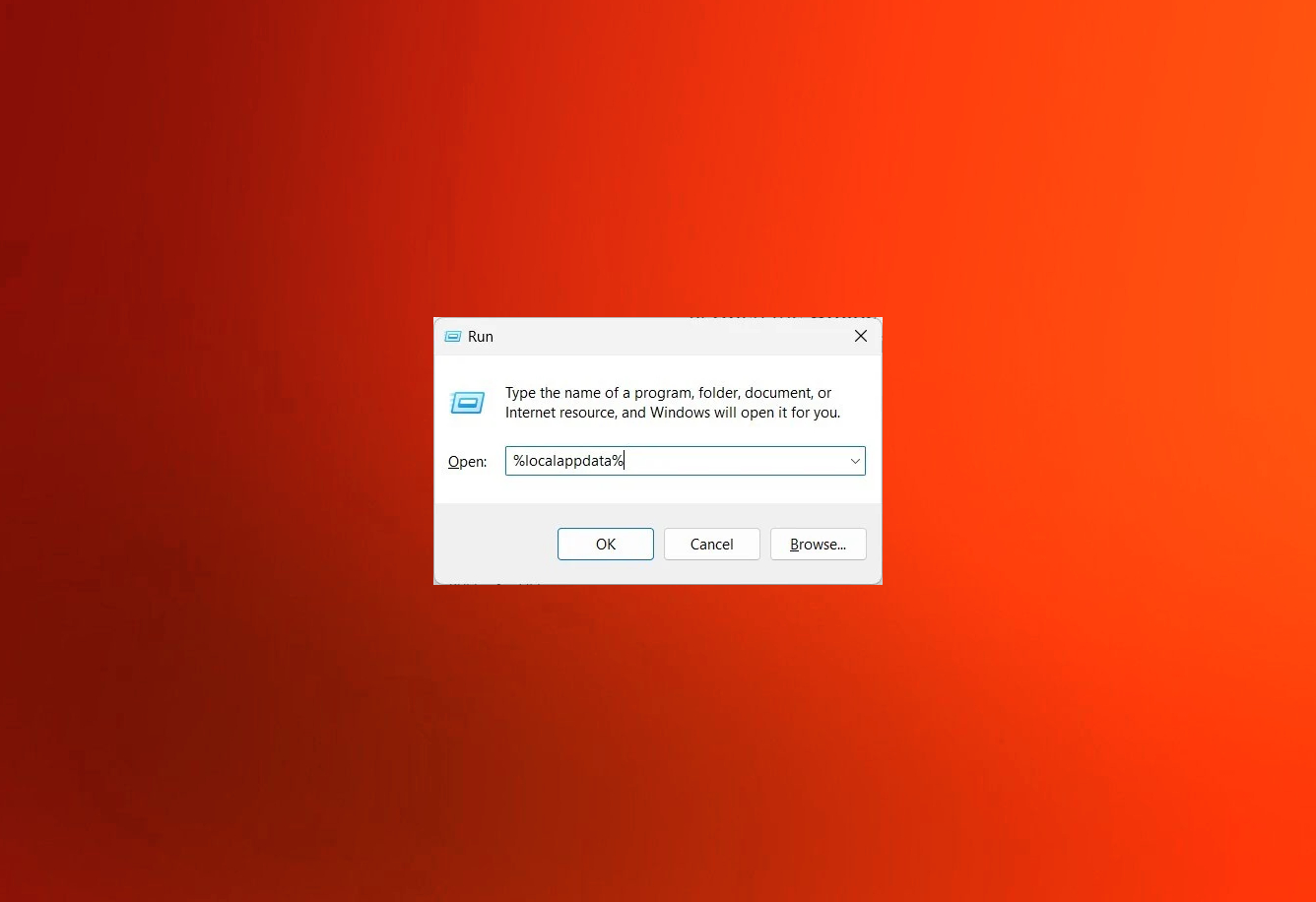
Outlook error localdata - Choose the Microsoft folder.
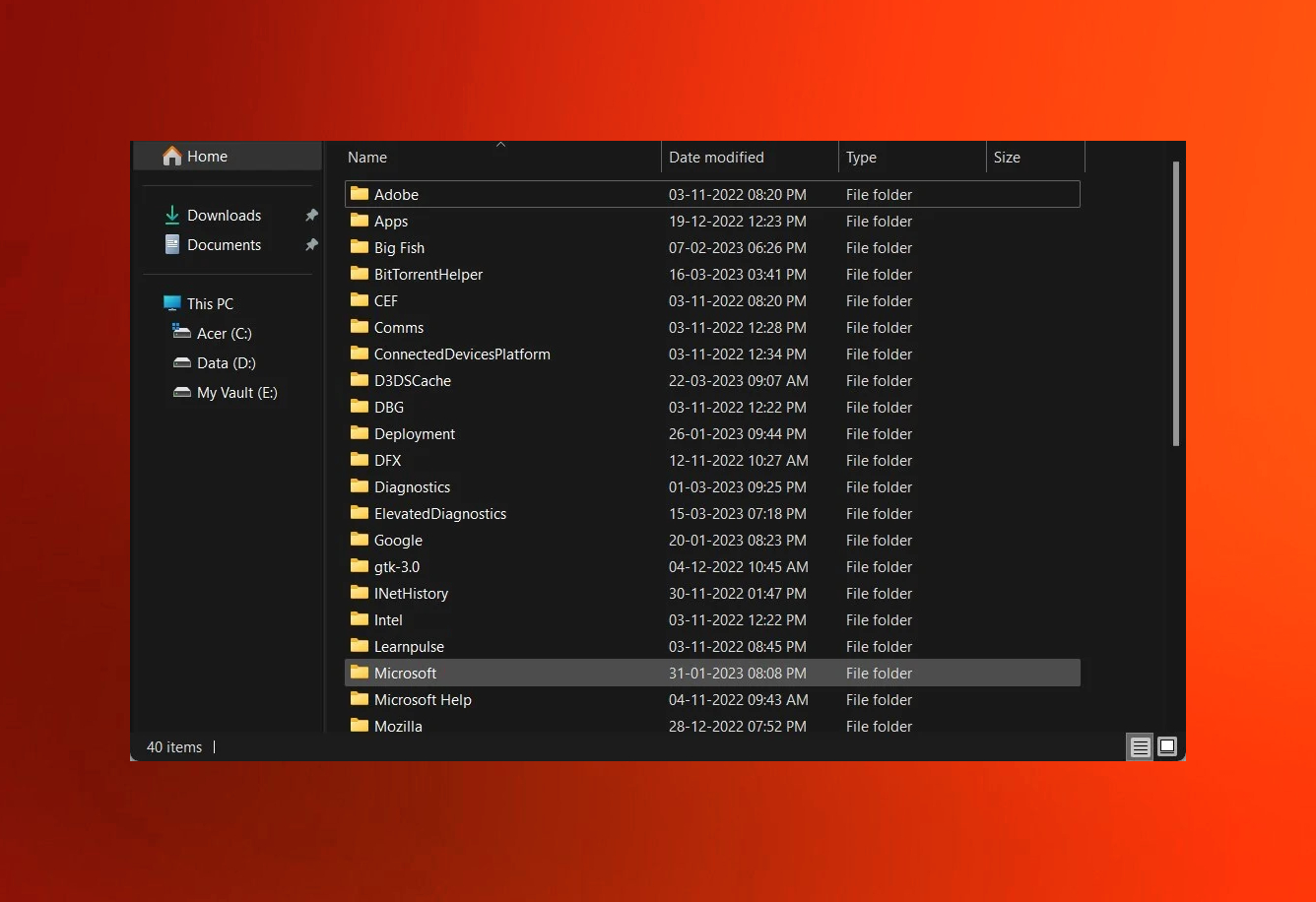
Outlook error microsoft - Open Outlook folder.
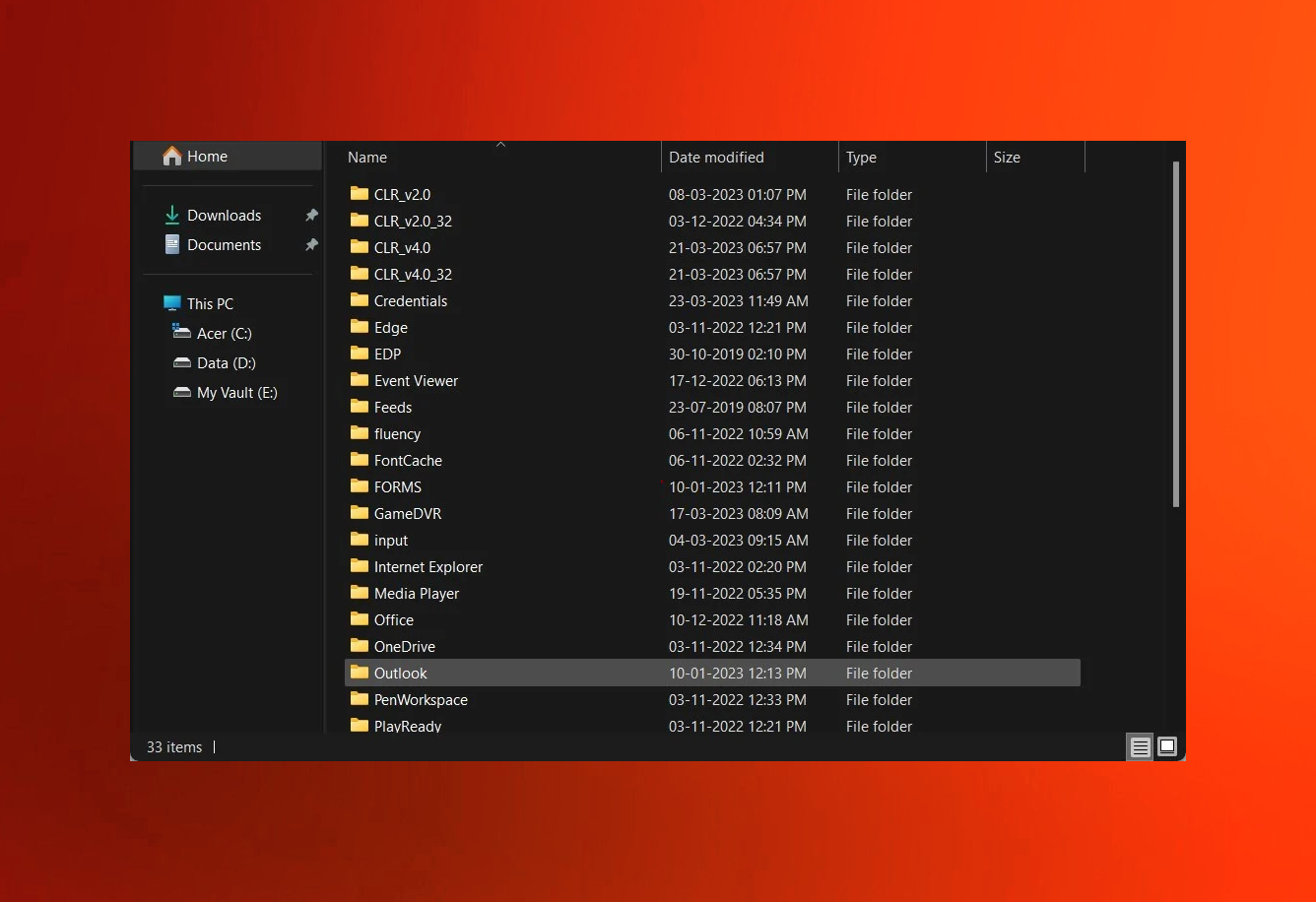
Outlook error outlook - Open the Offline Address Book folder.
- Select all files inside the folder.
- Delete all files.
- Restart your PC and check if this fixes the issue or not.
Recreate OST file
Recreating the OST file can eliminate issues related to corruption or synchronization errors.
- Close Outlook.
- Type Control Panel in Windows search and then press Enter.
- Under the View by section, select Small icons from the drop-down menu.
- Click on Mail (Microsoft Outlook).
- Select Email accounts.
- Then, navigate to the Data Files tab.
- Pick your account and click on Open File Location.
- Delete the OST file by pressing Shift + Del.
- Now reboot Outlook.
Bottom line
To fix Mail and Calendar error 0x80190194, you can try repairing your Outlook profile, clearing the cache files, or downloading a fresh Offline Address Book. If these solutions do not resolve the issue, consider checking for updates or reinstalling the application.
Frequently asked questions
The error 0x80190194 typically indicates a network connectivity issue or a problem with the Microsoft account configuration in Mail and Calendar on Windows 10.
To fix the error 0x80190194 in Windows 11, try resetting the Mail and Calendar app through Settings, then restart your computer and check your internet connection.
Yes, you can troubleshoot the 0x80190194 error by clearing the app cache and ensuring that your Windows 10 or Windows 11 is fully updated.




Report an issue
What's wrong with this guide? We review every report and update or remove content.
Report received — thank you. We'll review and fix it.
You need a free account to submit a report.
Be the first to comment