How to fix
Mail app error 0x80040b0b
on Windows
Resolve Mail app error 0x80040b0b on Windows 10 and 11 effortlessly. Follow our expert-tested solutions for quick fixes and seamless email access.

What causes How to fix Mail app error 0x80040b0b in Windows?
- Internet connectivity issues
- Outdated Mail app
- Misconfigured email account settings
- Corrupted Mail app installation
- Sync issues leading to missing emails
Repairs Windows system files, removes malware, and restores a clean OS state — without reinstalling.
Hello. My email accounts on the Mail app in Windows have stopped syncing. I do not receive any emails. How can I fix this?
The Mail app is a pre-installed application in Windows that allows users to manage their email accounts directly from their Windows devices. It provides a centralized and convenient platform for accessing and organizing emails from various providers such as Outlook, Gmail, Yahoo, and others. The Mail app includes a number of features that are intended to improve the email experience.
The ability to integrate multiple accounts is a key feature of the Mail app. Users can use the app to add and manage multiple email accounts, eliminating the need to switch between email clients or web browsers. This simplifies email management and creates a unified interface for all accounts.
The specific error 0x80040b0b in the Mail app can have a number of consequences for users. For starters, it may prevent users from receiving or sending emails, disrupting communication and potentially causing important correspondence to be delayed. This can be especially troublesome for people who rely on the Mail app for work or personal reasons.
This error may also cause sync issues, resulting in outdated or missing emails, folders, or other data. This can lead to an inconsistent view of the user's email accounts and make accessing critical information difficult. Furthermore, the error may cause the Mail app to become unstable or unresponsive, negatively impacting the user experience and causing frustration.
Checking internet connectivity, ensuring the app is up to date, resetting the Mail app, reconfiguring email account settings, or repairing the Mail app installation are all possible solutions for error 0x80040b0b in the Mail app. This guide will walk you through four steps that should help you resolve Mail app error 0x80040b0b.
You can also try using a maintenance tool like [d1] that can fix most system errors, BSODs,[ref en-1] corrupted files, registry[ref en-2] issues, or clear cookies and cache[ref en-3] automatically. Otherwise, follow the step-by-step instructions below.
Solution 1. Run the Microsoft Store Apps Troubleshooter
- Open the Start menu.
- Click the gear-shaped icon to launch the Settings app.
- In the Settings app, click on the System tab.
- Click on Troubleshoot.
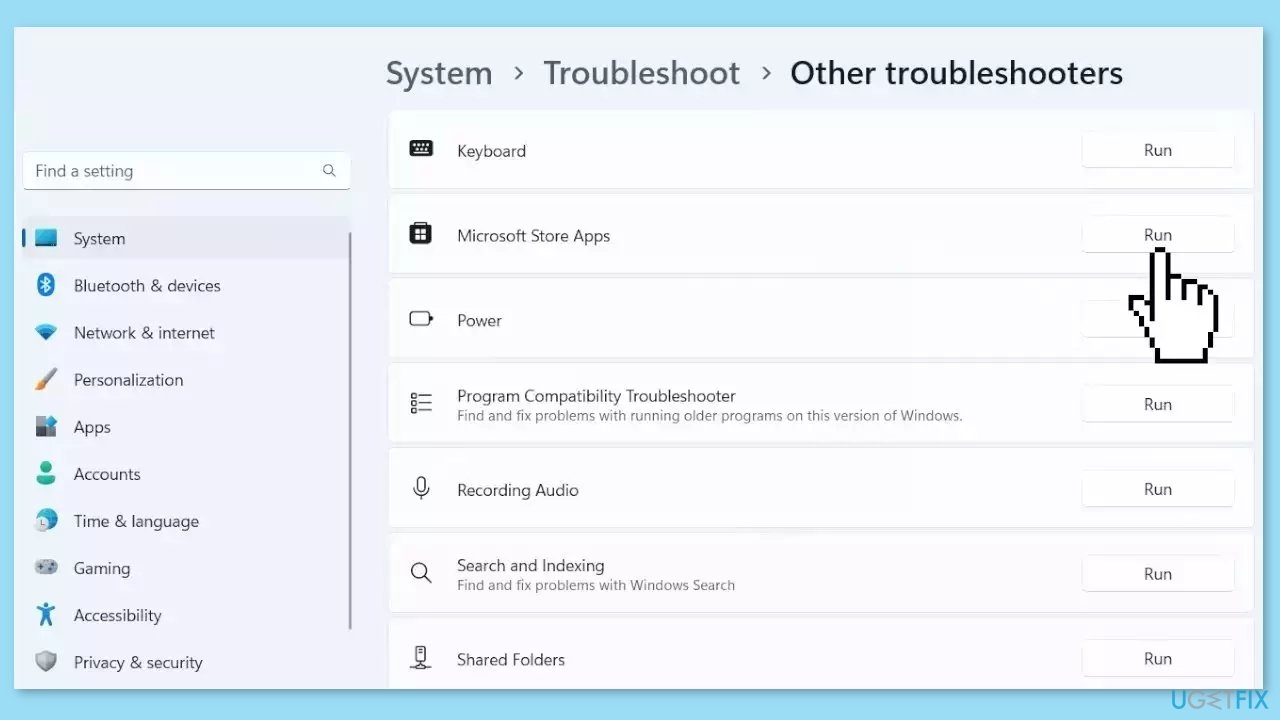
- Select Other troubleshooters.
- Look for Microsoft Store Apps and click the Run button next to it.
- Follow the on-screen prompts to run the troubleshooter.
Solution 2. Re-Add all Accounts
- Open the Mail app.
- Click on the Settings icon located in the lower-left corner.
- Select Manage Accounts.
- Choose the account that you want to remove.
- Click on the option Delete account.
- If you don't see the Delete account option, it means you're probably trying to remove the default email account that was added when you logged on to Windows.
- After removing the accounts, go to Settings again and click Add account.

- Select the type of account you want to add (e.g., Outlook, Gmail, Yahoo, etc.).
- Enter the required information, including your email address, password, and account name. The account name will be displayed in the left pane of the Mail app and the Manage Accounts pane.
- Click on Sign in to proceed.
- Once the account setup is complete, click on Done. Your data will start syncing immediately.
Solution 3. Update the Mail App
- Launch the Microsoft Store app.
- Click the Library option in the left pane.
- Click the Get updates button.
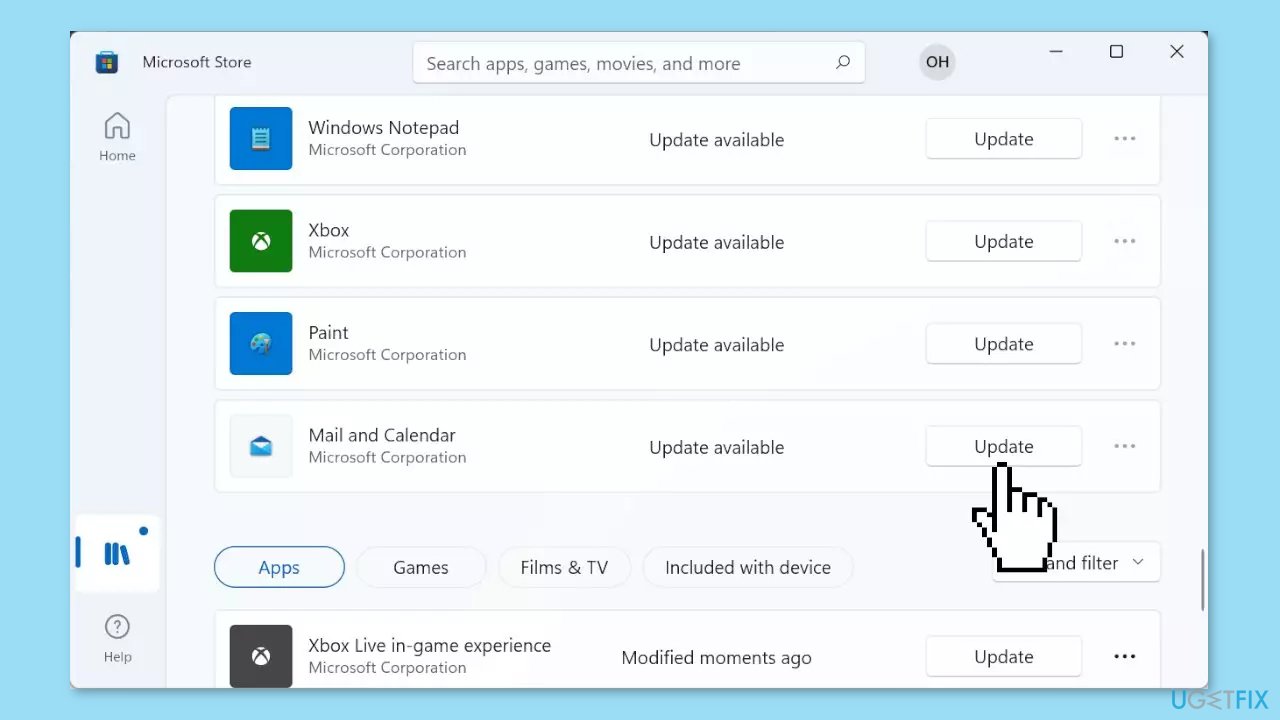
- Locate the Mail and Calendar option.
- Click the Update button next to the Mail and Calendar option.
- Wait for the update process to complete.
Solution 4. Repair or Reset the Mail and Calendar App
- Use the Windows key + I hotkeys to open the Settings app.
- Click on Apps from the left pane.
- Choose Apps & features.
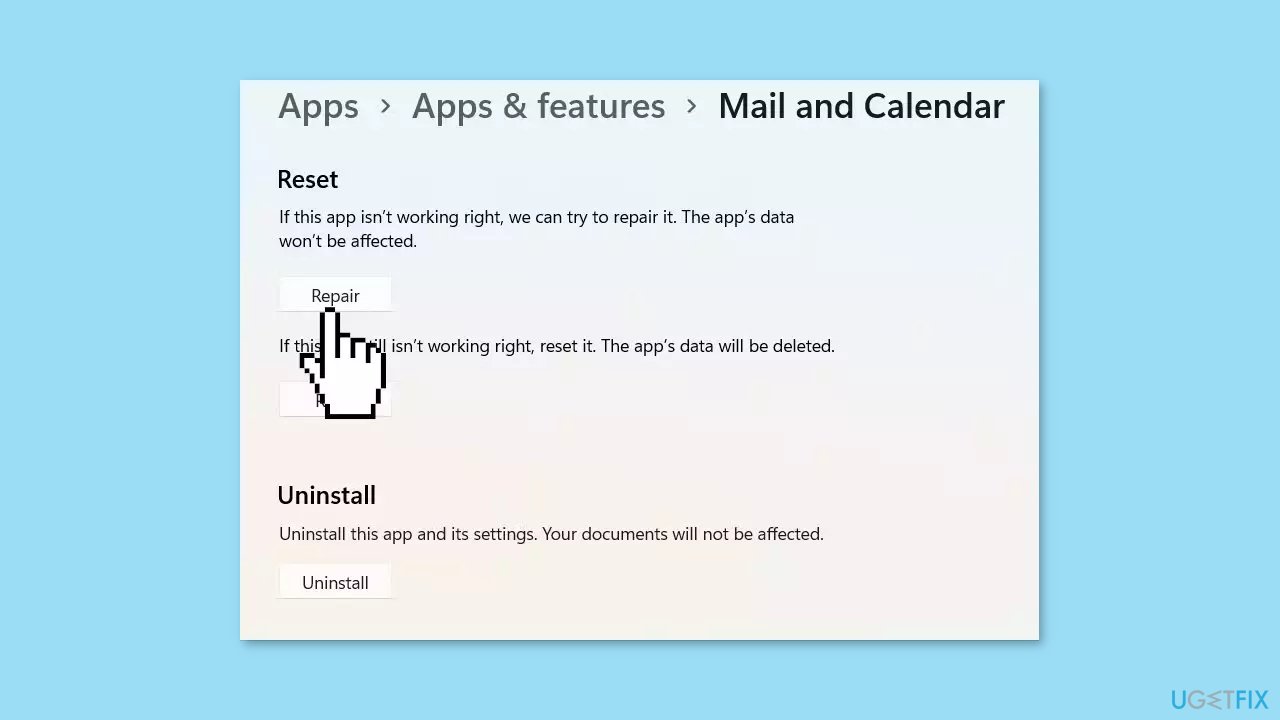
- Locate Mail and Calendar from the list of apps and click on the three dots next to the name.
- Choose Advanced options.
- Under the Reset section, click on Repair.
- Launch the Mail and Calendar app.
- Check if you are still facing the problem.
- If you are, go back and click Reset instead.
Solution 5. Reinstall the Mail App
- Press the Windows key.
- Type powershell in the search bar.
- Select Run as administrator under Windows PowerShell.
- In the PowerShell window, type the following command:
Get-appxprovisionedpackage –online | where-object {$_.packagename –like “windowscommunicationsapps”} | remove-appxprovisionedpackage –online
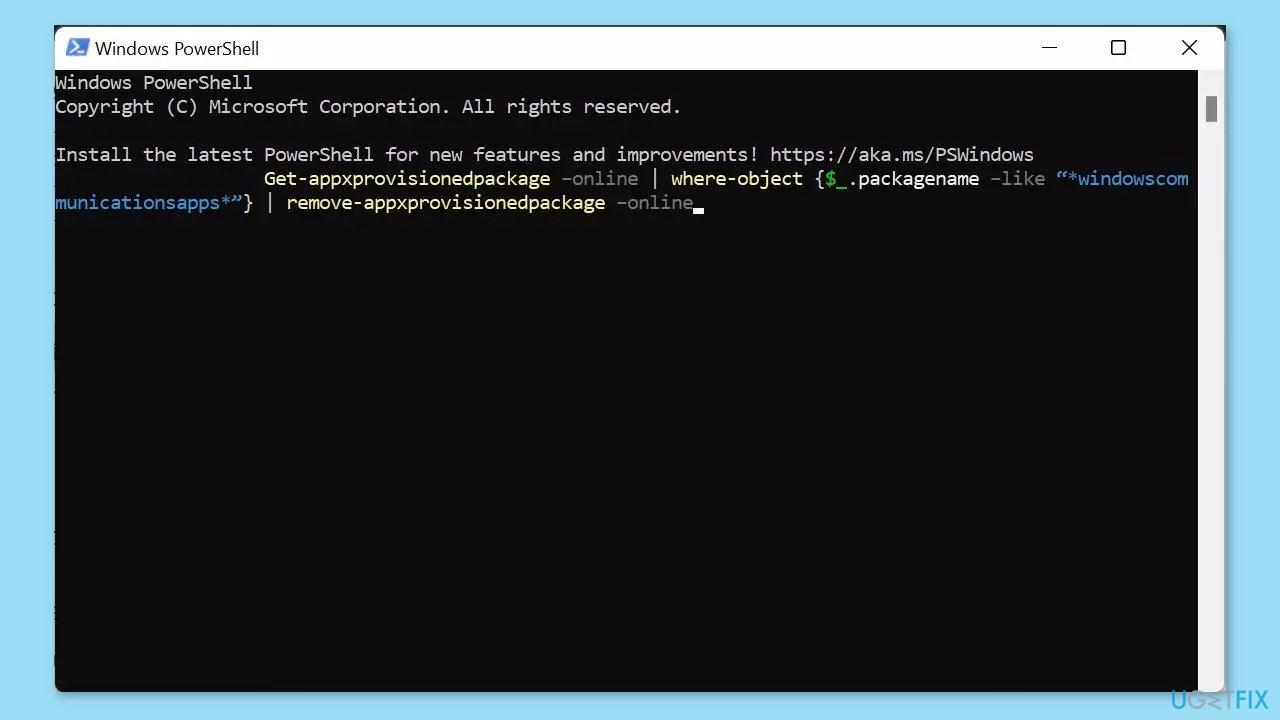
- Press Enter to run the command.
- Visit the Windows Store.
- Search for the Mail and Calendar app.
- Reinstall the Mail and Calendar app from the Windows Store.
Bottom line
To fix Mail app error 0x80040b0b, you can run the Microsoft Store Apps Troubleshooter, check your internet connection, ensure the app is up to date, reset the Mail app, or reconfigure your email account settings. If none of these solutions work, consider using a maintenance tool to address system errors.
Frequently asked questions
This error often arises due to corrupted files within the Mail app or issues with your email account settings. It can also occur if the Windows Update is pending or the system is not fully updated.
To fix this error, try resetting the Mail app through the Settings menu under Apps, or remove and re-add your email account. Additionally, ensure that your Windows 10 or Windows 11 is updated to the latest version.
To prevent this error in the future, regularly update your Windows operating system and the Mail app. Also, periodically check your email account settings for accuracy and integrity.




Report an issue
What's wrong with this guide? We review every report and update or remove content.
Report received — thank you. We'll review and fix it.
You need a free account to submit a report.
Be the first to comment