How to fix
Mail app not downloading email messages
on Windows
Resolve the Mail app not downloading emails on Windows 10 and 11 effortlessly. Follow our expert-tested solutions and get back to your inbox in minutes.

What causes How to fix Mail app not downloading email messages on Windows?
- Incorrect email synchronization settings
- Bugs within the application
- Conflicts with other software
- Outdated Mail app
Repairs Windows system files, removes malware, and restores a clean OS state — without reinstalling.
Hello, I am not getting emails via the Mail app in Windows, while it works fine on my phone, for example. Could you please advise on how to fix this?
Mail app is a successor to Windows Live Mail and was first introduced in Windows 8 and continues to be an important part of the operating system, providing a convenient way to manage multiple email accounts in one place. Unfortunately, some users have reported an issue where the Mail app fails to download email messages, thereby hindering their access to important correspondence.
Mail app not downloading email messages in Windows is an issue that can be caused by several reasons. Firstly, incorrect email synchronization settings may be at fault, preventing the Mail app from fetching your emails effectively. Additionally, bugs within the application itself may be causing this issue. Finally, conflicts with other software installed on your system could also disrupt the Mail app's ability to download emails.
To resolve this problem, you can review and adjust your email synchronization settings, ensuring they are correctly configured. It's advisable to check for updates to the Mail app and install them if available, as these updates may contain bug fixes that address the downloading issue. Lastly, if conflicts with other software are suspected, consider temporarily disabling or uninstalling conflicting programs to see if that resolves the problem.
For a more comprehensive solution to any underlying Windows issues that may be contributing to this problem, you can consider using the [d1] PC repair tool, which can automatically diagnose and fix a wide range of Windows-related issues.
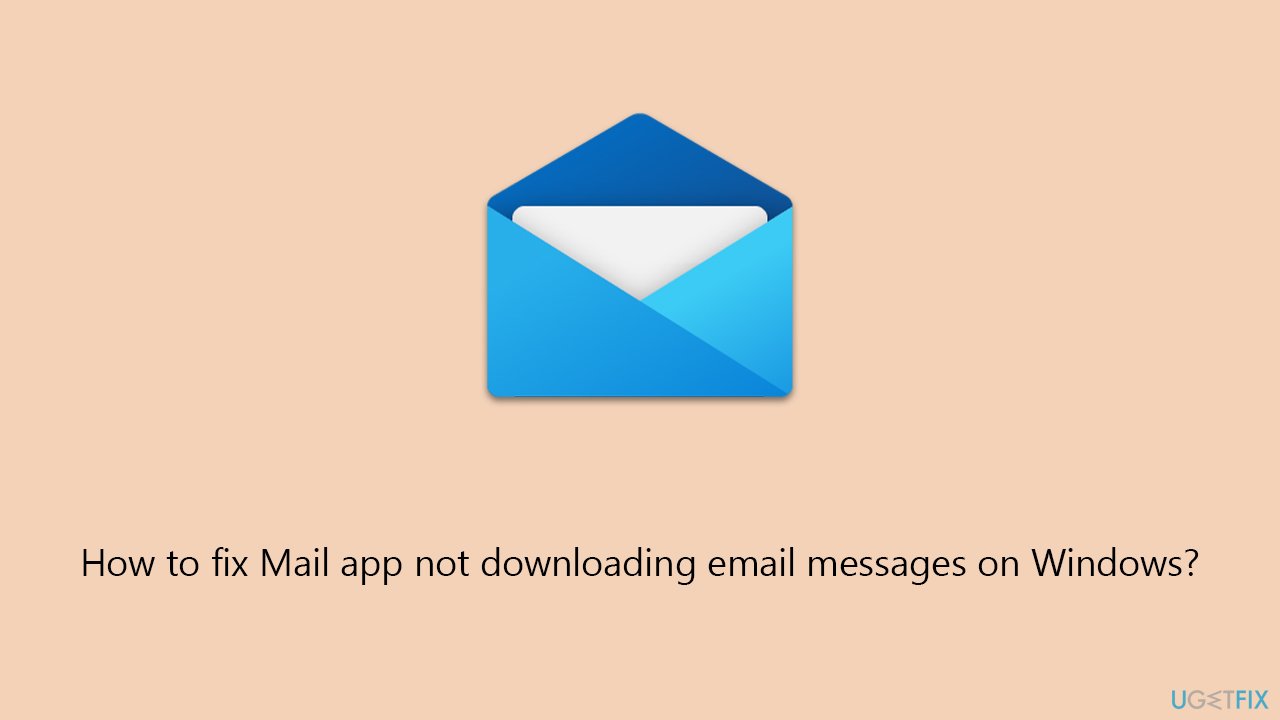
Fix 1. Run Windows Store apps troubleshooter
This tool can automatically detect and fix common problems that might be affecting the app's functionality.
- Type Troubleshoot in Windows search and press Enter.
- On the right side, click Additional troubleshooters/Other troubleshooters.
- Scroll down to find the Windows Store Apps entry.
- Select it and click Run the troubleshooter/Run.
- Wait till the scan finishes and apply the suggested fixes, then reboot your system.
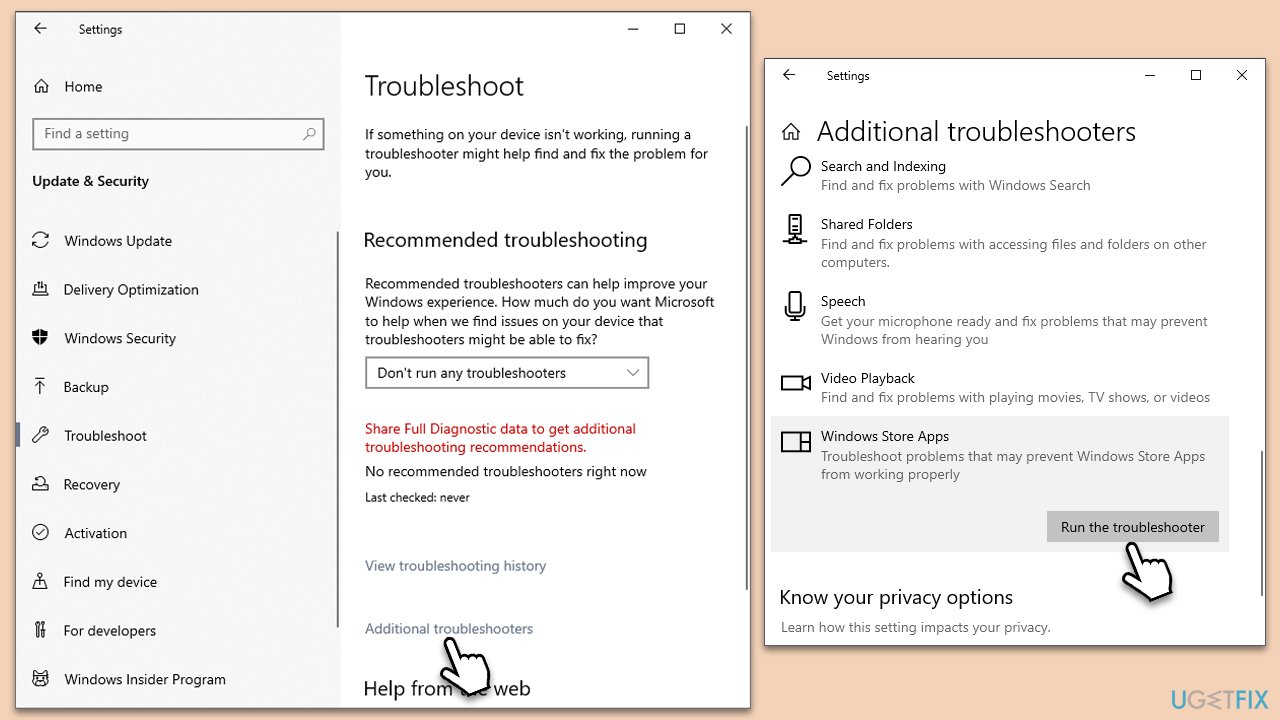
Fix 2. Change email sync settings
Email sync settings might not be configured correctly, preventing the app from downloading messages. Here's how to address that:
- Open the Mail app.
- Click on the Settings button (cogwheel) at the bottom-right corner.
- Select Manage accounts.
- Pick the account you are having trouble with.
- Select Change mailbox sync settings.
- Here, under Download new content, select as items arrive.
- Enable all options under Sync options and click Done.
Fix 3. Install all Windows updates
When having problems with Windows, it is important to make sure that all the latest updates are downloaded and installed.
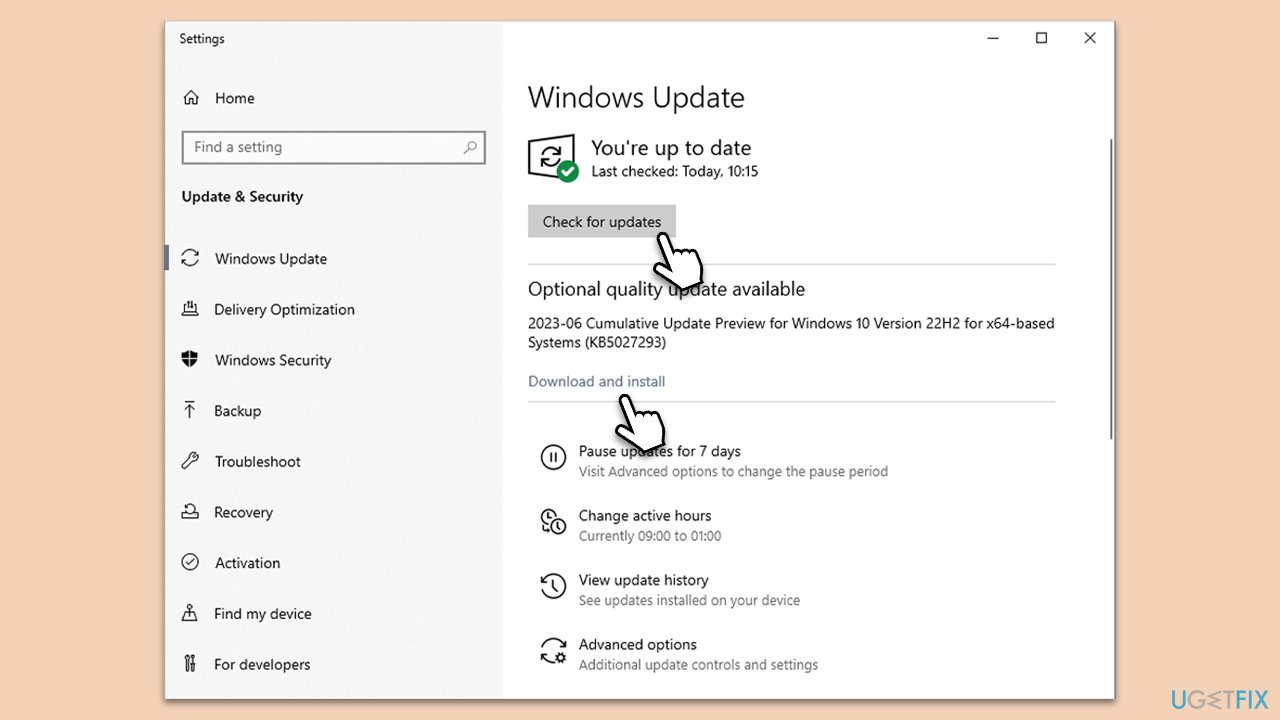
- Type Updates in Windows search and press Enter.
- When the new window opens, click Check for updates and wait.
- If there are optional updates available, install them as well.
- Restart your computer to implement the changes.
Fix 4. Run network troubleshooter
If your internet is not working properly, Windows might struggle to download email messages on the Mail app. Check this by running a network troubleshooter.
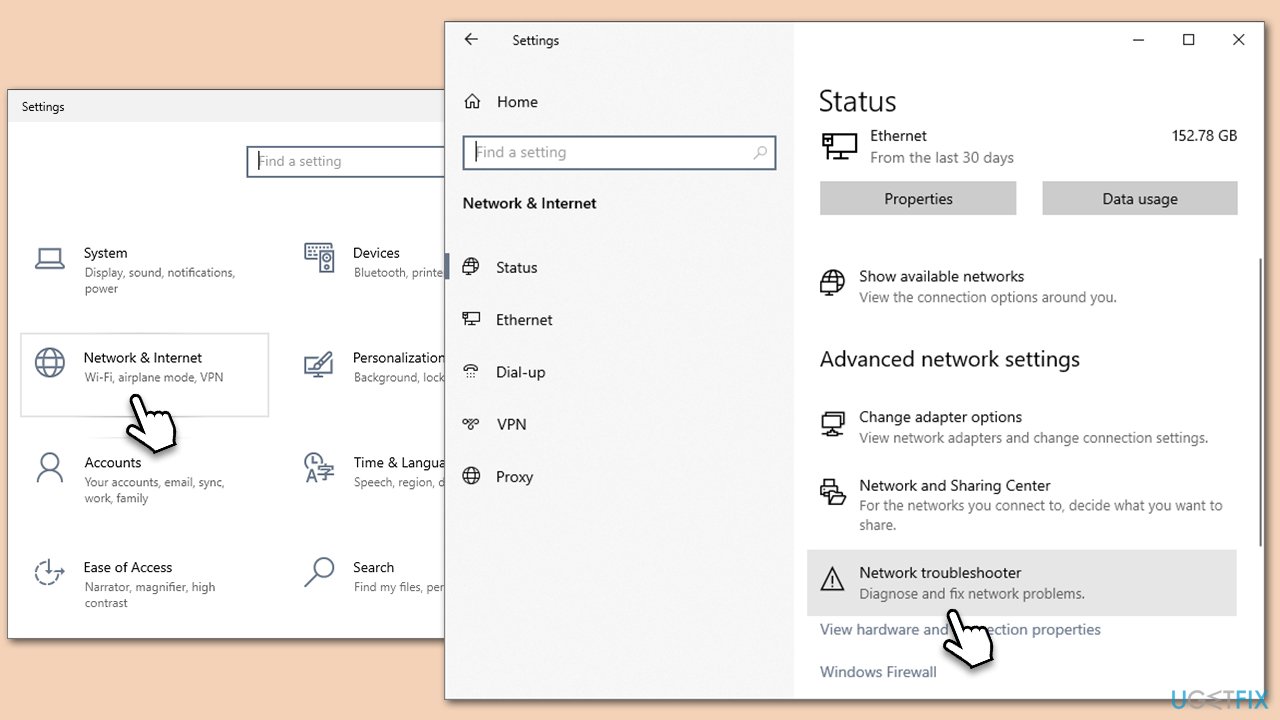
- Right-click on Start and pick Settings.
- Go to Network & Internet section.
- On the right side, find the Advanced network settings section.
- Click Network troubleshooter and wait.
- Apply the recommendations and see if that resolves the issue.
Fix 5. Reset the Mail app
Resetting the Mail app can help resolve issues related to its functionality.
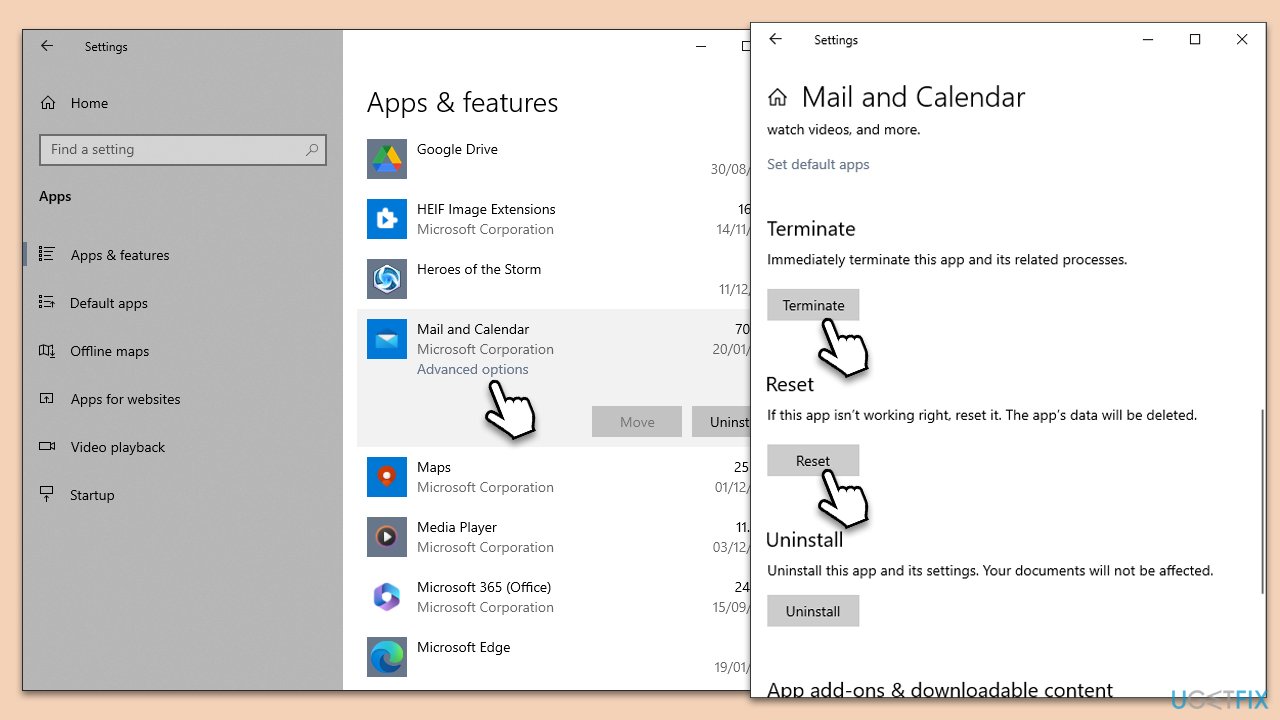
- Right-click on Start and select Apps & Features.
- Scroll down to find Mail and Calendar and click Advanced options.
- Scroll down again and click Terminate and Reset.
- Restart your PC.
Fix 6. Switch to the Outlook version of the app
If the Mail app continues to have trouble downloading emails, you can try using the Outlook app switch feature to access your email.
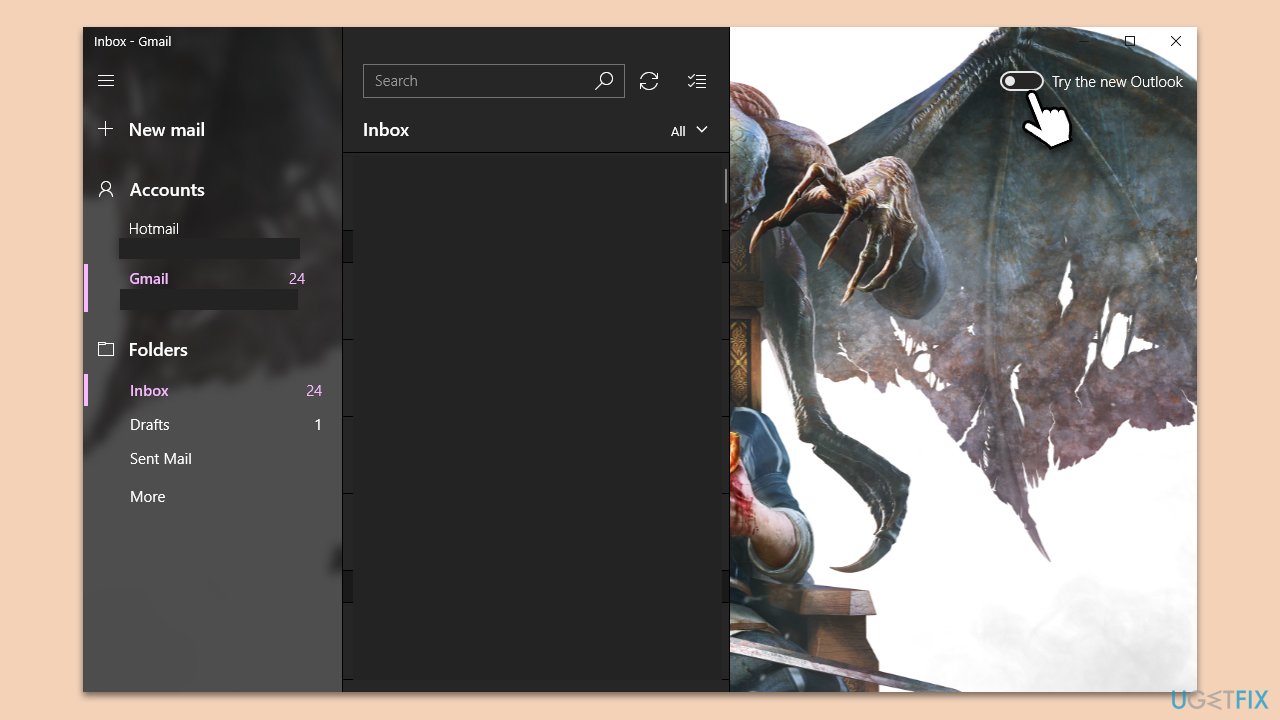
- Open the Mail app.
- In the top right corner, you should notice a switch titled Try the new Outlook.
- Toggle it to the right to enable the new Outlook.
- Confirm any prompts to proceed.
- See if the problem is resolved.
Bottom line
To fix the Mail app not downloading email messages, you can review and adjust your email synchronization settings, check for updates to the Mail app, and consider disabling or uninstalling conflicting software. Additionally, running the Windows Store apps troubleshooter may help detect and resolve common issues. If none of these solutions work, consider using a PC repair tool to diagnose and fix underlying Windows issues.
Frequently asked questions
The Mail app may not download emails due to incorrect account settings or network connectivity issues. Check your account configuration and ensure your internet connection is stable.
To reset the Mail app on Windows 11, go to Settings > Apps > Apps & features, find Mail, click on it, and select 'Advanced options' to reset the app.
If the Mail app is stuck syncing, try removing and re-adding your email account, or check for updates in the Microsoft Store to ensure you have the latest version of the app.




Report an issue
What's wrong with this guide? We review every report and update or remove content.
Report received — thank you. We'll review and fix it.
You need a free account to submit a report.
Be the first to comment