How to fix
Mail app sync error 0x8007274d
on Windows
Resolve the Mail app sync error 0x8007274d on Windows 10 and 11 easily with our expert-tested solutions. Fix your email issues in minutes!

What causes How to fix Mail app sync error 0x8007274d in Windows?
- Problems with the synchronization process between the Mail app and the email server
- Conflicts or restrictions imposed by security software
- Settings or features in third-party antivirus programs or firewalls preventing connection
- Compatibility issues due to outdated Mail app version
- Corrupted files or registry issues
Repairs Windows system files, removes malware, and restores a clean OS state — without reinstalling.
Hello. The Mail application on my Windows laptop shows me the 0x8007274d error when I try to sync it. Is there a way to fix this?
The Mail app in Windows operating systems is a built-in email client that allows users to manage their email accounts and access their emails directly from their devices. It makes it simple to send, receive, and organize emails from various email providers.
Users may encounter the Mail app sync error 0x8007274d when there are problems with the synchronization process between the Mail app and the email server. This error can prevent the Mail app from properly syncing emails, causing email communication and access to be disrupted.
Conflicts or restrictions imposed by security software installed on the user's device could be one cause of this error. Security software, such as third-party antivirus programs or firewalls, may contain settings or features that prevent the Mail app from successfully connecting to the email server and synchronizing the emails.
Users' productivity and ability to stay up to date with their emails can suffer when they encounter the Mail app sync error 0x8007274d. They may be unable to send or receive emails, access critical information, or manage their email accounts properly via the Mail app.
To resolve the problem, users may need to review and adjust the settings of their security software to allow the Mail app to establish a secure connection and properly sync emails. Checking for available Mail app updates can also help address compatibility issues and bug fixes that may be contributing to the error.
In this guide, you will find 5 steps that should help you fix Mail app sync error 0x8007274d in Windows. You can also try a maintenance tool like [d1] that can fix most system errors, BSODs,[ref en-1] corrupted files, registry[ref en-2] issues, or clear cookies and cache.[ref en-3] Otherwise, follow the step-by-step instructions below.
Solution 1. Run Microsoft Store Apps Troubleshooter
- Open the Start menu.
- Click the gear-shaped icon to launch the Settings app.
- In the Settings app, click on the System tab.
- Click on Troubleshoot.
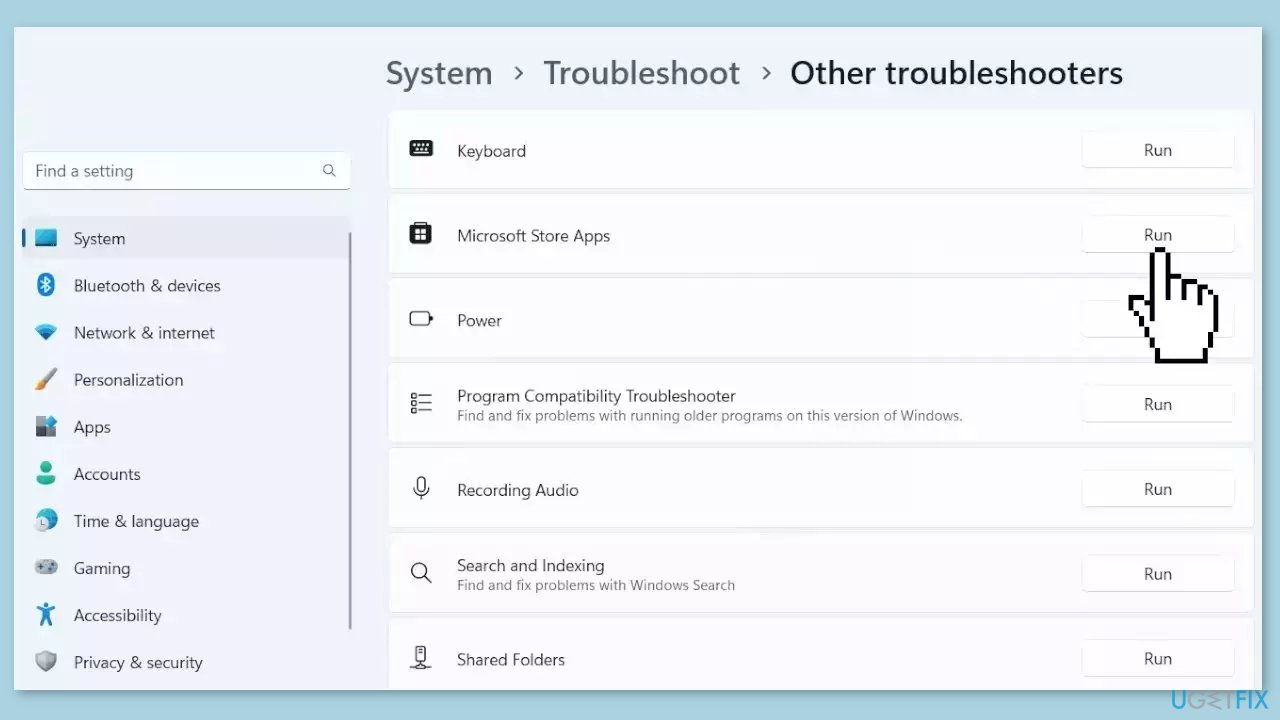
- Select Other troubleshooters.
- Look for Microsoft Store Apps and click the Run button next to it.
- Follow the on-screen prompts to run the troubleshooter.
Solution 2. Disable or Uninstall Third-Party Antivirus
- Right-click the third-party antivirus.
- Select the Disable option or its equivalent.
- If disabling the software does not work, press the Windows key.
- Type control in the search bar.
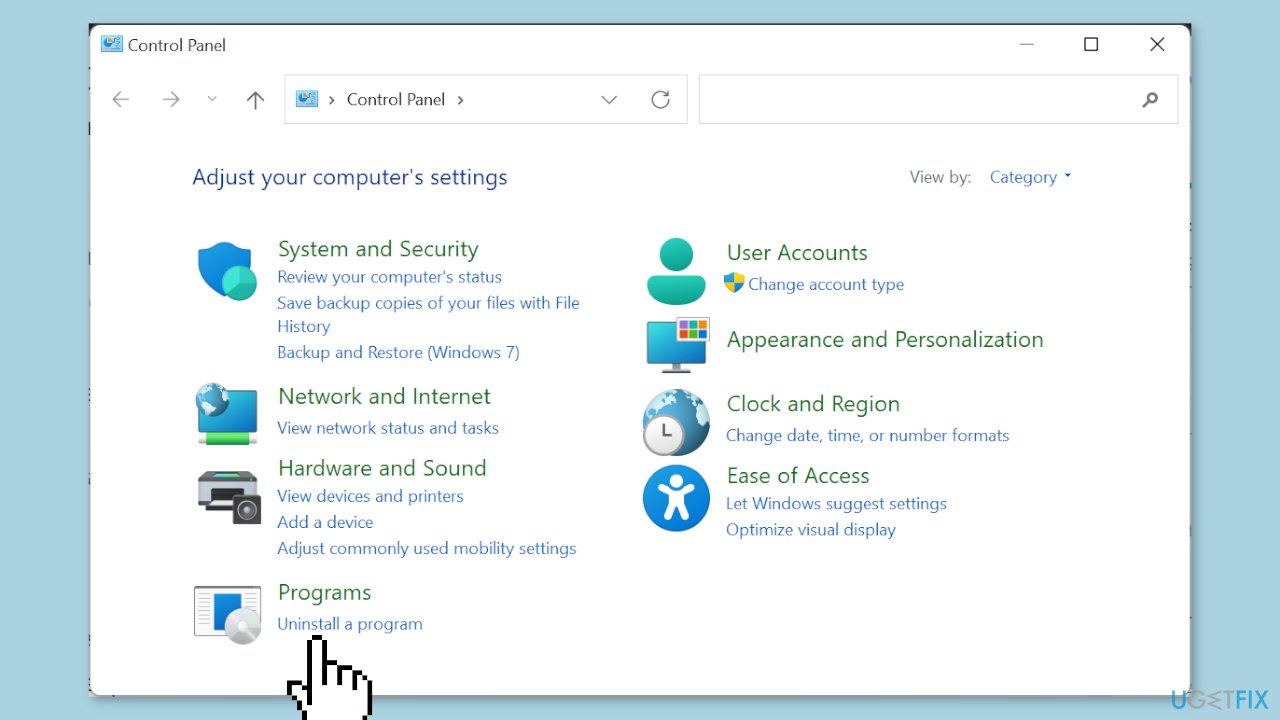
- Click the Control Panel option.
- Click the Programs option.
- Click Uninstall a program.
- Right-click the software you want to uninstall.
- Select the Uninstall option.
- Follow the onscreen instructions to complete the uninstallation process.
Solution 3. Update the Mail app
- Launch the Microsoft Store app.
- Click the Library option in the left pane.
- Click the Get updates button.
- Locate the Mail and Calendar option.
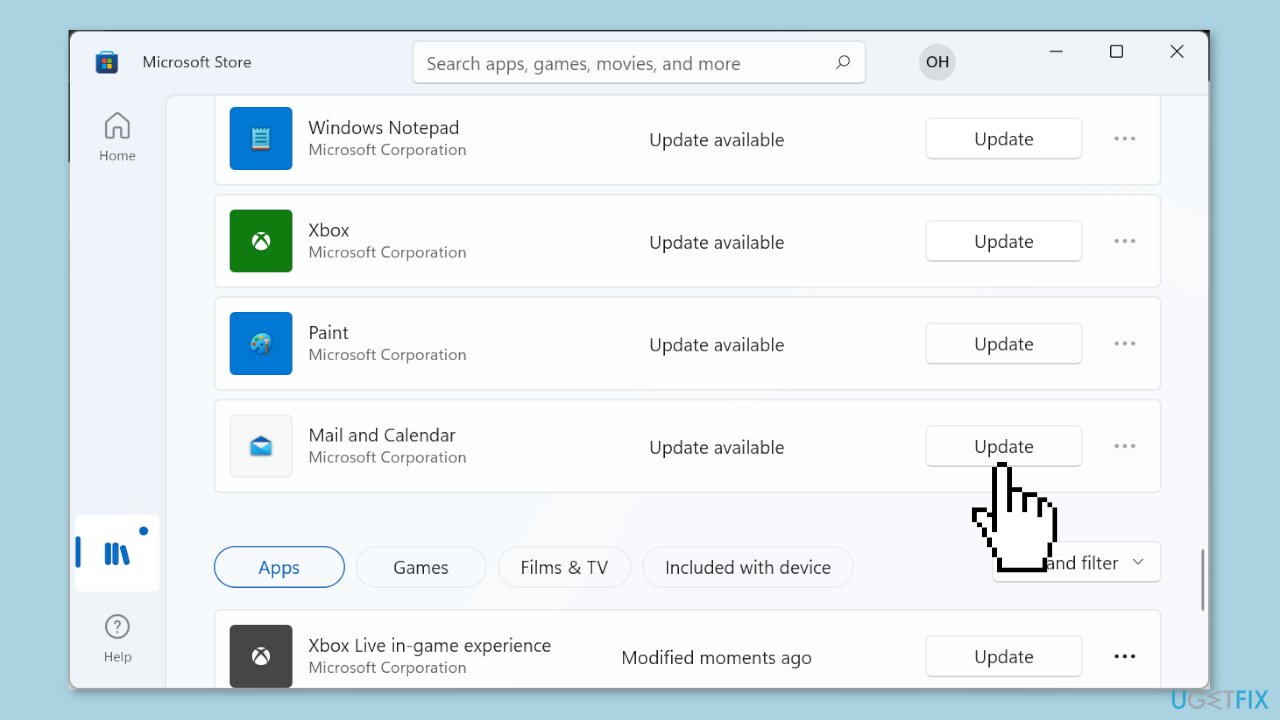
- Click the Update button next to the Mail and Calendar option.
- Wait for the update process to complete.
Solution 4. Change Sync Settings
- Launch the Mail app.
- Log in to your email account.
- Click the Settings icon in the bottom left corner of the Mail app.
- Select the Manage accounts option under Settings.
- Choose your email account from the list.
- Select Change mailbox sync settings.
- Check the boxes under Sync options.

Solution 5. Reinstall the Mail App
- Press the Windows key.
- Type powershell in the search bar.
- Select Run as administrator under Windows PowerShell.
- In the PowerShell window, type the following command:
Get-appxprovisionedpackage –online | where-object {$_.packagename –like "windowscommunicationsapps"} | remove-appxprovisionedpackage –online
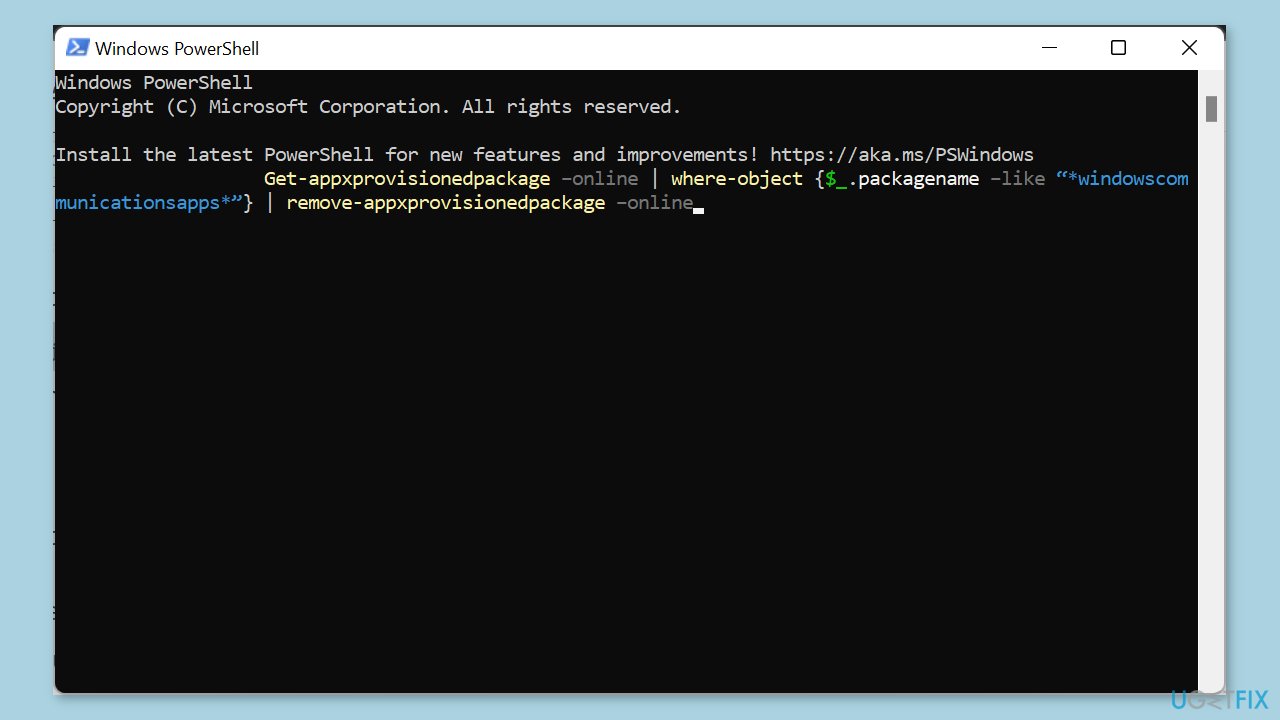
- Press Enter to run the command.
- Visit the Windows Store.
- Search for the Mail and Calendar app.
- Reinstall the Mail and Calendar app from the Windows Store.
Bottom line
To resolve the Mail app sync error 0x8007274d, users can run the Microsoft Store Apps Troubleshooter, review security software settings, and check for Mail app updates. If these steps do not work, consider using a maintenance tool to fix system errors.
Frequently asked questions
The Mail app sync error 0x8007274d typically occurs due to network connectivity issues or incorrect account settings in Windows 10 and Windows 11.
To fix the error, try checking your internet connection, then go to Settings > Accounts > Email & accounts to remove and re-add your email account.
Yes, you can reset the Mail app by going to Settings > Apps > Apps & features, selecting Mail, and choosing the 'Advanced options' to find the reset option.




Report an issue
What's wrong with this guide? We review every report and update or remove content.
Report received — thank you. We'll review and fix it.
You need a free account to submit a report.
Be the first to comment