How to fix
Mail & Calendar Update Error Code 0x80073B0F
on Windows
Resolve the Mail & Calendar update error code 0x80073B0F on Windows 10 quickly and easily. Expert-tested solutions that fix issues in minutes!

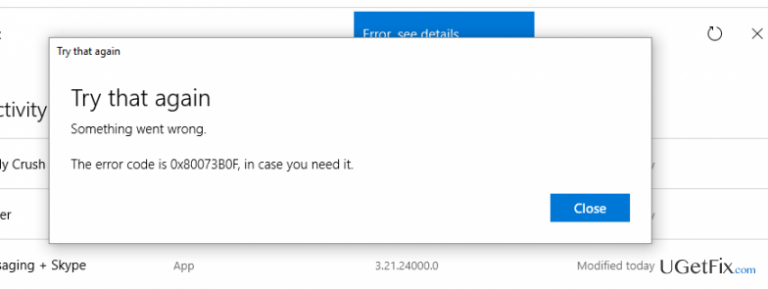
What causes How to Fix Mail & Calendar Update Error Code 0x80073B0F on Windows 10?
- Old version of Mail & Calendar app
- Corrupted app installation
- Issues with Windows Store cache
- Incompatibility with Windows 10 updates
- User permissions preventing app access
Repairs Windows system files, removes malware, and restores a clean OS state — without reinstalling.
I’m running Windows 10 from the start. Despite some minor failures, I worked fine all the time. However, recently I’ve started confronting with an error code 0x80073B0F on Windows Store when trying to update Mail & Calendar. After I attempted to run the update, the app became unusable and I can’t even start it. I’ve rebooted the system, but the app still doesn’t work. Don’t know what else I can do. Any help would be appreciated.
Error Code 0x80073B0F is one of the Windows 10 update errors, which emerge when trying to update Windows Mail & Calendar app. This application is not a novelty of Windows 10 operating system, as many people think. It has been used in earlier versions and was/is especially favorable by people in an office environment. While Mail & Calendar app is not prone to errors, quite a lot people reported about an error code 0x80073B0F on Windows 10. The bug shows up when trying to run Mail & Calendar update on Windows Store and, furthermore, causes an absolute failure of the application. After receiving a bug check, people can neither open the app nor uninstall it in a usual way. Microsoft Community has already discussed this issue and come up with a couple of useful 0x80073B0F error fixes.
Step 1. Run an elevated PowerShell
This method will help you to remove the old version of Mail & Calendar so that you could reinstall its latest version. To remove the app and fix 0x80073B0F error, do the following:
- Open Search and type PowerShell.
- Right-click on the option and select Run as Administrator.
Type Get-appxprovisionedpackage –online | where-object {$_.packagename –like “*windowscommunicationsapps*”} | remove-appxprovisionedpackage –online and hit Enter.
If the previous command did not work, you can try to uninstall Mail & Calendar app by performing these steps alternatively.Open PowerShell as described above.
- Type Get-AppxPackage
- Locate Windows Communication Apps and find PackageFullName (on the left pane).
- Next to PackageFullName, you should find a file named microsoft.windowscommunicationsapps_17.6020.42011.0_x64__8wekyb3d8bbwe. Rename this file to Remove-AppxPackage microsoft.windowscommunicationsapps_17.6020.42011.0_x64__8wekyb3d8bbwe and press Enter to execute the command.
Step 2. Remove Windows Store Cache
- Click Win key + R and type WSReset.exe.
- Press Enter to execute the command.
- Right after that, a Command Prompt window followed by Windows Store window should pop-up. It means that Store cache as successfully been removed.
Step 3. Reinstall the app
- Open the Green store. For this purpose, open Menu and click All apps.
- Press the letter S and select Store (not the Store Beta).
- Find Mail, Calendar, and People app and reinstall it.
Our last recommendation would be to check Windows 10 OS with [d1] optimization tool to make sure that there are no malware or other system inconsistencies. Luckily, this guide was useful for you and you no longer see 0x80073B0F error while upgrading Mail & Calendar app.
NOTE: We've found a couple of posts regarding error code 0x80073B0F on Microsoft forum where people claim that the same bug check shows up when trying to update Xbox, Skype, Tubecast, and some other apps via Windows Store. In this case, try to perform the same steps indicated above except that you have to modify the PowerShell command to address the application that triggers the error.
Bottom line
To fix the error code 0x80073B0F, you can run an elevated PowerShell to remove the old version of the Mail & Calendar app and then reinstall it. Additionally, clearing the Windows Store cache may help resolve the issue. If these solutions do not work, consider seeking further assistance from Microsoft Support.
Frequently asked questions
The error code 0x80073B0F typically indicates that there is an issue with the app installation or a problem with the Windows Store services affecting the Mail & Calendar app.
To reset the Mail & Calendar app, go to Settings > Apps > Apps & features, find Mail & Calendar, click on it, and select 'Advanced options' where you can choose 'Reset'.
Yes, ensure that your Windows 10 is up to date by checking for updates in Settings > Update & Security, as some updates may fix underlying issues affecting the Mail & Calendar app.




Report an issue
What's wrong with this guide? We review every report and update or remove content.
Report received — thank you. We'll review and fix it.
You need a free account to submit a report.
Be the first to comment