How to fix
Mail Drop not working
on Windows
Resolve Mail Drop issues on Windows 10 or 11 effortlessly. Get expert-tested solutions and reclaim your email functionality in minutes!

What causes How to fix Mail Drop not working?
- Mail Drop function not enabled in Mail preferences
- Storage limit of 1TB reached
- Temporary download link expired after thirty days
- Altered files or system issues
- Potential PUP infections
Repairs Windows system files, removes malware, and restores a clean OS state — without reinstalling.
Hello. I encounter the issue on my mac with Mail app. I try to compose emails and attach files to them, but even not large files trigger the error. The limit is not met with particular pieces, but the alert states that the file is too big. I have no idea why this Mail Drop is not working. Can you help?
Mail Drop not working frustrates users[ref en-1] because the function is useful in everyday life. Mail Drop feature allows sending a large file that takes up to 5GB vis iCloud. So people that have such an account can rely on the handy feature and forget about the frustration with tiny attachment limitations.
People want to get answers[ref en-2] and fix Mail Drop not working issue because sending emails nowadays became a crucial part of connecting and working. You can rely on this function when you use the Mail application on a Mac computer or an iOS device. When the attachment is too large the Mail Drop option is the one you can rely on.
Mail Drop provides the temporarily available download link for the recipient of your email so the attached file can be received. It is temporary because the link lasts for thirty days. You do not have unlimited storage on Mail Drop. The limit is 1TB and if that is reached the feature is not going to be helpful.
How to fix Mail Drop not working
People search for ways to fix Mail Drop not working because the file is not dropping on the email and messages cannot be composed. The error window appears informing them about the too large of a file. You might have not enabled the function on your Main preferences or the storage limit was met and you need to wait for particular files to expire, so the storage space can be used. We have a few solutions.
Mail Drop not working issue is not repeated to file corruption or malware.[ref en-3] At least it shouldn't be related to such issues, but check for altered files, system issues, or PUP infections with [d1] for example. so you can recover the machine and solve additional issues while correcting the mal application problem.
How to enable Mail Drop function for other Mail apps
- Open Mail application on your device.
- Go to the menu and choose Mail Preferences.
- Find Accounts tab
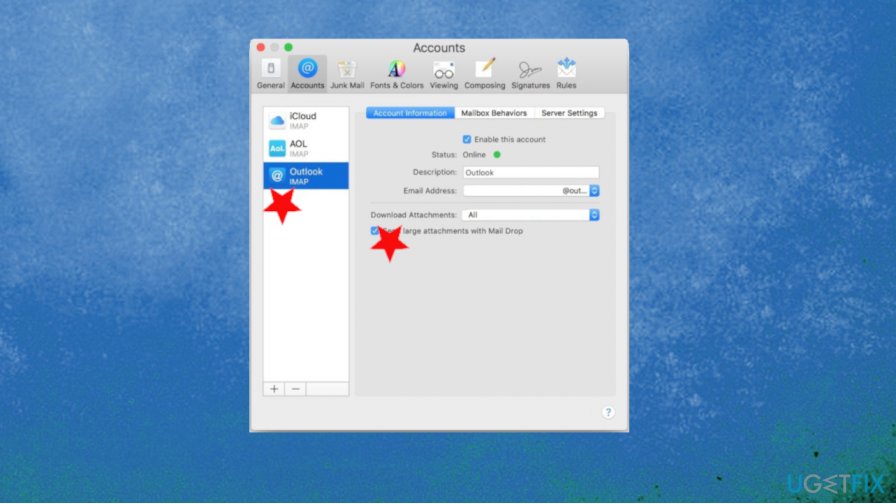
How to fix mail drop not working mail settings - Select the non-iCloud email account
- Under the Account information check the box that says Send large attachments with Mail Drop
- Repeat with any other programs.
Troubleshoot the function to fix Mail Drop not working
- You might receive this error if the attachment is larger than 5GB. Going above the limit triggers Mail Drop not working. Compressing the file might work in this case.
- Trying to send the folder instead of one file can also fail the function.
- If the Mail Drop limit of 1TB is reached, Mail Drop not working issue frustrates people. You cannot delete those files that got Mail Dropped, so you need to wait until the older items get expired and storage space gets freed up this way.
Check the macOS updates to fix Mail Drop not working
- Go to System Preferences
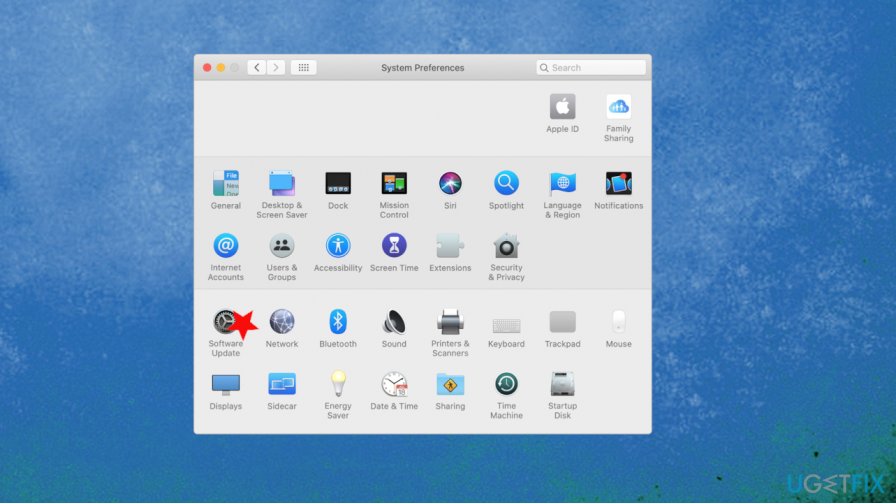
How to fix mail drop not working system preferences - Click Software Update and check for the latest version
- If any updates are available, click Update Now and upgrade to the latest OS.
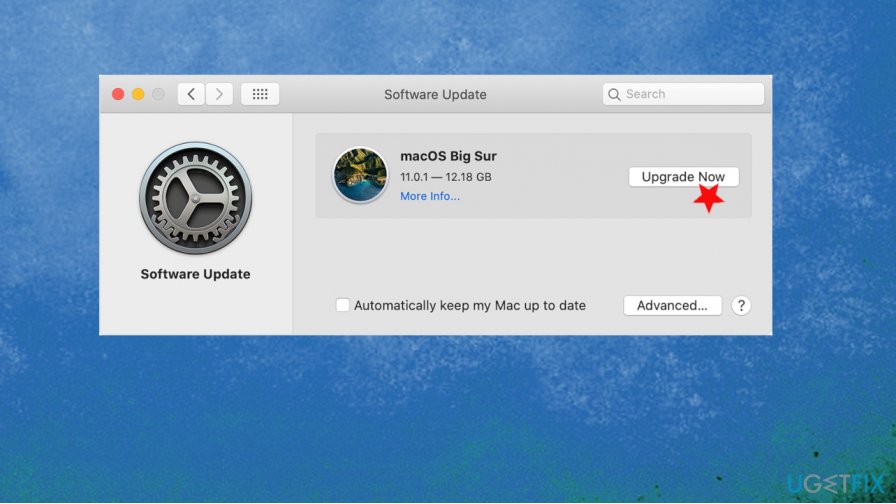
How to fix mail drop not working update - All applications, including Mail going to receive updates this way.
Bottom line
To fix Mail Drop not working, ensure the function is enabled in Mail preferences and check your storage limit. If the issue persists, verify for any altered files or system problems. If none of these solutions work, consider seeking further technical support.
Frequently asked questions
First, ensure that your Mail app is updated to the latest version through the Microsoft Store. If the issue persists, try resetting the Mail app by going to Settings > Apps > Apps & features, selecting Mail, and clicking on 'Advanced options' to reset.
Check your internet connection and ensure that the Mail app has the necessary permissions to access it. If that doesn't help, consider reinstalling the Mail app from the Microsoft Store.
Yes, make sure that your Windows Firewall or any antivirus software is not blocking the Mail app. You can adjust the firewall settings in Control Panel to allow Mail to send and receive emails.




Report an issue
What's wrong with this guide? We review every report and update or remove content.
Report received — thank you. We'll review and fix it.
You need a free account to submit a report.
Be the first to comment