How to fix
Mail sync error 0x80072726
on Windows
Resolve Mail sync error 0x80072726 on Windows 10 or 11 quickly and efficiently. Get expert-tested solutions for a hassle-free experience. Fixed in minutes!

What causes How to fix Mail sync error 0x80072726 in Windows?
- Third-party security program conflict
- Windows security settings perceiving network as insecure
- Incorrect account information
- Network connection issues
Repairs Windows system files, removes malware, and restores a clean OS state — without reinstalling.
Hello. I tried to sync my accounts on the Mail app in Windows but I received the 0x80072726 error. What should I do?
The Mail app is a useful Email client available for all Windows 8, 8.1, and 10 users. It helps people stay up to date on their emails, and manage their schedules. The app also allows people to manage all email accounts from one place without having to load different websites to check emails. It supports Office 365, Exchange, Outlook.com, Gmail, Yahoo!, and other accounts which is very handy.
However, recently, some people started seeing the 0x80072726 error when trying to sync the Mail application. The full error message reads as follows:
Something went wrong...
We're having a problem sending messages. Make sure you have a connection and your account info is correct, and then try again.
Error code: 0x80072726
When the Mail app is unable to sync with email accounts, users are unable to send or receive any emails. This is a serious problem that should be taken care of immediately as people become unable to use their email. Some people have this issue on school computers, others experience the issue with specific accounts.
The issue is most likely caused by a third-party security program or Windows security.[ref en-1] It may perceive the network you are using as not secure and prevent people from syncing the Mail app. In this guide, you will find 4 steps that should help you get rid of the problem.
Manual troubleshooting can be a lengthy process so you can try using a maintenance tool like [d1] that could help you fix the 0x80072726 error code in the Mail app. This powerful software can fix various system errors, BSODs,[ref en-2] corrupted files, and registry[ref en-3] issues. Otherwise, follow the step-by-step instructions below carefully.
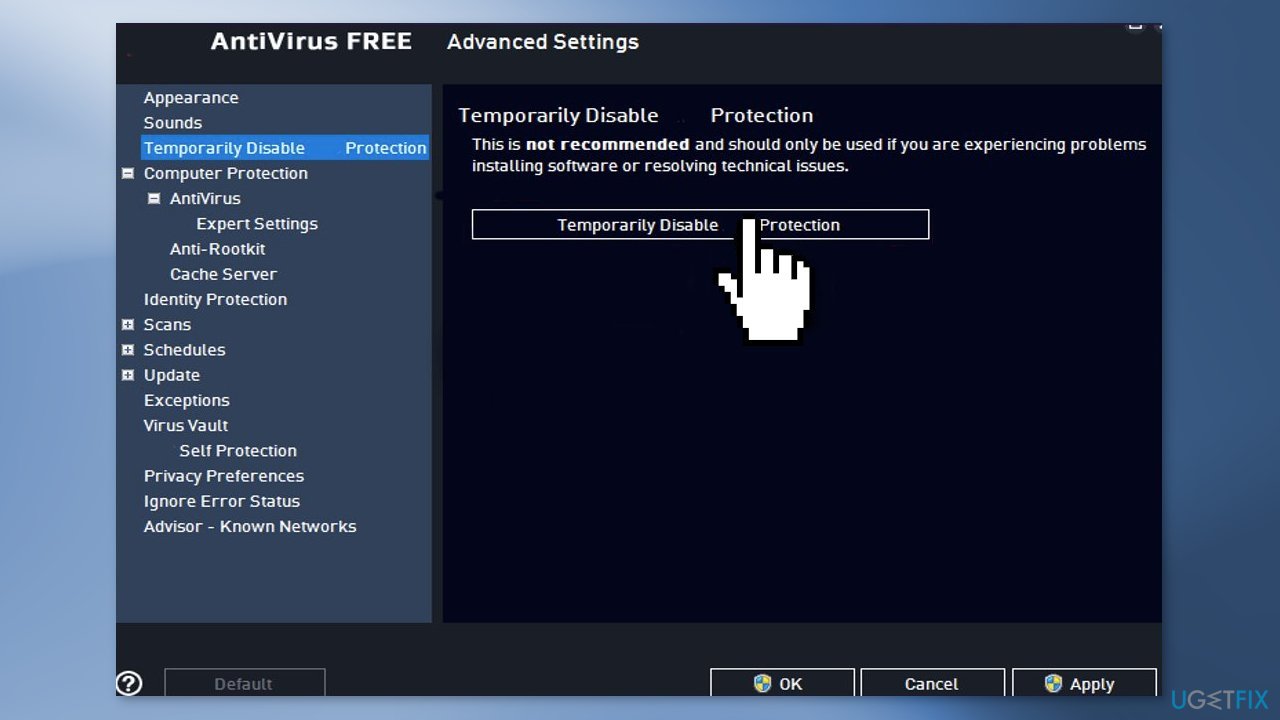
Solution 1. Disable Third-Party Antivirus
Some security programs might be conflicting with Microsoft servers and data packages mistakenly perceiving these servers as insecure. Thus, it is known that removing AV software helped some users when trying to fix Mail sync errors:
- Right-click the antivirus icon and select Disable
- You can also double-click the antivirus icon and look for a Disable option there
Solution 2. Allow svchost.exe through Windows Firewall
Windows Firewall may be blocking the svchost.exe process which results in the Mail sync error:
- Click on the Start button located in the lower left corner and type Windows Firewall
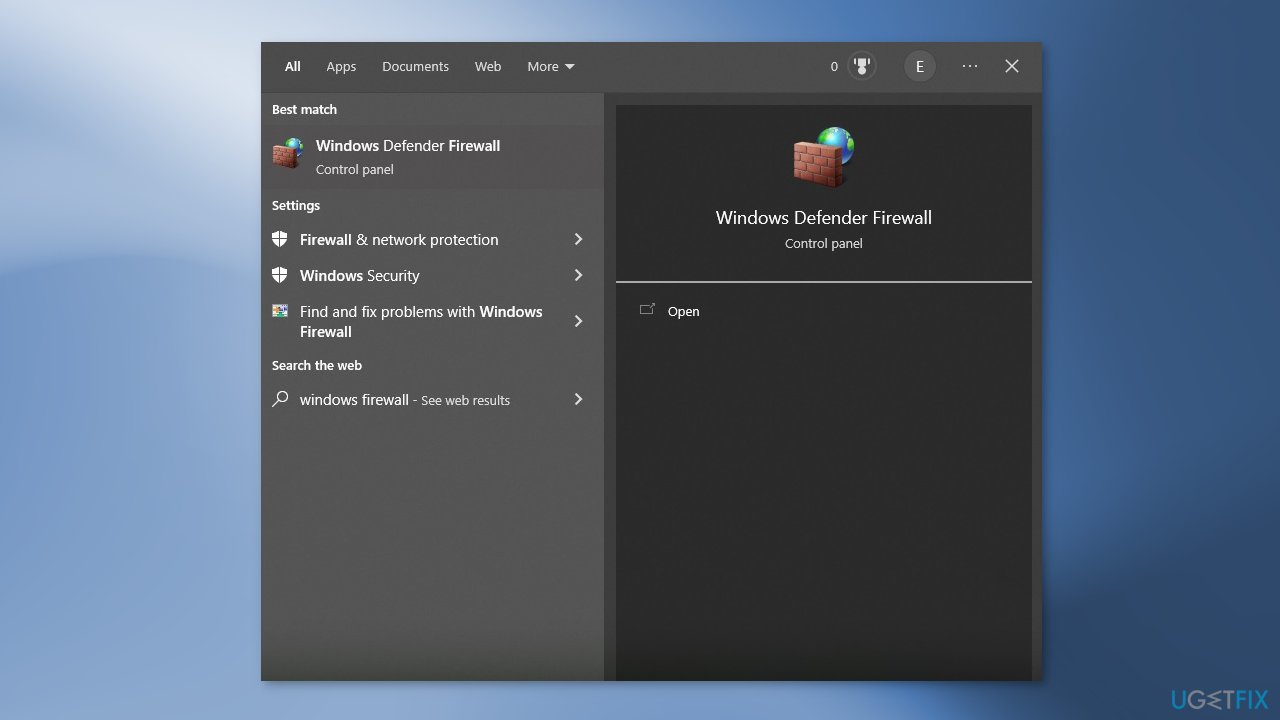
- Choose it from the list of results
- Press Allow on an app or feature through Windows Firewall located in the left pane
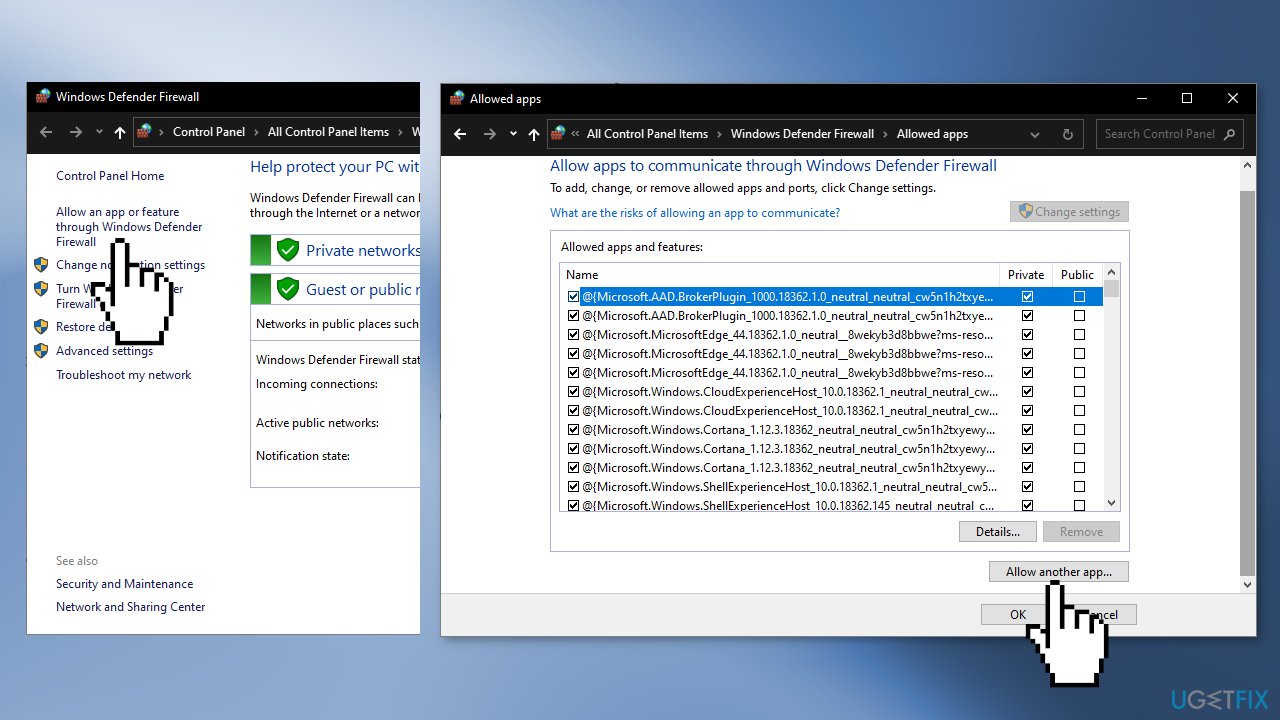
- Click on Allow Another App and locate the two svchost.exe files and add them:
C:\Windows\System32\svchost.exe
C:\Windows\SYSWOW64\svchost.exe
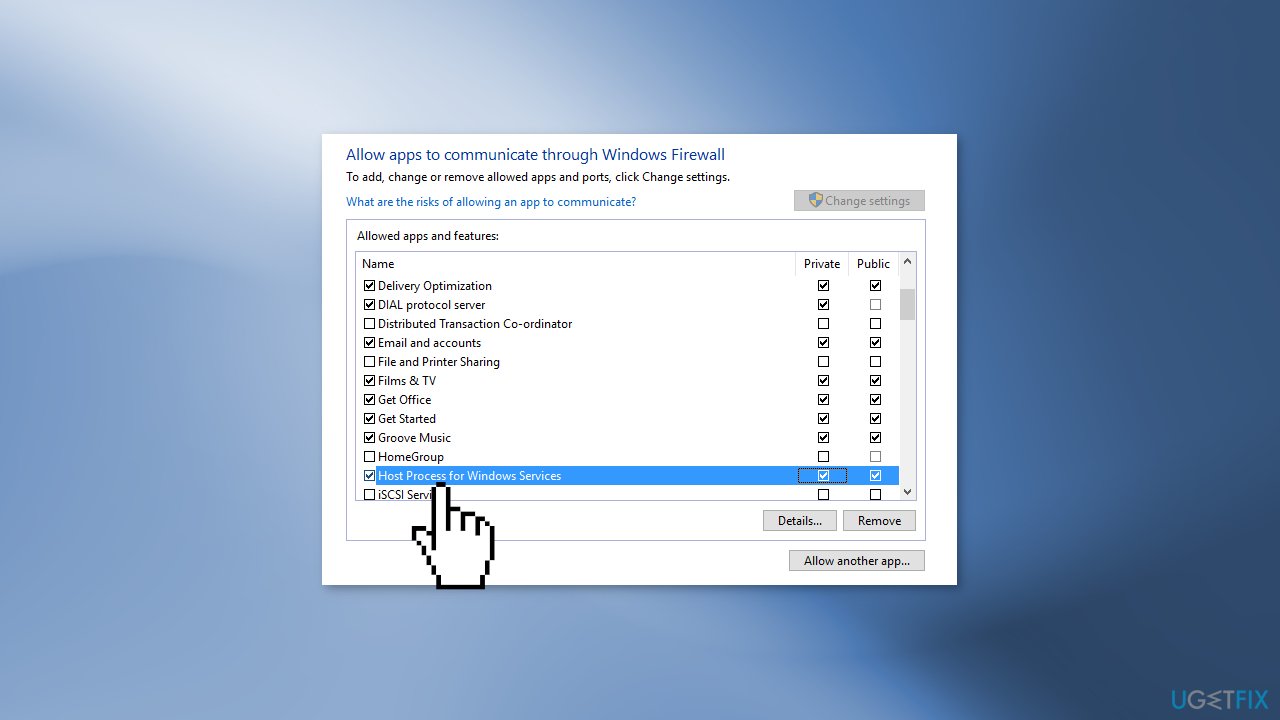
- In the list of firewalls, you will see a new app with the name Host Process for Windows Services
- Click OK to exit and check if the issue is fixed
Solution 3. Allow svchost.exe in Windows Defender
- Click Start and type Windows Defender
- Click on it to open
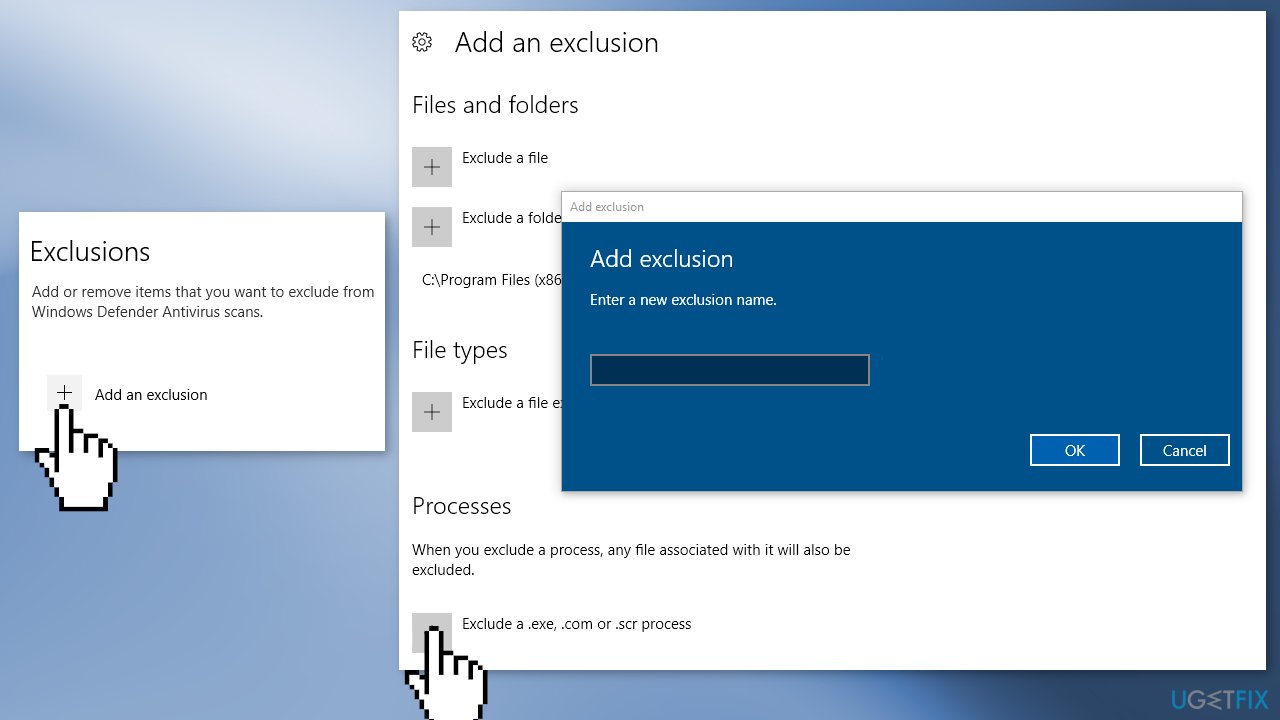
- Scroll down until you see Exclusions, click and add exclusion
- Under Processes, choose Exclude a .exe, .com or .str process and exclude the following:
C:\Windows\System32\svchost.exe
C:\Windows\SYSWOW64\svchost.exe
Solution 4. Add svchost.exe in BitDefender
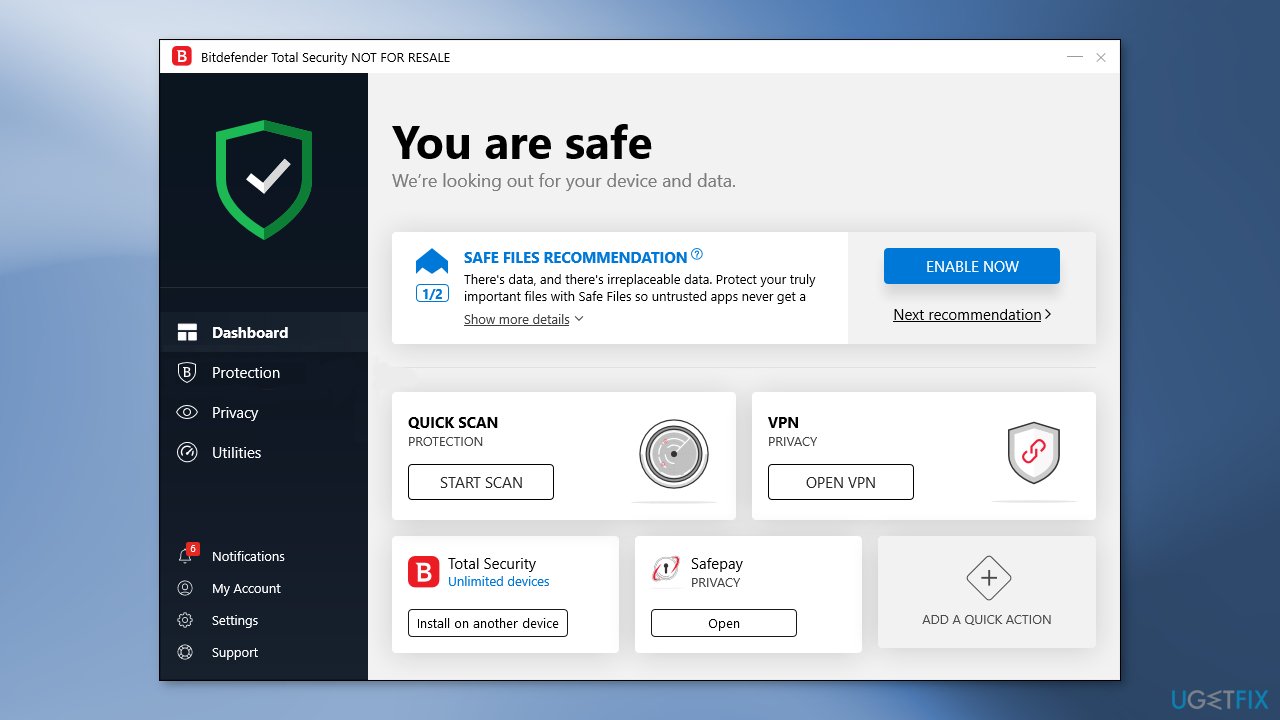
- If you are using BitDefender then open it, choose Protections, and then go to Firewall
- Locate and click on Adapters, and add the network you’re on to the trusted category
Bottom line
To fix the Mail sync error 0x80072726, you can disable third-party antivirus software, check your account information, and ensure your network connection is stable. If these solutions do not resolve the issue, consider using a maintenance tool to address potential system errors.
Frequently asked questions
The Mail sync error 0x80072726 indicates a connectivity issue that prevents the Mail app from syncing emails properly, often due to network settings or corrupted app data.
To resolve this error on Windows 11, try resetting the Mail app through Settings > Apps > Apps & features, and then select the Mail app to reset it.
Yes, ensure that your firewall or antivirus settings are not blocking the Mail app, and check your internet connection to confirm it's stable and not causing the sync issue.




Report an issue
What's wrong with this guide? We review every report and update or remove content.
Report received — thank you. We'll review and fix it.
You need a free account to submit a report.
Be the first to comment