
How to fix "Making sure it's you" message when logging in?

Prefer to fix it yourself? The manual steps follow.
- 5methods
- 2 to 20 minutes
- Easy
Applies to Google Chrome, Microsoft Edge and other browsers that use Windows Hello and passkeys on Windows 11 and Windows 10, with sites such as Amazon, Google and Microsoft
5 methods in this guide
Hi, so whenever I try to open Chrome, I always get this annoying pop-up message which says Windows Security - Making sure it's you. There is nothing to enter in the pop-up itself, and it asks to log in to a website I attempt to access. It also says that the request comes from Chrome. How can I fix this?
Windows Security: Making sure it's you is the Windows passkey dialog, not an alert from the antivirus. A browser opens it when a site such as Amazon asks for a passkey, or when Chrome wants Windows Hello before it fills a saved password. Find out which of the two asked, then switch that one off.
The dialog is Windows asking you to confirm a passkey or a saved password with Windows Hello. It is not a virus and not a sign that your account was hacked. If it appears on every site in Chrome, turn off Use Windows Hello when filling passwords (Fix 1). If it appears only on Amazon or one other site, delete that site's passkey from the site and from Windows (Fix 2).
| Error | A window titled Windows Security with the heading Making sure it's you, for example: Please sign in to amazon.com. This request comes from Chrome, published by Google LLC. |
|---|---|
| Where it appears | Over Chrome, Edge or Firefox, when you open a sign-in page or when the browser is about to fill a saved password. |
| Main cause | A site offers passkey sign-in for your account, or Chrome is set to ask for Windows Hello before it fills passwords. |
| Fastest fix | In Chrome open chrome://password-manager/settings and turn off Use Windows Hello when filling passwords (Fix 1). |
| Also written as | Making sure its you, Make sure it's you, Windows Security making sure it's you pop up, Insert your security key. |
| Affects | Windows 11 and Windows 10 22H2. The Accounts > Passkeys page in Settings is a Windows 11 page. |
| Vendor status | Not a bug. Microsoft documents passkeys saved in Windows and how to delete them. Amazon documents how to delete an Amazon passkey. |
| Time to fix | 2 minutes for Fix 1, about 5 minutes for Fix 2. Nothing to download. |
Facts checked on 15 October 2026. Steps written for The Windows passkey dialog in Chrome and Edge on Windows 11 (25H2 and 26H2) and Windows 10 22H2, read against Microsoft's and Amazon's passkey help pages and Microsoft Q&A reports.
What the Windows Security "Making sure it's you" message means
You open a sign-in page and a small window covers the browser. Its title bar says Windows Security, the heading says Making sure it's you, and two lines tell you which site asks and which program sent the request.
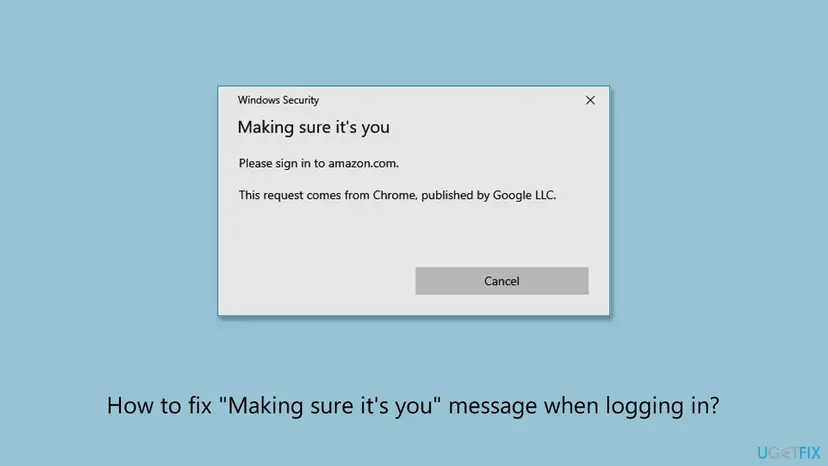
Despite the title, the window does not come from the Windows Security app, the one that runs Microsoft Defender. It is the Windows sign-in dialog for passkeys and Windows Hello. A browser calls it when a website asks for a passkey, or when the browser itself wants proof that you are at the keyboard before it fills a saved password.
| Line in the dialog | What it tells you |
|---|---|
| Making sure it's you | Windows wants you to unlock a passkey or a saved password with your Windows Hello face, fingerprint or PIN. |
| Please sign in to amazon.com. | The site that asked. A site name here means that site requested a passkey. |
| This request comes from Chrome, published by Google LLC. | The program that called Windows. It is usually your browser, Chrome or Edge. |
| Insert your security key | The site accepts a hardware key or a passkey on another device, and Windows found none on this PC. |
Selecting Cancel only stops this one sign-in attempt. Users on Microsoft Q&A report that the site then lets them continue with a password or another method. Nothing on the PC or in your account changes.
What causes the "Making sure it's you" pop-up, ranked
Microsoft does not publish a ranking. The order below follows the Microsoft Q&A reports for this exact dialog and what Microsoft and Amazon say about passkeys. It is our reading, not a statistic.
| How often | Cause | Typical sign | Fix |
|---|---|---|---|
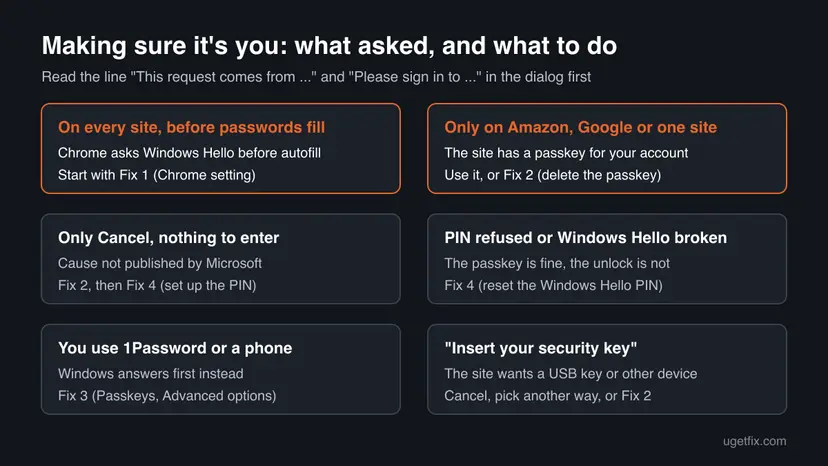
| Most often | Chrome asks for Windows Hello before it fills a saved password | The dialog comes on almost every sign-in page, not just one site. | Fix 1 |
| Often | A site (Amazon most of all in the searches) has a passkey for your account | The dialog says Please sign in to amazon.com or another single site. | Fix 2 |
| Less often | Your passkeys live in 1Password, Google Password Manager or a phone, but Windows answers first | The dialog appears instead of your password manager's own window. | Fix 3 |
| Less often | Windows Hello itself fails: the PIN is refused or was removed | The dialog asks for a PIN that does not work, or shows nothing to enter. | Fix 4 |
| Rarely | The site's stored cookies keep starting the passkey sign-in | The dialog returns on one site even after you deleted the passkey. | Fix 5 |
Switching to a Microsoft account, resetting the Windows Security app, netplwiz or a new user account do not touch passkeys or Chrome's setting. The netplwiz tool controls the sign-in to Windows itself, so turning its password option off weakens the PC and leaves this dialog as it was.
How to fix the "Making sure it's you" message when logging in
Start with the fix that matches what your dialog says. Fix 1 is for the dialog on every site in Chrome, Fix 2 for one site such as Amazon. Success looks the same every time: the sign-in page opens and nothing covers it.
| What you see | Start with | Then |
|---|---|---|
| The dialog on almost every sign-in page in Chrome or Edge | Fix 1 | Fix 2 |
| The dialog only on Amazon, Google or one other site | Fix 2 | Fix 5 |
| You keep passkeys in 1Password, Google Password Manager or on a phone | Fix 3 | Fix 2 |
| The dialog asks for a PIN that does not work, or shows only Cancel | Fix 4 | Fix 2 |
| Insert your security key, and you have no security key | Cancel | Fix 2 |
Fix 1. Stop Chrome from asking for Windows Hello before it fills passwords
2 minutesLow riskThe dialog comes on almost every sign-in page in Chrome, often before the password field fills.
Chrome can ask Windows to confirm it is you before it fills a saved password. Windows does that with this same dialog, so it appears on every site where Chrome has a password. Users on Microsoft Q&A report this setting stopped it.
- Open Chrome, paste this into the address bar and press Enter:
chrome://password-manager/settings - Find Use Windows Hello when filling passwords.
- Turn the switch off. Windows may show the dialog one last time to confirm the change: confirm it with your PIN or face.
- Close all Chrome windows and open Chrome again.
- Open a site where Chrome keeps your password and select the sign-in field.
In Microsoft Edge, open edge://settings/passwords and look for the option that asks for your device password or Windows Hello before Edge fills a password. We could not confirm the current label of that option, so match it by what it does.
With the switch off, anyone who uses your Windows session can let Chrome fill your saved passwords. On a shared PC, keep it on and lock the PC with Win + L when you leave instead.
It worked if: Chrome fills saved passwords again without the Making sure it's you dialog.
If not: If the dialog still comes on one site and names it, delete that site's passkey with Fix 2.
Fix 2. Delete the site's passkey from the site and from Windows
5 minutesRead the warningThe dialog says Please sign in to amazon.com, google.com or one other site, and you do not want to use a passkey there.
Amazon says a passkey has to be removed from two places: your Amazon account and the passkey provider. If it stays with the provider, the device keeps offering the deleted passkey at the next sign-in, which is the dialog you see.
After this the site wants your password and any second step it uses. Check that you know the password first. For a Microsoft account, Microsoft warns that removing all security info locks security changes for 30 days, so add another method before you remove a passkey.
- On Amazon, open Your Account and select Login and security.
- Select Passkey, then the Delete icon next to the passkey, and confirm.
- On Windows 11, press Win + R, paste this and press Enter to open Settings > Accounts > Passkeys:
ms-settings:savedpasskeys - Find the entry for the site, for example amazon.com.
- Select the ... button next to it and select Delete passkey.
- Close the browser, open it again and sign in to the site with your password.
For another site, use the same two places: the site's own security page and Settings > Accounts > Passkeys. For a personal Microsoft account the site's page is Advanced security options at account.live.com/proofs/manage, for a work or school account it is mysignins.microsoft.com/security-info.
It worked if: The site shows its normal password field, and the Windows Security dialog no longer opens for it.
If not: If the passkey was not in Windows, it lives in another manager: check Fix 3. If the dialog keeps coming on that site, clear its cookies with Fix 5.
Fix 3. Choose which passkey manager Windows uses
3 minutesLow riskYou keep passkeys in 1Password, Google Password Manager or on a phone, but the Windows dialog opens instead.
Microsoft's passkey page says the advanced options turn the passkey services of the PC on or off, including passkeys saved on the Windows device and third-party passkey managers. Turning the right one on lets your own manager answer.
- Press Win + I and open Accounts > Passkeys.
- Select Advanced options.
- If your passkeys live in another manager, turn that manager on in the list.
- If you do not want new passkeys saved in Windows, turn off Save passkeys to this Windows device.
- Restart the browser and sign in to the site again.
On a work or school PC some of these switches can be greyed out. Microsoft notes that your organisation's IT administrator can turn the feature off, and then only IT can change it.
It worked if: Your password manager's own window opens for the passkey, or the site asks for a password.
If not: If the Windows dialog still opens and asks for a PIN that fails, repair Windows Hello with Fix 4.
Fix 4. Reset the Windows Hello PIN when the dialog refuses it
5 minutesLow riskThe dialog asks for a PIN that does not work, or it shows only Cancel and nothing to enter.
A passkey saved in Windows is unlocked with Windows Hello. If the PIN is broken or was removed, the dialog cannot finish, and the passkey stays unusable until the PIN works again.
- Press Win + I and open Accounts > Sign-in options.
- Select PIN (Windows Hello). On Windows 10 it is Windows Hello PIN.
- Select I forgot my PIN and follow the prompts with your account password.
- If there is no PIN, select Set up and create one.
- Restart the PC and open the site again.
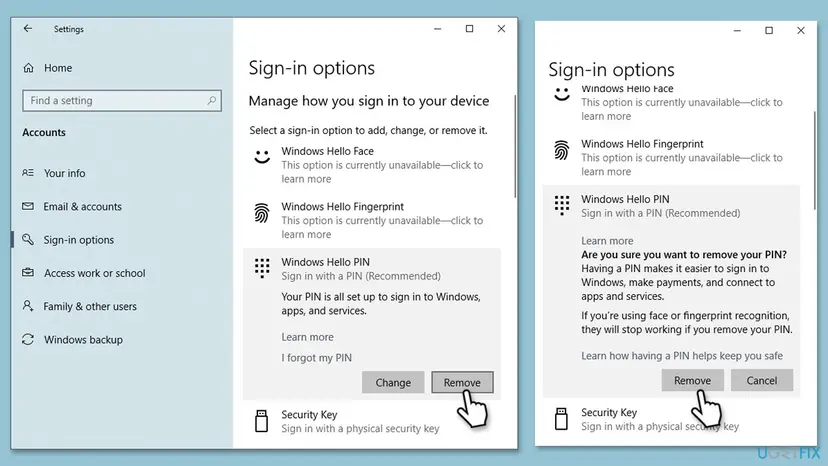
Do not select Remove to get rid of the dialog. The confirmation on screen says face or fingerprint recognition stop working without a PIN, and a passkey saved in Windows then cannot be used at all. We could not confirm why some dialogs show only Cancel, so treat this fix as a test.
It worked if: The dialog accepts your PIN, face or fingerprint and the site signs you in.
If not: If the PIN works but you would rather not use a passkey on that site, delete it with Fix 2.
Fix 5. Clear the site's cookies so it stops starting the passkey sign-in
3 minutesLow riskThe dialog still comes on one site after you deleted its passkey in Fix 2.
A site can remember in its cookies that your browser last signed in with a passkey and start that sign-in again. Clearing the site's data makes it ask how you want to sign in.
- In Chrome, open the site, select the icon left of the address and select Site settings.
- Select Delete data and confirm. This signs you out of that one site.
- Close the browser and open the site again.
To clear the cache and cookies of the whole browser in Chrome, Edge or Firefox instead: Clear the browser cache and cookies. That signs you out of every site, so try the one site first.
It worked if: The site opens its normal sign-in page and asks for your email and password.
If not: If the dialog still opens, collect the details in the next section.
If "Making sure it's you" still pops up: what to check next
When Fix 1 to Fix 5 are done and the dialog stays, look again at what it says. Its second line names the program that asks, and that program is where the setting lives.
- The program line names something other than your browser: that app asks for a passkey. Check its own sign-in or security settings.
- It names Chrome, but Fix 1 is already off: check whether you have several Chrome profiles. The setting is stored per profile.
- It comes on a work or school PC: your organisation may require Windows Hello or passkeys. Ask IT before you change anything.
- It appears with no site and no program you know: run a full check with How to scan for malware with Microsoft Defender to rule out unwanted software.
| What you see | Likely reason | Who can fix it |
|---|---|---|
| Only one site, after you deleted its passkey | The site requires a passkey or a security key for your account | The site's own security settings or support |
| Switches in Accounts > Passkeys are greyed out | A policy of your organisation | IT |
| A browser page with a phone number that imitates this dialog | A tech support scam page, not Windows | Close the tab, never call the number |
How to keep the passkey dialog from coming back
Most sites now offer to create a passkey after you sign in. Each yes adds a site that opens this dialog the next time, so decide once where your passkeys should live.
- Decline a site's offer to create a passkey when you want to keep using a password there.
- Keep passkeys in one place: Windows, your phone or one password manager, set under Accounts > Passkeys > Advanced options.
- Keep a working Windows Hello PIN, because Windows passkeys depend on it.
- When you replace a PC, add new passkeys first, then delete the old ones in the site's account, as Microsoft advises.
- Do not remove the Windows Hello PIN to stop the dialog.
- Do not turn off the Windows password with
netplwiz: it does not affect this dialog. - Do not delete every passkey of an account before you know another way in.
Frequently asked questions
Why does Windows Security say "Making sure it's you" when I sign in to Amazon?
Because a passkey sign-in is set up for your Amazon account, and your browser asked Windows to unlock it. Amazon saves the passkey with a passkey provider, which on a PC is often Windows itself. Windows then asks for your face, fingerprint or PIN. Confirm it if you created the passkey. If you do not want it, delete the passkey under Your Account > Login and security > Passkey, and also in Windows under Settings > Accounts > Passkeys, as Fix 2 shows.
How do I turn off "Making sure it's you" in Windows 11?
There is no single switch in Windows 11 that hides this dialog for every program, and that is on purpose: it protects passkeys and saved passwords. You turn off what triggers it. In Chrome, turn off Use Windows Hello when filling passwords (Fix 1). For a single site, delete its passkey (Fix 2). In Settings > Accounts > Passkeys > Advanced options you can stop saving new passkeys to the Windows device (Fix 3).
Is the "Making sure it's you" pop-up a virus or a scam?
The real dialog is part of Windows. It never asks for your Amazon password, a card number or a phone call. It asks only for your Windows Hello face, fingerprint or PIN, and it names the site and the program. A browser tab that imitates it and shows a phone number is a tech support scam: close the tab and do not call. If you see the dialog with no site or program you know, scan the PC with Microsoft Defender.
Why is there nothing to enter in the pop-up, only Cancel?
Windows found no passkey it can unlock for that site with your current sign-in options, so it offers nothing to type. Microsoft does not document this case, so we cannot say which cause applies to your PC. Two things help in practice: set up or reset the Windows Hello PIN (Fix 4), and delete the site's passkey if you do not use it (Fix 2). Cancel is safe and returns you to the site's sign-in page.
Does the dialog mean someone tried to sign in to my account?
No. The dialog appears because you, on this PC, opened the site's sign-in page and your browser asked Windows for a passkey or a saved password. It is not a warning about another person. If you want to check for an unknown sign-in, use the site's own tools: Amazon sends security alerts and lists them in its help pages, and a Microsoft account has a Recent activity page. Change the password there if you see a sign-in you do not recognise.
Why does the dialog say "This request comes from Chrome, published by Google LLC"?
Windows always says which program asked it to verify you. Chrome called Windows because a site asked for a passkey, or because Chrome wants Windows Hello before it fills a saved password. The same line names Microsoft Edge or Firefox when those browsers ask. It tells you where the setting lives: for Chrome, turn off Use Windows Hello when filling passwords in chrome://password-manager/settings (Fix 1).
What does "Insert your security key" in the same dialog mean?
The site accepts a hardware security key or a passkey stored on another device, and Windows found none on this PC. If you never bought a security key, select Cancel and choose another sign-in method on the site. If the site keeps asking, open its security settings and check which passkeys or keys are listed for your account, then delete the ones you do not use, as in Fix 2.
Will deleting a passkey lock me out of my account?
Not if you still have another way to sign in, such as your password and a code. The site then simply asks for those again. Amazon tells you to delete the passkey from both your Amazon account and the passkey provider. Microsoft warns that if you remove all security info from a Microsoft account, security changes are locked for 30 days. So check that the password works before you delete anything.
Does switching to a Microsoft account or creating a new user stop the dialog?
We found no source that ties this dialog to the type of Windows account, and the older advice to switch accounts or create a new user does not touch passkeys or Chrome's setting. A new user starts without saved passwords, so the dialog may go quiet at first, but it returns as soon as you save passwords or passkeys there again. Fix 1 and Fix 2 change the setting that actually opens the dialog.
The page I found answered "Are you sure you want to log out" or another message. Is it the same?
No. This page is about the Windows Security dialog with the heading Making sure it's you. A message such as Are you sure you want to log out, or a prompt to stay signed in to an online tool in a Chrome window, comes from that website or app itself. Check the help pages of the site that shows it. Only the dialog titled Windows Security with your site and browser named in it is covered here.
Sources
- Microsoft Support: Manage your saved passkeys (Settings > Accounts > Passkeys, Advanced options, Microsoft account passkeys) (support.microsoft.com)
- Amazon Customer Service: Delete a Passkey (amazon.com)
- Microsoft Q&A: How can I disable Windows Security "making sure its you" popping up every time I try to log into a site (user reports) (learn.microsoft.com)
Did this fix work?
One click, no account. It tells the next reader which guides are worth their time.
Questions and experiences: fix "Making sure it's you" message when logging in
Still broken, or found a fix we did not cover? Ask here: members and our editors answer. Reading is open; writing needs a free account.
…