How to fix
Malfunctioning Windows screen
on Windows
Resolve your Windows 10 or Windows 11 screen issues quickly and effectively. Get expert-tested solutions today for a seamless user experience!

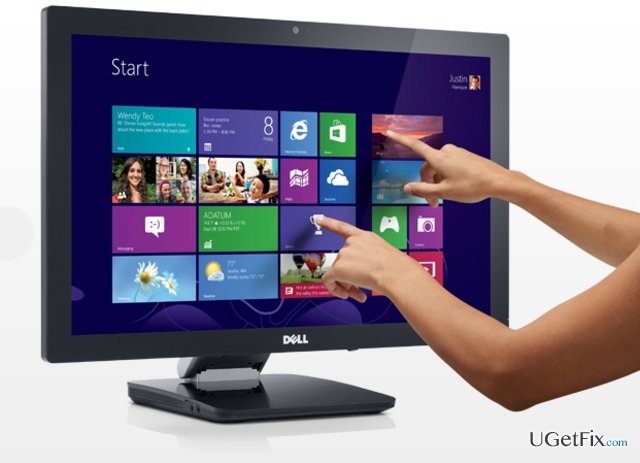
What causes How to fix malfunctioning Windows screen?
- Errors in touchpad drivers
- Independently launching or closing applications
- Possible remote access by hackers
- Missing or outdated drivers
- Malware presence
Repairs Windows system files, removes malware, and restores a clean OS state — without reinstalling.
My Windows 10 has gone completely mad. The screen starts zooming in and out by itself. The problem usually lasts a minute or two but sometimes it goes on up to 5 minutes. I can‘t normally do any important stuff, such as banking operations, as I‘m afraid that the screen would go crazy soon. Sometimes I can use the PC for an entire day without this problem, but most often this bothersome phenomenon starts right after logging in. Tried to update the video card – no progress. I'd appreciate your assistance.
Zooming Windows screen might be the result of the errors in touchpad drivers. Additionally, some users also report that the phenomenon is followed by independently launching or closing applications. However, you should be aware that the latter behavior is very similar to the phenomenon occurring after the infiltration of cyber threats. Independently moving a mouse and launched programs might signal that hackers have accessed your PC remotely. Certainly, such screen problems do not necessarily mean that a threatening virus has targeted your device. However, awareness and cautiousness are significant factors in ensuring proper cyber security.
Option 1. Updating/reinstalling touch driver
One of the advantages of Windows 10 is that it automatically detects missing drivers and installs them automatically. In the case of this current issue when you need to reinstall them manually, visit official Microsoft web page. Find the version of your operating system and download the newest touch pack. After the download and installation processes are complete, restart the system. Here is the quick guide how you can update the functionality of pointing devices as well:
- Click Windows button and type Device Manager.
- Navigate to Mouse and pointing devices. Double-click on it. Here you will see the device which is responsible for proper mouse and related devices’ performance. Right-click on the device and find Update Driver Software…
- Now you can choose from two options:
- Search automatically for updated driver software
- Browse my computer for driver software
Choose either of the options and follow instructions.
Option 2. Troubleshoot the device and check for malware
You can access Troubleshooting function from the main toolbar. Just click on the Start button or press Windows button to find the utility. Alternatively, we recommend you to run the system with [rev id=”Reimage”]. This tool scans the device thoroughly for any potentially malignant files.
Bottom line
To address the malfunctioning Windows screen, you can update or reinstall the touch driver and troubleshoot the device for malware. If these solutions do not resolve the issue, consider seeking further technical assistance.
Frequently asked questions
You can try updating your graphics driver through Device Manager, or adjust the display settings to a lower refresh rate to see if that resolves the flickering issue.
To fix a black screen on Windows 11, try pressing Ctrl + Shift + Esc to open Task Manager, then restart Windows Explorer, or boot into Safe Mode to troubleshoot further.
If your Windows screen is frozen, try pressing Ctrl + Alt + Delete to open the Task Manager, and from there, you can attempt to restart the unresponsive application.




Report an issue
What's wrong with this guide? We review every report and update or remove content.
Report received — thank you. We'll review and fix it.
You need a free account to submit a report.
Be the first to comment