How to fix
MANUALLY_INITIATED_CRASH Blue Screen error
on Windows
Resolve the MANUALLY_INITIATED_CRASH Blue Screen error in Windows 10 and 11 with expert-tested solutions. Fix it in minutes and get back on track!

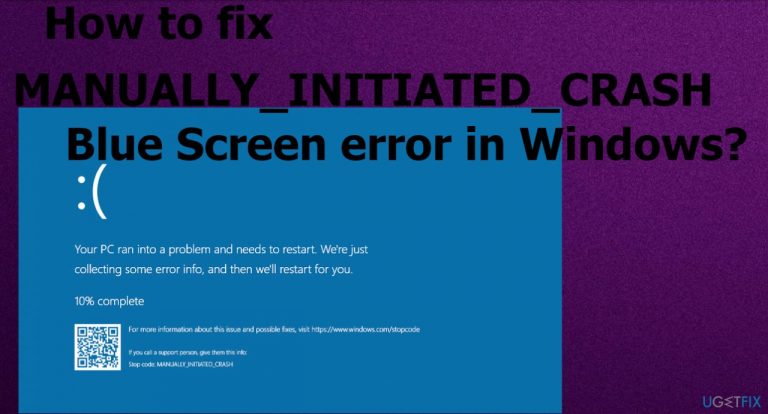
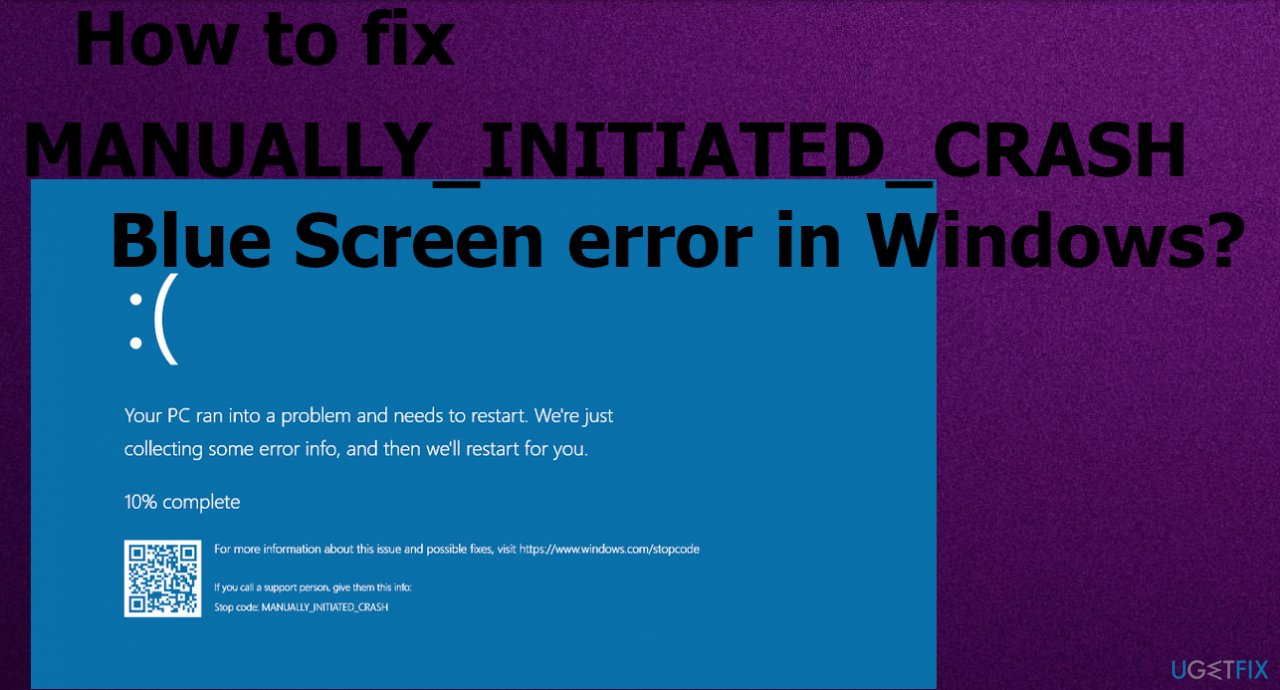
What causes How to fix MANUALLY_INITIATED_CRASH Blue Screen error in Windows?
- Recent upgrade of Windows 10
- Issues with data storage
- Malfunction of devices connected via USB ports
- Lack of space in the hard disk
- Compatibility issues
- Damaged pieces and driver issues
Repairs Windows system files, removes malware, and restores a clean OS state — without reinstalling.
Hello. I get the blue screen error on the startup. MANUALLY_INITIATED_CRASH error code appears, but I did not crash the device myself. I do not get why this is the issue and how to fix it if it is even possible. I restarted a few times and it works normally, but I think there is something wrong and I would like to fix that properly. Help me!
Users may encounter the issue without any idea that the manual crash is a thing and is possible to trigger by yourself.[ref en-1] The particular Ctlr and ScrollLock key combination cause the crash on the machine. But there are some things that also need to be enabled on the system. It generally means that the user directly initiated the crash either from the kernel debugger or the keyboard. However, the error code can sometimes be accompanied by the 0x000000E2 meaning.
MANUALLY_INITIATED_CRASH error in Windows can sometimes be related to the recent upgrade of Windows 10,[ref en-2] issues with data storage, or even file damage. Malfunction of devices connected via USB ports and connection of mouse, keyboard with the old format can lead to the crash and the BSOD[ref en-3] error.
Mainly, these system crash errors can be triggered by the lack of space in the hard disk because the operating system needs some free space to operate smoothly. Windows 10 require 2-10 GB of free space, for example. Compatibility issues are one of the more common triggers for any error, including the MANUALLY_INITIATED_CRASH Blue Screen. Damaged pieces and driver issues also can be reasons why the system crashes.
Another problem that is related to the error - Windows Registry that can get damaged, some entries altered or deleted. Malware can cause such issues and these corrupted pieces lead to the Blue Screen errors and different problems with the machine, security, or performance. Speaking of malware, anti-malware tools and antivirus solutions are the ones that can delete registry entries or block access to system files.
To fix the MANUALLY_INITIATED_CRASH Blue Screen error, you might need to rely on some different options and solutions until you find the one. We can recommend running the quick check with a program like [d1] that can check for affected files, registry entries and fix those issues, repair damage. This can be a quick fix and the first step before in-depth methods.
Method 1. Update drivers
- Right-click on the Start menu and select Device Manager from the list.
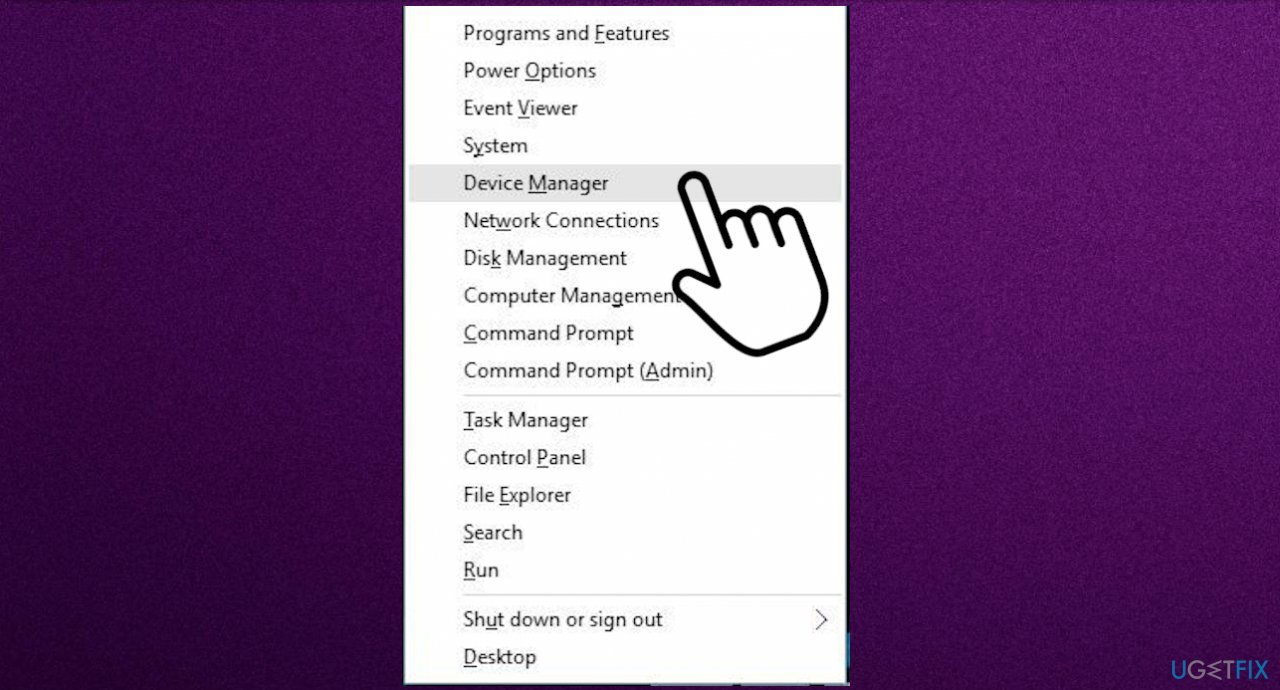
Manually initiated crash device manager menu - Locate the device having an exclamation mark.
- Select to open the driver list and right-click on driver having yellow indication.
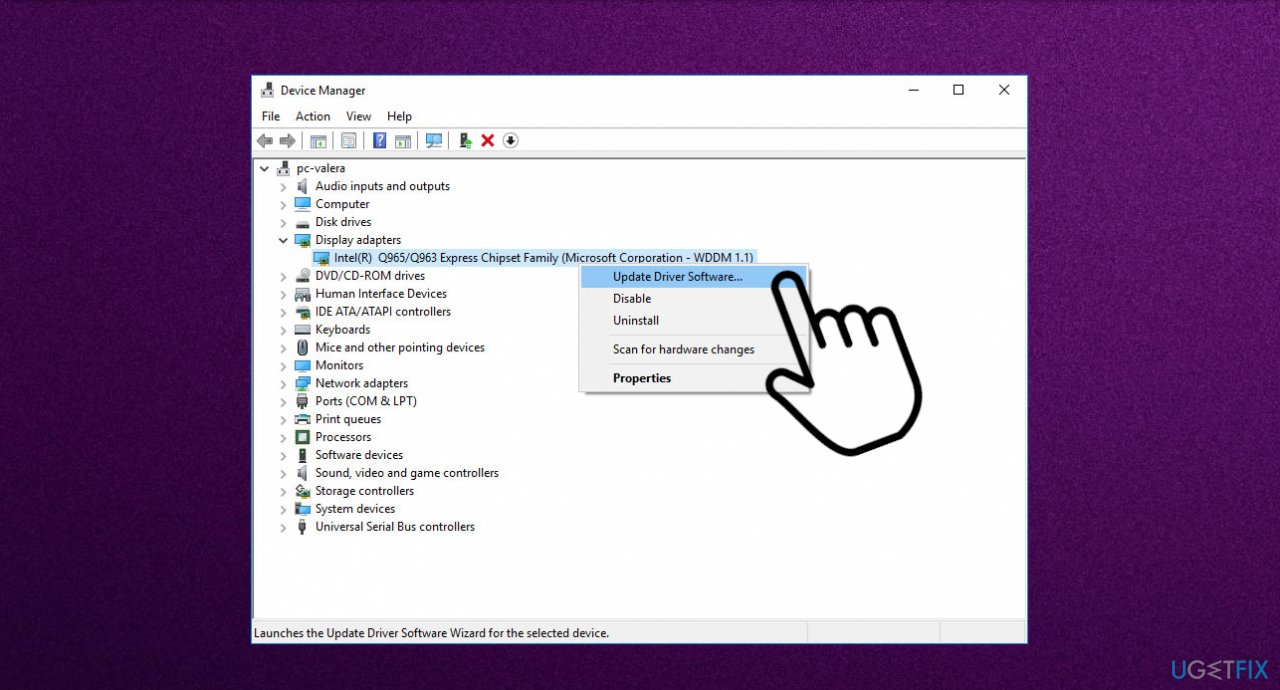
Manually initiated crash update driver - Choose the Update option from the menu.
- Search for the drivers online.

Manually initiated crash search drivers - Repeat the same process for all the devices having an exclamation mark - indicating that there are problems.
- Reboot Windows to save changes.
You can keep your device drivers up-to-date with a particular tool like [rev id="DriverFix"] that checks for compatible drivers and installs them for you, keeps the machine running smoothly by checking for any new pieces from time to time. You can save time and hassle with such an application.
Method 2. Rollback drivers
- Press Windows key + X.
- Click Device Manager.
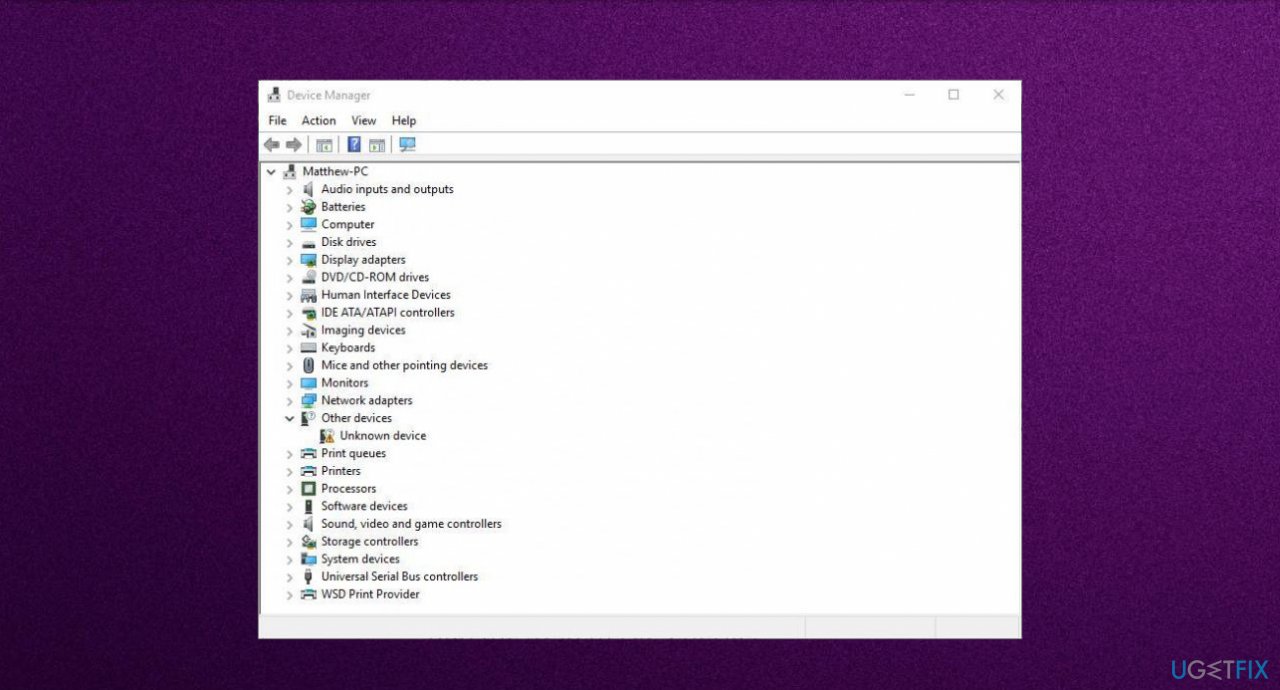
Manually initiated crash device manager - Expand the device driver list by clicking on the arrow.
- Right-click the current display adapter.
- Choose Properties.
- Click the Driver tab.
- Select the Rollback driver option.
Method 3. Update the Windows OS
- Go to Settings with the help of Win + S keys.
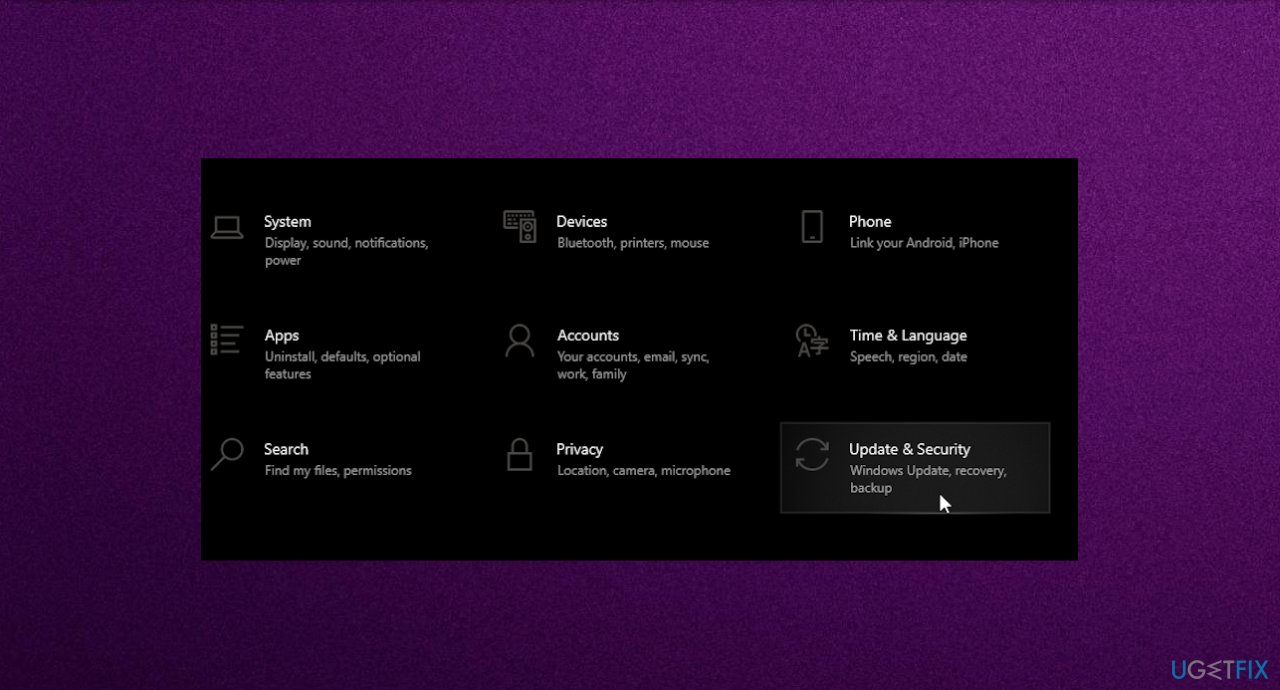
Manually initiated crash update security - Choose Update & Security.
- Select Windows Update.
- Click Check for updates
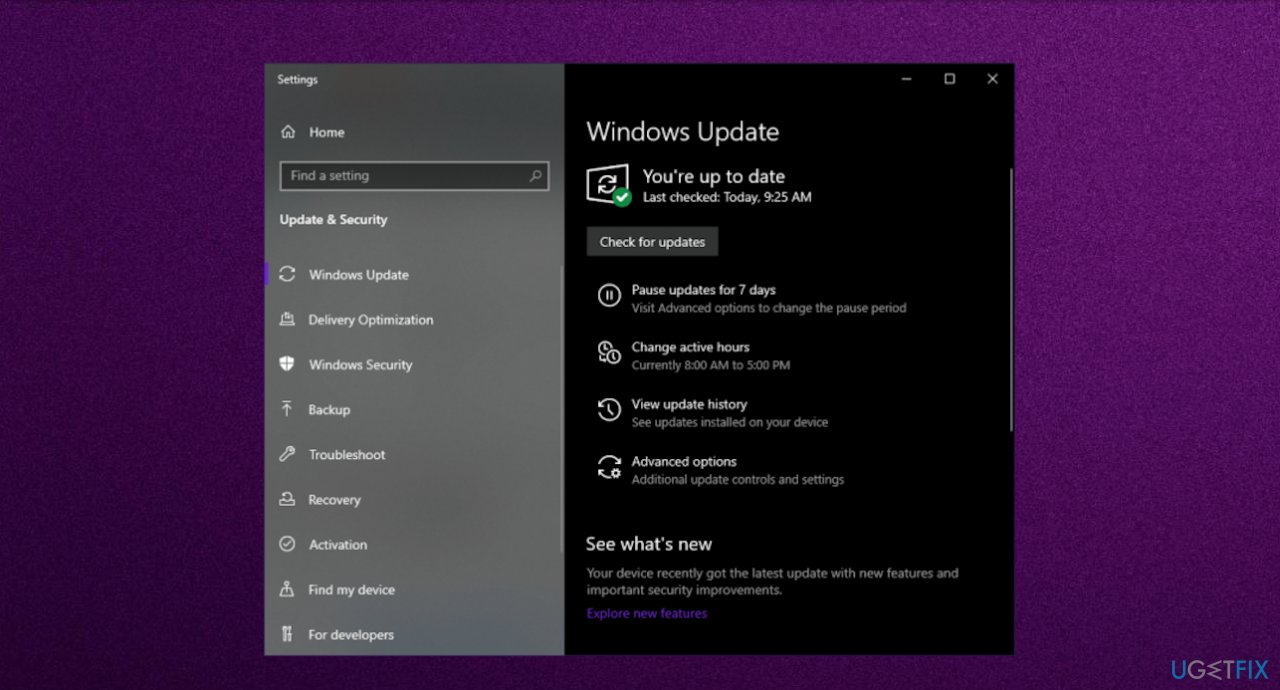
Manually initiated crash update - Let windows search and install any necessary updates.
Method 4. Eliminate problematic software
- Press Win+X keys and choose the Apps and Features option.
- You will be redirected to the Apps window.
- Select Apps & features on the left and jump to the adjacent right.
- Find the program that you opt to remove.
- Click the Uninstall option.
- If UAC prompts for consent, hit Yes to follow through.
Method 5. Start the computer in Safe Mode
- Go to Start menu and choose Settings.
- In the settings window that appears go to the Update & Security menu and choose the Recovery tab.
- Find Advanced startup and click the button Restart now.
- Choose Troubleshoot.
- Click on Advanced Options and then on Startup Settings.
- Then Windows will inform you that the computer can be restarted with the use of additional settings one of which is Enable Safe Mode.
- Press Restart.
- After restarting choose Enable Safe Mode by pressing F4.
Method 6. Restore the system
- Restart your computer a few times during the reboot to start Automatic Repair.
- Choose Troubleshoot.
- Then select Advanced options and System Restore.
- Select your username and enter your password.
- Choose a different restore point and click Next.
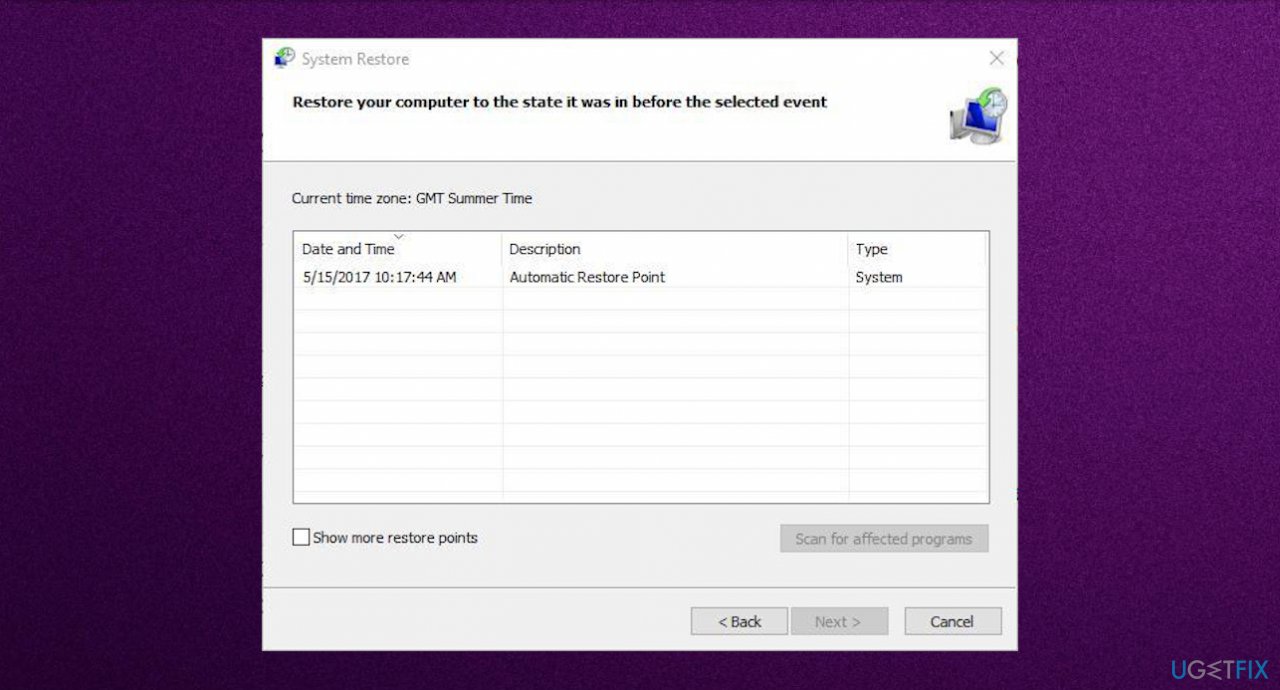
Manually initiated crash system restore - Select restore point that you wish to return to and click Next.
- Wait for the process to finish.
Method 7. Use the SFC scan
- Type cmd in search.
- Launch CMD as administrator.
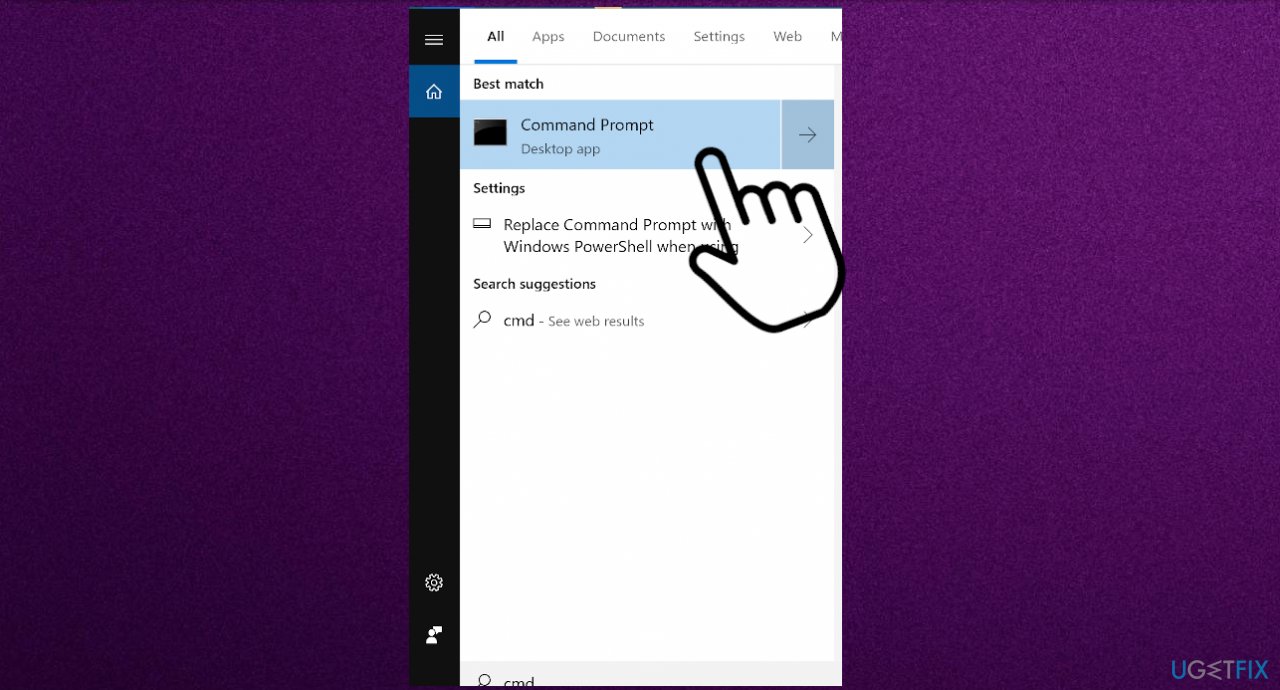
Manually initiated crash cmd - Type in sfc /scannow and press Enter.
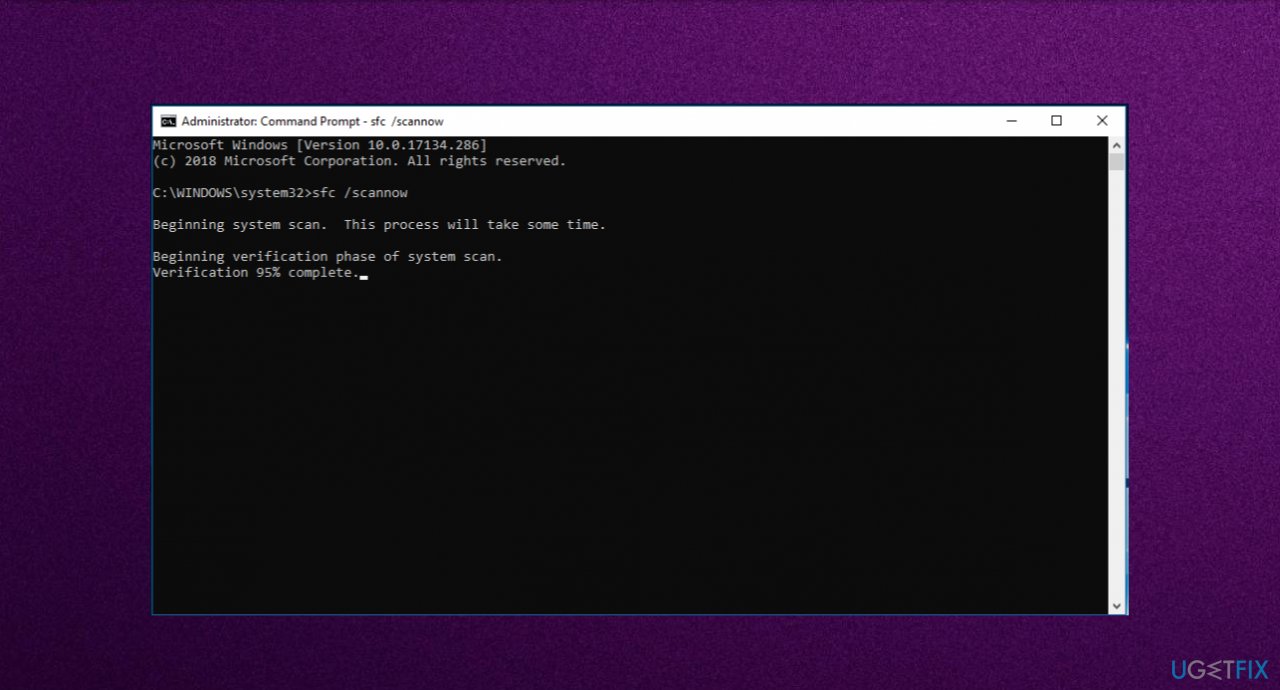
Manually initiated crash sfc scan - This process may take several minutes.
Method 8. Run DISM
- Right-click Start and open Command Prompt (Admin).
- Paste the following command and press Enter:
DISM /Online /Cleanup-Image /RestoreHealth - Wait until the scan is finished.
- Restart your computer and try updating again.
Bottom line
To fix the MANUALLY_INITIATED_CRASH Blue Screen error, you may need to ensure sufficient free space on your hard disk, check for compatibility issues, and inspect connected devices. Additionally, consider repairing the Windows Registry and running anti-malware tools. If none of these solutions work, further troubleshooting may be necessary.
Frequently asked questions
This error typically occurs when a user or a program triggers a crash dump, often for debugging purposes. It can also be a result of faulty drivers or system instability.
To fix this error, you can update your device drivers through Device Manager or uninstall any recently installed software that may be causing conflicts. Additionally, running the Windows Memory Diagnostic tool can help identify hardware issues.
Yes, ensuring that your system is up to date with the latest Windows updates and drivers can minimize the risk of this error. Also, avoid using programs that force a crash dump unless necessary for troubleshooting.




Report an issue
What's wrong with this guide? We review every report and update or remove content.
Report received — thank you. We'll review and fix it.
You need a free account to submit a report.
Be the first to comment