How to fix
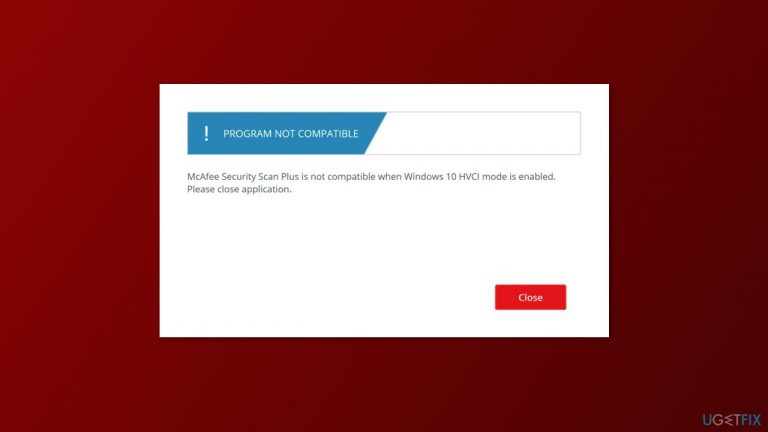
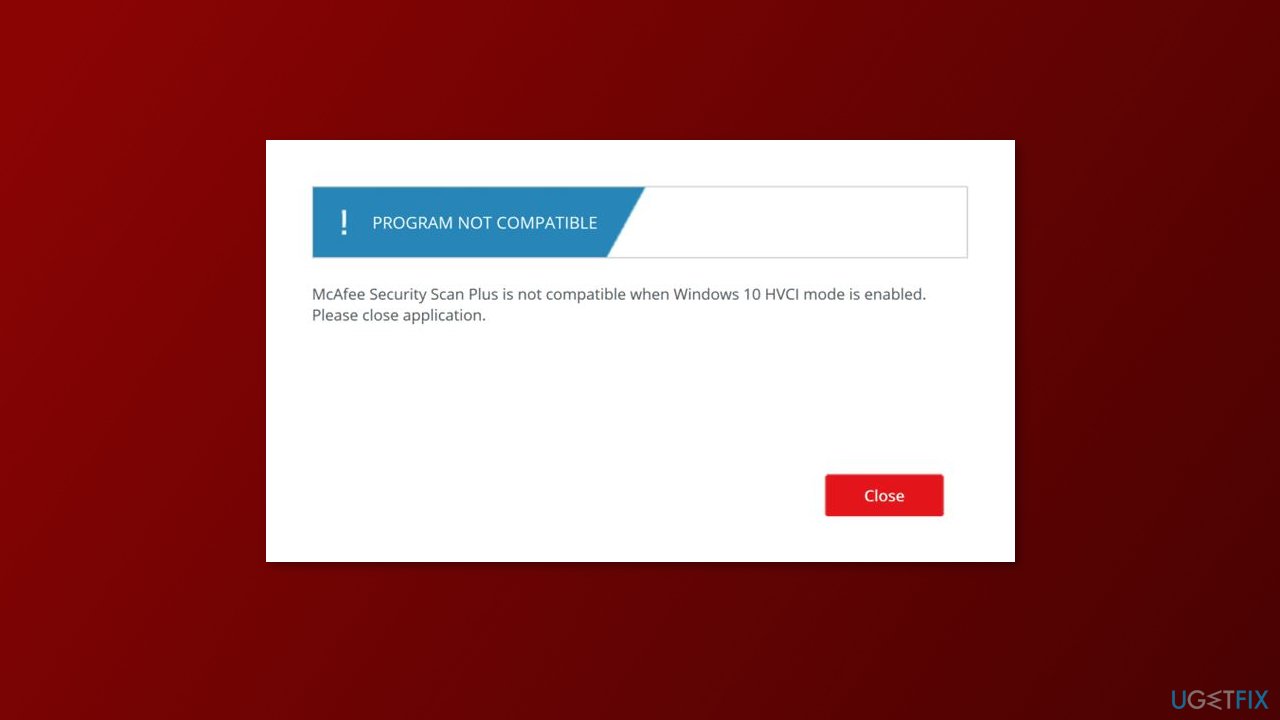
“McAfee Security is not compatible when Windows 10 HVCI mode is enabled”
on Windows
Resolve the "McAfee Security is not compatible" error in Windows 10 HVCI mode effortlessly with our expert-tested guide, updated 2025.

What causes How to fix “McAfee Security is not compatible when Windows 10 HVCI mode is enabled”?
- McAfee security software is not compatible with HVCI
- HVCI creates a virtual environment that McAfee cannot function properly in
- McAfee Security Scan Plus may cause interferences with other antivirus software
- Software bundling may lead to unintended installation of McAfee Security Scan Plus
- Existing paid antivirus plans may conflict with the free McAfee app
Repairs Windows system files, removes malware, and restores a clean OS state — without reinstalling.
Hello. I tried to open the McAfee app but I received the "McAfee Security is not compatible when Windows 10 HVCI mode is enabled" error message even though I am on Windows 11. What does it mean?
The "McAfee Security is not compatible when Windows 10 HVCI mode is enabled" error message indicates that the McAfee security software installed on your computer is not compatible with a security feature called "Hypervisor-enforced Code Integrity" (HVCI)[ref en-1] in Windows.
HVCI is a security feature that helps protect against malicious code injection attacks by enforcing code integrity at the hardware level. It does this by running the operating system and applications in a virtual environment and only allowing code to execute if it has been signed by a trusted source.
If HVCI is enabled and you are trying to run McAfee security software, you may receive the "McAfee Security is not compatible when Windows 10 HVCI mode is enabled" error message. This is because the McAfee software may not be able to function properly in the virtual environment created by HVCI.
There are also reports that the McAfee Security Scan Plus app might be the one to blame. It is a free version of the diagnostic tool that scans your computer for viruses, malware, and other security threats. However, if you already have another paid antivirus plan like McAfee LiveSave, the free app may cause interferences and produce errors.
When you download certain programs, such as Adobe, you may be asked if you want to add the McAfee Security Scan Plus app to your download. This is called software bundling. It is important to be cautious and not check the box to download this app, as it is separate from the McAfee LiveSave app.
In this guide, you will find 2 steps that should help you fix "McAfee Security is not compatible when Windows 10 HVCI mode is enabled" error in Windows. However, if you are not successful, you can try using a maintenance tool like [d1]. It can fix most system errors, BSODs,[ref en-2] corrupted files, and registry[ref en-3] issues. Otherwise, follow the step-by-step instructions below.
Solution 1. Disable HVCI
It is important to note that disabling HVCI may weaken the security of your system, so you should only do this if absolutely necessary.
- Open the Start menu and type cmd into the search bar
- Right-click on Command Prompt and select Run as administrator from the context menu
- Type the following command into the command prompt and press Enter:
bcdedit /set {current} hvci off
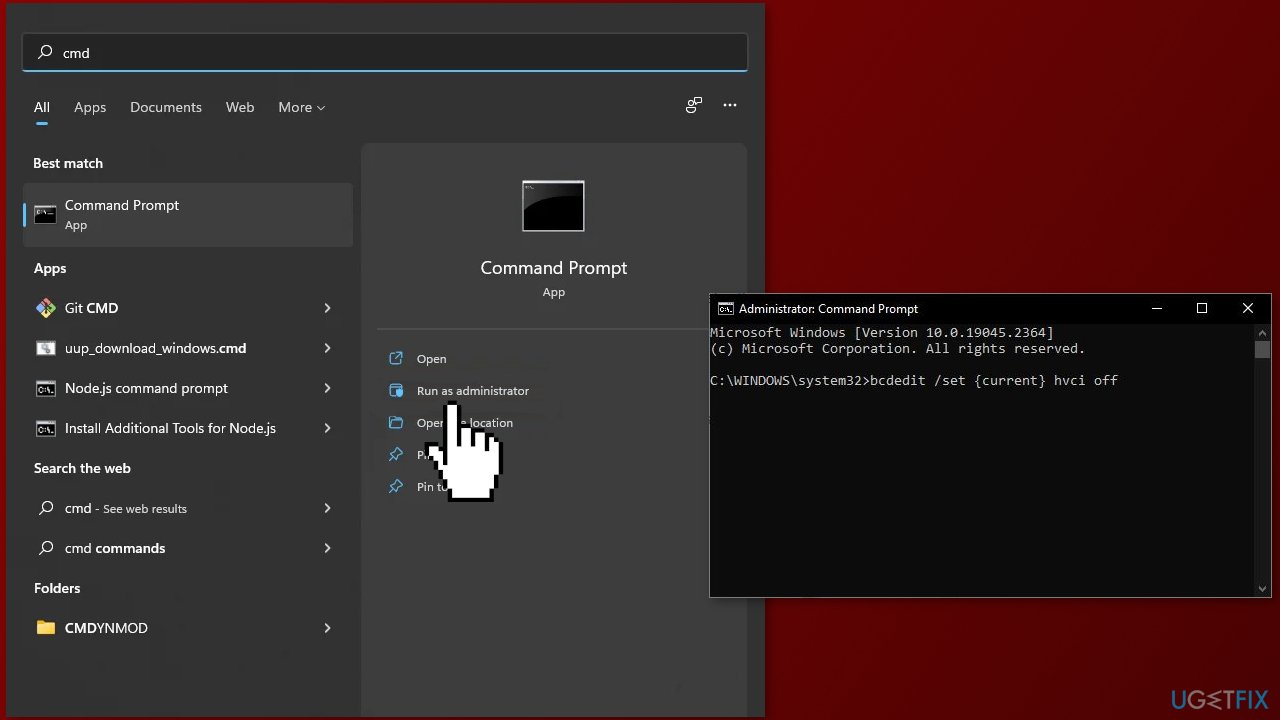
- Restart your computer for the changes to take effect
Solution 2. Update McAfee
- Double-click the McAfee icon on your desktop to open McAfee Total Protection
- At the bottom right, click on the Help icon
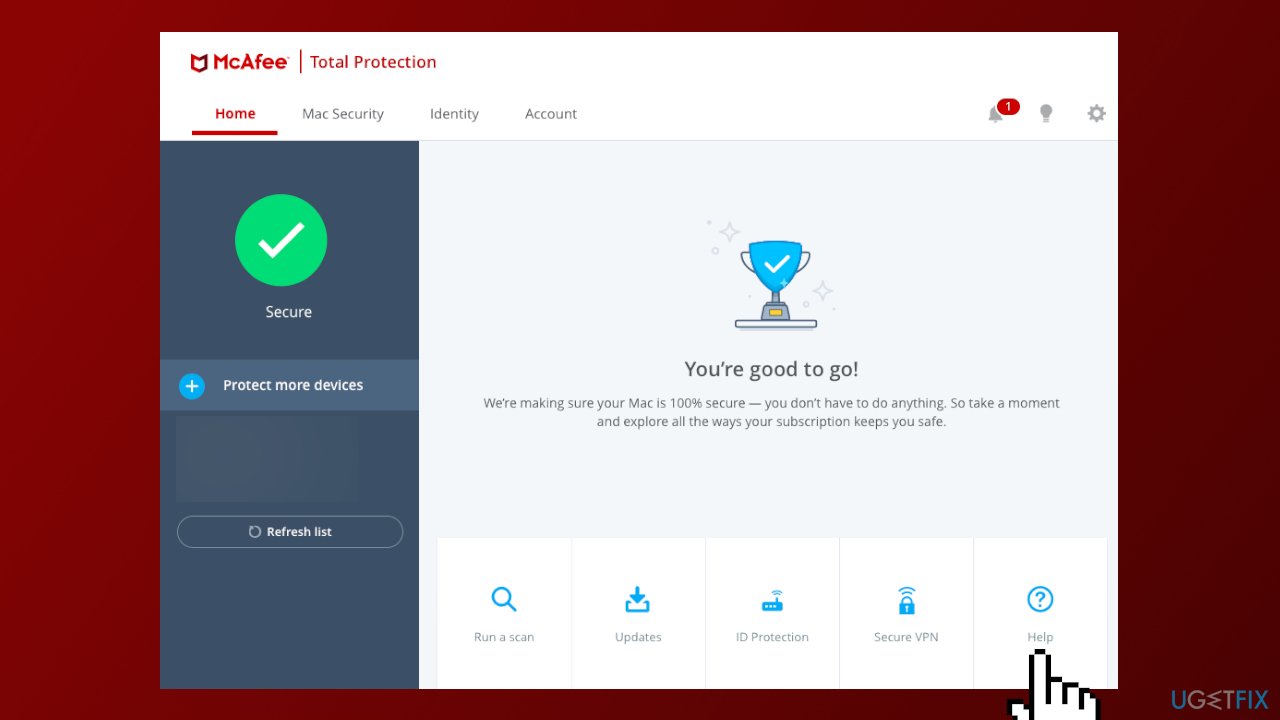
- Click Update app
- You can click Check for Updates or check your Update Settings
Solution 3. Uninstall McAfee Security Scan Plus
- Before you start, save all files and close all programs
- Download the MCPR tool from McAfee's official website
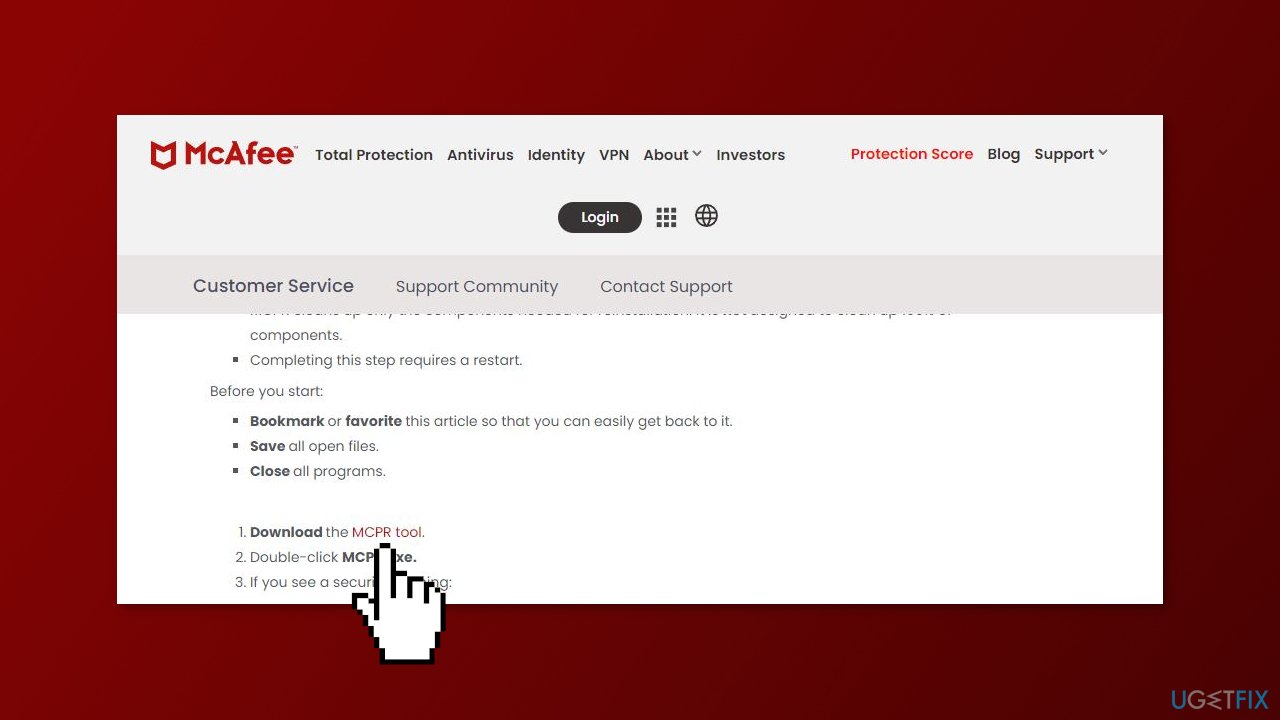
- Double-click MCPR.exe
- If you see a security warning, click Yes, Continue, or Run
- Click Next
- Click Agree to accept the End User License Agreement
- Type the characters exactly as shown on your screen and click Next
- Follow the remaining on-screen instructions and restart your PC to complete the removal process
If the removal was unsuccessful, contact McAfee Customer Service.
Bottom line
To fix the "McAfee Security is not compatible when Windows 10 HVCI mode is enabled" error, you can disable HVCI or uninstall the conflicting McAfee Security Scan Plus app. If these steps do not resolve the issue, consider using a maintenance tool for further assistance.
Frequently asked questions
HVCI, or Hypervisor-protected Code Integrity, is a feature in Windows 10 that enhances security by preventing unauthorized code from running. When enabled, it can cause compatibility issues with McAfee Security, resulting in error messages.
To disable HVCI mode, go to Windows Security settings, select Device Security, and then click on 'Core Isolation details' to turn off Memory Integrity. After making this change, restart your computer to see if McAfee works properly.
Yes, disabling HVCI mode may reduce the overall security of your system, making it more vulnerable to certain types of malware. It is advisable to only disable it temporarily and look for updates from McAfee that improve compatibility.




Report an issue
What's wrong with this guide? We review every report and update or remove content.
Report received — thank you. We'll review and fix it.
You need a free account to submit a report.
Be the first to comment