
How to fix McpManagementService error code 15100 in Windows?

Prefer to fix it yourself? The manual steps follow.
- 5methods
- 5 minutes for the registry fix, up to 45 minutes if you also update and repair Windows
- Intermediate
Applies to Windows 11, Windows 10
5 methods in this guide
Hello, I have been having some problems with my Windows recently and noticed that there's an error under the McpManagementService which says "Failed to read description, Error Code: 15100." Could you please advise on how to resolve this? Thanks in advance.
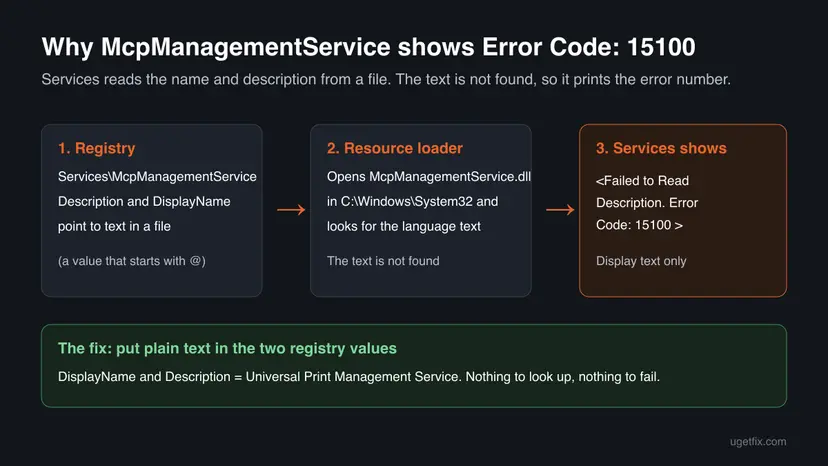
McpManagementService is a genuine Windows service whose file calls itself the Universal Print Management Service. The Error Code: 15100 text in its Description column means Services could not load the service's name and description, not that the service is broken. Write the text into the registry yourself (Fix 1) and the message is gone after a restart.
The message is display text, not a fault. Services asks Windows for the McpManagementService name and description, the resource loader cannot find the text, and Services prints error 15100 instead. The service itself is a signed Microsoft file, McpManagementService.dll in System32. Back up the registry key, then type Universal Print Management Service into its DisplayName and Description values (Fix 1) and restart.
| Error | <Failed to Read Description. Error Code: 15100 > in the Description column of Services, next to McpManagementService. |
|---|---|
| Where it appears | The Services console (services.msc), and in the service's Properties window. The service is listed by its short name instead of a readable display name. |
| Main cause | The registry values DisplayName and Description point to text resources that Windows cannot load. Error 15100 is the resource loader error ERROR_MUI_FILE_NOT_FOUND. |
| Fastest fix | Type Universal Print Management Service into the two registry values yourself (Fix 1). Five minutes and one restart. |
| What the service is | McpManagementService.dll in C:\Windows\System32, file description Universal Print Management Service, signed by Microsoft. Startup type Manual, usually Stopped. |
| Also written as | mcpmanagementservice error code 15100, mcp management service failed to read description, <failed to read description. error code: 15100 >, error code 15100. |
| Affects | Windows 11 and Windows 10. Users first reported the service and the message in August 2022, after that month's updates. |
| Microsoft's status | No Microsoft article lists it as a known issue, and no Microsoft staff answer explains it. We could not confirm an update that fixes it for good. |
| Time to fix | 5 minutes for Fix 1. 15 to 45 minutes if you also install updates or repair system files. |
Facts checked on 15 October 2026. Steps written for Windows 11 (25H2 and 26H2) and Windows 10 22H2.
What McpManagementService is and what "Failed to Read Description. Error Code: 15100" means
McpManagementService is a Windows service that runs from McpManagementService.dll in C:\Windows\System32. Open the file's Properties > Details and the File description reads Universal Print Management Service, with a Microsoft copyright. Universal Print is Microsoft's cloud print service for Microsoft 365 organisations, so on a home PC this service usually has nothing to do.
Services does not store a service's name and description as plain text. The registry holds a pointer to a text resource, and Windows loads that text each time you open the list. When the text cannot be loaded, Services shows the Windows error number in its place:
What the Description column shows
<Failed to Read Description. Error Code: 15100 >- Error code 15100 is
ERROR_MUI_FILE_NOT_FOUNDin Microsoft's list of system error codes: "The resource loader failed to find MUI file." MUI files hold the language text of a Windows file. So Windows found the service, but not the words that describe it. - McpManagementService instead of a display name. On an affected PC the Name column shows the short service name, because the display name comes from the same missing text.
- Startup type Manual, status Stopped. That is the normal state of this service, not a sign of the error. Windows starts it only when something needs it.
- The same message on other services.
NPSMSvc,MMCSS,Senseand others can show Error Code: 15100 for the same reason: their text resource is missing, and the service is not.
In 2026 MCP also stands for the Model Context Protocol used by AI agents. The service on this page is older: users found it in August 2022, and its own file names Universal Print. We found no source that ties McpManagementService to AI agents.
Why McpManagementService fails to read its description, most common cause first
Every case ends the same way: Windows looks for text it cannot load. What differs is whether anything else is wrong, and that decides which fix to use.
| Cause | How it looks | Fix |
|---|---|---|
| The service shipped with an update, and its registry values point to text that this Windows build does not contain. Reported since August 2022. | Only McpManagementService (and maybe a few other services) shows the message. Windows works normally. | Fix 1 |
| You are not sure the service is genuine. | You found an unknown service name and want to check it before you change anything. | Fix 2 |
| A tweaking or debloat tool set the service to Disabled. | Startup type shows Disabled instead of Manual. | Fix 3 |
| An older Windows build with the same mismatch. | Windows Update lists updates you have not installed. | Fix 4 |
| Damaged system files. | Other parts of Windows misbehave too, or SFC reports errors. | Fix 5 |
The reader above noticed the message while looking for the cause of other problems. The message cannot cause sound, network or crash problems: it is the label in a list. Fix the problem you actually have with its own error code, and treat this message as a side note.
How to fix McpManagementService error code 15100
Fix 1 removes the message for most people. Fix 2 confirms the service is genuine if you are unsure. Fix 3 to Fix 5 are for PCs where something else was changed or damaged. If Windows works, you can also leave the message alone: it does no harm.
| What you see | Start with |
|---|---|
| McpManagementService shows the message, startup type Manual, and Windows works. | Fix 1 |
| You do not know what McpManagementService is and worry it is malware. | Fix 2, then Fix 1 |
| Startup type is Disabled, or you ran a debloat or tweak tool. | Fix 3 |
| Windows Update shows pending updates. | Fix 4, then Fix 1 |
| Other Windows features fail, or SFC reports problems. | Fix 5 |
Fix 1. Type the display name and description into the registry
5 minutesRead the warningServices shows the message on McpManagementService, and you want it gone.
The message appears because the registry points to text Windows cannot load. Replace that pointer with the text itself and Services has nothing to look up, so it shows the words directly. The text to use is the file's own description, Universal Print Management Service.
A wrong edit under Services can stop a service from starting. Export the McpManagementService key before you change it, so you can import it back with one double-click. Step by step: Back up the registry before editing it

- Press Win + R, type
regeditand select OK. Select Yes in User Account Control. - Paste
HKEY_LOCAL_MACHINE\SYSTEM\CurrentControlSet\Services\McpManagementServiceinto the address bar and press Enter. - Right-click the McpManagementService key, select Export and save the file to your Desktop.
- Double-click Description. Note the old value, replace it with
Universal Print Management Serviceand select OK. - Double-click DisplayName. Replace its value with
Universal Print Management Serviceand select OK. - Close Registry Editor and restart Windows.
- Open Services again (
services.msc) and find Universal Print Management Service in the list.
Check the result in Command Prompt (read only)
reg query "HKLM\SYSTEM\CurrentControlSet\Services\McpManagementService" /v Description
reg query "HKLM\SYSTEM\CurrentControlSet\Services\McpManagementService" /v DisplayName
Change only these two values. Do not touch Start, ImagePath, ObjectName or the Parameters subkey: they decide whether and how the service runs. If you prefer, write a description in your own words or language; Services shows whatever text you put there.
It worked if: Services lists Universal Print Management Service with a readable description, and the Error Code: 15100 text is gone.
If not: If Registry Editor refuses the change with an access error, we could not confirm a supported way around it. The message is cosmetic, so you can leave it. To undo the edit, double-click the exported .reg file on your Desktop.
Fix 2. Check that McpManagementService is the genuine Windows file
5 minutesNo riskYou found McpManagementService while looking for unknown services and want to be sure it is not malware before you change anything.
A real Windows service runs from a Microsoft signed file in the system folder through svchost.exe. Reading the service's registry values and the file's signature answers the malware question in a minute, without a full scan.
- Right-click Start and select Terminal (Admin). On Windows 10, open Windows PowerShell as administrator.
- Run the first command below. It prints the service's display name, description, program path and service DLL.
- Run the second command. It checks the signature of
McpManagementService.dll. - Optional: open
C:\Windows\System32, right-click McpManagementService.dll, select Properties > Details and read the File description and Copyright.
PowerShell: what the service runs
Get-ItemProperty 'HKLM:\SYSTEM\CurrentControlSet\Services\McpManagementService' | Select-Object DisplayName, Description, ImagePath, Start
Get-ItemProperty 'HKLM:\SYSTEM\CurrentControlSet\Services\McpManagementService\Parameters' | Select-Object ServiceDll
PowerShell: is the file signed by Microsoft?
Get-AuthenticodeSignature "$env:SystemRoot\System32\McpManagementService.dll" | Format-List Status, SignerCertificate| What you read | Genuine | Suspicious |
|---|---|---|
ImagePath | Runs svchost.exe from C:\Windows\System32 with -k and a group name. People search this group as McpManagementServiceGroup: it is the svchost group the service runs in, not a separate program. | Any other program or folder |
ServiceDll | McpManagementService.dll in C:\Windows\System32 | A DLL in a user, temp or program folder |
Signature Status | Valid, signer Microsoft | NotSigned, HashMismatch or another company |
It worked if: The DLL sits in System32 and the signature status is Valid, signed by Microsoft. The service is genuine and Fix 1 is safe to use.
If not: If the path or signature does not match, do not edit the key. Run a full scan with Microsoft Defender first: How to scan for malware with Microsoft Defender
Fix 3. Set the startup type back to Manual
2 minutesLow riskThe service shows Disabled, usually after a debloat script or a services tweak guide.
Manual is the default for this service, so Windows can start it only when something needs it. Disabling it does not change the description text, so the message stays either way. Putting it back to Manual undoes a change that can break printing through Universal Print.
- Press Win + R, type
services.mscand press Enter. - Click any row and type M to jump to the services that start with that letter. Double-click McpManagementService.
- Set Startup type to Manual and select Apply.
- Leave Service status as it is. Stopped is normal for this service.
- Select OK.
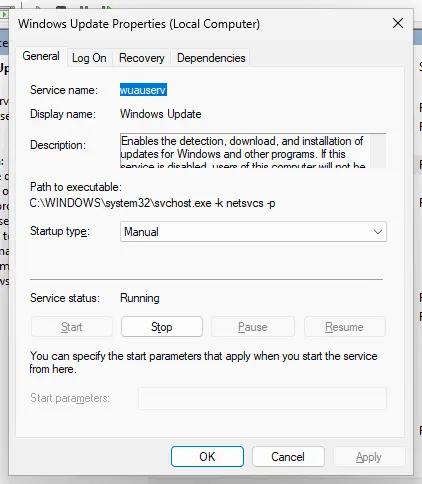
It worked if: The service shows Startup Type Manual in the list. Combined with Fix 1, the row reads Universal Print Management Service.
If not: If the startup type list is greyed out, you did not open Services as an administrator account. If a tool keeps setting it back to Disabled, open that tool and undo its service changes.
Fix 4. Install the latest Windows updates
15 to 45 minutesLow riskWindows Update lists pending updates, or you have not updated in months.
The mismatch between the registry values and the language files is a Windows build issue. A newer cumulative update rewrites service files and their registrations. We could not confirm which build fixes it, so do this together with Fix 1, not instead of it.
- Press Win + I and open Windows Update (Windows 10: Update & Security > Windows Update).
- Select Check for updates and install everything offered, including the cumulative update.
- Restart when asked, then open Services again.
- If the message is still there, press Win + R, type
winverand note the version and build.
If an update refuses to install from Windows Update, get it from the Microsoft Update Catalog: Install an update from the Microsoft Update Catalog Windows 10 left support on 14 October 2025, so a Windows 10 PC no longer gets regular fixes for display issues like this one.
It worked if: Windows Update says you are up to date, and after a restart the description may show normally.
If not: If the message is still there, use Fix 1. If updates fail with an error code, go to Fix 5.
Fix 5. Repair Windows system files with DISM and SFC
15 to 30 minutesNo riskOther Windows features fail, updates fail, or you removed Windows parts with a tool.
DISM repairs the component store and SFC replaces damaged or missing system files from it. It helps when files were really damaged. When the text simply never shipped with your build, the message stays after a clean scan, and Fix 1 is still the answer.
- Open an elevated command window. Right-click Start and select Terminal (Admin), or type cmd in the search box, right-click Command Prompt and select Run as administrator. Select Yes when Windows asks for permission.
- Run DISM first. Type the command below and press Enter. DISM downloads clean copies of damaged components from Windows Update, so it can take several minutes. Wait until it says The operation completed successfully.
DISM.exe /Online /Cleanup-Image /RestoreHealth - Run System File Checker. In the same window, type the command below and press Enter. Do not close the window until the verification reaches 100%.
sfc /scannow - Read the result and restart. Compare the last message with the table below this guide, then restart the PC so that repaired files are loaded.
These steps were written for Windows 11 24H2 and 25H2. The full page with the other versions and what each result means: Run DISM and SFC to repair Windows system files

It worked if: SFC reports no integrity violations, or that it repaired them. Your other Windows problems may be gone, even if the description message stays.
If not: If only the McpManagementService message is left, use Fix 1. If SFC cannot repair files, read the CBS log described in the next section.
If the message stays or Windows has other problems: what to check
Separate the two things first. The description message is a label. A real Windows fault, such as no sound or a crash, has its own error, its own event and its own fix. Collect these details before you ask Microsoft support or a forum for help.
- The exact text. Error Code: 15100 means the text resource was not found; Error Code: 2 means the whole file was not found.
- The registry values. The output of the
reg querycommands from Fix 1 and the PowerShell commands from Fix 2. - The Windows version and build. Press Win + R, type
winverand note both. - The service events. In Event Viewer, Windows Logs > System, filter by the source Service Control Manager and look for errors that name McpManagementService. We found no reports of such errors; a missing description does not write one.
- The SFC log. If SFC could not repair files, the details are in
C:\Windows\Logs\CBS\CBS.log. - The real problem. The error code or symptom of whatever made you look in Services in the first place.
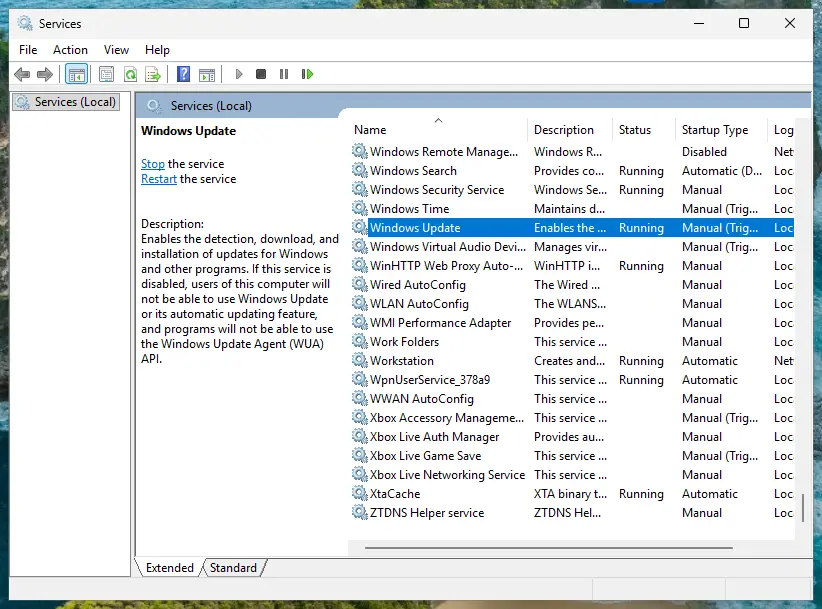
The same message on another Windows service, with Error Code: 2, has its own guide: WaaSMedicSvc Failed to Read Description. Error Code: 2. The registry method is the same; only the service name and its text differ.
How to avoid service description errors in the future
- Install cumulative updates when Windows offers them.
- Export a registry key before you edit it.
- Check an unknown service's file path and signature (Fix 2) before you disable it.
- Keep System Protection on for drive C:, so a restore point exists before big changes.
- Do not download McpManagementService.dll from DLL sites. You cannot check what is inside it.
- Do not disable the service to hide the message. It does not change the text.
- Do not kill Windows processes such as DeviceCensus.exe to fix it. They are not related.
- Do not reset or reinstall Windows because of this message alone.
Frequently asked questions
What is McpManagementService?
McpManagementService is a Windows service that runs from McpManagementService.dll in C:\Windows\System32 through svchost.exe. The file's own description is Universal Print Management Service, and it carries a Microsoft copyright. Universal Print is Microsoft's cloud printing service for Microsoft 365 organisations. On a home PC the service is set to Manual and is usually stopped, because nothing asks for it. Microsoft has not published a description of what it does beyond that file name, so we can only say what the file states.
Is McpManagementService a virus?
No, not when it runs from the system folder. The genuine service uses svchost.exe from C:\Windows\System32 and loads McpManagementService.dll from the same folder, signed by Microsoft. Fix 2 checks both with two PowerShell commands in a minute. A malware scan is only worth it if the path or signature does not match. The earlier version of this page suggested a scan for the message itself; the message comes from missing text, not from infection, so a clean scan would not remove it.
Can I disable or delete McpManagementService?
You can set it to Disabled, but there is no reason to. It is set to Manual and stays stopped until something needs it, so it uses no resources on a normal home PC. Disabling it does not remove the Error Code: 15100 text either, because the text comes from the registry, not from the running service. If your organisation prints through Universal Print, disabling it may break that. Deleting a Windows service or its DLL is never a good idea: an update or SFC may put it back, or Windows may report damaged files.
What does error code 15100 mean?
Error code 15100 is ERROR_MUI_FILE_NOT_FOUND in Microsoft's list of Windows system error codes, with the text "The resource loader failed to find MUI file." MUI files hold the translated text of a Windows program. In Services it means Windows found the service but could not load the words for its name and description. It is not the same as a service failing to start, which shows in Event Viewer with its own error. Any service can show it; McpManagementService is the one most people notice.
Why do other services such as NPSMSvc or MMCSS show the same error?
Each service reads its name and description from a resource in the same way. When that resource is missing on a build, the same message appears with the same code. Users report it on NPSMSvc, MMCSS, Sense and others. Fix 1 works for any of them: read the service name in its Properties, back up its key under HKEY_LOCAL_MACHINE\SYSTEM\CurrentControlSet\Services, and type a description into the Description value. If the service works, you can also leave the message.
Does this error cause sound or other Windows problems?
We found no source that ties it to any fault. The message is the text label in the Services list, and a missing label does not stop a service or any feature. People often notice it while looking for the cause of another problem, as in the question on this page, and assume the two are linked. Look for the error code or event that belongs to the real problem, and fix that on its own. Fix 5 helps when several Windows parts misbehave at once.
Does killing DeviceCensus.exe fix McpManagementService error 15100?
No. The earlier version of this page passed on a user tip to end DeviceCensus.exe with taskkill. DeviceCensus.exe is a Windows telemetry task that collects device information, and ending it does not change any service's description text. The message comes from the registry values of McpManagementService and the missing text resource. Writing the text into those values (Fix 1) is what removes it.
Does reinstalling Visual C++ Redistributable help?
No. Visual C++ Redistributable packages provide runtime libraries for programs built with Microsoft's C++ tools. McpManagementService is part of Windows and its description text is loaded by Windows' own resource loader. We found no source that links the message to Visual C++, and the earlier version of this page gave no reason for the step. Keep your Visual C++ packages as they are and use Fix 1.
McpManagementService: что это и можно ли удалить?
This page is in English, but the answer is the same in any language. McpManagementService is a genuine Windows service, the Universal Print Management Service, in the file McpManagementService.dll in C:\Windows\System32. It is not a virus, it is stopped by default and it uses no resources. Do not delete it. The message Error Code: 15100 means Windows could not load its description; Fix 1 writes the text into the registry, and you can type it in your own language.
Sources
- Microsoft Q&A: Windows Service McpManagementService, Failed to Read Description. Error Code: 15100 (user reports from August 2022, no Microsoft explanation) (learn.microsoft.com)
- Microsoft Tech Community: What is McpManagementService? (question from August 2022, no answer) (techcommunity.microsoft.com)
- The Windows Club: McpManagementService Error Code 15100 on Windows 11 (McpManagementService.dll, Universal Print Management Service, registry values, startup type) (thewindowsclub.com)
Did this fix work?
One click, no account. It tells the next reader which guides are worth their time.
Questions and experiences: fix McpManagementService error code 15100 in Windows
Still broken, or found a fix we did not cover? Ask here: members and our editors answer. Reading is open; writing needs a free account.
…