How to fix
McUICnt.exe – Entry point not found error
on Windows
Resolve the McUICnt.exe Entry point not found error on Windows 10 or 11 effortlessly with our expert-tested solutions. Fixed in minutes!

What causes How to fix McUICnt.exe – Entry point not found error in Windows?
- Corruption during software installation
- Corruption during software update
- Compromised McUICnt.exe file
- Inability to access McAfee interface
- Frequent crashes and slow system performance
Repairs Windows system files, removes malware, and restores a clean OS state — without reinstalling.
Hello. After I updated the McAfee Live Safe app on my Windows PC, I keep receiving the "McUICnt.exe - Entry point not found" error message. How do I fix it?
The McUICnt.exe - Entry Point Not Found error is a relatively common problem for Windows users who have McAfee antivirus software installed on their systems. McUICnt.exe, as an essential component of McAfee software, is in charge of the application's user interface and overall performance. However, due to corruption that may occur during the software installation or updating process, this vital file can become compromised, compromising the antivirus program's proper functionality.
When this error occurs, users may experience frequent crashes, slow system performance, or even an inability to access the McAfee interface entirely. As a result, the computer may become vulnerable to threats such as viruses, malware, and other types of cyberattacks. It is critical to correct this error so that your computer remains secure and the antivirus software functions properly.
The McAfee team is aware of the McUICnt.exe - Entry Point Not Found error and is actively working on a permanent solution to eliminate the problem from future software updates. However, until an official fix is released, reinstalling the McAfee antivirus software is the most reliable way to address this error. Reinstallation ensures that corrupted files are replaced with fresh, uncorrupted files, restoring the application's proper operation.
You can also try a maintenance tool like [d1] that can fix most system errors, BSODs,[ref en-1] corrupted files, and registry[ref en-2] issues. Otherwise, follow the step-by-step instructions below. By following these steps, you will be able to restore your computer's security and enjoy a seamless McAfee user experience.
Fix 1. Use the McAfee Removal Tool
Uninstall:
- Save all open files and close all programs, as the computer will need to be restarted after using the removal tool.
- Download the McAfee Removal Tool (MCPR) tool.
- Locate the downloaded MCPR.exe file in your Downloads folder or the location where you saved it.
- Double-click the MCPR.exe file to run the tool.
- If prompted by User Account Control, click Yes to allow the program to make changes to your computer.
- Wait for the MCPR tool to initialize and load its components.
- Accept the McAfee Software Removal EULA by clicking Next.
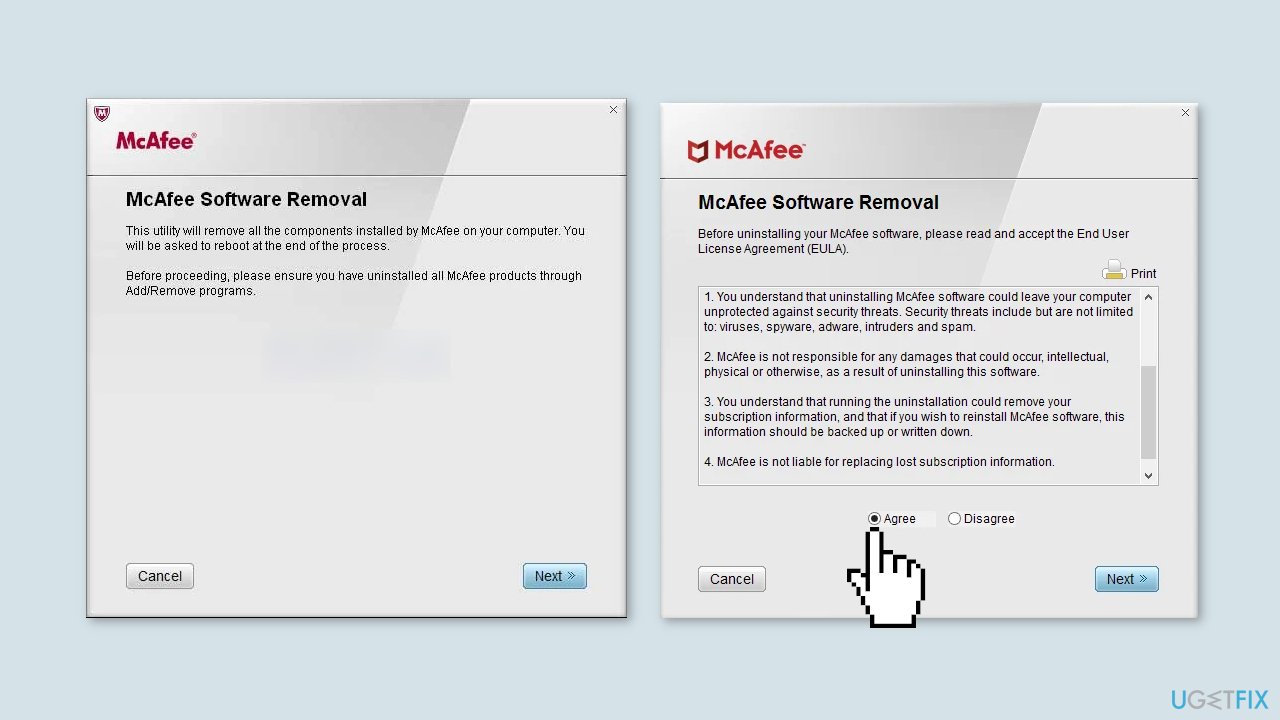
- Complete the security validation by typing the displayed characters in the provided field and click Next.
- Allow the MCPR tool to uninstall McAfee products from your computer. This process may take several minutes.
- When the removal process is completed, you will see a Removal Complete message. Click Restart to restart your computer.
- After the restart, ensure that all McAfee components have been removed by checking the list of installed programs in your computer's Control Panel.
Reinstall McAfee:
- Go to the official McAfee website.
- Click on My Account at the top right corner of the page.
- Log in to your McAfee account using your registered email address and password.
- Once logged in, click on My Account and then select Subscriptions.
- Locate your desired McAfee product from the list of available subscriptions and click Download.
- You will be redirected to the Download and Install page. Click Download again to start the installation process.
- Locate the downloaded McAfee installation file in your Downloads folder or the location where you saved it.
- Double-click the installation file to start the installation process.
- If prompted by User Account Control, click Yes to allow the program to make changes to your computer.
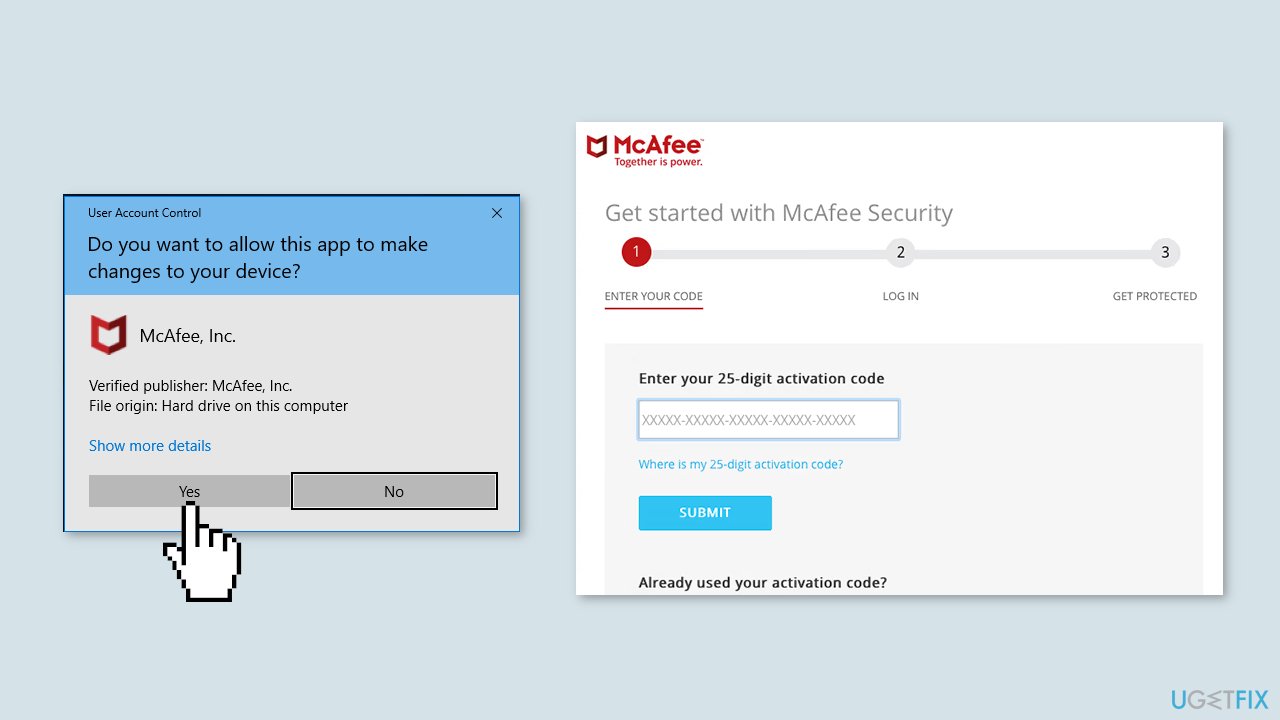
- Follow the on-screen instructions to complete the installation process. This may include accepting the EULA, selecting installation preferences, and providing your McAfee account credentials.
- Allow the installer to download and install the latest McAfee updates.
- Once the installation is completed, restart your computer if prompted.
- Open the newly installed McAfee software to verify the installation and ensure that it's functioning correctly.
- Run a full system scan to ensure your computer is secure and protected by McAfee.
Bottom line
To fix the McUICnt.exe - Entry Point Not Found error, you can reinstall the McAfee antivirus software or use the McAfee Removal Tool to ensure corrupted files are replaced. If these solutions do not resolve the issue, consider using a maintenance tool to address system errors.
Frequently asked questions
This error typically occurs due to a corrupted or outdated McUICnt.exe file, often linked to issues with the Windows Update component or software conflicts.
You can try repairing the error by running the System File Checker (SFC) tool or performing a Windows Update to ensure all system files are up to date.
Deleting the McUICnt.exe file is not recommended, as it may lead to additional system issues; instead, focus on troubleshooting and repairing the underlying problem.




Report an issue
What's wrong with this guide? We review every report and update or remove content.
Report received — thank you. We'll review and fix it.
You need a free account to submit a report.
Be the first to comment