How to fix
Media Creation Tool error “There was a problem running this tool”
on Windows
Resolve the Media Creation Tool error on Windows 10 and 11 effortlessly. Get expert-tested solutions to fix issues and create your installation media in…


What causes How to fix Media Creation Tool error “There was a problem running this tool” on Windows?
- Disabled processes
- Incorrect language settings
- OS and antivirus conflict
- Wrong registry entries
- Insufficient permissions
Repairs Windows system files, removes malware, and restores a clean OS state — without reinstalling.
I have problems upgrading to Windows 10 V1703 via Windows Update. The process keeps crashing, so I created a bootable USB drive. Sadly, but the drive fails to run the update either as it gets stuck with the error “There was a problem running this tool.” Have you any ideas what could be the culprit and how can I solve it?
If you want to upgrade Windows 10 or repair the operating system errors using Windows Media Creation Tool because other methods did not work, you may be negatively surprised by “There was a problem running this tool” error message, which prevents the tool from being loaded. In this case, the PC’s or laptop’s owner may start feeling trapped since they can neither fix errors nor upgrade the system.
Usually, the “There was a problem running this tool” error bears an error code, for example, 0x8007005-0x9002, 800704DD – 0x90016 or 0x80070015. The code may differ according to the culprit of the problem, but, in most of the cases, the same fixes can be applied to all of them.
Usually, the “There was a problem running this tool” error accompanied by an error code 0x80070015 occurs when the PC’s owner attempts to create the Media Creation Tool for Windows 10 (both Anniversary and Creators updates) or run the Media Creation Tool to restore/upgrade the system.
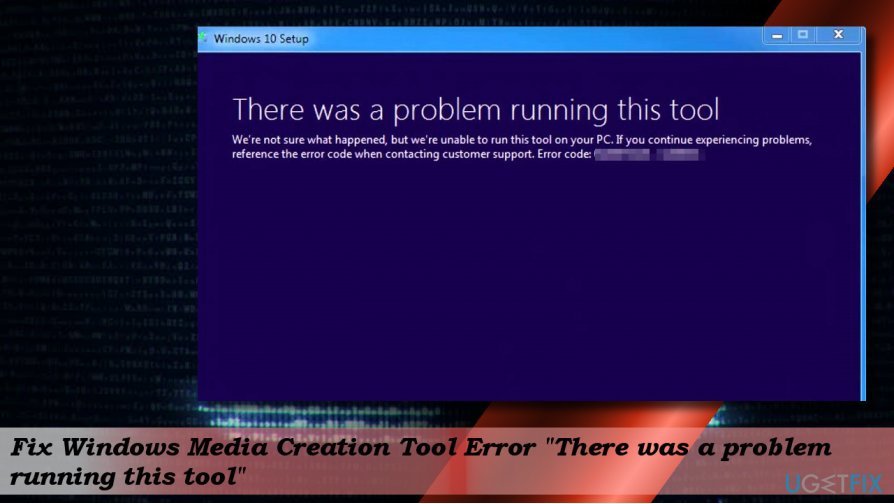
There may be many diverse reasons why the bug occurs, for example, disabled processes, incorrect language settings, OS and antivirus conflict or wrong registry entries. Therefore, try to fix “There was a problem running this tool” error by following the methods given below one-by-one.
Method 1. Run Media Creation Tool as administrator
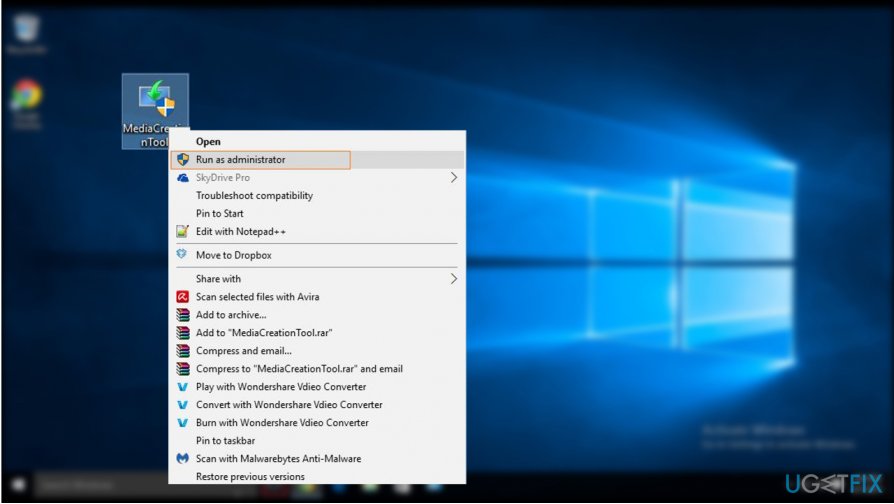
If you encounter the error when running the Media Creation Tool, the most primitive solution for “There was a problem running this tool” error would be to run the tool as administrator.
- Once you plug-in the bootable USB drive with the Media Creation Tool, right-click its icon.
- From the context menu select Run as administrator.
Method 2. Enable required services
You may encounter the “There was a problem running this tool” error code 0x80070015 if several required services are disabled. Therefore, before creating or running the Media Creation Tool, check the status of the following processes:
- Press Windows key + R, type services.msc, and hit Enter.
- On the list of services, find the services listed below and check their status. The Startup Type of them all should be set to Automatic.
Windows Update
Background Intelligent Transfer Service
Server
Workstation
TCP/IP NetBIOS Helper
IKE and AuthIP IPsec Keying Modules
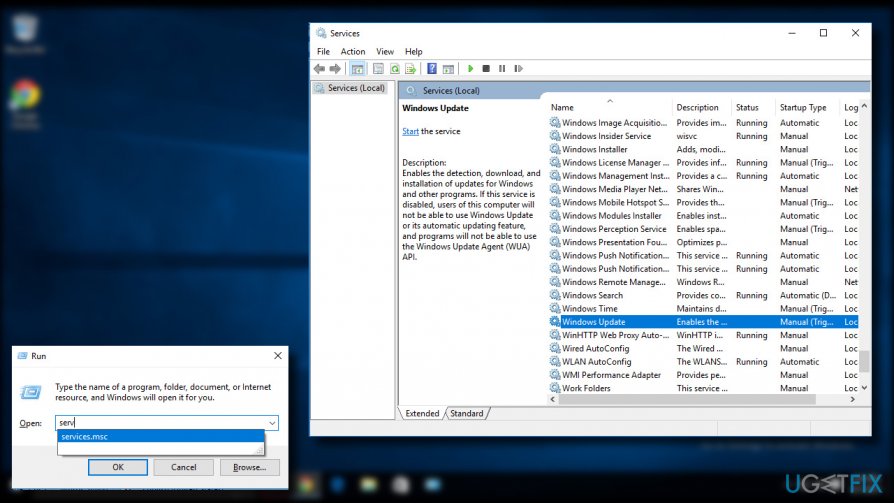
- If any of them are set to Manual, right-click on it, and select Start.
- Then set Startup Type to Automatic and close Services window.
Method 3. Check language settings
Windows Media Creation Tool problems like “There was a problem running this tool” error may happen if the locate of your system and the language of the downloaded Windows 10 setup file do not match. The easiest way would be to set your PC’s or laptop’s language to English:
- Open Control Panel and select Clock, Language, and Region.
- Under Region section, click the Change date, time, or number format.
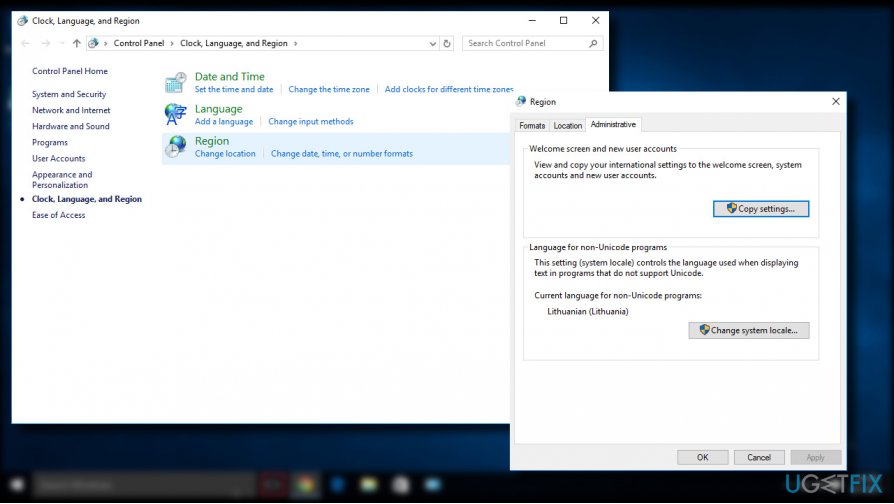
- Open Administrative tab and select Change system locale.
- Set Locale to English and press OK.
- Go back to the Administrative tab and navigate to Copy settings.
- Mark the Welcome screen and system accounts and New user accounts (if not marked) check boxes.
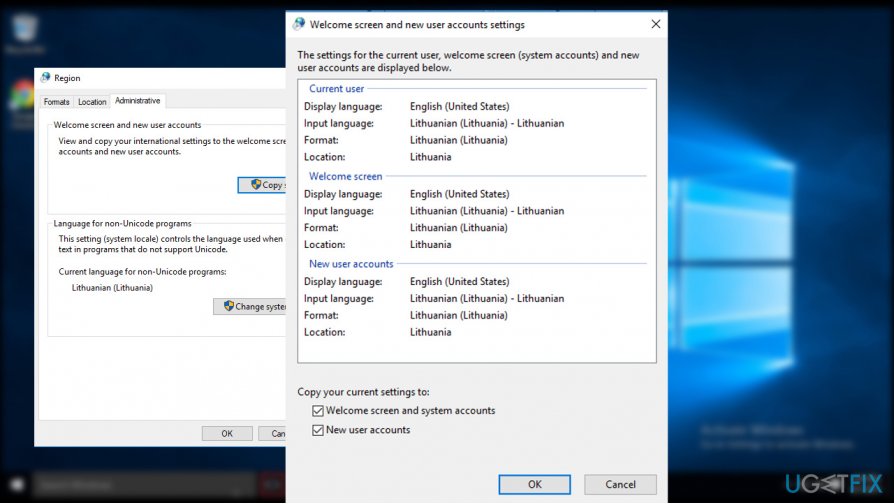
- Click Apply and OK to save the changes.
- After that, reboot the system.
Method 4. Run Registry Editor
If none of the previous methods helped, you may need to modify registries. Be very careful because inaccurate removal or modification of the wrong key may cause serious damage to the OS. To prevent problems from happening, we would strongly recommend creating a backup for Windows Registry and we’ll explain how to do that down below:
- Press Windows key + R, type regedit and hit Enter.
- Click File at the top of the window and select Export.
- Select the location on the left pane.
- Type the name of the backup in the File Name field and click Export.
- When the backup is ready, navigate to the DDHKEY_LOCAL_MACHINE\\SOFTWARE\\Microsoft\\Windows\\Current Version\\WindowsUpdate\\OSUpgrade key using the left pane.
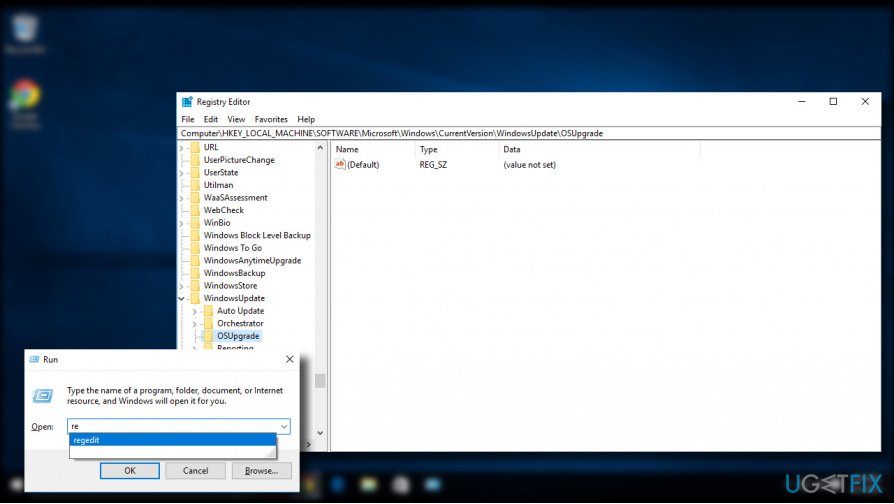
- Right-click on the empty space and select New -> DWORD.
- Name it AllowOSUpgrade and set its value to 1.
- Close Registry Editor and restart the PC.
Method 5. Disable your antivirus
If software runs into conflict with the antivirus tool, various problems, including “There was a problem running this tool” error, can occur and distort the performance of OS. Therefore, if none of the methods above helped you to resolve the Media Creation Tool bug, we would recommend disabling your antivirus temporarily. To do so, click Ctrl + Alt + Delete to open Task Manager. Find the process of your antivirus, click on it, and select End Task. The find its icon on the taskbar, right-click it, and select Disable.
Bottom line
To fix the 'There was a problem running this tool' error, try running the Media Creation Tool as an administrator and enabling required services. If these methods do not resolve the issue, consider checking for other underlying problems or seeking additional support.
Frequently asked questions
Try running the Media Creation Tool as an administrator by right-clicking the executable and selecting 'Run as administrator'. If the issue persists, ensure that your Windows 10 is updated to the latest version.
Yes, temporarily disabling your antivirus software may resolve conflicts preventing the Media Creation Tool from running. Remember to re-enable your antivirus after the process.
Ensure your Windows 10 or Windows 11 device has at least 8 GB of free storage space and a stable internet connection to successfully run the Media Creation Tool.




Report an issue
What's wrong with this guide? We review every report and update or remove content.
Report received — thank you. We'll review and fix it.
You need a free account to submit a report.
Be the first to comment