How to fix
Media keys not working
on Windows
Resolve your Media keys issues on Windows 10 or 11 quickly and easily with expert-tested solutions that get you back to enjoying your media in minutes.

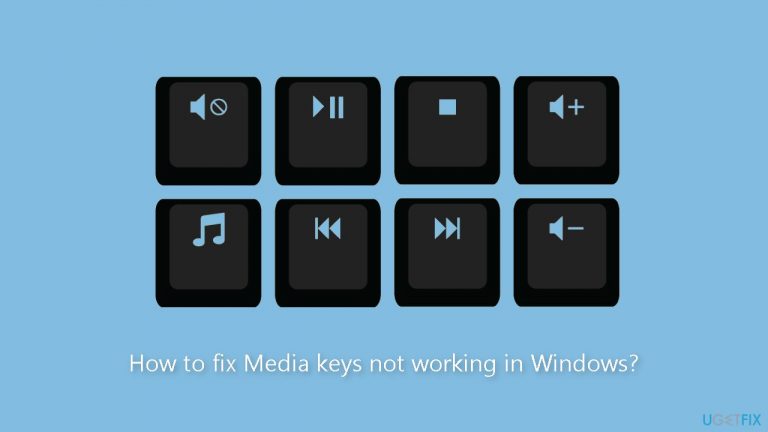
What causes How to fix Media keys not working in Windows?
- Hardware malfunctions
- Outdated device drivers
- Incorrect system settings
- Software conflicts
- Dirty keyboard
Repairs Windows system files, removes malware, and restores a clean OS state — without reinstalling.
Hello. When I try to use the Media keys on my keyboard with Windows they do not work. Is there a way to fix this?
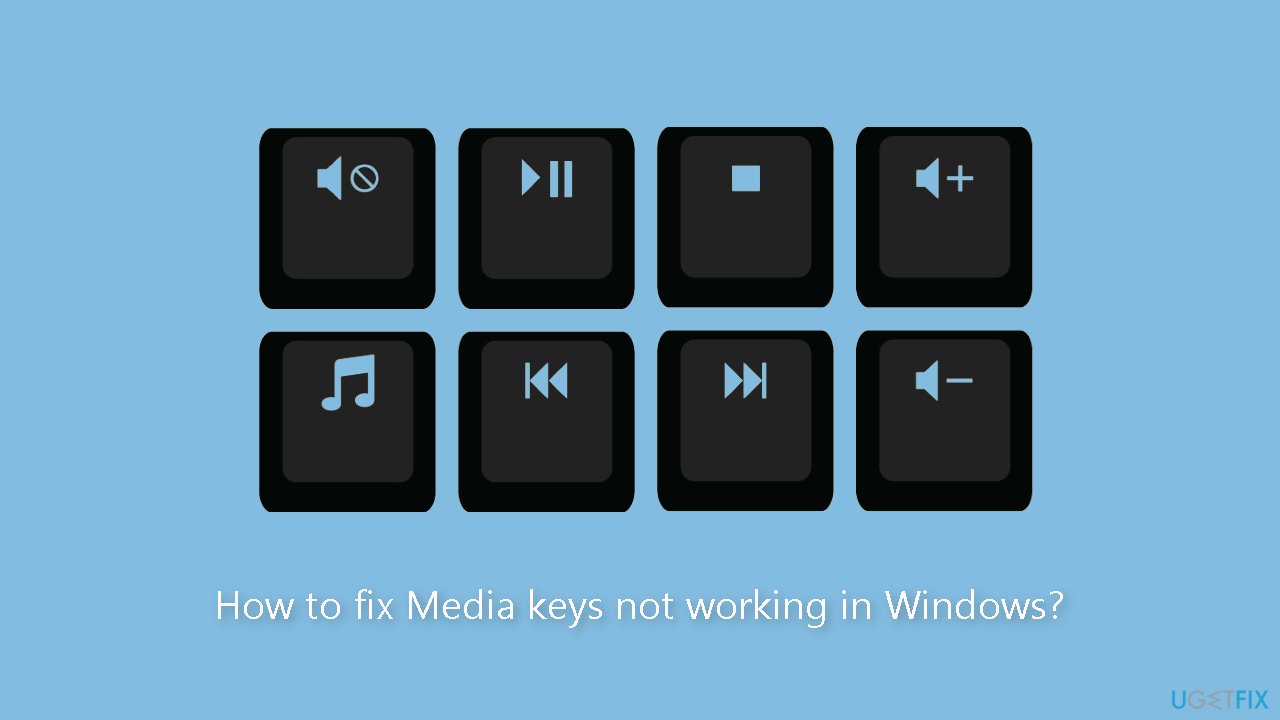
Media keys are a group of dedicated buttons on computer keyboards that allow users to control multimedia applications such as media players, volume control, and other features. These keys are usually found on the top row of the keyboard, and they are labeled with icons or symbols that represent their function.
The media keys allow users to perform multimedia tasks quickly and easily without having to navigate through software menus or use a mouse. They can be used to, among other things, adjust the volume of media, play, pause, or stop music, skip to the next or previous song or video, and launch media players.
When media keys in Windows stop working, it can have a significant impact on users' ability to use their computers efficiently. Users may find it difficult to quickly and easily adjust the volume, control music playback, or perform other multimedia tasks. This can be especially aggravating for those who rely on their media keys for work or recreation.
Checking for hardware malfunctions, updating device drivers,[ref en-1] or adjusting system settings are all possible solutions to this problem. Users can also restart their computers, clean their keyboards, and look for software conflicts. However, depending on the specific cause of the problem, the best solution may differ.
In this guide, you will find 5 steps that should help you fix Media keys not working in Windows. However, if you think this is a system-related problem, you try using a maintenance tool like [d1] that can fix most system errors, BSODs,[ref en-2] corrupted files, and registry[ref en-3] issues. Otherwise, follow the step-by-step instructions below.
Solution 1. Check the Hardware
To avoid blaming the wrong culprit, such as a driver, system update, or recently installed application, it's critical to first rule out any hardware malfunctions. Begin by slowly and attentively pressing your media keys, noting any unusual sounds or movements. If you haven't cleaned your keyboard in a while, there's a possibility that dust buildup could be hindering its proper functioning.
If you're using an external keyboard, try a different USB port or connect it to a different computer. If the problem persists, check your system settings. Furthermore, if you have a Bluetooth keyboard, check the batteries or move it closer because you may be out of range.
Solution 2. Run the Keyboard Troubleshooter
- Right-click on the Start menu icon.
- Click on Settings from the pop-up menu.
- Click on Update & Security.
- Click on Troubleshoot from the left-hand menu.
- Scroll down to the section labeled Find and fix other problems.
- Click on Keyboard.
- Click on Run the troubleshooter.
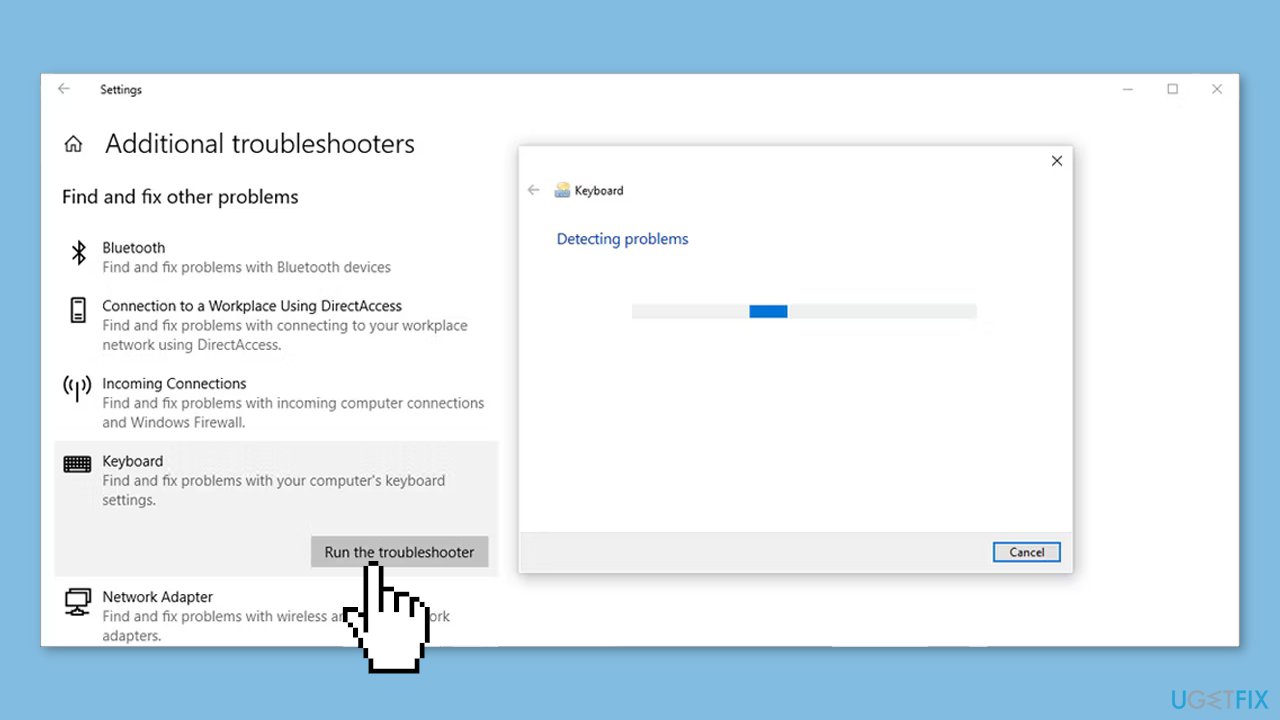
- Follow any additional prompts or instructions provided by the troubleshooter.
Solution 3. Reset the Keyboard Layout
- Use the Windows key + I to open Settings.
- Click on Time & Language.
- Click on Language.
- Check the Preferred Languages list and make sure the correct language is at the top. If not, use the Move up button to rearrange it.
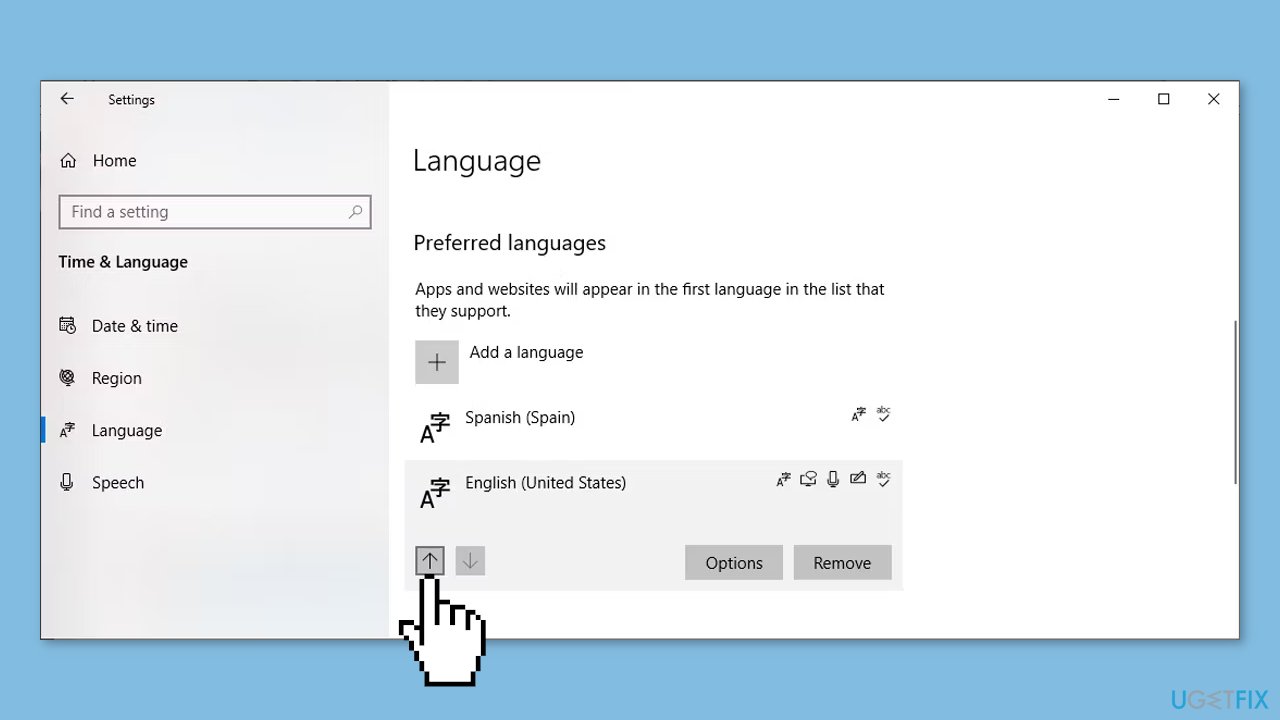
- If you only have one language in the list, add a new language temporarily and place it at the top of the list.
- Move your preferred language to the top of the list.
- Select your preferred language and click on Options.
- Check the Keyboards section to see if US QWERTY is selected. If not, use the Add a keyboard button to select a new setting.
Solution 4. Update the Keyboard Driver
- Right-click on the Start button.
- Select Device Manager from the menu.
- Expand the Keyboards menu by clicking on the arrow next to it.
- Right-click on your keyboard.
- Select Update driver from the context menu.
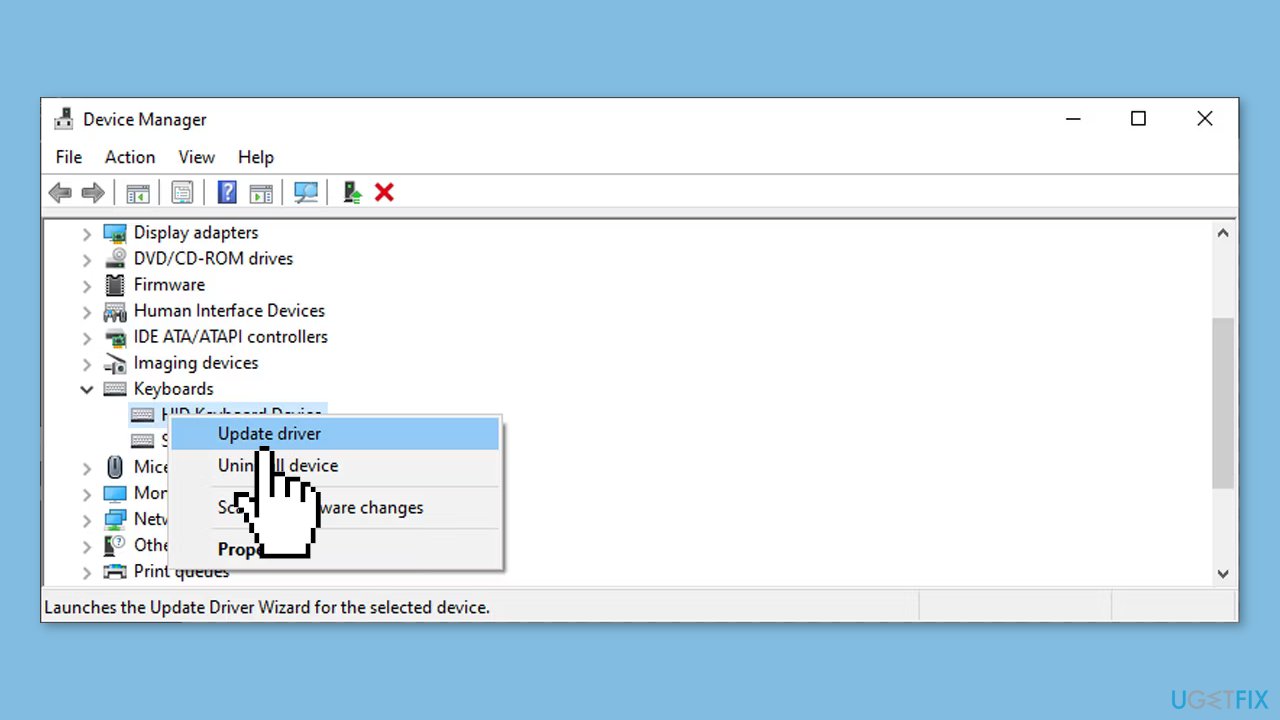
Solution 5. Check Windows Services
- Open the Start menu search bar.
- Type services and select Run as administrator.
- In the Services window, locate and open Human Interface Device Service.
- Check the service's status. If it says Stopped, click Start. If it says Running, right-click the service and select Restart.
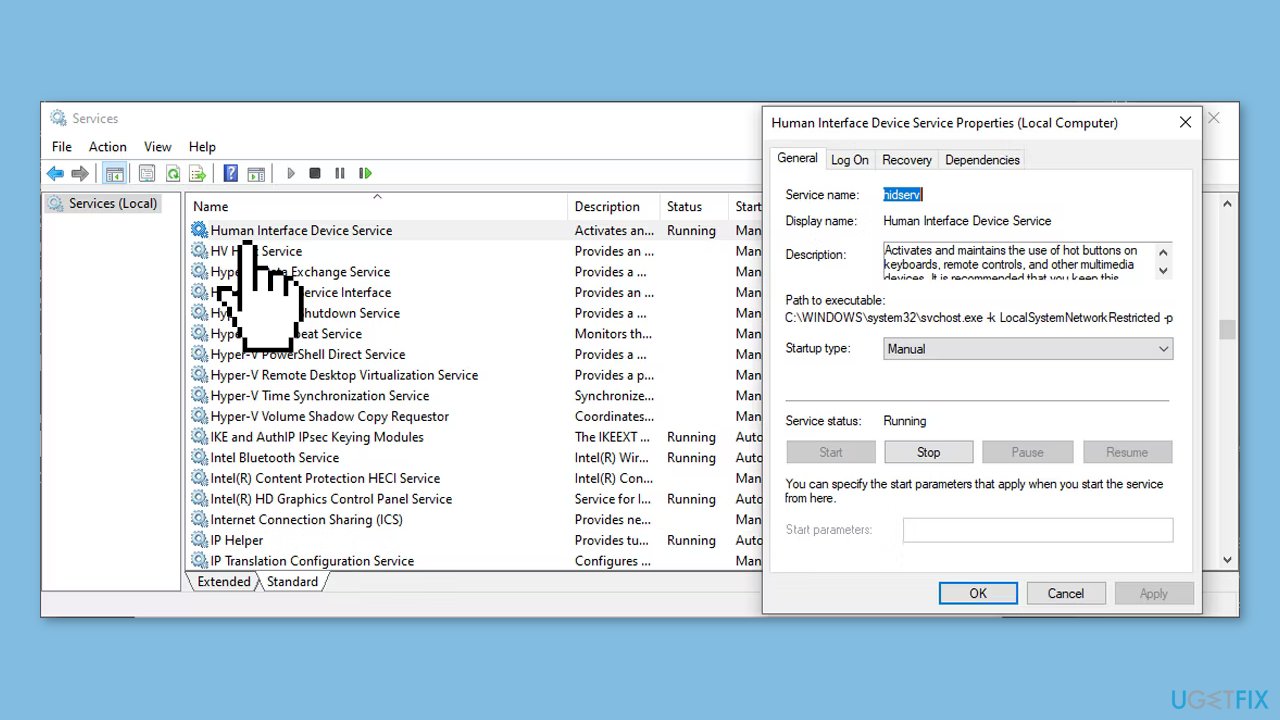
Note: If you are experiencing issues with media keys while using Windows Media Player, search for Windows Media Player Network Sharing in the Services window. Open the service and click Stop to disable it.
Bottom line
To fix media keys not working in Windows, you can check for hardware issues, update device drivers, adjust system settings, and look for software conflicts. Additionally, restarting your computer and cleaning your keyboard may help. If these solutions do not resolve the issue, consider using a maintenance tool to fix system errors.
Frequently asked questions
First, check if your keyboard drivers are up to date in Device Manager. If they are, try restarting your PC to refresh the system settings.
You can run the built-in Keyboard Troubleshooter by going to Settings > Update & Security > Troubleshoot > Additional troubleshooters and selecting Keyboard.
Yes, ensure that the 'Media keys' setting is enabled in the keyboard settings of your device, and check for any third-party software that might override these functions.




Report an issue
What's wrong with this guide? We review every report and update or remove content.
Report received — thank you. We'll review and fix it.
You need a free account to submit a report.
Be the first to comment