How to fix
Media Player lagging or crashing
on Windows
Resolve Media Player lagging or crashing issues on Windows 10 and 11 effortlessly. Get expert-tested solutions and enjoy smooth playback with zero trace…


What causes How to fix Media Player lagging or crashing in Windows?
- Hardware not powerful enough for high-quality videos
- Outdated software or operating system
- Corrupted or damaged media files
- Outdated or corrupted graphics card drivers
Repairs Windows system files, removes malware, and restores a clean OS state — without reinstalling.
I have noticed that Windows Media Player has been behaving weirdly recently. When I launch a video, it lags to open it, and sometimes it crashes instead of showing it. I am not sure what caused it - I have been using the app for many years with no problems. Now it's really frustrating, and I can't watch the videos properly.
Watching videos on Windows is a common activity for many users, whether it's streaming online content or playing media files from a personal collection. Windows Media Player is a default app on Windows that many people choose because it's convenient and easy to use. However, some users have reported experiencing lag and crashes while using Windows Media Player, which can be frustrating.
There could be several reasons why Windows Media Player is lagging and crashing on your Windows device. One possibility is that your computer's hardware is not powerful enough to handle the demands of playing high-quality videos. This can cause the video to stutter, freeze, or even crash the Media Player altogether.
Another possible cause of lag and crashes in Windows Media Player is outdated software. If you have not updated your Media Player or your operating system in a while, it's possible that you're missing important bug fixes and security patches that could improve performance. Make sure to check for updates regularly and install them as soon as they become available.
It's also possible that the media files themselves are causing the problem. If a file is corrupted or damaged, it can cause issues with playback, such as stuttering, skipping, or freezing. To fix this, try playing the file in a different media player or repairing the file using a file repair tool.
Outdated or corrupted graphics card drivers can also be a potential cause of Windows Media Player lag and crashes. Graphics card drivers are crucial for rendering video and graphical content on your computer, and if they are not up to date or have become corrupted, it can cause issues with playback.
Below you will find several solutions to fix Media Player lagging or crashing on Windows systems. If you would like to take an automatic approach instead to avoid manual troubleshooting, we recommend checking out [d1] PC repair software.
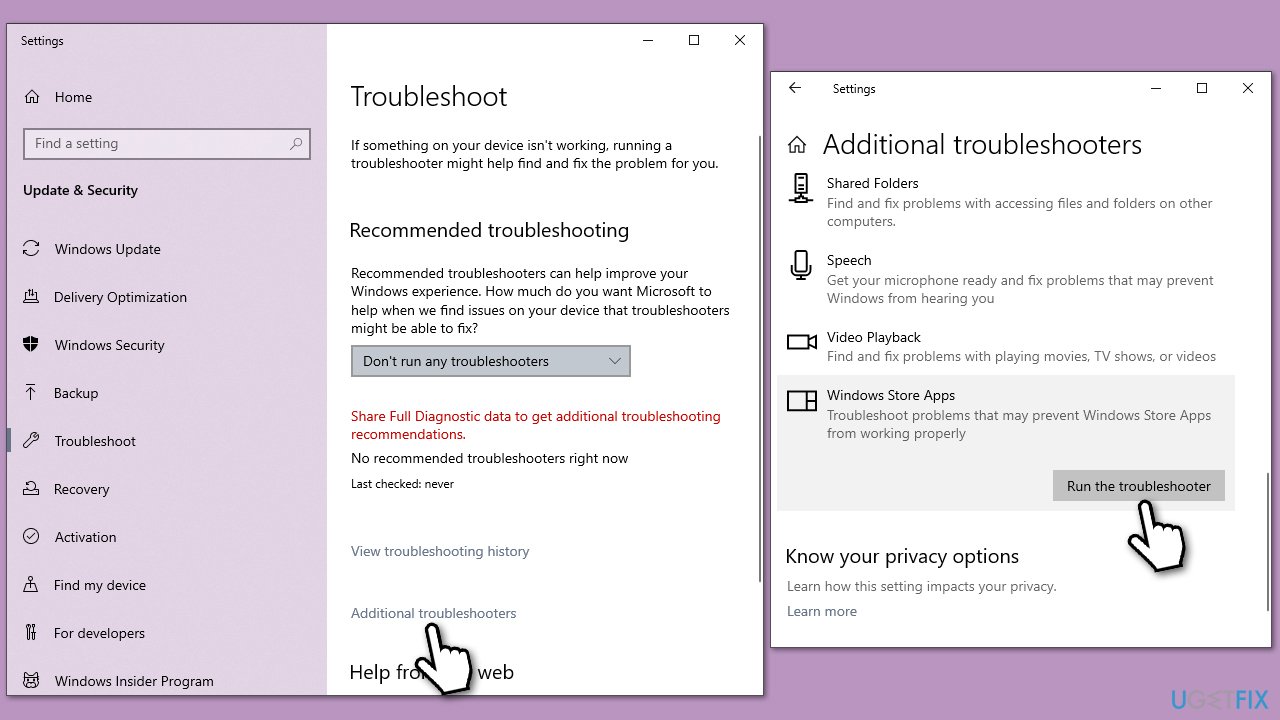
Method 1. Run Windows Store App troubleshooter
Let's start with a troubleshooter, which is an excellent tool designed to diagnose issues with certain Windows components, such as applications.
- Type troubleshoot in Windows search and hit Enter.
- Click Additional troubleshooters/Other troubleshooters.
- Find Windows Store Apps.
- Click on it, and select Run the troubleshooter/Run.
- Wait for the scan to be completed and apply the suggested fixes.
Method 2. Install all Windows updates
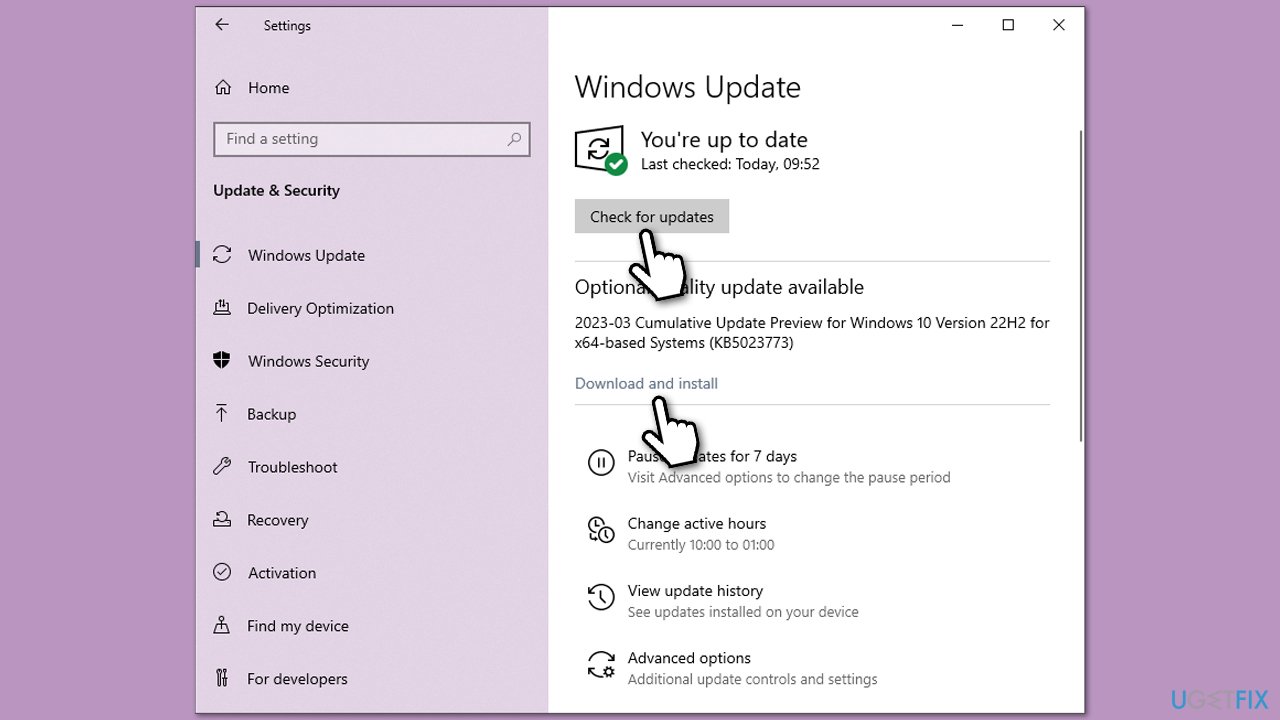
Windows Media Player can be updated via the Windows update feature, so if you have neglected to implement the newest driver updates, you should definitely perform the following steps and see if it helps:
- Type Update in Windows search and hit Enter.
- Click Check for updates and wait till they are installed.
- If optional updates are available, install them also.
- When done, restart your system.
Method 3. Repair damaged system files
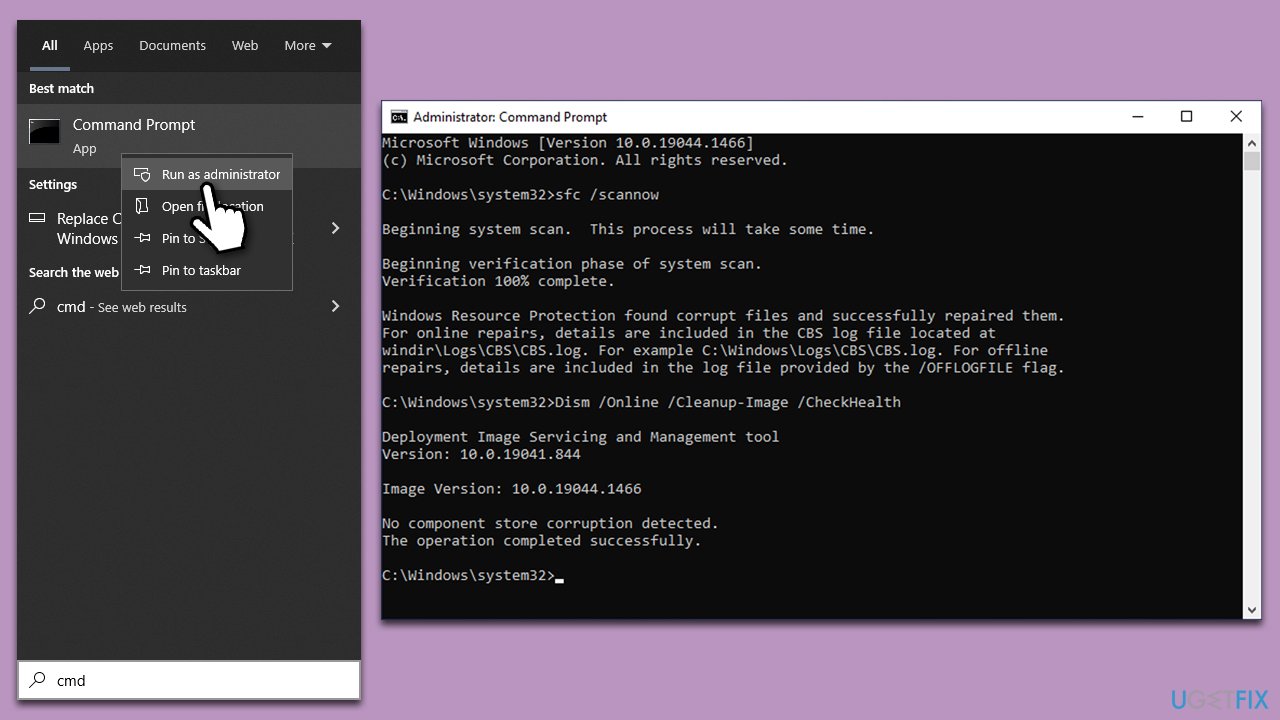
- Type cmd in Windows search.
- Right-click on the Command Prompt result and select Run as administrator.
- Paste the following command into the new window:
sfc /scannow - Press Enter and wait till the scan is finished.
- Once done, run this set of commands, pressing Enter after each:
DISM /Online /Cleanup-Image /CheckHealth
DISM /Online /Cleanup-Image /ScanHealth
DISM /Online /Cleanup-Image /RestoreHealth - Restart your PC.
Method 4. Reinstall your graphics drivers
Reinstalling GPU drivers helped many people to solve the issues with Media Player.
- Right-click on Start and pick Device Manager.
- Expand Display adapters.
- Right-click on your GPU and select Uninstall device.
- Mark the Delete the driver software for this device tickbox.
- Click Uninstall and follow the prompts.
- Restart your device.
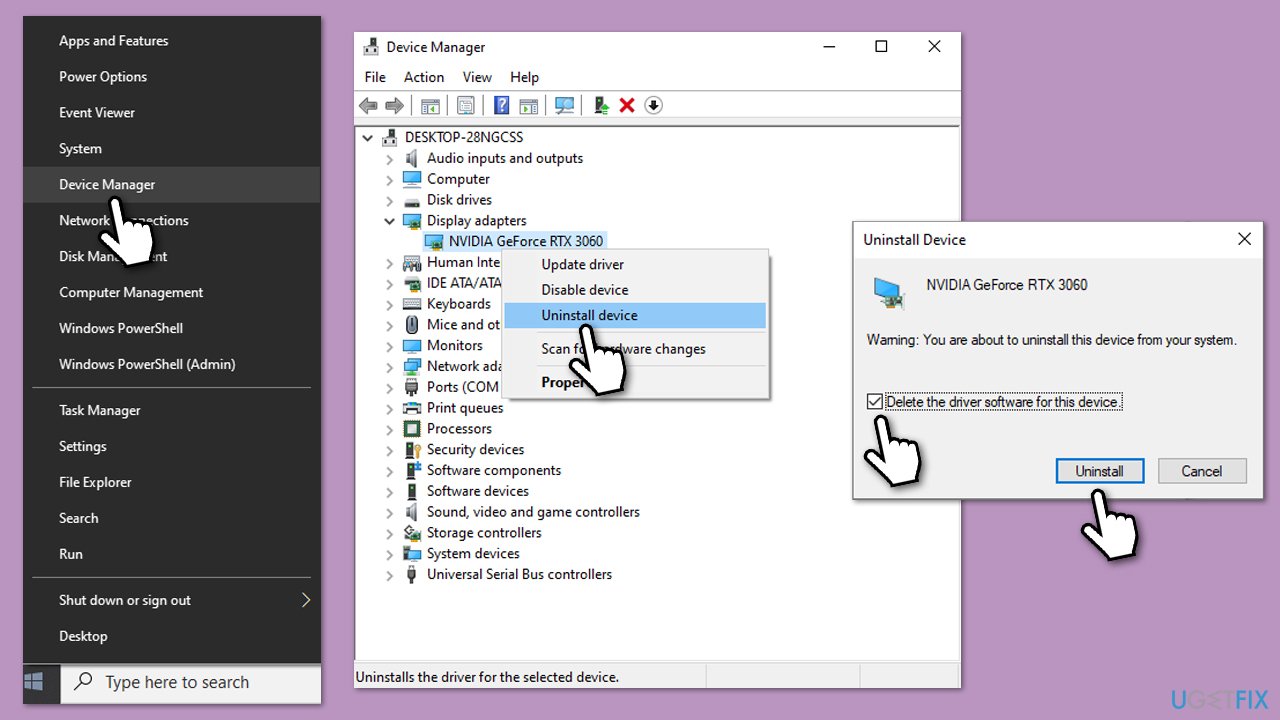
To install the newest drivers, you can use the Windows Update feature, although it is not the best when installing GPU drivers. Thus, either visit the official website for your video card or use an automatic driver updater such as [rev id="DriverFix"].
Method 5. Install K-Lite Codec Pack
If you are running an older operating system such as Windows 7, installing K-Lite Codec Pack can resolve your issues with Media Player. Note that it is best done by reinstalling your GPU drivers first, as explained in method 4.
When ready, download K-Lite Codec Pack [direct download link] and install it using prompts. Once done, make sure you reboot your computer to implement the changes.
Bottom line
To fix Windows Media Player lagging or crashing, ensure your hardware meets the requirements, update your software and operating system, check the integrity of your media files, and update your graphics card drivers. If none of these solutions work, consider using a different media player or a file repair tool.
Frequently asked questions
Try disabling any unnecessary background applications and ensure your Windows 10 is up to date. Additionally, check for codec issues and consider resetting Media Player settings.
You can troubleshoot by running the built-in troubleshooter for apps and ensuring that your graphics drivers are updated. If the issue persists, consider reinstalling Media Player through the Optional Features settings.
Yes, make sure to adjust the playback settings, disable enhancements, and check the performance settings in the Media Player options to enhance playback.




Report an issue
What's wrong with this guide? We review every report and update or remove content.
Report received — thank you. We'll review and fix it.
You need a free account to submit a report.
Be the first to comment