How to fix
Media Player not working
on Windows
Resolve Media Player issues on Windows 10 or 11 effortlessly with our expert-tested solutions. Get it working again in minutes!


What causes How to fix Media Player not working in Windows?
- Background processes preventing launch
- Insufficient permissions for media library access
- General bugs and glitches
- Issues with associated DLL files
- App corruption
Repairs Windows system files, removes malware, and restores a clean OS state — without reinstalling.
I am using Windows Media Player for all my video needs, and I've noticed it does not launch anymore - it doesn't matter if I attempt to open the video or the player itself. Also, when I attempt to open the app, it simply freezes and crashes. Any idea what's happening here?
Windows Media Player is a versatile media player that comes pre-installed with the Windows operating system. It allows users to play various multimedia formats, such as audio, video, and image files, and even stream media from the internet. Many people choose WMP as their go-to media player because it is already built into their computers, making it a convenient and familiar choice.
Various issues can arise with Windows Media Player, making it difficult for users to enjoy their favorite media files. In some cases, the application may not launch at all, while in other situations, it may freeze and crash upon opening. Several reasons could contribute to these problems with Windows Media Player.
One possible cause is that background processes related to the media player could be running, preventing it from launching correctly. Users can open the Task Manager and check for any running instances of Windows Media Player, then close these processes before attempting to relaunch the application.
Another potential issue is insufficient permissions for accessing the media library. In this case, users may need to modify the security settings to grant the necessary permissions for Windows Media Player to function properly.
General bugs and glitches can also contribute to the issues with Windows Media Player. Ensuring that both the media player and the Windows operating system are updated to their latest versions can help resolve these problems.
Additionally, issues with associated DLL (Dynamic Link Library) files can cause Windows Media Player not to work correctly. These files contain essential code and resources required for the media player to function. Users can try re-registering the relevant DLL files or reinstalling Windows Media Player to address this issue.
Lastly, app corruption could be another reason behind Windows Media Player not working. In this case, users can attempt to repair or reinstall the application to restore its functionality. By addressing these potential causes, users can troubleshoot and resolve the issues they experience with Windows Media Player. We also recommend trying a powerful PC repair tool [d1], capable of automatically resolving underlying system issues.
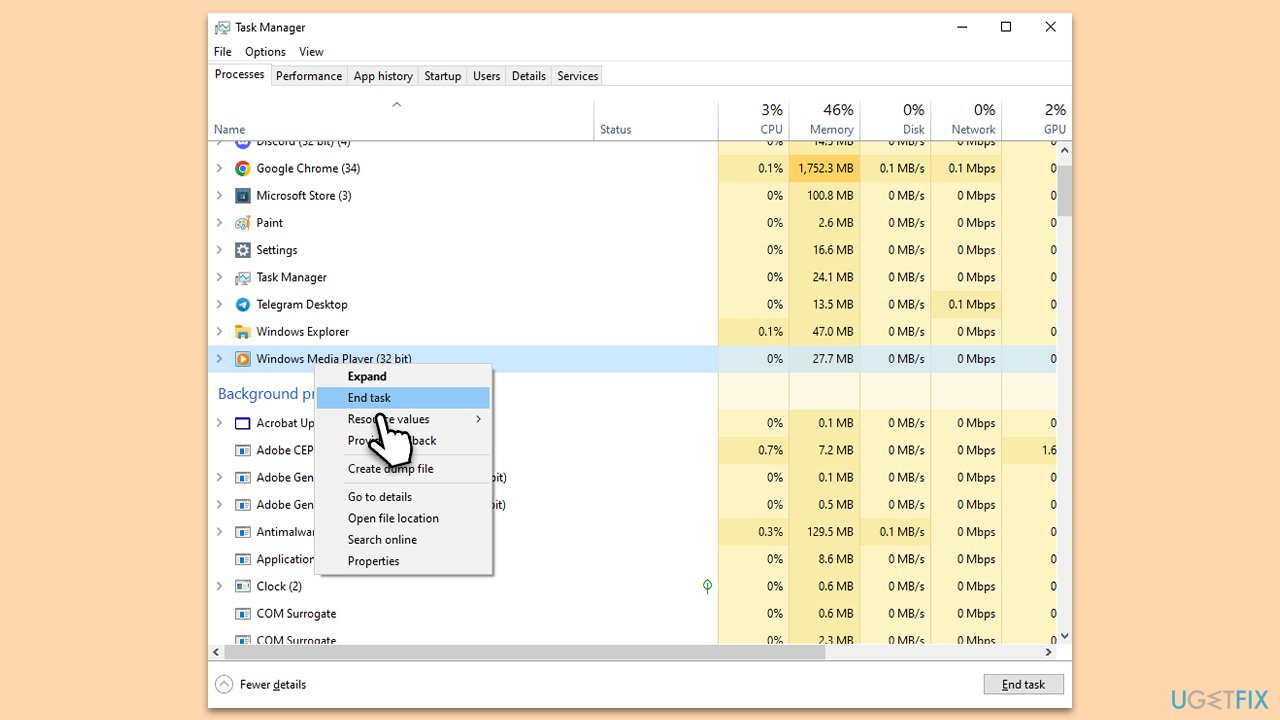
1. Shut down all Media Player processes
In many cases, users managed to solve app issues by shutting down background processes. Here's how:
- Press Ctrl + Shift + Esc to open the Task Manager.
- Click More details if required.
- Scroll down and look for any Media Player entries.
- When found, right-click and select End task.
2. Use the troubleshooters
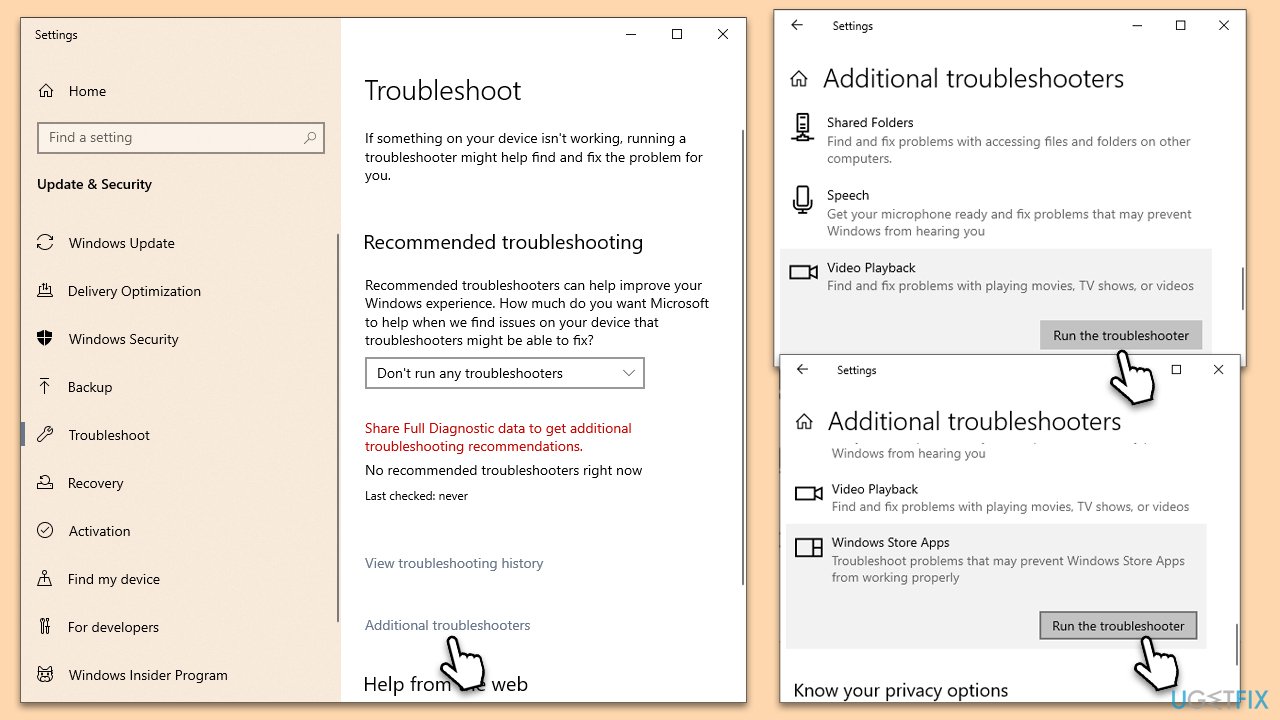
Troubleshooters can often point you in the right direction when having problems with various Windows components. You should run several troubleshooters:
- Type troubleshoot in Windows search and hit Enter.
- Click Additional troubleshooters/Other troubleshooters.
- Locate Video playback.
- Select it and click Run the troubleshooter/Run.
- Wait for the scan to be completed and apply the suggested fixes.
- You should also run the following troubleshooters:
Windows Store Apps
Program Compatibility troubleshooter
Playing Audio.
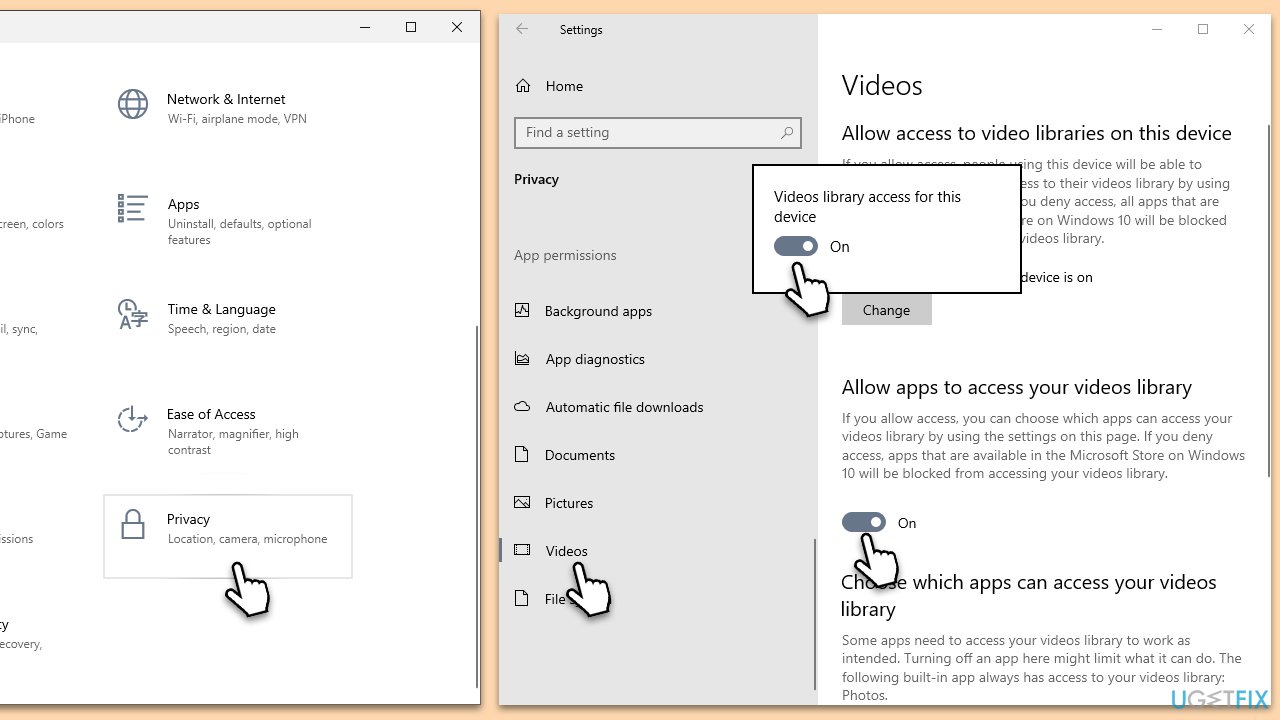
3. Enable Video Library Access
- Right-click on Start and pick Settings.
- Go to the Privacy/Privacy & Security section.
- Scroll down to find the Videos section.
- Turn library access to ON.
- Also, enable the Allow apps to access your videos library option.
4. Reinstall the app
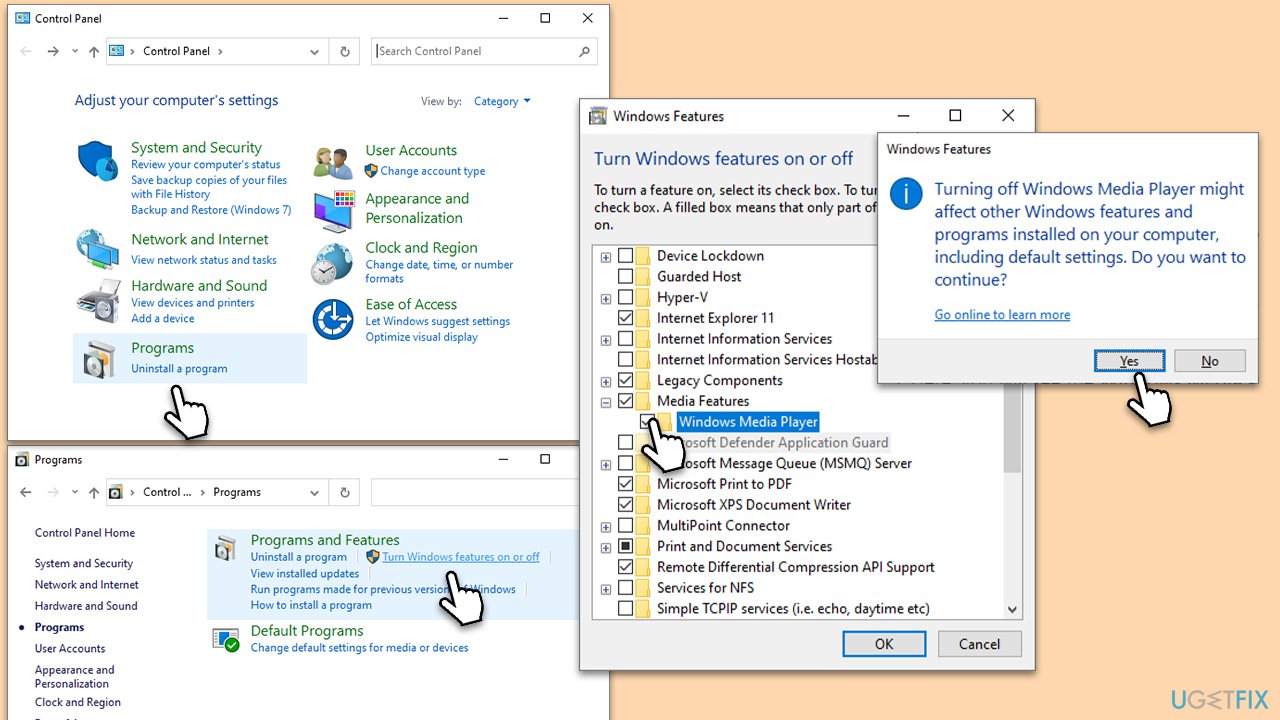
Media Player can not be uninstalled in a traditional way, but instead, the "Turn Windows features on or off" option should be used. Follow these steps:
- Type Control Panel in Windows search and press Enter.
- Go to the Programs section.
- Under Programs and Features, select Turn Windows features on and off.
- Scroll down to locate Media Features and expand it.
- Untick Windows Media Player.
- When the warning shows up, click Yes.
- Click OK and restart your PC.
- After a reboot, follow the same stats but enable Media Player this time and click OK. Reboot and check if that fixed things for you.
5. Re-register associated DLL files
- Type cmd in Windows search.
- Right-click on Command Prompt and select Run as administrator.
- When User Account Control asks you whether you want to allow changes, click Yes.
- In the new window, copy and paste the following, pressing Enter after each of the commands:
regsvr32 vbscript.dll
regsvr32 wmp.dll
regsvr32 jscript.dll - Close down Command Prompt and restart your PC.
6. Apply all updates
Make sure your system is updated to avoid bugs.
- Type Updates in Windows search and press Enter.
- In the new window, click Check for updates.
- Windows might say that optional updates are available - install them too.
- Once all the files are installed, restart your system to implement all updates.
7. Check Windows for corruption
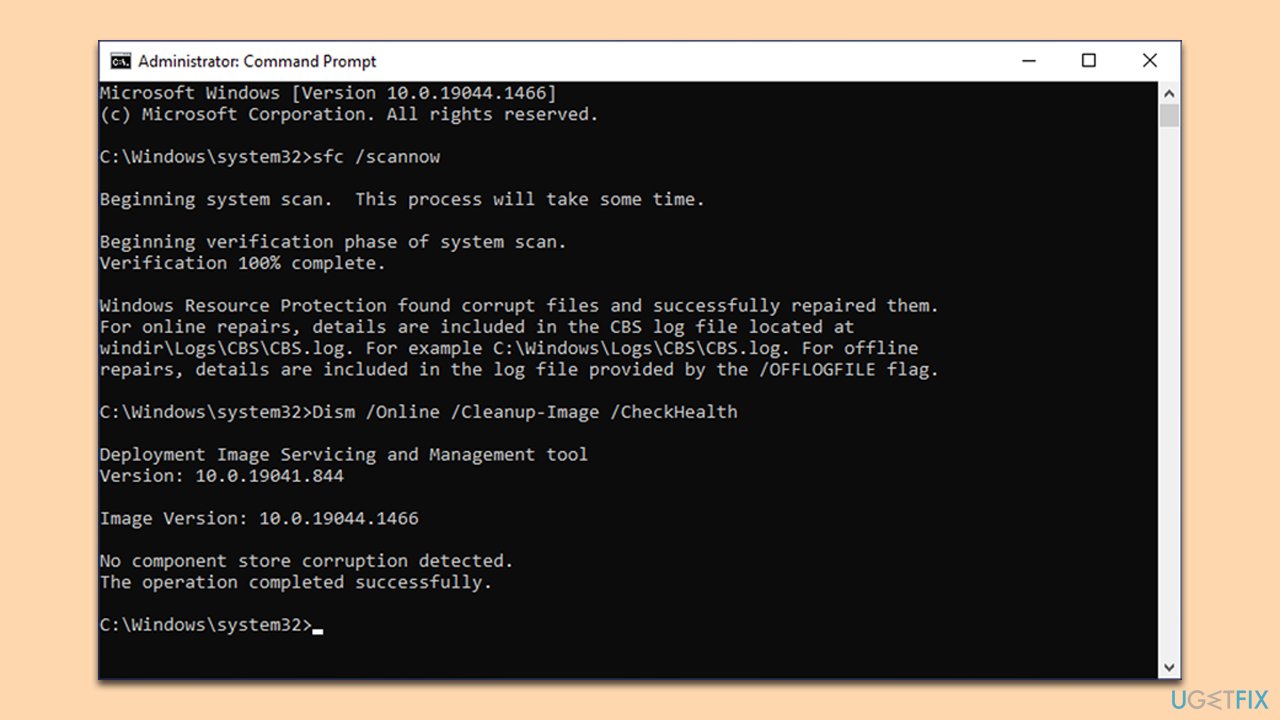
- Open Command Prompt as administrator.
- Paste the following command into the new window:
sfc /scannow - Press Enter and wait till the scan finishes.
- When done, run this set of commands, pressing Enter each time:
DISM /Online /Cleanup-Image /CheckHealth
DISM /Online /Cleanup-Image /ScanHealth
DISM /Online /Cleanup-Image /RestoreHealth - Restart your PC.
Bottom line
To fix Windows Media Player not working, users can check for running background processes, modify security settings for permissions, ensure both the media player and Windows are updated, and re-register or reinstall DLL files. If these solutions do not resolve the issue, further troubleshooting may be necessary.
Frequently asked questions
Try restarting your PC and then check if Windows Media Player opens normally. If not, consider running the Windows Media Player Troubleshooter from the Settings app under Update & Security.
You can install a codec pack, such as K-Lite Codec Pack, to ensure all necessary codecs are available for playback. Alternatively, check for Windows updates, as they may include important media updates.
Windows Media Player may not support some file formats by default; consider converting the files to a compatible format or using a different media player that supports a wider range of formats.




Report an issue
What's wrong with this guide? We review every report and update or remove content.
Report received — thank you. We'll review and fix it.
You need a free account to submit a report.
Be the first to comment