How to fix
Mfc100.dll missing or not found error
on Windows
Resolve the mfc100.dll missing error on Windows 10 or 11 quickly with expert solutions. Enjoy seamless performance with our detailed guide, fixed in min…


What causes How to fix mfc100.dll missing or not found error in Windows?
- Missing DLL file due to unintentional deletion
- Improper software installation
- Conflicts with other programs
- Corrupt system files due to hardware problems
- Malware infection affecting DLL files
Repairs Windows system files, removes malware, and restores a clean OS state — without reinstalling.
Hello. When I try to install drivers on my Windows PC I get the mfc100.dll is missing or not found errors. Is there a way to fix this?
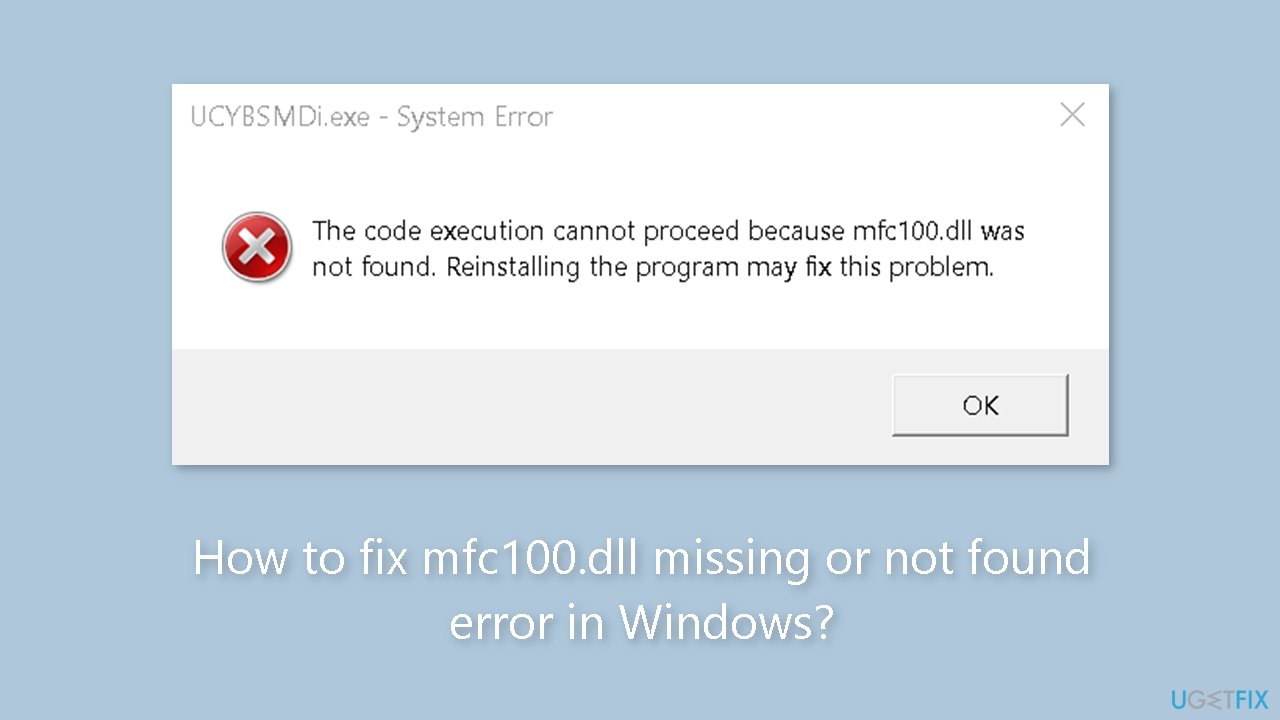
The "mfc100.dll missing or not found" error is a common problem that Windows users face. It happens when the operating system cannot find the "mfc100.dll" file, which is a Dynamic Link Library (DLL)[ref en-1] that certain applications use to access specific functions and resources. This error message can be caused by a number of factors.
One possible reason is that the DLL file is missing from the system. This can occur as a result of an unintentional deletion, improper software installation, or conflicts with other programs. Another possible cause is corrupt system files, which can occur as a result of hardware problems, software conflicts, or system crashes.
In some cases, the error could indicate a malware infection. Malicious software can modify or delete DLL files, resulting in errors. This is especially concerning because malware can compromise system security and cause a variety of problems, such as data theft or unauthorized access.
The "mfc100.dll missing or not found" error can have a significant impact on users in a number of ways. It can prevent certain applications from launching properly or at all. Users may experience frequent system crashes, freezes, or decreased system performance. The error message itself can be frustrating and disruptive, reducing productivity and inconveniencing users.
To resolve the "mfc100.dll missing or not found" error, there are a few potential solutions. In this guide, you will find 6 steps that should help you fix mfc100.dll missing or not found error in Windows. You can also use a repair tool like [d1] that can fix most system errors, BSODs,[ref en-2] corrupted files, and registry[ref en-3] issues. Otherwise, follow the step-by-step instructions below.
Solution 1. Fix Corrupted System Files
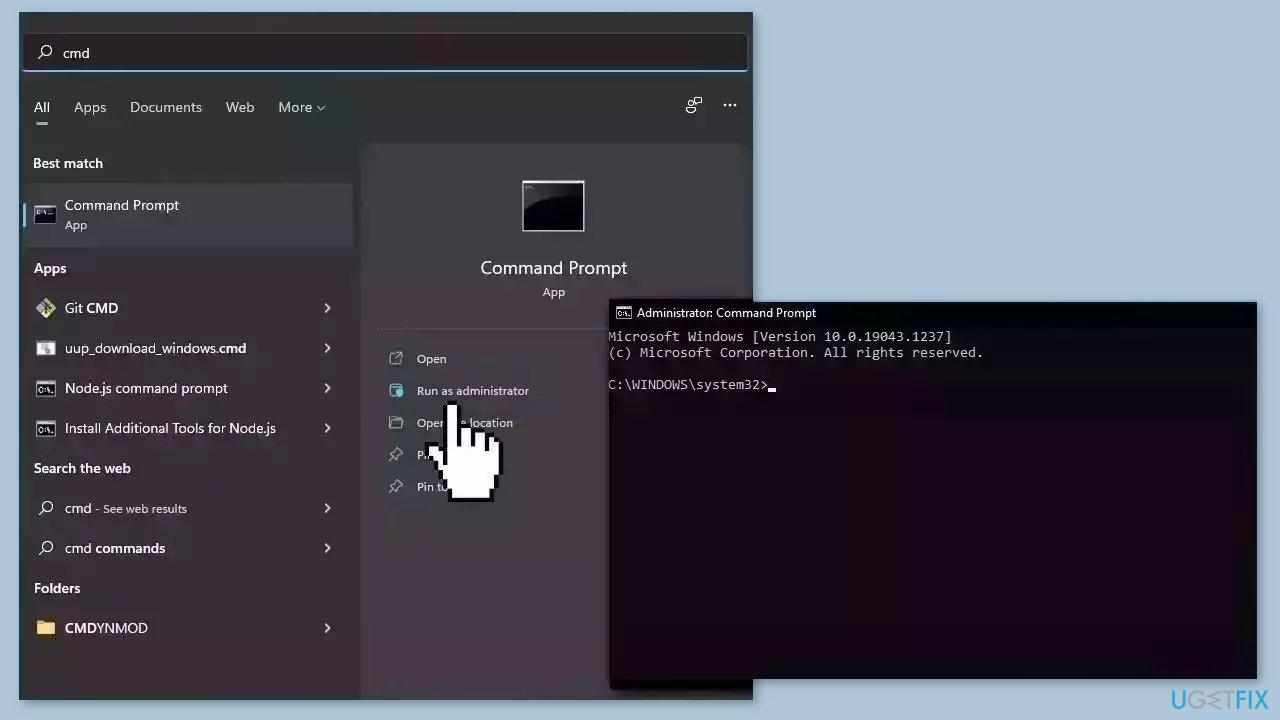
Use Command Prompt commands to repair system file corruption:
- Open Command Prompt as administrator
- Use the following command and press Enter:
sfc /scannow
- Reboot your system
- If SFC returned an error, then use the following command lines, pressing Enter after each:
DISM /Online /Cleanup-Image /CheckHealth
DISM /Online /Cleanup-Image /ScanHealth
DISM /Online /Cleanup-Image /RestoreHealth
Solution 2. Scan for Malware
It is possible that a malware infection may be the cause of mfc100.dll missing or not found error in Windows. It is important to run a comprehensive security scan to rule out this possibility and ensure that the computer is not infected. This can help to prevent further issues with the Windows operating system and ensure that it is functioning properly.
If you have access to a security scanner, or if your organization pays for one, you can use it to scan your entire system to check for a virus infection. Otherwise, you can use Windows Defender to scan your system:
- Click on the Windows Start menu or press the Windows key on your keyboard.
- Type Microsoft Defender in the search bar and click on Microsoft Defender Antivirus to open the application.
- Click on the Virus & threat protection option in the left-hand menu.
- Click on the Quick scan or Full scan option, depending on your preference.
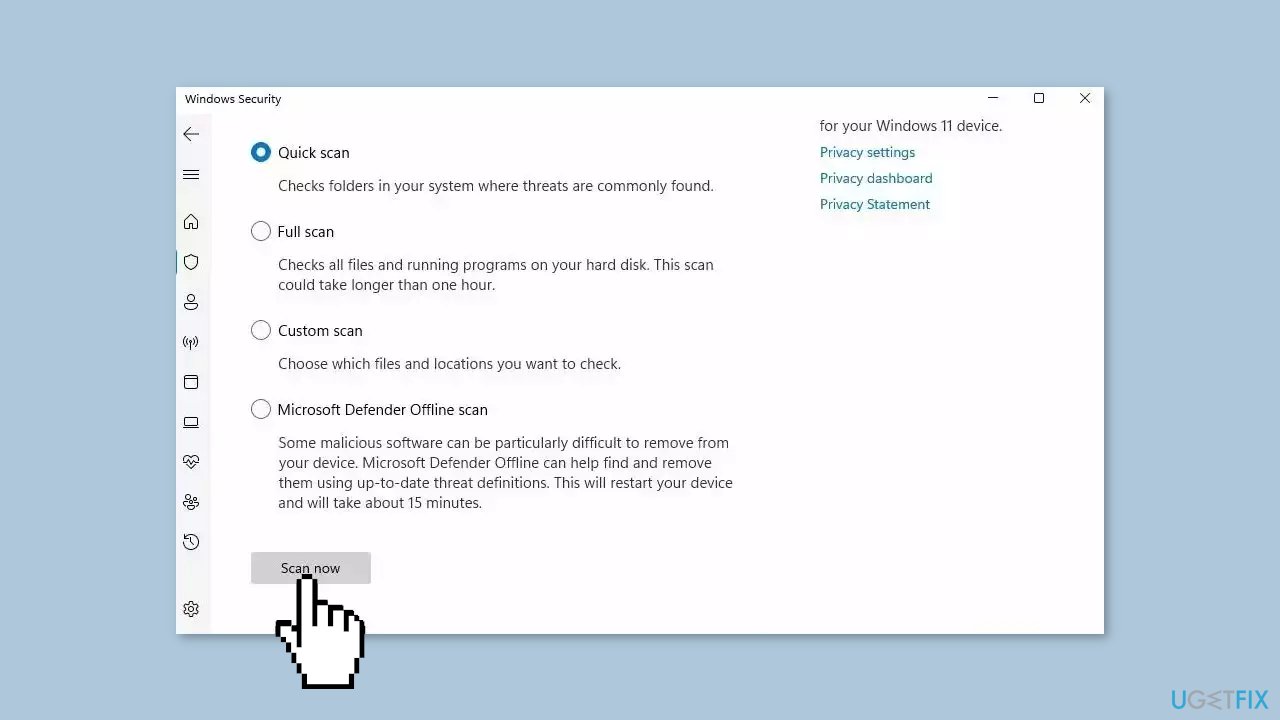
- If you choose Quick scan, Microsoft Defender Antivirus will scan the most vulnerable and commonly infected areas of your computer.
- If you choose Full scan, Microsoft Defender Antivirus will scan your entire computer, including all files, folders, and programs.
- Click on the Scan now button to start the selected scan type and wait for the scan to complete.
- The time it takes will depend on the size of your hard drive and the number of files being scanned.
- Once the scan is complete, you will be informed of any detected threats, and you can choose to quarantine or remove them.
- If no threats are found, Microsoft Defender Antivirus will inform you that your device is secure.
Solution 3. Reinstall the Affected App
- Press the Windows key + R simultaneously to open the Run dialog box.
- Type appwiz.cpl in the text field of the Run dialog box.
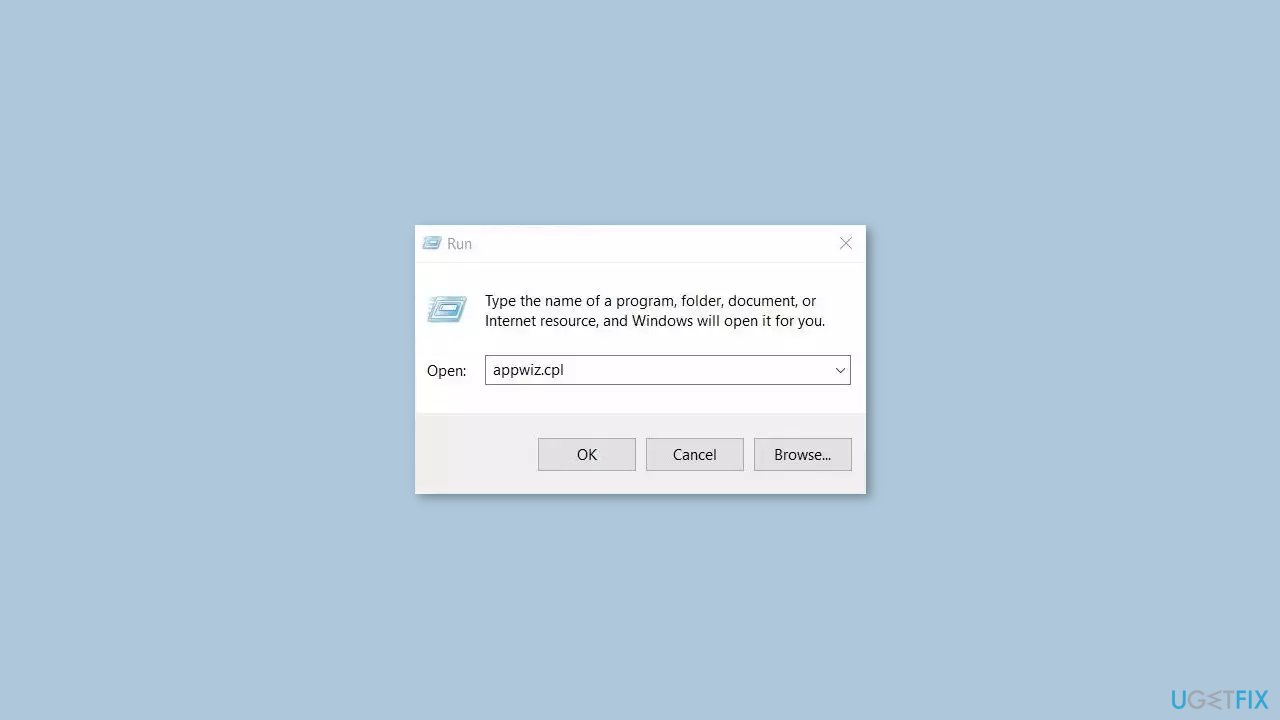
- Hit the Enter key to open the Programs and Features window in the Control Panel.
- In the Programs and Features window, locate the application that is displaying the error.
- Select the application and click the Uninstall button.
- Follow the on-screen instructions to complete the uninstallation process of the application.
- Once the application is uninstalled, open a reliable download source such as the official website or Microsoft Store.
- Download the application again from the source.
- Install the application on your system as per the on-screen instructions.
Solution 4. Install the Microsoft Visual C++ 2010 Redistributable Package
- Open a web browser and navigate to the Microsoft Download Center.
- Click on the appropriate version of the Redistributable Package that matches your system architecture (32-bit or 64-bit).
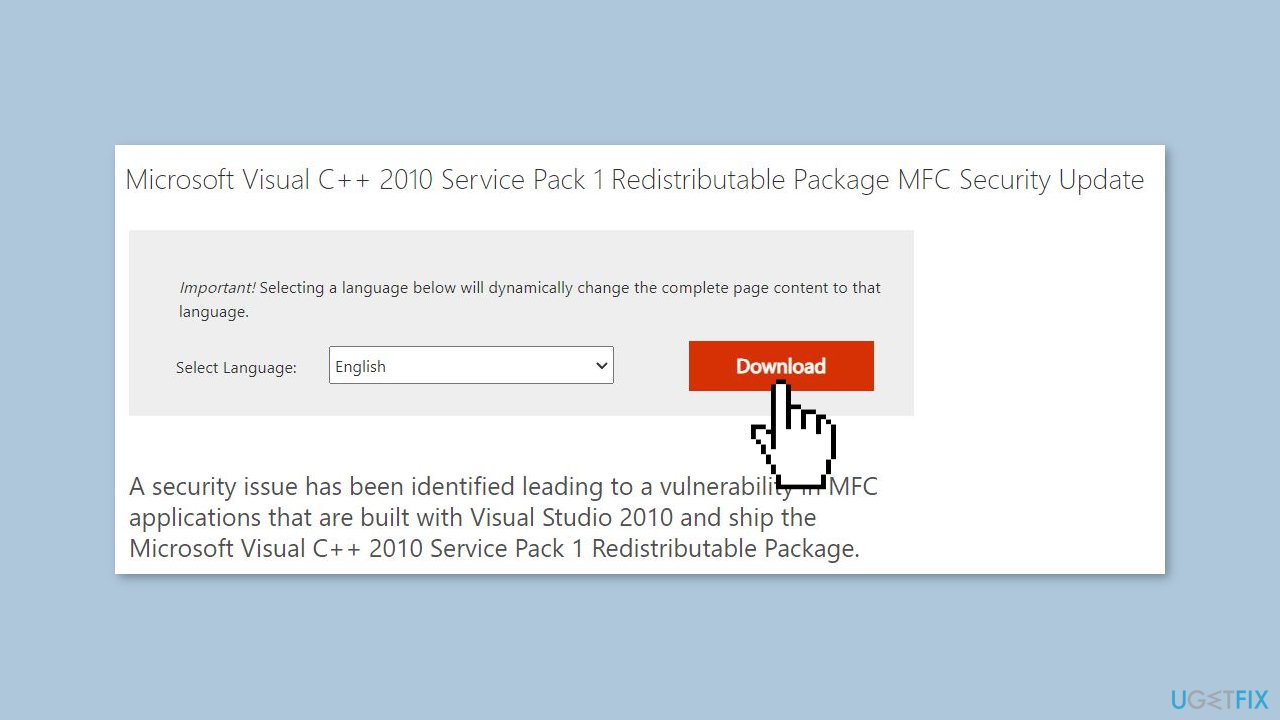
- On the download page, review the details and system requirements to ensure compatibility with your operating system.
- Click on the Download button to initiate the download process.
- Once the download is complete, locate the downloaded file (usually in the Downloads folder).
- Double-click on the downloaded file to start the installation process.
- Follow the on-screen prompts and instructions provided by the installer.
- Review the license terms and conditions, and if you agree, select the checkbox indicating your acceptance.
- Choose the installation options, such as the installation directory and whether to repair or remove the existing installation.
- Click on the Install or Next button to proceed with the installation.
- Wait for the installation process to complete.
Solution 5. Use System Restore
System Restore is a feature in Microsoft Windows that allows users to revert their computer's state to a previous point in time. This can be helpful if you have made changes to your system that are causing problems.
- Press the Windows key + R on your keyboard to open the Run box.
- Type SystemPropertiesProtection and press Enter.
- Go to the System Protection tab.
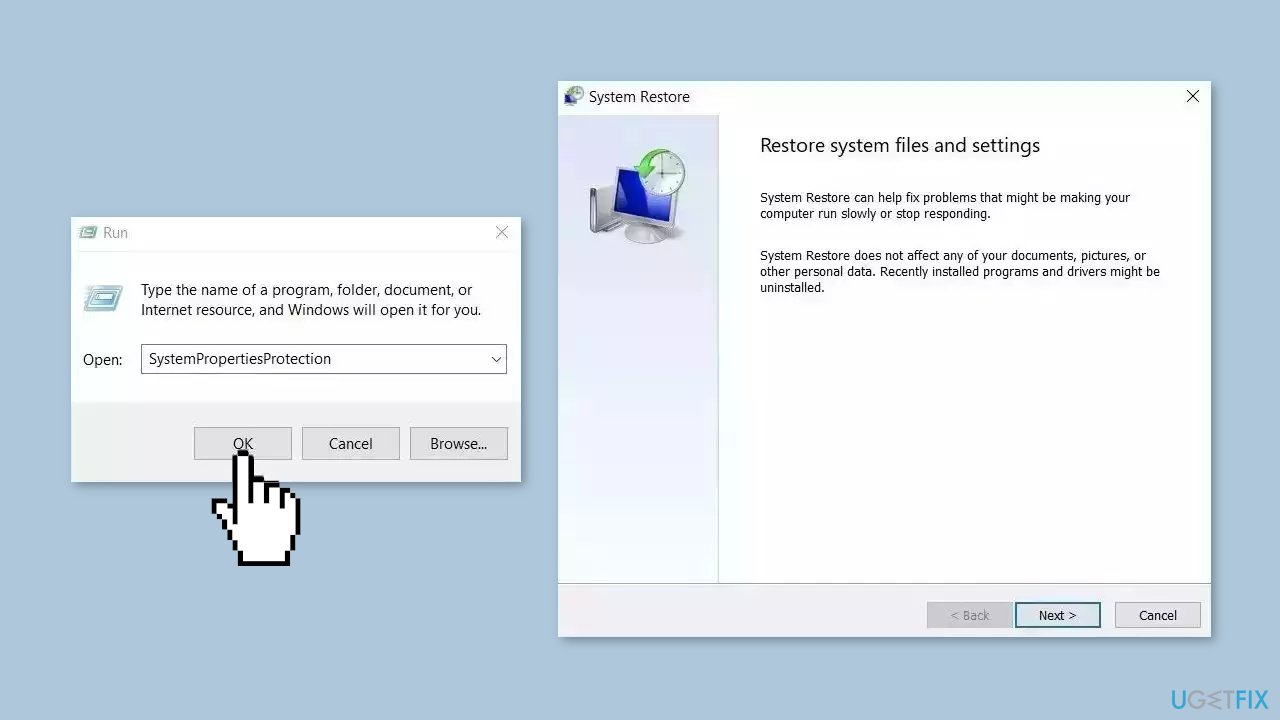
- You will see the System Restore… button. Click it to run System Restore.
- Follow the prompts until you can select a restore point.
- Select the one you want (ideally before the issue started occurring) and go ahead with the process.
Solution 6. Repair Install Windows
- Visit the official Microsoft website to download Windows 11 or Windows 10 Installation Media.
- Run the Media Creation Tool and select Create Installation Media for another PC.
- Select your USB drive.
- Let the Process complete of writing the Installation files to the USB drive.
- Click Finish.
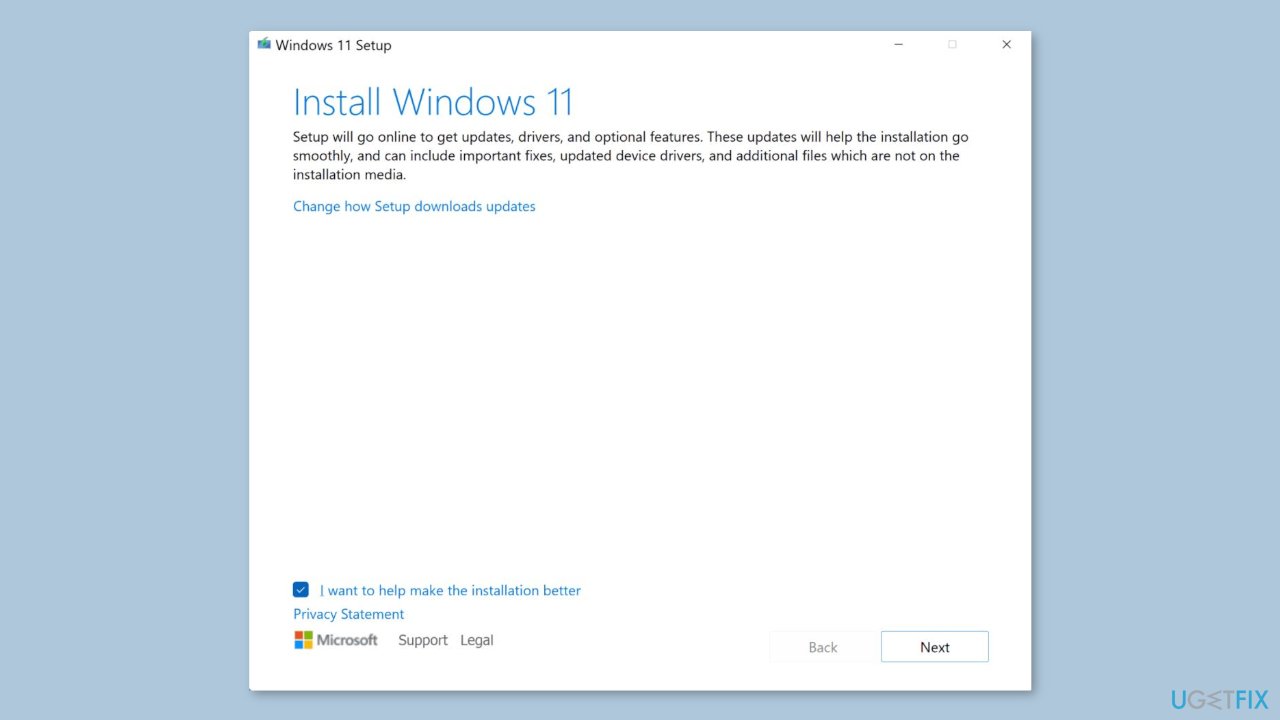
- On the PC you wish to upgrade, Press Windows + E to open the File Explorer.
- Open the Removable drive and click Setup.exe.
- Accept the license terms on the next screen.
- Confirm the Upgrade options – Files, apps and Settings are kept.
- Click Install, and the upgrade should start.
Bottom line
To resolve the 'mfc100.dll missing or not found' error, you can fix corrupted system files using Command Prompt commands, or consider using a repair tool to address system errors. If these solutions do not work, further investigation into the system may be necessary.
Frequently asked questions
The mfc100.dll missing error in Windows 10 is often caused by a corrupted installation of applications that rely on the Microsoft Visual C++ Redistributable package. This can occur after a system update or if the DLL file was accidentally deleted.
It is not recommended to manually download mfc100.dll from third-party websites due to security risks; instead, you should reinstall the Microsoft Visual C++ Redistributable for Visual Studio 2010. This will ensure you have the correct and safe version of the DLL file.
Reinstalling Windows 10 can resolve the mfc100.dll not found error, but it is usually a last resort. Before that, try repairing the Visual C++ Redistributable or running a System File Checker scan.




Report an issue
What's wrong with this guide? We review every report and update or remove content.
Report received — thank you. We'll review and fix it.
You need a free account to submit a report.
Be the first to comment