How to fix
Mfc90.dll missing or not found error
on Windows
Resolve the mfc90.dll missing error on Windows 10 or 11 effortlessly. Get expert-tested solutions and fix it in minutes!

What causes How to fix mfc90.dll missing or not found error in Windows?
- Accidental deletion
- Malware infections
- Recent software installations
- Corrupted files
- Compatibility problems
Repairs Windows system files, removes malware, and restores a clean OS state — without reinstalling.
Hi. When I try to launch MSI Afterburner, it doesn't start and I receive the "mfc90.dll is missing" message instead. Could you help me with this, please?
Dynamic Link Libraries (DLL) are fundamental components in the Windows operating system. These files contain code and data that multiple programs can use simultaneously, promoting code reuse and efficient memory usage.
However, despite their benefits, DLL files can sometimes lead to issues if they become corrupted, are missing, or encounter compatibility problems. One common error that users may face is the "mfc90.dll missing or not found" error. This error can disrupt the normal functioning of applications that rely on this specific DLL file.
The mfc90.dll file is a part of the Microsoft Foundation Class (MFC) Library version 9.0, which is used to develop and execute applications with rich user interfaces, automation support, and database connectivity.
Essentially, it's a library that helps software developers create applications in a more efficient way, leveraging pre-coded solutions for common programming tasks. When this file is missing or corrupted, applications that depend on the MFC Library version 9.0 may fail to start or run properly, leading to potential productivity disruptions and user frustration.
The absence or corruption of the mfc90.dll file can be attributed to several factors including accidental deletion, malware infections, or issues arising from recent software installations or updates that may overwrite or damage existing files.
There are a few things you can do to fix the "mfc90.dll missing or not found" error. Initially, reinstalling the application that is causing the error usually addresses the problem by ensuring that the relevant DLL file is successfully installed.
For more persistent issues, running a malware scan and a potent PC repair [d1] can potentially resolve issues with DLL files. Furthermore, upgrading the Windows operating system and fixing any corrupted system files will successfully restore the missing DLL, allowing your apps to function normally once again.
Fix 1. Reinstall the affected application
Reinstalling the program that's giving the error message can replace the missing mfc90.dll file if it was accidentally deleted or corrupted.
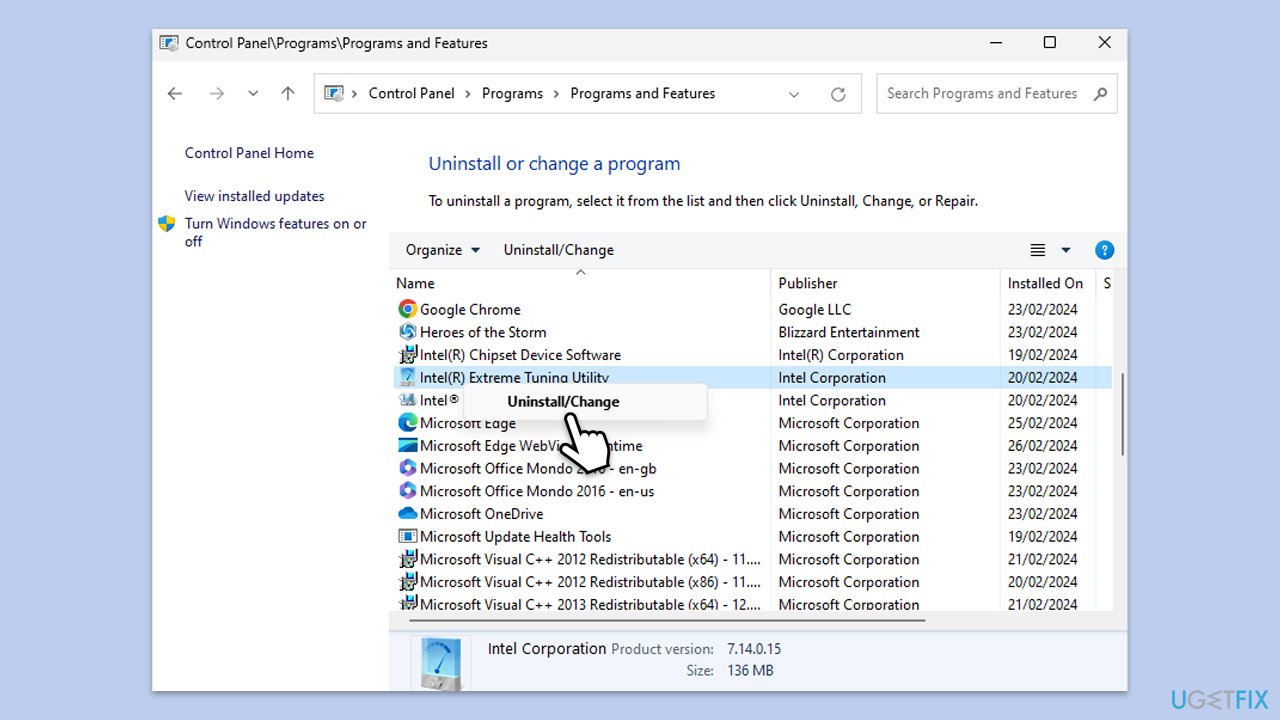
- Type Control Panel in Windows search and press Enter.
- Navigate to Programs > Uninstall a program.
- Select the program related to the error (for example, MSI Afterburner), then click Uninstall.
- Restart your computer.
- Download the latest version of the program from the official website or use the original installation media.
- Install the program following the on-screen instructions.
Fix 2. Run a malware scan
Malware can sometimes delete or corrupt DLL files. Running a comprehensive malware scan can remove the infection and potentially fix the error.
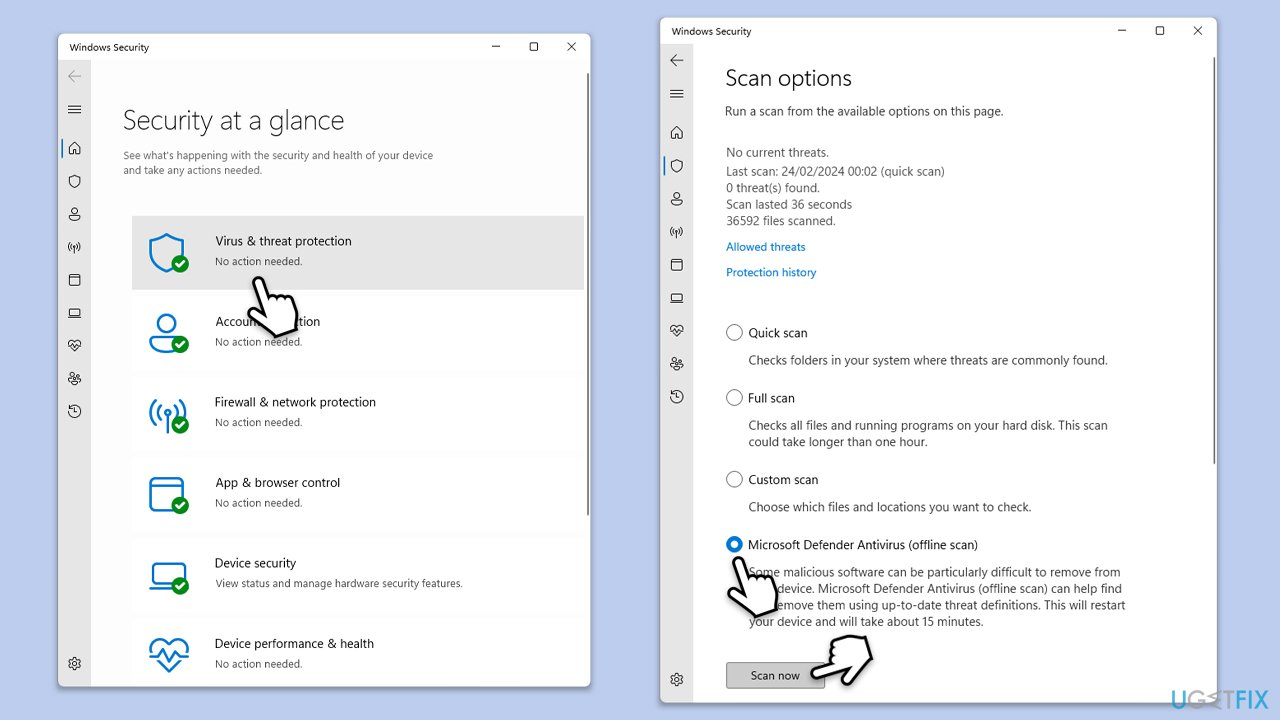
- Type Windows Security in the Windows search bar and hit Enter.
- Select Virus & threat protection.
- Pick Scan options.
- Choose Microsoft Defender Offline scan and click Scan now.
- Your computer will immediately reboot and begin a deep scan.
Fix 3. Update Windows
Keeping your operating system up to date can resolve compatibility issues and replace missing files.
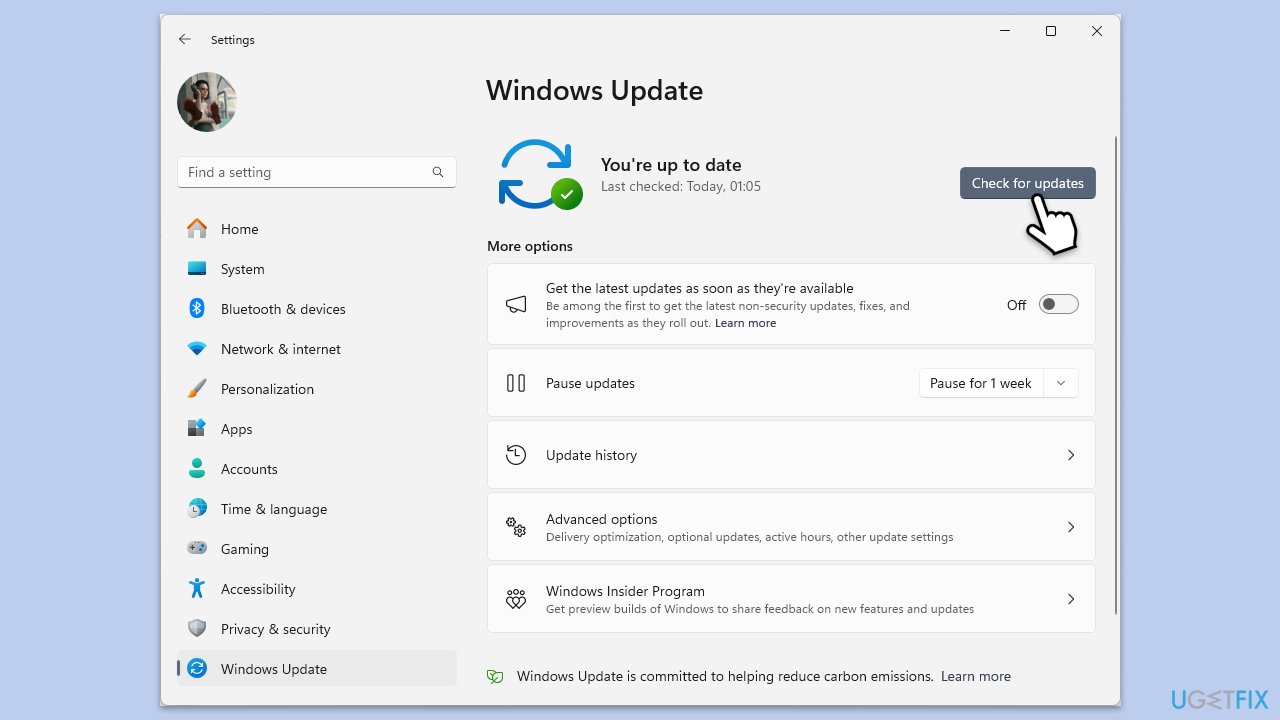
- Type Updates in Windows search and press Enter.
- On the right side of the window, press Check for updates.
- If there are optional updates available, install them as well.
- Restart your system.
Fix 4. Repair corrupted files
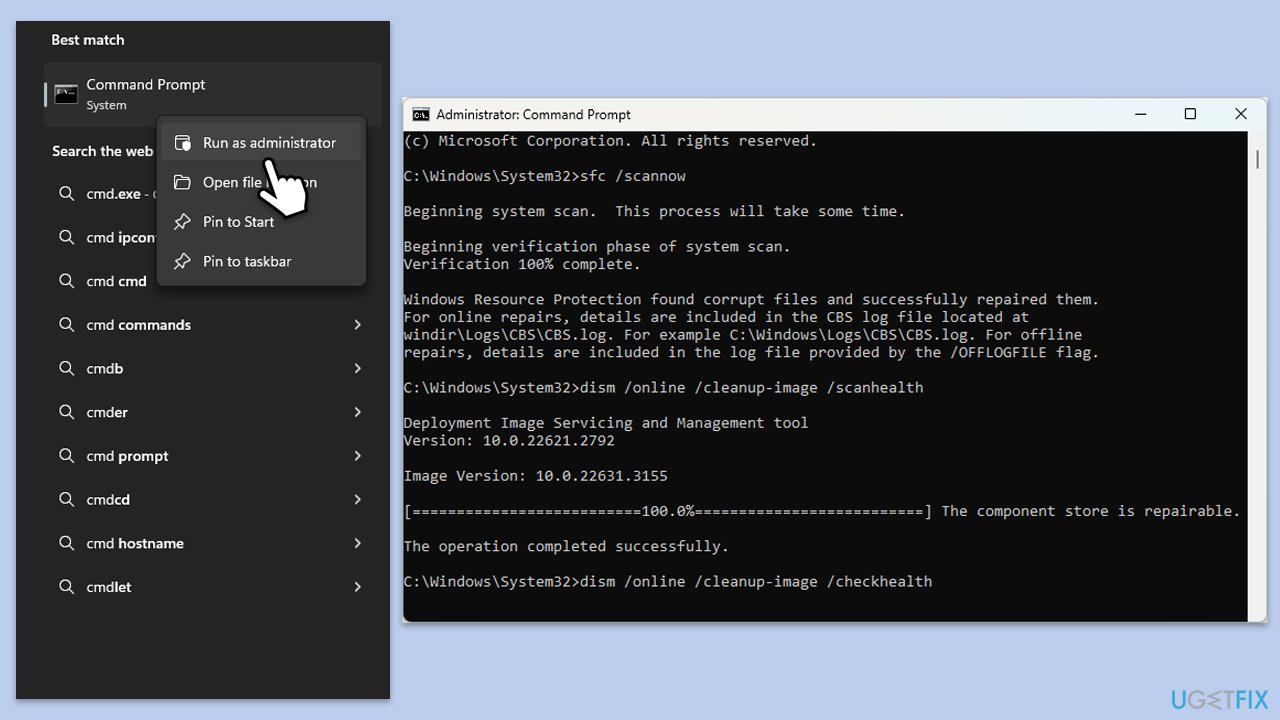
The SFC tool scans for and repairs corrupted or missing system files, including DLL files. DISM can also check for Windows image issues.
- Type cmd in Windows search, right-click on Command Prompt, and select Run as administrator.
- When UAC shows up, click Yes.
- Copy and paste the following command, pressing Enter after:
sfc /scannow - Wait till the scan is finished. If Windows finds system file integrity violations, it will attempt to fix them. After this, use the set of the following commands, pressing Enter each time:
DISM /Online /Cleanup-Image /CheckHealth
DISM /Online /Cleanup-Image /ScanHealth
DISM /Online /Cleanup-Image /RestoreHealth - Close down the Command Prompt and restart your device.
Fix 5. Install Microsoft Visual C++ Redistributable Package
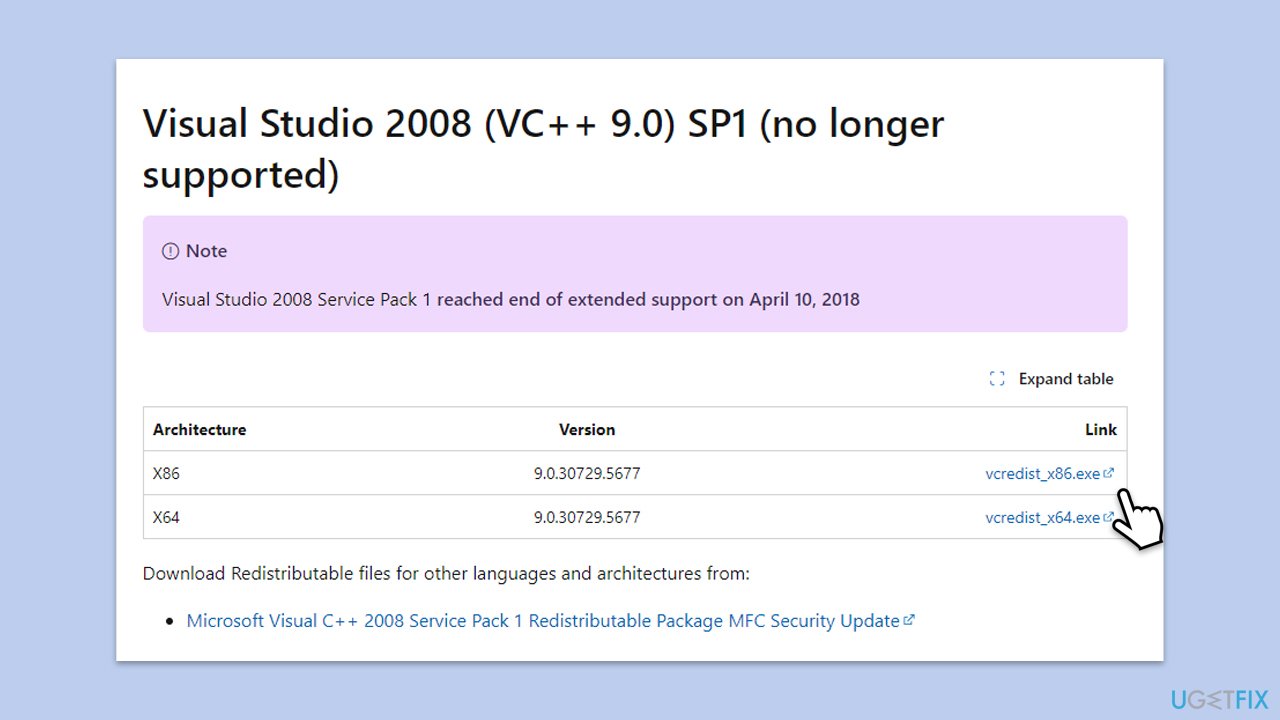
Since mfc90.dll is part of the Microsoft Visual C++ 2008 Redistributable Package, installing or repairing this package can restore the file. If you already have this package installed, uninstall it first and then proceed with the following:
- Visit the official Microsoft website and download the Microsoft Visual C++ 2008 Redistributable Package.
- Run the downloaded installer.
- Follow the on-screen instructions to complete the installation.
- Restart your computer.
Fix 6. Restore your system using System Restore
If you suspect the error occurred after a recent change in your system, using System Restore to revert to a previous state might help.
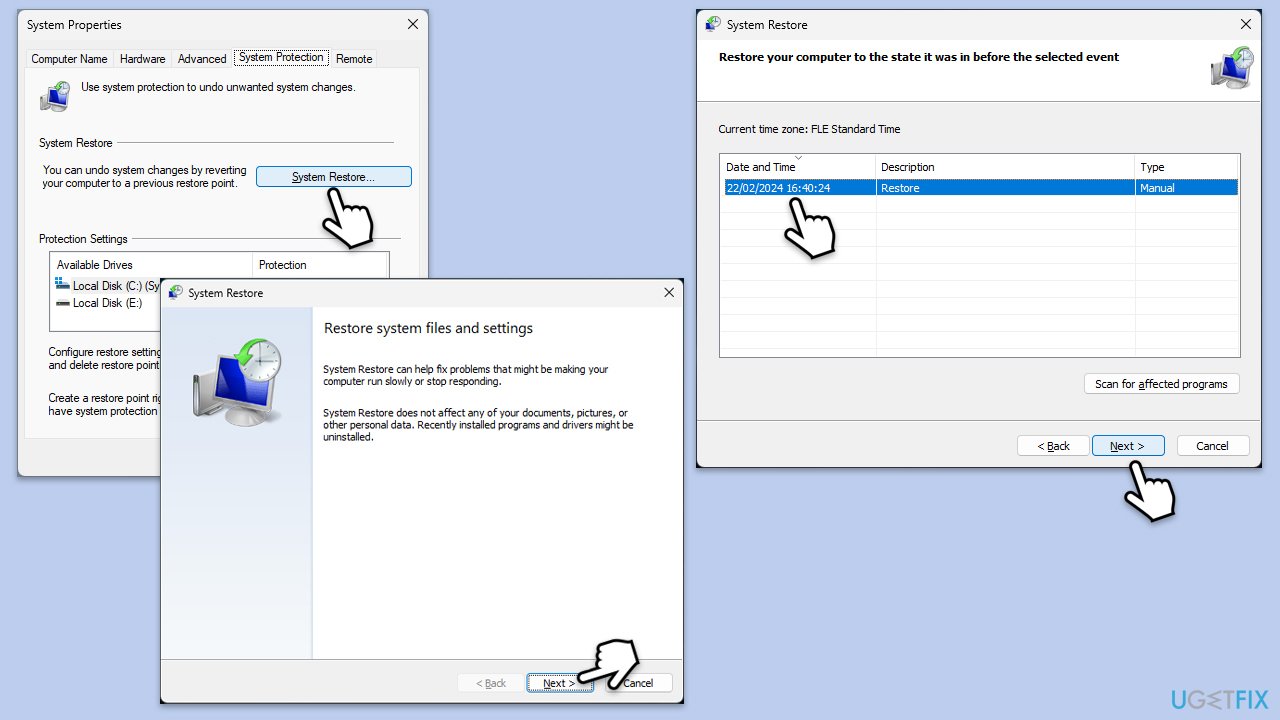
- Type in Create a Restore point in Windows search and hit Enter.
- Go to the System Protection tab and pick System Restore.
- Click Next.
- Click Show more restore points (if available).
- Pick the time before the problem occurred and click Next.
- Follow the prompts to finish the process.
Fix 7. Repair-install Windows
If all else fails, a clean install of Windows can resolve persistent issues but will remove all data and programs.
Create Windows ISO
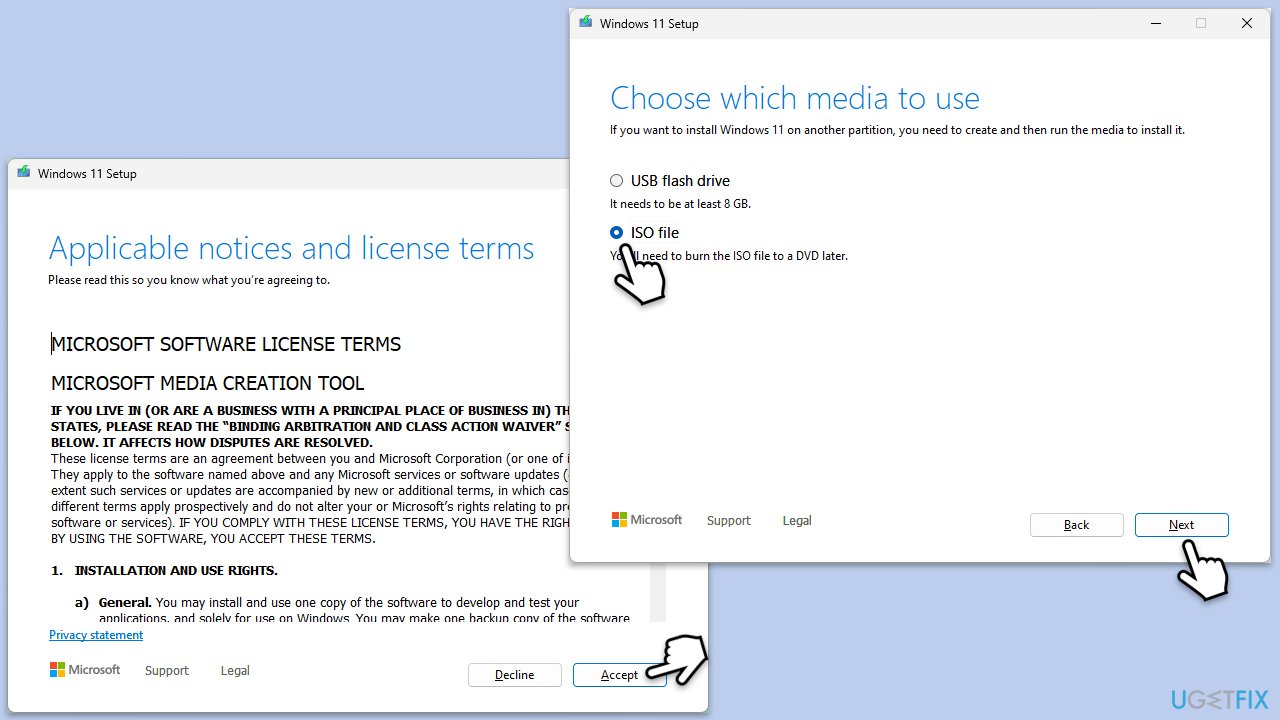
- Download Windows 11 Installation media from the official Microsoft website. [Windows 10 version]
- Double-click the MediaCreationTool.exe file to launch it.
- When UAC shows up, click Yes.
- Accept license terms.
- Select Language and Edition (make sure it matches the one you have currently installed) or simply mark the Use the recommended options for this PC and click Next).
- Select the ISO file and click Next.
- Pick the location for your ISO file and wait till all the needed files are downloaded, then click Finish.
Repair-install Windows
- Go to the location of your ISO file, right-click, and select Mount.
- Run the setup.exe file.
- You will be asked whether you want to update Windows to the latest version - pick Not right now and click Next.
- Accept Terms and Windows will make several checks to ensure everything is fine.
- Click Change what to keep.
- Here, you have several options: Keep your files and apps, Keep files only, or Keep nothing - choose what suits you the best. Click Next.
- Finally, click Install to begin the installation process.
Bottom line
To fix the 'mfc90.dll missing or not found' error, you can try reinstalling the affected application, running a malware scan, or upgrading your Windows operating system. If these solutions do not resolve the issue, consider running a PC repair tool to address potential system file corruption.
Frequently asked questions
You can try reinstalling the Microsoft Visual C++ Redistributable Package, as it often resolves the mfc90.dll missing error on Windows 10.
You can restore the mfc90.dll file by downloading it from a reliable source and placing it in the appropriate system directory, usually C:\Windows\System32.
Yes, you can use a reliable DLL repair tool that scans for and repairs corrupted or missing DLL files, including mfc90.dll, on both Windows 10 and Windows 11.




Report an issue
What's wrong with this guide? We review every report and update or remove content.
Report received — thank you. We'll review and fix it.
You need a free account to submit a report.
Be the first to comment