How to fix
Mfehidk.sys BSOD error
on Windows
Resolve the mfehidk.sys BSOD error in Windows 10 or 11 quickly with our expert-tested solutions. Get your PC running smoothly again—fixed in minutes!

What causes How to fix mfehidk.sys BSOD error in Windows?
- Conflicts with other software
- Corrupted system files
- Hardware issues
- Malfunctioning McAfee software
Repairs Windows system files, removes malware, and restores a clean OS state — without reinstalling.
Hello, I'd like you to help me. I keep getting crashes that indicate issues with mfehidk.sys file. I have no idea what this is or how to address this. I am using Windows 10 with all the latest updates installed.
Blue Screen of Death (BSOD) is a familiar term for many Windows users, signaling a critical system crash that halts all operations. When a computer encounters a severe error it cannot recover from, it displays a blue screen with a specific error code. This error code is vital for diagnosing the root cause of the crash.
In some instances, the BSOD also names the file responsible for the crash, offering a clue about the malfunctioning component of the system. One such file frequently mentioned in these error codes is mfehidk.sys, which is a component of McAfee's anti-malware software. While this file is integral to the functioning of McAfee's security suite, it can sometimes be the source of system instability.
The mfehidk.sys BSOD error is not just an indicator of a problem with the McAfee software; it might also point to broader issues within your PC. The file mfehidk.sys is designed to protect your computer from malware, but like any software, it can encounter errors.
These errors might arise due to conflicts with other software, corrupted system files, or even hardware issues. If you're facing a mfehidk.sys BSOD, it's a sign that your system's stability is compromised, possibly due to the malfunctioning of this particular file.
To fix mfehidk.sys Blue Screen, a straightforward approach is to completely uninstall McAfee and all its components using the official McAfee removal tool. This action often resolves the immediate issue by removing the problematic file from your system.
However, if this doesn't rectify the situation, further steps might be necessary. It's advisable to perform additional checks, such as examining your PC's RAM for errors or ensuring that all your drivers are up to date. These measures can help identify and solve other underlying issues that might be contributing to the system's instability.
If you would instead rely on easier solutions for BSODs, registry, or DLL errors, as well as other issues, we recommend employing powerful repair software [d1], which can determine the root cause quickly and fix these issues automatically.
Fix 1. Uninstall McAfee using a dedicated removal tool
Uninstalling McAfee using its dedicated removal tool is a targeted approach to resolve the mfehidk.sys BSOD. This tool ensures that all components of the McAfee software are completely removed from your system, which is crucial as incomplete removals can leave behind remnants that may continue to cause issues.
- Type Control Panel in Windows search and press Enter.
- Go to Programs > Uninstall a program.
- Find all McAfee entries and uninstall them.
- Next, open the web browser and download the removal tool on the official website or follow the direct download link.
- Once you download the MCPR.exe file, double-click it to launch it. If the UAC shows up, click Yes.
- Click Next and Agree.
- Enter the Security Validation code and click Next.
- Once you see the "Removal Complete" message, hit the Restart button to reboot your system.

Fix 2. Check your RAM
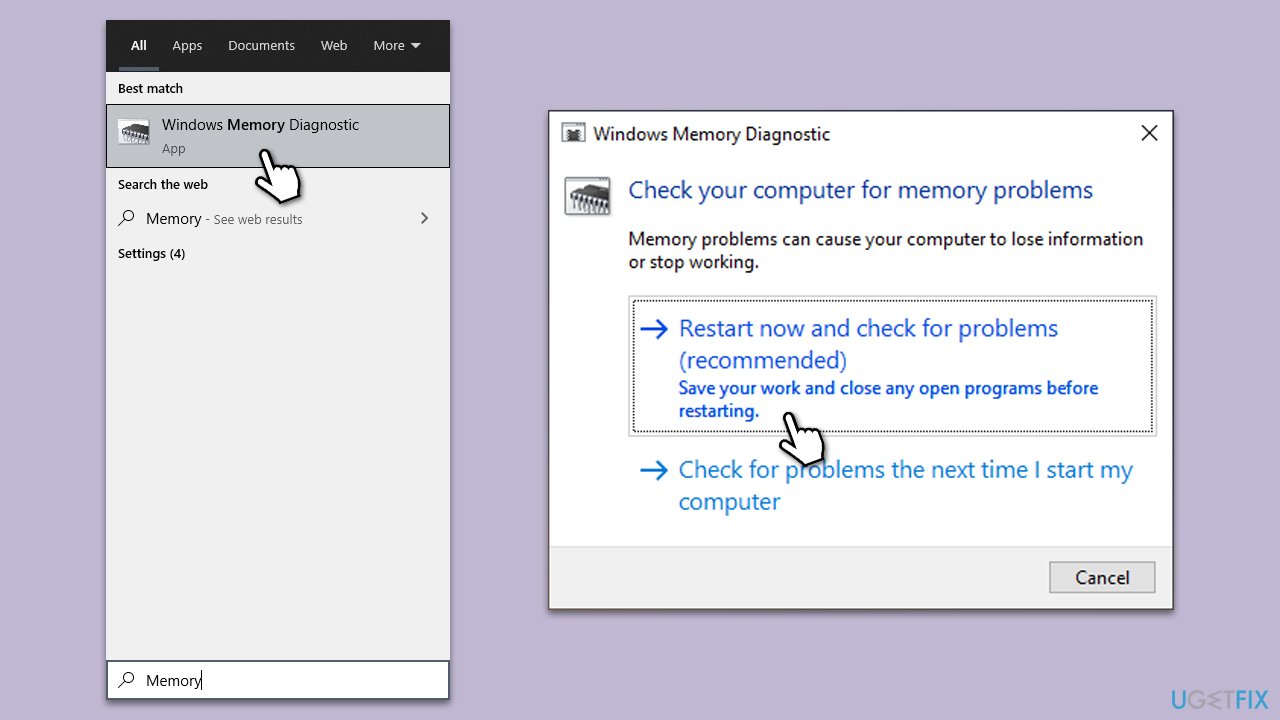
Running the Windows Memory Diagnostic tool helps in checking for and identifying issues with your computer's memory (RAM), which can be a common source of BSODs. This diagnostic tool scans your memory for errors and can provide insights into whether your RAM is functioning properly.
- Type Memory in Windows search and press Enter.
- Select Windows Memory Diagnostics result.
- Click Restart now and check for problems (recommended) (note that your PC will restart immediately).The
- A memory test will run during startup and display any detected errors - this might take a while.
- Replace or repair faulty RAM module(s) if errors are found.
Fix 3. Install all Windows updates
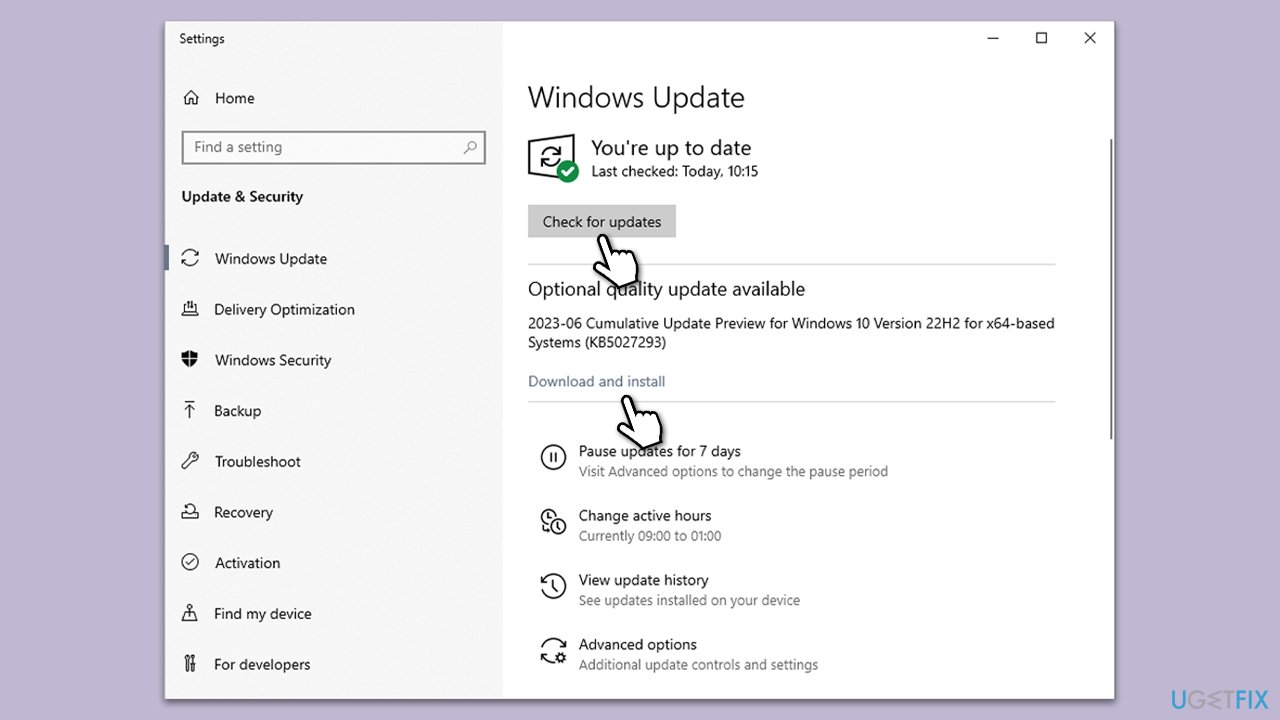
Updates often include patches for known bugs and vulnerabilities that can cause BSODs. By installing all available Windows updates, you ensure that your system has the latest fixes and improvements, which can help prevent PC issues.
- Type Updates in Windows search and press Enter.
- In the new window, click Check for updates.
- Wait till all the files are downloaded and installed.
- If optional updates are available, install them as well.
- Restart your computer after the update process completes.
Fix 4. Resolve system file corruption issues
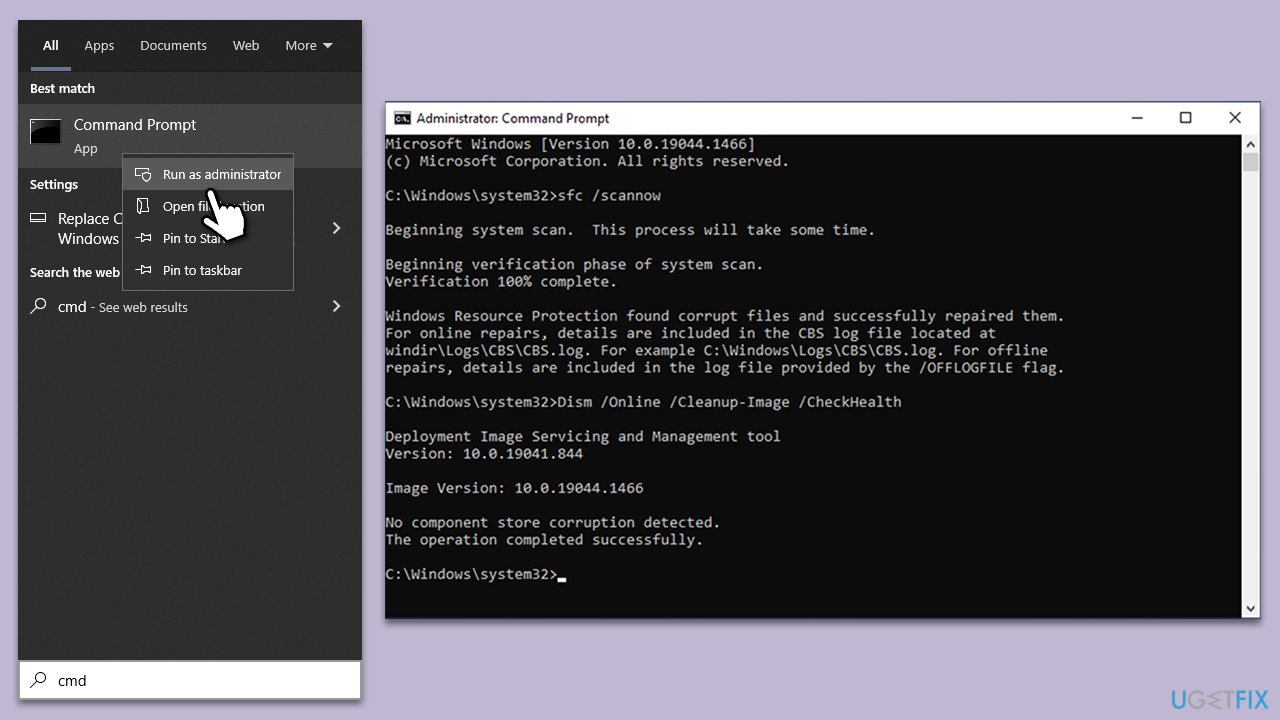
System File Checker and Deployment Image Servicing and Management are built-in Windows tools that help in repairing corrupt system files and maintaining the health of your operating system. Running these scans can resolve issues related to system file corruption, which might be causing the mfehidk.sys BSOD.
- Type in cmd in Windows search.
- Right-click on Command Prompt and select Run as administrator.
- In the User Account Control window, click Yes.
- In the Command Prompt window, paste the following command and hit Enter:
sfc /scannow - Next, use the following commands, pressing Enter each time:
Dism /Online /Cleanup-Image /CheckHealth
Dism /Online /Cleanup-Image /ScanHealth
Dism /Online /Cleanup-Image /RestoreHealth
(Note: if you get an error executing this last command, add /Source:C:\RepairSource\Windows /LimitAccess to it and try again). - Reboot your system.
Fix 5. Update chipset drivers
Outdated or corrupt chipset drivers can lead to system instability and BSODs. By keeping these drivers up to date, you can improve system performance and potentially resolve issues like the mfehidk.sys BSOD.
- Type System Information in Windows search and press Enter.
- On the right side of the window, find the System Model section and write down the value data - this is your motherboard's model.
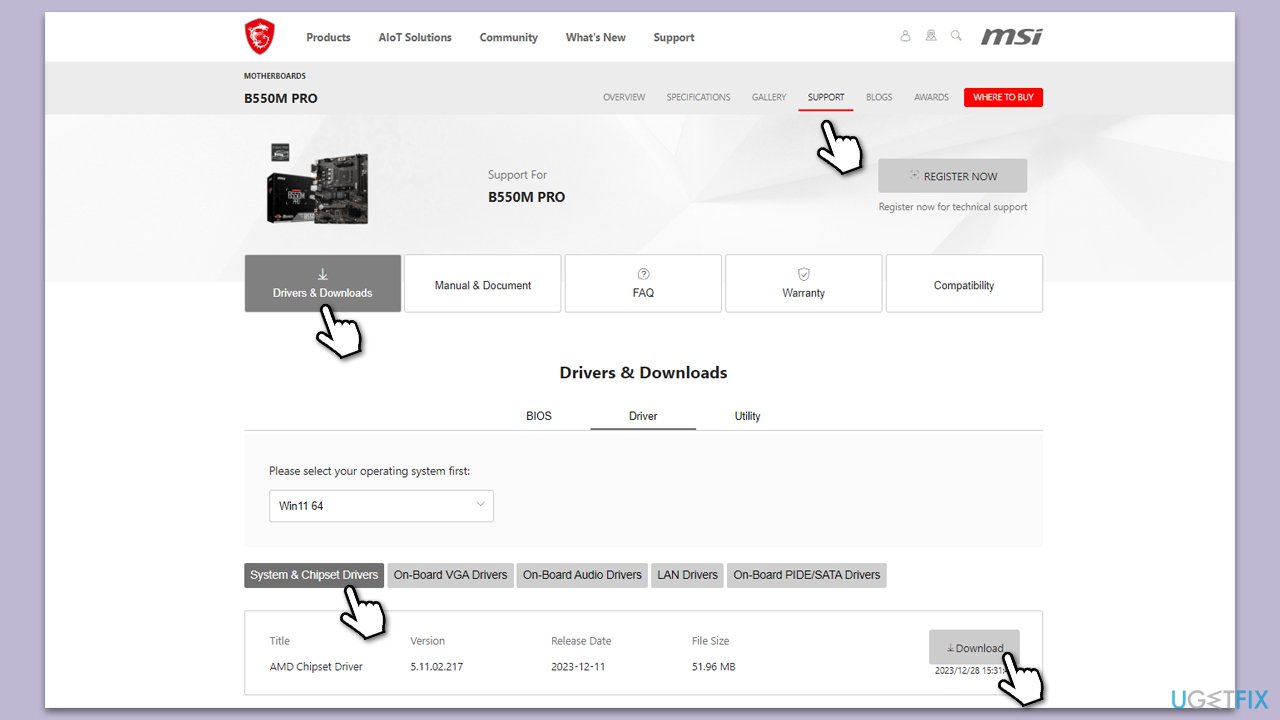
- Visit the official website for your motherboard model.
- Locate the Support/Download section and look for the chipset drivers.
- Download and install them following on-screen instructions.
- Restart your computer after the installation is complete.
Fix 6. Update BIOS
Updating the BIOS (Basic Input/Output System) can resolve compatibility issues and improve hardware functionality. A BIOS update can often fix underlying issues that lead to system crashes like BSODs. However, this process should be approached with caution, as incorrect BIOS updates can harm your system.
- Before proceeding, backup your data as a precaution.
- Visit the manufacturer's website and download your specific model's latest BIOS update file.
- Extract the BIOS update files and read any provided instructions or documentation.
- Create a bootable USB drive with the BIOS update files, if required.
- Update the BIOS using the manufacturer's recommended method, which may be through a built-in utility or booting from a USB drive.
- Restart your device to complete the process.
Bottom line
To fix the mfehidk.sys BSOD error, you can uninstall McAfee using the official removal tool, check your PC's RAM for errors, and ensure all drivers are up to date. If these solutions do not resolve the issue, further investigation into other underlying problems may be necessary.
Frequently asked questions
The mfehidk.sys BSOD error is typically caused by issues with the McAfee antivirus driver, often due to outdated software or a corrupted installation.
You can update McAfee by opening the application, navigating to the 'Updates' section, and checking for any available updates to ensure you have the latest driver version.
If updating doesn't help, try uninstalling McAfee completely and then reinstalling it, or consider using a different antivirus program to see if that resolves the issue.




Report an issue
What's wrong with this guide? We review every report and update or remove content.
Report received — thank you. We'll review and fix it.
You need a free account to submit a report.
Be the first to comment