How to fix
Microphone not working: “Device not migrated” error
on Windows
Resolve the "Device not migrated" microphone error in Windows 10 and 11 effortlessly. Get expert-tested solutions for crystal-clear audio. Fixed in minu…

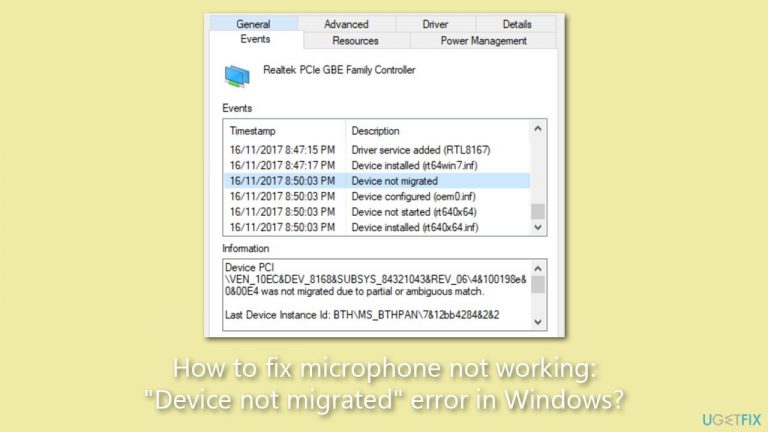
What causes How to fix microphone not working: “Device not migrated” error in Windows?
- Incompatibility between Windows operating system version and device driver
- Device driver not updated after system upgrade or update
- Incorrect system files
- Outdated system files
- Corrupt system files
Repairs Windows system files, removes malware, and restores a clean OS state — without reinstalling.
Hello, my microphone is not working, and when I go to the device Properties, it shows a "Device not migrated" error. Any tops on how to fix this?
The "Device not migrated" error in Windows is a common issue that can cause certain peripheral devices, such as a microphone, not to work correctly. This error typically indicates that there's a problem with the migration of the device's driver during a system upgrade or update. Migration, in this context, refers to the process of transferring driver software from one system version to another, which is crucial for hardware compatibility.
There are several potential causes behind the "Device not migrated" error. Often, it's a result of an incompatibility between your Windows operating system version and the device driver. This can occur if your system has recently been updated or upgraded, but the device driver hasn't been updated to match. Another common cause is incorrect, outdated, or corrupt system files, which can prevent the correct migration of device drivers.
When this error occurs with a microphone, it means that the audio driver related to the microphone hasn't been successfully migrated. This results in the system not recognizing the microphone, thus causing it to stop working. Such issues can seriously impact communication software, like Skype or Zoom, hindering voice-based activities and causing inconvenience to the user.
Several potential causes can trigger the "Device not migrated" error. A frequent cause is a mismatch between the Windows operating system version and the device driver. This situation often arises when a system undergoes an update or upgrade, but the device driver isn't concurrently updated to maintain compatibility. Another common cause is the presence of incorrect, outdated, or corrupt system files, which can obstruct the successful migration of device drivers.
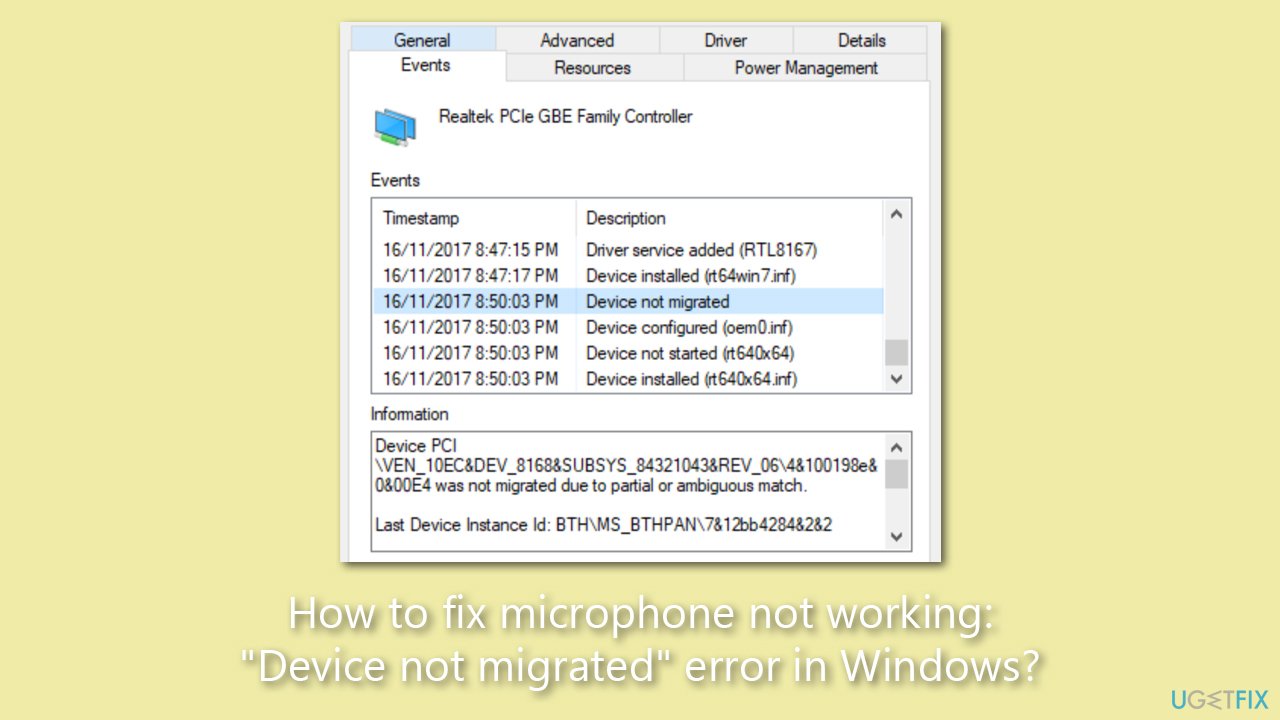
When you encounter the "Device not migrated" error, it serves as a signal that there's a discrepancy between your hardware, specifically your microphone in this case, and the software that controls it. It's a clear call to action, urging you to rectify this mismatch to restore your microphone's functionality. The process of resolving this issue involves several steps, which will be detailed in the following sections of this article. Before proceeding with manual solutions, we recommend you check your system with [d1], which can automatically fix damaged system files and other common issues in Windows.
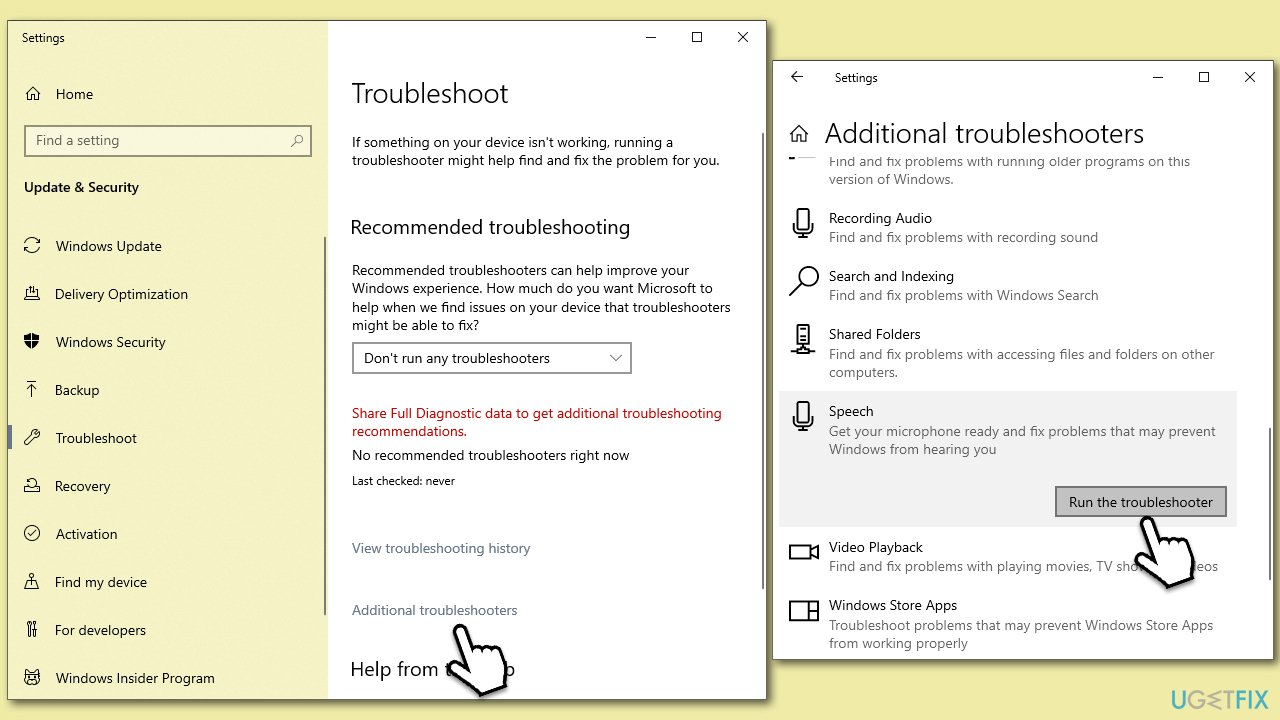
Fix 1. Run the troubleshooter
We recommend starting with the Speech troubleshooter:
- Type Troubleshoot in Windows search and hit Enter.
- Click Additional troubleshooters/Other troubleshooters.
- Scroll down to find Speech and select it.
- Click Run the troubleshooter/Run.
- Wait till the scan is finished and apply recommended fixes.
Fix 2. Repair damaged system files
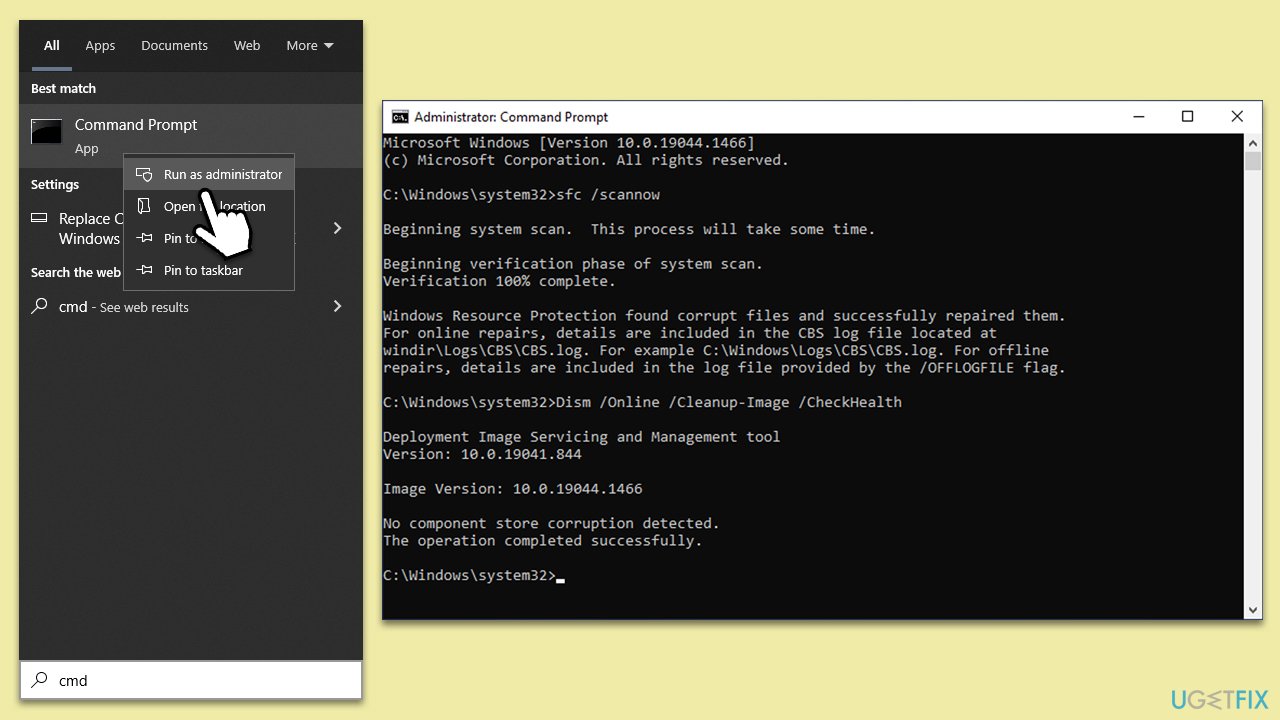
- Type cmd in Windows search.
- Right-click on Command Prompt and pick Run as administrator.
- When User Account Control (UAC) asks you whether you want to allow changes, click Yes.
- Use the following command and press Enter:
sfc /scannow - When the scan is complete, you should also run the following commands to repair Windows image files:
DISM /Online /Cleanup-Image /CheckHealth
DISM /Online /Cleanup-Image /ScanHealth
DISM /Online /Cleanup-Image /RestoreHealth - Restart your system.
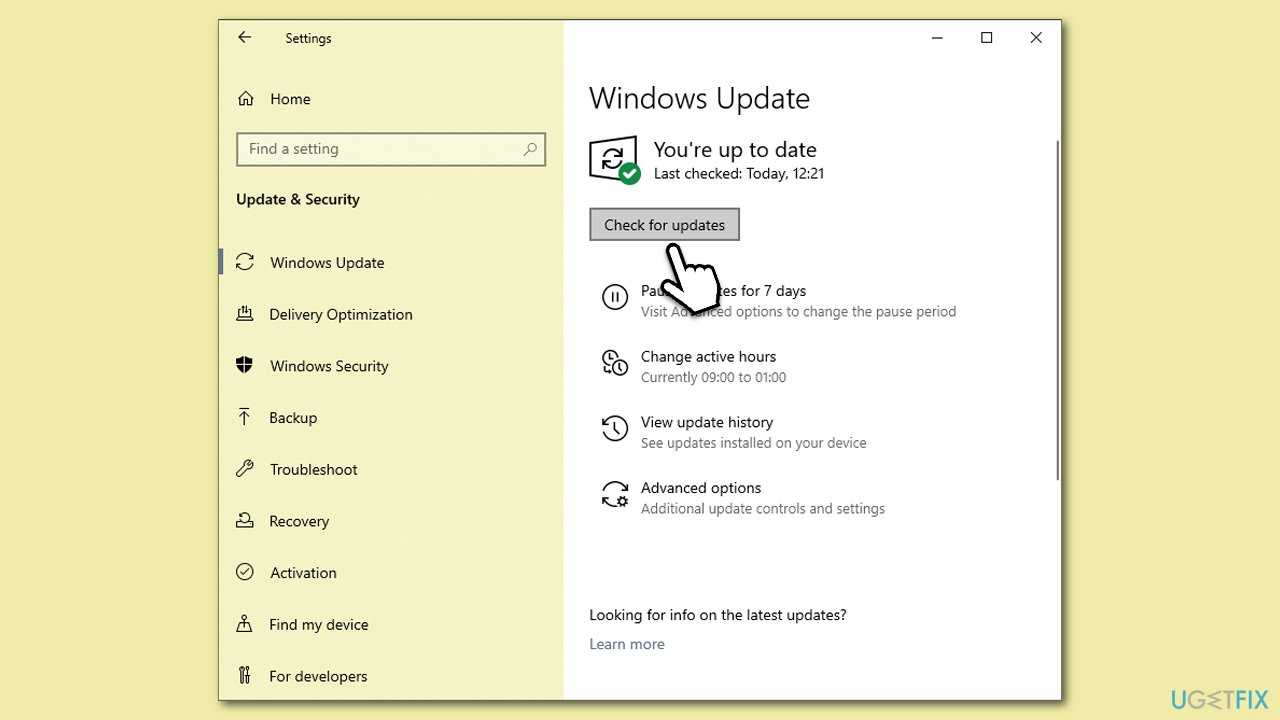
Fix 3. Install Windows updates
Make sure that all Windows updates are installed:
- Type Update in the Windows search box and press Enter.
- Click Check for Updates.
- Wait till all the required files are installed.
- Install all the optional updates as well.
- Restart your system.
To update your drivers, you can employ [rev id="DriverFix"] software or visit the website of your device manufacturer.
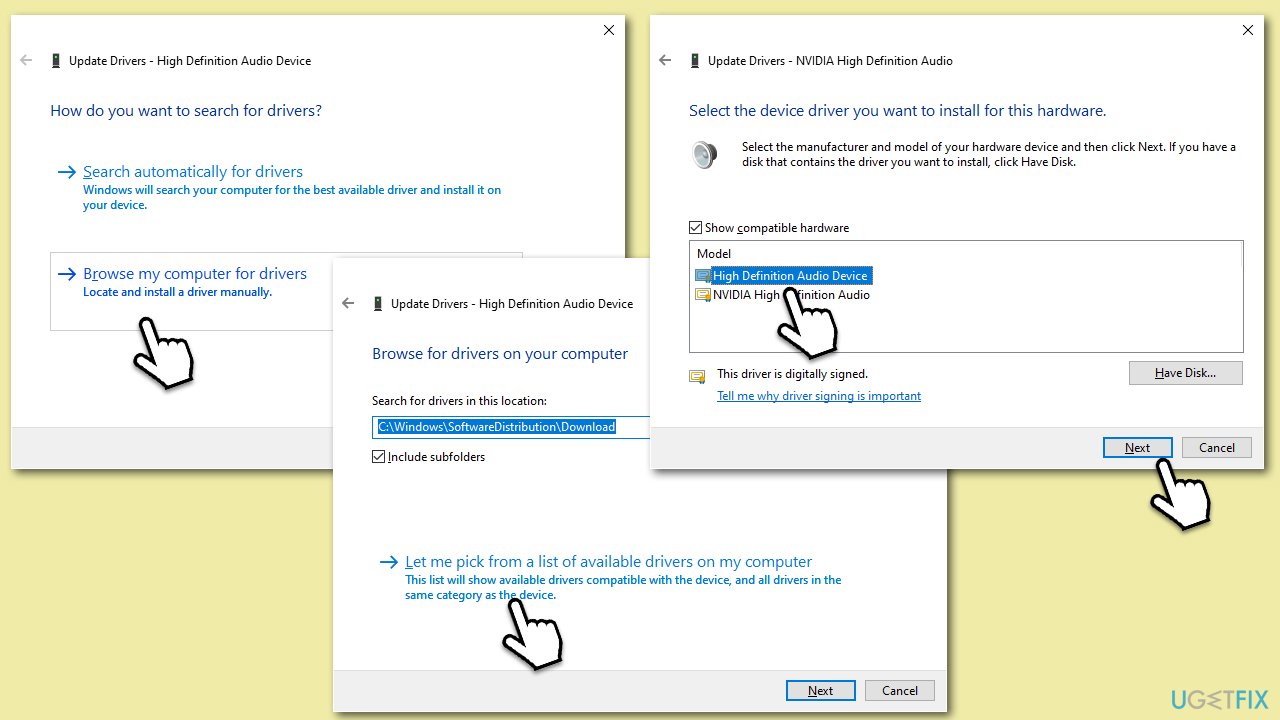
Fix 4. Use an older version of the Realtek driver
- Right-click on Start and pick Device Manager.
- Expand the Sound, video and game controllers.
- Find the Realtek Audio driver from the list.
- Right-click and select Update driver.
- Pick Browse my computer for driver software.
- Select Let me pick from a list of available drivers on my computer (ensure Show compatible hardware is ticked).
- From the list, pick an older driver.
- Click Next and reboot your device.
Fix 5. Remove the application control feature
- Right-click on the sound icon in your taskbar and select Sounds.
- Go to the Recording tab and double-click your microphone.
- Select the Levels tab and ensure the volume is set to 100.
- Go to the Advanced tab and uncheck the Allow application to take exclusive control of this device option.
- Click OK.
Bottom line
To fix the microphone not working due to the 'Device not migrated' error, ensure that your device driver is updated to match your Windows version. Additionally, check for any corrupt or outdated system files that may be affecting the migration process. If none of these solutions work, consider seeking further technical support.
Frequently asked questions
The 'Device not migrated' error indicates that your microphone driver did not properly transfer to the new version of Windows, which can prevent it from functioning correctly.
To fix this error, try uninstalling the microphone driver via Device Manager and then restarting your computer to allow Windows to reinstall the driver automatically.
Yes, go to Settings > System > Sound, and ensure your microphone is selected under 'Input' and that the volume is turned up.




Report an issue
What's wrong with this guide? We review every report and update or remove content.
Report received — thank you. We'll review and fix it.
You need a free account to submit a report.
Be the first to comment