How to fix
Microphone not working
on Windows
Resolve your microphone issues on Windows 10 or 11 effortlessly. Get back to clear audio with expert-tested solutions and quick fixes!

What causes How to fix microphone not working?
- Outdated microphone drivers
- Faulty Windows updates
- Buggy Windows Audio service
- Disabled mic
- Hardware malfunction
Repairs Windows system files, removes malware, and restores a clean OS state — without reinstalling.
Hi, my headset microphone suddenly stopped working. Does that mean that it is completely broken or there might be other reasons for mic not working? Any tips would be appreciated.
When you first hear the word "microphone," you most likely imagine a standard one used by singers or news anchors. Nevertheless, as technology progressed, microphones are often used in modern computing for communicating with friends and colleagues, recording sound, and performing a variety of other activities.
There are a variety of microphones that are integrated within a laptop, tablet, phone, while others are a part of external devices, such as a headset or a camera. Nevertheless, there are also standard mics that are used by university professors, karaoke lovers, or singers.
While functionality might differ, all of these devices are mostly connected to the computer, regardless of their purpose. Therefore, the mic not working problem is quite universal, affecting different platforms and the operating systems. Nevertheless, the issue might vary to a degree, as the mic might not work just with certain apps, or some of its functions might work poorly, the quality of transmission might be bad, etc.
While most users might think that microphone not working is caused by hardware wear and tear or its age, it is not necessarily the case. There are several other reasons for external devices like mics not working, for example:
- Outdated microphone drivers[ref en-1]
- Faulty Windows updates[ref en-3]
- Buggy Windows Audio service
- Disabled mic, etc.
Therefore, there are several things you can do to fix microphone not working issue on Windows 10. Nevertheless, before you proceed, you should make sure that your hardware is indeed not at fault. For that, connect your mic to another device, such as a phone or another computer and make sure the at least output or input[ref en-2] is working.
Additionally, if you are not an experienced computer user, we would recommend you fix microphone not working issue with the help automatic repair tool [d1]. That way, the application can do all the troubleshooting for you and, if the issue lies within the Windows operating system, it will fix it immediately.
Fix 1. Enable your microphone
If you never used your device, it might be that the mic is simply not enabled on your operating system. To fix that, please follow these steps:
- Right-click on Start button and select Settings
- Pick Privacy
- Click on Microphone in the left pane
- Make sure Let apps use my microphone feature is enabled. If not, click on the toggle once to turn it to On
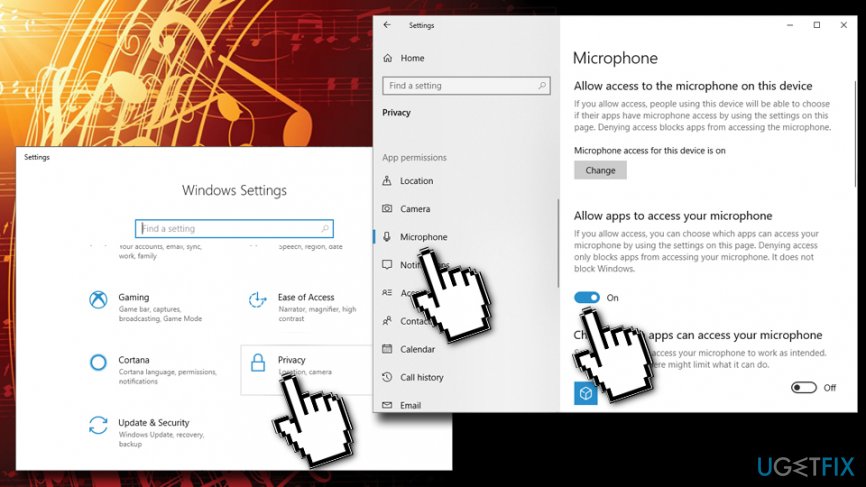
How to fix mic not working make sure mic is enabled
Fix 2. Make sure your mic is not muted
Another simple reason why your mic is not working might be because it is muted. To make sure it isn't, perform the following check:
- Right-click on the speaker icon at the bottom-right of your screen in the taskbar (near time and date)
- Select Sounds
- At the top, select Recording
- Pick your mic and click on Properties
- Select Levels tab and put the sound up (to the max if desired)
Fix 3. Run Troubleshooter to fix mic not working issue
Troubleshooter is a great built-in tool that can detect various issues with different parts of the operating system, including the microphone:
- Right-click on the Start button then select Settings
- Pick Update & Security
- On the left pane, select Troubleshoot
- There are two troubleshooters you should run, depending on the issue you have: either Recording Audio or Speech
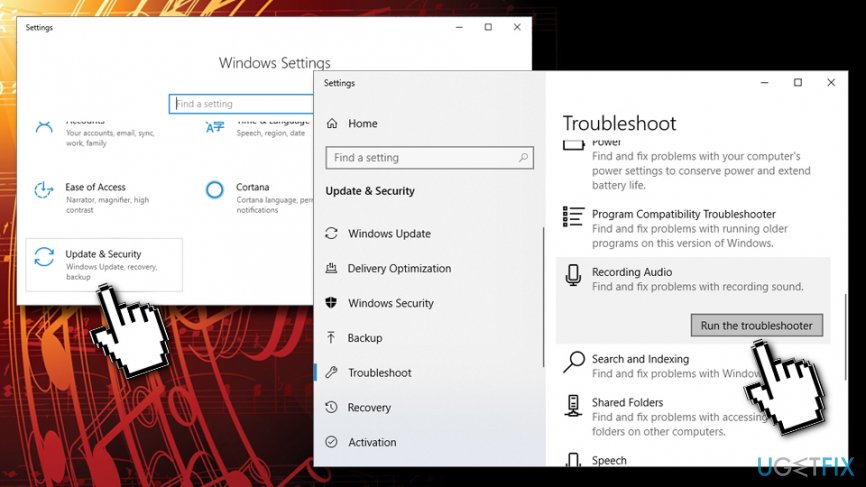
How to fix mic not working run the troubleshooter - Click on one of them and select Run the troubleshooter (if you are not sure, simply run them both)
- Windows will alert you about any issues detected and will attempt to fix them for you
Fix 4. Update Windows OS
Outdated Windows OS might result in a variety of problems. Therefore, you should make sure it is up to date:
- Go to Settings > Update & Security
- On the right pane, click on Check for Updates
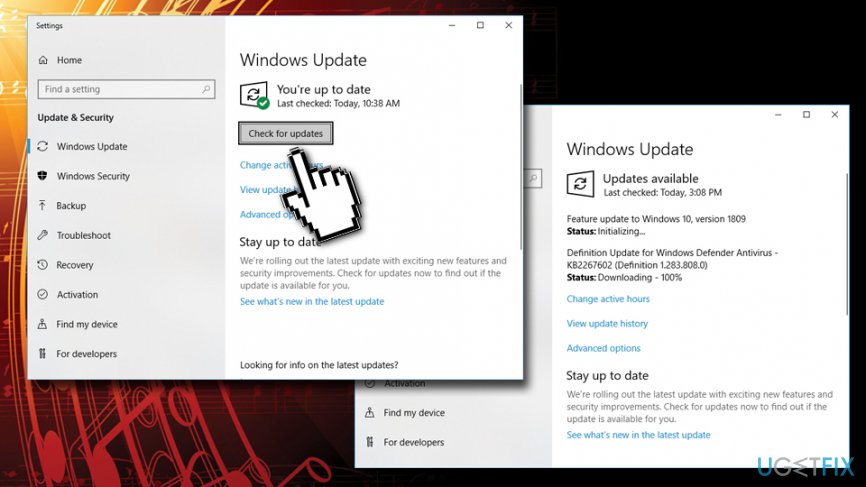
How to fix mic not working check for windows updates - Windows will automatically install a new patch
- Reboot your device
Fix 5. Update or reinstall drivers
Drivers are vital for any piece of hardware to communicate with software properly. To make sure that it's not outdated drivers that are causing the mic not working problem, follow this guide:
- Right-click on the Start button and pick Device Manager
- Click on Audio inputs and outputs
- Select your microphone
- Right-click and pick Update driver
- Click on Search automatically for updated driver software
- Restart your PC
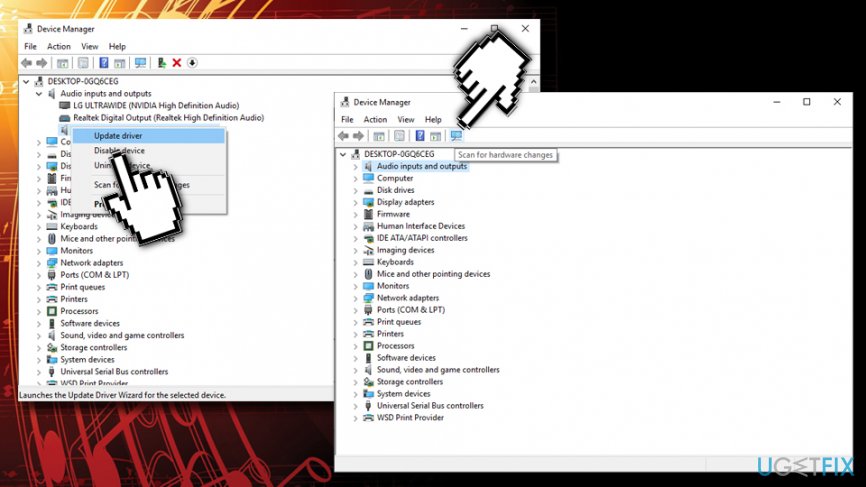
How to fix mic not working update or reinstall drivers
If that did not help, you should completely uninstall the device. Go back to Device Manager > Audio inputs and outputs, right-click on your microphone, and the pick Uninstall. Reboot the machine and Windows should reinstall the driver automatically. If that is not the case, go back to Device Manager and click on Scan for hardware changes - it will prompt automatic update.
Fix 6. Restart Audio service
- Press Win + R and type in services.msc
- Hit Enter
- Scroll down to locate Windows Audio service
- Right-click on it and pick Restart
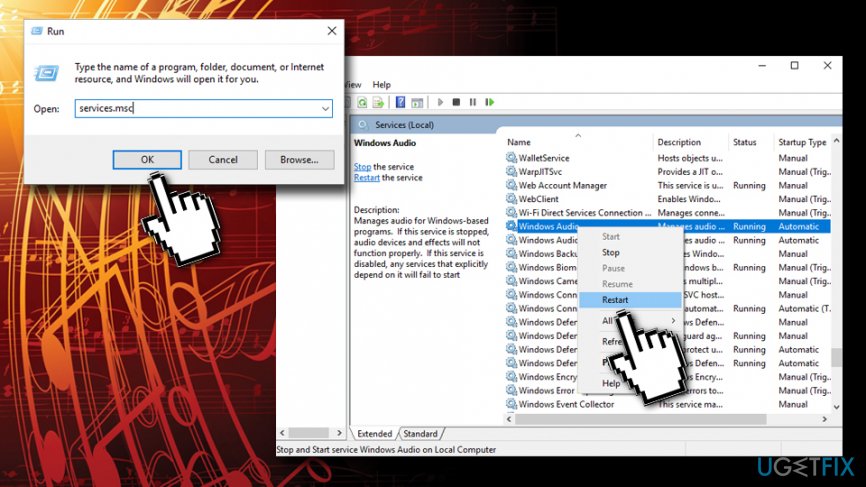
How to fix mic not working restart windows audio service
Bottom line
To fix the microphone not working issue on Windows 10, you can try updating the microphone drivers, checking for faulty Windows updates, and ensuring the Windows Audio service is functioning properly. If these steps do not resolve the issue, consider using an automatic repair tool to troubleshoot further.
Frequently asked questions
Sometimes, Windows 10 updates can reset your microphone settings or drivers. Check your privacy settings to ensure that apps have permission to access the microphone.
To troubleshoot microphone issues on Windows 11, go to Settings > System > Sound, and ensure the correct input device is selected and check the volume levels.
If your external microphone is not recognized, try unplugging and re-plugging it, and check Device Manager for any driver issues related to the audio input devices.




Report an issue
What's wrong with this guide? We review every report and update or remove content.
Report received — thank you. We'll review and fix it.
You need a free account to submit a report.
Be the first to comment