How to fix
Microsoft 365 error code CAA20003
on Windows
Resolve Microsoft 365 error code CAA20003 on Windows 10 or 11 quickly and effectively. Get expert-tested solutions that work with zero traces left.


What causes How to fix Microsoft 365 error code CAA20003 in Windows?
- Incorrect date and time settings
- Device or policy restrictions
- Software conflicts
- Authorization issues with the server
Repairs Windows system files, removes malware, and restores a clean OS state — without reinstalling.
What is error code CAA20003 and how do I fix it? I am running Windows 11 Home.
Microsoft 365 error code CAA20003 is a login error that users may encounter when trying to access Microsoft 365 services, such as Microsoft Teams or Outlook. This error typically indicates an authorization problem with the server, device, or software. Users might face this error due to several reasons:
- Incorrect date and time settings. If the date and time on your device are not accurate, it can prevent secure connections to Microsoft services.
- Device or policy restrictions. The device might be disabled by the user, the enterprise administrator, or due to a policy for security reasons.
- Software conflicts. Issues with the Microsoft 365 application itself, such as corrupted files or incorrect settings, can trigger this error.
Users encountering error CAA20003 might see a message indicating that there was an issue connecting to the Microsoft service, and they should check their network connection or contact their administrator. This error can be particularly frustrating as it stops users from accessing essential productivity tools.
To fix the CAA20003 error, you can try several methods, such as checking and correcting the date and time settings on their device, ensuring their device is enabled in Active Directory or Azure Active Directory, and using incognito mode to bypass potential browser extensions blocking the login process.
These solutions should help users address error code CAA20003 and regain access to their Microsoft 365 accounts on their Windows devices. To ease up the recovery process when dealing with Windows issues we always advise users to try [d1] repair and maintenance utility, designed to repair corrupted system files, fix registry errors, resolve BSODs, and more.

Fix 1. Re-connect your Work or School account
Reconnecting your account can resolve authorization issues.
- Right-click on Start and pick Settings.
- Click on Accounts.
- Select Access work or school.
- If connected, click Disconnect.
- Navigate to C:\users\USERNAME\AppData\Local\Packages (replace USERNAME with your actual username).
- Delete the contents of the folder.
- Restart your computer.
- Return to Access work or school and connect your account again.

Fix 2. Use the administrator's account
Using an administrator account can bypass permission issues.
- Type cmd in Windows search.
- Right-click on the Command Prompt and select Run as administrator.
- The User Account Control window will ask whether you want to allow changes - click Yes.
- In Command Prompt, type in the following and press Enter:
net user administrator /active:yes - Close down the Command Prompt and try accessing Microsoft 365 apps.

Fix 3. Install all Windows updates
Keeping Windows up to date can fix compatibility and security issues.
- Type Updates in Windows search and press Enter.
- Here, click Check for updates.
- Wait till Windows downloads and installs all the files.
- If optional updates are available, install them as well.
- Reboot your computer.

Fix 4. Use Microsoft Support and Recovery Assistant
This tool can diagnose and fix issues with Microsoft 365.
- Open your browser and go to the official Microsoft support website.
- Scroll down and click Download under Uninstall and reinstall Office.
- Once downloaded, double-click SetupProd_OffScrub.exe to launch it.
- When prompted, click Install.
- Once installed, launch Microsoft Support and Recovery Assistant.
- Select Office & Office Apps and click Next.
- From the options provided, pick I am unable to sign in to activate or use Office apps and click Next.
- Click Yes to begin a scan.
- Follow instructions after the scan is finished.

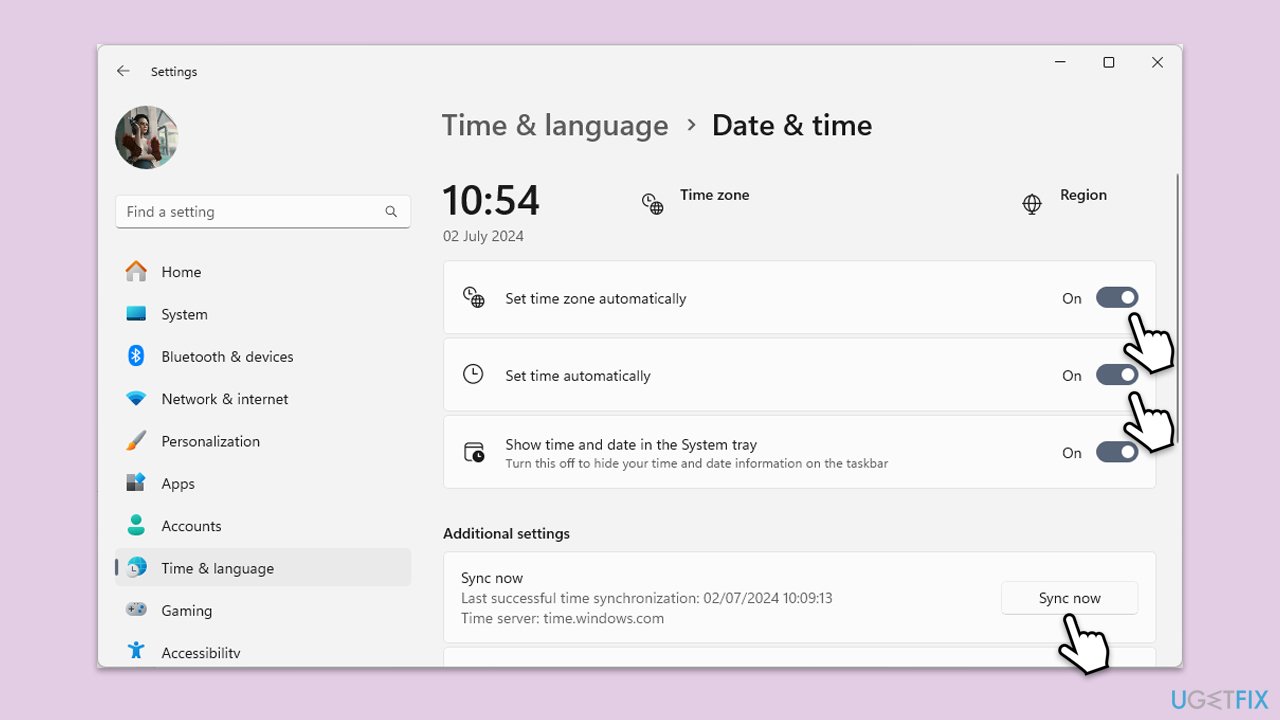
Fix 5. Check the date and time
- Right-click on the time and date in the taskbar.
- Select Adjust date/time.
- Enable the option Set time zone automatically.
- Turn on the option Set time automatically.
- Click on Sync now under Additional settings.
Fix 6. Re-add Azure account
Re-adding your Azure account can resolve issues related to account synchronization.
- Open the Azure portal by visiting portal.azure.com in your web browser.
- Navigate to the Azure Active Directory section.
- Select Users, then choose your profile.
- Click on Devices and then select Disassociate for any associated devices.
- Sign out of your Azure account.
- Sign back in and reassociate your devices as necessary.
Fix 7. Repair Office suite
Repairing the Office suite can fix corrupted files and settings.
- Type Control Panel in Windows search and press Enter.
- Select Programs > Programs and Features.
- Select Microsoft Office and click on Change.
- Choose the option for Online Repair and click Repair.
- Follow the prompts to finish the process.

Bottom line
To fix the CAA20003 error, you can check and correct the date and time settings on your device, ensure your device is enabled in Active Directory or Azure Active Directory, and try using incognito mode to bypass potential browser extensions. If these methods do not resolve the issue, consider using a repair and maintenance utility to address system file corruption.
Frequently asked questions
The CAA20003 error typically indicates a problem with your Microsoft 365 account authentication or a connectivity issue. This can occur on both Windows 10 and Windows 11 devices.
To fix the CAA20003 error in Windows 10, try signing out of your Microsoft account and signing back in, or clear your Microsoft 365 credentials from the Credential Manager. Additionally, ensure your Windows 10 is updated to the latest version.
In Windows 11, check your network settings to ensure you're connected to the internet and that your firewall or antivirus isn't blocking Microsoft 365 services. You may also need to reset your network settings if the issue persists.




Report an issue
What's wrong with this guide? We review every report and update or remove content.
Report received — thank you. We'll review and fix it.
You need a free account to submit a report.
Be the first to comment