How to fix
Microsoft Access database (accdb file corruption)
on Windows
Fix corrupt Microsoft Access accdb files on Windows 10 and 11 quickly and easily. Expert-tested solutions ensure your data is restored with zero traces …

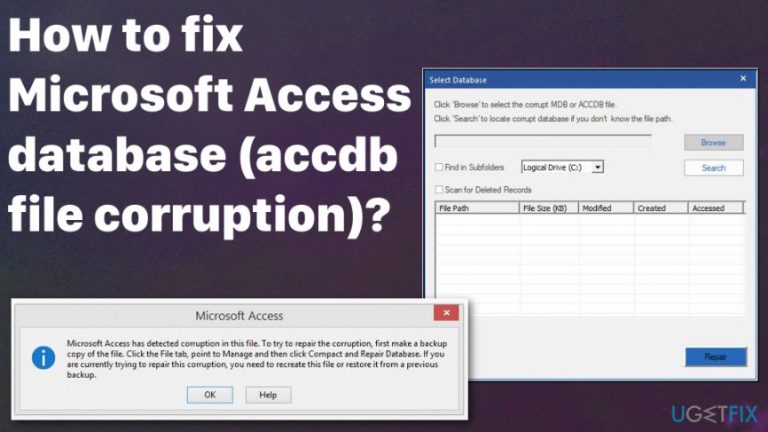
What causes How to fix Microsoft Access database (accdb file corruption)?
- Failed hardware or software
- Sudden system shutdowns
- Virus and malware attacks
- Using incorrect file recovery systems
- Updating programs from suspicious sources
Repairs Windows system files, removes malware, and restores a clean OS state — without reinstalling.
Hello, I have an issue with Microsoft Access .accdb file. I was working just fine and recently it became corrupted or something else went wrong. The format of the file each time is alerted as unrecognizable. I haven't installed or changed anything in recently that could cause anything like that. I only had to suddenly shut down my PC once. I don't have a backup of those files either. Is there any way to fix the issue and repair the file?
Microsoft Access database can become corrupt or even damaged at any point and once it happens the ACCDB or MDB files become useless because the database cannot access those needed files. Due to this error users are forced to stop their project work. This is a common issue, but repairing the particular accdb file is not the only solution.[ref en-1]
The causes of the Microsoft Access database corruption can differ, but the main reasons may be failed hardware or software, sudden system shutdowns or even virus and malware attacks.[ref en-2] Using incorrect file recovery systems or updating your programs from suspicious sources can cause these conflicts on the machine.
In simple words when Microsoft Access database gets corrupted the data inside cannot be used and may be at the risk of permanent loss. Your files can get damaged too, including MDB and ACCDB files. The database works as a management system for storing various files and retrieving them when required.[ref en-3]
Microsoft Access database or particular accdb file corruption can occur when writing operations get interrupted or defective network hardware got involved. Such files also get damaged when you try to open the data with the non-native or shady program. Sudden system shutdowns can also cause these database issues. As per solutions, read the tips and particular methods below.
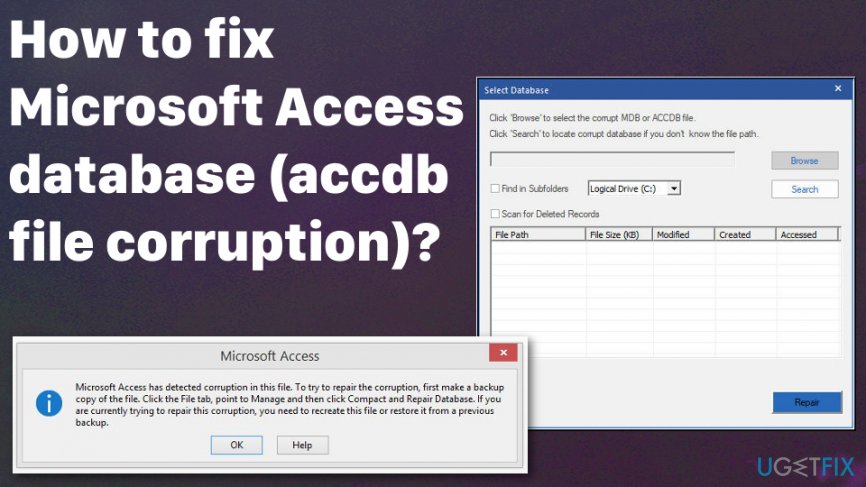
Ways to fix Microsoft Access database (accdb file corruption)
Since there are a few reasons involving software and hardware of your machine, you should check all those possible causes firstly. Microsoft Access database or particular file corruption can be automatically fixed if you troubleshoot and solve the errors indicated by system tools like [d1]. This program can also detect malware that can be associated with such errors and corruption of files. Installing an effective antivirus program on the machine can handle all the malware attacks and avoid things like this or more significant damage.
Compact and Repair Database
- Open the Access application and select the Database Tools tab.
- Then click the Compact and Repair Database option at the top.
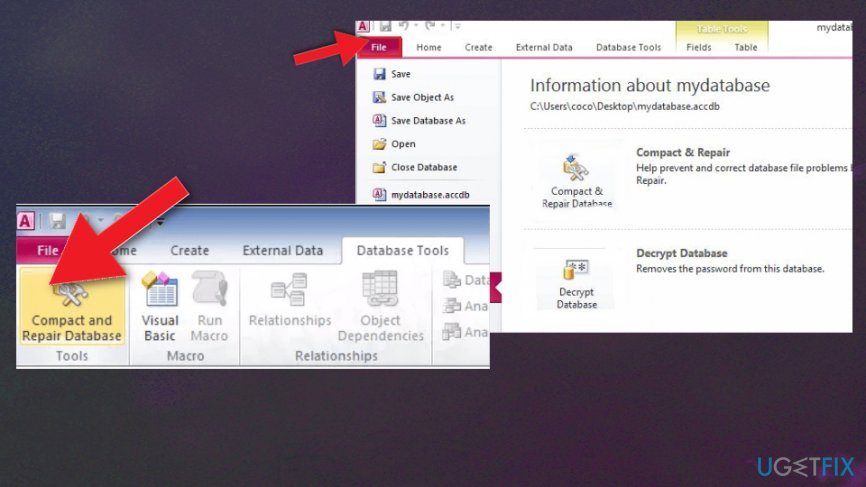
How to fix microsoft access databas accdb file corruption compact - From there you should encounter a window where you need to select a database file that needs the repair.
- Press the Compact button and enter a new file title in the dialog box that opens.
- Select a folder to save the data in.
- Try to open the fresh database in Access.
Run a file checker to fix Microsoft Access database (accdb file corruption)
- Go to Command Prompt with administrative right and enter the following commands to run the needed processes and press Enter after each one:
sfc /scannow
chkdsk /f
How to fix microsoft access databas accdb file corruption command
Use Jet Compact Utility to fox Microsoft Access database corruption
- Download the application and launch it.
- Click the Browse button in the window that appears and choose the folder to extract Jet Comp to.
- Open the folder that has extracted utility and click JetComp.exe to one the Database Compact window.
- Select the corrupted database by clicking ... button.
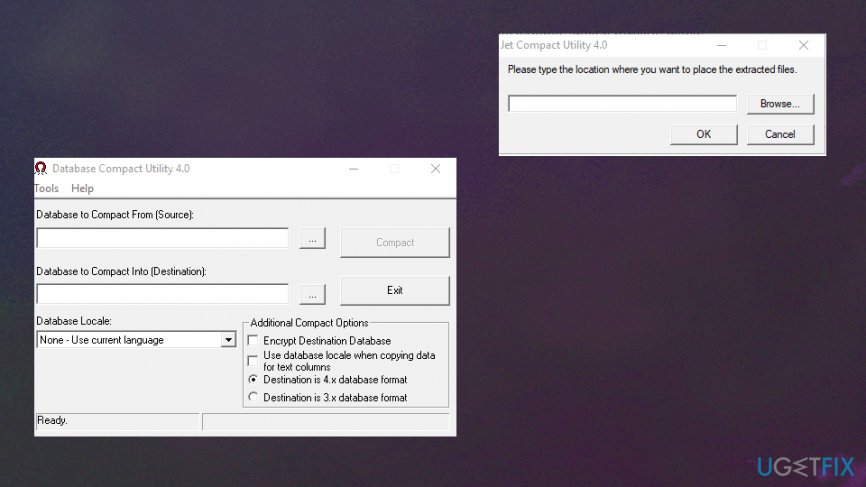
How to fix microsoft access databas accdb file corruption jet compact - Choose the path to save the compacted database.
- Press Compact.
Bottom line
To fix Microsoft Access database corruption, check for hardware or software issues, troubleshoot errors, and avoid using non-native programs to open the files. If these methods do not resolve the issue, consider seeking professional data recovery services.
Frequently asked questions
Common signs include error messages when opening the file, missing data, or the database not responding. You may also notice unexpected behavior or crashes during operations.
You can use the built-in Compact and Repair feature by opening Access, selecting your database, and navigating to the Database Tools tab. This should help fix minor corruption issues.
If the database is severely corrupted, you can try restoring from a backup or using third-party recovery tools designed for Access databases, as they may be able to salvage some data.




Report an issue
What's wrong with this guide? We review every report and update or remove content.
Report received — thank you. We'll review and fix it.
You need a free account to submit a report.
Be the first to comment