How to fix
“Microsoft Access is not responding” error
on Windows
Resolve the "Microsoft Access is not responding" error on Windows 10 or 11 quickly and easily. Expert-tested solutions for seamless access, fixed in min…

What causes How to fix “Microsoft Access is not responding” error in Windows?
- Third-party interference
- Malware infection
- Bad sectors on the drive
- Issues with the database hosting location
- Corrupted files
Repairs Windows system files, removes malware, and restores a clean OS state — without reinstalling.
Hello. I tried to open a shared database through Access but I received the "Microsoft Access is not responding" error in Windows. What should I do?
When it comes to managing and analyzing large amounts of data, Microsoft Access is a popular choice among enterprise users. This database management system, which is part of the Microsoft 365 office suite, combines the powerful Jet Database Engine with software development tools and a user-friendly GUI. However, like any software, it is not immune to errors and issues.
One common problem that users may encounter is the "Microsoft Access is not responding" error. This error occurs when users try to interact with a shared database on Windows computers, and it can be frustrating and disruptive to work. But what causes this error to occur, and how can it be fixed?
There are a few potential causes for the "Microsoft Access is not responding" error. One possibility is that there is some sort of third-party interference or malware infection affecting the shared database. This could be caused by a virus or other malicious software that has infiltrated the database and is causing issues. In this case, it may be necessary to run a virus scan and remove any malware that has been detected.
Another potential cause of the "Microsoft Access is not responding" error is bad sectors on the drive where the database is hosted. If the database is stored locally on your computer, it's possible that there are some issues with the drive that are causing problems with Access. In this case, you may need to run a disk check or repair utility to fix the bad sectors and get Access working properly again.
In this guide, you will find 5 steps that should help you fix "Microsoft Access is not responding" error in Windows. However, the manual troubleshooting process can be lengthy. You can also use an automatic tool like [d1] that can fix most system errors, BSODs,[ref en-1] corrupted files, registry[ref en-2] issues, or clear cookies and cache.[ref en-3] Otherwise, follow the step-by-step instructions below.
Method 1. Start Access in Safe Mode
- Press the Windows key + R to open up a Run dialog box.
- Inside the Run box, type msaccess /safe and press Ctrl + Shift + Enter to run the command with Admin access
- When prompted by the User Account Control (UAC), click Yes to grant admin access
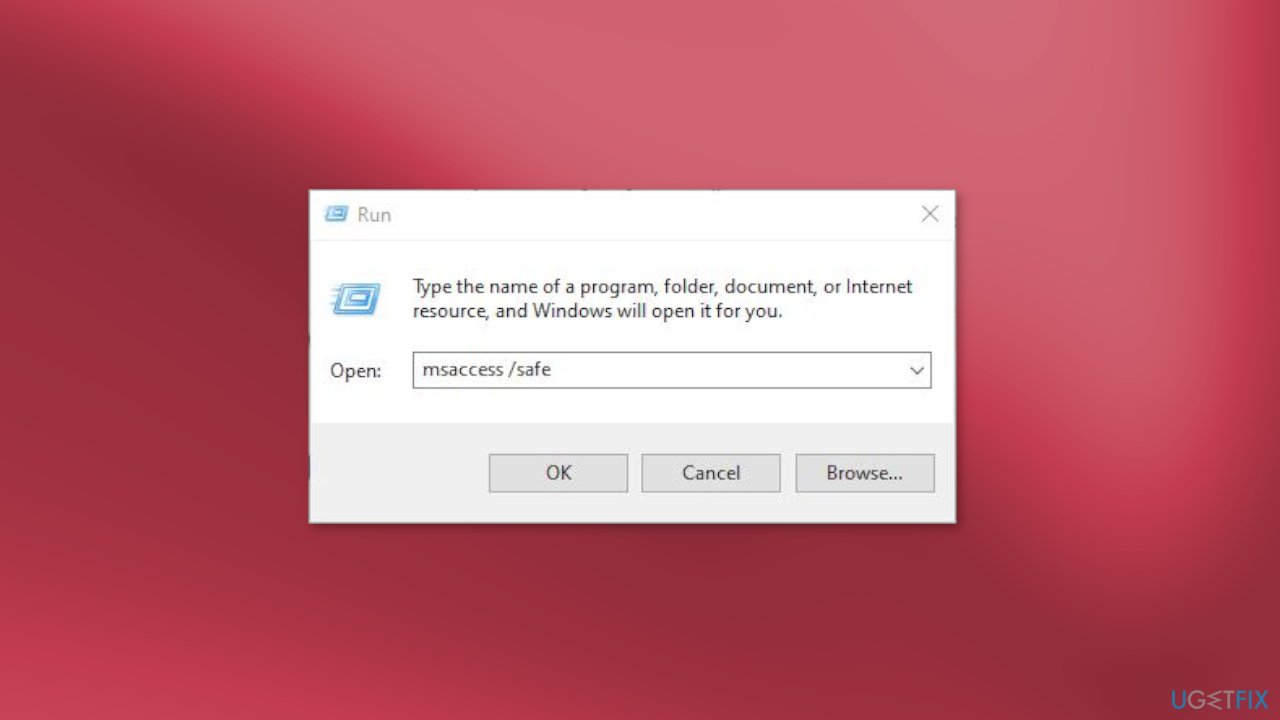
- After MS access is opened in safe mode, see if the problem is now fixed
Method 2. Repair Office
- Open Control Panel by searching for it in the Start Menu
- Go to Programs
- Click on Programs and Features
- Right-click on Microsoft 365 or Office and select Change or Modify
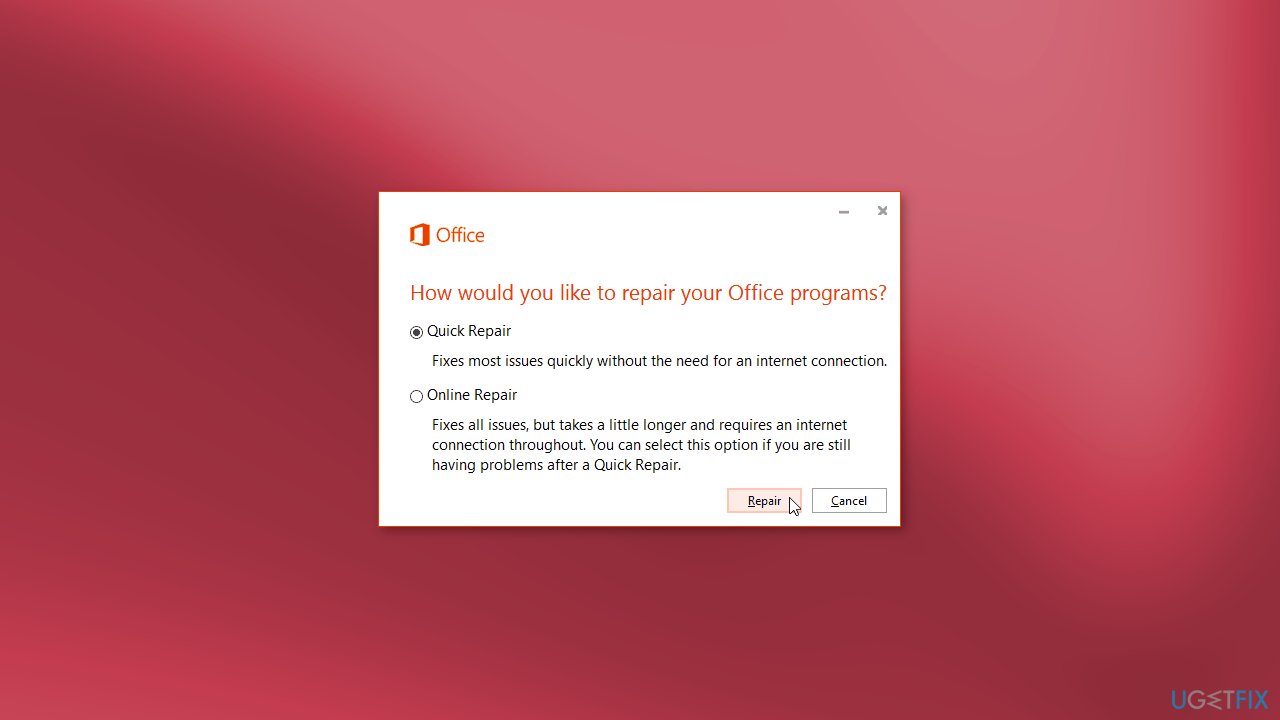
- You will get two options, either select Quick Repair or Online Repair and then click on Repair
- Finally, follow the on-screen instructions to complete the process
Method 3. Check Disk
- Press the Windows key + R to launch the Run dialog
- Type cmd, and press the Ctrl + Shift + Enter keys together to open the elevated Command Prompt
- Run the below command and hit Enter:
chkdsk C: /f /r

- Wait for the process to finish
Method 4. Try Clean Boot
- Open the Search menu, type in system configuration, and press Enter
- Under the Services tab, tick the Hide all Microsoft services box
- Click on Disable all button
- Head over to the Startup tab and click on Open Task Manager
- Select a third-party program and click on Disable at the top
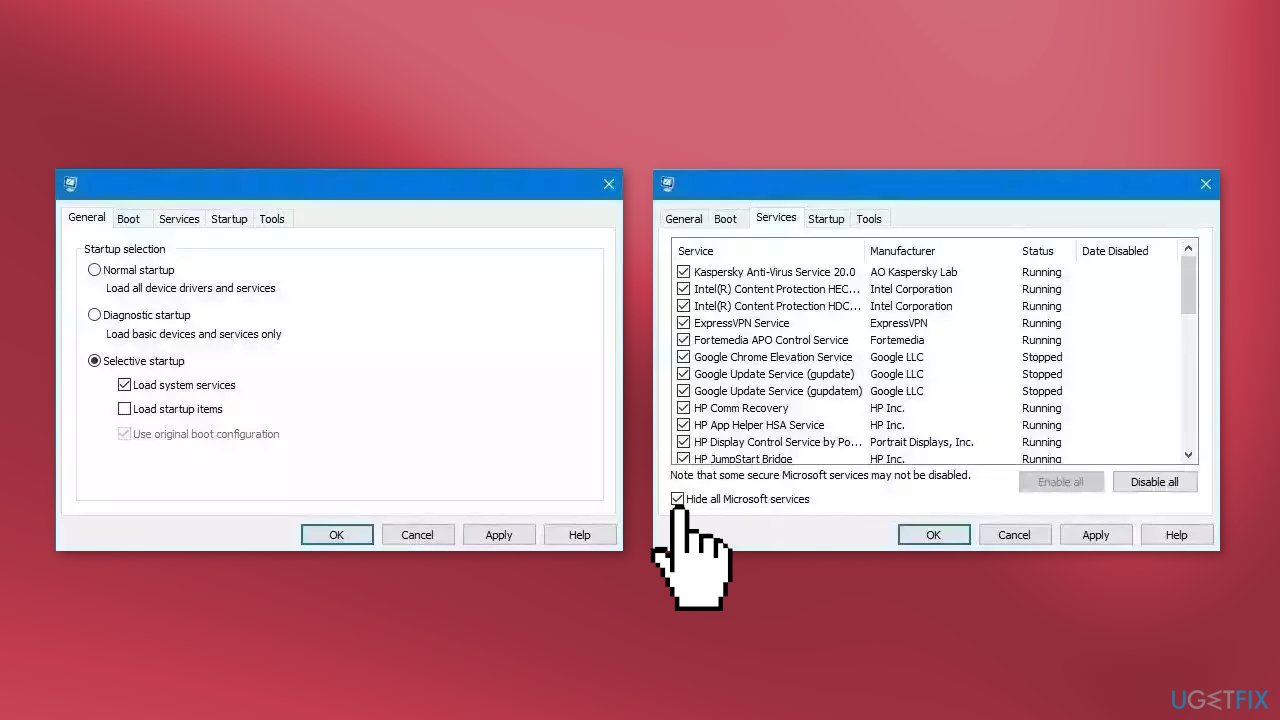
- Repeat this step to disable all third-party apps and programs
- Restart your PC to enter the clean boot state and see if the issue persists
- If the issue disappeared in the clean boot state, then you can be certain that a third-party app is causing it
- Go through all recently installed apps or programs and remove them one by one
Method 5. Scan System for Viruses
If the above methods have not resolved the "Microsoft Access not responding" error, it is possible that a malware infection may be affecting the database. It is important to run a comprehensive security scan to rule out this possibility and ensure that the computer hosting the Access database is not infected. This can help to prevent further issues with the database and ensure that it is functioning properly.
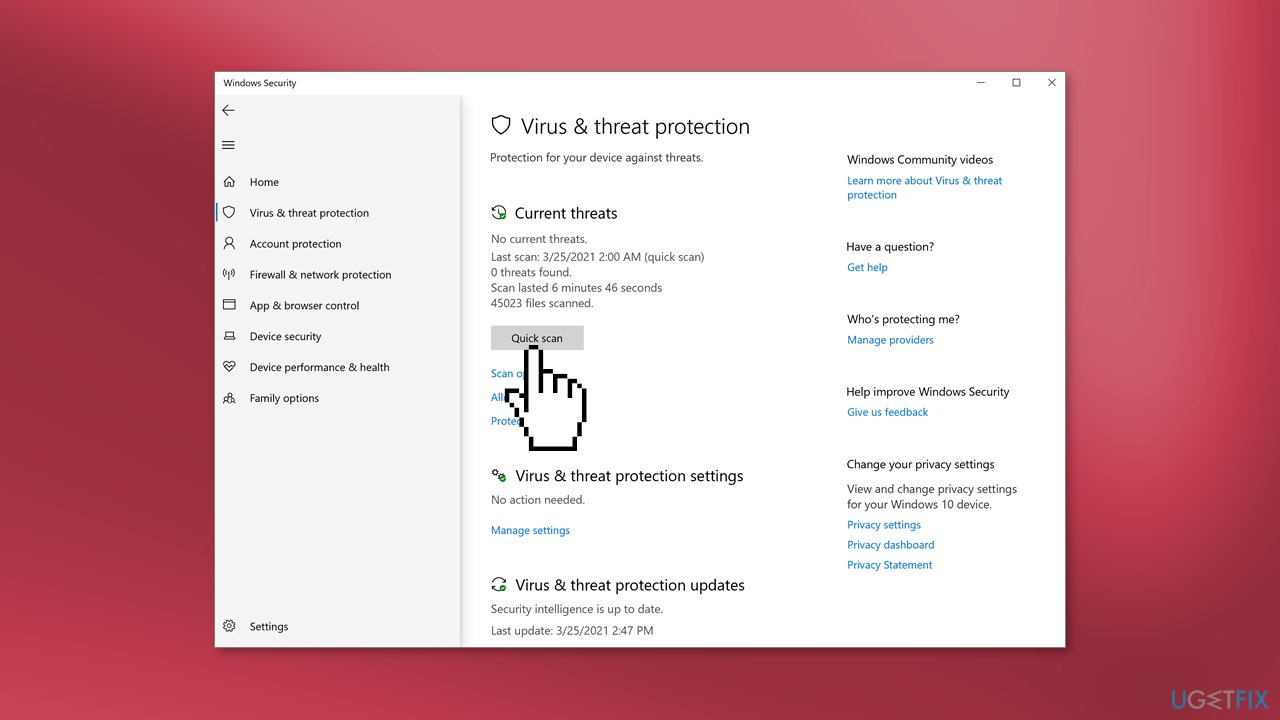
If you have access to a security scanner, or if your organization pays for one, you can use it to scan your entire system to check for a virus infection. Otherwise, you can use Windows Defender to scan your system:
- Select Start and go to Settings
- Open Update & Security, and click on Windows Security and then Virus & threat protection
- Under Current threats, select Quick scan (or in early versions of Windows 10, under Threat history, select Scan now)
- Wait for the scan to finish and follow the on-screen instructions
Bottom line
To fix the 'Microsoft Access is not responding' error, you can run a virus scan to remove malware, perform a disk check to address bad sectors, or use an automatic tool to resolve system errors. If these methods do not work, consider following the detailed step-by-step instructions provided in the guide.
Frequently asked questions
Try restarting your computer and then opening Microsoft Access again. If the issue persists, consider repairing the Office installation through the Control Panel.
You can resolve this by ensuring that all Office updates are installed and checking if any add-ins are causing the issue by starting Access in Safe Mode.
Yes, you can try disabling hardware acceleration in Access settings, which may help improve performance and resolve the unresponsive error.




Report an issue
What's wrong with this guide? We review every report and update or remove content.
Report received — thank you. We'll review and fix it.
You need a free account to submit a report.
Be the first to comment