How to fix
Microsoft Common Language Runtime native compiler (ngen.exe) high CPU usage
on Windows
Resolve high CPU usage issues caused by ngen.exe in Windows 10 and 11 effortlessly. Expert-tested solutions to boost your system's performance!

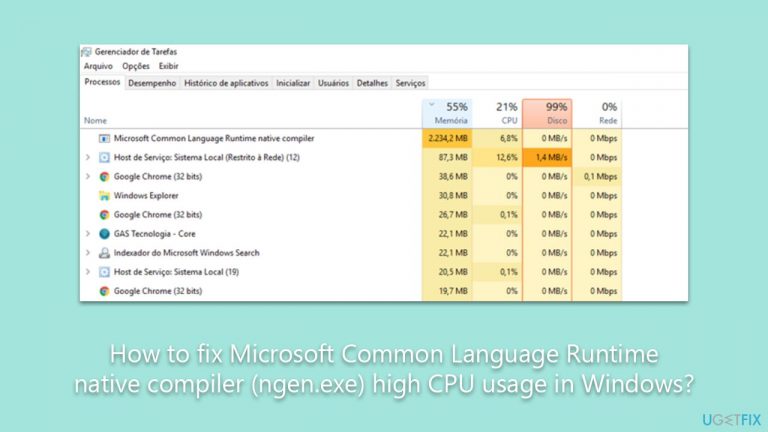
What causes How to fix Microsoft Common Language Runtime native compiler (ngen.exe) high CPU usage in Windows?
- High CPU usage due to ngen.exe processing large batches of .NET updates
- Excessive CPU consumption during the installation of new .NET applications
- Background compilation tasks running when the system is idle
- Ngen.exe creating native images from .NET assemblies
- Performance degradation from monopolized CPU resources
Repairs Windows system files, removes malware, and restores a clean OS state — without reinstalling.
Hello, I noticed that my PC is running really slowly, and when I checked my Task Manager, I noticed Microsoft Common Language Runtime native compiler (ngen.exe) using way too much CPU (around 80%). I don't think this is normal, and it's obviously slowing down my PC. Any tips here?
In the world of computing, resources such as processing power, memory, and storage are integral components that determine the overall performance of a machine. Central Processing Unit (CPU) usage, in particular, is an important facet that translates to the computational power at play at any given moment.
The CPU performs the fundamental arithmetic, logical, control and input/output (I/O) operations required by the operating system and applications, thereby orchestrating the overall operation of the computer. However, when certain processes or applications consume an excessive amount of these resources, especially CPU usage, the performance of the computer might degrade, sometimes significantly.
Processes are basically instances of a computer program that are being executed. They utilize the CPU for the necessary calculations and operations they need to function. However, some processes may monopolize the CPU, causing high usage. A notable example of this can be the Microsoft Common Language Runtime native compiler, also known as ngen.exe. In some scenarios, it has been observed to cause high CPU usage, creating performance issues.
The Microsoft Common Language Runtime (CLR) native compiler is a significant part of the .NET Framework developed by Microsoft. It works behind the scenes to enhance the performance of .NET applications. Specifically, ngen.exe creates native images from .NET assemblies, precompiling them to speed up the initial startup time of applications. It performs this task in the background, often after the installation of new .NET applications or during system idle times.
However, when ngen.exe runs these compilations, it sometimes consumes an unusually high amount of CPU, which may lead to system performance issues. This high usage often occurs when there's a large batch of .NET updates or installations, causing ngen.exe to process a significant amount of data to compile the native images.
While this may seem like an inevitable issue, there are several ways to mitigate the high CPU usage by ngen.exe. These range from optimizing the .NET Framework's settings to employing sophisticated performance monitoring tools. But for those who aren't tech-savvy, seeking help from professional services like [d1] PC repair can ensure your computer maintains its performance without getting entangled in the complexities of process management.
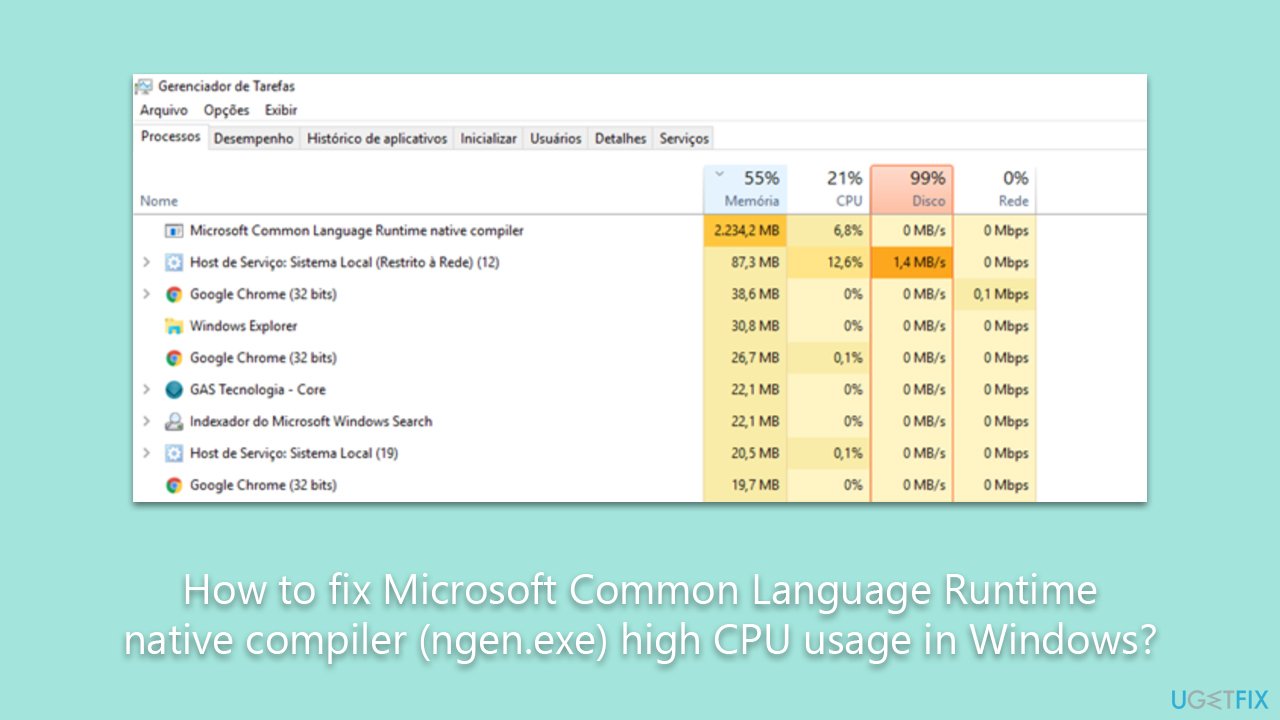
Fix 1. Run SFC and DISM
The SFC is a built-in Windows utility that can fix corrupted system files, while DISM checks the system image files for potential issues. Both can help resolve high CPU usage by repairing any damaged files that might be causing ngen.exe to behave erratically.
- Type in cmd in Windows search
- Right-click on Command Prompt and select Run as administrator
- User Account Control will ask you whether you allow making changes to the system - click Yes
- In the Command Prompt window, paste the following command and hit Enter:
sfc /scannow - Next, use the following commands, pressing Enter each time:
Dism /Online /Cleanup-Image /CheckHealth
Dism /Online /Cleanup-Image /ScanHealth
Dism /Online /Cleanup-Image /RestoreHealth - Restart your system.
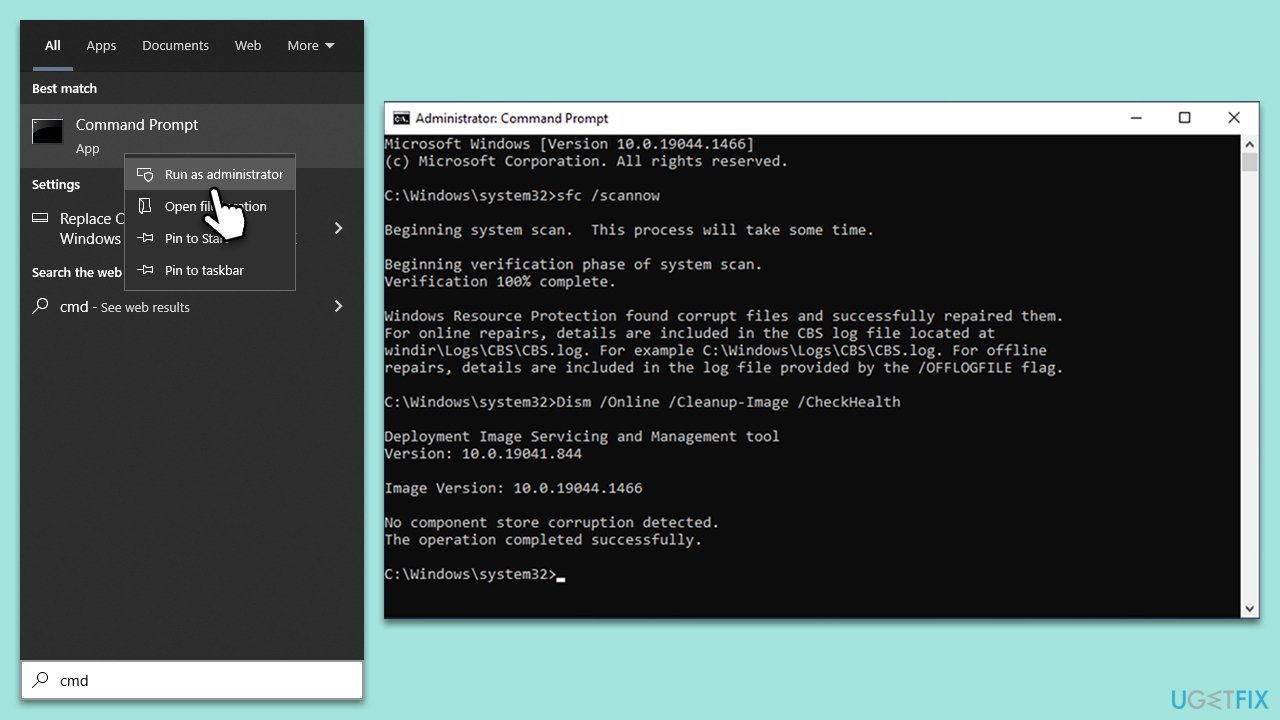
Fix 2. Try Clean Boot
A clean boot starts Windows with a minimal set of drivers and startup programs. This helps you eliminate software conflicts that could cause high CPU usage.
- Press Win + R, type msconfig, and hit Enter.
- Go to the Services tab and tick the Hide all Microsoft services checkbox.
- Select Disable all.
- Go to the Startup tab and click Open Task Manager.
- Here, right-click on each of the non-Windows entries and select Disable.
- Close down the Task Manager.
- Go to the Boot tab and tick the Safe boot option.
- Restart your device.
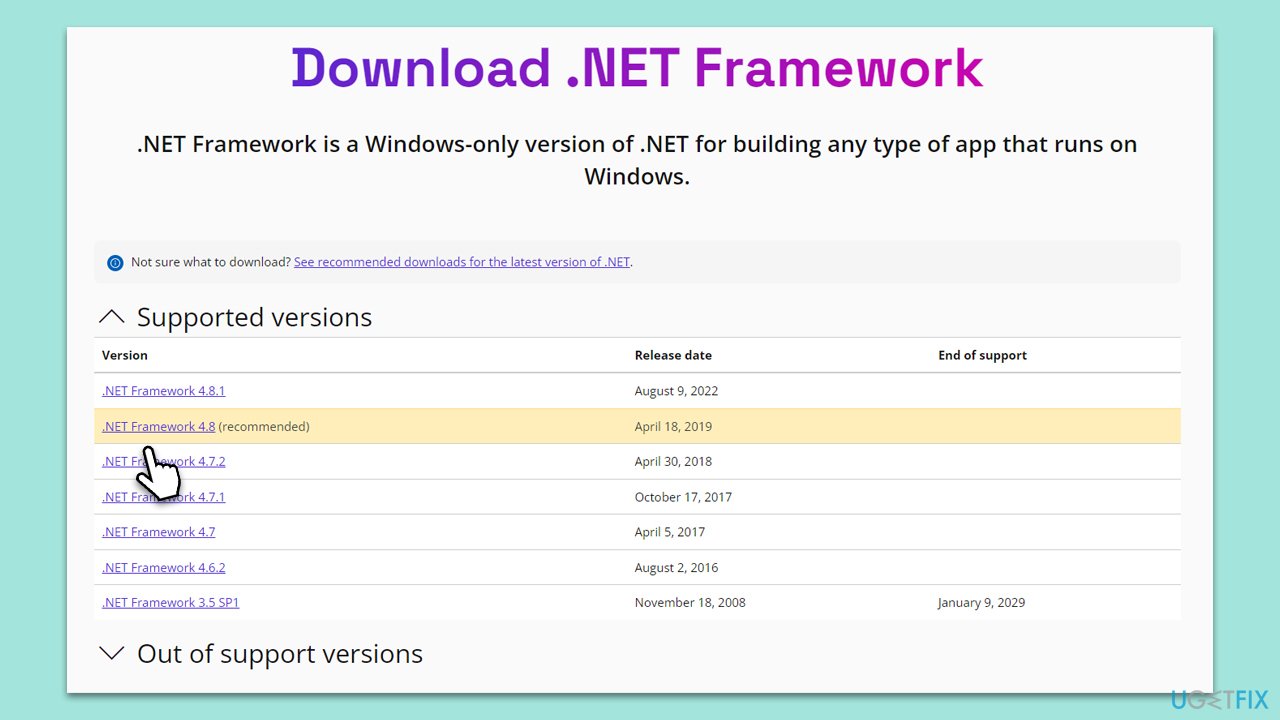
Fix 3. Update .NET Framework
An outdated .NET Framework might cause issues with ngen.exe. Updating it can resolve these problems.
- Go to Microsoft's official website and download the latest .NET Framework.
- Install it by following the on-screen instructions.
- Restart your computer.
Fix 4. Install all Windows updates
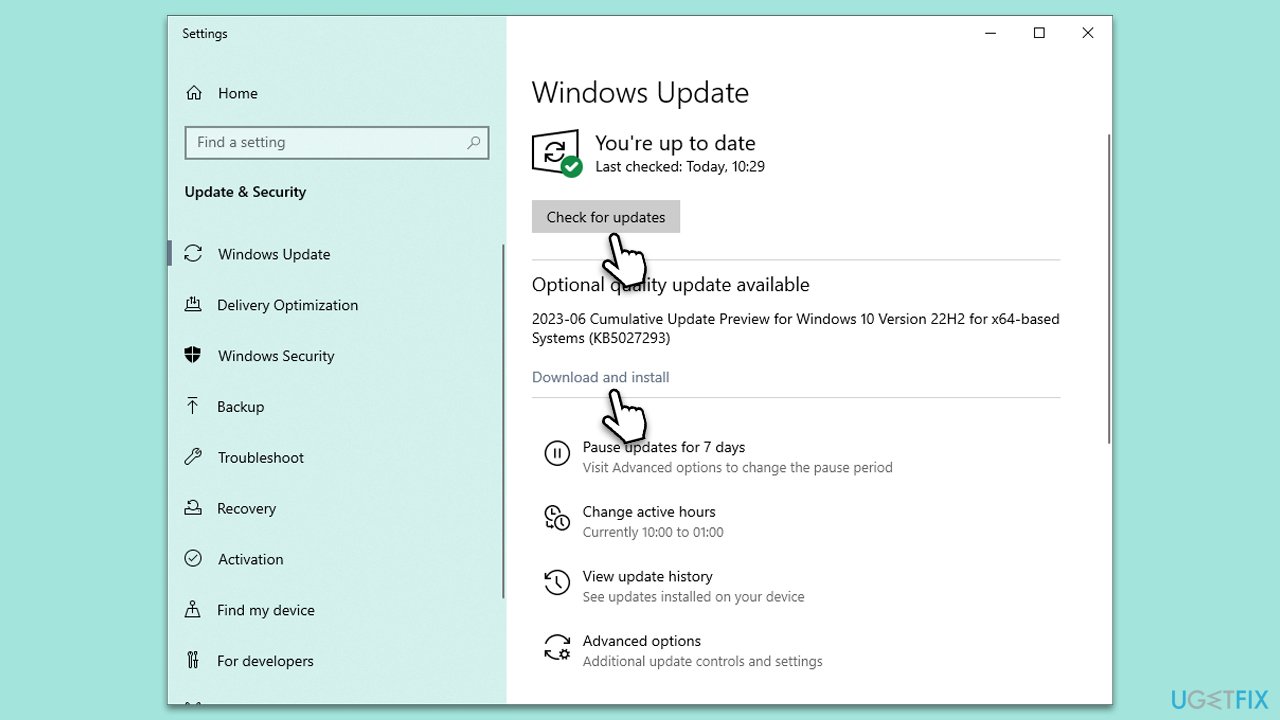
Windows updates often contain performance improvements and patches for issues that may be causing high CPU usage. Ensuring your operating system is up-to-date can potentially solve the issue with ngen.exe.
- Type Updates in Windows search and hit Enter.
- In the new window, click Check for updates.
- Install all the available updates, including optional ones.
- Once done, restart your device.
Bottom line
To address high CPU usage by ngen.exe, you can try stopping the ngen.exe process, reducing the number of .NET applications installed, or reinstalling the .NET Framework. If none of these solutions work, consider seeking further technical support.
Frequently asked questions
High CPU usage by ngen.exe is often caused by the re-compilation of .NET assemblies or background tasks that are running during system updates. It can also occur due to corrupted .NET installations.
To reduce ngen.exe CPU usage, you can try disabling the pre-compilation of .NET assemblies or running the 'sfc /scannow' command to repair any corrupted system files. Additionally, ensuring your Windows 11 is fully updated can help address performance issues.
Disabling ngen.exe is not recommended as it is essential for optimizing the performance of .NET applications in Windows 10. Instead, consider troubleshooting the underlying issues causing its high CPU usage.




Report an issue
What's wrong with this guide? We review every report and update or remove content.
Report received — thank you. We'll review and fix it.
You need a free account to submit a report.
Be the first to comment