How to fix
Microsoft Edge crashing when trying to print
on Windows
Resolve Microsoft Edge crashing issues when printing on Windows 10 and 11 effortlessly. Get quick fixes, expert-tested solutions, and print in minutes.

What causes How to fix Microsoft Edge crashing when trying to print?
- Bugged account login
- Faulty extensions or add-ons
- Printer drivers
- Corrupted or damaged system files
Repairs Windows system files, removes malware, and restores a clean OS state — without reinstalling.
For some time now, I have experienced difficulty in printing from Edge. Although the preview page opens and the waiting icon spins for an extended period of time, no progress is made. Nevertheless, other applications do not seem to be facing this issue, and several browsers are able to successfully print without error. I'd appreciate any advice.
Microsoft Edge is a web browser developed by Microsoft. It was first released in 2015 as a replacement for Internet Explorer and is now available on Windows, macOS, iOS, and Android. Edge is designed to be a fast and efficient browser, with features such as a reading mode, Cortana integration, and an annotation tool.
To print a webpage in Microsoft Edge, you can use the keyboard shortcut "Ctrl + P" or by clicking on the three dots in the top right corner of the browser, then select "Print" from the drop-down menu. This will open the print dialog box, where you can select your printer, choose the number of copies, and adjust other settings, such as page layout and margins. Additionally, you can also use the "Print to PDF" option to save a webpage as a PDF document, which allows you to read it offline or share it with others easily.
Unfortunately, using both methods proved to be difficult for some users, as they said that Microsoft Edge crashes whenever they try to print any document from the web. In some cases, the browser freezes when the printing icon spins, while others claim that the app straight out crashes whenever they initiate the process.
There are a few reasons why Microsoft Edge might crash when trying to print a webpage. Some possible causes include the following:
- Bugged[ref en-2] account login;
- Faulty extensions or add-ons;
- Printer drivers;[ref en-1]
- Corrupted or damaged system files.
It is important to note that these are just some examples, the specific cause of the crash might vary. Thus, we provided several methods to fix Edge crashing when trying to print issue below. We recommend you scan your system with [d1] PC repair software if you want a speedy solution for all types of typical Windows problems.
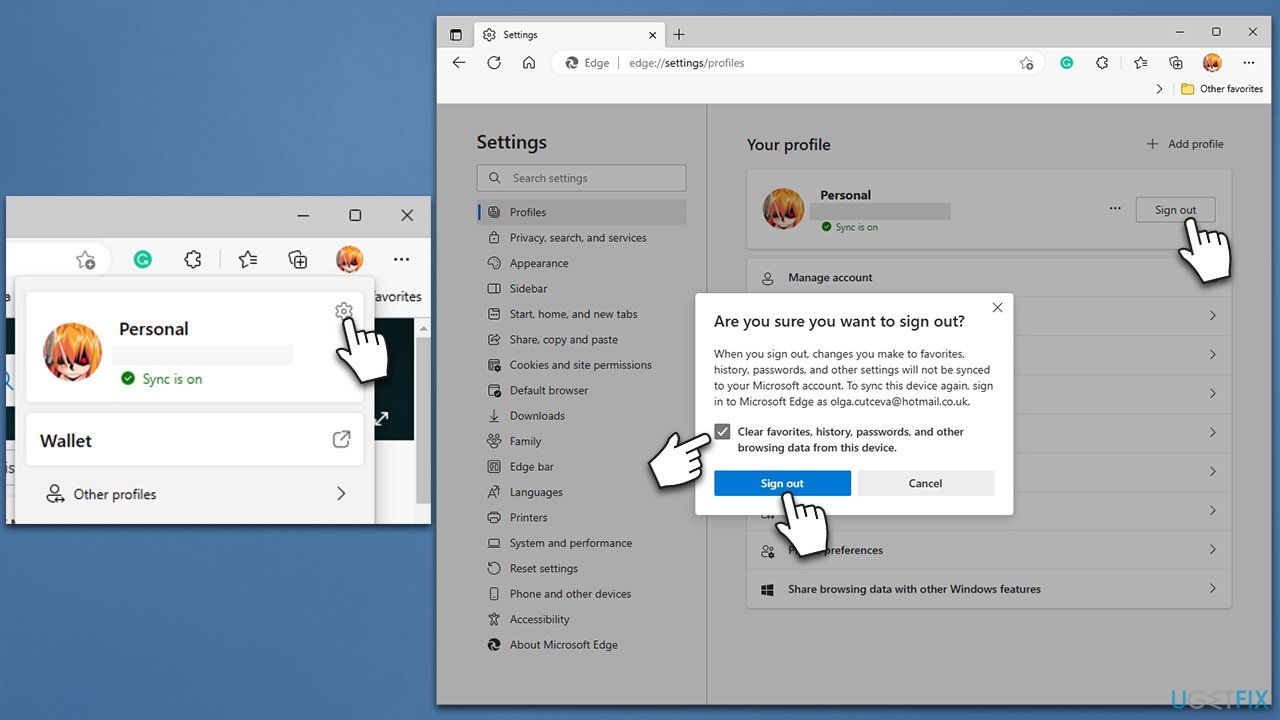
Fix 1. Log in and out of your Microsoft Account in Edge
One of the simplest ways that helped many people was to log out of their accounts and clear data.
- Click on your Profile picture and select Profile settings.
- In your Profile section, click Sign out.
- You will be asked whether you want to clear favorites, history, and other browser data from the device - mark it and click Sign out.
- Next, log back into your account and sync all your data - your passwords, favorites, and history should be back.
- Try printing again.
Fix 2. Restart the Print Spooler service
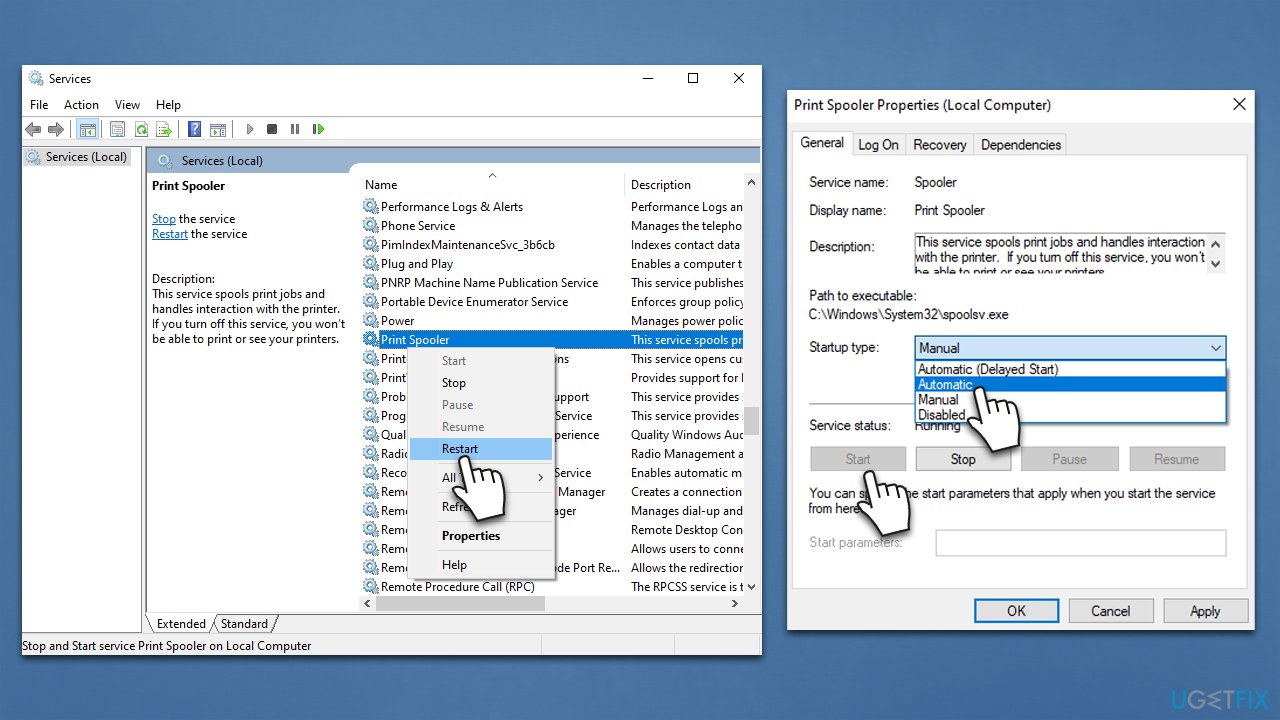
If you are having trouble when trying to print from Microsoft Edge, you should restart Print Spooler service. If it's not running, change the startup options to automatic.
- Type in Services in Windows search and press Enter.
- Scroll down until your find Print Spooler.
- Right-click it and select Restart.
- If the service is not running, double-click it to open Properties.
- Under Startup type, select Automatic from the drop-down menu.
- Click Start, Apply, and OK.
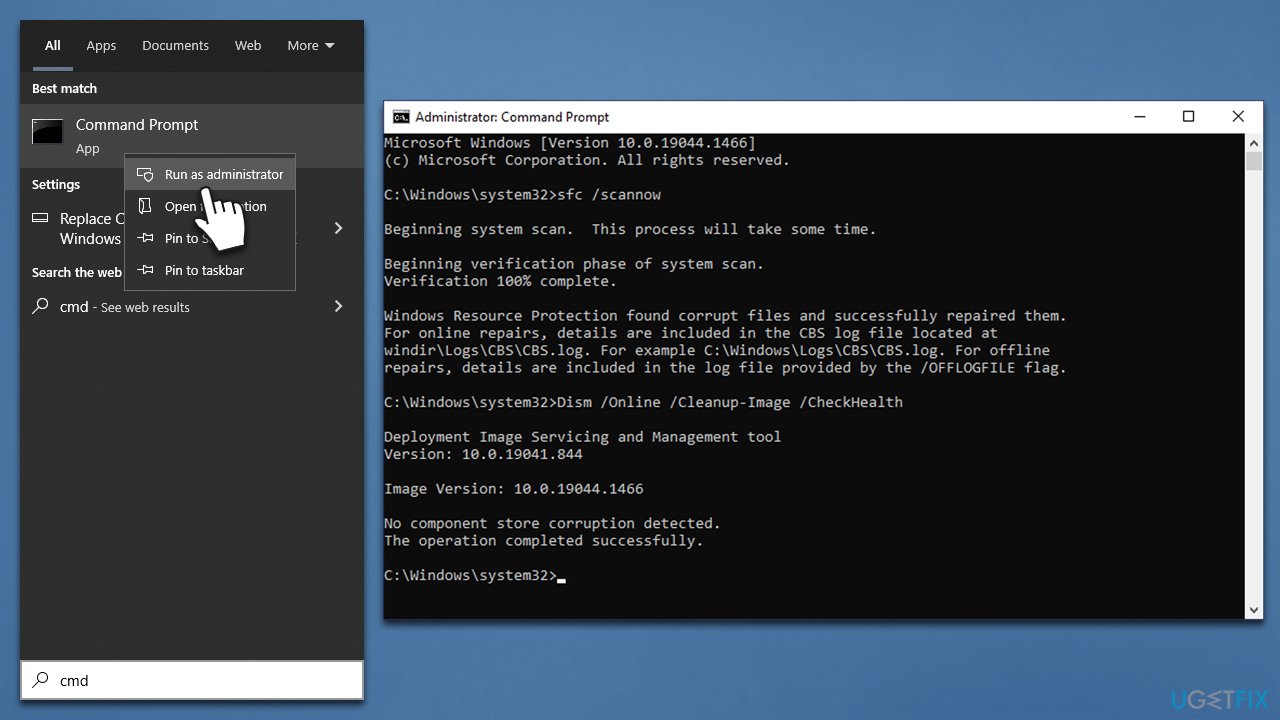
Fix 3. Run SFC and DISM
Corrupted Windows system files might be causing the issue. Try running SFC and DISM via elevated Command Prompt:
- Type cmd in Windows search.
- Right-click on Command Prompt and pick Run as administrator.
- When User Account Control shows up, click Yes.
- Use the following command lines, pressing Enter after each:
sfc /scannow
DISM /Online /Cleanup-Image /CheckHealth
DISM /Online /Cleanup-Image /ScanHealth
DISM /Online /Cleanup-Image /RestoreHealth - Restart your computer.
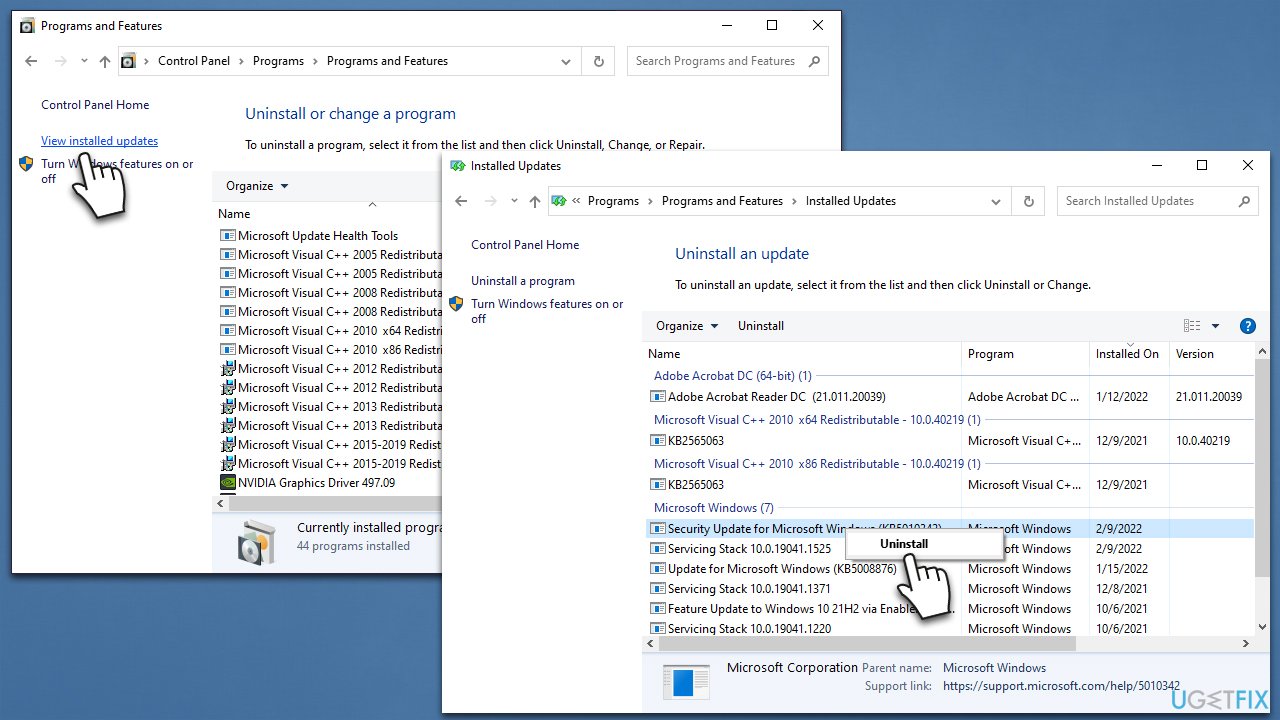
Fix 4. Uninstall faulty Windows update [if applicable]
- Type Control Panel in Windows search and hit Enter.
- Select Programs > Uninstall a program.
- Pick View installed updates on the left.
- From the list, uninstall the most recent Windows update by right-clicking it and selecting Uninstall.
- Next, you should pause the updates until the issue is fixed. To do that, type in Updates in Windows search and press Enter
- Here, click Pause updates for 7 days. In Windows 11, you can choose a longer timeframe.
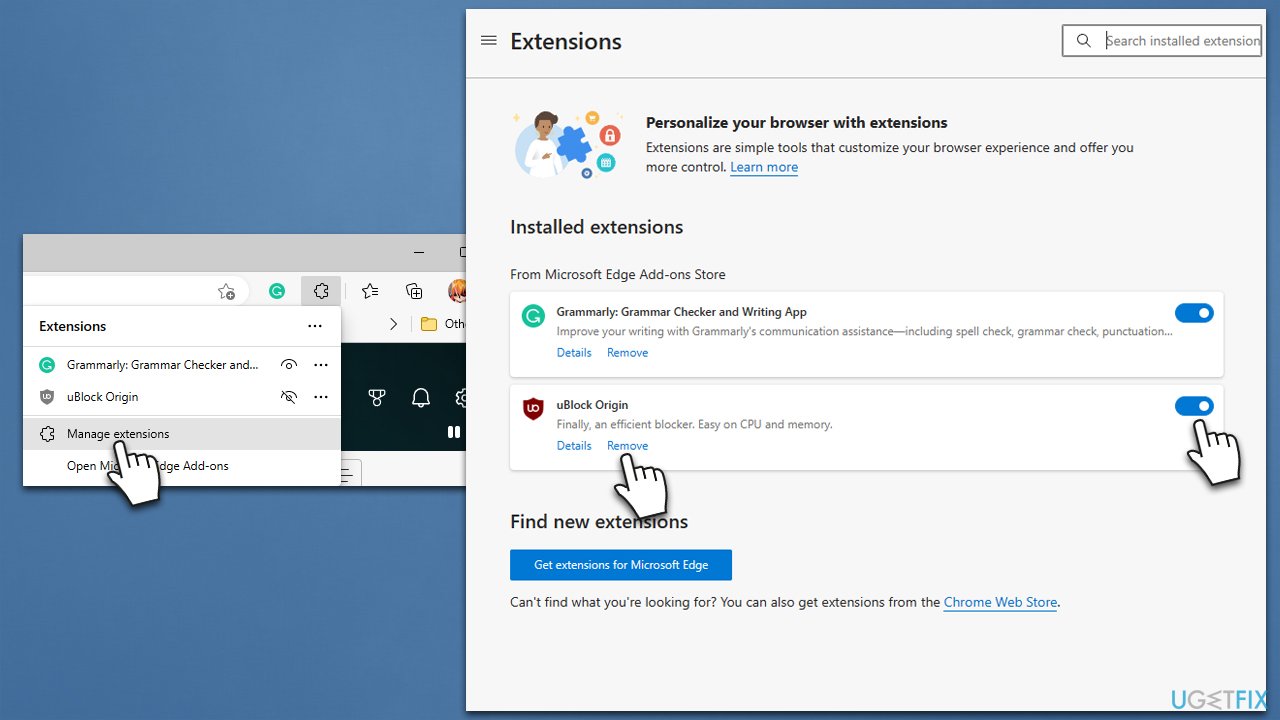
Fix 5. Uninstall extensions and add-ons [if applicable]
- Open the MS Edge browser and click the Extensions button at the top-right.
- Select Manage Extensions.
- From here, you can either Disable extensions by clicking the toggle switch button or remove them by clicking Remove.
Fix 6. Reinstall Printer drivers
If your printer driver is malfunctioning, it could cause Microsoft Edge to crash when trying to print. Typically, reinstalling drivers can fix the issue in such cases.
- Right-click on Start and pick Device Manager.
- Expand the Print queues section.
- Right-click on your printer and select Uninstall device.
- Pick Delete the driver software for this device option and click Uninstall.
- Follow on-screen instructions and restart your system once prompted.
You can download the newest printer driver in several ways - using [rev id="DriverFix"] being one of the easiest methods. Alternatively, you can go to the device manufacturer's website and download drivers from there. In some cases, initiating Windows updates and installing optional updates can suffice.
Bottom line
To fix the crashing issue in Microsoft Edge when trying to print, you can try scanning your system for issues, disabling extensions, or updating printer drivers. If these methods do not resolve the problem, consider checking for corrupted system files or seeking further assistance.
Frequently asked questions
Microsoft Edge may crash during printing due to outdated printer drivers or corrupted browser settings. Updating your printer drivers and resetting Edge settings can often resolve this issue.
If Edge crashes in Windows 11 while printing, try disabling any installed extensions and clearing the browser cache. This can help eliminate conflicts that might be causing the crashes.
Yes, you can troubleshoot Edge printing issues by checking for browser updates, running the Windows Print Troubleshooter, and ensuring your default printer is correctly set in the Windows settings.




Report an issue
What's wrong with this guide? We review every report and update or remove content.
Report received — thank you. We'll review and fix it.
You need a free account to submit a report.
Be the first to comment