How to fix
Microsoft Edge Critical ERROR
on Windows
Resolve Microsoft Edge critical errors on Windows 10 and 11 effortlessly. Follow our expert-tested solutions for smooth browsing, fixed in minutes.

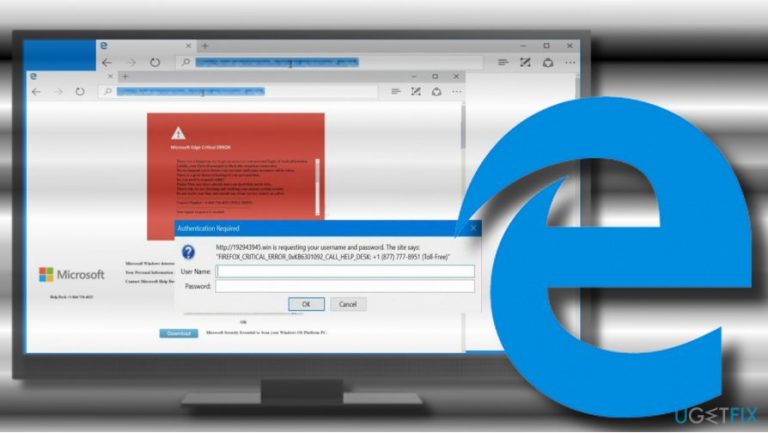
What causes How to Fix Microsoft Edge Critical ERROR?
- Triggered by malware known as adware
- Spreads via free downloads
- Infected advertisements
- Compromised websites
- Aggressive pop-up ads freezing the browser
Repairs Windows system files, removes malware, and restores a clean OS state — without reinstalling.
Please tell me how to close a window saying “Microsoft Edge Critical ERROR” on Edge browser? It occurs along with audio instructions to call a given number to fix the error. How can I fix that?
Microsoft Edge Critical ERROR is yet another scam alert[ref en-1] circulating on the Internet for the last month. It’s a clone for Mozilla Firefox Critical ERROR, except that these two target different web browsers. Both alerts are rather aggressive pop-up ads that freeze web browser’s screen completely and the only way to close it is to end web browser’s task via Windows Task Manager.
Microsoft Edge Critical ERROR is triggered by malware known as adware. The latter usually spreads via free downloads and sometimes infected advertisements. In some rare cases, the same error may pop-up while visiting a compromised website.
The error shows up along with a sound recording, where the supposed certified Microsoft technician provides instructions on what to do to fix the problem. Actually, the instructions go in one direction – to call for the “Microsoft at toll-free 1-844-734-4622 for immediate support.”
Inexperienced PC users can easily fall for this trick as the Microsoft Edge Critical ERROR scam reports a possible hacking attack, which may lead to the leakage of logins, banking information, and similar personal information.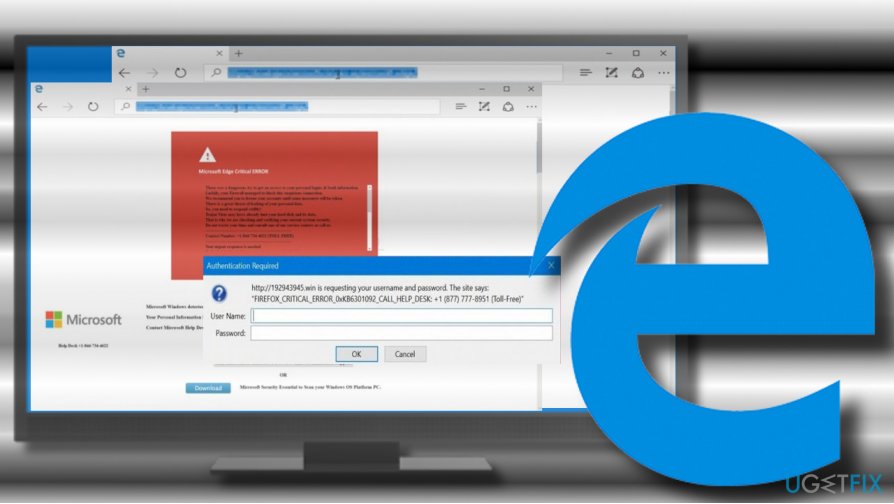
No matter how convincing this technical support scam may appear, keep in mind that it’s a message from cyber criminals[ref en-2] who seek to inject malware into your PC and then take absolute control over it. Microsoft Edge Critical ERROR pop-up is not malicious on its own, but if you would call for the given number, most probably you would be urged to install a “professional anti-malware”[ref en-3] to fix the problem. This is where the show pinches. If you would decide to install the offered tool, you may not only pay several hundred dollars for a useless tool, but also welcome a virus.
Sometimes, the “professional Microsoft technicians” that manage the Microsoft Edge Critical ERROR pop-up may ask you to install legitimate remote access programs. In this case, they would be able to see everything that you perform on your PC. Therefore, be careful and DO NOT call the given number. Instead of that, fix the Microsoft Edge Critical ERROR scam without a delay.
A Guide on How to Fix Microsoft Edge Critical ERROR
Since Microsoft Edge Critical ERROR scam is the outcome of the malware infection, the fastest way to fix it is to run a full system scan with a professional anti-malware program. Our recommendation would be [d1]. Download the program and run a setup file to install it. Once installed, run a full system scan and remove all potentially unwanted or malicious programs that it detects.
IMPORTANT: neither Reimage nor other anti-malware and anti-virus tools reset web browser's default settings. Therefore, once you uninstall malware, make sure to reset Microsoft Edge. Without doing so, the pop-up will keep reappearing on your screen.
In addition, you can fix the Microsoft Edge Critical ERROR manually. For this purpose, you'll have to close Microsoft Edge in Windows Task Manager and then uninstall malware from Programs & Features.
- Press Ctrl + Alt + Delete and open Windows Task Manager.
- Find Microsoft Edge on the list and click on it. Select End Task.
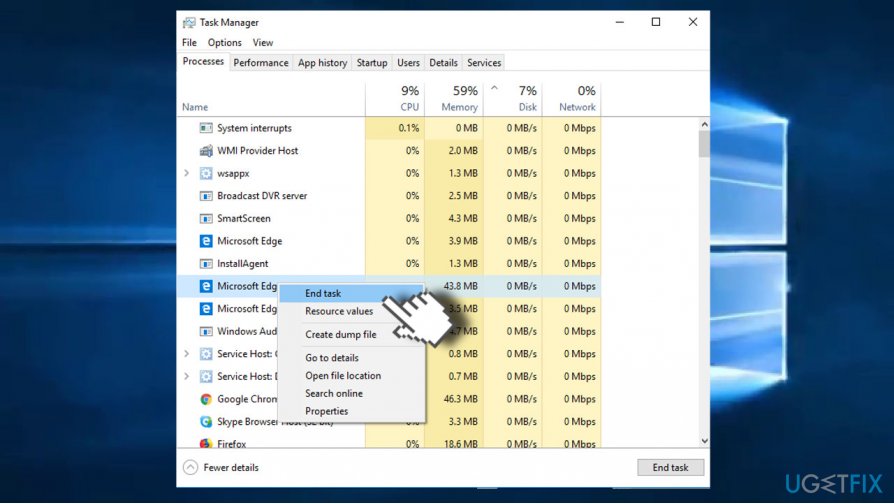
End microsoft edge task - Then press Windows key + I and open Apps section. (Windows 10)
- In earlier Windows versions you should navigate to Control Panel -> Programs & Features.
- Carefully check the list of installed programs. If you detected a suspicious one, you can search for it online to find out if it falls for the PUP category.
- Click on the unwanted program and select Uninstall. Check the date of recently installed programs and if it coincide with the emergence of the Microsoft_Edge_Critical_ERROR, make sure to remove them all.
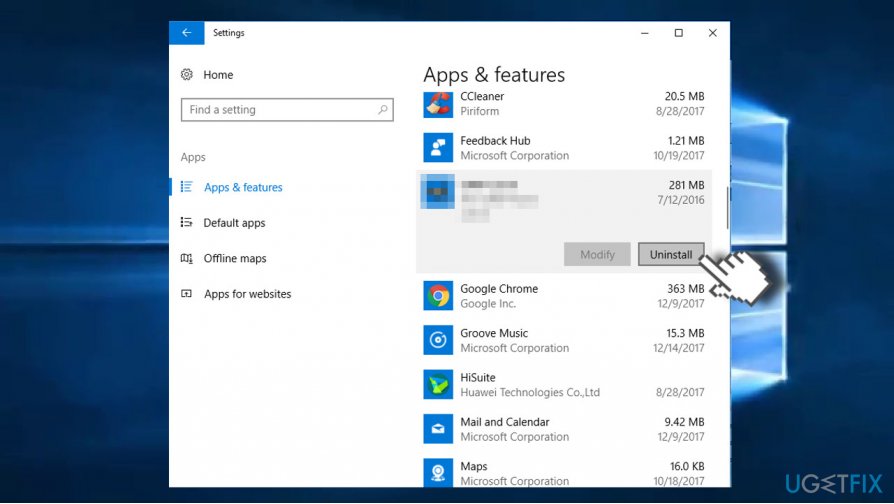
Uninstall malware - Then open Microsoft Edge, but don't restore the last browsing session.
- Click on the three dot icon - More actions button at the top-right corner of the screen.
- Open Settings and click on Choose what to clear button under the Clear browsing data.
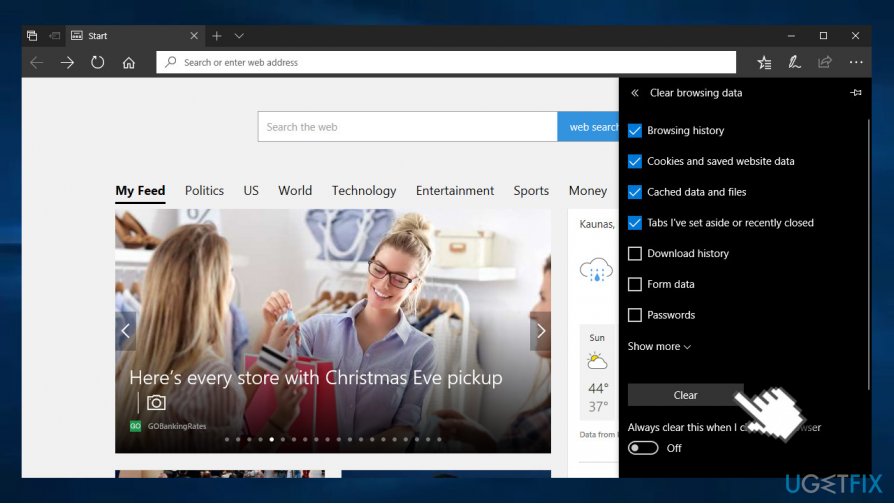
Clear browsing data - We would recommend marking all six data types and clicking Clear to confirm. In case Microsoft Edge don't respond, you can find more information on how to reset Microsoft Edge here.
Bottom line
To fix the Microsoft Edge Critical ERROR, you should end the web browser's task via Windows Task Manager. Be cautious of the scam and do not call the provided number or install any suggested software. If these steps do not resolve the issue, consider running a full malware scan on your PC.
Frequently asked questions
Try resetting Microsoft Edge by navigating to Settings > Reset settings. If the problem persists, consider reinstalling Edge through the Microsoft Store.
You can clear the browser cache and cookies by going to Settings > Privacy, search, and services, then selecting Clear browsing data. If issues continue, running the Windows Troubleshooter for apps may help.
Yes, before attempting any fixes, export your bookmarks by going to Settings > Import or export and selecting Export favorites. This way, you can safely restore them after troubleshooting.




Report an issue
What's wrong with this guide? We review every report and update or remove content.
Report received — thank you. We'll review and fix it.
You need a free account to submit a report.
Be the first to comment