How to fix
Microsoft Edge high memory usage
on Windows
Discover effective strategies to reduce Microsoft Edge's high memory usage on Windows 10 and 11, ensuring smoother performance. Expert-tested solutions …

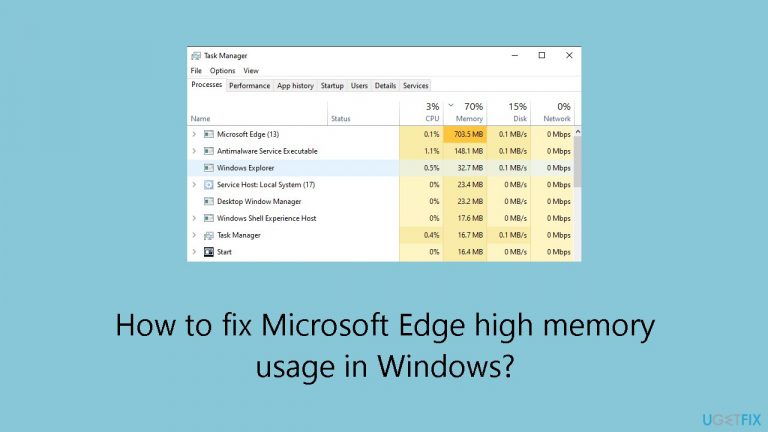
What causes How to fix Microsoft Edge high memory usage in Windows?
- High memory use due to extensions
- Background processes consuming resources
- Low-end hardware limitations
- Outdated browser version
- Inefficient browser settings
Repairs Windows system files, removes malware, and restores a clean OS state — without reinstalling.
Hello. I noticed that Microsoft Edge takes a long time to load websites and found that it uses almost all the available memory on my Windows PC. What should I do?
Excessive memory usage by Microsoft Edge in Windows is a common problem that many users have expressed concern over. The issue appears when users notice slower system performance and long loading times. System performance may be impacted by this high memory use, which could result in delayed multitasking, slower response times, and a worse user experience overall.
It can be observed by users that Microsoft Edge keeps using up a significant amount of RAM on their machines, which can be problematic for those with low-end hardware. Even when the browser is not being used actively, the problem may still exist, indicating that there may be a problem with an extension or background process.
High memory use affects more than just a slow browsing experience. It may impact the operating system's general stability, with extreme cases possibly leading to crashes, freezes, or unresponsiveness. Users may notice that Microsoft Edge is using up all of their system resources, which makes it difficult to run other applications simultaneously and reduces overall productivity.
Even though Microsoft Edge is promoted as a browser that offers a seamless and efficient browsing experience, users are searching for solutions to enhance their system's performance due to the high memory usage problem. Potential remedies include adjusting the browser's settings, disabling unnecessary extensions, and making sure the most recent patches and updates are installed. Keep in mind that not every one of these solutions will be equally helpful. You may need to test out a few of them before finding which one best suits your particular circumstances.
In this guide, you will find 7 steps that should help you fix Microsoft Edge high memory usage in Windows.You can also try a maintenance tool like [d1] that can fix most system errors, BSODs,[ref en-1] corrupted files, and registry[ref en-2] issues. Otherwise, follow the step-by-step instructions below.
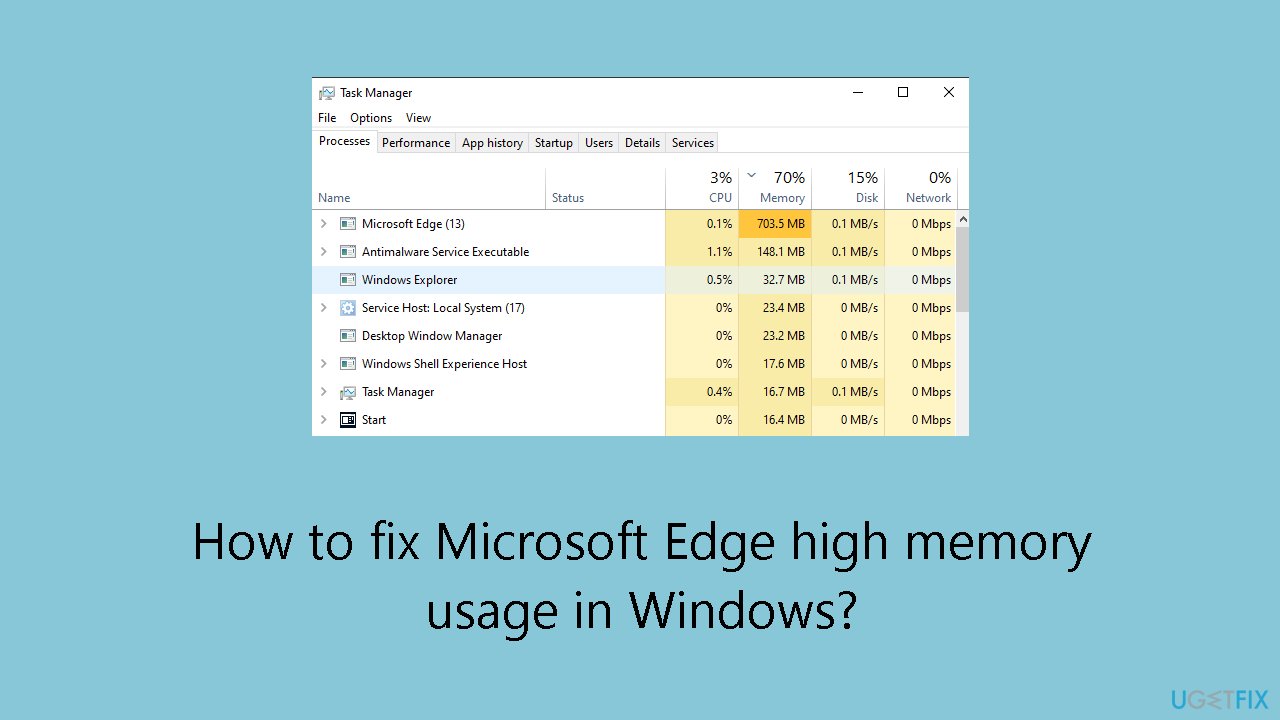
Solution 1. Use Browser Task Manager
- Open Microsoft Edge and locate the three-dot icon in the top right corner.
- Click on the three-dot icon to open a menu.
- Navigate to More tools and select Browser task manager from the dropdown.
- Inside the Browser task manager, find and click on the Memory section.
- Arrange the list of processes in descending order by clicking on the Memory section.
- Identify intensive but unnecessary tabs in the list.
- To close those tabs, click on the End process button associated with each identified tab.
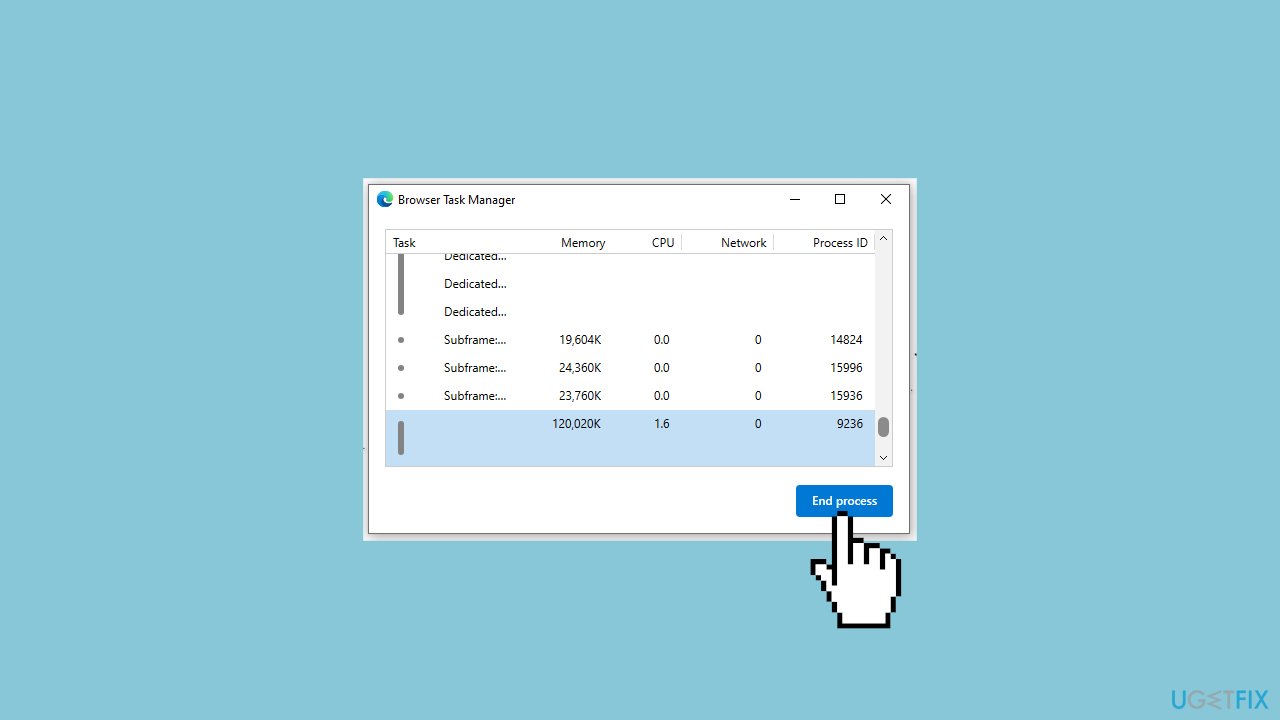
Solution 2. Enable Efficiency Mode
- Open Microsoft Edge and click on the three-dot icon.
- Select Settings from the dropdown menu.
- Within the Settings, go to the System and performance tab.
- Locate the Efficiency mode option under Optimize Performance.
- Turn on the toggle next to Efficiency mode to activate it.
Solution 3. Fix Corrupted System Files
Use Command Prompt commands to repair system file corruption:
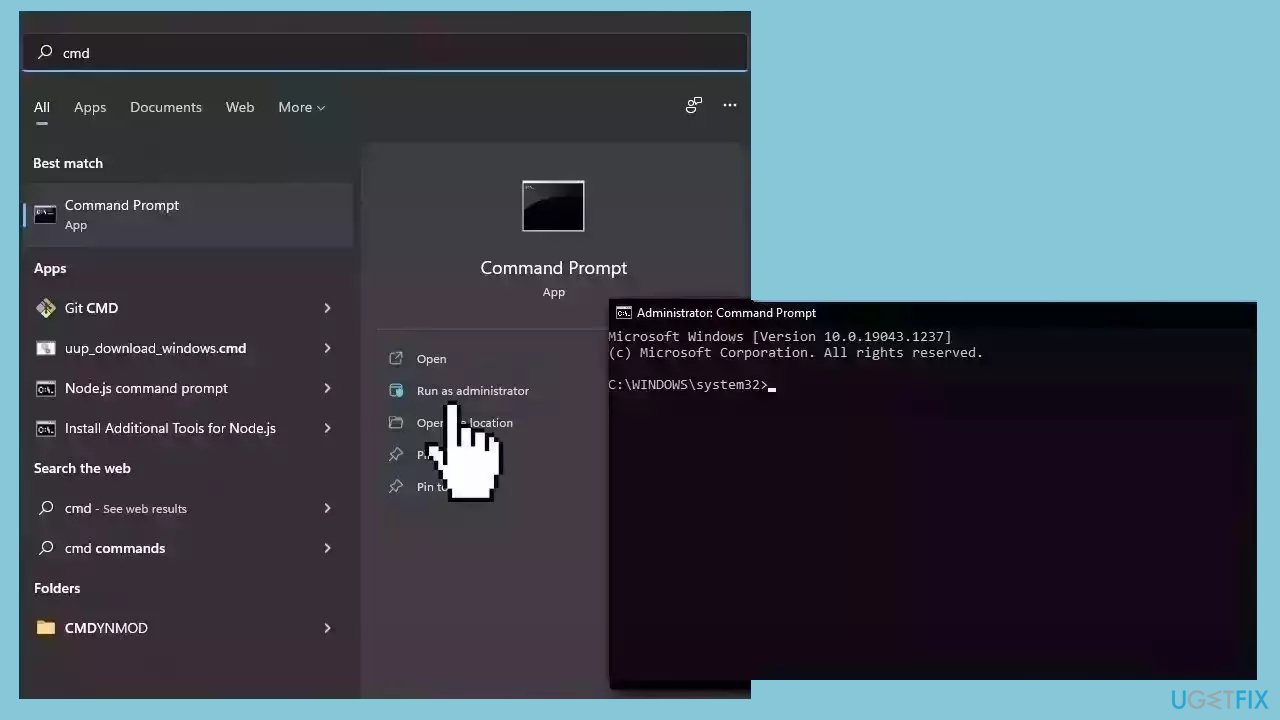
- Open Command Prompt as administrator
- Use the following command and press Enter:
sfc /scannow
- Reboot your system
- If SFC returned an error, then use the following command lines, pressing Enter after each:
DISM /Online /Cleanup-Image /CheckHealth
DISM /Online /Cleanup-Image /ScanHealth
DISM /Online /Cleanup-Image /RestoreHealth
Solution 4. Disable Hardware Acceleration and Startup Boost
- Open Microsoft Edge and access the System and performance tab in the Settings.
- In the System section, locate and disable the toggle switches next to Startup boost and Use hardware acceleration when available.
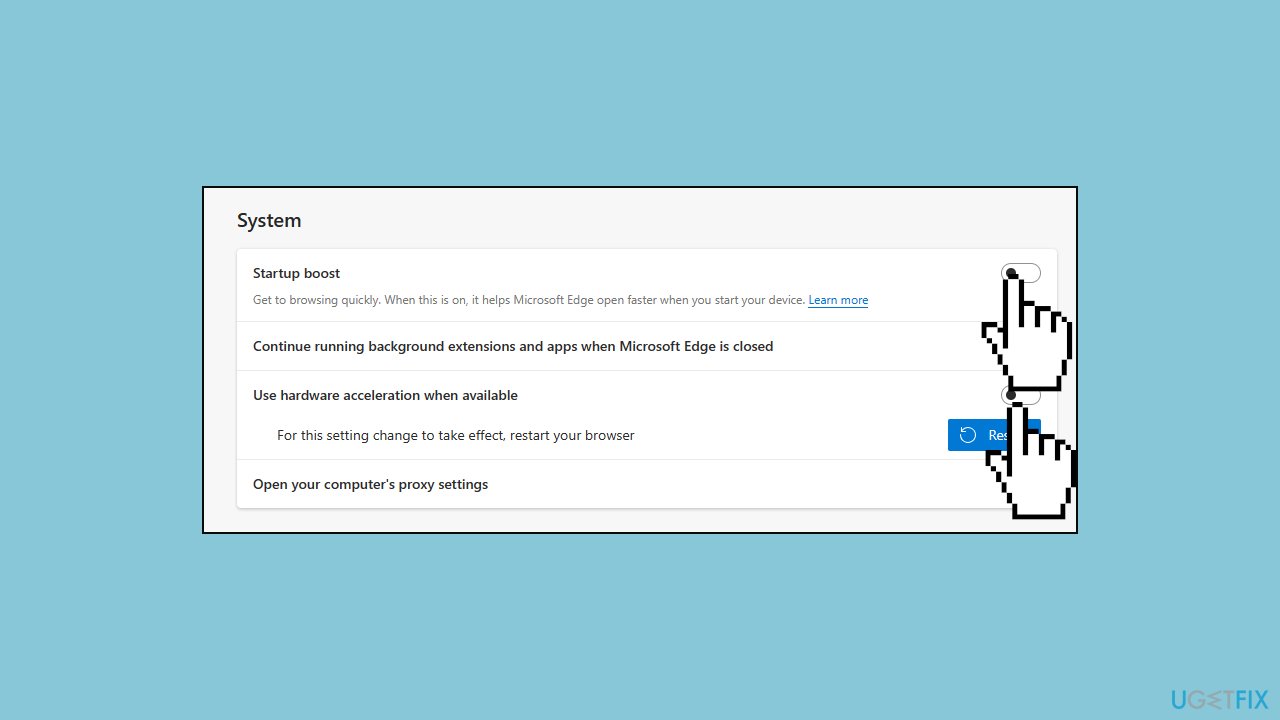
- After making these changes, restart your browser to ensure the modifications take effect.
Solution 5. Delete Extensions
- Open Microsoft Edge and navigate to edge://extensions/ in the address bar.
- This will take you to the location where your installed extensions are listed.
- Identify the unused extension from the list.
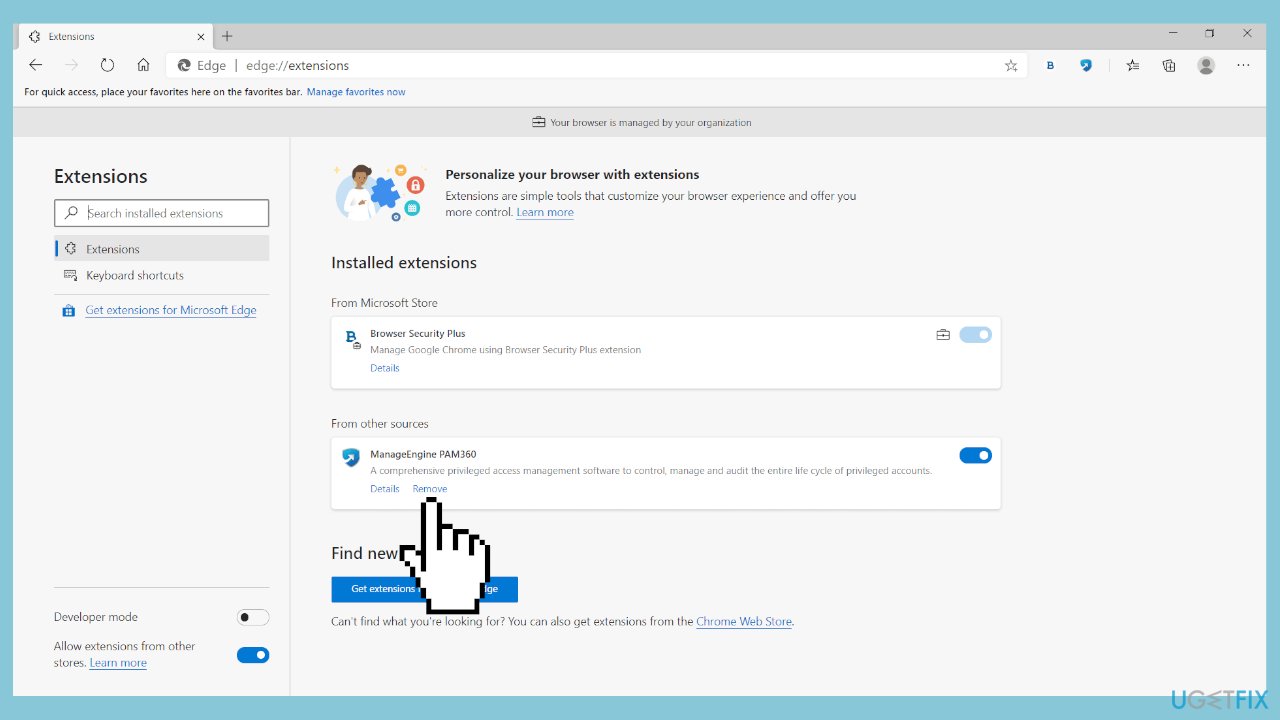
- Click on the extension you want to remove, and then select Remove to uninstall it.
Solution 6. Scan for Malware
A malware infection may be the cause of Microsoft Edge high memory usage in Windows. It is important to run a comprehensive security scan to rule out this possibility and ensure that the computer is not infected. This can help to prevent further issues with the Windows operating system and ensure that it is functioning properly.
If you have access to a security scanner, or if your organization pays for one, you can use it to scan your entire system to check for a virus infection. Otherwise, you can use Windows Defender to scan your system:
- Click on the Windows Start menu or press the Windows key on your keyboard.
- Type Microsoft Defender in the search bar and click on Microsoft Defender Antivirus to open the application.
- Click on the Virus & threat protection option in the left-hand menu.
- Click on the Quick scan or Full scan option, depending on your preference.
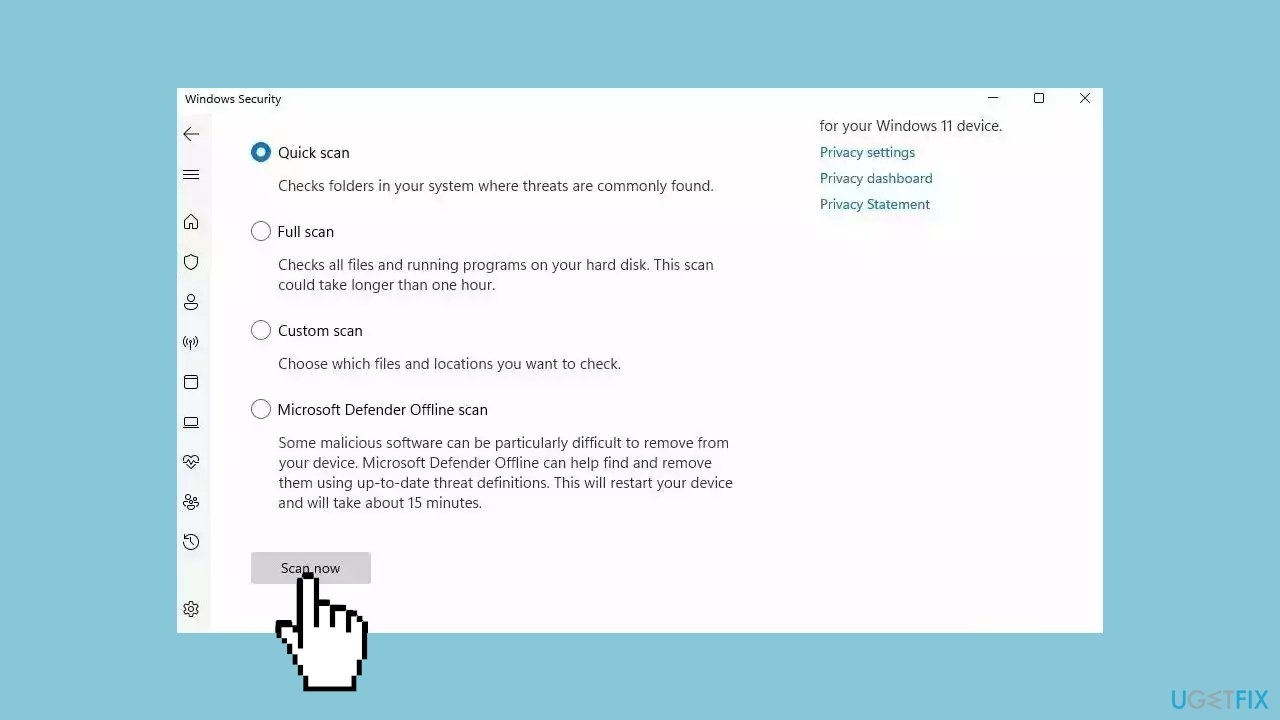
- If you choose Quick scan, Microsoft Defender Antivirus will scan the most vulnerable and commonly infected areas of your computer.
- If you choose Full scan, Microsoft Defender Antivirus will scan your entire computer, including all files, folders, and programs.
- Click on the Scan now button to start the selected scan type and wait for the scan to complete.
- The time it takes will depend on the size of your hard drive and the number of files being scanned.
- Once the scan is complete, you will be informed of any detected threats, and you can choose to quarantine or remove them.
- If no threats are found, Microsoft Defender Antivirus will inform you that your device is secure.
Solution 7. Update Microsoft Edge
- Click on the three-dot icon in the Edge taskbar and select Settings.
- Go to About Microsoft Edge in the left panel.
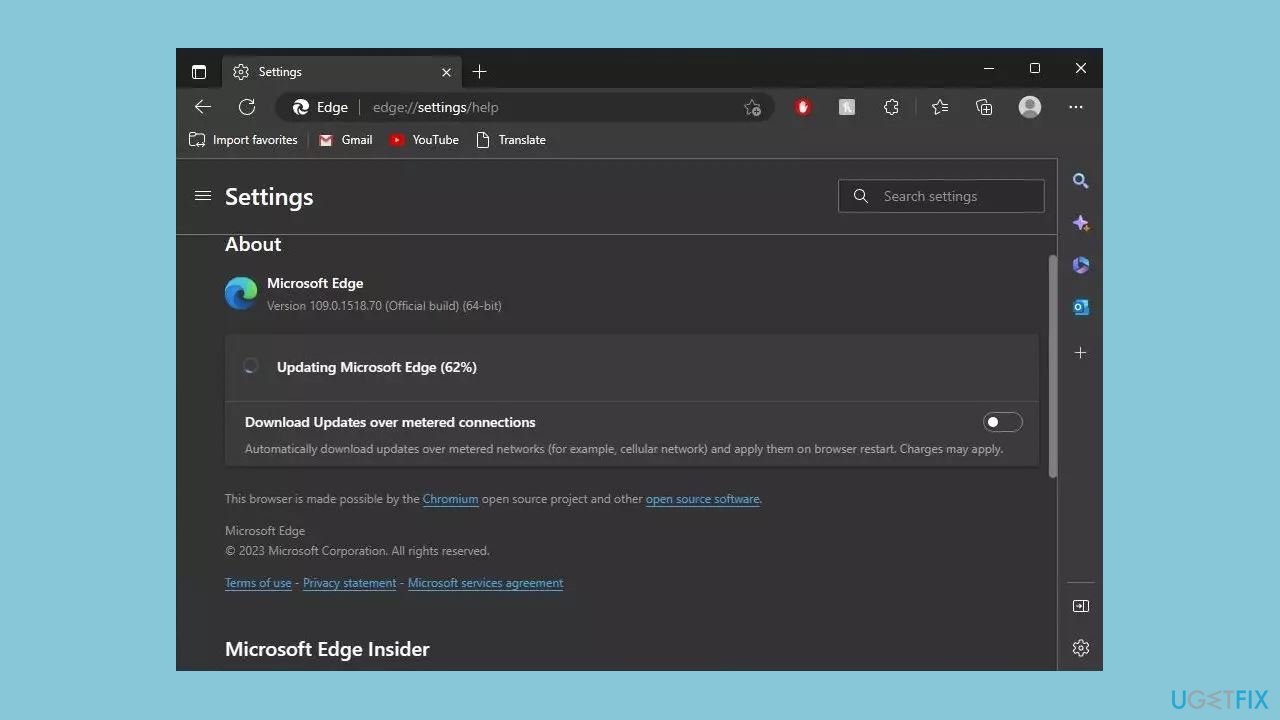
- You can see the current version of Edge.
- If it needs to be updated, follow the instructions on the screen to complete the process.
Bottom line
To address high memory usage in Microsoft Edge, consider adjusting browser settings, disabling unnecessary extensions, and ensuring that all updates are installed. If these solutions do not resolve the issue, you may want to try a maintenance tool that can fix system errors and improve performance.
Frequently asked questions
Common causes include having too many tabs open, extensions running in the background, or outdated browser versions. Additionally, certain websites can be resource-intensive, leading to increased memory consumption.
You can reduce memory usage by closing unnecessary tabs, disabling unused extensions, and using Edge's built-in sleeping tabs feature. Regularly clearing cache and cookies can also help optimize performance.
Yes, resetting Microsoft Edge can help resolve high memory usage issues; you can do this by navigating to Settings > Reset settings in the Edge menu. This action restores the browser to its default state, which may alleviate memory problems.




Report an issue
What's wrong with this guide? We review every report and update or remove content.
Report received — thank you. We'll review and fix it.
You need a free account to submit a report.
Be the first to comment