How to fix
Microsoft Edge not loading images
on Windows
Resolve Microsoft Edge image loading issues on Windows 10 and 11 quickly with our expert-tested solutions. Get your browser working smoothly again!


What causes How to fix Microsoft Edge not loading images in Windows?
- Problem with the website
- Browser's cache or cookies
- Issue with the computer's network connection
- Interfering extensions or plugins
Repairs Windows system files, removes malware, and restores a clean OS state — without reinstalling.
Hello. Microsoft Edge just stopped loading all pictures on websites. What could be the issue?
Microsoft Edge is a web browser that is included with the Windows operating system. It is intended to provide users with a fast, secure, and efficient browsing experience. The browser has a number of advantages, including compatibility with modern web technologies, a more streamlined design, and enhanced privacy and security features.
However, Microsoft Edge users may experience a problem with images not loading properly within the browser. Slow page loads and broken visuals on webpages can have an impact on the user experience. There are several possible causes for this issue, including a problem with the website, the browser's cache or cookies, or an issue with the computer's network connection.
Clearing the browser's cache and cookies, restarting the computer, checking the network connection, or disabling extensions and plugins that may be interfering with image loading are all possible solutions to this problem. Updating Microsoft Edge to the latest version may also help in some cases.
In this guide, you will find 6 steps that should help you fix Microsoft Edge not loading images in Windows. Keep in mind that the manual troubleshooting process can be lengthy. If you want to avoid it, you can use a maintenance tool like [d1] that can fix most system errors, BSODs,[ref en-1] corrupted files, registry[ref en-2] issues, or clear cookies and cache.[ref en-3] Otherwise, follow the step-by-step instructions below.

Method 1. Disable Extensions
Because extensions can sometimes interfere with the normal operation of the browser, disabling them in Microsoft Edge can resolve the issue of images not loading. These extensions may alter or prevent image loading, causing the problem.
- Click the Extensions icon in the task bar in Edge
- Click the three-dot icon next to an extension
- Select Pause on all sites
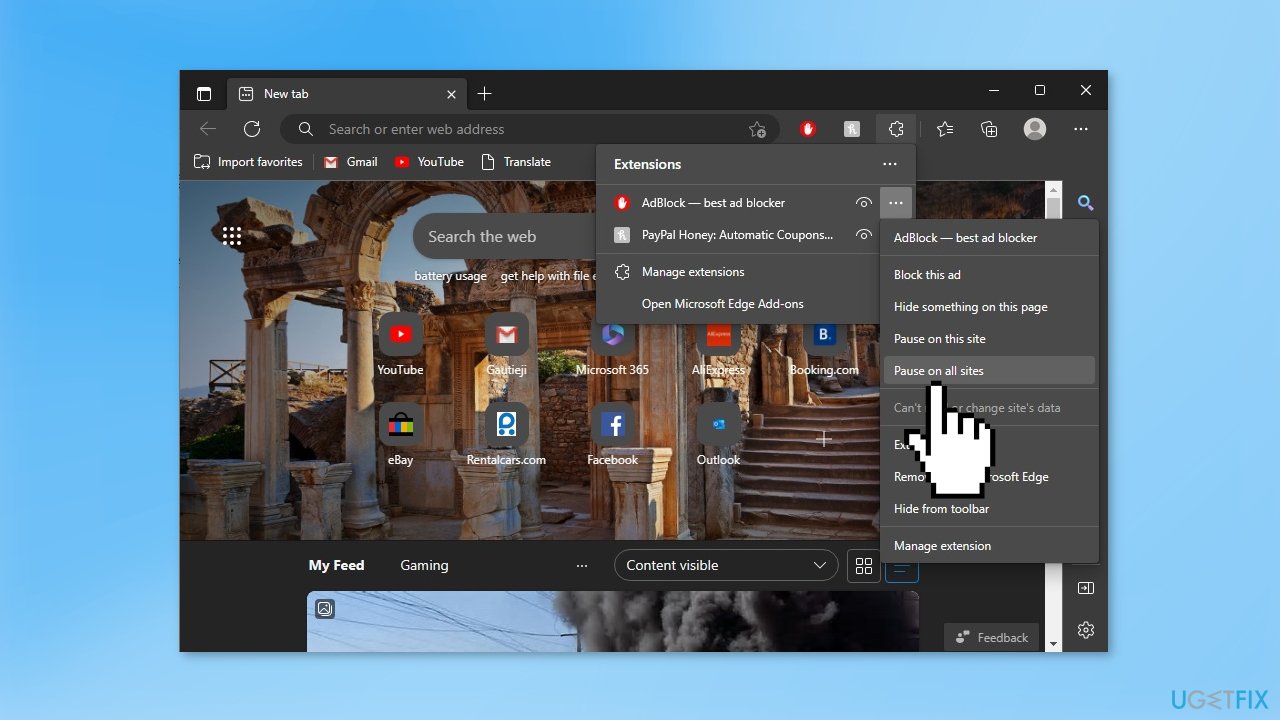
- Input edge://extensions/ in the Edge address bar
- Turn extensions off one by one by not highlighting the button on the right side
Method 2. Try the InPrivate Window
- Click on the three-dot icon in Edge
- Choose New InPrivate window
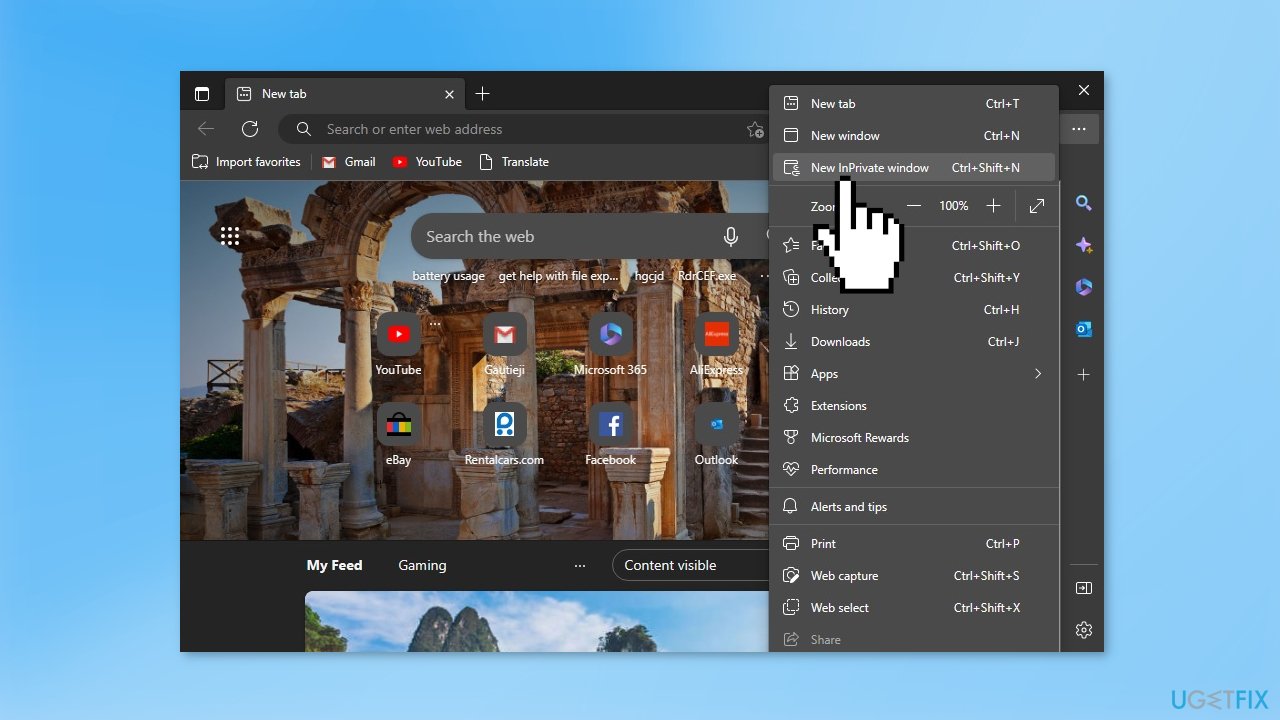
- Go to the site that was not loading pictures
Method 3. Allow Site Permissions for Images
- Input edge://settings/content in the Edge address bar to go to Edge settings
- Under the All permissions section, scroll down and click on Images
- Highlight the button next to Show all (recommended)
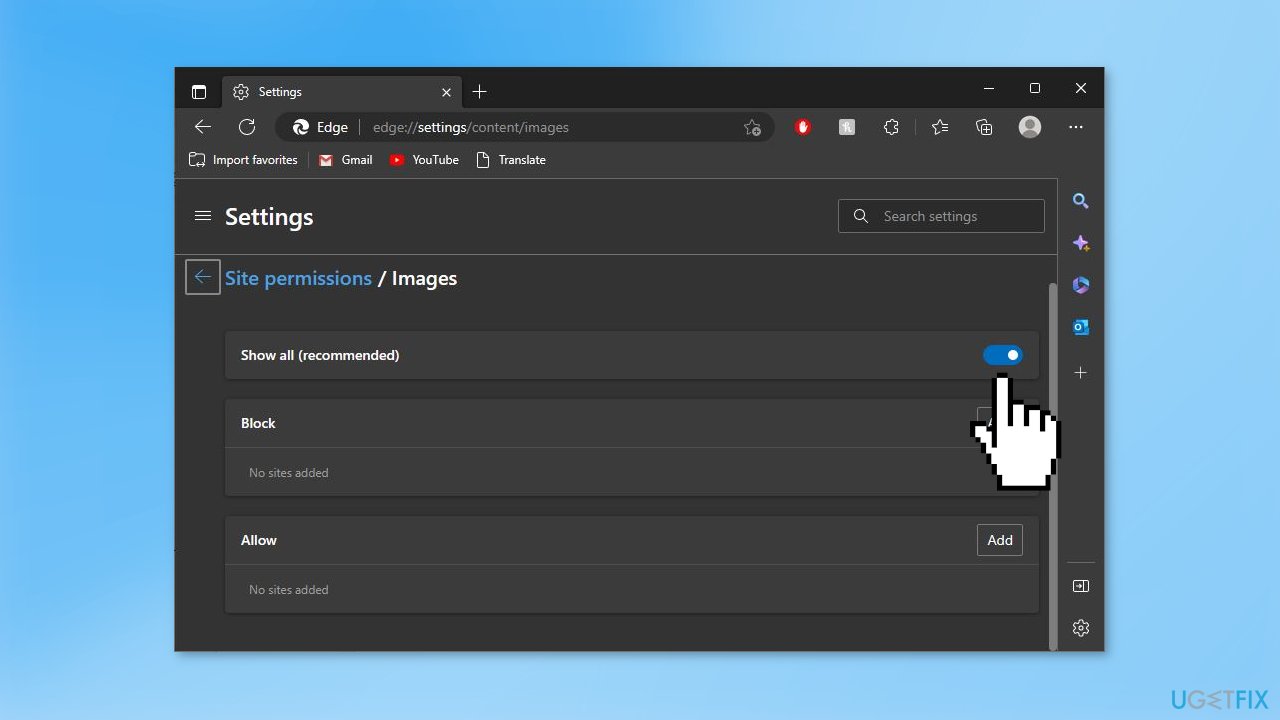
- By default, there should be no sites under the Block section
- If some sites you want to access are added to the Block list, you can delete them
Method 4. Clear Edge Cache
Cache, also known as temporary internet files, is a collection of data stored on the computer's hard drive by the browser. This data includes images and other website elements that are saved for easy access and to reduce the need for the browser to reload these elements every time a user visits the site.
This cache can become corrupted, outdated, or overburdened over time, causing problems with the browser's functionality. Clearing the cache can help resolve image loading issues because it removes the outdated and potentially corrupt data that is causing the problem.
- Press Ctrl + Shift + Delete keyboard shortcuts to go to the Clear browsing data page
- Choose the Time range to All time
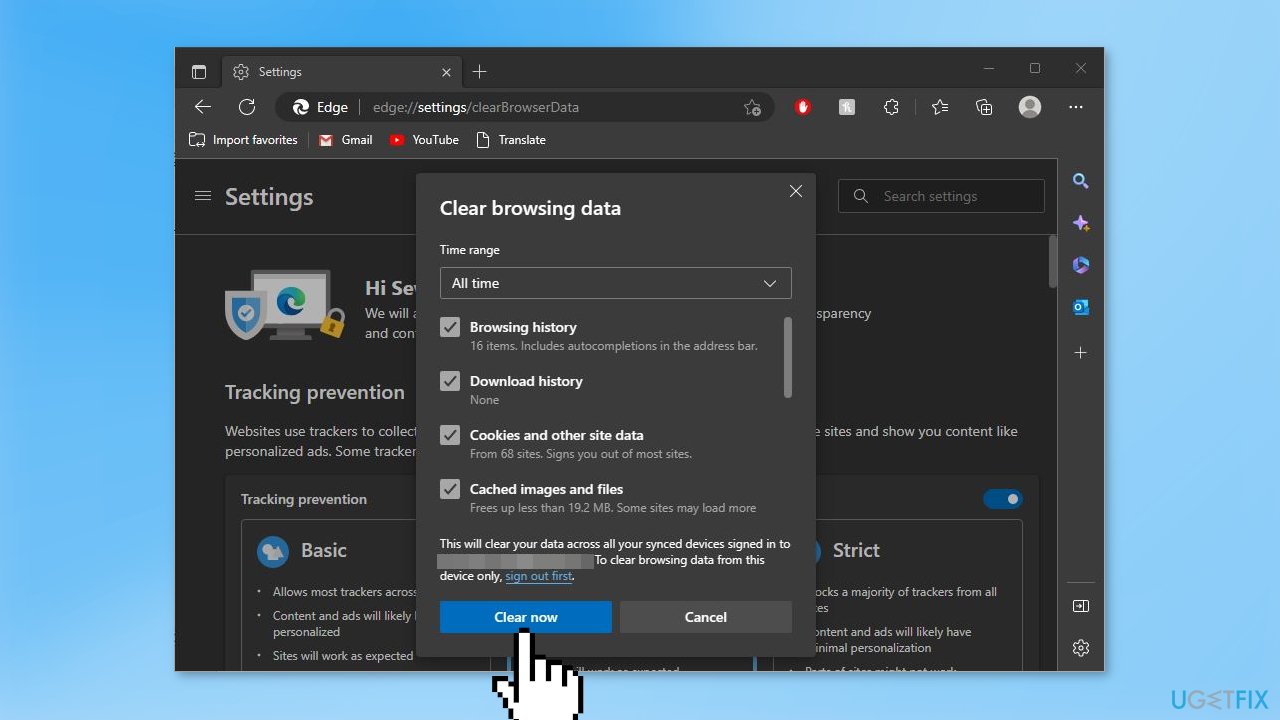
- Check Cookies and other site data and Cached images and files
- Click Clear now
Method 5. Switch to Balanced Tracking Prevention
- Click the three-dot icon in the taskbar of Edge and select Settings
- Go to the Privacy, search, and services tab
- Under the Tracking prevention section, choose Balanced
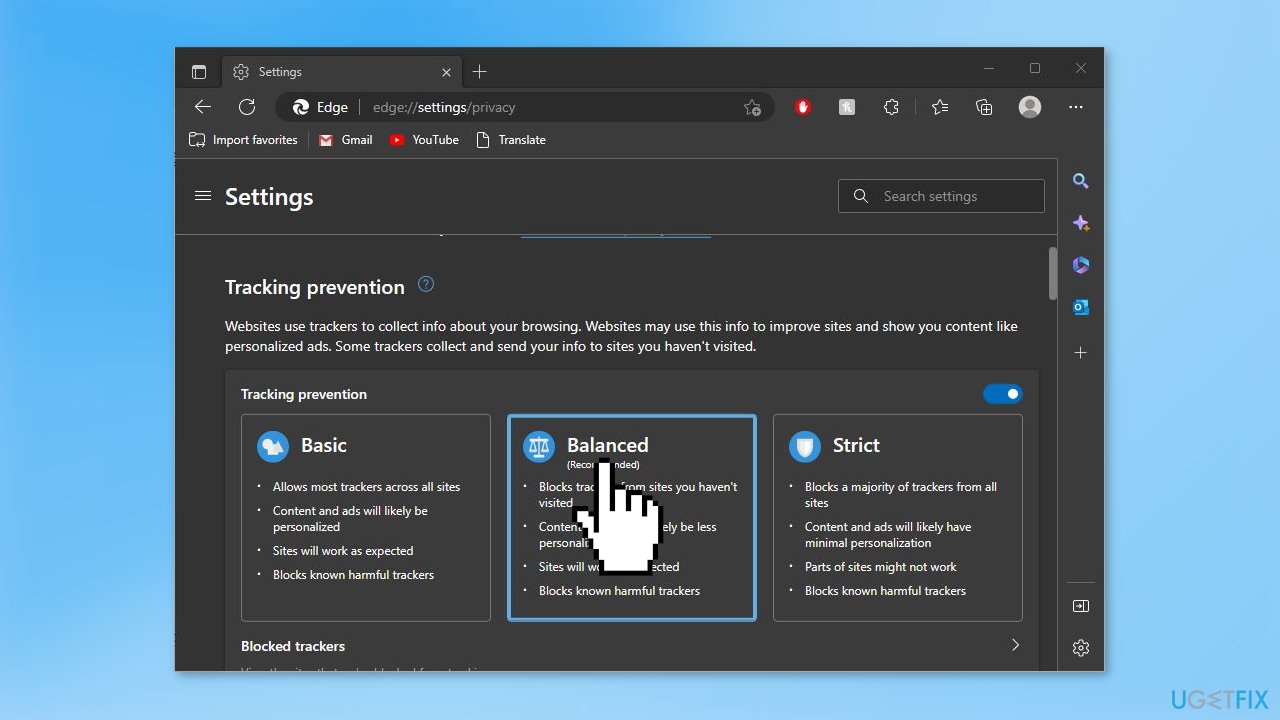
Note: Do not turn on Always use Strict tracking prevention when browsing InPrivate
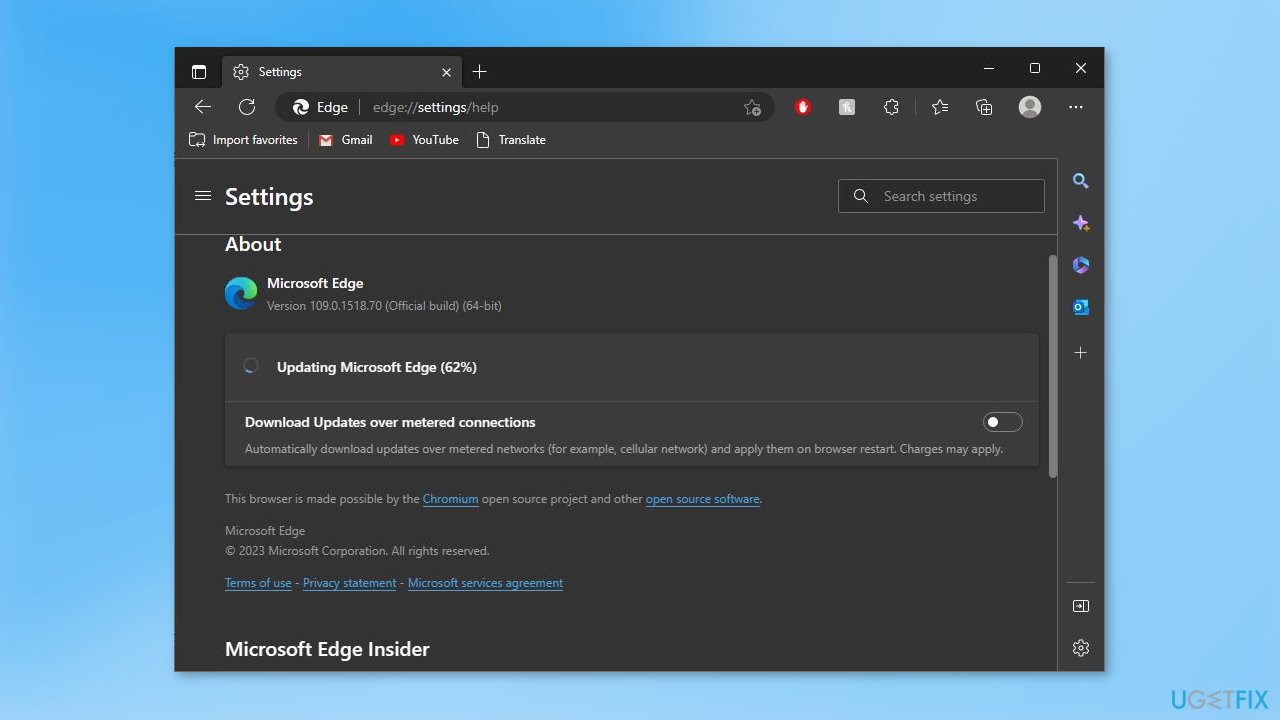
Method 6. Update Microsoft Edge
- Click on the three-dot icon in the Edge taskbar and select Settings
- Go to About Microsoft Edge in the left panel
- You can see the current version of Edge
- If it needs to be updated, follow the instructions on the screen to complete the process
Bottom line
To fix Microsoft Edge not loading images, you can disable extensions, try using an InPrivate window, clear the browser's cache and cookies, or check your network connection. If these solutions do not resolve the issue, consider using a maintenance tool to fix system errors.
Frequently asked questions
Images may not load in Microsoft Edge on Windows 10 due to issues with the browser's cache, internet connection problems, or incorrect settings. Try clearing the cache or checking your network connection to resolve this issue.
In Windows 11, ensure that the 'Show pictures' option is enabled in Edge's settings under Privacy, search, and services. Additionally, check if any extensions are blocking image loading.
To reset Microsoft Edge in Windows, go to Settings > Reset settings and select 'Restore settings to their default values.' This can often resolve persistent image loading problems.




Report an issue
What's wrong with this guide? We review every report and update or remove content.
Report received — thank you. We'll review and fix it.
You need a free account to submit a report.
Be the first to comment