How to fix
Microsoft Edge Saving Downloaded Files in .txt Format Issue
on Windows
Resolve the Microsoft Edge issue of downloaded files saving as .txt on Windows 10 and 11 quickly and effectively. Expert-tested solutions included.


What causes How to Fix Microsoft Edge Saving Downloaded Files in .txt Format Issue on Windows?
- Missing counters2.dat file
- Errors in Microsoft Edge browser
- Issues related to certain Windows user accounts
- Incorrectly installed Windows update
Repairs Windows system files, removes malware, and restores a clean OS state — without reinstalling.
I have a really annoying issue. Microsoft Edge browser saves downloaded files as .txt files. Reloaded the browser, restarted the computer. Nothing worked. Should I go for System Restore? I hope this issue does not require reinstalling Windows…
Microsoft Edge Saving Downloaded Files[ref en-1] in .txt format might be the result of a missing counters2.dat file. There is also a possibility that the very browser might contain errors. Some users also discovered that the issue might be related with certain Windows user accounts[ref en-2].
Fortunately, there are several solutions for this program. You can perform System Restore and then reinstall the browser. However, the former option might take some time. It solves the issue but you should try other workarounds.
In addition, Microsoft Edge error to save downloaded files in .txt format might be the result of incorrectly installed Windows update. Make sure that all latest updates are installed properly. If necessary, reinstall them. You can do so directly from your PC settings or from Windows Update Catalog.
Option 1. Create a new Windows user profile
Step 1.
If you noticed the issue only on a certain user profile, follow these steps:
- Launch Microsoft Management Console. Click on Start and type mmc in open space or in the search bar (on Windows 7) into the search box. Press Enter. Enter administrator password, if required.
- In the left pane, opt for Local Users and Groups.
If you don't see Local Users and Groups, it's probably because that snap-in hasn't been added to Microsoft Management Console. Follow these steps to install it:
- In Microsoft Management Console, choose File menu, and opt for Add/Remove Snap-in.
- Select Local Users and Groups, and then Add.
- Choose Local computer, click Finish and OK.
- Click on Users folder.
- Select Action section, opt for New User.
- Type the required details in the dialog box, and the finish the action by clicking on Create.
- Once you are finished, select Close.
- Reboot the PC.
Here are the instructions for Windows 10 users:
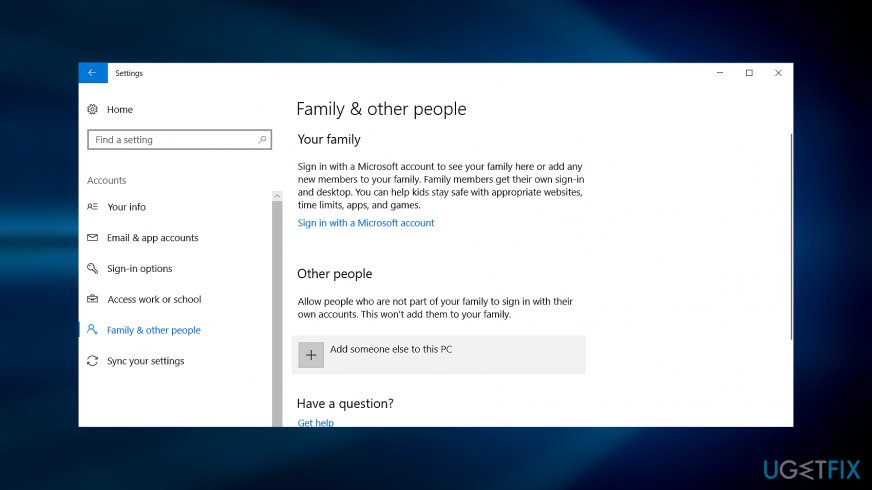
- Click on Start button, go to Settings, Accounts, then Family & other people. Click on Add someone else to this PC.
- Enter the necessary information and follow the instructions.
Step 2.
In order to copy the existing files from the corrupted account, follow this guide:
- Log on to the corrupted account.
- Go to My Computer and then My Documents folder.
- Opt for the View tab, and then choose Show hidden files, folders, and drives.
- Remove the checkmark from Hide protected operating system files check box. Click Yes and then OK.
- Find the C:\\Users\\Old_Username folder (where your user data is located).
- Mark all of the files and folders in this folder, except the following files:
- Ntuser.dat
- Ntuser.dat.log
- Ntuser.ini
Right-click on the marked files and choose Copy command. Find the C:\\Users\\New_Username folder. Right-click on a blank space and choose Paste function. Log off, and then log back to the newly created account.
Option 2. Rename the system file
Note that this is applicable only to selected users who have Old Timer TFC software[ref en-3]. It meddles with Microsoft Edge files in Windows 10, so if you intend to upgrade, consider whether the latter software is necessary.
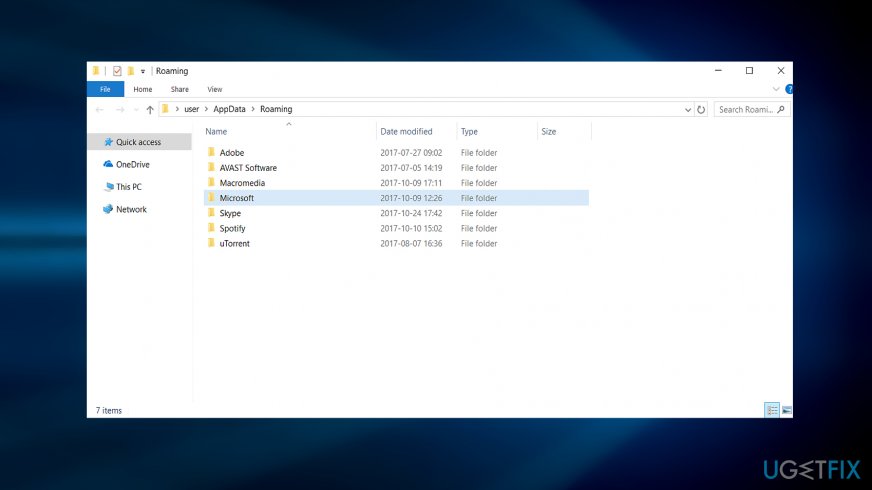
- Open File Explorer. Go to the following location (in order to get into Appdata folder, click on Windows key+R, type %AppData%) – C:\\Users\\AppData\\Local\\Microsoft\\Windows\\NetCache
- Find counters2.dat file. Right-click on it. Select Properties and rename the file format into a random one. This method is not verified and might workout only to some users.
Bottom line
To fix the issue of Microsoft Edge saving downloaded files in .txt format, you can create a new Windows user profile or ensure that all latest Windows updates are installed properly. If these solutions do not resolve the problem, consider performing a System Restore or reinstalling the browser.
Frequently asked questions
This issue may occur due to incorrect file associations or Edge settings. You can fix it by checking the default file type settings in Edge and ensuring that the correct file format is selected during downloads.
To change the file format, you can right-click the downloaded file, select 'Rename', and change the extension back to the desired format. Additionally, ensure that Edge is updated and your settings are configured to handle downloads correctly.
If resetting Edge doesn't help, try clearing the browser cache and cookies, or consider reinstalling Microsoft Edge to restore its default functionality on Windows 10 or Windows 11.




Report an issue
What's wrong with this guide? We review every report and update or remove content.
Report received — thank you. We'll review and fix it.
You need a free account to submit a report.
Be the first to comment